Ask AI brings AI-first workspace directly into HighLevel so users can create content, get answers, generate assets, and complete real actions across the platform — all without leaving the interface. This article covers what Ask AI is, who can access it, its full range of capabilities, how to use it, and common use cases.
Ask AI is HighLevel's built-in AI workspace a copilot with conversational interface that lets users create content, retrieve data, take action on platform features, and get answers using plain language. Instead of navigating through multiple menus and screens, users can describe what they want to do in a single prompt and Ask AI handles it.
Ask AI is deeply integrated with HighLevel's platform. It can read data, create records, update settings, generate content, manage contacts, run bulk actions, and coordinate across dozens of modules all from one chat interface. It supports both typed prompts and voice input, and is available in a sidebar panel or in a full-screen workspace for focused, high-volume work. It is also available on the HighLevel, LeadConnector, and white labeled mobile apps, allowing supported users to access the Ask AI workspace from mobile.
Note: To generate personalized or branded content, configure your Brand Voice in Marketing > Branded Content > Brand Voice before using Ask AI for content tasks.
Who Can Access Ask AI?
User Type
Access
Agency Admins
Full access — Agency and Sub-account views
Agency Users
Full access — Agency and Sub-account views
Sub-account Admins
Available on the Pay per Use, $50 AI Growth & $97 AI Employee Plans
Sub-account Users
Available on the Pay per Use, $50 AI Growth & $97 AI Employee Plans
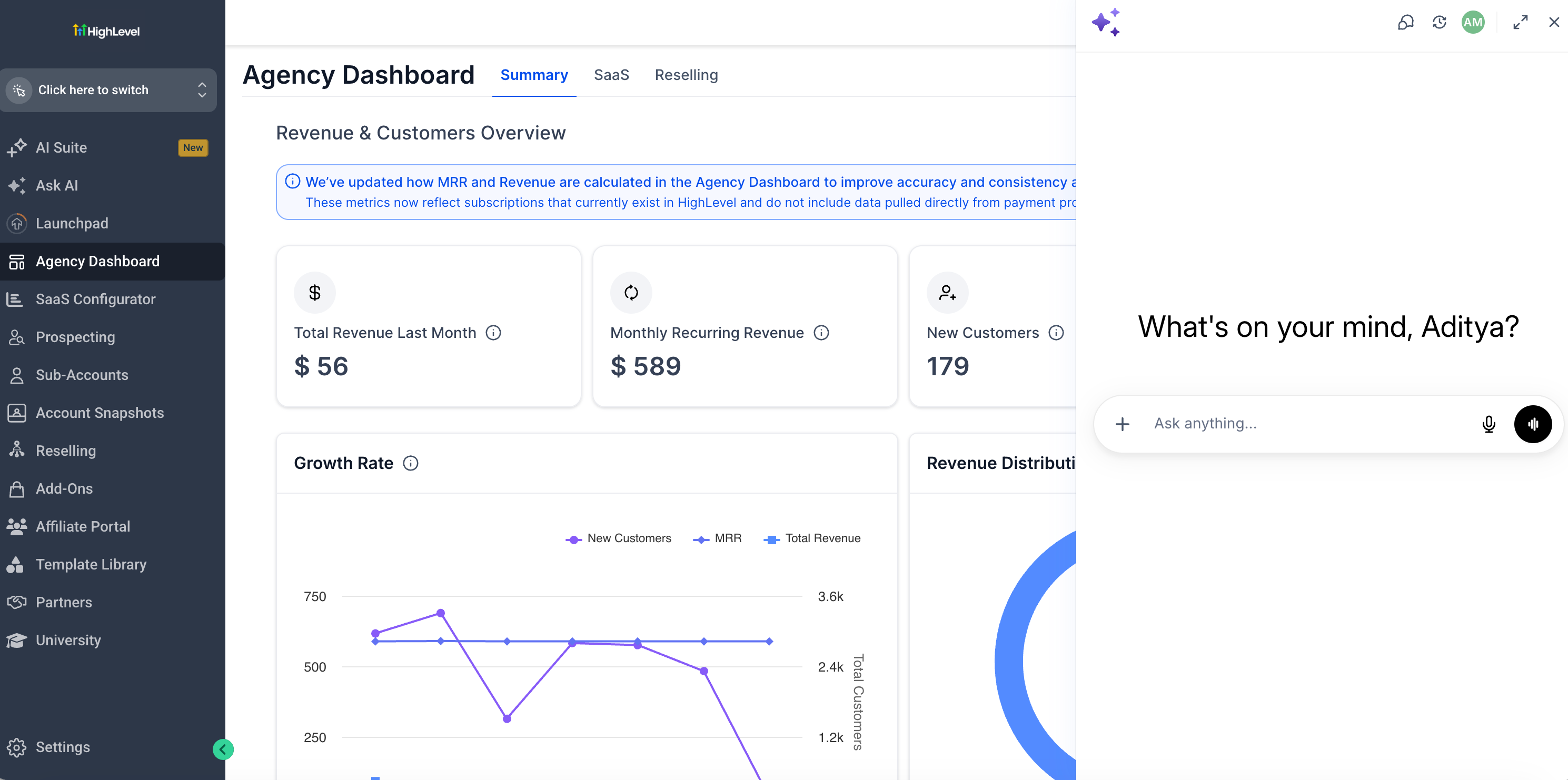
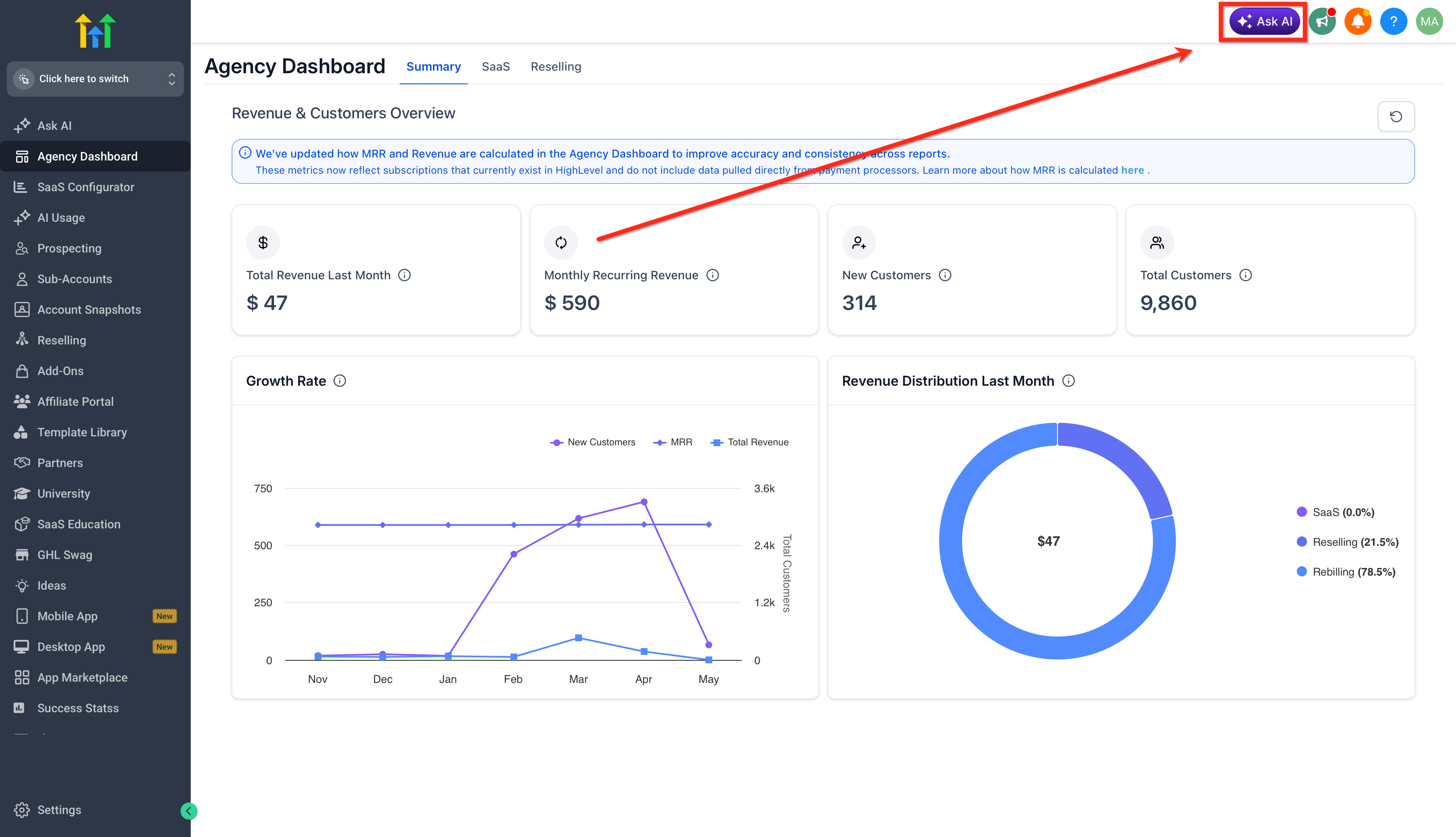
Ask AI can be found in the top navigation bar of your HighLevel account. Click the Ask AI icon to open the chat panel and enter your prompts.
Mobile availability: Ask AI on the HighLevel, LeadConnector, and whitelabeled mobile apps is currently available to Agency Admins.
Core Capabilities of Ask AI
Ask AI covers three broad capability types as your copilot: content and image generation, CRM platform actions, and data retrieval / updates for your accounts. The table below outlines the major capability groups with example prompts.
Capability
Description
Example Prompts
Branded Content Generation
Generate on-brand content using your Brand Voice settings for emails, social posts, ads, blogs, and campaigns.
“Write a Facebook ad post using my brand voice.”
“Draft a promotional email for our summer sale.”
Image Generation & Editing
Generate and edit images for campaigns, websites, emails, and social posts directly inside HighLevel.
“Generate a hero image for a dental practice landing page.”
“Edit this image to add a darker background.”
CRM Actions & Data Retrieval
Create, update, search, and manage CRM records using plain-language requests across contacts, opportunities, pipelines, calendars, and more.
“Create a contact named Jane Smith with email jane@example.com.”
“Show me all open opportunities in the Sales pipeline.”
Bulk Actions
Execute mass updates across contacts, send bulk SMS, or bulk email to entire lists.
“Send a follow-up SMS to all contacts tagged Webinar-July.”
“Tag all contacts from last month's campaign as Q3-Lead.”
Blog & Content Writing
Draft, write, and publish blog posts with AI assistance, including SEO optimization and structured formatting.
“Write a 1,000-word blog post on the benefits of SMS marketing.”
“Generate 5 blog post title ideas for a real estate agency.”
Funnel Creation Agent
Create funnels through a guided AI experience using business details, templates, and brand personalization.
“Generate a lead magnet funnel for a coaching business.”
“Create an appointment funnel for a dental practice.”
Contact Summary Agent
Summarize contact records — including communications, payments, appointments, and tasks — without reviewing multiple tabs.
“Summarize this contact's history.”
“What should I know before following up with this lead?”
AI Agent Management
Create, configure, and manage Conversation AI chat agents and Voice AI phone agents directly from Ask AI.
“Create a new AI chat agent for my dental practice.”
“Set up a voice agent for appointment booking calls.”
Support & Knowledge Base Search
Search HighLevel's help content and get guided answers to platform questions, troubleshooting, and feature how-tos.
“How do I set up A2P registration?”
“Why isn't my email domain verified?”
Ad Campaign Management
Create, list, and review campaign performance across Google, Facebook, and LinkedIn ad platforms.
“Show me my top-performing Google campaigns.”
“Create a new Facebook lead generation campaign.”
Scheduling & Automation
Schedule tasks to run at a future time or on a recurring schedule from within Ask AI chat.
“Send me a contacts report every Monday at 9am.”
“Remind me to follow up with this contact in 3 days.”
Marketplace App Discovery
Find relevant Marketplace apps and integrations by describing a business need or use case in natural language.
"Is there an IDX integration for real estate available?"
Full List of HighLevel Products Ask AI Can Control
Ask AI is connected to over 50 modules inside HighLevel. Here is a complete breakdown of what it can see, understand, and take action on, grouped by area.
1. Contacts & CRM
Module
What Ask AI Can Do
Contacts
Search, create, update, and delete contacts; manage tags, tasks, notes, followers, campaign assignments, workflow enrollments, and business associations
Conversations
Create conversations, send and schedule messages, cancel scheduled messages, add inbound messages, and log outbound calls
Opportunities & Pipelines
Create and search opportunities, update stages and values, create and retrieve pipelines
Businesses
Create, update, delete, and retrieve business records
Companies
Retrieve company information
Associations
Create and delete associations and relations between entities
Guided flow to write, target, and send or schedule your first SMS campaign
Blogs
Create blog sites and posts, manage authors and categories, AI-assisted drafting and editing
Social Planner
Connect and manage Facebook, Instagram, LinkedIn, and TikTok accounts; schedule and publish social posts
Ad Manager
List ad campaigns, review cross-platform performance, create Google Search/Demand Gen, LinkedIn Lead Gen/Website Visits, and Facebook campaigns
Forms
Retrieve forms and submissions, upload files to custom fields
Surveys
Retrieve surveys and submissions
Trigger Links
Create, search, update, and delete trigger links
Documents & Proposals
List templates and documents, send documents to contacts
3. Funnels, Sites & Media
Sr
Module
What Ask AI Can Do
1
Funnels
Fetch funnels and funnel pages, create and manage redirects
2
Media Library
Upload, organize, trash, and delete files and folders; manage Google Drive as a media storage source
4. Calendars & Scheduling
Module
What Ask AI Can Do
Calendars
Connect Google Calendar (OAuth, 2-way sync), create/update/delete calendars, appointments, block slots, calendar groups, and schedules
5. Payments & Commerce
Module
What Ask AI Can Do
Invoices
Create invoices, schedules, and estimates; manage auto-payment and invoice cancellation
Payments
Connect Stripe, create coupons, set up integration providers, manage order fulfillment
Products
Create, update, and bulk-edit products and prices; manage product collections and reviews
Store
Create and manage shipping carriers, zones, rates, and store settings
6. Courses & Memberships
Module
What Ask AI Can Do
Courses / Memberships
Create course products, categories, posts/lessons, quizzes, assignments, and offers
7. AI & Automation
Module
What Ask AI Can Do
Conversation AI
Onboard, create, update, and delete AI chat agents; manage agent actions and dashboards
Voice AI
Onboard, create, update, and delete Retell voice agents; manage call logs and agent actions
Agent Studio
List, retrieve, and execute AI agents
Workflows
Retrieve and list existing workflows (read-only — see Limitations)
Campaigns
Retrieve and list existing campaigns (read-only — see Limitations)
8. Reputation & Reviews
Module
What Ask AI Can Do
Reputation
Connect Google for reviews, create AI review agents, manage review request settings and email templates
9. Phone & Messaging
Module
What Ask AI Can Do
Phone System
Search and purchase phone numbers, manage number pools, create and manage WhatsApp templates and flows
A2P Registration
Full A2P Trust Center registration workflow, brand submission, TCR polling, and resubmission on rejection
Phone Regulatory
Manage regulatory bundles and addresses, upload supporting documents, check bundle approval status
10. Reporting & Data
Module
What Ask AI Can Do
Reporting / Dashboards
Fetch full dashboard data and per-widget metric values
Custom Fields
Create, update, and delete custom fields and folders using natural-language requests. Ask AI can identify custom fields by name, so you do not need to provide a Field ID. It supports custom fields for Contacts and Opportunities, as well as Custom Object fields.
Custom Menus
Create, update, delete, and retrieve custom menu links
Knowledge Base
Create and delete knowledge bases, manage FAQs and trained pages
Brand Boards
Create, update, and delete brand boards and brand voices
11. Account & Settings
Module
What Ask AI Can Do
Users
Create, delete, filter, and retrieve user records
Sub-Accounts / Locations
Create sub-accounts, manage tags and custom values
Snapshots
Get snapshots, create share links, track snapshot push history
SaaS
Create and update plans, manage subscriptions, wallet, and rebilling
Email Domains
Add sending domains, retrieve DNS records, verify domain configuration
Email Verification
LC Email verification
Google Integration
Check Google OAuth connection status for Calendar, Gmail, Drive, and Ads
Facebook Leads
Connect Facebook, configure lead gen form field mappings, sync historical leads
Facebook Messenger / Instagram DMs
Connect pages, enable inbound messages to Conversations inbox
Marketplace
Discover relevant Marketplace apps from natural-language requests, retrieve installer details, manage wallet charges, and configure rebilling.
OAuth
Retrieve access tokens and location access tokens
Reading Ask AI Responses
Ask AI responses appear in the conversation view and may include paragraphs, headings, bullet points, numbered steps, structured tables, interactive question inputs, charts, data tables, and copyable code blocks. Responses are formatted to make longer answers easier to scan and act on.
For multi-step tasks, Ask AI displays a live task tracker that shows which steps are complete, in progress, or pending so users always know where a complex action stands.
Some structured responses may appear in collapsible cards to keep longer conversations organized. Users can expand details only when needed.
Navigating Ask AI Conversations
The Ask AI sidebar helps users manage conversations from one place. Users can review previous sessions, return to an existing conversation, or start a new chat when they want to begin a separate task.
If no conversations are available yet, the sidebar empty state helps users understand that they can begin by starting a new conversation or using a suggested prompt.
How to Use Ask AI Assistant
Ask AI can be opened from both Agency and Sub-Account views, giving users quick access to AI-powered assistance while working in HighLevel. Users can launch Ask AI from the top navigation bar, open the dedicated Ask AI workspace from the left sidebar, or access Ask AI through supported contextual workflows such as Ecommerce Store setup.
Access Ask AI from the Top Navigation
The top navigation route is useful when users want quick access to Ask AI from anywhere in HighLevel. This is the fastest way to open the assistant while working in another area of the platform.
Click on the Ask AI icon in the top navigation bar.
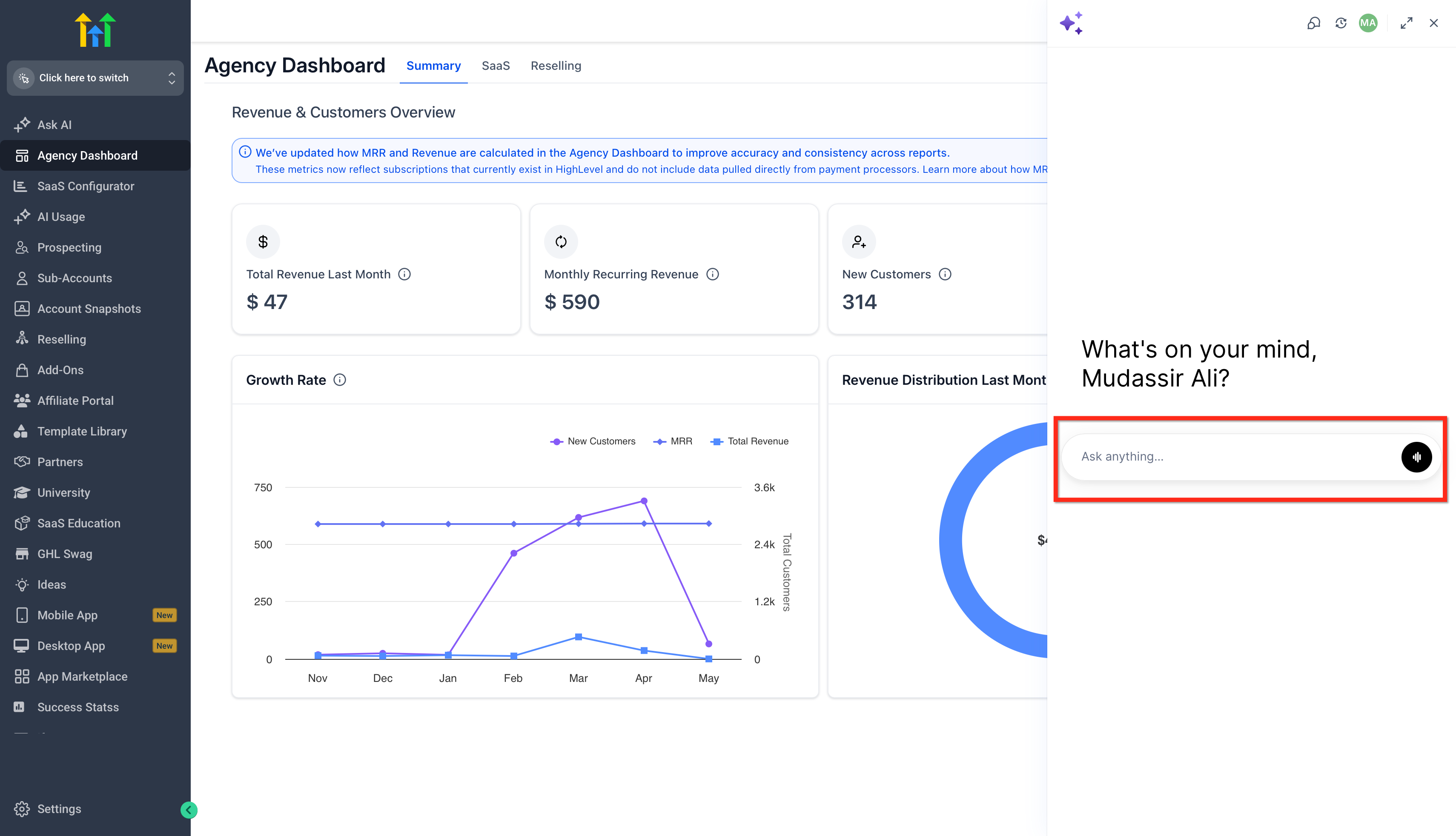
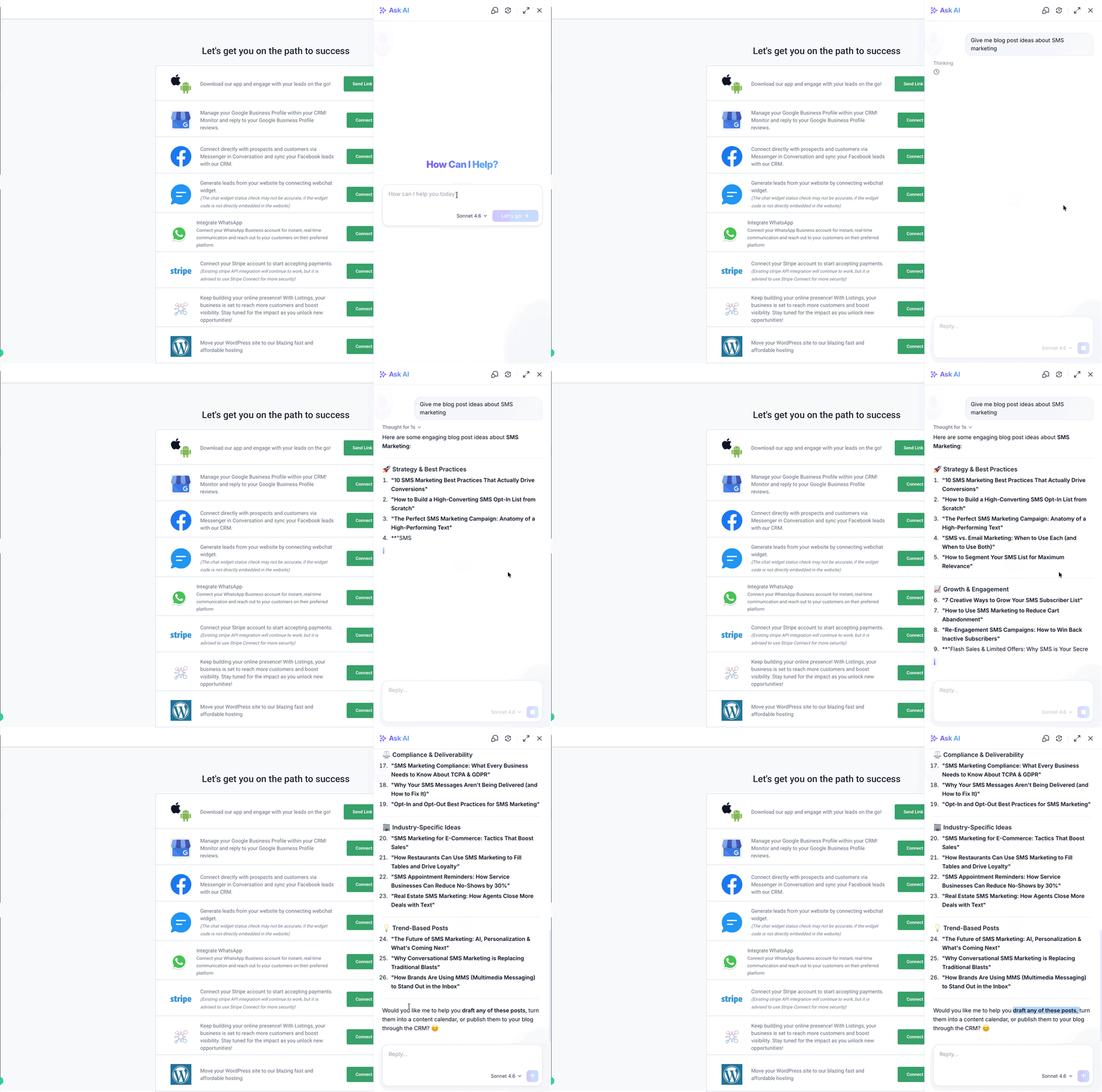
Type in or Speak what you need: content, a new community, ideas, or questions.
The bot will guide you or respond instantly with what you asked for.
You can start with something like:
“Give me blog post ideas about SMS marketing.”
“Write a Facebook ad post using my brand voice.”
“Help me set up a community for local business owners.”
You can also view the chat history, and go back to older chats directly by toggle next to the full-screen toggle.
Access Ask AI from the Left Sidebar
Ask AI opens in a full-screen workspace, so it is not a chatbot tucked in a corner. Use it to focus on real work and complete higher-volume tasks without leaving HighLevel. You can access Ask AI from the left navigation at both the Agency and the Sub-account level.
1. In your account, look at the left navigation panel.
2. Click Ask AI (it appears as a dedicated menu item).
3. In the Ask AI workspace, you can:
Click New chat to start a fresh thread.
Use Search to find previous conversations (if available).
Access Ask AI from Global Search
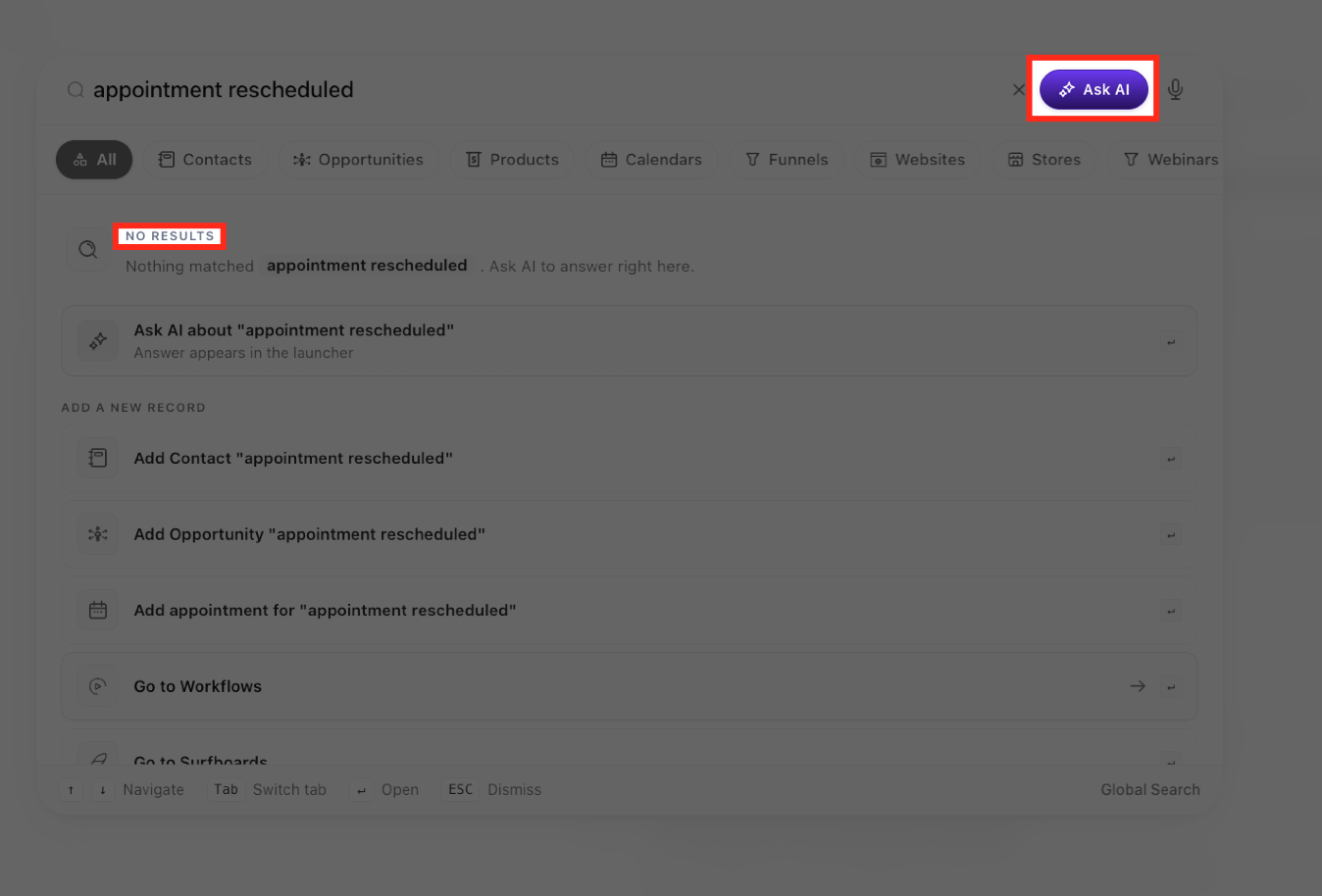
Global Search provides an additional way to access Ask AI when a search does not return any matching results. Users with Ask AI access can send their existing search query to Ask AI without retyping it or leaving the Global Search experience.
1. Open Global Search and enter your search query.
2. If Global Search returns no matching results, select the Ask AI option.
3. Review the first Ask AI response directly inside Global Search.
4. To continue the conversation, select Continue in Ask AI.
5. Ask AI opens with the existing query and conversation context so you can continue without starting over.
Ask AI Use Cases
Category
Example Prompts
Contacts & Pipeline Management
“Find all contacts tagged 'Hot Lead' added in the last 30 days.”
“Create a contact: Maria Lopez, maria@example.com, +1-555-9876.”
“Move all opportunities in 'Proposal Sent' that haven't been updated in 14 days to 'Stalled'.”
“Add a note to John Smith's contact: Interested in the Pro plan, follow up Friday.”
Content & Campaigns
“Write a promotional email for a Black Friday sale using my brand voice.”
“Generate 5 subject line options for a re-engagement campaign.”
“Draft a 3-part SMS nurture sequence for new leads.”
“Create a blog post titled 'Top 5 Reasons to Use Automated Follow-Ups'.”
Image Creation
“Generate a professional banner image for a real estate open house event.”
“Create a square social media image for a summer sale promotion using our brand colors.”
Calendars & Appointments
“Show me all appointments scheduled for tomorrow.”
“Block off Friday afternoon on the main team calendar.”
“Create a new appointment calendar called Discovery Calls.”
Reporting & Insights
“Pull my dashboard metrics for this month.”
“How many opportunities were closed-won last week?”
“Show me the performance of my Google ad campaigns.”
Phone & Compliance
“Walk me through registering for A2P messaging.”
“Search for available phone numbers in the 512 area code.”
“Create a WhatsApp message template for appointment reminders.”
AI Agent Setup
“Create a new Conversation AI agent for my law firm's intake process.”
“Set up a Voice AI agent to handle inbound appointment booking calls.”
“Update my chat agent's greeting message.”
Platform Administration
“Create a new sub-account for Acme Roofing.”
“Add a user with admin access: jsmith@example.com.”
“Show me all active snapshots available for my agency.”
“Verify the DNS setup for our new email sending domain.”
Marketplace Discovery
“Find an IDX integration for real estate.” “Show me Marketplace apps for lead generation.”
Current Limitations
Ask AI is expanding rapidly. The following areas are currently read-only or not yet connected:
Area
Limitation
Workflows
Read-only — Ask AI can retrieve and list workflows but cannot create, build, or edit workflow steps and actions
Campaigns
Read-only — Ask AI can list campaigns but cannot create or edit them
Affiliate Manager
Not yet connected — no visibility or control
Listings / Yext
Not yet connected — cannot manage business listing syncs
Chat Widget
No standalone configuration — cannot deploy or configure chat widgets directly
Website Builder (Sites)
No direct access — only Funnels are available; the full Sites/Website builder is not connected
Raw Call & SMS Logs
Not directly accessible — call and message data surfaces only through the Reporting dashboard
Automation Execution History
Cannot drill into individual workflow run/execution logs
IVR / Call Routing
Can purchase phone numbers but cannot configure call routing trees or IVR menus
These areas are on the product roadmap and will be added in future updates.
Frequently Asked Questions
Q: Is Ask AI available on all plans?
Ask AI is available to all Agency Admins and Agency Users. Sub-account Admins and Users require the Pay Per Use or $50 AI Growth Plan or $97 Unlimited AI Employee Plan.
Q: Will Ask AI ask me before taking irreversible actions?
Yes. For any write, update, or delete action, Ask AI will present a confirmation screen and require your approval before executing the change.
Q: Can Ask AI take action across multiple contacts or records at once?
Yes. Ask AI supports bulk actions including tagging, bulk SMS, and bulk email — and will always confirm the scope of the action before proceeding.
Q: Does Ask AI remember my previous conversations?
Yes. Conversations are saved and accessible from the sidebar. Ask AI also maintains persistent memory of preferences and facts you share over time, so it can personalize responses in future sessions.
Q: Can I use Ask AI by speaking instead of typing?
Yes. Click the microphone icon in the Ask AI input bar to use voice input.
Q: What is the difference between Ask AI and Conversation AI or Voice AI agents?
Ask AI is your personal AI Copilot inside HighLevel — it helps you get work done. Conversation AI and Voice AI are customer-facing agents that communicate with your contacts via chat and phone. Ask AI can actually help you build and configure those agents.
Q: Can Ask AI generate images?
Yes. Ask AI can generate new images and edit existing ones using your brand colors and style. Just describe what you need and it will create it inline in the chat.
Q: How do I get the best results from Ask AI?
Be specific. Include names, dates, pipeline names, tags, or any relevant context in your prompt. The more detail you provide, the more accurate and useful the response will be.
Was this article helpful?
That’s Great!
Thank you for your feedback
Sorry! We couldn't be helpful
Thank you for your feedback
Feedback sent
We appreciate your effort and will try to fix the article