This article explains how to use the Link Shortener feature inside HighLevel’s Social Planner. Link shorteners help keep your social media posts clean and concise by automatically converting long URLs into compact links in your post preview.
TABLE OF CONTENTS
- What is the Link Shortener?
- Key Benefits of the Link Shortener
- How to Use the Link Shortener in Social Planner
- Notes About the Link Shortener
- Frequently Asked Questions
- Related Article
What is the Link Shortener?
The Link Shortener is a built-in feature within Social Planner that automatically converts long, complex URLs into shorter, more manageable links in your post preview. While the full URL remains visible in your content editor, the shortened link is displayed in the live preview and in the published post itself.
This functionality helps improve the overall readability and visual appeal of your social content, especially when sharing URLs from blogs, landing pages, or external websites.
Key Benefits of the Link Shortener
- Clean posts: Keeps social posts uncluttered by shortening long URLs.
- Better experience: Improves user experience with concise, easy-to-read links.
- Auto-shortening: Automatically generates a shortened version of any long URL.
- Post preview: Shows how the final post will look with the shortened link.
- Cross-platform support: Works across all connected social platforms in Social Planner.
How to Use the Link Shortener in Social Planner
This step-by-step guide shows how to use the Link Shortener while composing social media posts:
- Navigate to Marketing > Social Planner from the left-hand menu.

- Click on + New Post > + Create New Post button.

- In the post composer, select the social media accounts where you’d like to publish the post.

- In the Content input box, add your content.
- Click the URL Shortener icon located next to the content editor.

- Add Name of the Link & Target URL.
- Setup Tracking Details:
- UTM Campaign (utm_campaign) - select or create a campaign.
- Add Custom UTM Parameters like source, campaign, etc.
- UTM Campaign (utm_campaign) - select or create a campaign.
- Click on Generate and Insert Link button.

- Once inserted:
- The preview pane will show a shortened version of the URL.
- The input field will still display the original long URL.
- The preview pane will show a shortened version of the URL.
- Review your post, and then choose Publish or Schedule to send it out at a later time.

Notes About the Link Shortener
Understand how the Link Shortener behaves and what features are planned for future release.
- Content Input vs. Preview: The long URL will remain in the input box so you can always see the full link you’re sharing. However, the shortened version will appear in the preview and be used in the final post.
- Click Tracking Is Coming: Analytics that show how many users clicked on your shortened links are currently in development and will be available in a future update.
- Auto Conversion: You don’t need to manually replace the link—just click the shortener icon, and it does the rest for you.
Link Tracking in Social Planner Statistics
Social Planner provides Link level performance analytics directly inside the Statistics page. This means that in addition to shortening links inside your posts, you can now track how those links perform after publishing.
The Link Shortener continues to shorten long URLs in your post preview and final published post. With URL Tracking, you can:
Shortened links and long URLs both appear in your performance analytics
Every link you publish becomes trackable automatically
You do not need to do anything extra for click tracking, it starts as soon as the post goes live
Campaign Names help you group multiple posts that share the same link
Note: Only the link created via Social Planner will be displayed in the statistics page.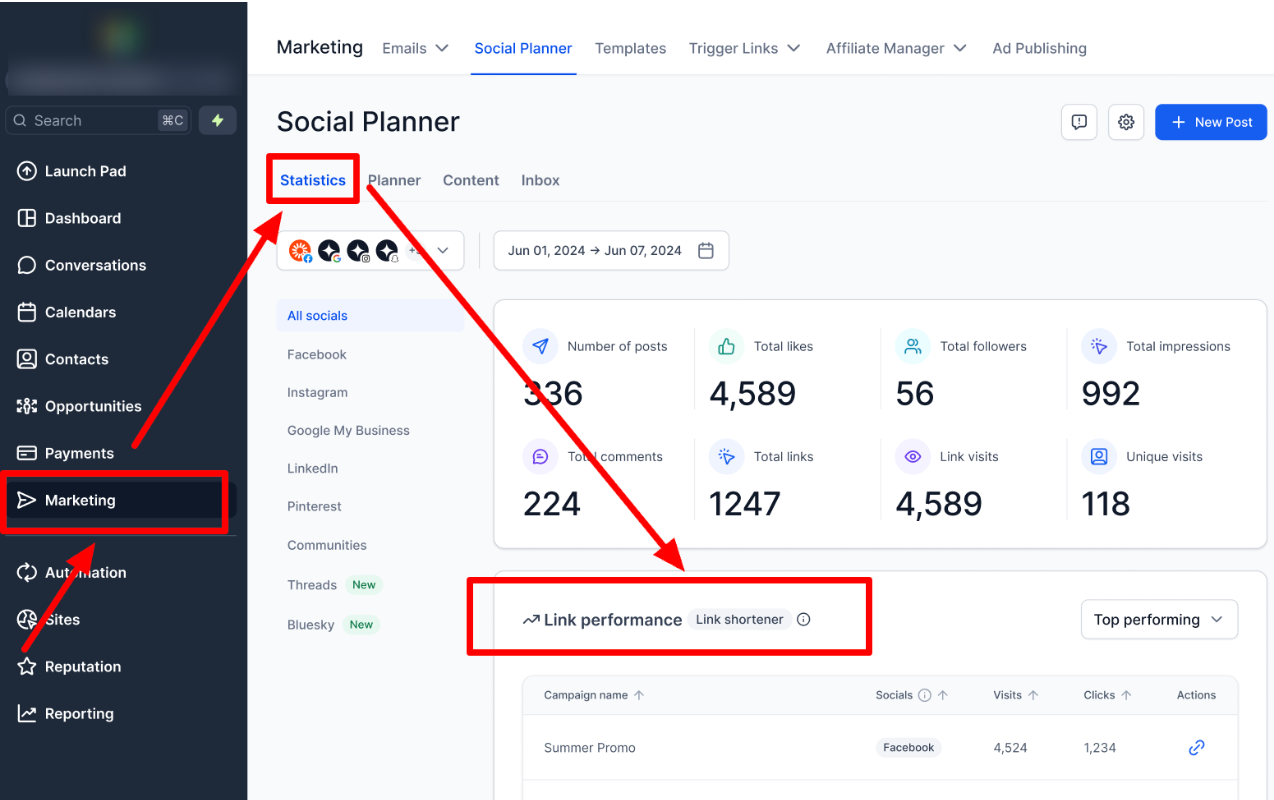
Link Click Analytics
Every URL you share through Social Planner is now measurable. You can track:
Total clicks on each shortened or original URL
Platform-wise performance (Facebook, Instagram, LinkedIn, etc.)
Trends over time
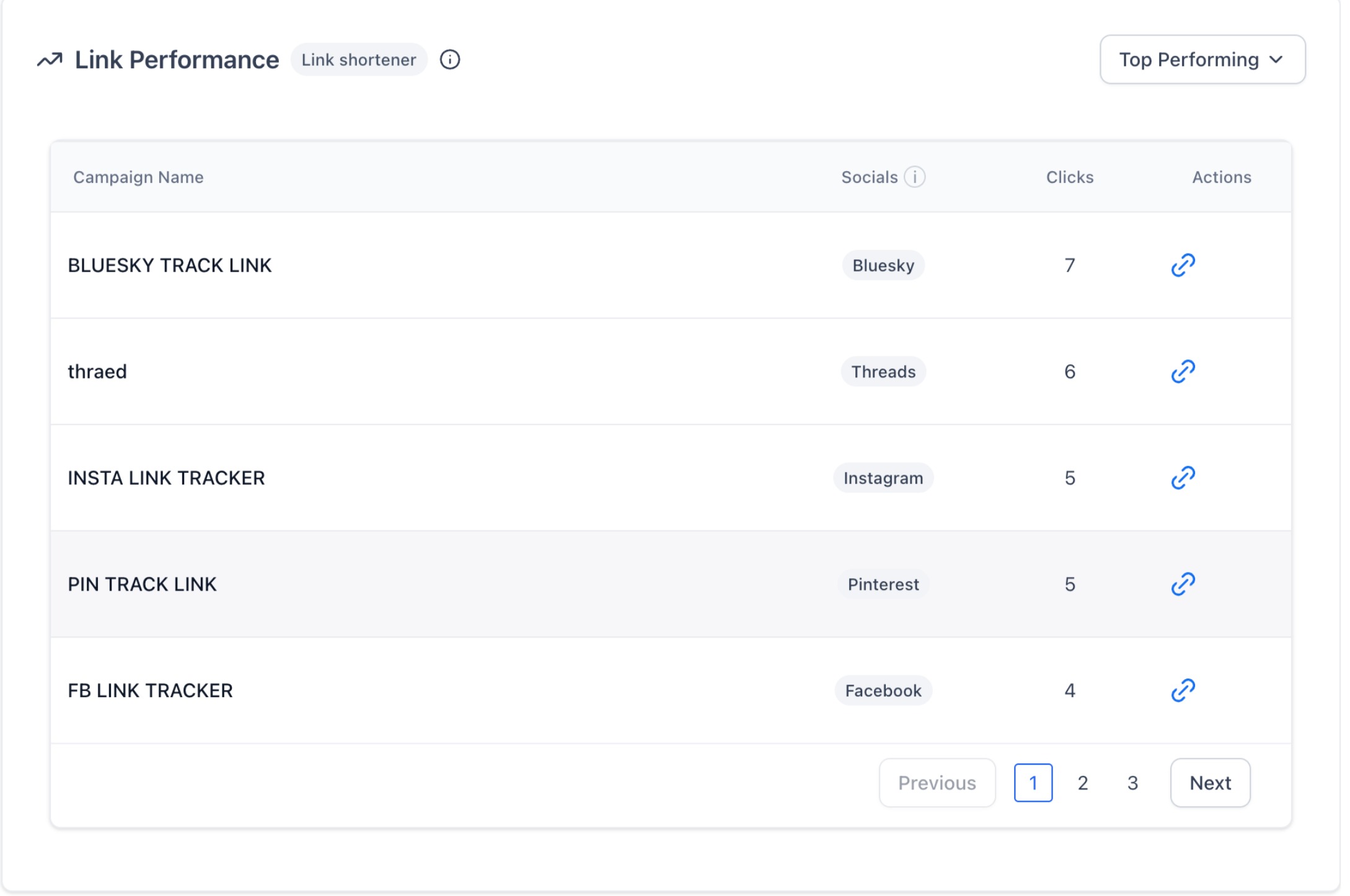
Campaign Tracking
When composing a post, you can assign a Campaign Name to your link. All posts using that same link + campaign are grouped together in analytics, helping you compare and understand performance across posts and channels.
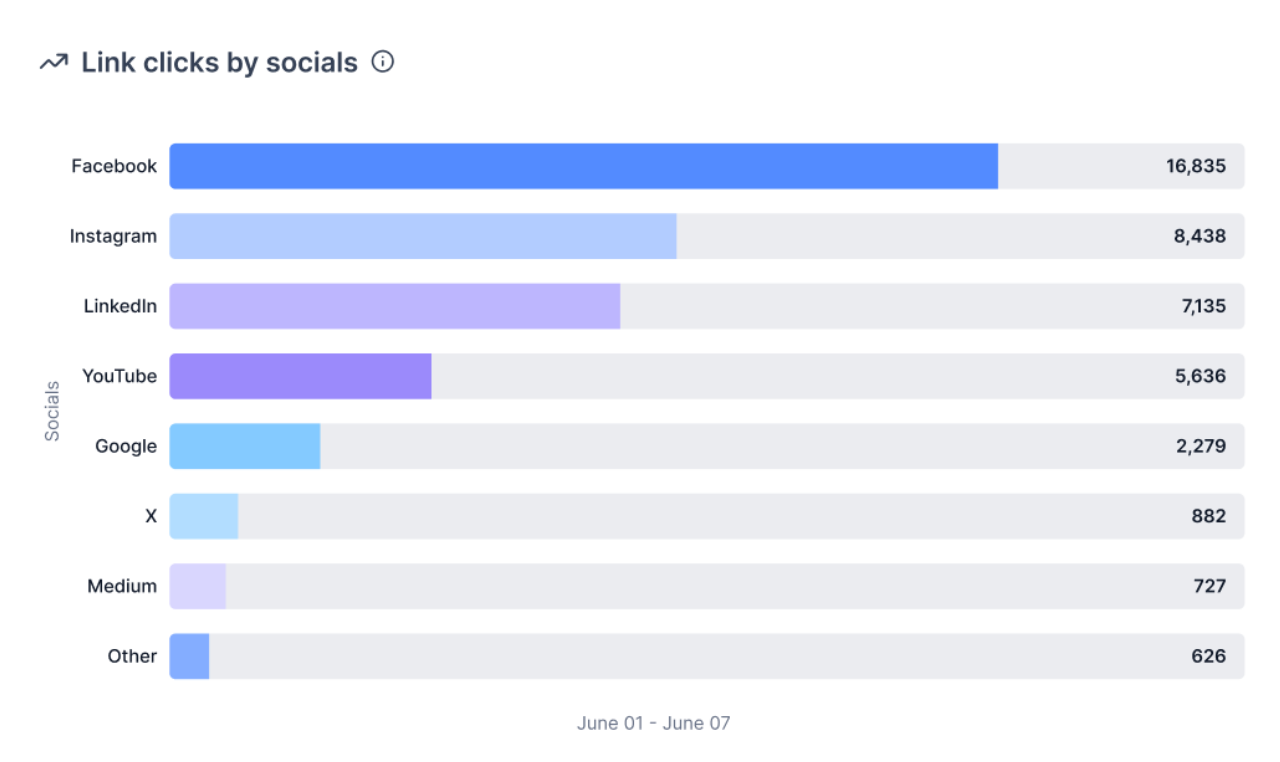
Filters & Sorting
Inside Marketing → Social Planner → Statistics → URL Tracking, you can now filter Top performing and low performing.
Quick URL Preview
Selecting any URL will show a preview panel so you can see exactly which link you are analysing.
Frequently Asked Questions
Q: Will my social post show the long or short link?
The published post will display the shortened link. The long URL is only visible to you in the content editor.
Q: Why UTMs matter when using a shortener?
When you use a link shortener without UTMs:
Analytics might just show traffic as “direct” or generic “referral”
You can’t easily distinguish performance between:
Facebook ad vs. Facebook organic post
Email header link vs. footer link
One influencer vs. another
When you use a link shortener with UTMs:
You can:
Track campaigns properly in GA/other tools
Compare performance of different channels and creatives
Prove which specific link/placement is working
The shortener makes the long UTM-heavy URL look clean and clickable, but the UTM tags do the important reporting work.
Q: Can I customize or rename the short link?
Not yet. The short links are currently auto-generated and not editable.
Q: Does the Link Shortener work on all social platforms?
Yes, the shortened link will appear across all social platforms supported in Social Planner, including Facebook, Instagram, LinkedIn, and more.
Q: Can I still use my own external link shorteners like Bitly?
Yes, you can manually add shortened links from third-party services if preferred.
Related Article
Was this article helpful?
That’s Great!
Thank you for your feedback
Sorry! We couldn't be helpful
Thank you for your feedback
Feedback sent
We appreciate your effort and will try to fix the article