Custom Objects List View makes it easier to review, organize, and manage custom object records in HighLevel. It provides a clean table layout, flexible field visibility, and quick sorting options so you can find the right information faster. Use it to tailor how your team views records without changing the underlying data.
TABLE OF CONTENTS
- Feature Overview
- View Custom Object Records in a List
- Sort Records Across Fields
- Not Supported Field Types For Sorting
- Customize Visible Fields and Layout
- Frequently Asked Questions
Feature Overview
A clear overview helps you understand what the List View enables so you can choose the best way to scan, sort, and customize your custom object data.
Table-Style Layout: View records in a structured grid for faster scanning.
Sorting Options: Sort by supported fields to prioritize what matters most.
Customizable Columns: Show/hide fields and adjust column layout for your workflow (including associated fields).
View Custom Object Records in a List
A list-based view is ideal when you need to quickly compare multiple records at once and locate details without opening each record individually.
Navigate to Custom Objects in HighLevel.
Open the List View for the custom object you want to review.
Browse records in the table to scan and locate the information you need.
Sort Records Across Fields
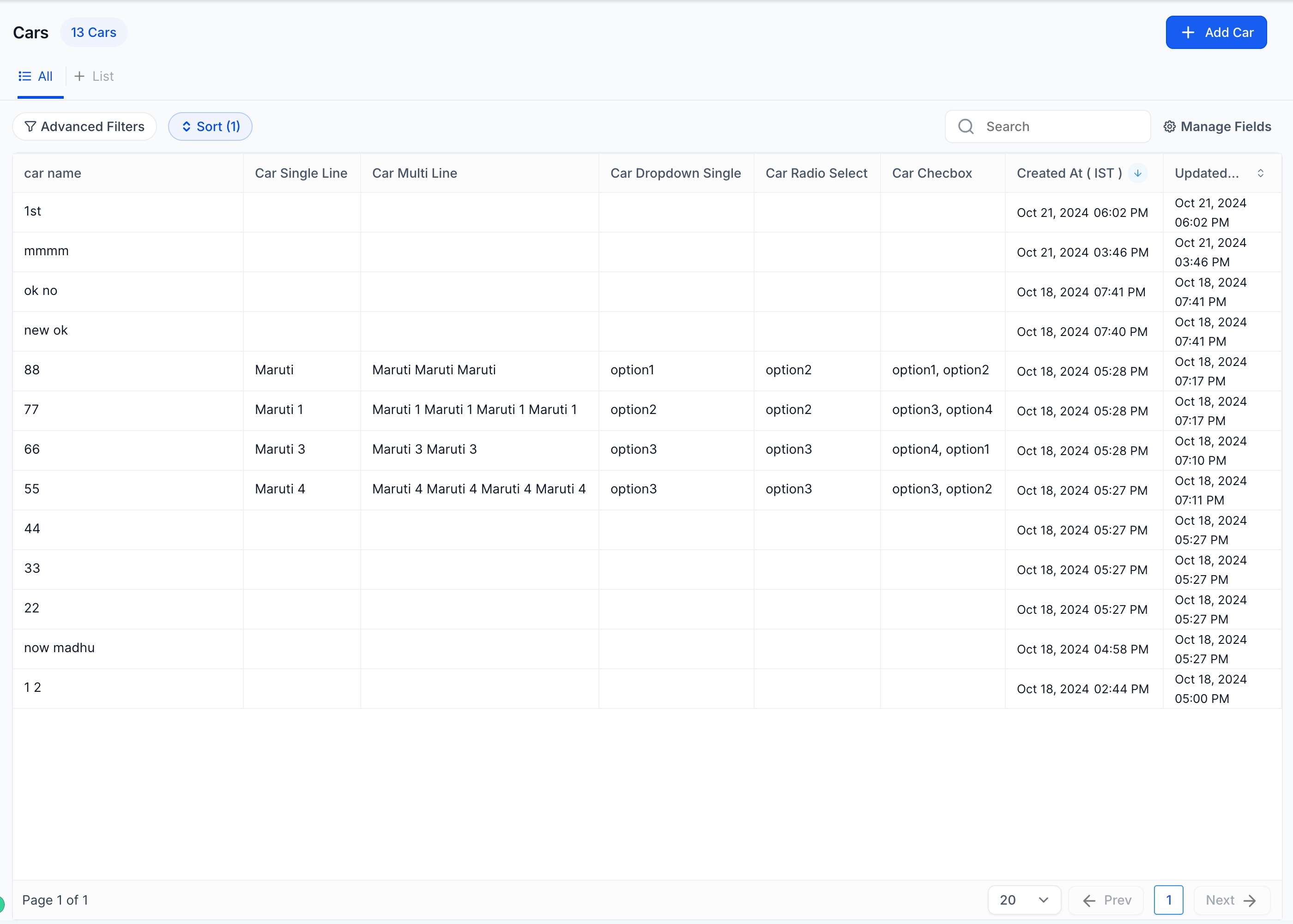
Sorting helps you surface the most relevant records first—whether you’re reviewing recent updates, prioritizing by a key field, or quickly grouping similar data together.
HighLevel supports sorting Custom Object list views using custom fields, in addition to Created and Updated fields.
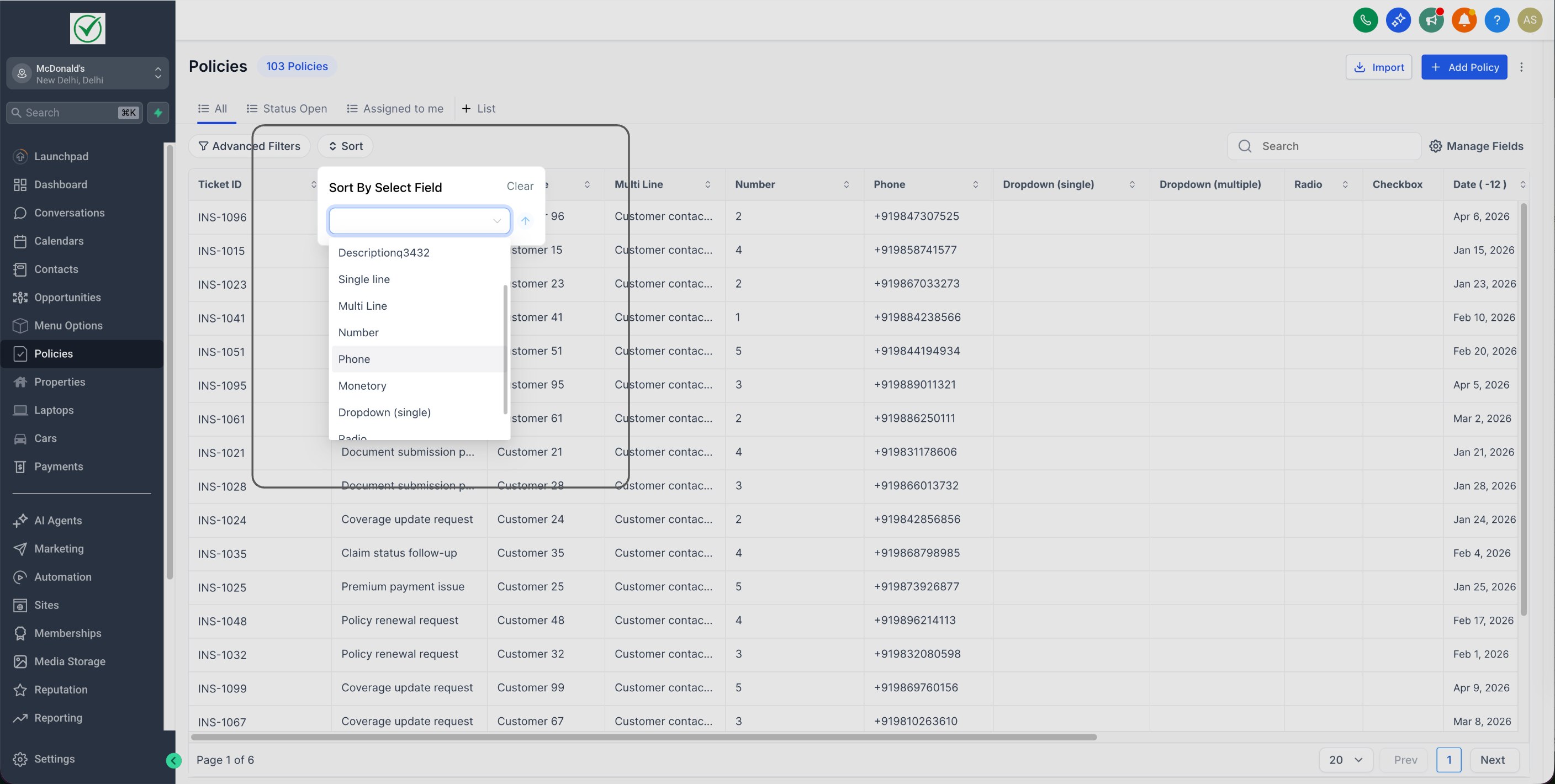
Option 1: Use the Sort Dropdown
Go to Custom Objects and open a List View.
Click Sort.
Select the field you want to sort by.
Choose Ascending or Descending.
Click Apply.
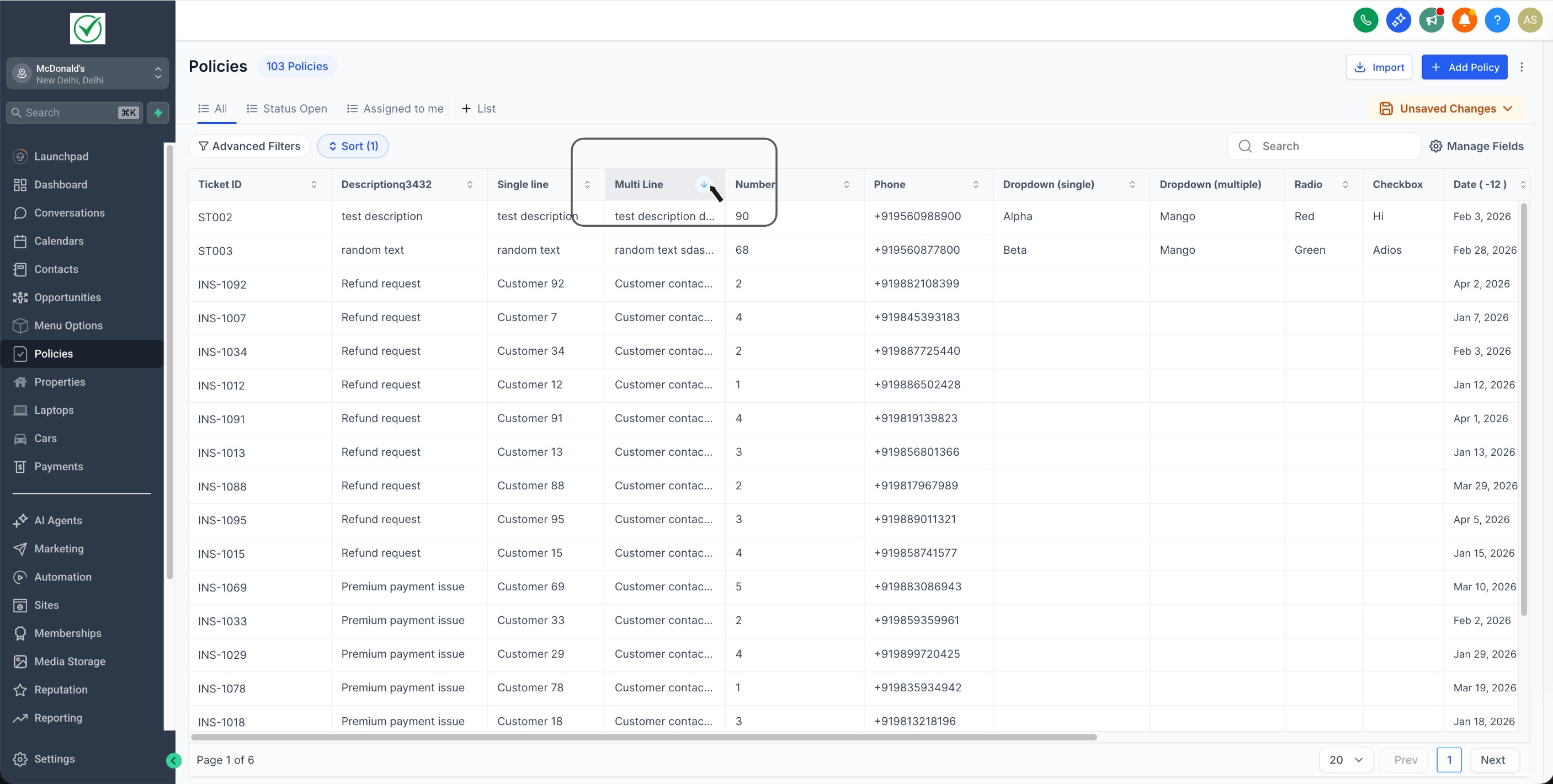
Option 2: Click a Column Header
In the table, click the column header for the field you want to sort by.
Click the same header again to toggle Ascending/Descending.
Not Supported Field Types For Sorting
Sorting does not support these custom field types:
Dropdown (Multiple)
Checkbox
Textbox List
Customize Visible Fields and Layout
A customized column layout keeps your team focused on the most important fields, reduces clutter, and creates a consistent view across everyday workflows.
You can tailor your List View by adjusting which fields appear and how they’re arranged:
Choose visible fields: Select which fields display as columns (including associated fields, where applicable).
Resize columns: Drag column edges to adjust width.
Reorder columns: Rearrange columns to match your preferred workflow.
Frequently Asked Questions
Q: Can I sort by custom fields in Custom Object List View?
A: Yes. You can sort by supported custom fields as well as Created and Updated fields.
Q: What’s the fastest way to sort records?
A: Click the column header for the field you want to sort by, then click again to toggle ascending/descending.
Q: Why can’t I sort by a checkbox or multi-select dropdown field?
A: Those field types aren’t supported for sorting in List View (Checkbox, Dropdown (Multiple), and Textbox List).
Q: Can I change which columns appear in the List View?
A: Yes. You can choose which fields display as columns, including associated fields when available.
Q: Can I rearrange and resize columns?
A: Yes. Columns can be reordered and resized to match your preferred layout.
Was this article helpful?
That’s Great!
Thank you for your feedback
Sorry! We couldn't be helpful
Thank you for your feedback
Feedback sent
We appreciate your effort and will try to fix the article