The Affiliate Profile page gives account admins one place to review an affiliate’s details, campaign activity, referral links, commissions, leads, customers, payouts, and sub-affiliate relationships. It also provides campaign-specific management actions such as referral link customization and campaign assignment.
Available information depends on the affiliate’s campaign activity and configuration. This guide explains each area of the profile and points to deeper workflows where more detailed management steps are required.
TABLE OF CONTENTS
- What is the Affiliate Profile Page?
- Key Benefits of the Affiliate Profile Page
- How To Open an Affiliate Profile
- Affiliate Details and Stats
- Campaign Insights
- How To Assign an Affiliate to a Campaign
- Active Referral Links
- Commissions
- Leads
- Customers
- Payouts
- Sub-Affiliate
- Frequently Asked Questions
What is the Affiliate Profile Page?
The Affiliate Profile page is the admin-facing record for an individual affiliate in Affiliate Manager.
It combines affiliate information, campaign activity, referral links, commission records, leads, customers, payouts, and sub-affiliate information in one profile.
This page is different from the Affiliate Portal, which is the affiliate-facing experience.
Key Benefits of the Affiliate Profile Page
The Affiliate Profile page provides a centralized view of the affiliate’s current activity and available management controls.
- Centralized Affiliate Details: Review identity, join date, and parent-affiliate information where applicable.
- Campaign Visibility: Review aggregate and campaign-specific summaries.
- Referral Link Management: Copy or customize campaign referral links.
- Commission Management: Review and act on supported commission records.
- Lead and Customer Management: Review attributed leads and customers.
- Payout Visibility: Review payout records and current payout information.
- Sub-Affiliate Visibility: Review supported hierarchy information for eligible multi-tier campaigns.
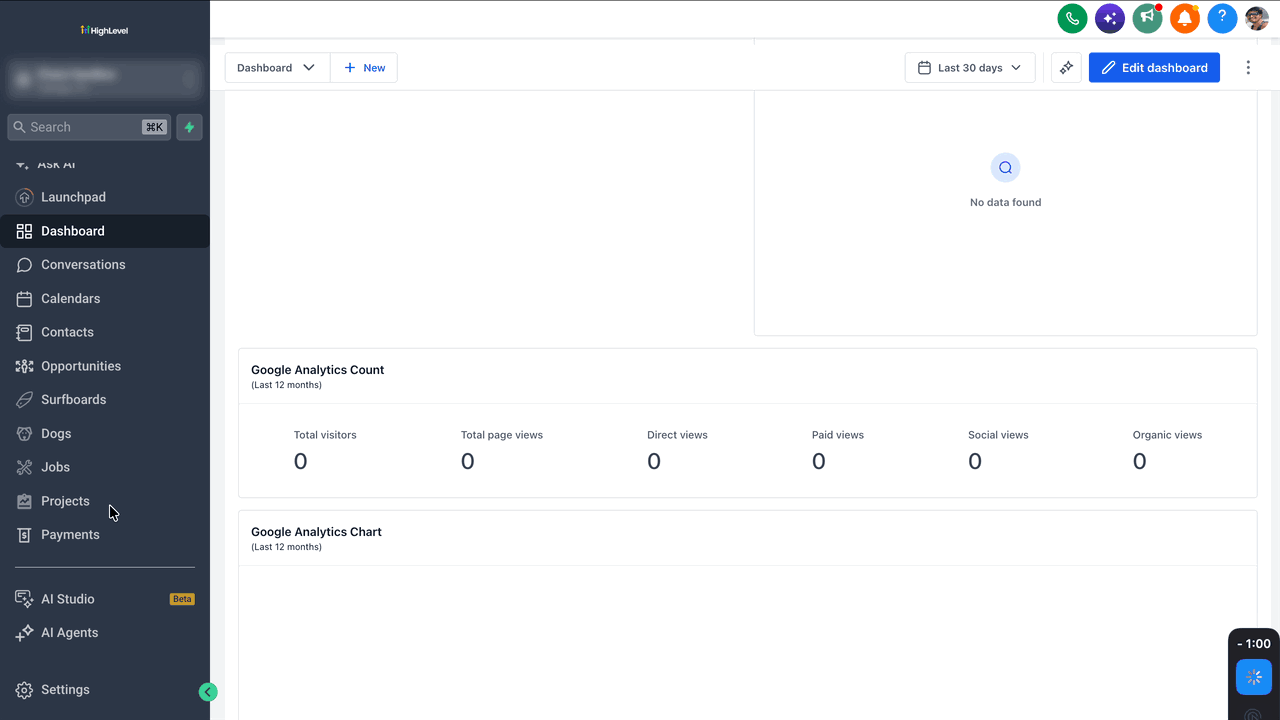
How To Open an Affiliate Profile
Open an affiliate from the Affiliate list before reviewing or managing profile-level information.
- From the HighLevel Sub-Account view, select Marketing.
- Select Affiliate Manager.
- Open Affiliate.
- Locate the affiliate.
- Open the affiliate profile.
Affiliate Details and Stats
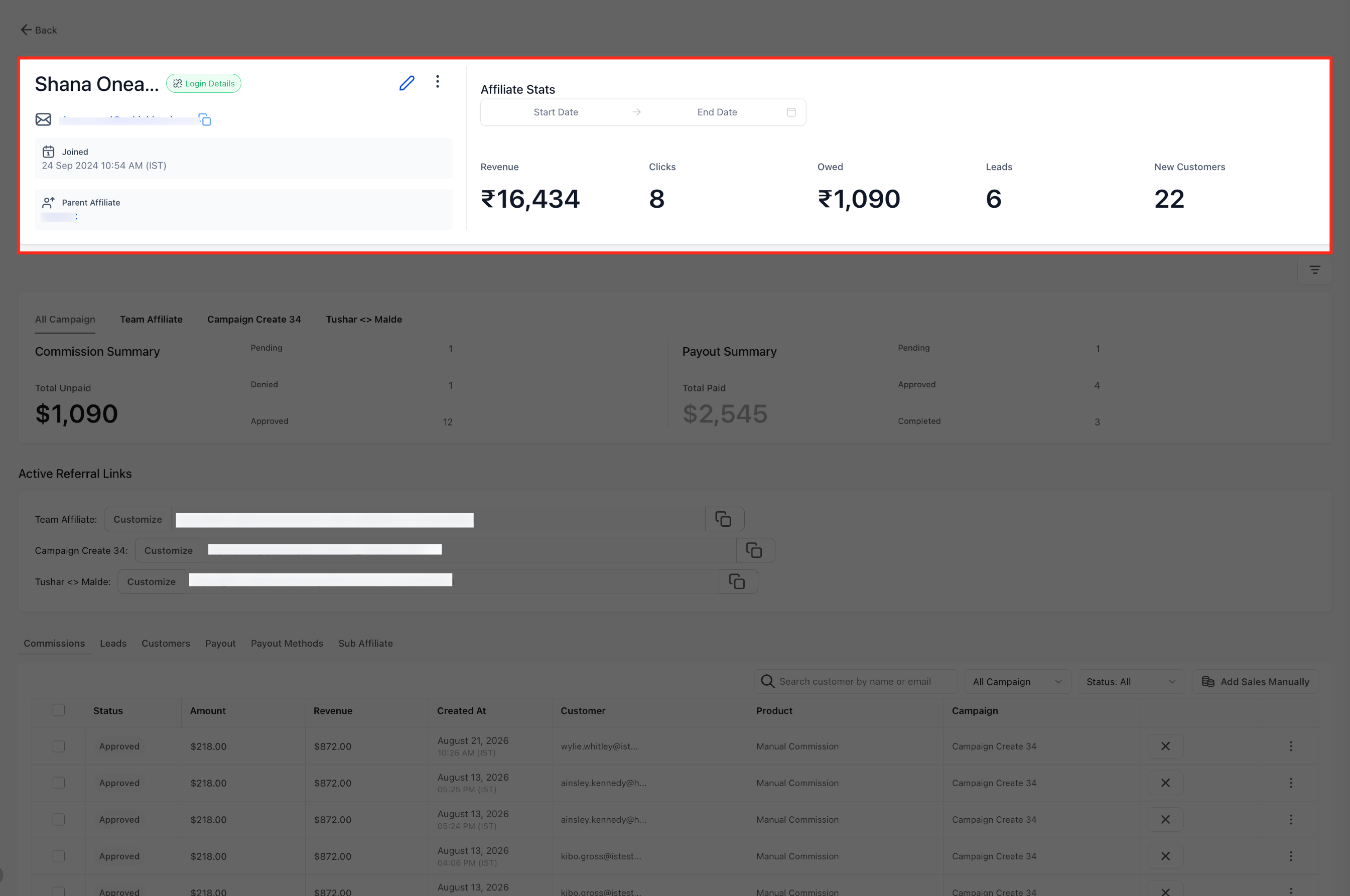
The top of the profile identifies the affiliate and displays current performance information for the selected date range.
Affiliate Details
The Affiliate Details area can display:
- Affiliate name
- Joined date
- Parent Affiliate, when applicable
- Login Details
- Edit Affiliate Details
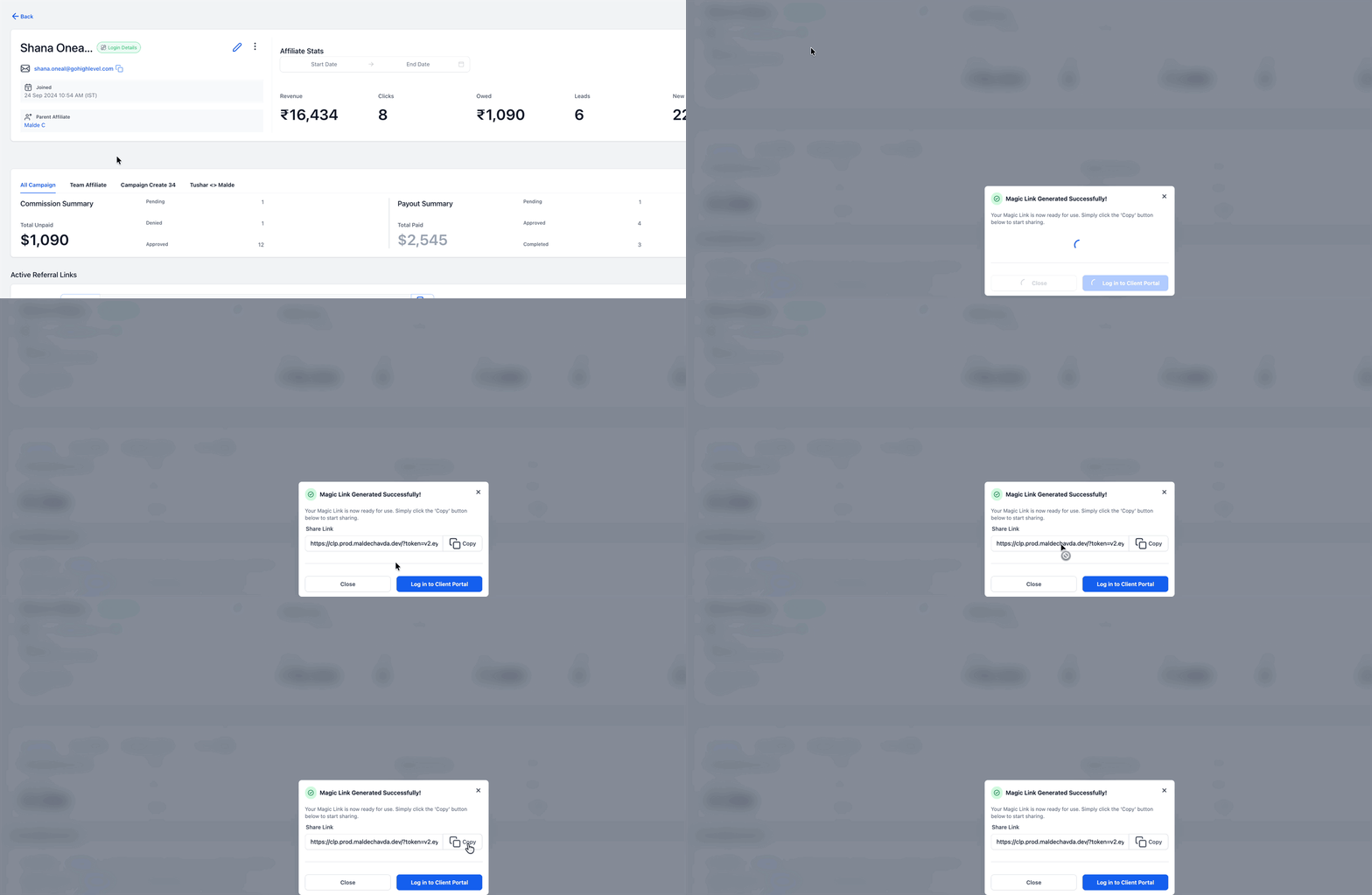
Login Details
Select Login Details to access the affiliate’s available login information.
Affiliate Stats
The Affiliate stats area currently displays:
- Revenue
- Owed
- Leads
- New Customers
Use the date range control to review available stats for the selected period.
Campaign Insights
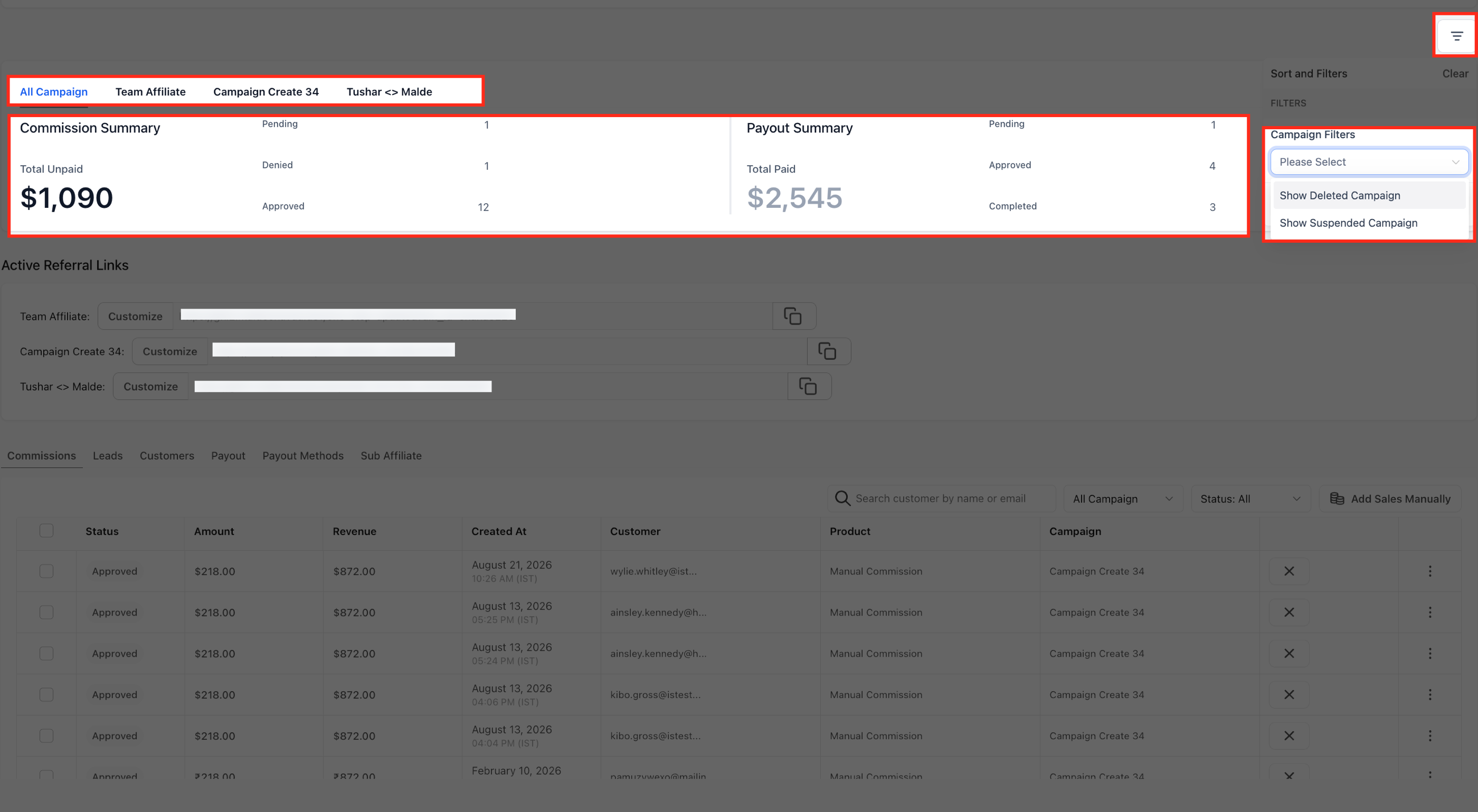
Campaign insights let you review aggregate or campaign-specific commission and payout summaries for the affiliate.
Use:
- All Campaign for an aggregate view
- individual campaign tabs for campaign-specific data
- Show Deleted Campaign when deleted campaign information is needed
Commission Summary
The current Commission summary can display:
- Total unpaid
- Pending
- Denied
- Approved
These values provide a summary of commission activity for the selected campaign view.
Payouts Summary
The Payouts summary displays payout-related totals and status counts for the selected campaign view.
Detailed payout lifecycle and processing behavior should be reviewed in the dedicated payout-management article.
Show Deleted Campaign
Turn on Show Deleted Campaign when you need to include deleted campaign information in the profile view.
Do not assume this control is also an inactive-campaign filter.
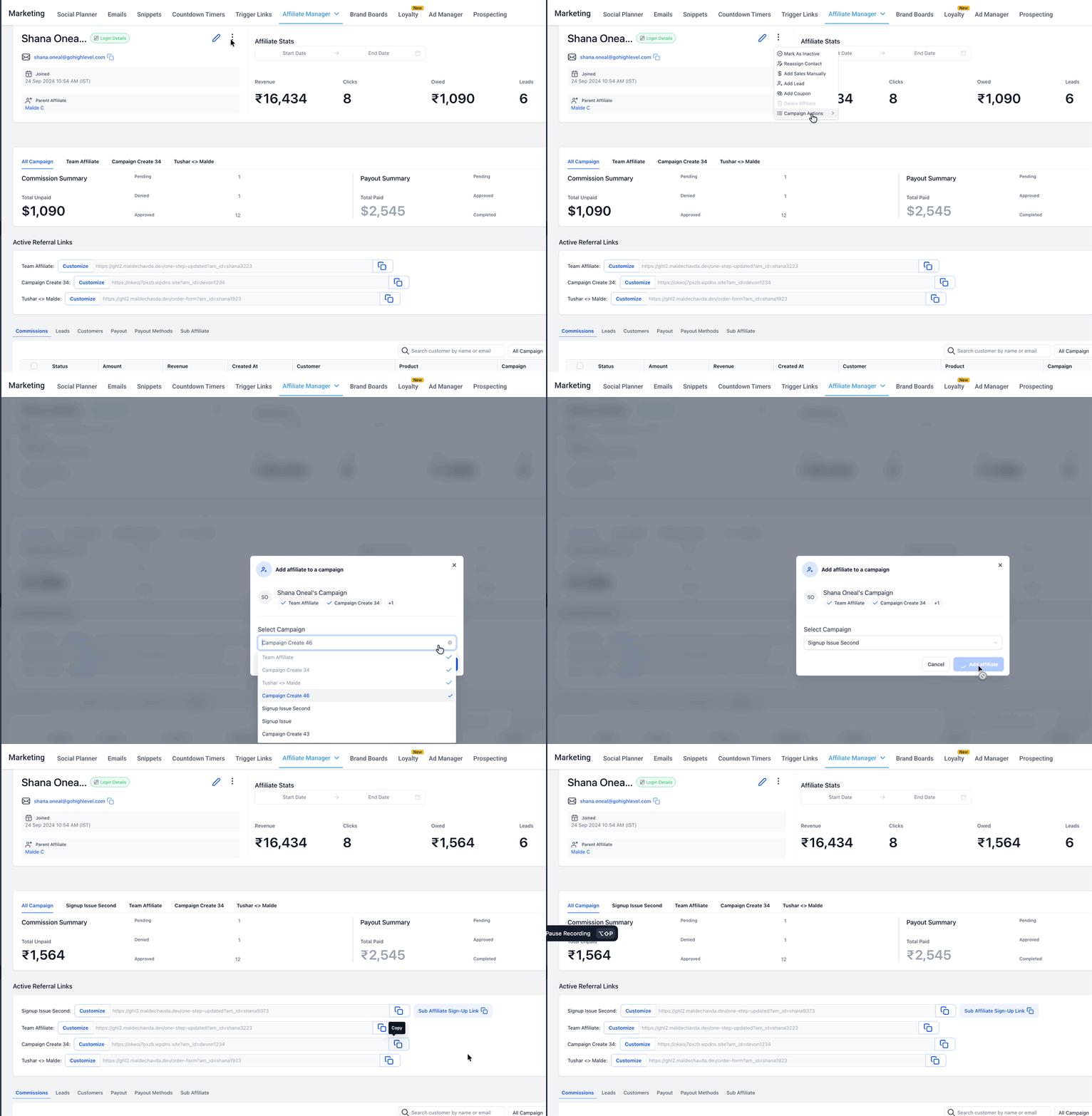
How To Assign an Affiliate to a Campaign
Use + Add to a Campaign when the affiliate needs to be associated with another affiliate campaign.
- Open the affiliate profile.
- Click three dots
- Click Campaign Actions
- Click + Add to a Campaign.
- Search for the required campaign.
- Select the campaign you want to associate with the affiliate.
Active Referral Links
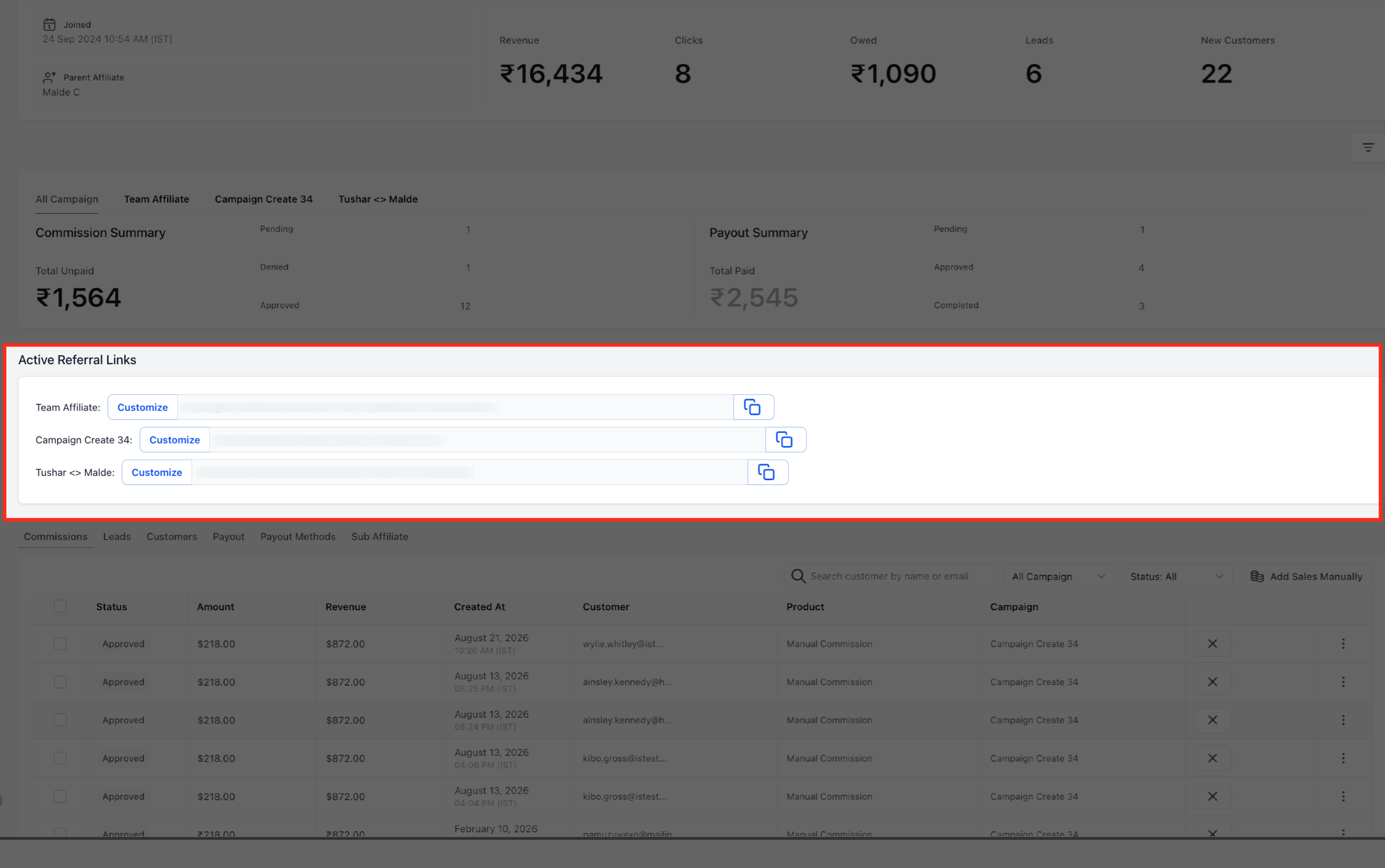
The Active referral links section shows campaign-specific referral URLs assigned to the affiliate.
For each listed campaign, the profile can provide:
- campaign name
- referral URL
- copy action
- Customize
Customize a Referral ID
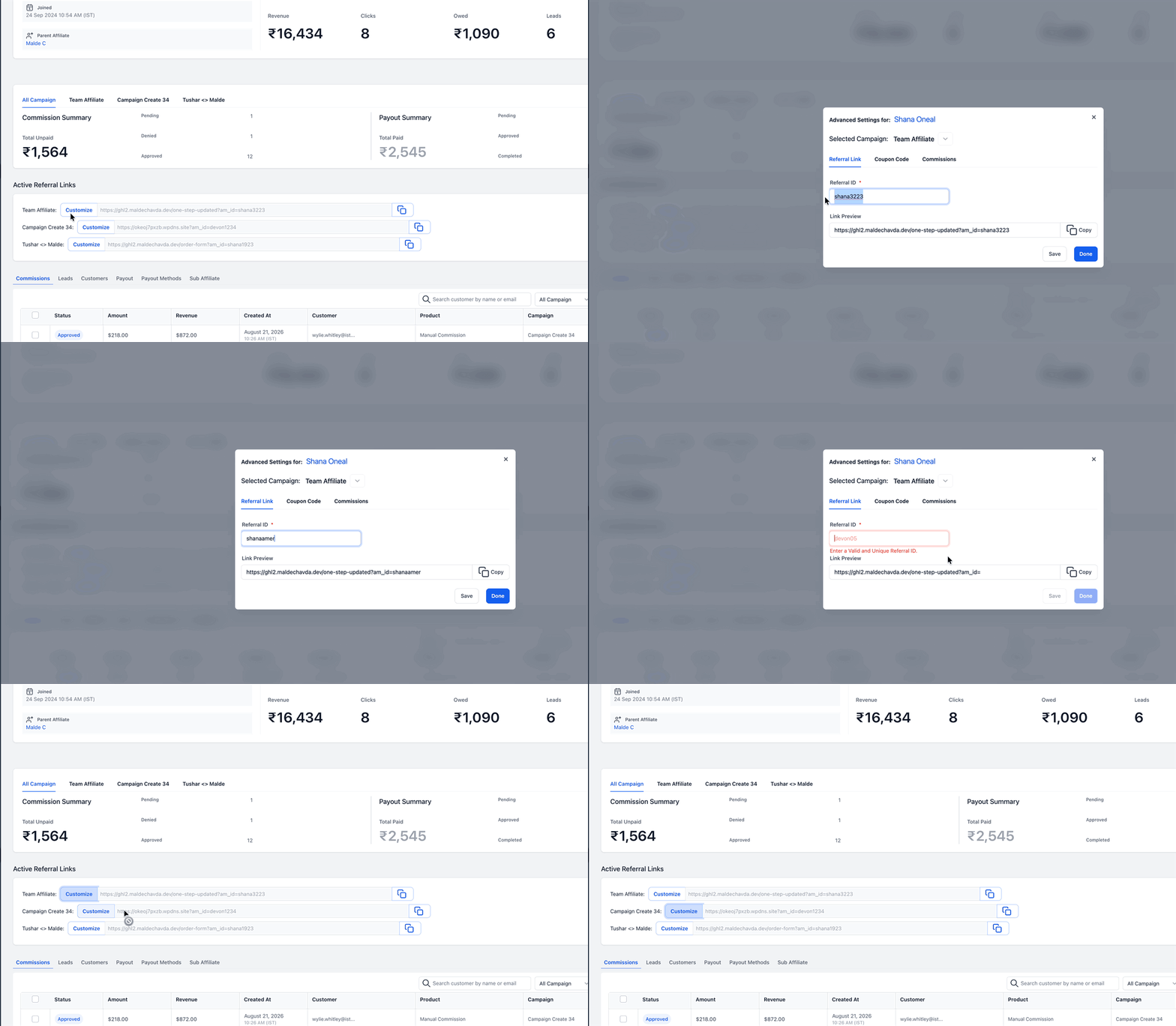
Use Customize to change the affiliate’s campaign-specific Referral ID.
- Locate the campaign under Active referral links.
- Click Customize.
- Select the Referral link tab.
- Edit Referral ID.
- Review the Link preview.
- Save the change.
Commissions
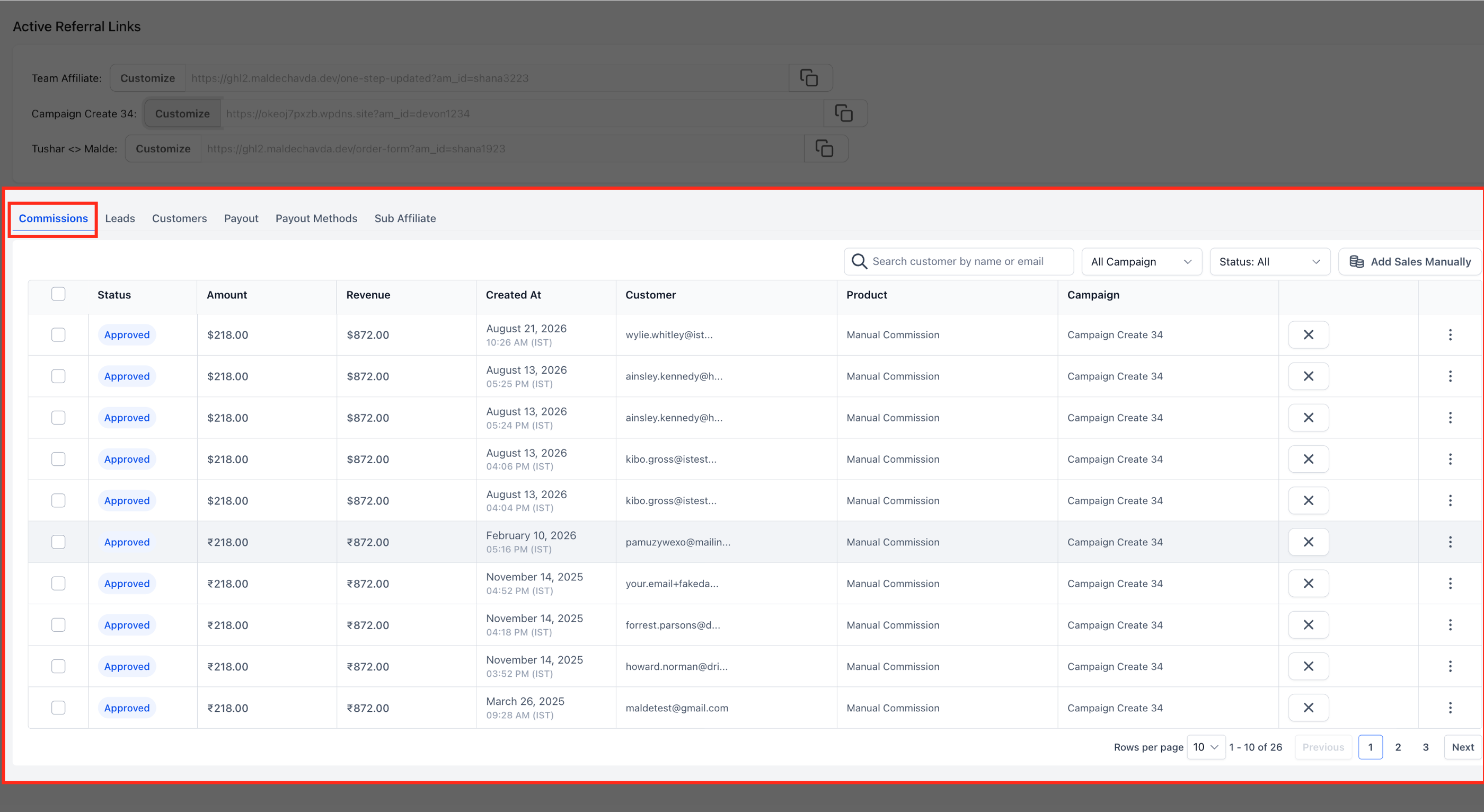
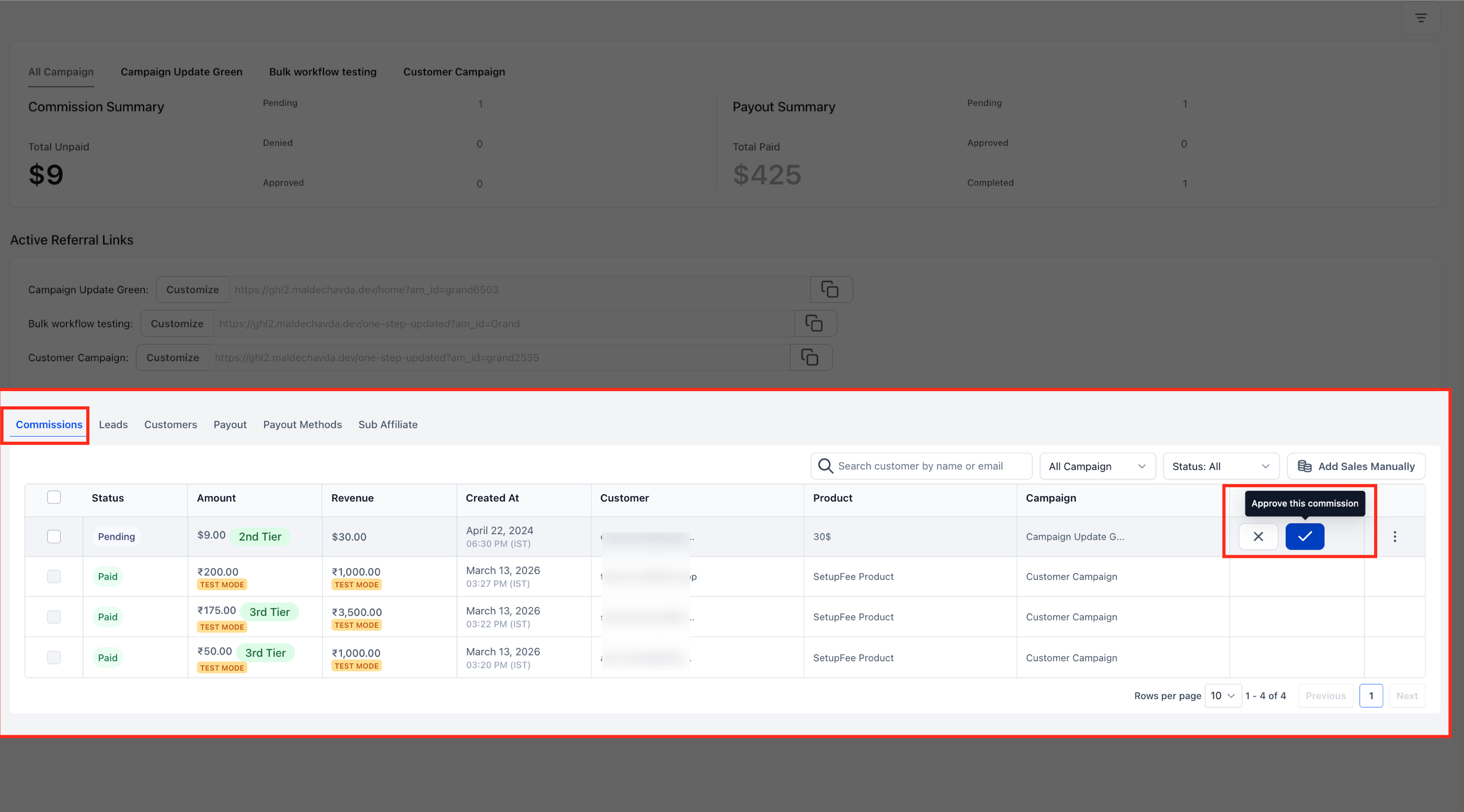
The Commissions tab lets account admins review commission records and perform supported commission actions.
The current tab includes filters for:
- All
- Pending
- Approved
- Denied
Commission records shows:
- Amount
- Revenue
- Created At
- Customer
- Product
- Campaign
Approve and Deny Commissions
Current Affiliate Manager functionality supports approving and denying eligible commission records.
Denied commissions can also be deleted where supported.
For bulk approval, denial, or deletion procedures, use the dedicated commission-management article.
Leads
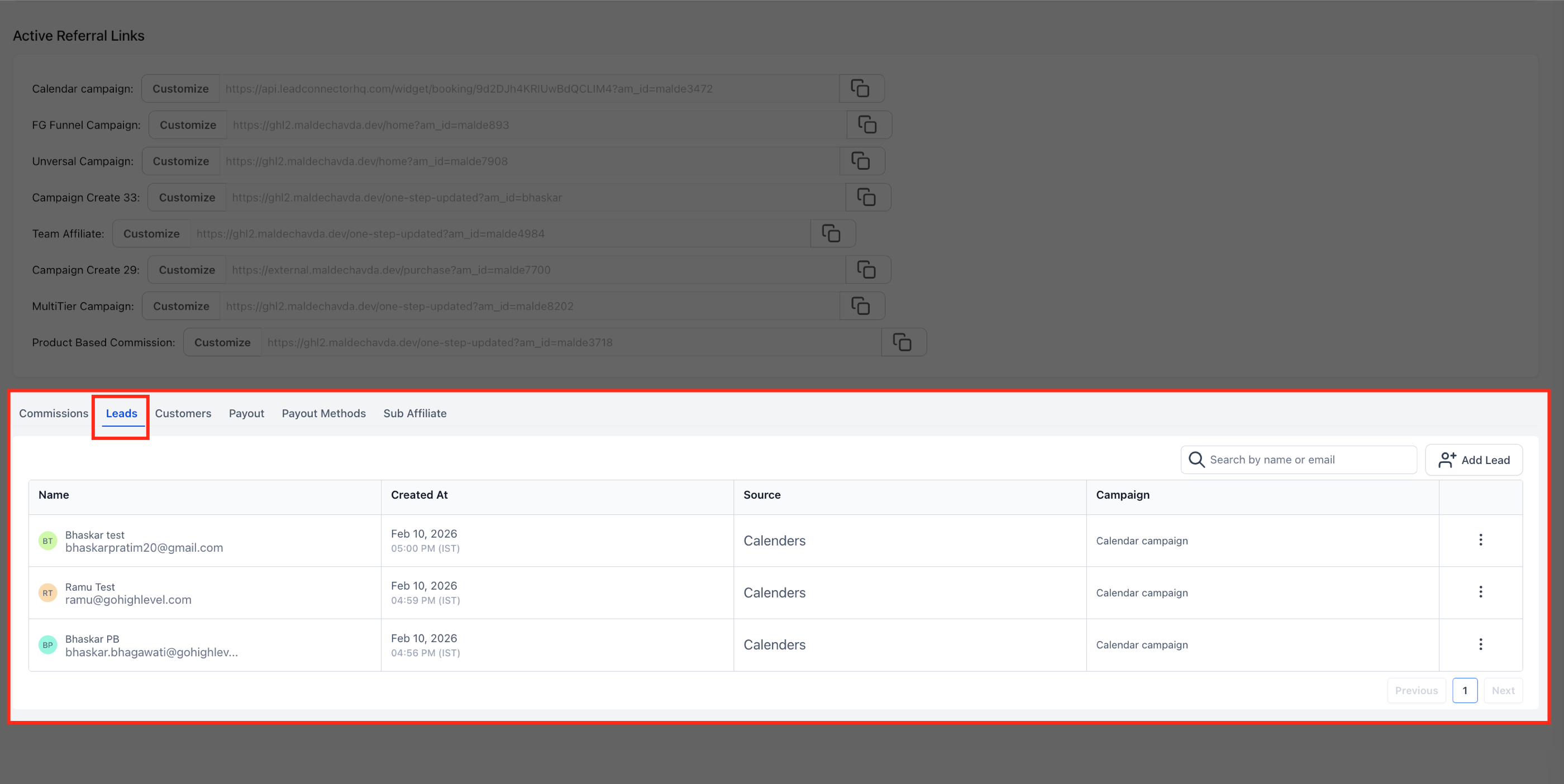
The Leads tab displays leads attributed to the affiliate and provides supported search and lead-management actions.
The current table shows:
- Name
- Created At
- Campaign
Available controls include:
- search
- Add Lead
- row-level actions
Customers
The Customers tab shows customers attributed to the affiliate and provides customer-related actions.
The current table shows:
- Name
- Created At
- Campaign
- Revenue
The tab also provides search and row-level actions.
Payouts
The Payouts tab provides payout records associated with the affiliate.
The current table shows:
- Status
- Due
- Amount
- Payout month
- Campaign
Current visible filters include:
- All
- Pending
- Approved
- Denied
Visible payout records can show statuses such as Paid and Pending.
Current Affiliate Manager documentation uses payout states including:
- Pending
- Approved for Payout
- Paid
- Denied
Use the dedicated payout-management article for detailed payout processing.
Sub-Affiliate
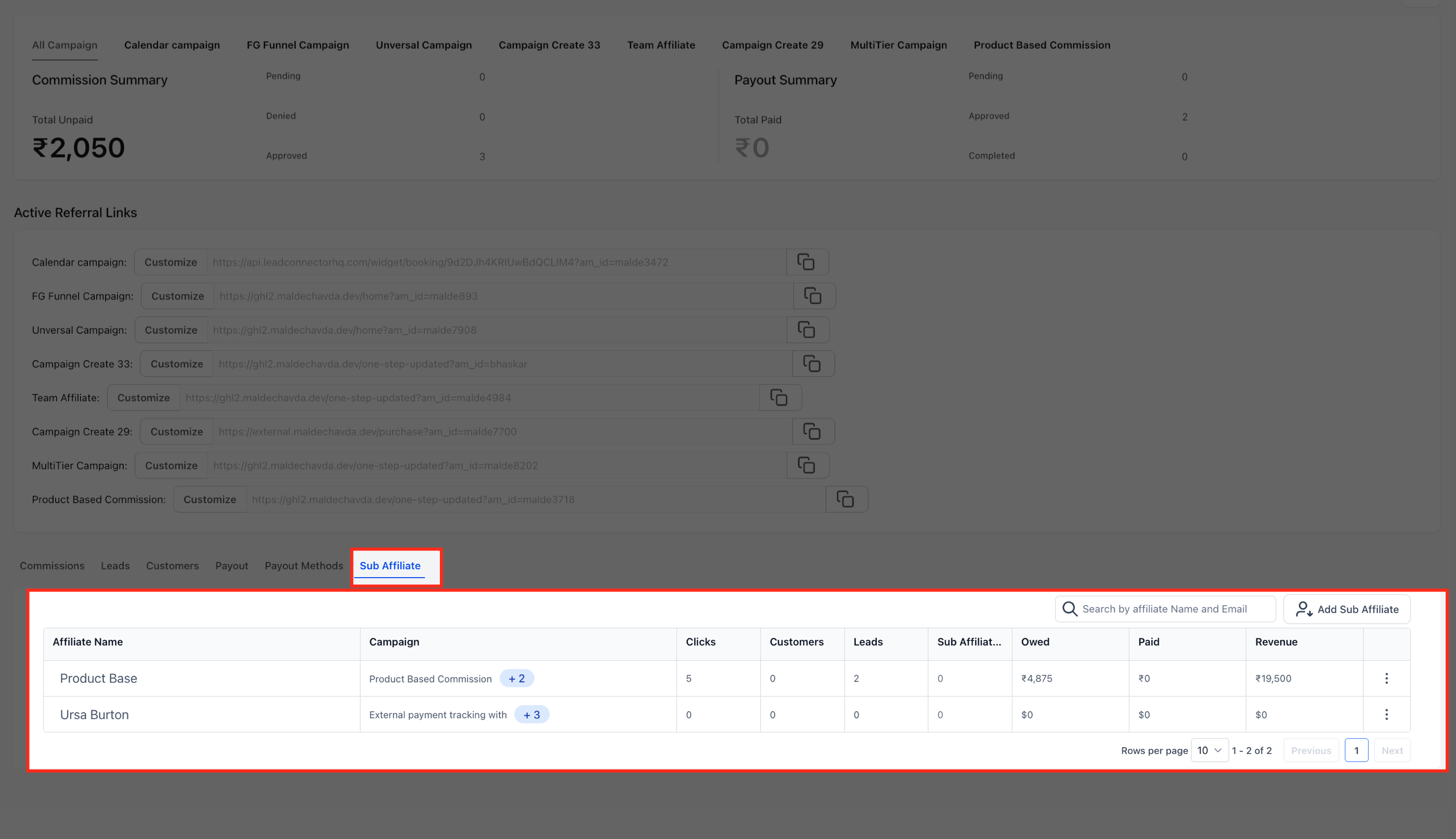
The Sub-Affiliate tab provides hierarchy information when the affiliate participates in an eligible multi-tier campaign.
This area can be used to review and manage supported parent/sub-affiliate relationships.
HighLevel currently supports up to seven tiers at the campaign level.
Frequently Asked Questions
Q: Where do I find an affiliate profile?
From the HighLevel Sub-Account, go to Marketing → Affiliate Manager → Affiliate, then open the affiliate you want to review.
Q: What information is available on the Affiliate Profile page?
The profile can include affiliate details, stats, campaign summaries, referral links, commissions, leads, customers, payouts, and sub-affiliate information.
Q: Can I add an affiliate to another campaign from the profile?
Yes. Use + Add to a Campaign to select another affiliate campaign.
Q: Can I customize an affiliate’s Referral ID?
Yes. Under Active referral links, select Customize, open Referral link, and edit the Referral ID.
Q: Can I approve or deny commissions from the profile?
Yes. Eligible commission records can be approved or denied from the Commissions area.
Q: Can I manually add a lead for an affiliate?
Yes. Use Add Lead from the Leads tab and follow the available contact-import flow.
Q: Can I review commissions associated with a customer?
The current Customers tab includes a View Commissions action for customer records.
Q: Where can I review an affiliate’s payout records?
Open the Payouts tab to review payout status, due information, amounts, payout month, and campaign.
Q: When is the Sub-Affiliate tab relevant?
It is relevant when the affiliate participates in an eligible multi-tier affiliate campaign.
Related Articles
Was this article helpful?
That’s Great!
Thank you for your feedback
Sorry! We couldn't be helpful
Thank you for your feedback
Feedback sent
We appreciate your effort and will try to fix the article