The Custom Code action allows you to extend your workflow’s functionality by writing and executing custom JavaScript and Python code. You can include properties from previous steps, perform operations, and return the output to be used in subsequent steps.
Note: Custom Code is a Premium Action.TABLE OF CONTENTS
What is Custom Code Action in Workflows?
The Custom Code action lets you run JavaScript or Python code within HighLevel workflows to perform tasks that aren't supported by standard workflow actions. You can use it to create custom logic, process data, integrate with external services, and return outputs for use in subsequent workflow steps.
This flexibility allows you to build more advanced automations tailored to your needs.
How to Use the Custom Code Action in Workflows
1. Add Action
- In the workflows select the "+" icon to add an action and search for "Custom Code".

2. Programming Language
- The code can be written in JavaScript. This will be the default language selected.

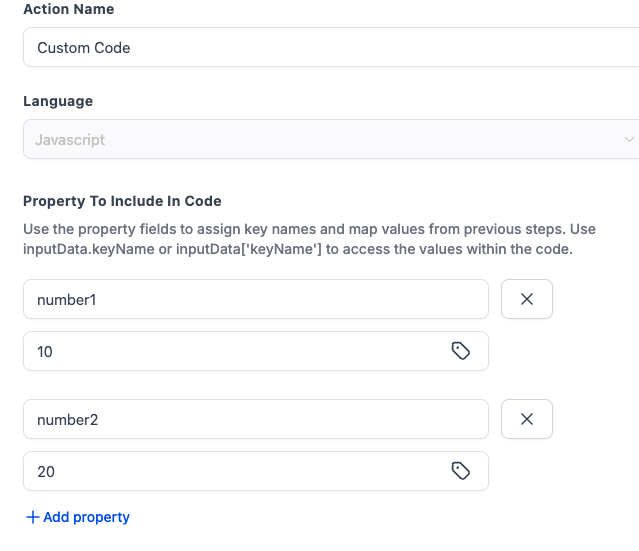
3. Property to be included in code
- Now what if there are values in the triggers or actions above the custom code and you want to use them in the code. That's where this field comes to use.
- These fields allow us to reference values from previous steps in our code by adding them to a dictionary called InputData.
- You can enter the Key in the "Key" input field and assign a value to it by selecting the value through the custom value picker.
- You can add multiple properties by clicking on "Add Property"
- For example, if a trigger gives us information about a customer, which we then need to manipulate, we can add their name to the Input Data fields and reference it with iinputData.keyName or inputData['keyName']

4. Code Editor
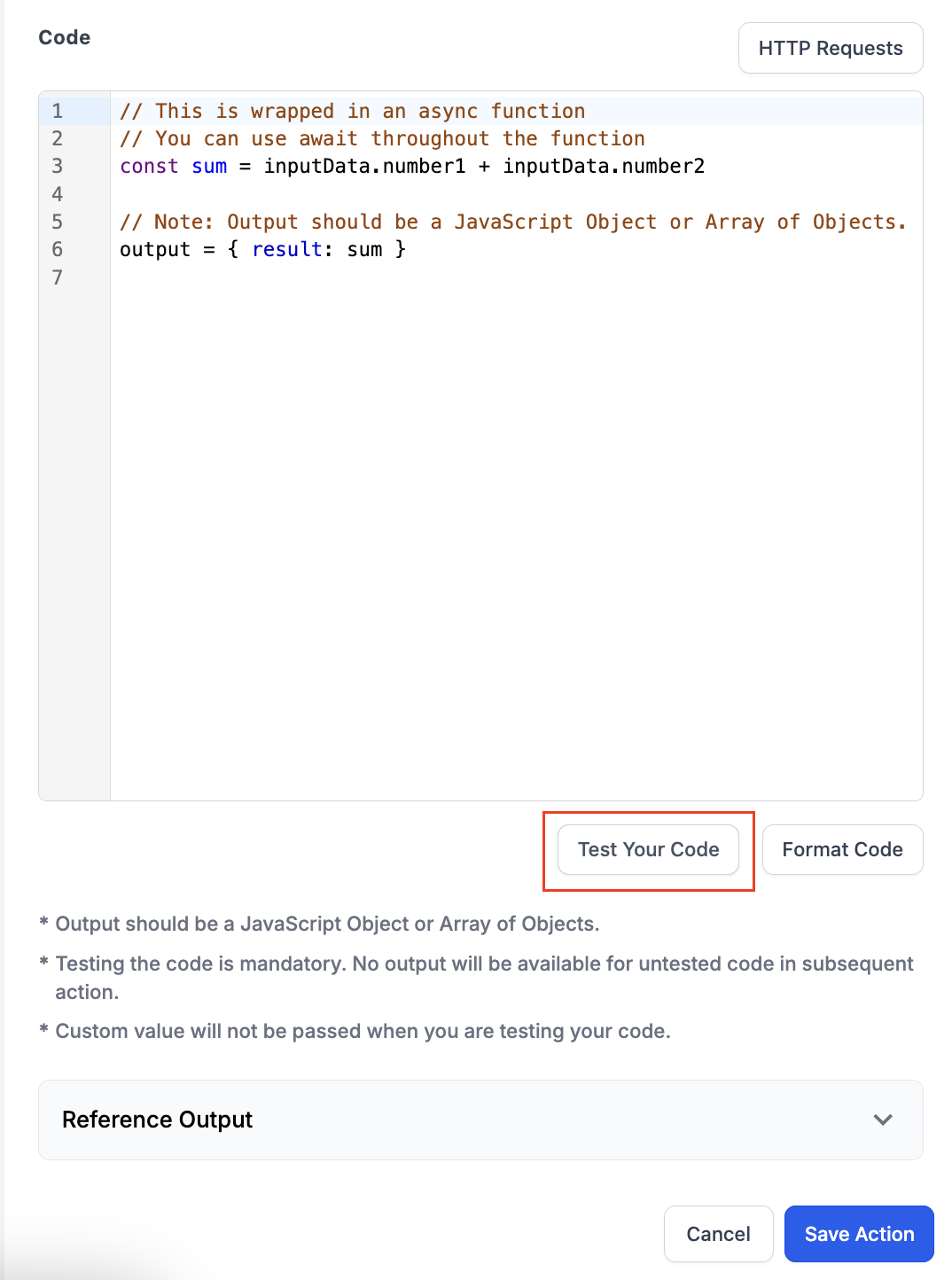
- You can write the code in the Code Editor
- A sample code is pre populated for your reference.
- Output should also be written in the code formatter itself.
- Output should be a JavaScript Object or Array of Objects.

5. Enhanced console support
This feature captures and logs all console.log outputs from user code, allowing user to debug and monitor the code more effectively.

6. External HTTP Request
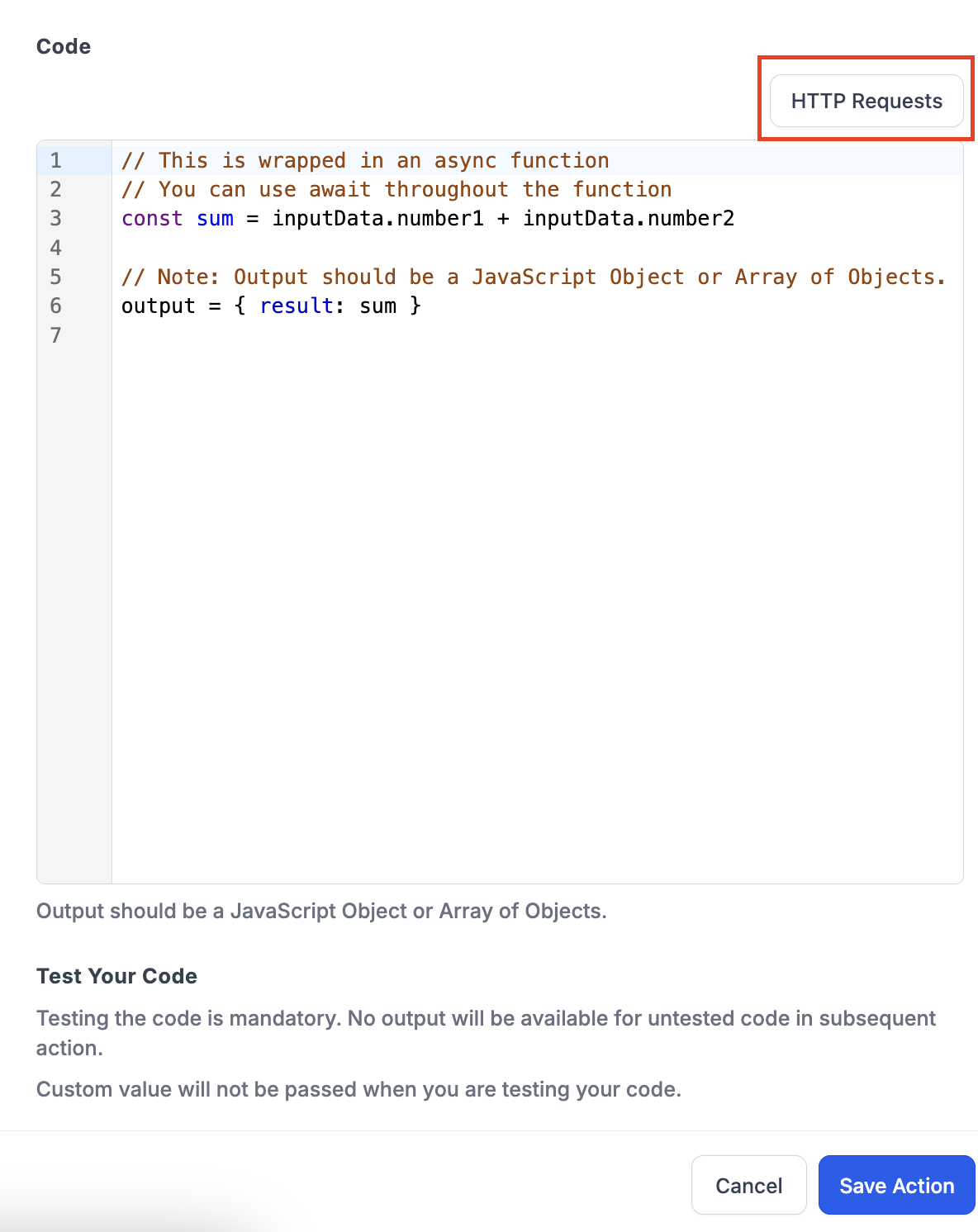
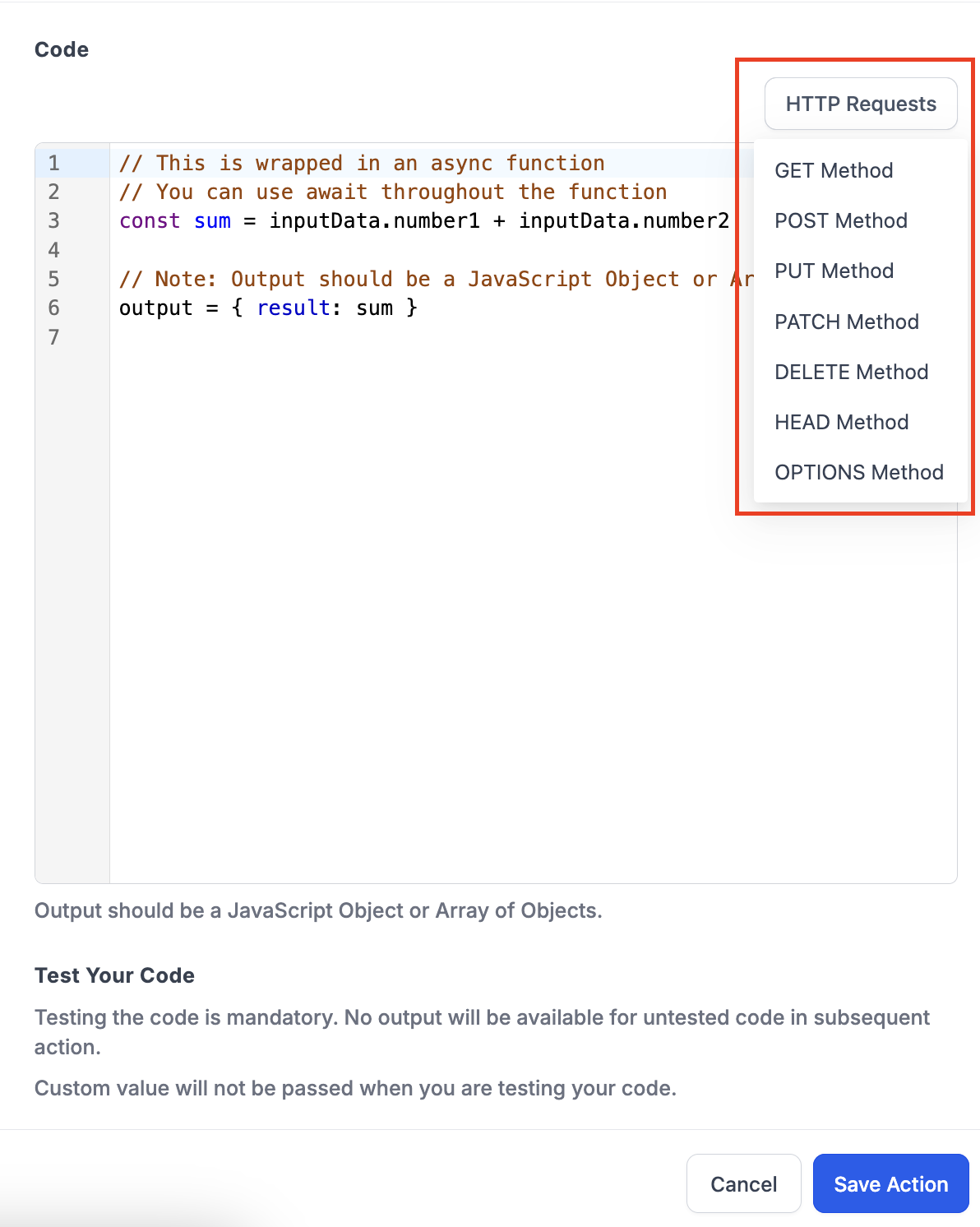
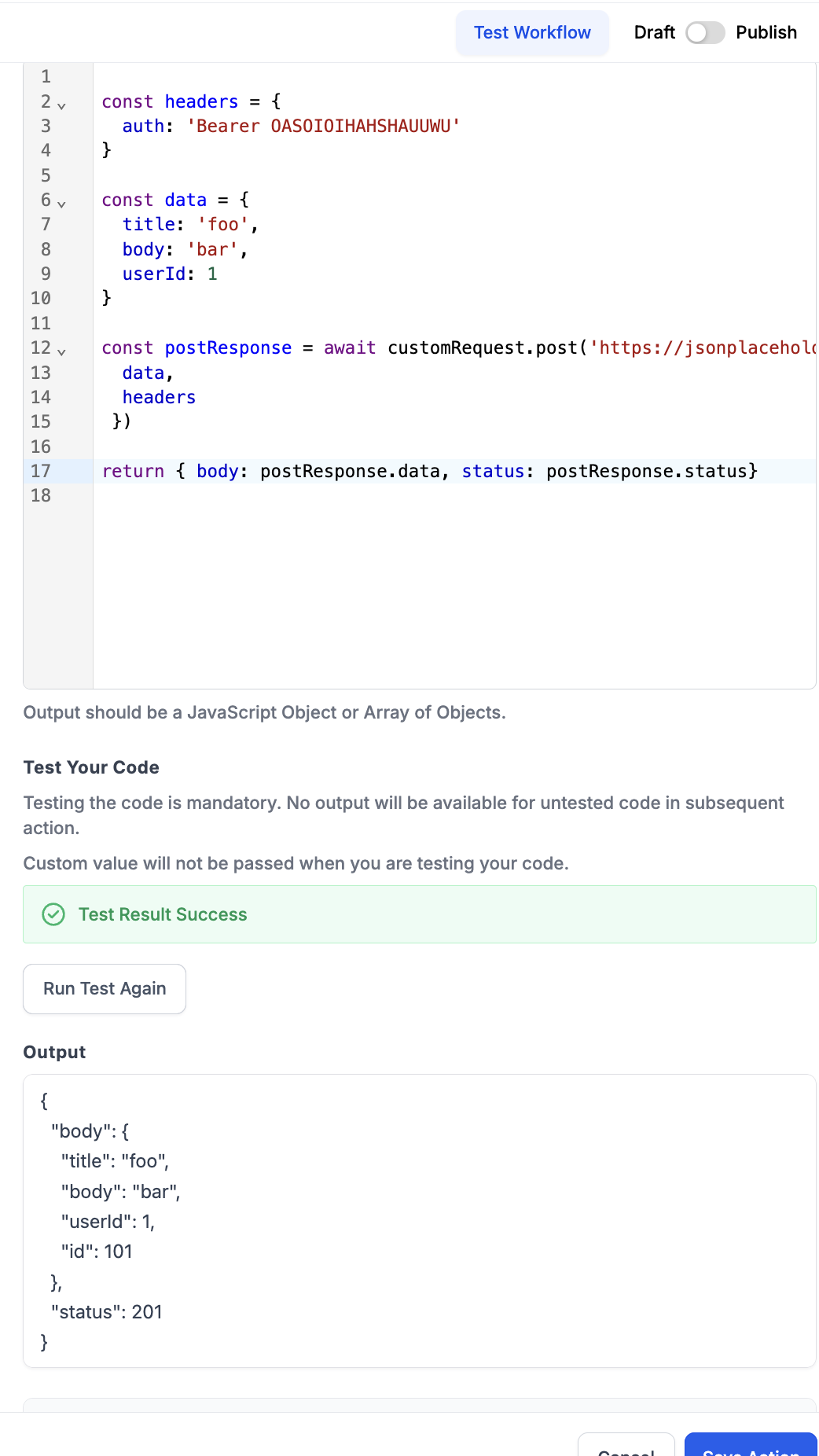
- Custom code supports external HTTP requests
- Click on "HTTP Request" button above the code editor
- Select from the following -
- Get Method
- Post Method
- Put Method
- Patch Method
- Delete Method
- Head Method
- Options Method
- The selected request will populate at the bottom in the code editor
7. Format Code
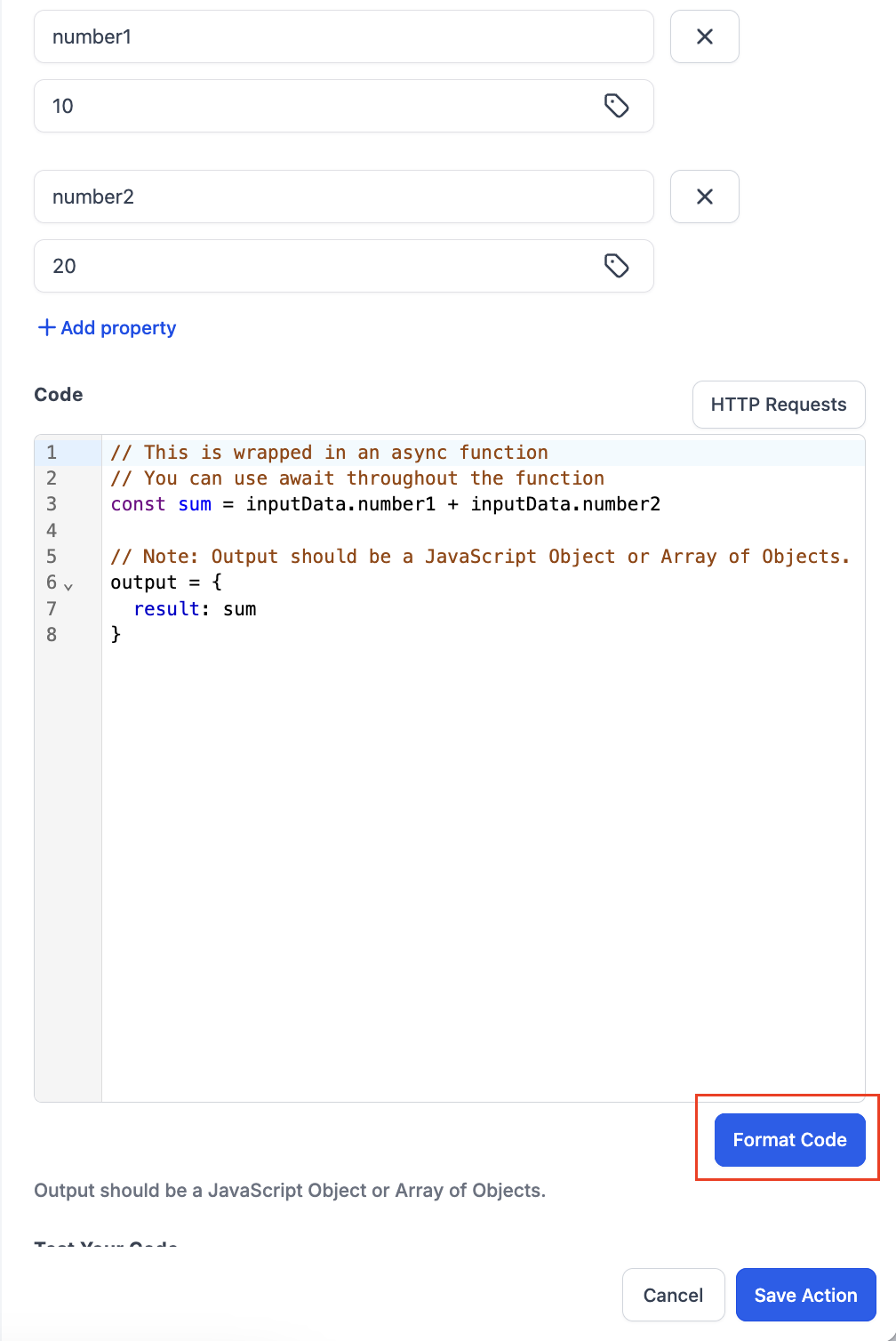
- You can also format the code. Use the "Format Code" button in the bottom of the code editor to change the code into more readable format.
- Properly formatted code is easier to read and understand.
- For instance, consistent indentation, spacing, and line breaks help identify code blocks, functions, or sections of a document.
8. Test your Code
- Testing the code is a mandatory step, if the test is not done then user will not be able to use the output of the code in the subsequent steps.
- To test the code click on the "Test your Code" button.
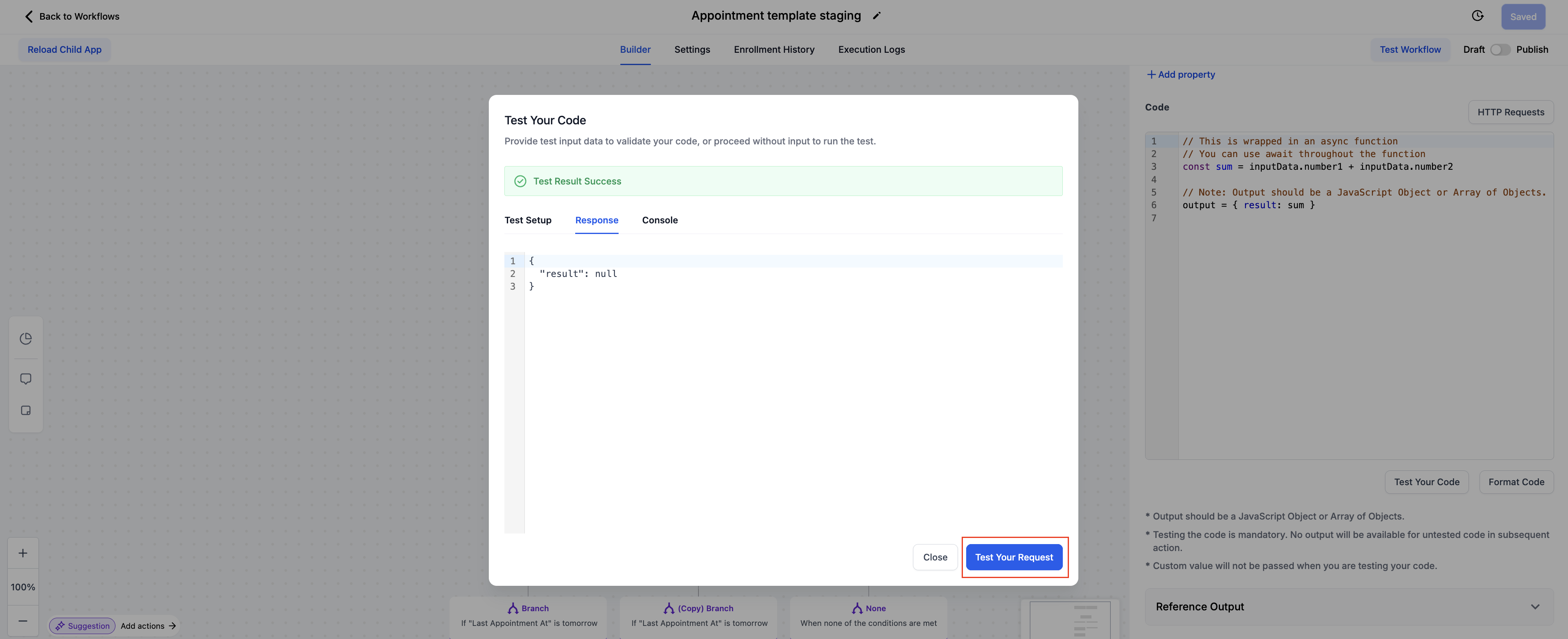
- When you click on the button a new pop up will open where you can run the test.
- There can be 2 scenarios, first where you have added properties and second where you have not.
- In case there are properties are added you can enter the sample values in the "Test Setup" tab and test the Response.
- In case there are no properties added, you can directly check the response.
- Click on the "Test your Code" button to check the response.
- Post clicking on the test button, if there are no errors in the code them it will show "Test Result Success" and if there is an error in code then the result will be "Test Result Failed" and you would have to recheck the code to remove the error.

9. Check Input Values in Execution logs
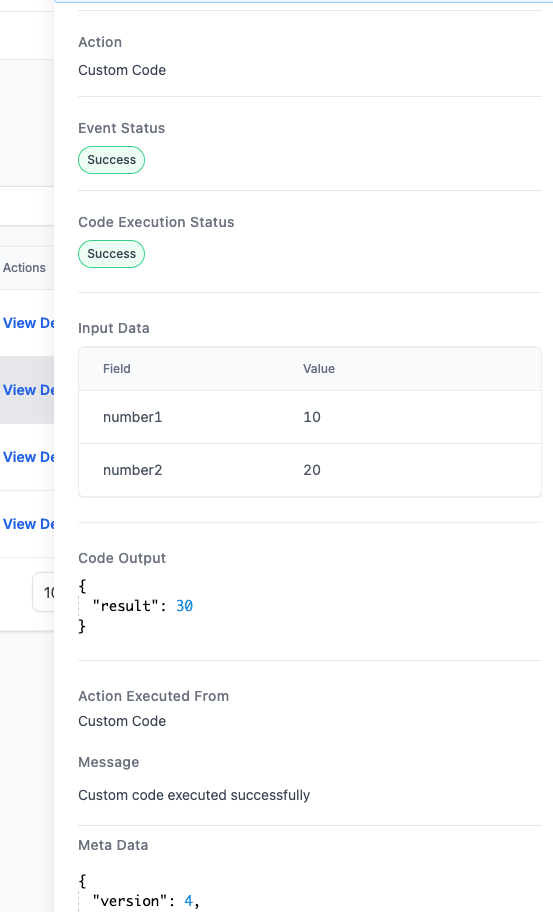
- Now check the input values in the Execution logs also.
- Go to the execution you want to check the values for and click on more details.
10. Return a response directly from their custom code.
Key Benefits:
- This improvement allows for a more streamlined coding experience, making it easier to write, debug, and manage custom asynchronous code.
- This new capability simplifies handling asynchronous operations and improves the overall efficiency of custom scripts.

Use Cases
- Data Formatting – Automatically format phone numbers or dates to match your preferred style.
- API Integration – Generate code to connect with external services via HTTP requests.
- Mathematical Calculations – Compute interest rates, discount percentages, or other formulas dynamically.
- String Manipulation – Extract key details from text, such as email addresses from subject lines.
- Conditional Logic – Implement custom decision-making processes, like routing leads based on specific criteria.
Points to Remember
Use Cases
- Custom value will not be passed when you are testing your code.Only the contact information will be passed when testing a code. Other properties used in the code will not pass while testing.
- Testing the code is mandatory. No output will be available for untested code in subsequent action.
- Use the Property fields to assign key names and map values from previous steps. Use inputData.keyName or inputData['keyName'] to access the values within the code.
Was this article helpful?
That’s Great!
Thank you for your feedback
Sorry! We couldn't be helpful
Thank you for your feedback
Feedback sent
We appreciate your effort and will try to fix the article