WhatsApp Business Integration Guide
Connect your WhatsApp Business account to LeadConnector. Choose the method that fits your situation.
Choose Your Method
1 Connect Your Existing WhatsApp Business AppKeep using your existing app alongside the platform (Coexistence) 2 Connect a New WhatsApp Business NumberStarting fresh with a brand-new number 3 Migrate from an Existing BSPSwitch from another Business Solution ProviderUnsupported CountriesThe Coexistence feature is not available for phone numbers from Nigeria or South Africa.
Start the Signup Process
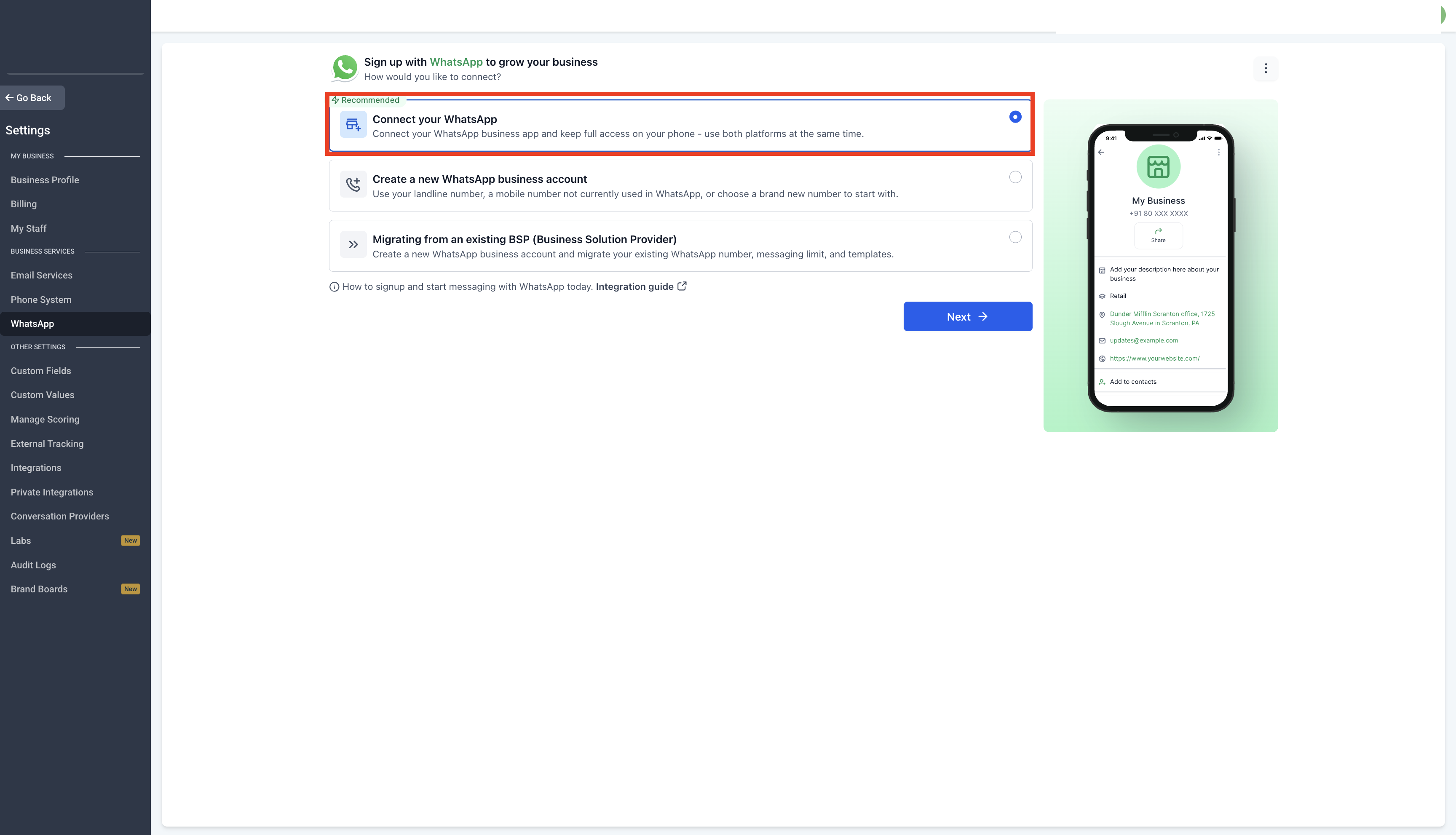
Navigate to Settings > WhatsApp and select Connect your WhatsApp
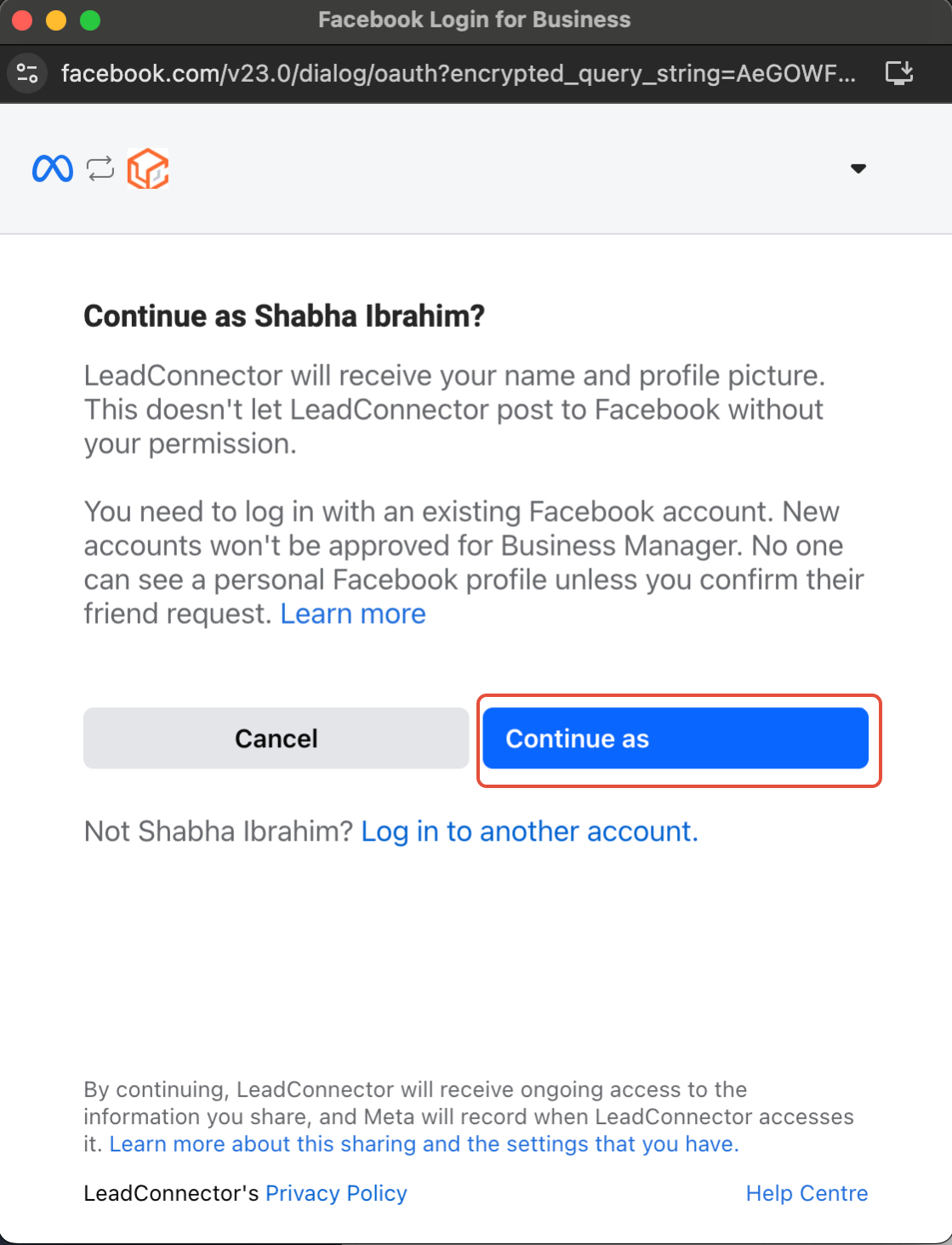
Continue with Signup
Follow the on-screen instructions to begin the registration process.
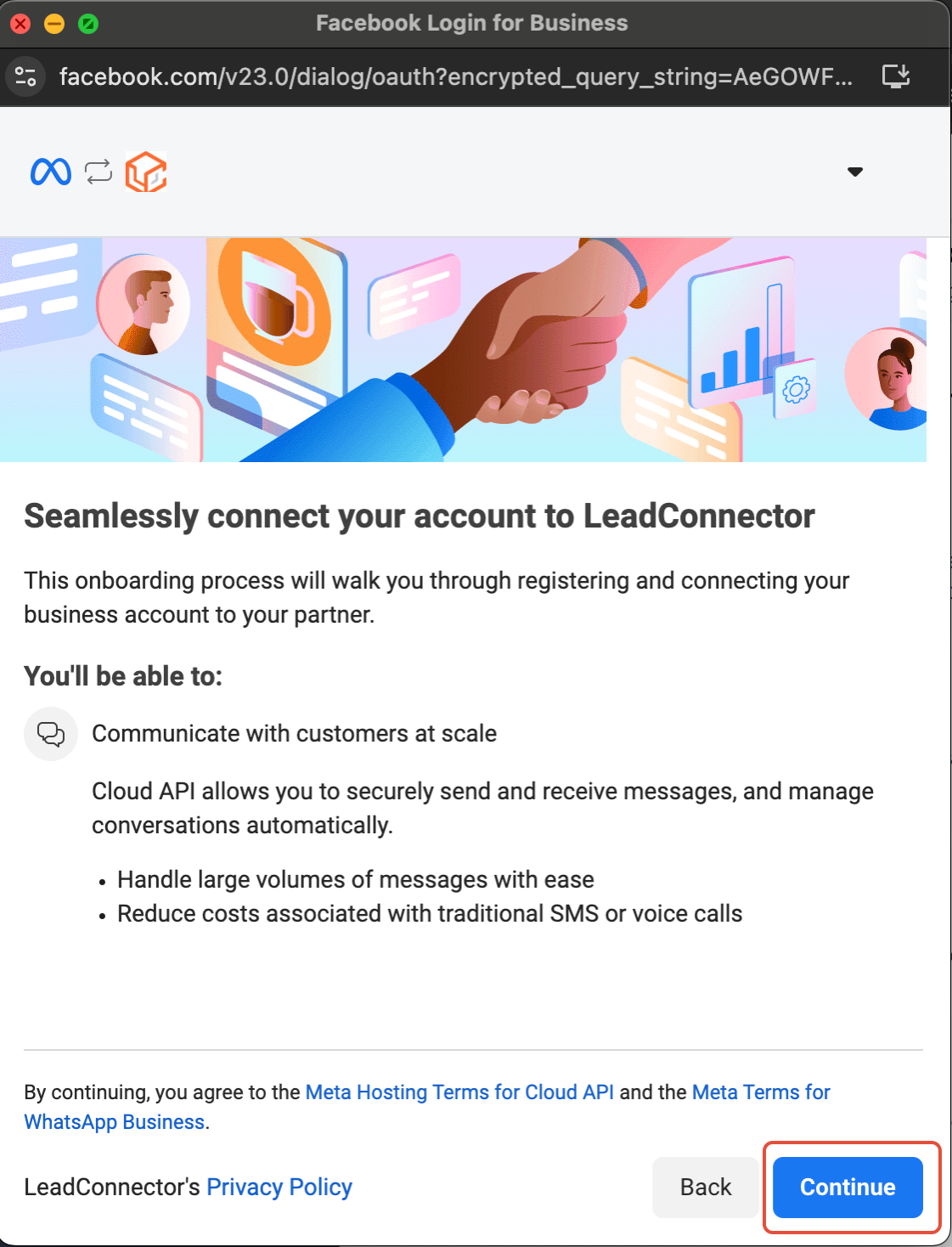
Connect to LeadConnector
Click Continue to proceed with the integration.
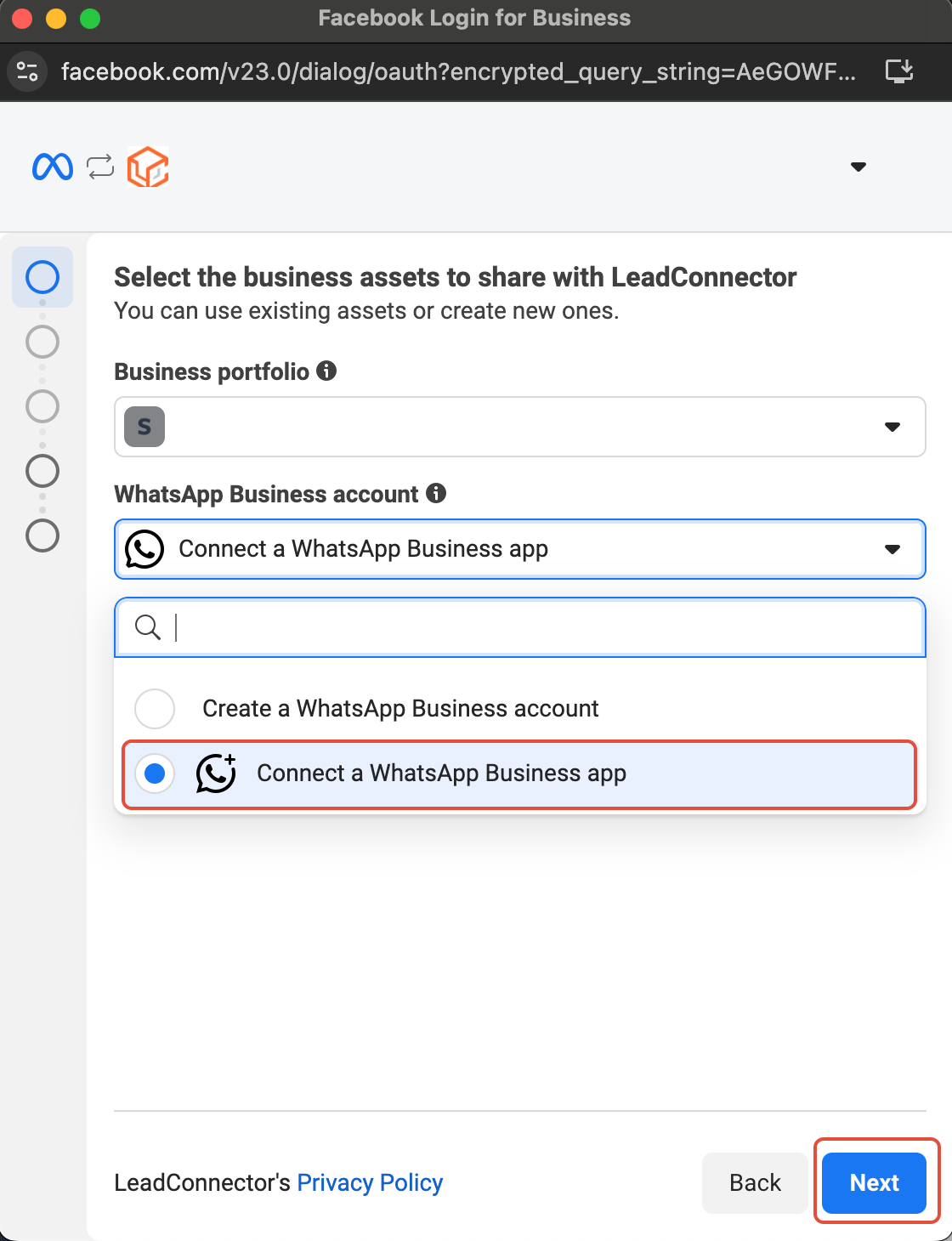
Select WhatsApp Business App
Click Connect a WhatsApp Business App, then tap Next.
Enter Your Phone Number
Add your WhatsApp Business phone number and tap Next.
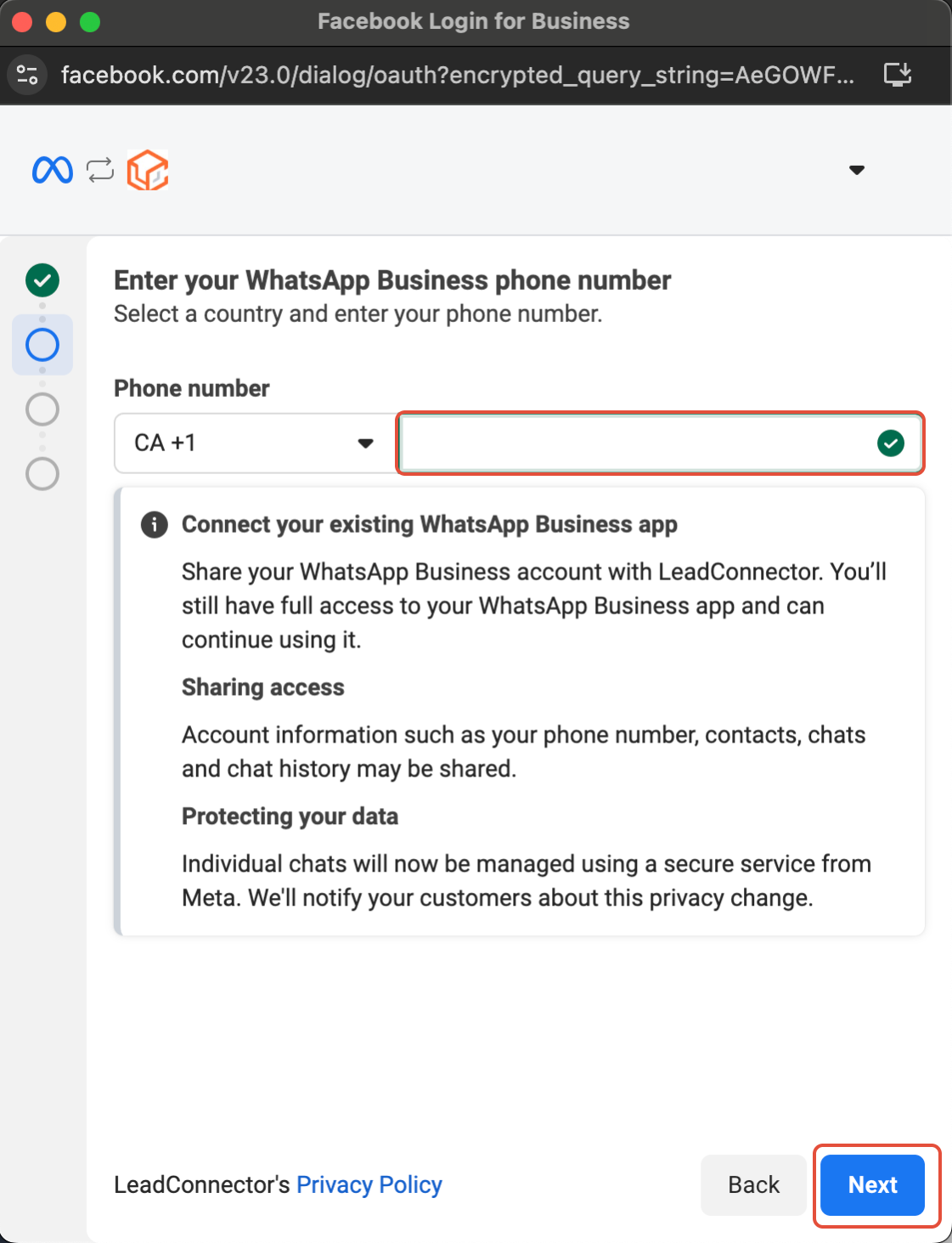
Verify Your Account Details
Review your WhatsApp Business Account details and make any corrections before proceeding.
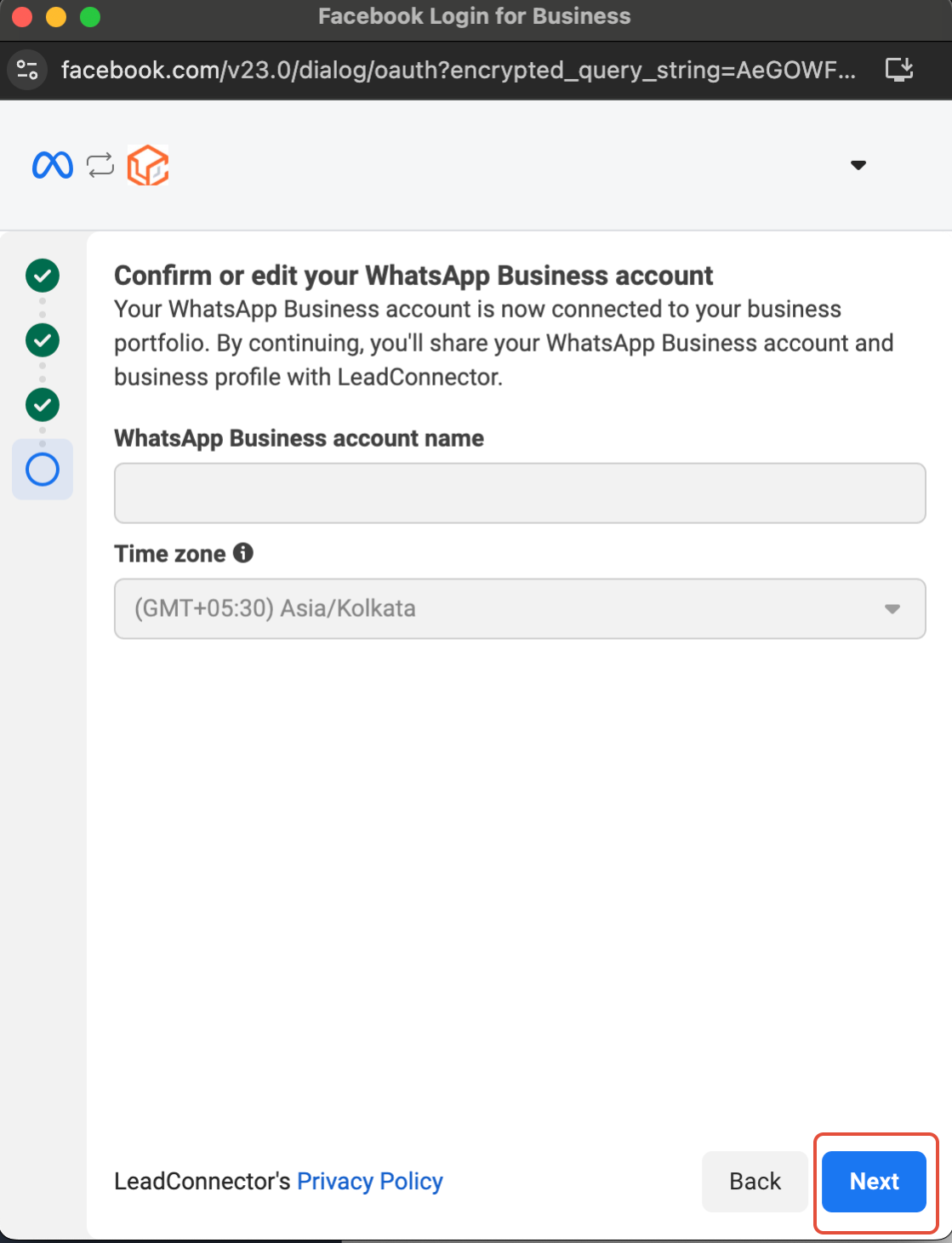
Import Contacts & Chat History
Import contacts and up to six months of chat history from the WhatsApp Business App into LeadConnector.
- Update your WhatsApp Business App to the latest version before this step.
- Look for a message from the official Facebook Business account and scan the QR code when prompted.
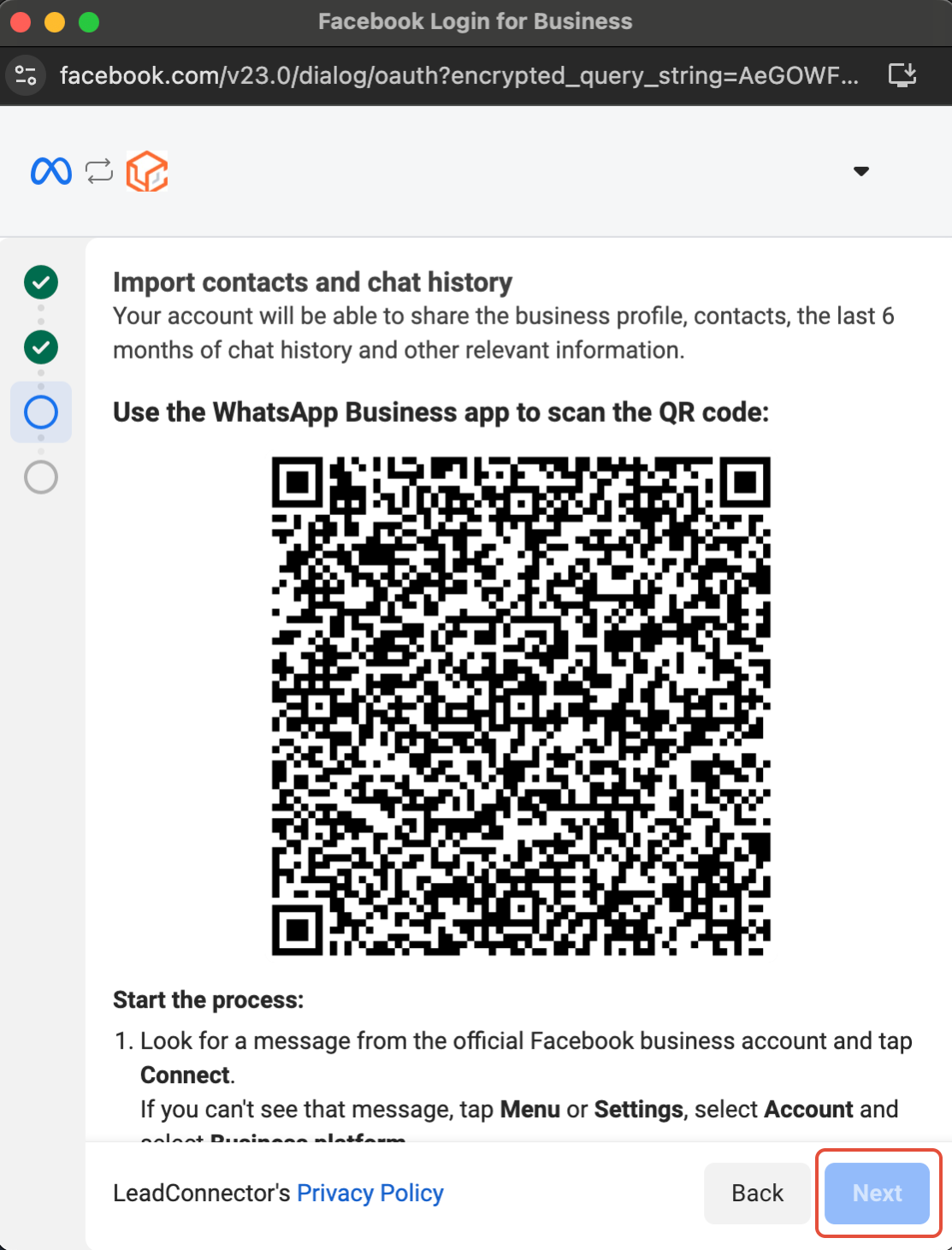

Connect to the Business Platform
Scan the QR code to complete the connection. You can continue using your WhatsApp Business App alongside the Business Platform.

Share Chat History & Contacts
Your contacts and conversations will be securely synced with LeadConnector.

Setup Complete
Your WhatsApp Business App is now successfully integrated with LeadConnector.

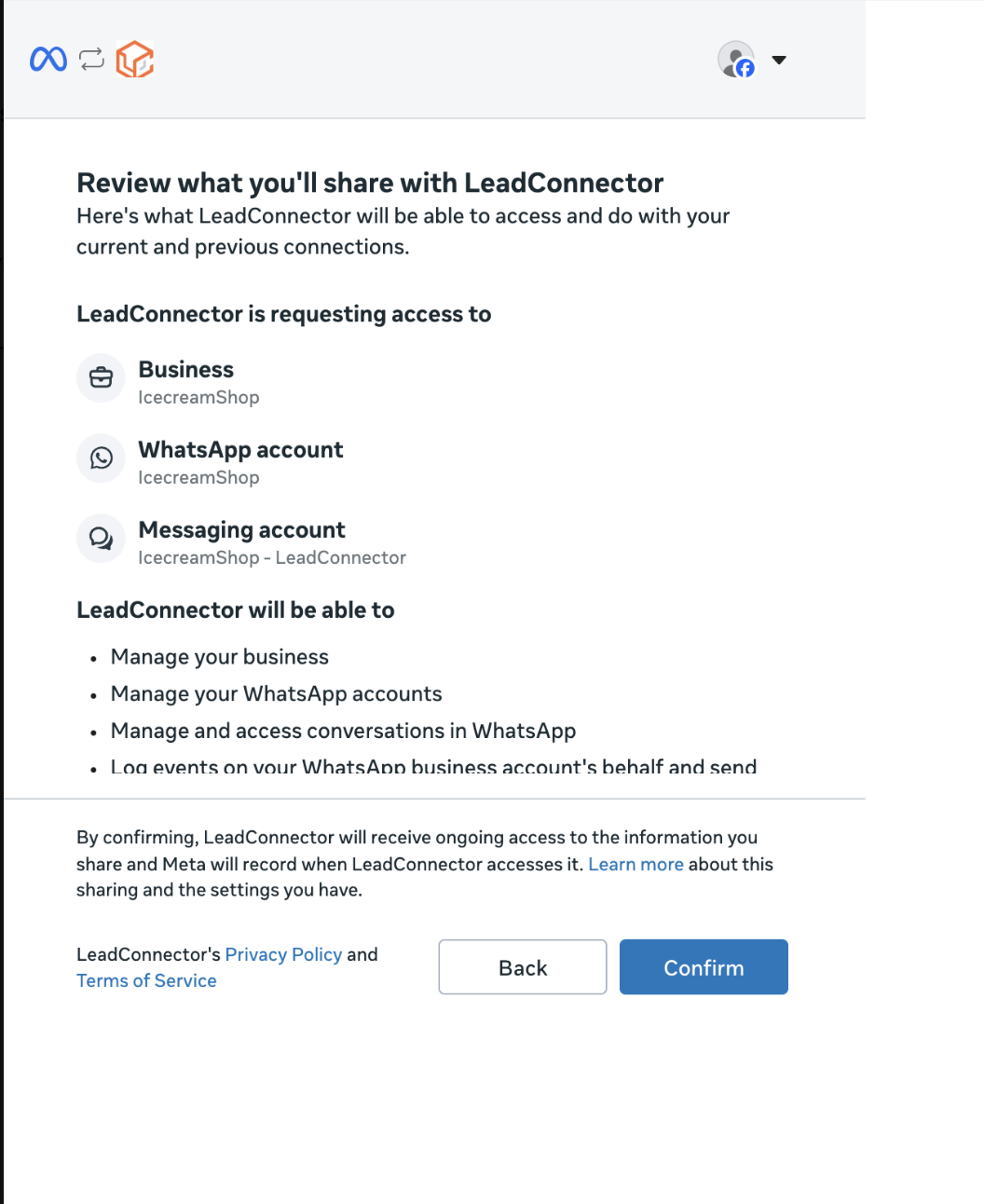
Review and Confirm
Check all entered details carefully, then click Confirm.
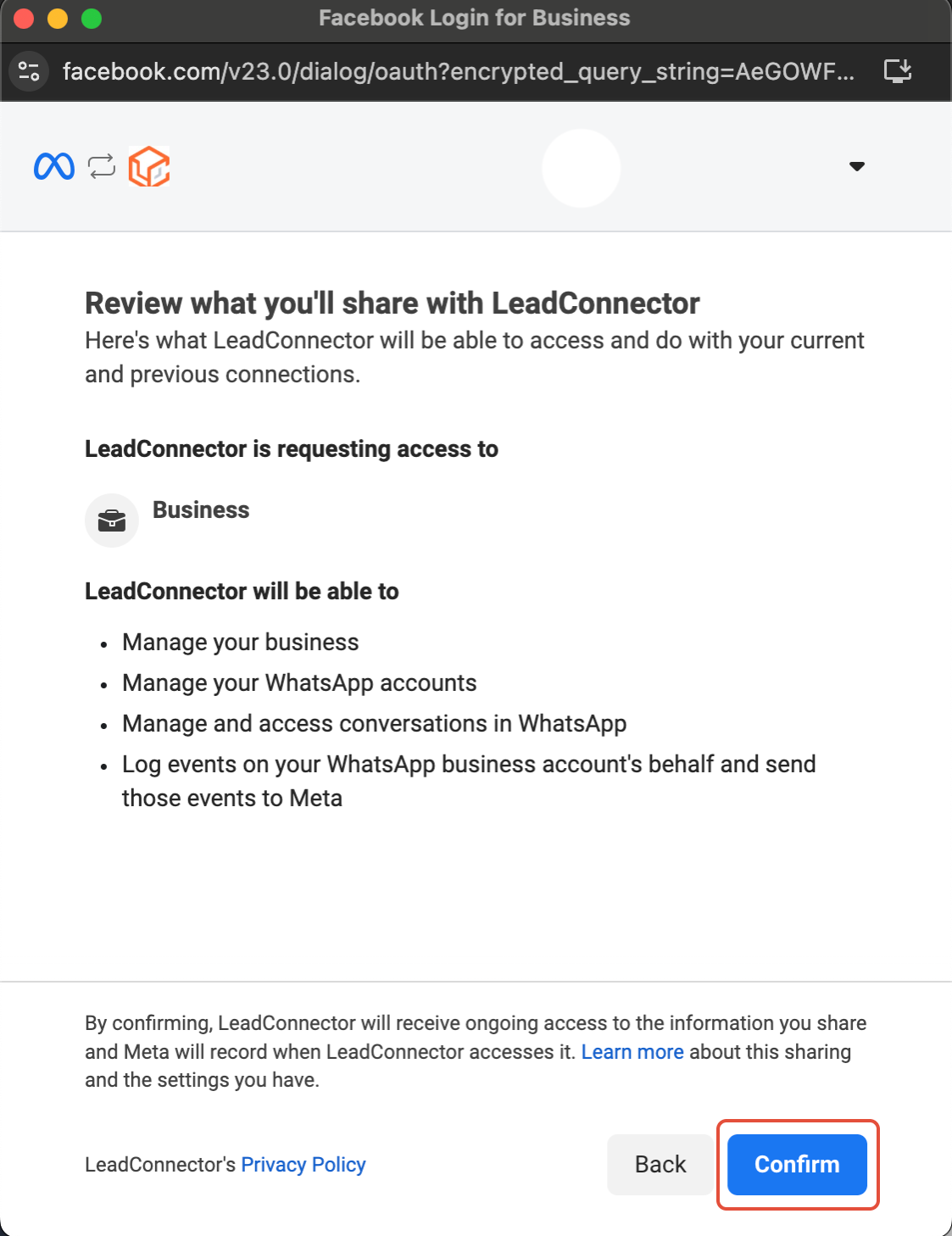
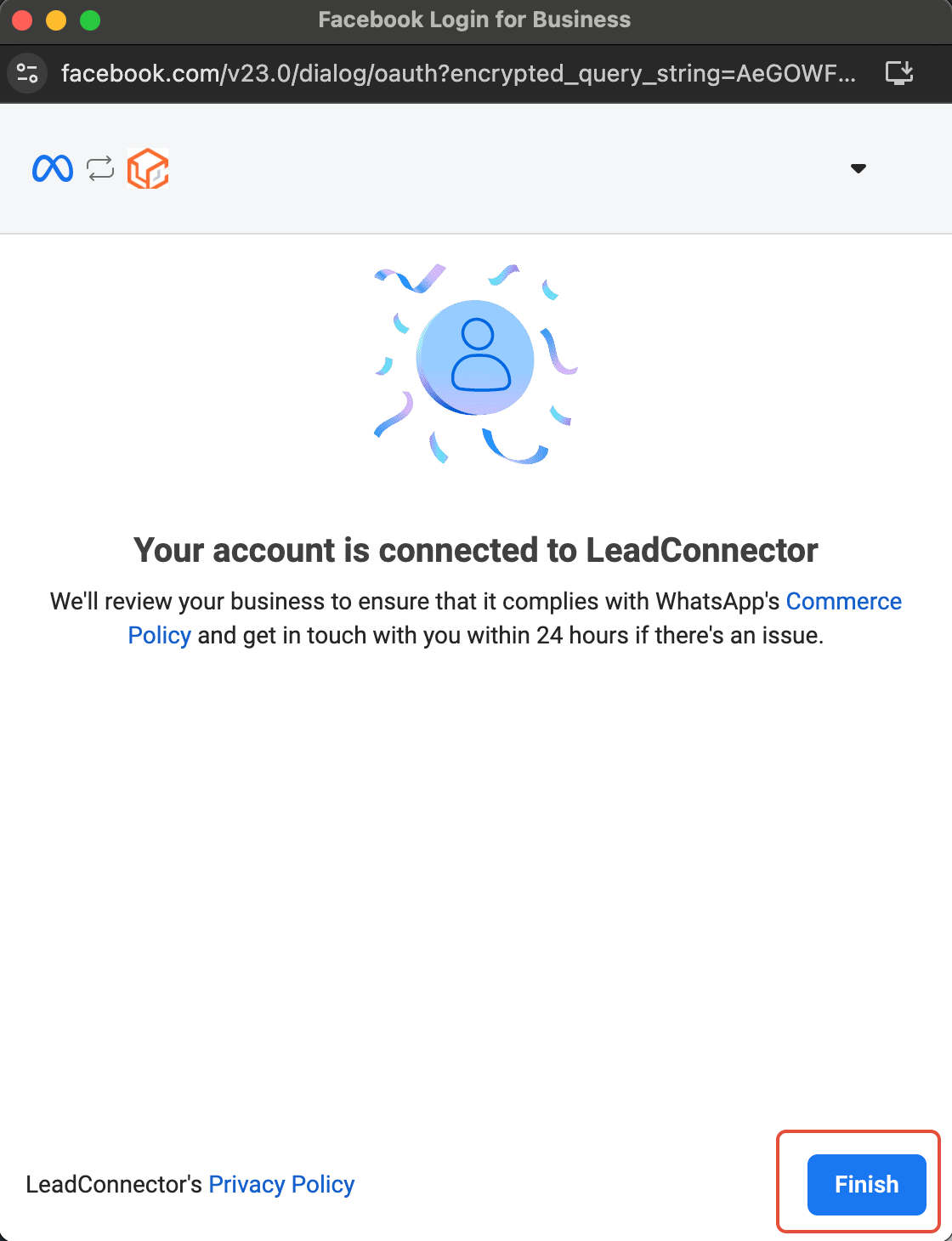
Integration Complete
Click Finish. Your WhatsApp Business App is fully integrated with LeadConnector.
NOTE
1. Sending template messages is not supported via the WhatsApp Business App — they can only be sent through the CRM.
2. You will manage your WhatsApp profile from the WhatsApp Business App, not the CRM.
3. You can only have a maximum of one phone number under Coexistence.
Start the Signup Process
Navigate to Settings > Communication > WhatsApp and click Create a new WhatsApp business account.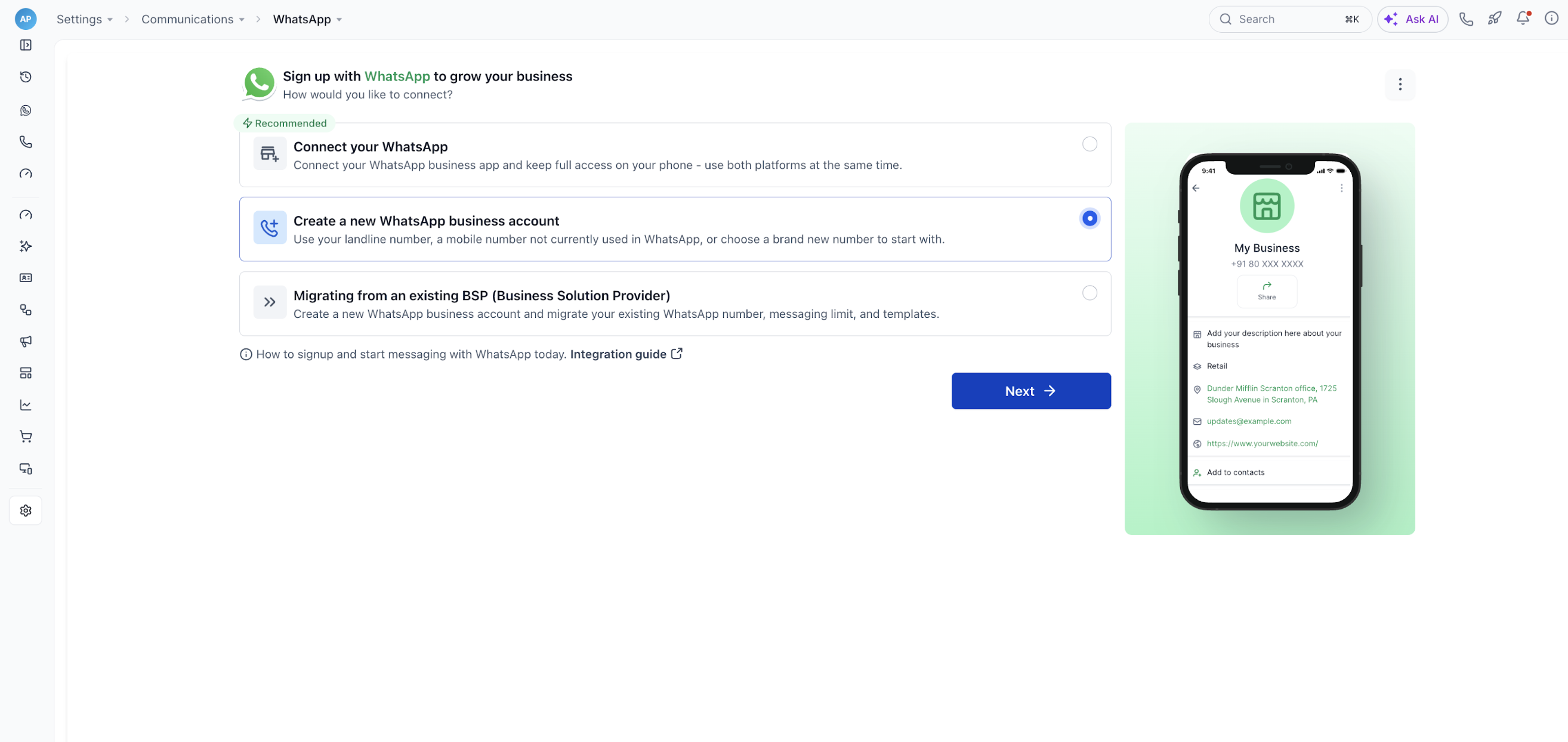
Continue with Facebook
Click Continue with Facebook and log in using the Facebook account associated with your business.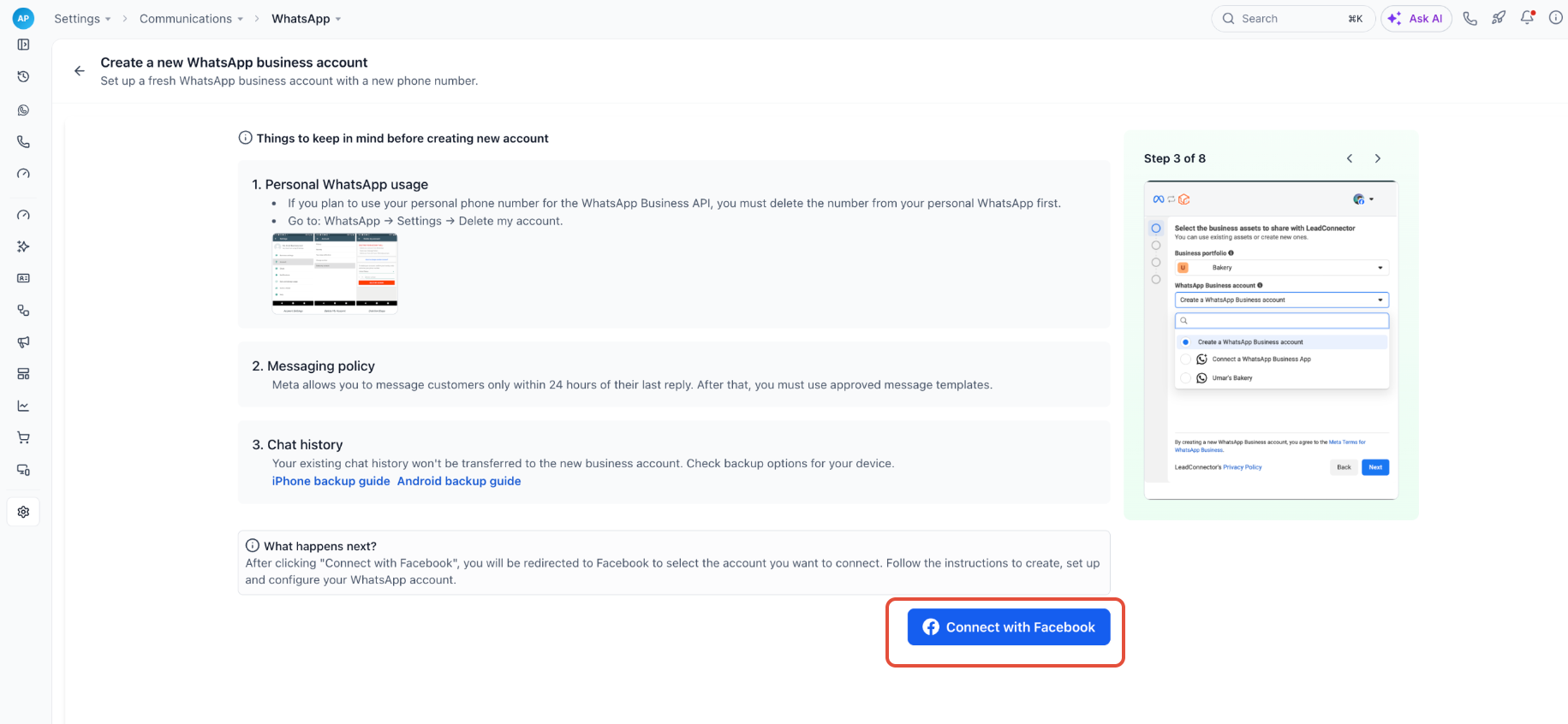
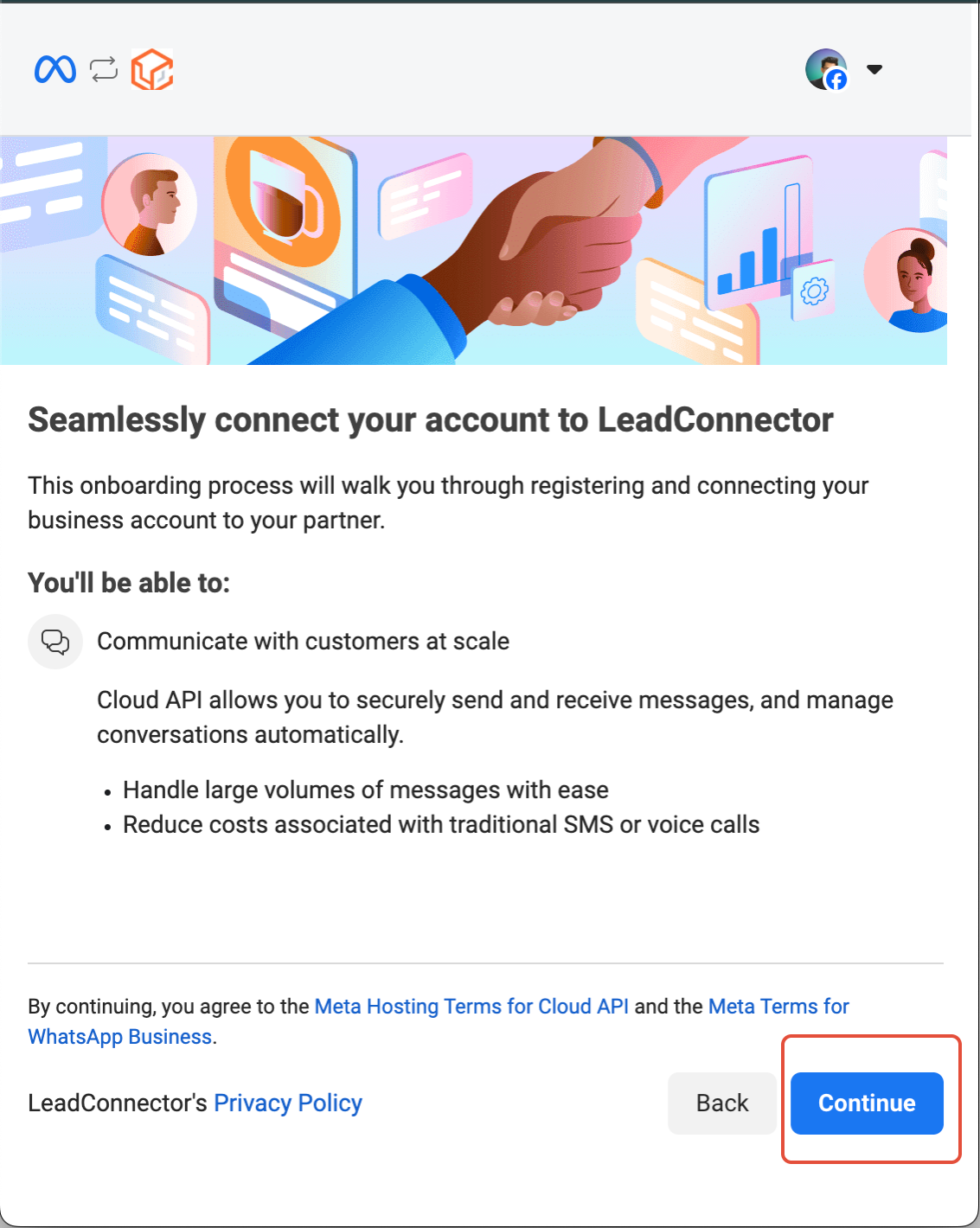
Begin Setup
Tap Continue to initiate the integration process.
Enter Phone number
Enter a new business phone number, or select an existing phone number from the dropdown, to associate with their WhatsApp Business Account.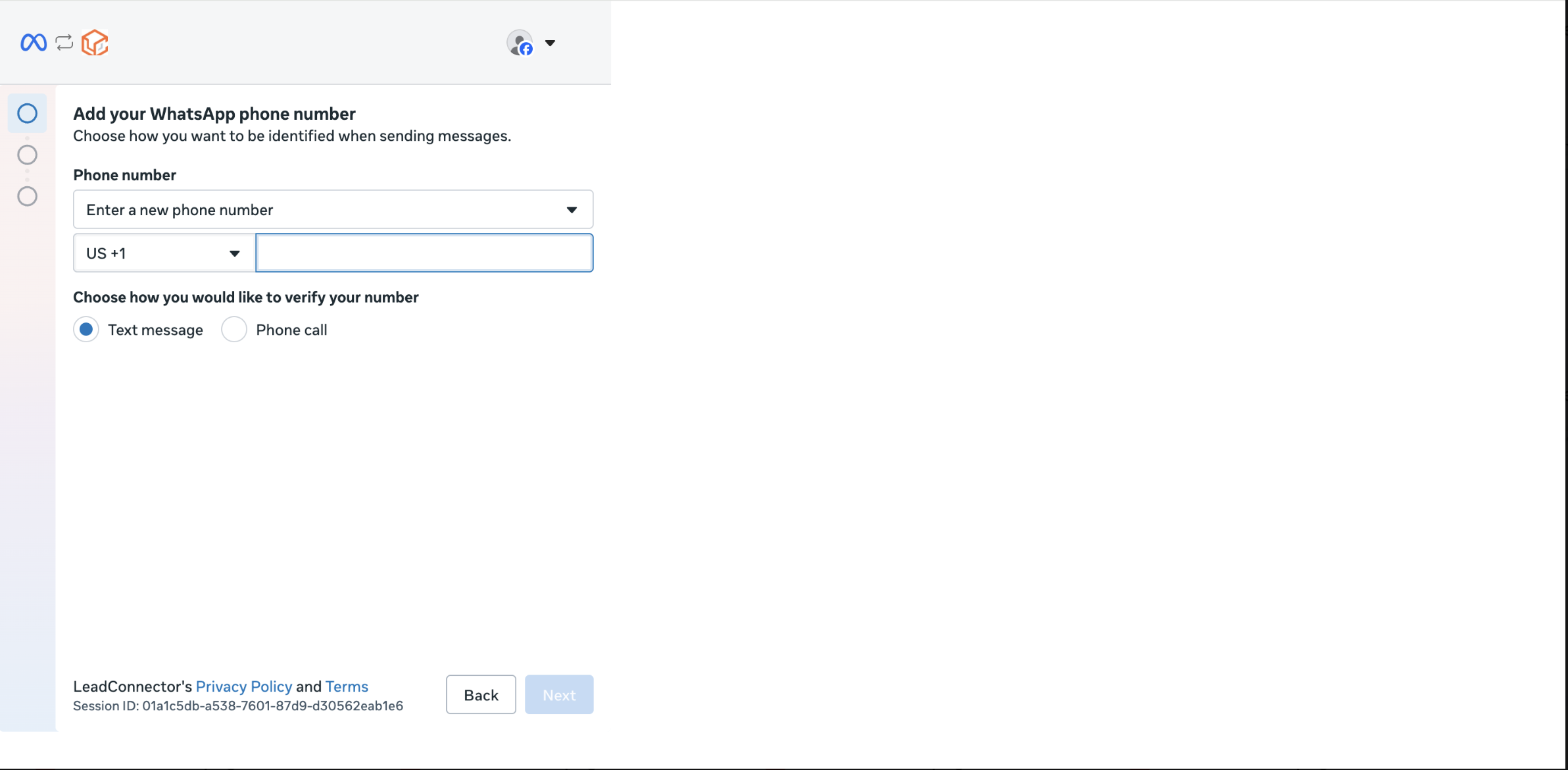
Phone Number
The phone number offers two ways to supply a number: Enter a new phone number, and choose the method of verification. 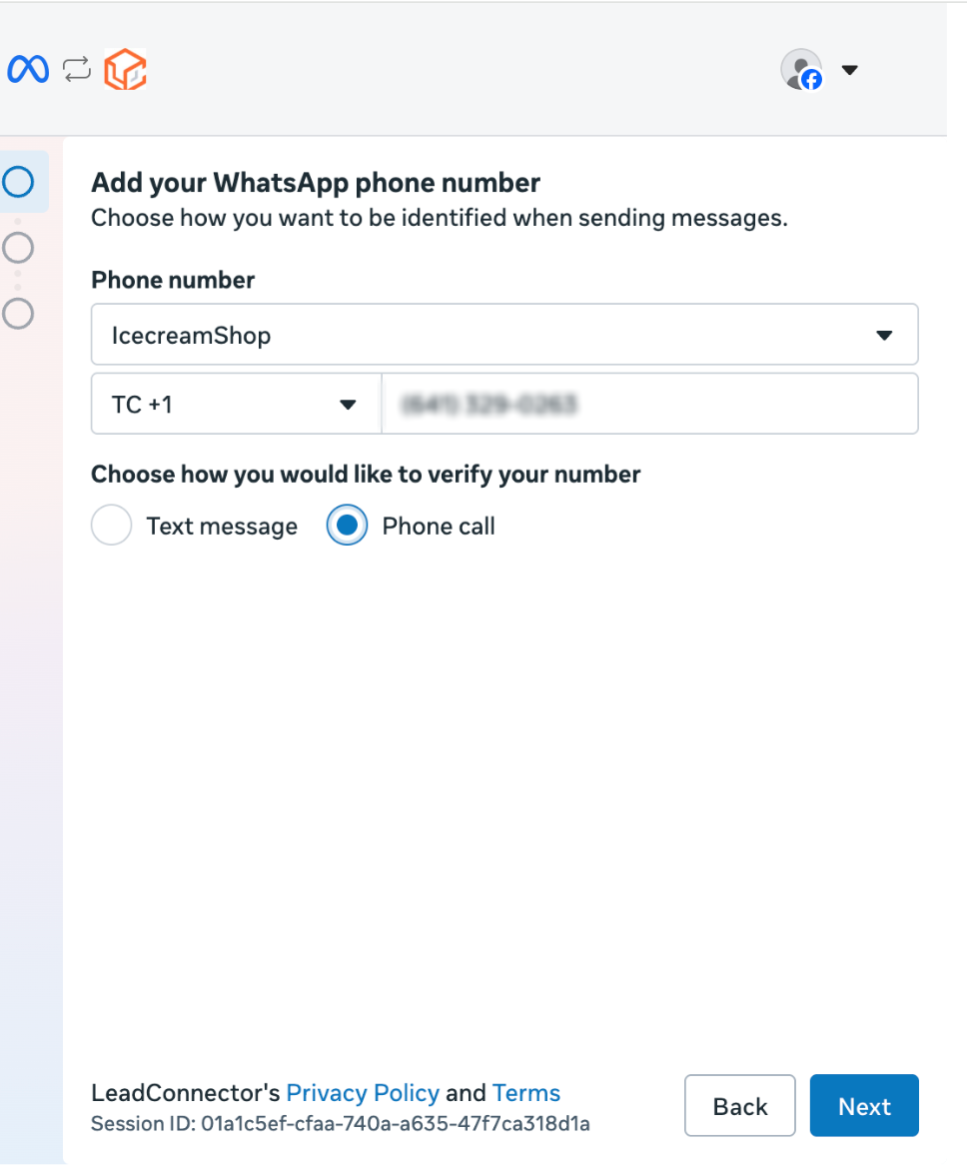
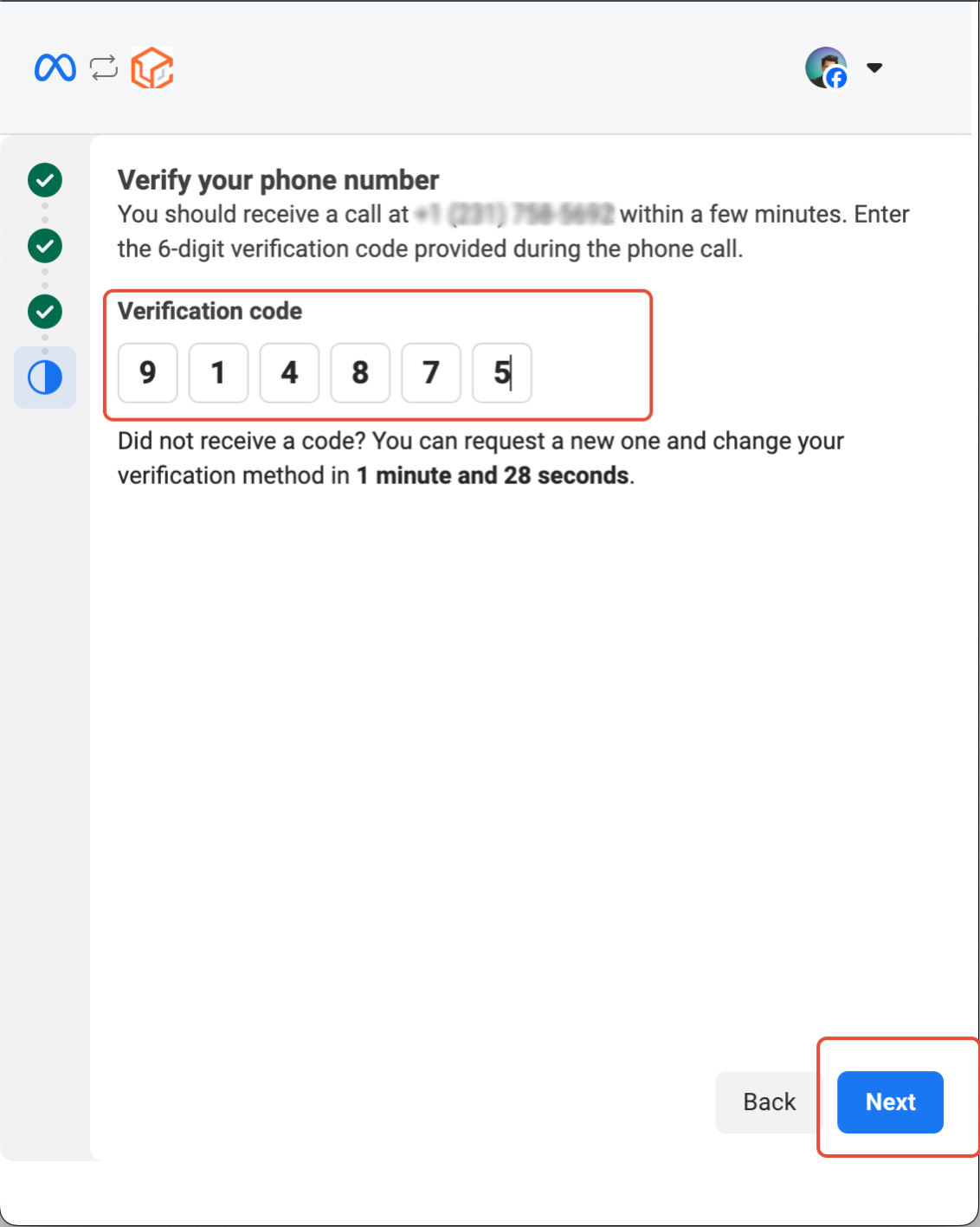
Verify via OTP
Enter the one-time password received by SMS or voice call, then click Next.
Complete your business Profile
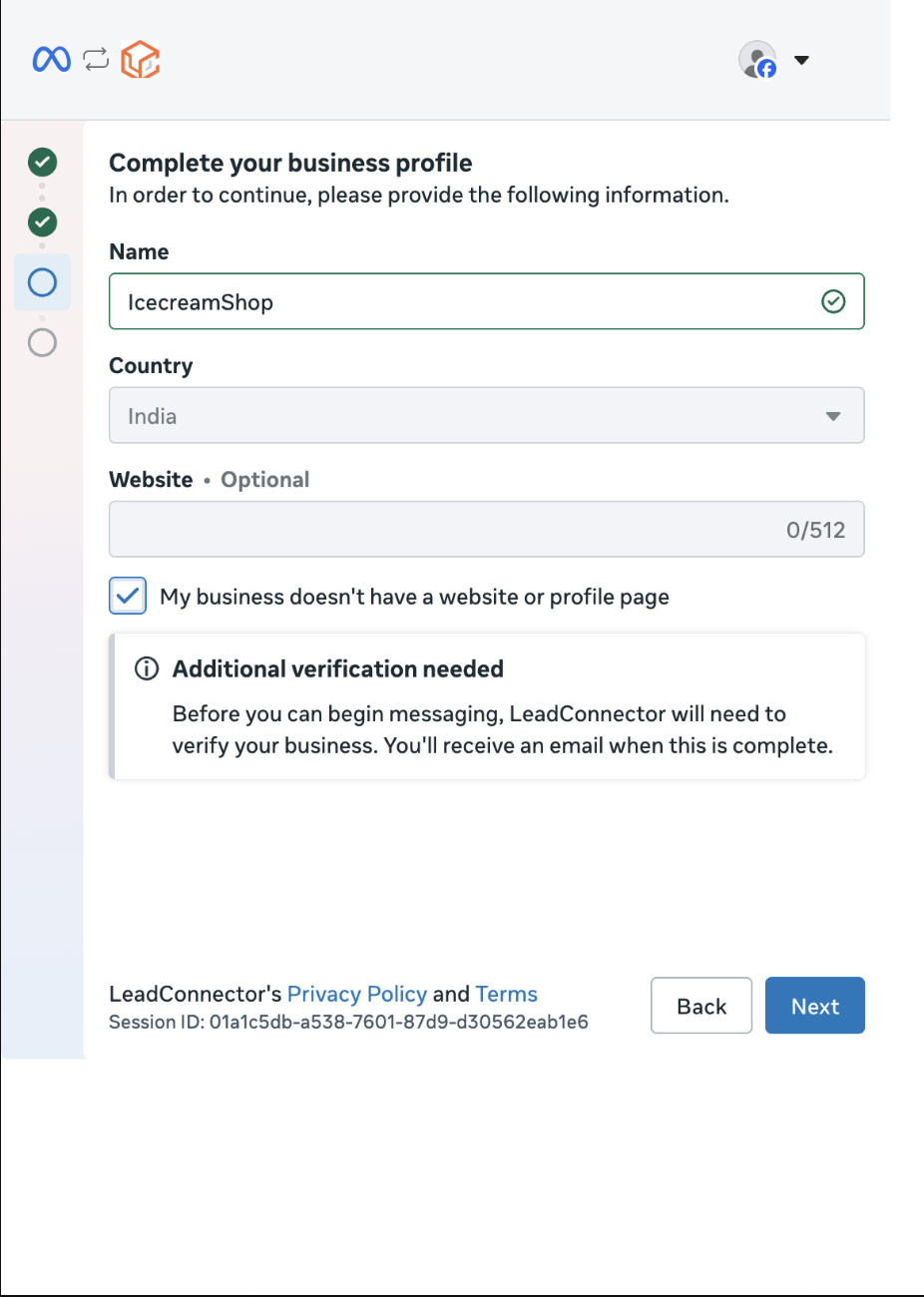
9 Integration Complete
Your WhatsApp Business Account is now successfully integrated and ready to use.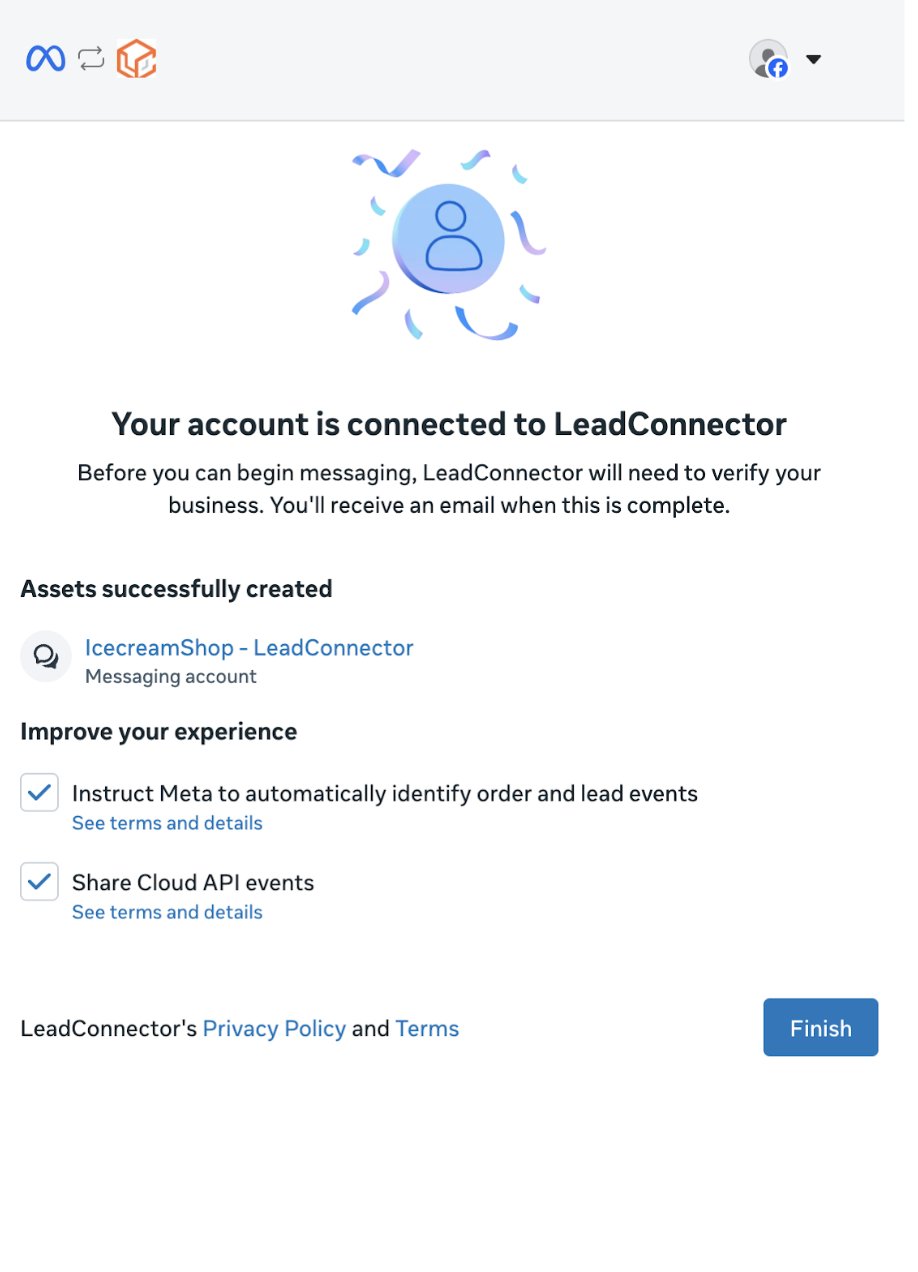
Migrating a WhatsApp Number From Another Partner
How to find out which partner your WhatsApp number is connected to, and how to move it to the CRM while keeping your number, display name, and approved templates.
Step 1: Check Which Partner Is Connected
A WhatsApp number can be active with only one partner at a time, so start by confirming who currently has access to yours. There are two ways to check.
Method 1: WhatsApp Business app
RecommendedUse this method if the number is also used in the WhatsApp Business app on your phone.
On the phone that uses the number, open WhatsApp Business.
Go to Settings → Account → Business Platform. Depending on your app version, this may be labeled Connected platform.
If a partner is connected, its name and account details appear on this screen. If you only see an option to connect, no partner is currently connected through the app.
Method 2: Meta Business Settings
Use this method if the number is not used in the WhatsApp Business app, or to double-check Method 1. You need access to the business portfolio that owns the WhatsApp account.
Open Meta Business Settings.
Select the correct business portfolio.
Go to Accounts → WhatsApp accounts.
Select the WhatsApp Business Account (WABA) that holds your number.
Open the Partners tab, if it is available.
Review which businesses have access to the account.
Tip: A partner that no longer appears in the Partners tab may still have a payment method or credit line attached to the account. If setup later fails, ask your previous partner to confirm it has been removed.
Before You Begin
Plan for a short interruption. A number is active with one partner at a time. Once the migration completes, your previous partner loses access to the number. Pick a quiet time and tell your team before you start.
Step 2: Choose Your Migration Path
The right steps depend on how your number is connected today.
Path A: Connected through a partner only
The number runs on the WhatsApp Business API with your current partner, and Method 1 showed no connected platform (or the number is not in the WhatsApp Business app). Follow Path A.
Path B: Also used in the WhatsApp Business app (Coexistence)
Method 1 showed a connected platform. You keep using the app while a partner handles messages through the API. Follow Path B.
Path A: Number Connected Through a Partner Only
Turn Off Two-Step Verification
If you own the WhatsApp Business Account, open WhatsApp Manager, select the account, and go to Account tools → Phone numbers. Select your number and choose Turn off two-step verification.
If your current partner owns the account or set the PIN, ask them to turn it off for you.
Start the Connection in the CRM
In the sub-account, go to Settings → WhatsApp and begin connecting your number. Sign in to Meta when prompted and choose the business portfolio and WhatsApp account that hold your number.
↗ WhatsApp Setup Guide — full connection stepsVerify the Number
Meta sends a 6-digit code by SMS or voice call to the number. Enter it to confirm that you own the number.
Set a New PIN if Prompted
The previous PIN does not carry over. If you are asked to create a new 6-digit PIN, store it somewhere safe.
Confirm the Connection and Check Your Templates
When the number shows as connected, go to Settings → WhatsApp → Templates and confirm your approved templates arrived. Send a test message to an internal contact.
Path B: Number Also Used in the WhatsApp Business App
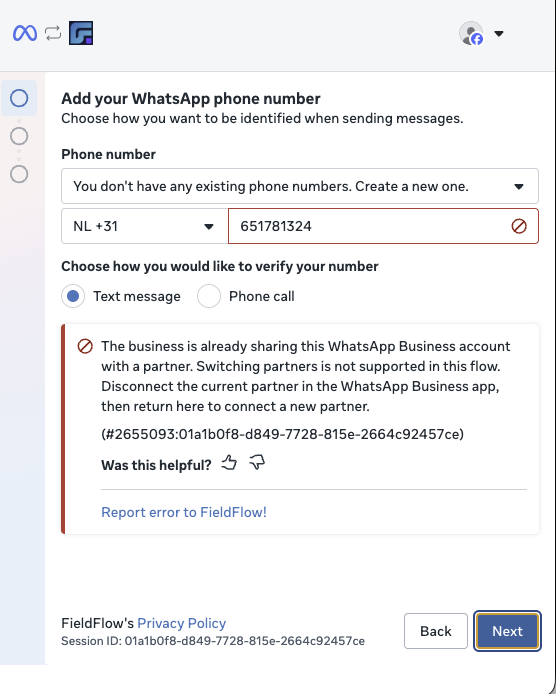
When a number is connected through Coexistence, you cannot switch partners in a single step. Disconnect the current partner first, then connect the new one.
Disconnect the Current Partner
In the WhatsApp Business app, go to Settings → Account → Business Platform, select the connected partner, and follow the prompts to disconnect.
Disconnecting a business platform is not the same as deleting your WhatsApp account. Do not delete your WhatsApp Business app account.
Confirm the Disconnection
Wait a few minutes, then repeat Method 1 and Method 2 from Step 1 to confirm that the previous partner no longer appears.
Connect Through the CRM
In the sub-account, go to Settings → WhatsApp and connect the number using the Coexistence option for an existing WhatsApp Business app number.
↗ WhatsApp Coexistence Method — full setup guideWhat Moves With Your Number
Carries over
Does not carry over
Before you migrate: Export any contacts and conversation history you need from your previous partner. Recreate templates that did not carry over and submit them for Meta approval. A template's quality rating may show as unknown at first after the move.
Troubleshooting
Was this article helpful?
That’s Great!
Thank you for your feedback
Sorry! We couldn't be helpful
Thank you for your feedback
Feedback sent
We appreciate your effort and will try to fix the article