WhatsApp Bulk Action
WhatsApp Bulk Action allows you to send approved WhatsApp template messages to multiple contacts at once while tracking delivery, read rates, errors, and skips.
Table of Contents
Overview
Bulk WhatsApp Actions help businesses run large-scale WhatsApp campaigns directly from Contacts or Smart Lists. Messages can be sent immediately, scheduled for later, or delivered in drip mode. Detailed campaign statistics are available to monitor performance and troubleshoot issues.
Recent enhancements include:
Important: Only approved WhatsApp templates are available for Bulk Actions. Meta messaging limits and WhatsApp policies apply.
How to Send Bulk WhatsApp Messages
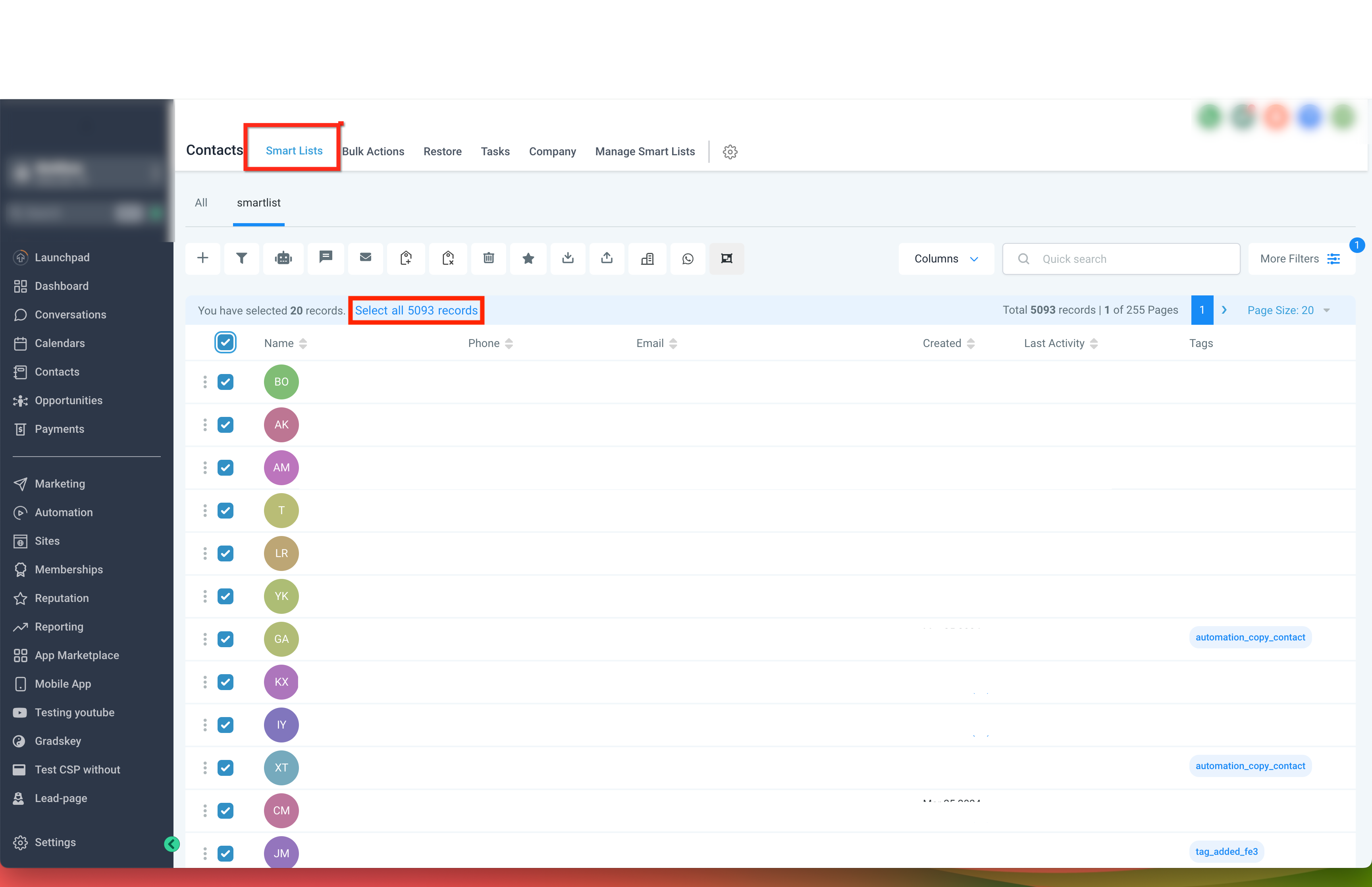
Select Contacts
- Go to Contacts.
- Use filters or Smart Lists to find the contacts you want to message.
- Select contacts individually or click Select all records to include all contacts in the list.
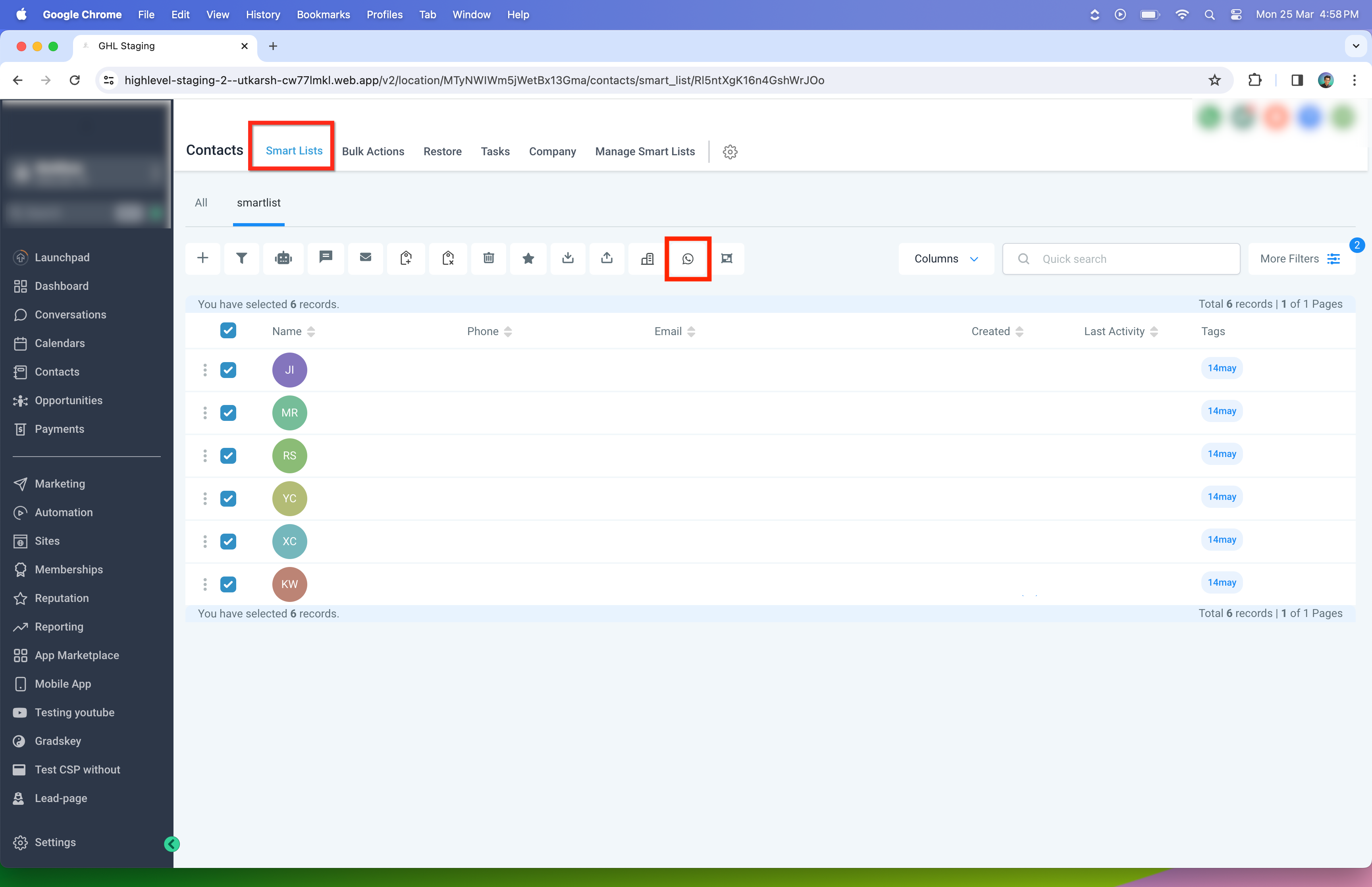
Start a Bulk WhatsApp Action
- With contacts selected, click the WhatsApp icon in the Bulk Actions toolbar.
- Choose Send WhatsApp to begin a bulk WhatsApp campaign.
Select and Preview a WhatsApp Template
- Choose a WhatsApp template from the template list.
- A live preview of the template is displayed immediately.
- The preview shows: template message content, template category (for example, Marketing or Utility), and template language.
- Enter an Action Name to reference the campaign later.
- Choose how the campaign should be sent: send immediately, schedule for a later time, or send in drip mode.
Note: Only approved templates are visible during selection.
Replace Media in a Template (Optional)
If the selected template contains media:
- Click Replace media in the template preview.
- Select a file from your local device.
- The media updates instantly in the preview.
This replaces the media only for this campaign and does not modify the approved template.
Launch the Campaign
- Review the campaign details.
- Confirm the action.
- The bulk WhatsApp campaign begins processing.
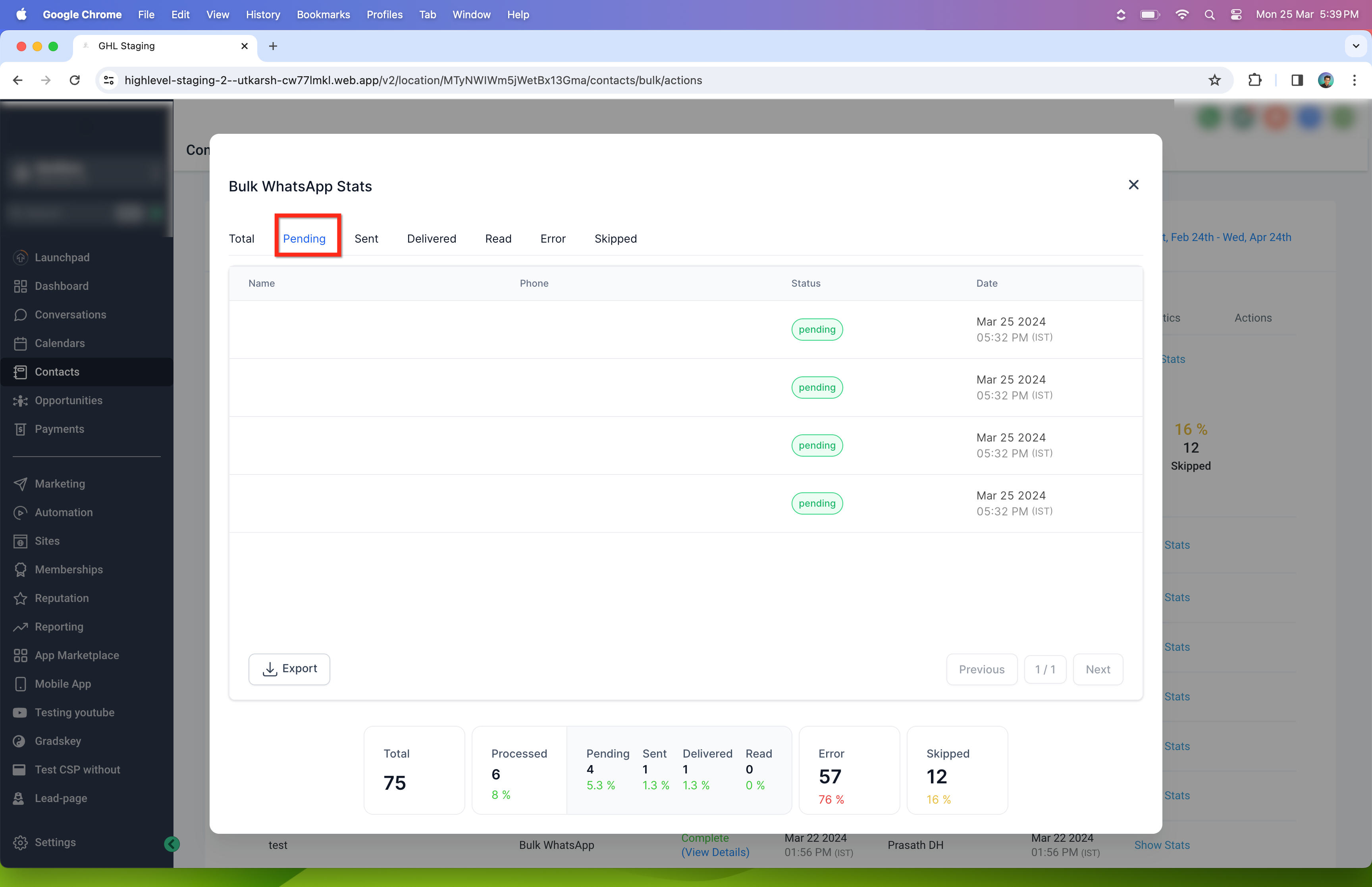
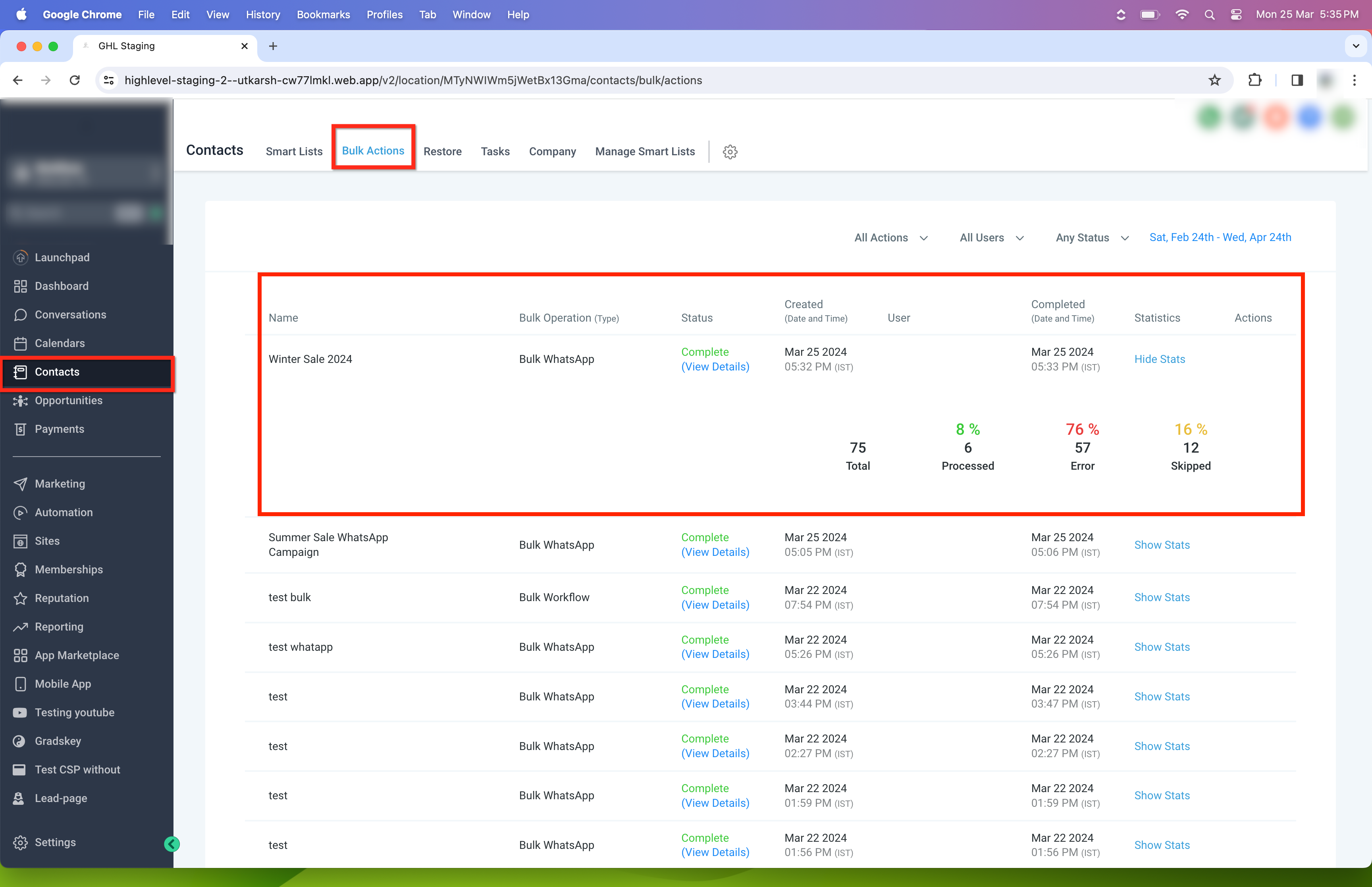
Monitor Campaign Progress
- Go to Contacts → Bulk Actions.
- Locate the WhatsApp campaign.
- Click View Details or Show Stats to monitor progress.
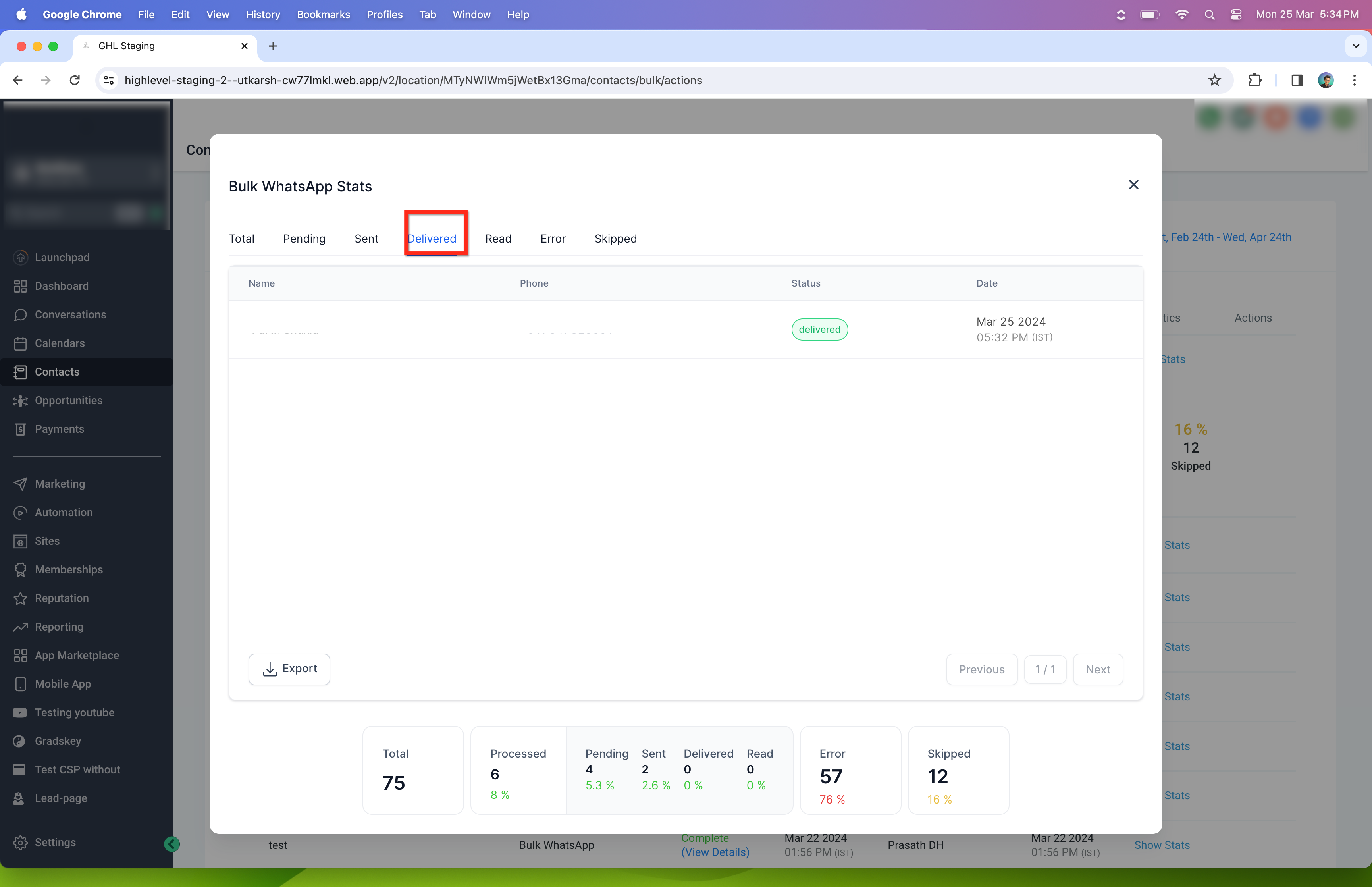
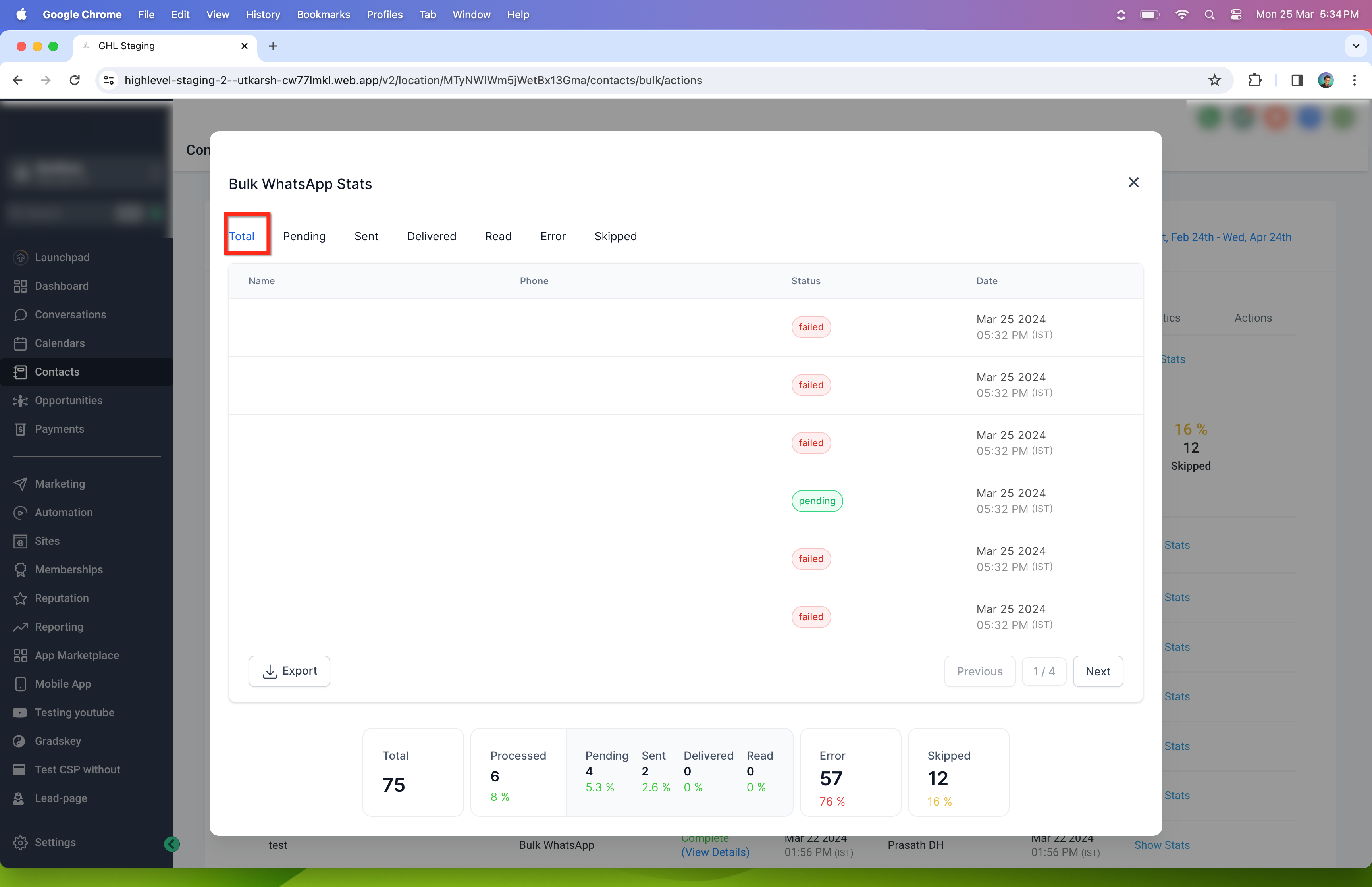
View Detailed Campaign Statistics
Clicking campaign statistics opens a detailed view with tabs for: Total, Pending, Sent, Delivered, Read, Error, and Skipped.
You can also export campaign statistics for reporting.
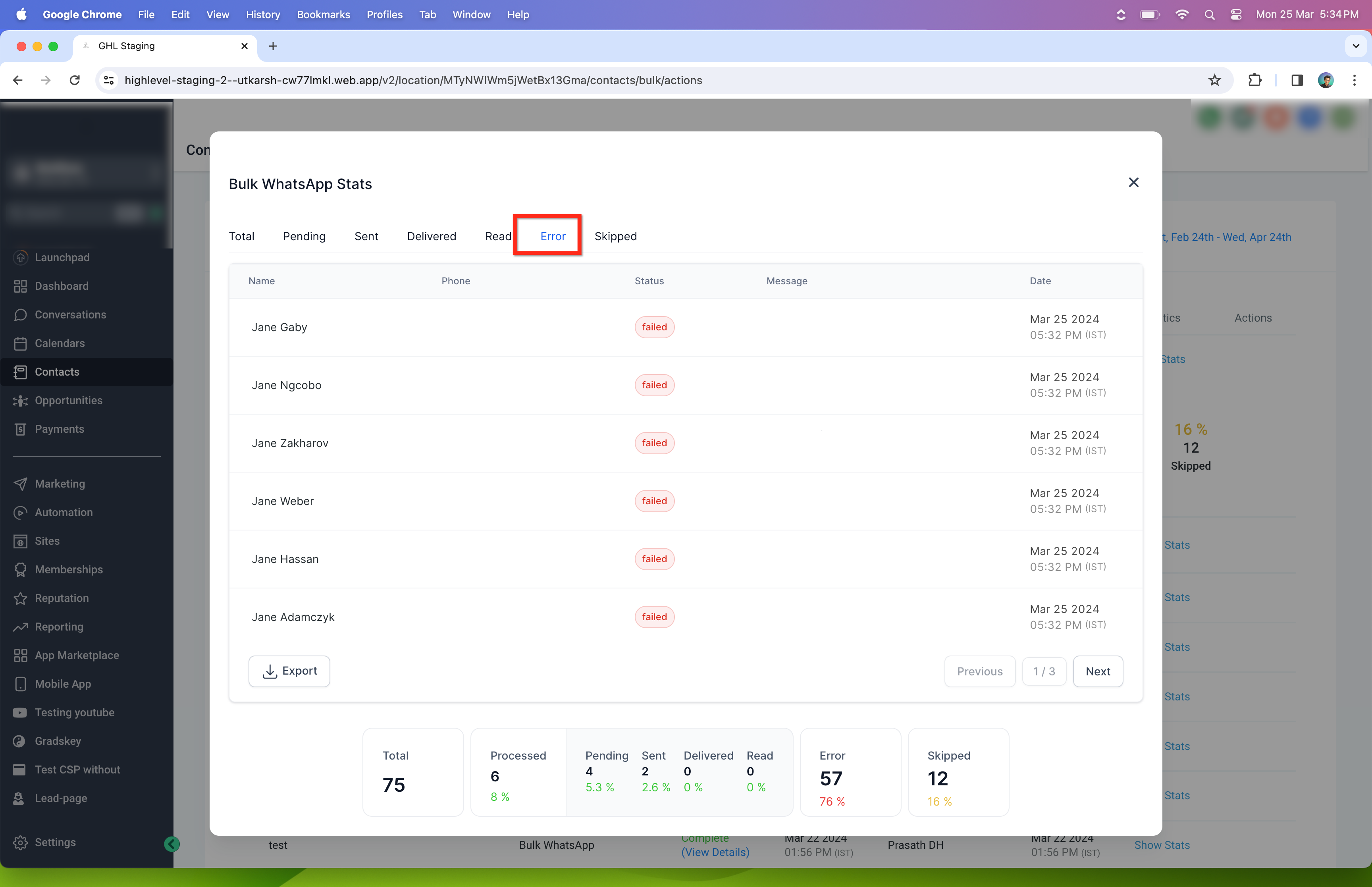
Campaign Statistics Explained
Total
Total number of contacts included in the bulk action.
Pending
Contacts for whom the WhatsApp message has not yet been triggered.
Sent
Contacts to whom the WhatsApp message has been sent.
Delivered
Contacts who successfully received the WhatsApp message.
Read
Contacts who opened and read the WhatsApp message.
Error
Contacts for whom message delivery failed. Reasons may include:
- Contact not on WhatsApp
- Template issues
- Meta messaging limit exceeded
- WhatsApp account restrictions
Skipped
Contacts excluded from the campaign due to:
- DND settings
- Missing phone number
- Messaging restrictions
Frequently Asked Questions
Q: What will happen if my Meta messaging limit is breached during an ongoing WhatsApp bulk action?
Messages for contacts beyond the limit will fail and appear under Error in campaign statistics.
Q: What is the rate limit for sending WhatsApp bulk messages?
WhatsApp messages are sent at a rate of up to 1,000 messages per hour, subject to Meta limits.
Q: What is Meta Messaging Limit?
Meta messaging limits control how many new business-initiated conversations you can start within a rolling 24-hour period.
Q: What happens if my tier quota is complete?
You will not be able to initiate additional business conversations until the quota resets.
Q: How can I check my current messaging limits?
Go to WhatsApp Manager → Overview Dashboard → Insights in Meta.
Q: What is a quality rating and how does it affect my messaging limit?
Quality rating reflects customer feedback over a seven-day period. Low ratings can reduce messaging limits.
Q: How can I maintain a high quality rating?
Follow WhatsApp Business and Commerce policies, message only opted-in users, personalize messages, and avoid excessive messaging frequency.
Was this article helpful?
That’s Great!
Thank you for your feedback
Sorry! We couldn't be helpful
Thank you for your feedback
Feedback sent
We appreciate your effort and will try to fix the article