Learn the requirements for creating custom templates, how to create templates centrally from Agency View, how supported products upload reusable assets, how to configure template information, how Draft and Published templates behave, and how to control Template Library visibility for sub-accounts.
Creating new custom templates requires an Agency Admin on the $497/month Pro plan. Agency Admins on the $97 Starter and $297 Unlimited plans can browse the Agency Template Library and use supported visibility-management features, but they cannot create new custom templates.
2. Key Benefits of Custom Templates
3. Prerequisites and Limitations
4. How To Create a Custom Template from Agency View
5. How To Upload a Template from a Product
6. How To Configure and Publish a Template
7. Frequently Asked Questions
8. Related Articles
What Is a Custom Template in the Template Library?
A custom template is a reusable asset an agency adds to its HighLevel Template Library. Published templates can be made available to sub-accounts so users can start with agency-approved content or configurations instead of rebuilding the same asset from scratch.
The Template Library supports multiple HighLevel product areas. Available template types and creation options vary by product, so use the product choices and upload actions displayed in your account to confirm whether a specific asset type is supported.
Key Benefits of Custom Templates
Custom templates help agencies standardize reusable assets, reduce repetitive setup, and make proven content easier for sub-account users to discover and reuse.
- Reuse Proven Assets: Turn existing agency content into reusable templates across supported product areas.
- Create Centrally: Build Template Library entries directly from Agency View without repeatedly switching between sub-accounts.
- Maintain Consistency: Give sub-accounts access to agency-approved designs, content, and configurations.
- Improve Discoverability: Add categories, tags, descriptions, previews, cover images, and prerequisites to make templates easier to understand and find.
- Control Publication: Keep templates in Draft while preparing them, then publish them when they are ready for use.
- Manage Visibility: Control which templates and categories appear for sub-accounts.
Prerequisites and Limitations
Confirming your agency plan, permissions, Template Library visibility, and source asset before creating a template helps prevent missing controls or inaccessible templates later.
Before creating a custom template, confirm:
- Your agency is on the $497/month Pro plan to create new custom templates.
- You are signed in with an Agency Admin role.
- Template Library access is enabled when sub-account users need to browse published templates.
- The source asset already exists when you want to create a template from an existing sub-account asset.
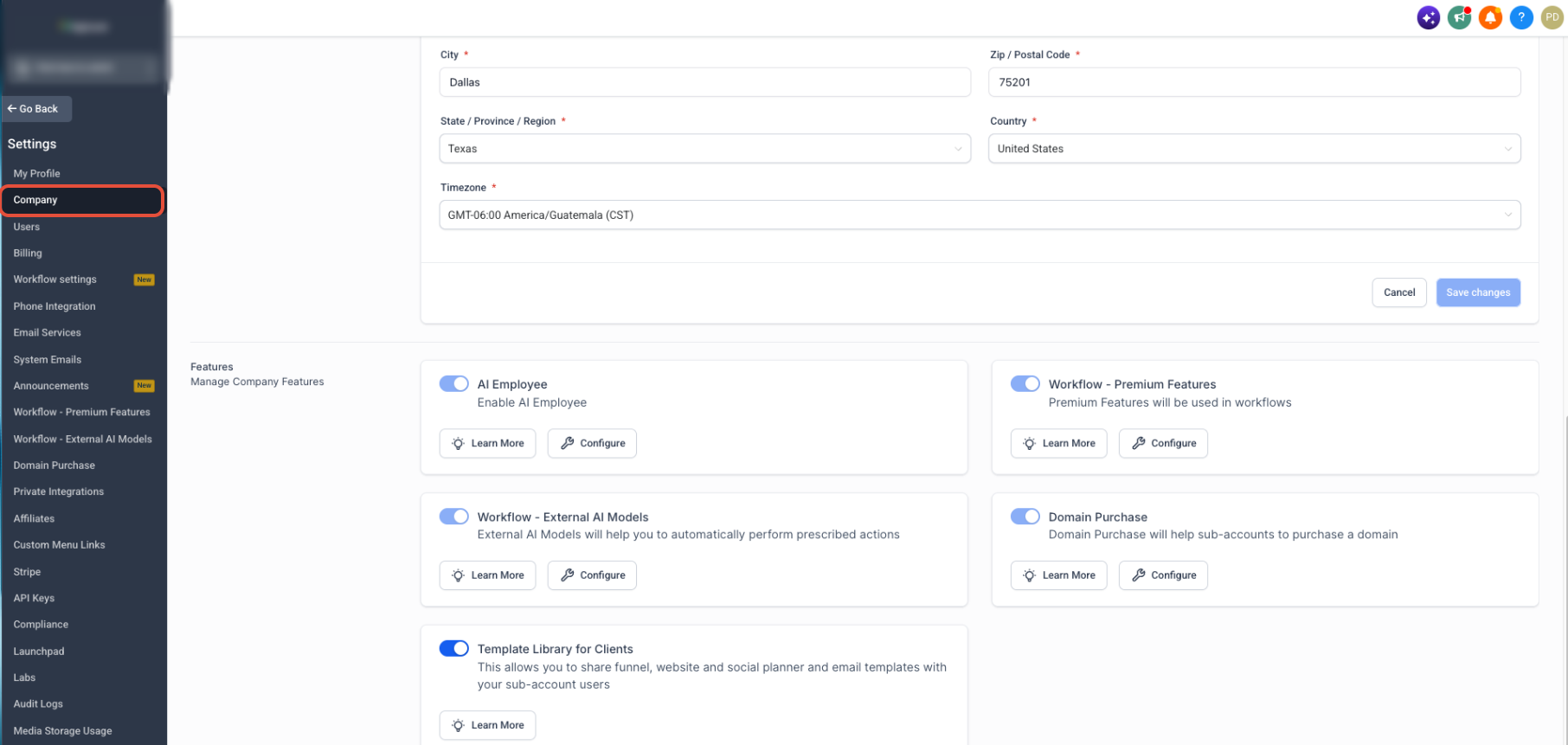
Enable the Template Library for Clients
The agency-level Template Library setting controls whether clients can access the library. Enable it before expecting published templates to appear in supported sub-account experiences.
- From Agency View, open Settings.
- Select Company.
- Scroll to Template Library for Clients.
- Turn on the toggle when sub-account users should have access to templates.
$97 and $297 plans: Agency Admins on these plans can browse the Agency Template Library and use supported visibility controls such as hiding templates or categories. Creating new custom templates still requires the $497 Pro plan.
Understand Source Template Updates
Changes made to the original source asset do not automatically update an already published Template Library template. Treat the published template as its own reusable asset and review it separately when the original content changes.
How To Create a Custom Template from Agency View
Creating a template centrally from Agency View lets an Agency Admin select an existing sub-account asset, preview it, rename it, and create a reusable Template Library entry without navigating through the source product first.
Step 1: Start the Template
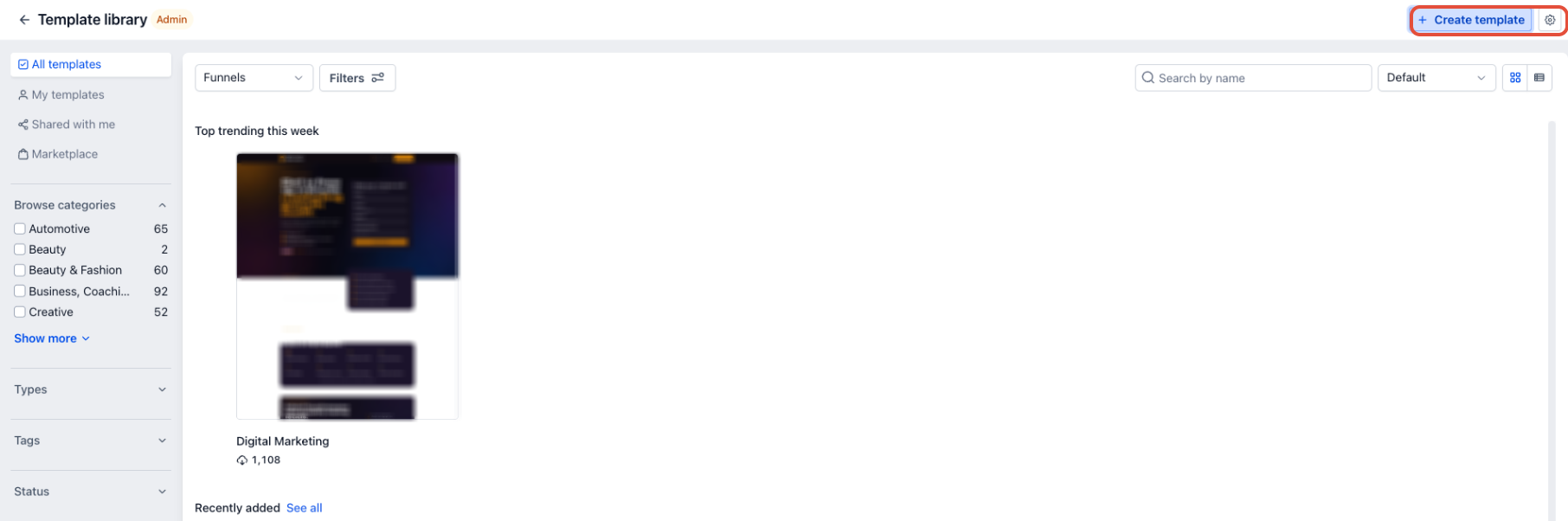
Start from the agency Template Library so the source sub-account and product can be selected from one centralized creation flow.
- From Agency View, open Template Library.
- Click + Create template.
Step 2: Select the Source Asset
Selecting the source sub-account and product type tells HighLevel which existing assets should be available for the new template.
- Select the sub-account containing the source asset.
- Select the applicable product.
- Choose the template or source asset.
- Click Continue.
Step 3: Preview, Rename, and Create
Previewing the source asset gives you a final opportunity to confirm that the correct template was selected before creating the reusable Template Library entry.
- Review the template preview.
- Open the preview if you need to inspect the asset more closely.
- Rename the template if needed.
- Click Create.
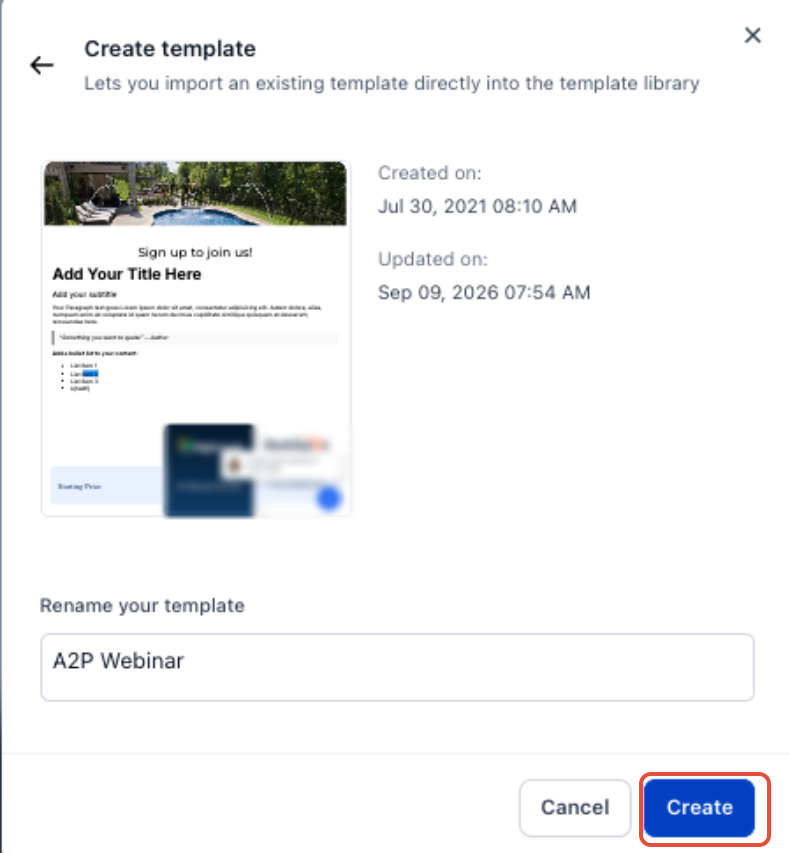
After the template is created, HighLevel opens the Template Library management experience so you can update template details, save it as a Draft, or publish it for reuse.
How To Upload a Template from a Product
Supported HighLevel products can send an existing asset directly to the Template Library. The exact upload action varies by product, but the workflow generally starts from the asset's three-dot menu and continues in Template Library admin mode.
| Product | Starting Area | Upload Action |
|---|---|---|
| Email Templates | Marketing → Emails → Templates | Upload to email templates |
| Social Planner | Marketing → Social Planner → Content → CSV | Upload to social templates |
| Workflows | Automation → Workflows | Upload to Template Library |
| Supported Sites Assets | Sites → Select supported product | Upload to [product] templates |
| Ad Manager | Marketing → Ad Manager | Upload to Template Library |
| Custom Reports | Reporting → Custom Reports | Upload Report Template |
Upload an Email Template
Email templates can be uploaded directly from the Email Marketing template list, allowing established designs to become reusable Template Library assets.
- From the sub-account, go to Marketing → Emails → Templates.
- Locate the email template you want to reuse.
- Open the template's three-dot action menu.
- Select Upload to email templates.
- Enter a display name.
- Select a category.
- Click Upload.
Upload Social Planner Content
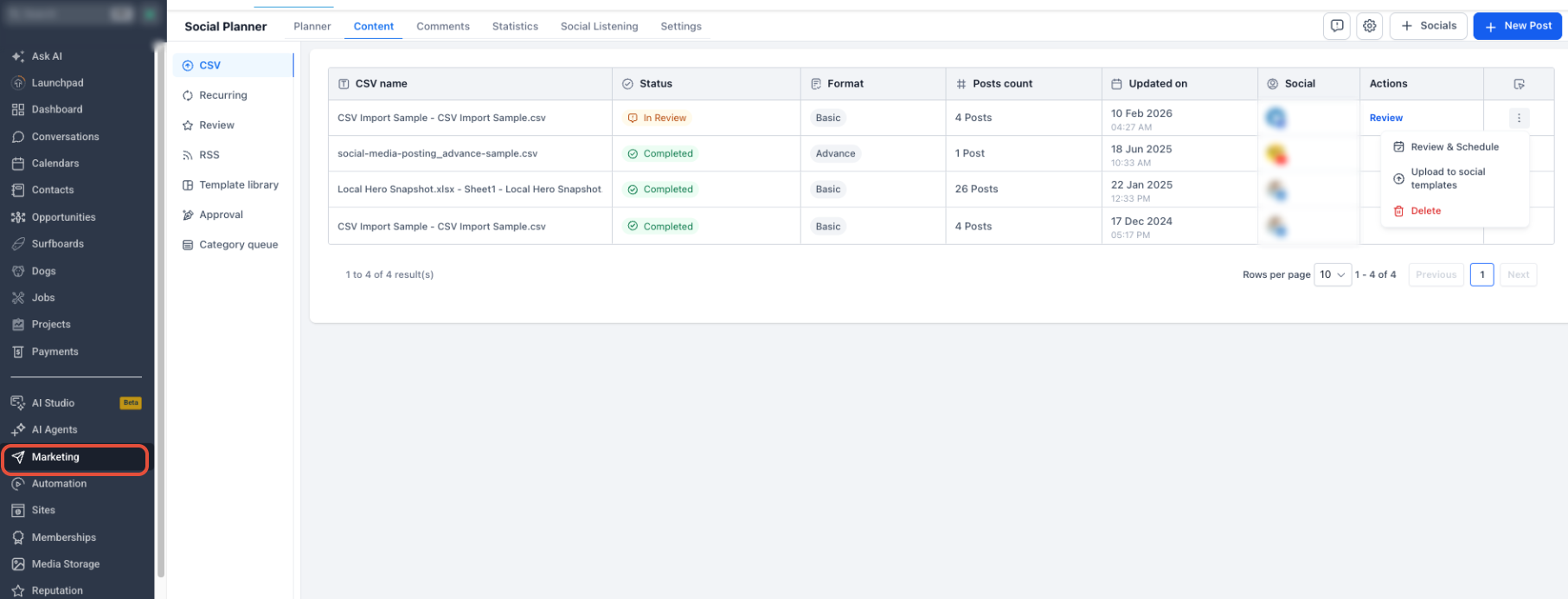
Social Planner lets Agency Admins upload supported reusable content to the Template Library directly from the Content area.
- From the sub-account, go to Marketing → Social Planner.
- Open Content.
- Open the CSV tab or another supported Template Library content area.
- Locate the content you want to reuse.
- Open its three-dot action menu.
- Select Upload to social templates.
- Enter the template name and select a category.
- Continue to Template Library admin mode to complete the template information.
Upload an Ad Manager Campaign
Supported Ad Manager campaigns can be saved as reusable templates. After upload, the campaign is created as a Draft template so its information can be reviewed before publication.
- From the sub-account, go to Marketing → Ad Manager.
- Open the campaign list.
- Locate the supported campaign you want to reuse.
- Open the campaign's ellipsis (⋮) menu.
- Select Upload to Template Library.
- Enter the template name.
- Select a category.
- Click Upload.
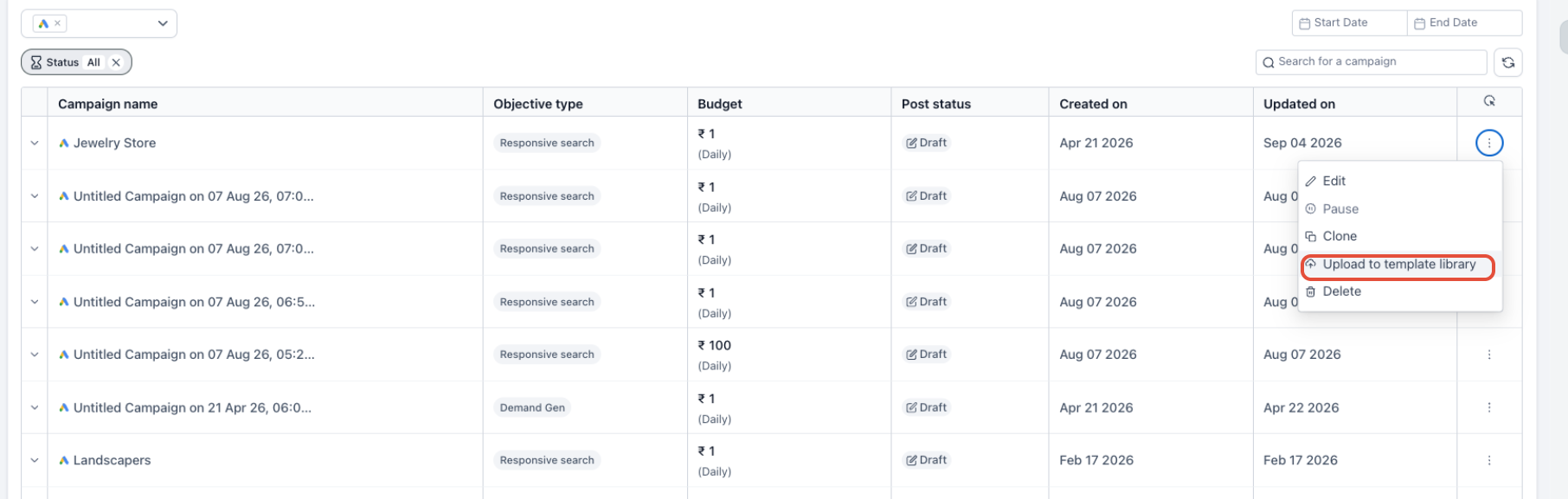
Ad Manager Drafts: Uploaded supported campaigns are saved as Draft templates. You can edit the template, keep it as a Draft, or publish it for reuse.
Upload a Custom Report
Custom Reports require an additional permissions and cleanup step before upload so the reusable report works across sub-accounts without exposing client-specific information.
- From the sub-account, go to Reporting → Custom Reports.
- Locate the completed report on Reports Overview.
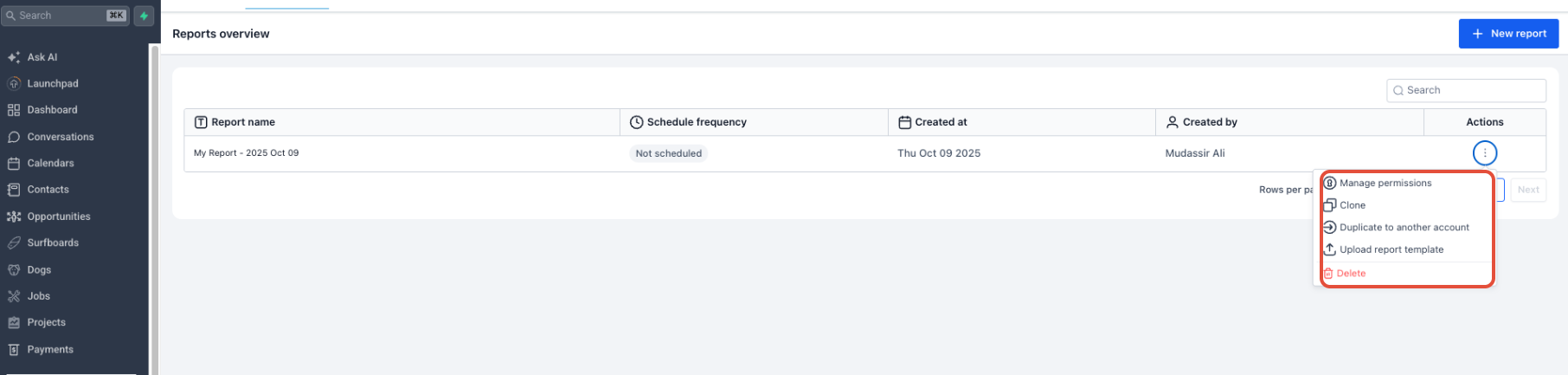
- Open the report's three-dot menu.
- Select Manage permissions.
- Grant at least Read access to Agency User, Account Admin, and Account User.
- Finalize the reusable layout, branding, page order, date ranges, and widget settings.
- Replace client-specific text, screenshots, or other information with reusable content.
- Return to the report's three-dot menu.
- Select Upload Report Template.
Other Supported Product Uploads
Additional supported product areas can also upload reusable assets to the Template Library. The exact menu label varies based on the product.
- Workflows: Go to Automation → Workflows, open the workflow's three-dot menu, and select Upload to Template Library.
- Sites Products: For supported funnels, websites, stores, blogs, emails, forms, surveys, and quizzes, open the asset's three-dot menu and use the available Upload to [product] templates action.
How To Configure and Publish a Template
Template information helps sub-account users understand what an asset contains, what is required before using it, and when it is appropriate for their use case. Complete the available metadata before publishing.
Complete the Template Information
The available fields can vary by product, but Template Library admin mode can include the following information.
| Field | Purpose |
|---|---|
| Name | The display name shown in the Template Library. |
| Category | Groups the template with related content. |
| Preview | Helps users inspect the template before using it. |
| Cover Image | Provides a thumbnail or visual representation of the template. |
| Tags | Adds searchable terms that improve template discovery. |
| Prerequisites | Identifies setup requirements needed before users apply the template. |
| Short Description | Provides a brief summary displayed with the template. |
| Long About | Provides detailed use cases, setup guidance, content tips, feature information, or other helpful context. |
Save the Template as a Draft
Draft status keeps the template available for administrative editing without making it available for normal sub-account use.
- Review the template information.
- Complete the metadata you want included.
- Save your changes.
- Keep the template in Draft until it is ready for users.
Publish the Template
Publishing makes the finished template available through the applicable Template Library experience for sub-account users who have access.
- Review the template name, category, preview, prerequisites, descriptions, and other available information.
- Save any outstanding changes.
- Click Publish Template.
- Confirm publication when prompted.
Control Template Library Visibility by Sub-Account
Agency Admins can customize which templates and categories appear for individual sub-accounts. This helps agencies show only the assets that are relevant to a client's needs, niche, or plan.
- From Agency View, open Template Library.
- Open Settings.
- Select Customize for Subaccounts.
- Locate the sub-account you want to manage and click Edit.
- Hide or show templates and categories as needed.
- Click Save.
Frequently Asked Questions
Was this article helpful?
That’s Great!
Thank you for your feedback
Sorry! We couldn't be helpful
Thank you for your feedback
Feedback sent
We appreciate your effort and will try to fix the article