Contact Types give you a simple way to classify each contact based on their primary relationship with your business, such as Lead, Customer, Supplier, or Partner. You can customize the available Contact Type values, assign them manually or automatically, and use them to filter and segment your contact database. Because each contact can have one Contact Type at a time, the feature is especially useful for broad relationship or lifecycle classification.
TABLE OF CONTENTS
- What Are Contact Types?
- Key Benefits of Contact Types
- Contact Types vs. Tags
- Common Ways to Use Contact Types
- How to Configure Contact Types
- How to Assign a Contact Type Manually
- How to Update Contact Type Automatically With a Workflow
- How to Filter and Segment Contacts by Type
- How to Set Up Contact Types for Your Business
- Frequently Asked Questions
What Are Contact Types?
Contact Types are customizable, single-select classifications that identify the primary role, relationship, or status of a contact in HighLevel. They provide a consistent way to organize contacts at a high level while supporting filtering, Smart Lists, and automation.
Contact Type is available as a Dropdown (Single) field. This means a contact can have only one Contact Type at a time.
For example, you might configure Contact Types such as:
- Lead
- Customer
- Prospect
- Supplier
- Partner
If a contact's relationship with your business changes, you can replace their existing Contact Type with another value manually or through automation.
Key Benefits of Contact Types
Contact Types provide a consistent classification that can be used throughout your contact-management processes. They are most effective when the available values represent broad, mutually exclusive categories rather than detailed characteristics that may overlap.
- Consistent classification: Assign one primary relationship or lifecycle category to each contact.
- Flexible configuration: Customize the available Contact Type values to match your business model.
- Faster segmentation: Filter contacts by Type and use those filters to organize relevant groups.
- Automated updates: Change a contact's type automatically with workflows when their relationship or status changes.
- Cleaner contact management: Keep broad classifications separate from more detailed labels such as tags.
Contact Types vs. Tags
Contact Types and Tags can both help organize contacts, but they serve different purposes. Choosing the right tool helps keep your contact database easier to understand and prevents overly complicated classification systems.
Contact Type is best for a contact's single primary classification.
Tags are better when a contact may need multiple labels at the same time.
For example:
Contact Type: Customer
Tags: VIP, Facebook Lead, Annual Plan, Roofing
In this example, Customer describes the contact's primary relationship with the business. The tags provide additional information about the contact that can overlap with other characteristics.
Use Contact Types for broad categories that should generally be mutually exclusive. Use tags when multiple labels may apply to the same person.
Common Ways to Use Contact Types
A well-designed Contact Type structure makes it easier for teams to understand a contact's relationship with the business at a glance. The categories you choose should reflect meaningful distinctions that can support your sales, service, or operational processes.
Common examples include:
- Lead: A contact who has shown interest but has not yet become a customer.
- Prospect: A contact who has been qualified for further sales activity.
- Customer: A contact who has purchased or currently does business with you.
- Supplier: A contact representing a supplier or vendor relationship.
- Partner: A contact associated with a referral, strategic, or business partnership.
Avoid creating Contact Types for every attribute of a contact. Characteristics such as campaign source, product interest, membership level, or promotion history are often better suited to tags or other fields.
How to Configure Contact Types
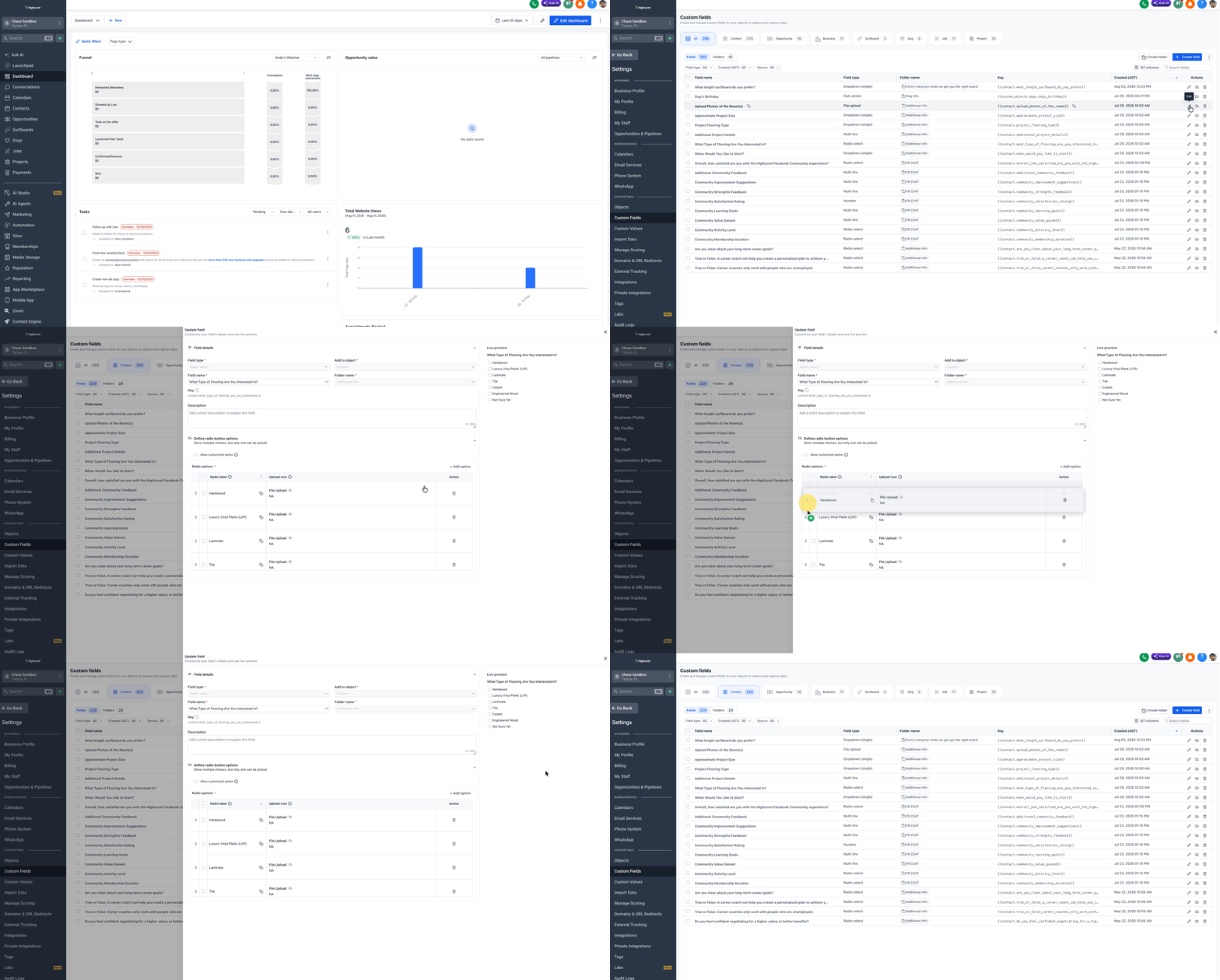
Contact Type values can be managed directly from the Contacts module, allowing you to update your contact classifications without leaving your contact-management workspace. HighLevel provides the Contact Type field as a single-select dropdown, and you can customize its available values to match the way your business categorizes contacts.
- Go to Contacts.
- Open Custom Fields from the Contacts module.
- Locate Contact Type.
- Click the Edit action for the Contact Type field.
- Add, rename, reorder, or remove the available values as needed.
- Save your changes.
You can also access Contact Type field management from Settings > Custom Fields. However, if you are already working in the Contacts module, Contacts > Custom Fields provides the more direct path.
Because Contact Type is a Dropdown (Single) field, each contact can have only one Contact Type at a time. Use broad classifications such as Lead, Customer, Supplier, or Partner, and use tags or other fields when a contact needs multiple additional labels.
How to Assign a Contact Type Manually
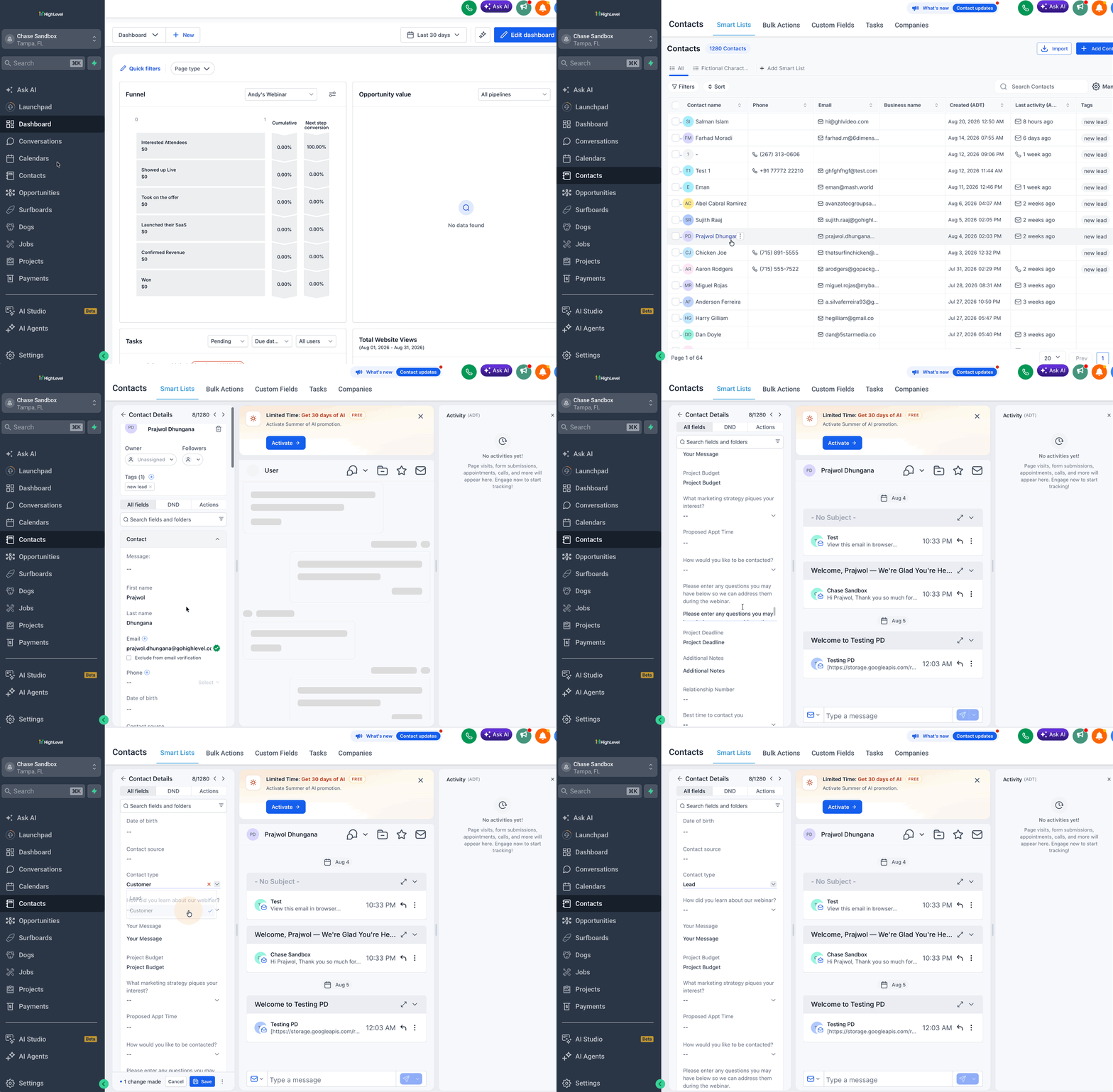
Manual assignment is useful when a user needs to classify an individual contact while reviewing or updating their record. Changing the selection replaces the contact's current Contact Type with the newly selected value.
Go to Contacts.
Open the contact you want to update.
Locate the Contact Type field in the contact record.
Open the dropdown.
Select the appropriate Contact Type.
The updated type can then be used for filtering, segmentation, and supported automation.
How to Update Contact Type Automatically With a Workflow
Workflows can change Contact Type automatically when a contact reaches a specific point in your process. This helps keep classifications current without requiring someone to update each contact manually.
For example, when a lead completes a purchase, a workflow can update their Contact Type from Lead to Customer.
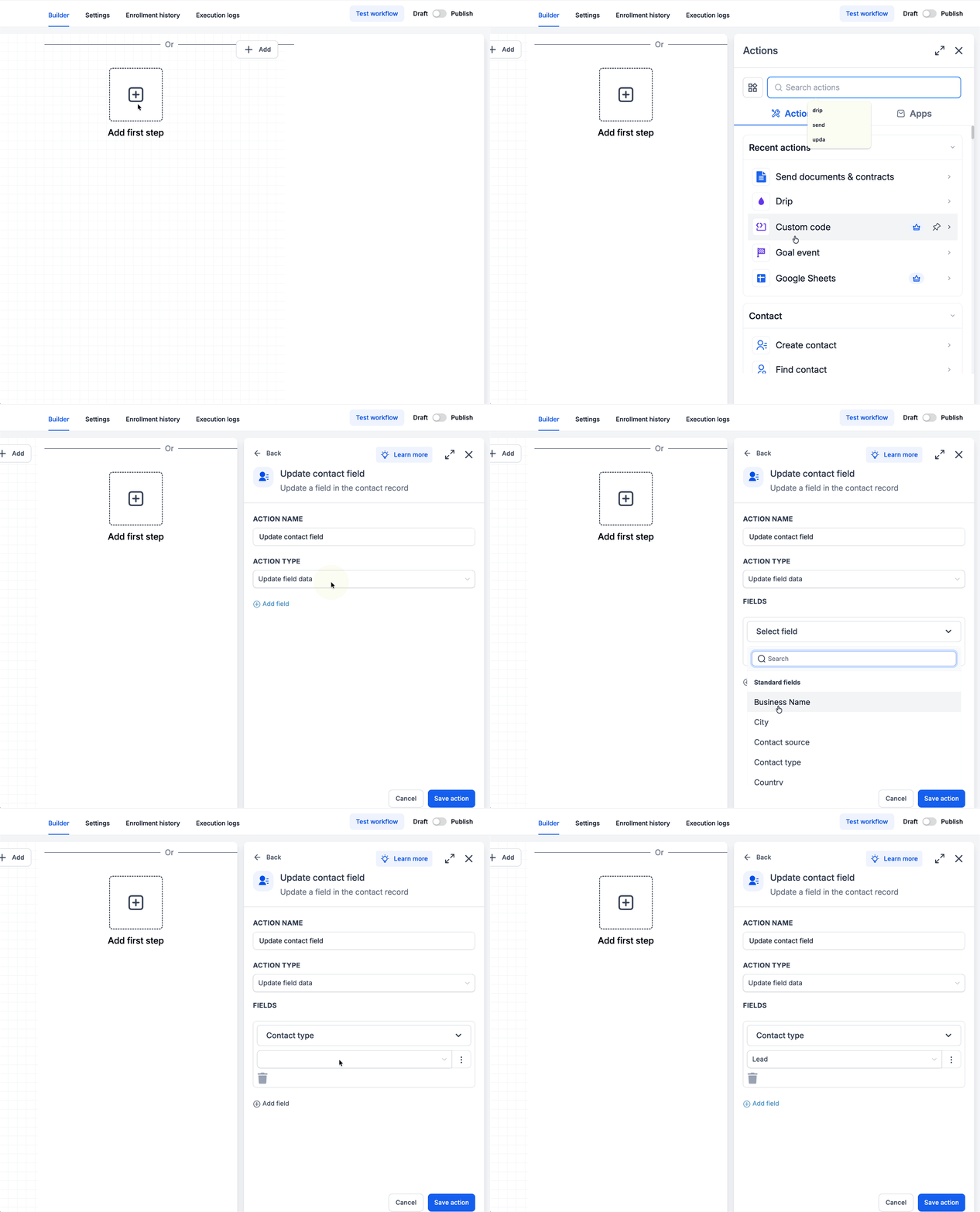
To update Contact Type in a workflow:
- Open the workflow where the Contact Type should be changed.
- Add an Update Contact Field action.
- Set the action type to Update field data.
- Under Fields, select Contact Type.
- Select the Contact Type value you want to assign.
- Click Save Action.
- Complete and publish the workflow according to your automation requirements.
The Update Contact Field action changes the value. If you need a workflow to begin when Contact Type changes, the Contact Changed workflow trigger can be used for supported contact-field changes.
For more details, see Workflow Action - Update Contact Field and Contact Changed Trigger in HighLevel Workflows.
How to Filter and Segment Contacts by Type
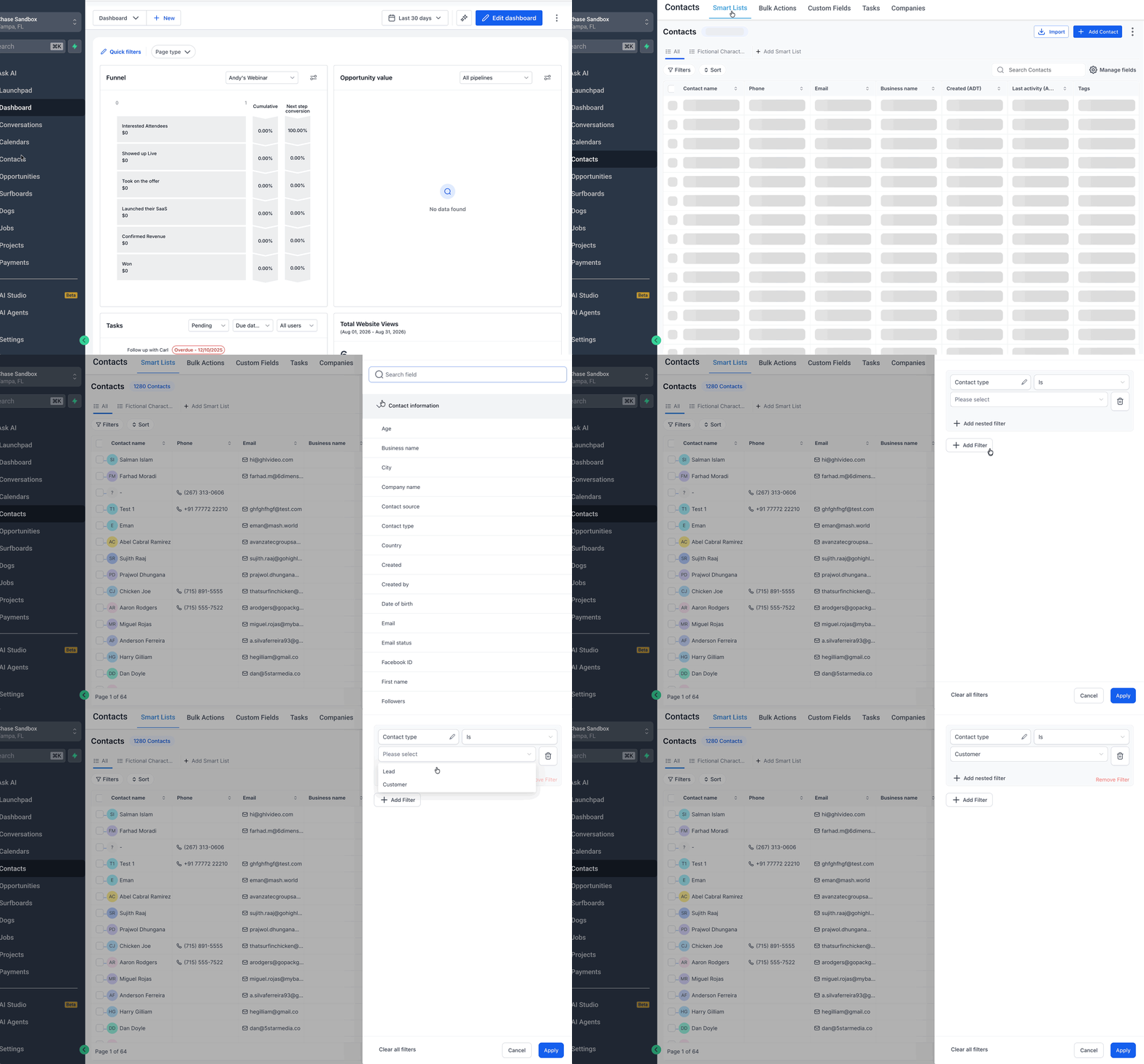
Filtering by Contact Type helps you quickly find contacts that share the same primary classification. You can also use this filtering as part of a Smart List so the resulting group reflects contacts that currently match the selected criteria.
- Go to Contacts > Smart Lists.
- Open the filters.
- Select Contact Information.
- Choose the Contact Type you want to filter by.
- Apply the filter.
- Save the filtered view as a Smart List when you want to reuse the segment.
Smart Lists can update dynamically as contact data changes. For example, if a Smart List is filtered to Type = Customer, contacts that meet that condition can appear in the list as their Contact Type changes.
For more information about filtering, see Advanced Filters in Smart Lists.
How to Set Up Contact Types for Your Business
A useful Contact Type structure begins with deciding which broad relationships matter to your business. Keeping the number of options focused makes the field easier for your team to use consistently and makes segmentation more meaningful.
- Identify the primary relationships you need to distinguish, such as Lead, Customer, Supplier, or Partner.
- Make sure the categories are broad enough that only one should normally apply to a contact at a time.
- Use Settings > Custom Fields > Contact Type to configure the available values.
- Decide when users should assign Contact Types manually.
- Identify lifecycle events that should change Contact Type automatically.
- Configure workflows where automatic updates are appropriate.
- Use the Type filter and Smart Lists to build segments from those classifications.
- Review your Contact Type options periodically and remove unnecessary or confusing categories.
A simple classification system is usually easier to maintain than a long list of highly specific Contact Types. Use other fields or tags when you need additional layers of information.
Frequently Asked Questions
Q: Can a contact have more than one Contact Type?
No. Contact Type is a single-select field, so each contact can have one Contact Type at a time. Assigning another value replaces the current selection.
Q: What is the difference between Contact Type and Tags?
Contact Type represents one primary classification, while multiple tags can be applied to the same contact. For example, a contact could have a Contact Type of Customer while also having tags for VIP, Facebook Lead, and Annual Plan.
Q: Can a workflow change a Contact Type automatically?
Yes. Use the Update Contact Field workflow action, select Contact Type, and choose the value that should be assigned.
Q: Can I start a workflow when a Contact Type changes?
Supported contact-field changes can be monitored using the Contact Changed workflow trigger. Configure the trigger conditions according to the Contact Type change you want the workflow to respond to.
Q: Why does Smart Lists show “Type” instead of “Contact Type”?
The Contact Type field may appear as Type when configuring Contact filters in Smart Lists. The values shown in that filter correspond to your configured Contact Type options.
Q: Can I use Contact Types in Smart Lists?
Yes. Filter contacts using Type, select the appropriate Contact Type value, and save the filtered view as a Smart List when you need an ongoing segment.
Q: Can Contact Type be assigned during a contact import?
Contact Type is supported as contact data in HighLevel's contact import process. Review your Contact Type values and import mapping before completing the import to ensure incoming values correspond to the classifications you want to use.
Q: Should I create a Contact Type for every type of contact attribute?
Usually not. Contact Types work best for broad primary classifications. Use tags or other fields for attributes where several values may apply to the same contact.
Related Articles
Was this article helpful?
That’s Great!
Thank you for your feedback
Sorry! We couldn't be helpful
Thank you for your feedback
Feedback sent
We appreciate your effort and will try to fix the article