The Update Contact Field workflow action changes information on a contact record automatically. Use it when HighLevel should update a field as part of a workflow.
Updating only one contact?
You do not need a workflow. Go to Contacts, open the contact, and edit the name, email address, phone
number, or other details directly.
TABLE OF CONTENTS
- What is Update Contact Field Action?
- Key Benefits of Using This Action
- Configuring Update Contact Field Action: Step-by-Step Process
- Use Cases
- FAQs
What is Update Contact Field Action?
The Update Contact Field action changes information stored on a contact record.
You can use it to:
- Update a standard field
- Update a custom field
- Use a fixed value
- Use a Dynamic Value
- Update several fields at once
- Add selections to supported multi-select fields without removing existing selections
- Clear custom field data.
Key Benefits of Using This Action
- Accurate Contact Data: Ensure your contact database is always up to date, reducing the risk of outdated or incorrect information.
- Enhanced Personalization: Use updated contact details to deliver more personalized and targeted communication.
- Improved Workflow Efficiency: Automatically update contact records without manual intervention, saving time and effort.
- Streamlined Customer Experience: Provide relevant, timely communication by maintaining accurate contact information.
Action Behavior: Add Field, Update, Add to Field Data, and Clear
Understanding how each option affects contact data helps prevent accidental overwrites or removals. Add Field adds another field to the workflow action, while Update field data, Add to field data, and Clear field data determine what happens to values stored on the contact.
- Add Field: Adds another field-and-value row to the same workflow action. It does not append data to an existing field value or change the selected action type.
- Update field data: Replaces the current value in the selected field with the configured value. For multi-select fields, existing selections are replaced.
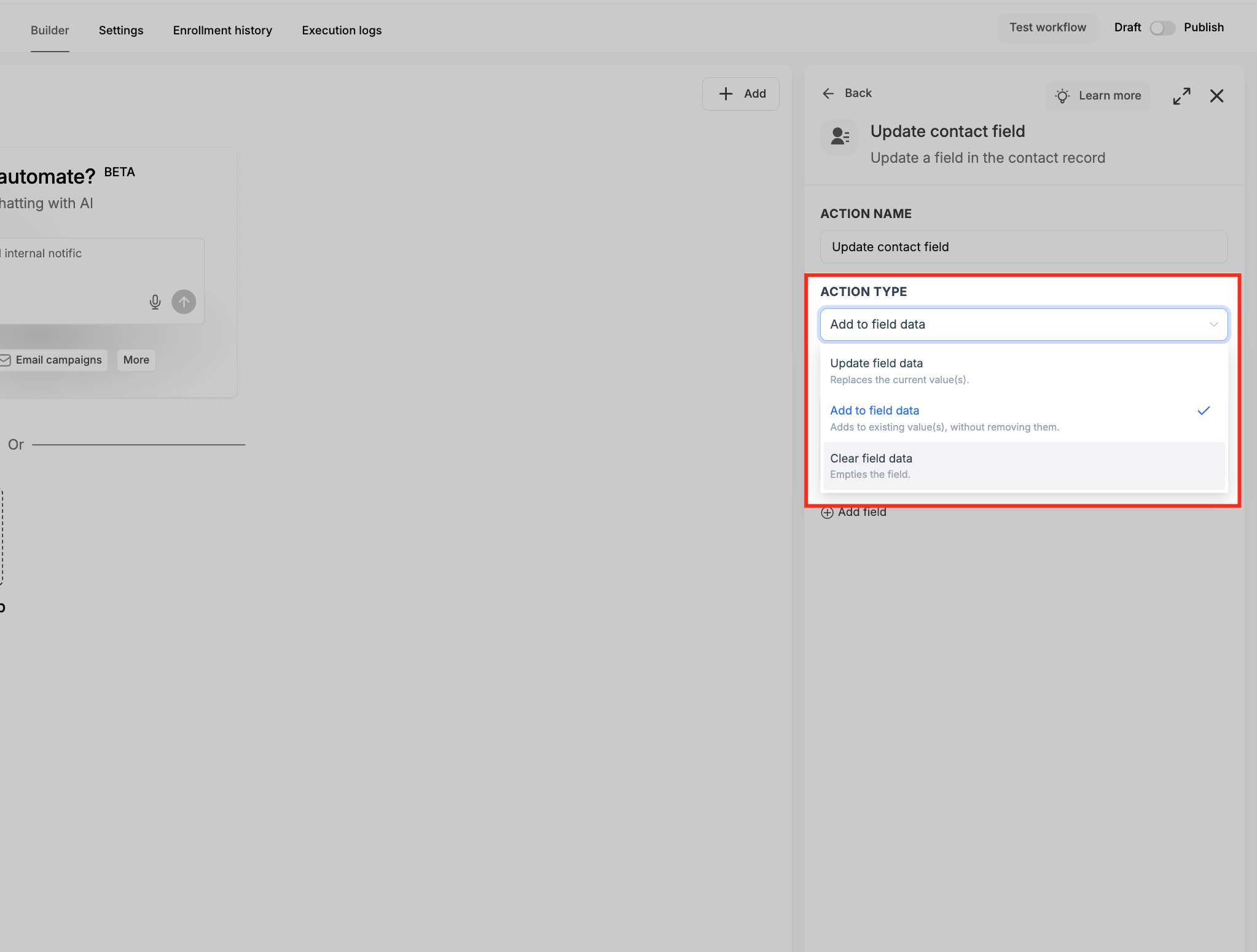
- Add to field data: Adds the selected value or values to the contact's existing selections without removing what is already stored. This option is available for supported multi-select fields. When selected, the field picker only displays supported multi-dropdown and multiple-checkbox fields.
- Clear field data: Removes the existing value from the selected field, leaving it empty.
Add to Field Data Example
Suppose a contact has a multiple-checkbox field named Services Interested In with the following selection:
- Email Marketing
The workflow uses Add to field data and selects:
- SMS Marketing
After the action runs, Services Interested In contains:
- Email Marketing
- SMS Marketing
Before and After Example
Suppose a contact currently has the following information:
City: Austin
Customer Status: Prospect
Phone: (512) 555-0100
The workflow uses Update field data and selects City, entering Dallas as the new value. The user then selects Add Field and adds Customer Status, entering Customer.
After the action runs:
City: Dallas
Customer Status: Customer
Phone: (512) 555-0100
The existing City and Customer Status values are replaced because those fields were included in the update. The Phone value remains unchanged because it was not included in the action.
Configuring Update Contact Field Action: Step-by-Step Process
Go to the "Automation" section of your CRM. Click "Workflows" menu located at the top.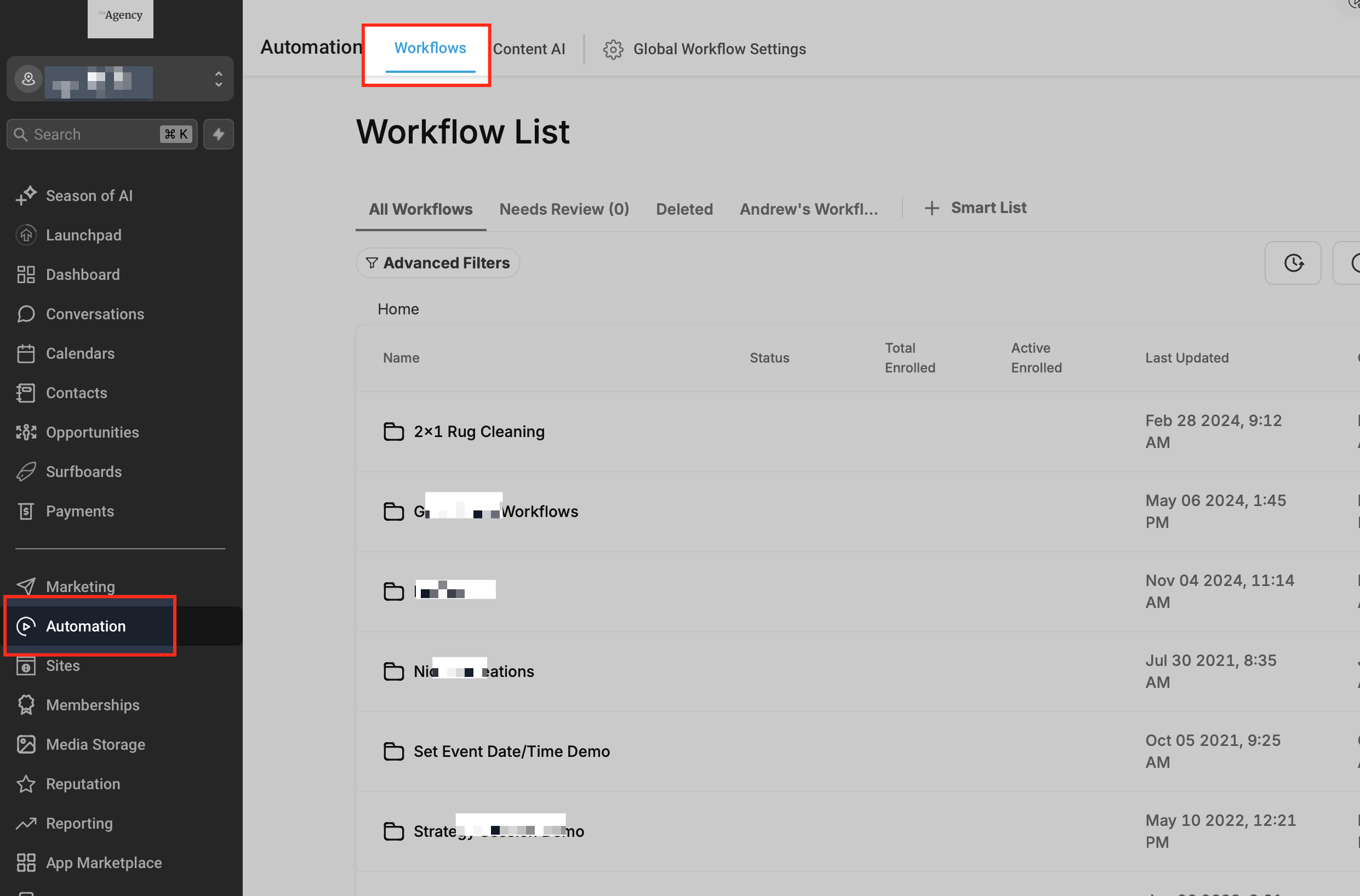
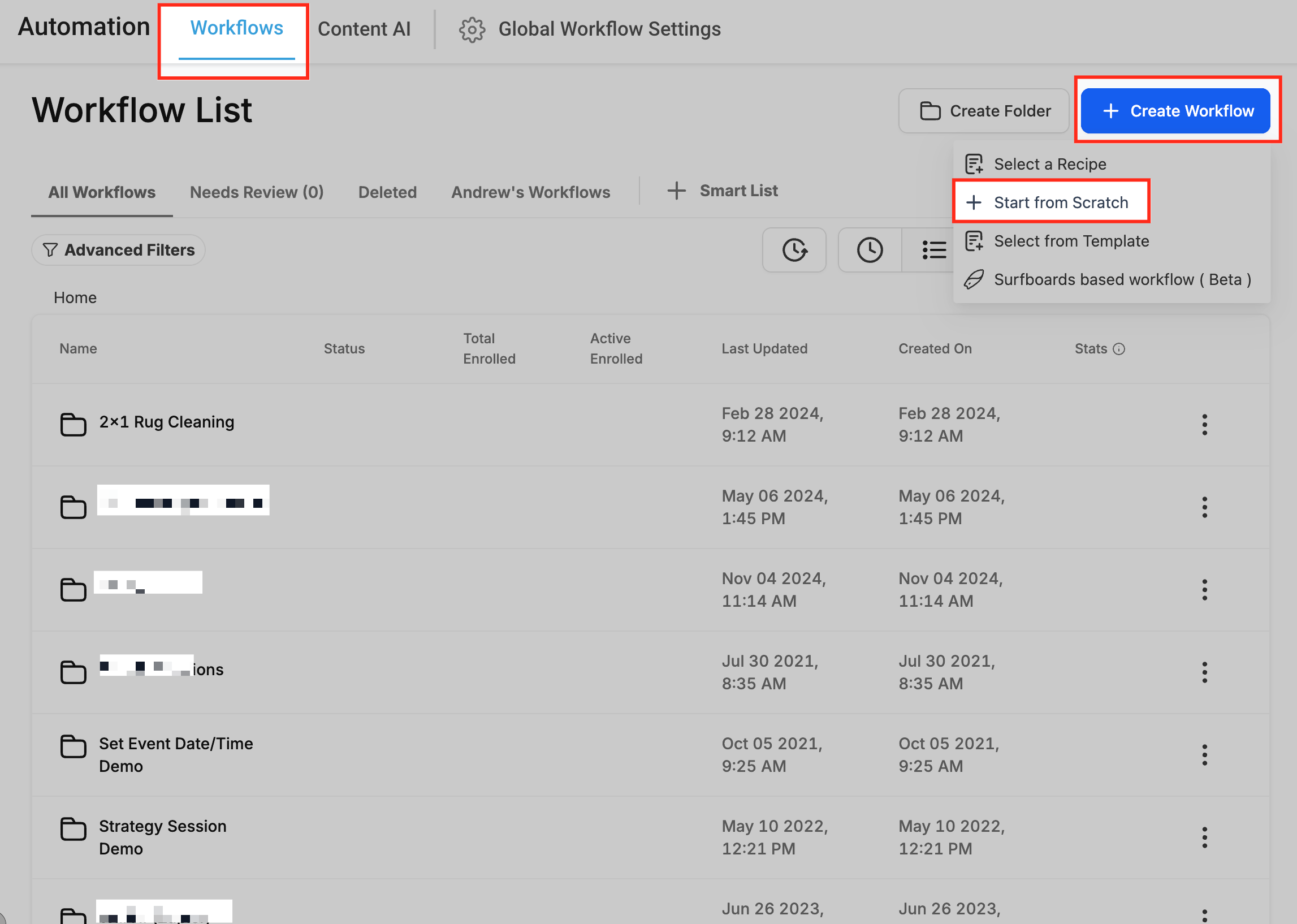
Open the workflow editor and select the workflow where you want to add the “Update Contact Field” action. Else, you can simply start building your own workflow from scratch. Just click "+ Create Workflow" button and select "+ Start from scratch" option from the dropdown menu.
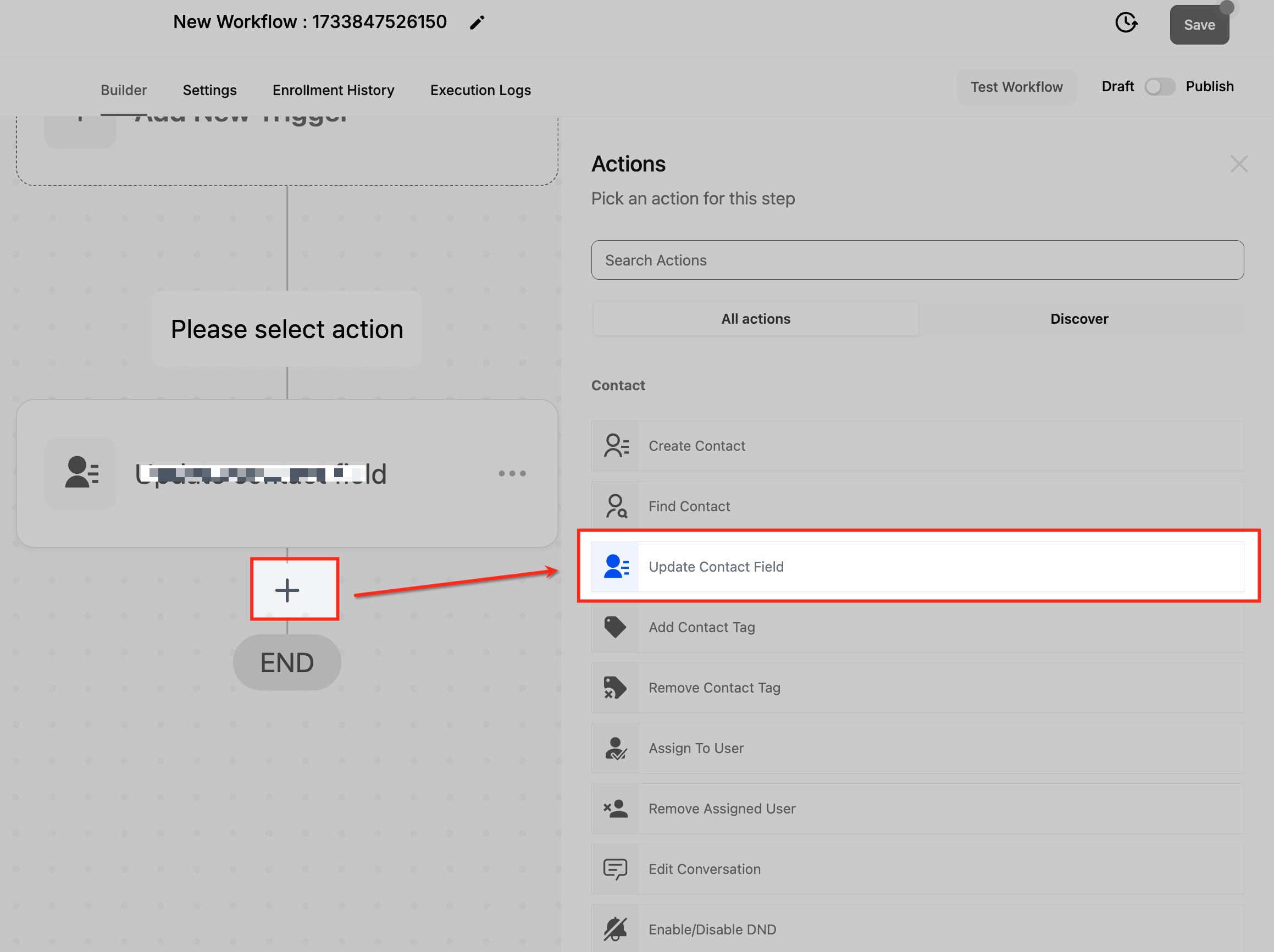
Click “+” icon and choose "Update Contact Field" from the list of available actions.
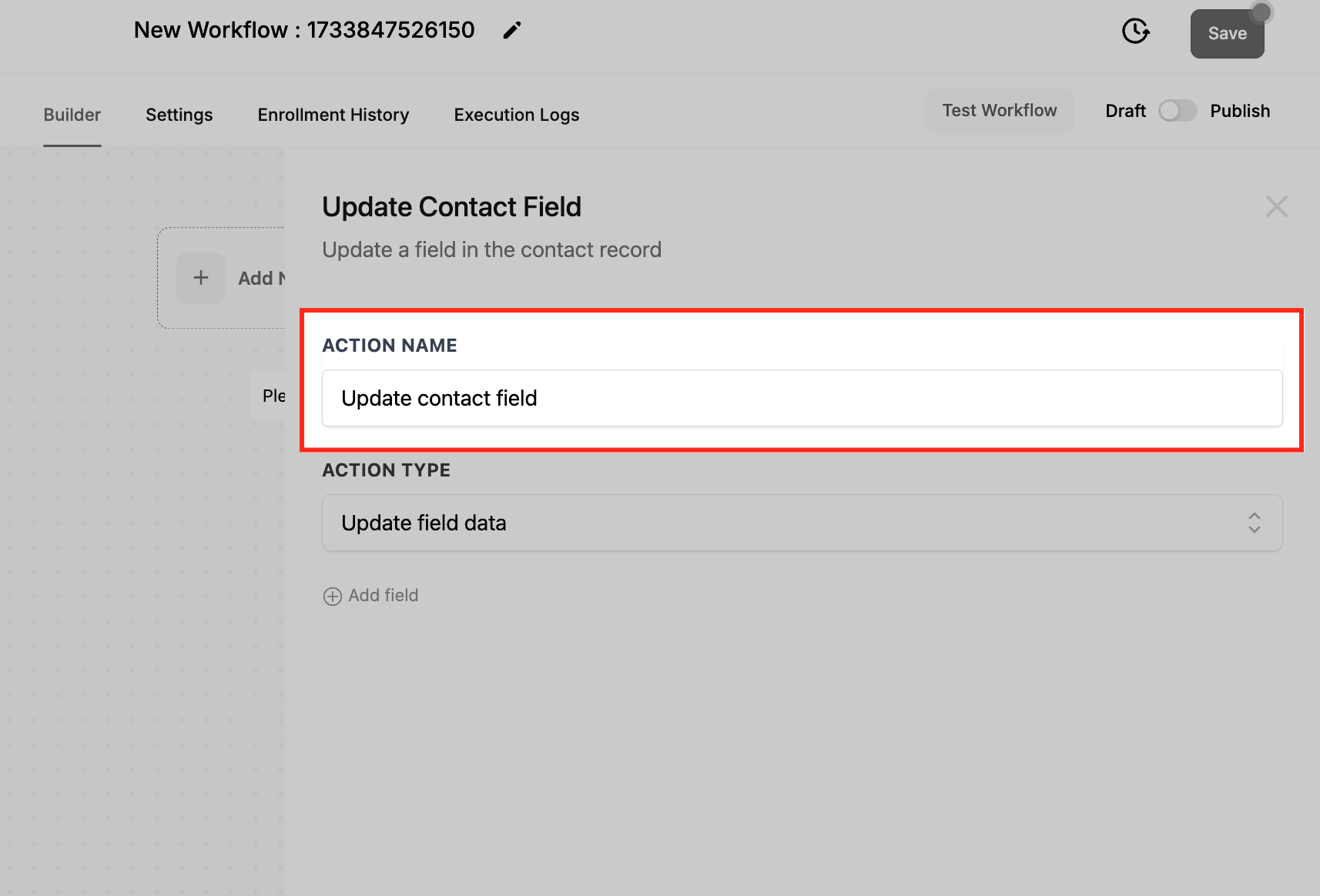
Give your action a clear, descriptive name (e.g., “Update Contact Address”). This makes it easier to identify in the workflow.
Under Action Type, choose how HighLevel should handle the selected field data:
- Select Update field data to replace the field's current value or selections.
- Select Add to field data to append values to existing selections. When this option is selected, the field picker only shows supported multi-select fields.
- Select Clear field data to remove the field's current value.
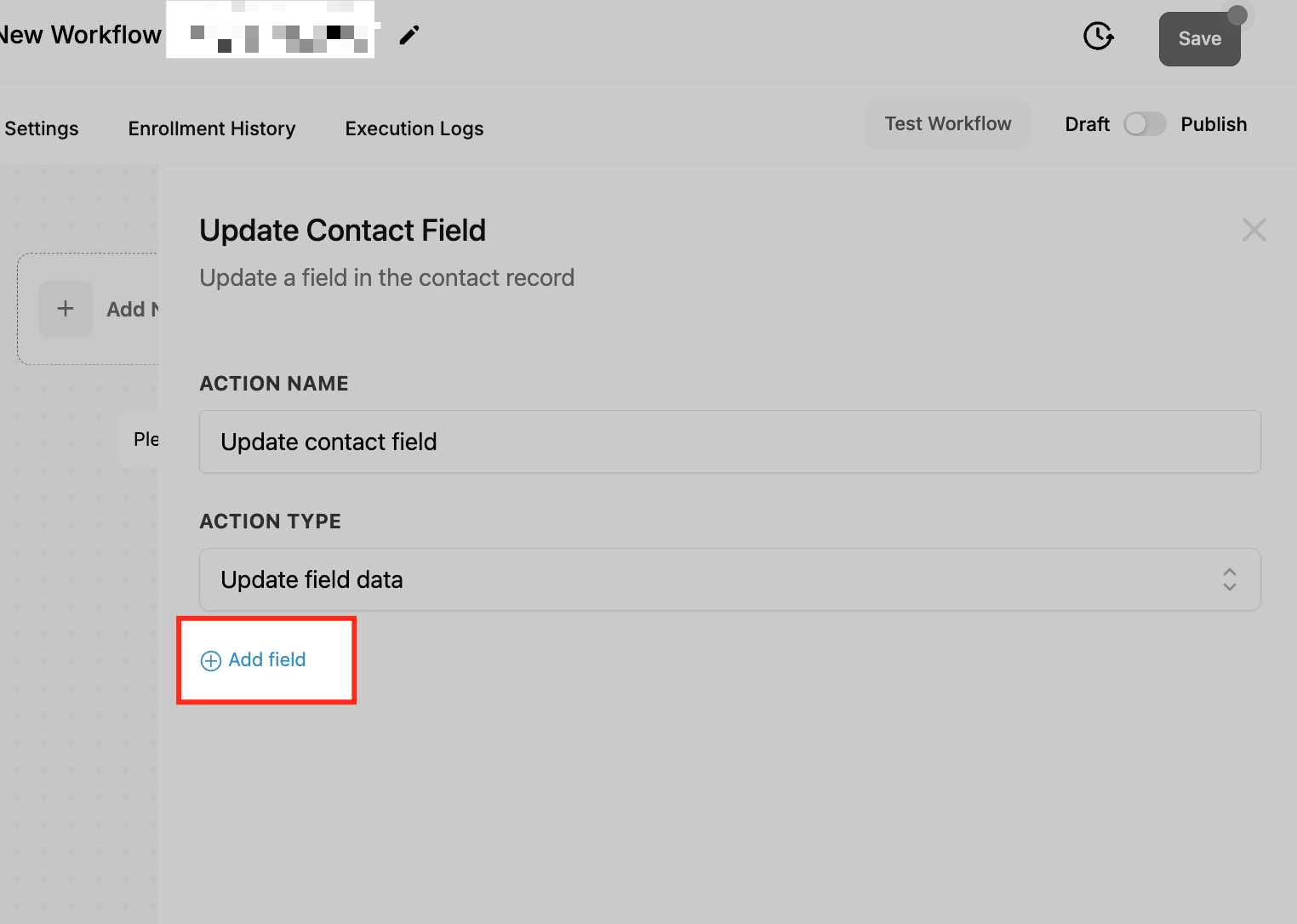
Click "Add field" button to add additional filters.
Choose the fields you want to update, such as City, Country, Phone, or Custom Fields.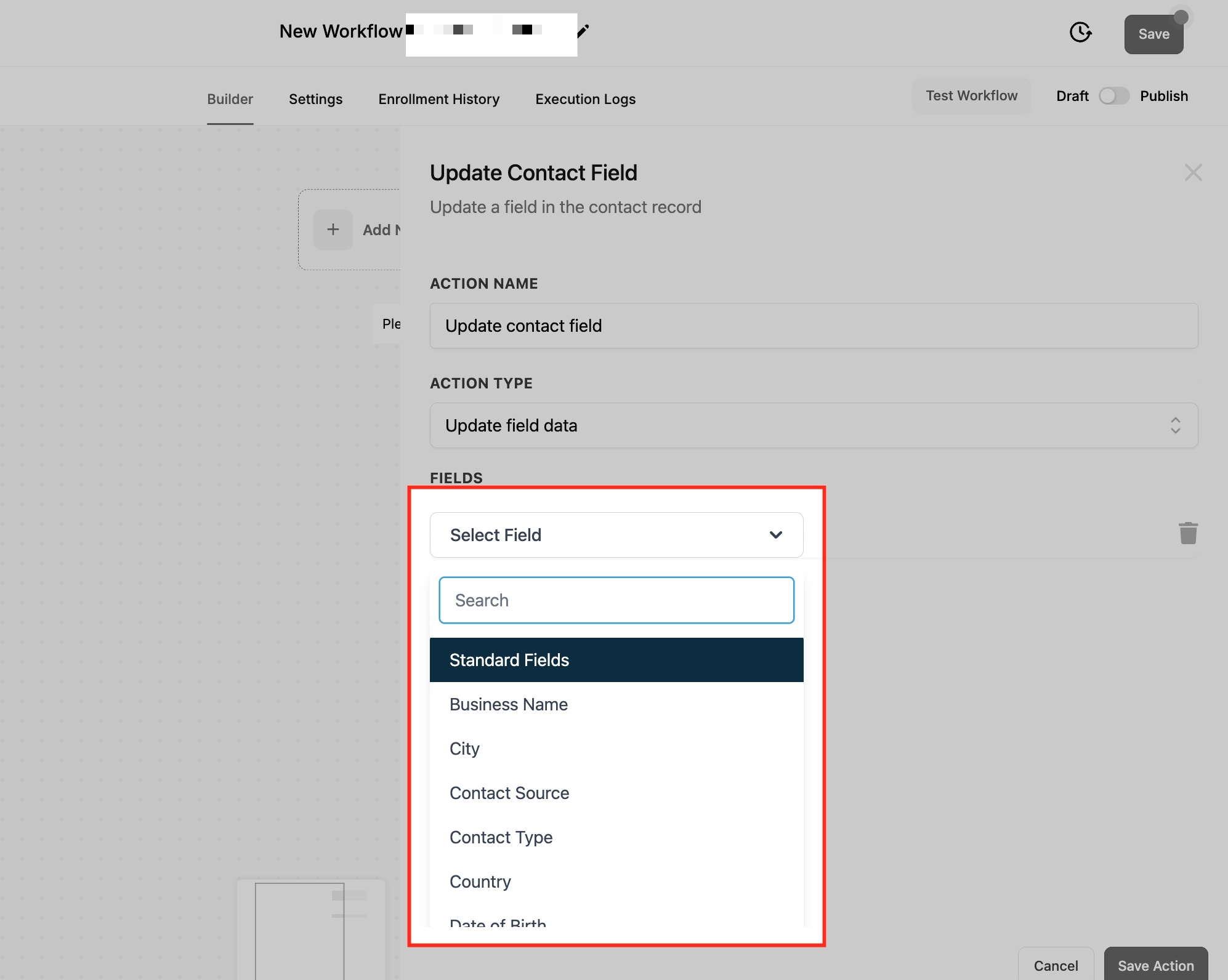
Once you are done adding the filters, Save the action and test it using a sample contact to ensure it updates the fields as expected.
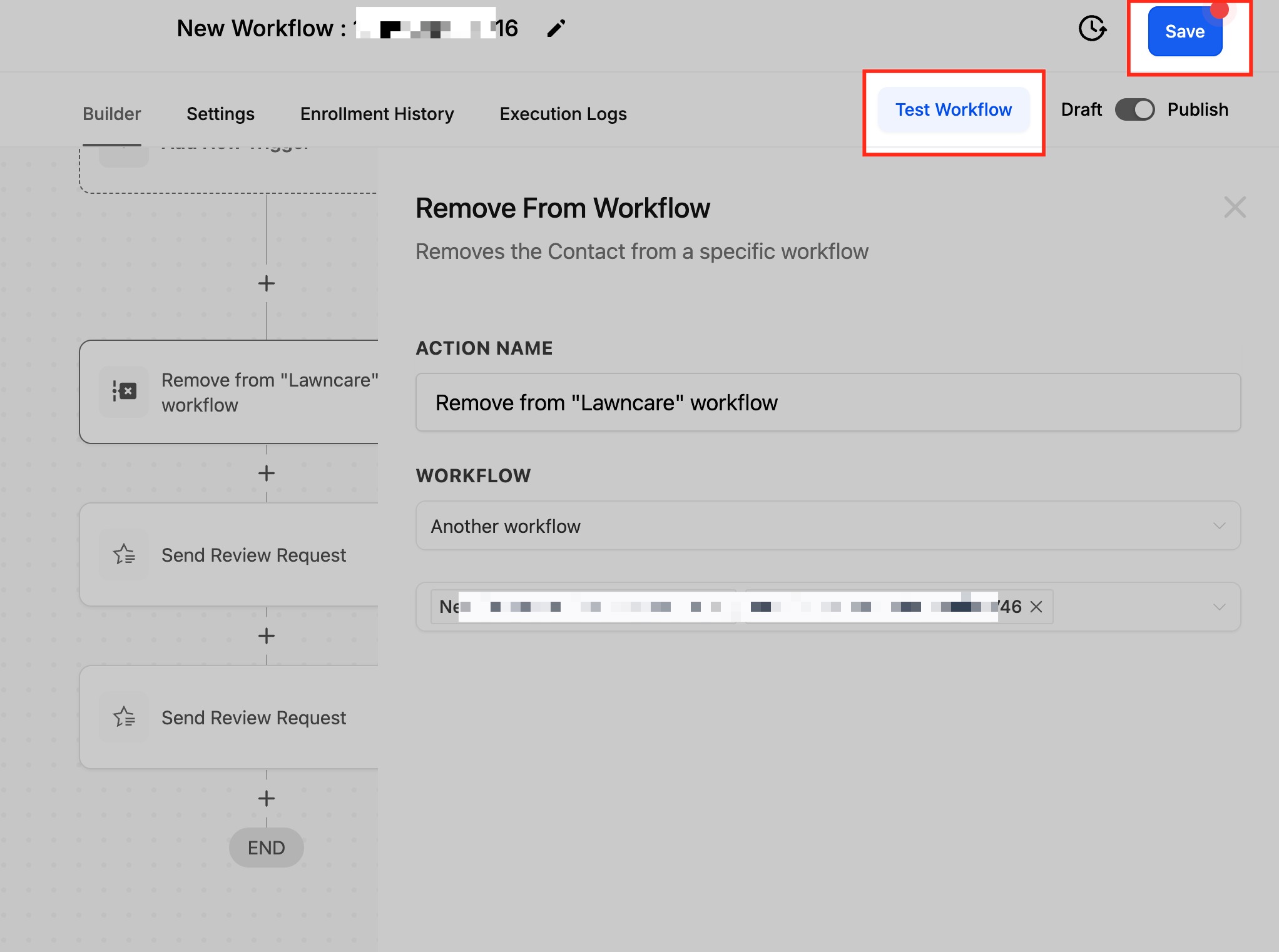
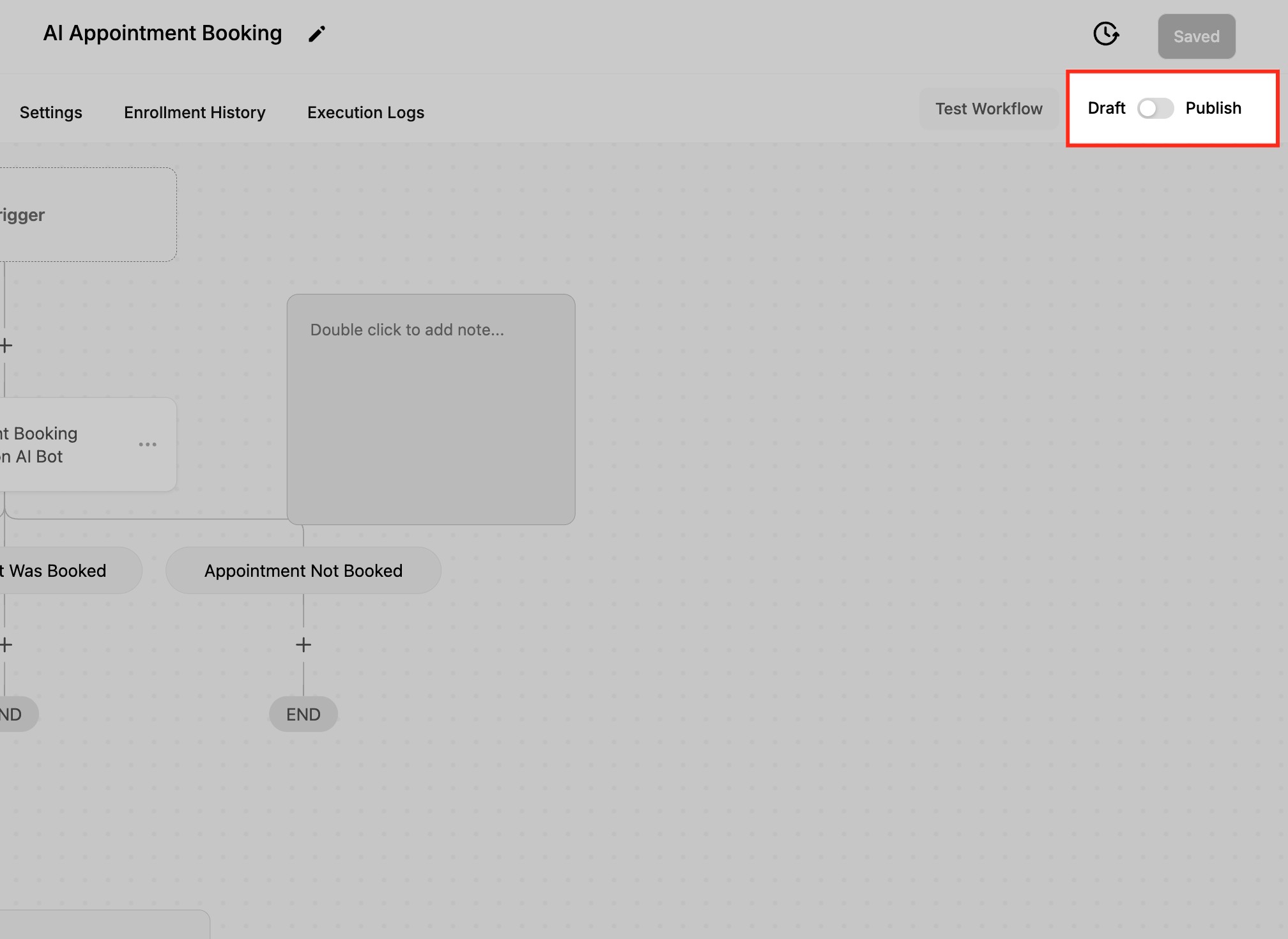
In order to activate the workflow you will need to turn this toggle to "Publish."
FAQs
1. Can I update multiple fields at once with a single action?
Yes, you can select and update multiple fields simultaneously within the same action, saving time and reducing complexity.
2. What happens if I try to update a field that doesn’t exist for a contact?
If the field doesn’t exist, the update may fail or be ignored. To avoid this, ensure the field is properly created in the contact’s record or CRM system.
3. How do I know if the “Update Contact Field” action worked?
Test the workflow using a sample contact and check if the changes are reflected in the contact’s record. Some platforms also provide activity logs for tracking updates.
4. Can I undo an update if it was done incorrectly?
No, once a field is updated, it cannot be automatically reverted. To correct it, you must update the field again with the correct information.
5. What is the difference between Add Field and Add to field data?
Add Field adds another field-and-value row to the same Update Contact Field workflow action. Add to field data changes the contact's data by appending selected values to an existing supported multi-select field without removing its current selections.
Was this article helpful?
That’s Great!
Thank you for your feedback
Sorry! We couldn't be helpful
Thank you for your feedback
Feedback sent
We appreciate your effort and will try to fix the article