The Birthday field in contacts allows you to personalize communications, build automation campaigns based on contact birthdays, and filter contacts by age within Smart Lists. This article explains how to utilize the Birthday field effectively.
TABLE OF CONTENTS
- What is the Birthday Field?
- Key Benefits of the Contact Date of Birth Field
- How to Build Birthday Reminder Campaigns
- How to Filter Contacts by Birth Date in Smart Lists
- How to Filter Contacts by Age in Smart Lists
- Best Practices
- Common Issues and Troubleshooting
- Frequently Asked Questions
- Related Articles
What is the Birthday Field?
The Contact Date of Birth field stores a contact's birthday within their contact record. Once populated, it can be used in workflows, Smart Lists, and other contact management processes to personalize communication and organize contacts based on age-related criteria.
It can be populated through:
Manual entry
Form submissions
CSV Imports
API integrations
This field enables automation triggers based on birthdays and helps segment contacts by age.

Key Benefits of the Contact Date of Birth Field
- Personalized Engagement: Send birthday messages and special offers automatically.
- Workflow Automation: Trigger birthday-based reminders and campaigns.
- Audience Segmentation: Create Smart Lists using age-based filters.
- Improved Customer Experience: Deliver timely and relevant communications.
How to Build Birthday Reminder Campaigns
You can automate birthday reminders or offers by setting up birthday workflows.
Step 1: Configure the Birthday Trigger
Navigate to Workflows > Create New Workflow.
Set the Trigger to Birthday Reminder.
Choose the trigger condition:
After no. of days
Before no. of days
Day is
Month is

Step 2: Define Actions
Send Email: Personalized birthday greetings or offers.
Send SMS: Short birthday wishes or coupon codes.
Assign Task: Alert internal teams to follow up manually if needed.
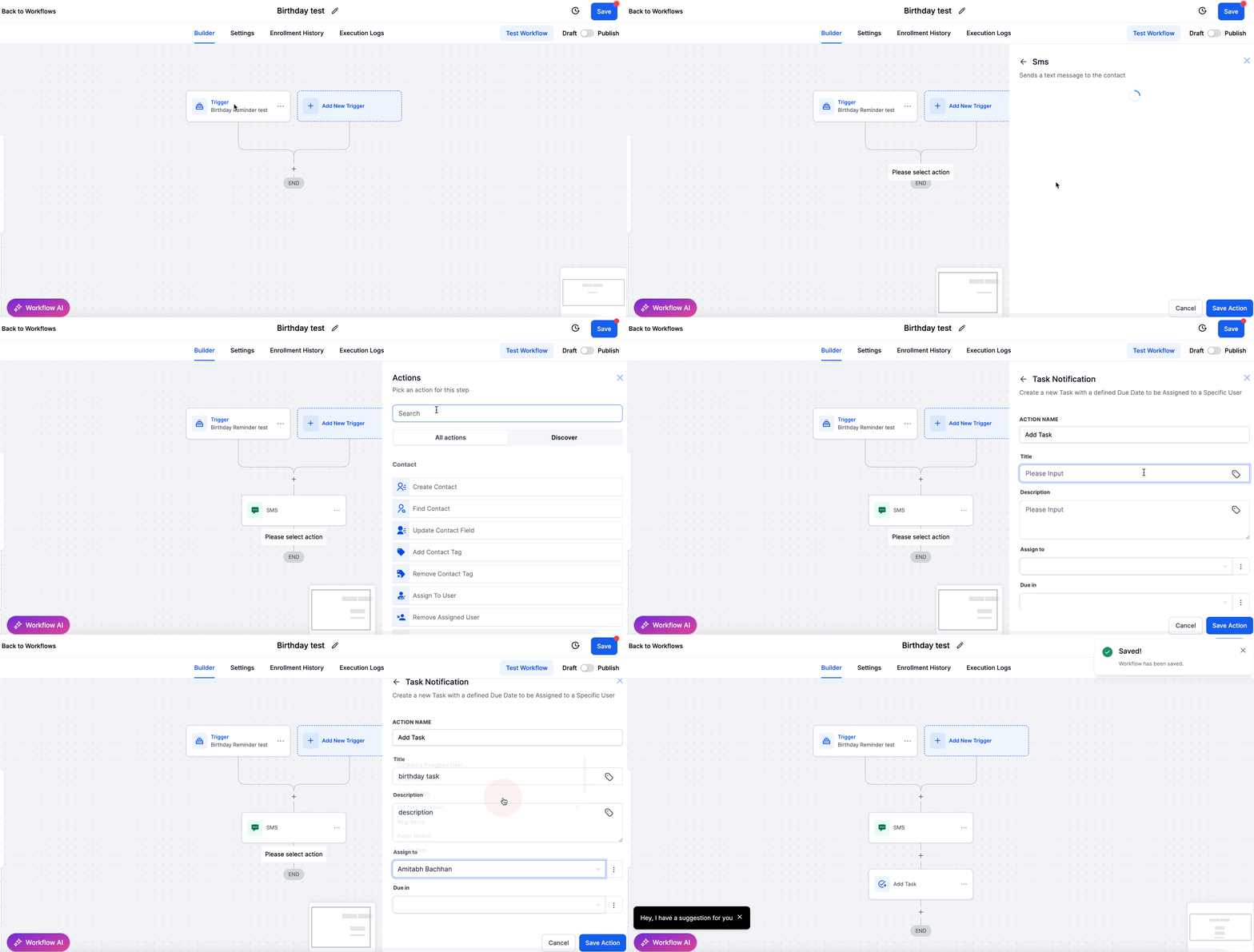
Example Workflow Structure
| Step | Action |
|---|---|
| 1 | Trigger on Birthday |
| 2 | Send Birthday SMS |
| 3 | Send Birthday Email |
| 4 | (Optional) Notify the internal team |
How to Filter Contacts by Birth Date in Smart Lists
Using the Birthday field, you can segment your contacts based on their date of birth for targeted communication.
Steps to Filter by Birth Date
Go to Contacts > Smart Lists.
Click on Advanced Filters.
Select Date of birth filter under contact information.
Select the appropriate filter condition:
Today
Tomorrow
Yesterday
This week
This month
This quarter
In month
This year
On
Between
More than
After date
Less than
Before date
In the next
In the last.

How to Filter Contacts by Age in Smart Lists
Using the Age field, you can segment your contacts based on their age for targeted communication.
Steps to Filter by Age
Go to Contacts > Smart Lists.
Click on Advanced Filters.

Select Age filter under contact information.
Select the appropriate filter condition:
Equals to
Between
More than
Less than
Click Save.
The system calculates age dynamically based on the current date and the stored birthday.

Best Practices
Capture Birthdays Early: Include a Birthday field in lead capture forms to gather the information upfront.
Validate Date Formats: Use MM/DD/YYYY format to ensure automation triggers work correctly.
Test Automation: Always test birthday workflows with sample contacts before making them live.
Consider Time Zones: Be aware that workflows may use contact-specific time zones if configured.
Common Issues and Troubleshooting
| Issue | Solution |
|---|---|
| Birthday automation is not triggering | Ensure the Birthday field is populated with a complete and correctly formatted date. |
| Incorrect age calculation | Confirm that the birth year is correctly entered. Missing or incorrect years can cause errors. |
| SMS or email was not sent on the birthday | Double-check workflow timing, trigger configuration, and contact timezone settings. |
Frequently Asked Questions
Q: Can I use the Contact Date of Birth field to send automated birthday messages?
Yes. The Contact Date of Birth field can be used in workflows to trigger birthday-related automations, such as sending emails, SMS messages, notifications, or applying tags.
Q: Do contacts need a Date of Birth value for birthday workflows to work?
Yes. Birthday-based workflows require a valid Date of Birth value in the contact record. If the field is empty or invalid, the workflow will not trigger as expected.
Q: Can I create Smart Lists based on a contact's age?
Yes. You can use the Contact Date of Birth field in Smart List filters to create age-based audience segments.
Q: Why isn't my birthday workflow triggering?
Check that the contact has a valid Date of Birth value, verify that the workflow trigger is configured correctly, and ensure the workflow is active and published.
Q: Why are my age-based Smart List results incorrect?
Review the Date of Birth values for affected contacts, confirm that your Smart List filters are configured correctly, and check for formatting issues in imported data.
Q: What should I do when importing contacts with birthdays?
Use a consistent date format and verify that Date of Birth values are imported correctly. Accurate data helps ensure workflows and Smart List filters function as expected.
Related Articles
Was this article helpful?
That’s Great!
Thank you for your feedback
Sorry! We couldn't be helpful
Thank you for your feedback
Feedback sent
We appreciate your effort and will try to fix the article