Importing HTML email templates and campaigns into HighLevel allows you to reuse existing email designs without rebuilding them from scratch. With the Code Editor, you can paste your HTML code directly into an email template or campaign and preview how the content will appear. This helps you maintain consistent branding, save time during email creation, and manage your email marketing from one platform. This article explains how to prepare, import, save, and test your HTML emails in HighLevel.
TABLE OF CONTENTS
- What is Importing HTML Email Templates and Campaigns?
- Key Benefits of Importing HTML Email Templates and Campaigns
- HTML Code Editor
- Email Templates vs. Email Campaigns
- How to Import HTML Email Templates
- How to Import HTML Email Campaigns
- Previewing and Testing Imported HTML Emails
- Troubleshooting Imported HTML Emails
- Frequently Asked Questions
- Related Articles
What is Importing HTML Email Templates and Campaigns?
Importing HTML email templates and campaigns is the process of bringing existing HTML email code into HighLevel's Email Builder. Instead of recreating an email using individual design elements, you can use the Code Editor to work directly with its HTML structure and styling.
This is particularly useful when migrating email content from another platform, reusing custom-coded designs, or maintaining consistent branding across campaigns.
HTML emails can be imported into two areas:
Email Templates: Create reusable email designs that can serve as the starting point for future campaigns.
Email Campaigns: Create email messages that can be customized and sent or scheduled for specific recipients.
The Code Editor provides direct control over the HTML content, making it an appropriate choice when you already have an email's source code.
Key Benefits of Importing HTML Email Templates and Campaigns
Importing existing HTML emails can simplify your email marketing workflow while helping preserve the structure and appearance of designs you have already created.
Save Time: Reuse existing HTML email designs without manually rebuilding every element.
Maintain Brand Consistency: Preserve your email's intended colors, layouts, images, and typography where supported by email clients.
Simplify Email Migration: Bring email designs from another platform into HighLevel using their HTML source code.
Customize HTML Directly: Make changes to email structure and styling through the Code Editor.
Create Reusable Templates: Save imported HTML as a template for future email marketing campaigns.
Streamline Campaign Creation: Use existing HTML content to create campaigns without starting from an empty design.
HTML Code Editor
The Code Editor allows you to create and modify email content using HTML rather than relying entirely on drag-and-drop elements. Understanding the available editing options helps you select the right approach for your email design and avoid unnecessary rebuilding.
HighLevel offers different ways to create and customize email content:
Code Editor: Best for users who have complete HTML email code and need to edit the email's source directly.
Design Editor: Best for users who prefer visual editing with drag-and-drop elements, such as text, images, buttons, and layouts.
Code Element: Allows you to insert custom HTML or CSS into a specific part of an email created in the Design Editor.
Plain Text Editor: Best for text-focused emails that do not require a complex visual layout.
For example, if you have an entire HTML newsletter from another platform, use the Code Editor. If you only want to add a small custom HTML component to an email built visually, consider using the Code Element instead.
Note: Email clients support HTML and CSS differently. Importing an HTML design does not guarantee that every element will render identically in all inboxes.
For information about adding smaller HTML components to an email, see Code Element in Email Builder.
Email Templates vs. Email Campaigns
Templates and campaigns serve different purposes in HighLevel. Selecting the appropriate option before importing HTML helps you determine whether the email should be saved as a reusable design or prepared for a particular marketing campaign.
Email Templates
Templates are reusable email layouts that can contain your branding, content, formatting, and design elements.
Use a template when:
You regularly send emails with similar layouts.
You want to reuse a newsletter or promotional email design.
You need a consistent starting point for future campaigns.
You want to maintain branded email layouts.
Email Campaigns
Campaigns are email messages intended to be sent or scheduled for specific recipients.
Use a campaign when:
You are preparing a one-time marketing announcement.
You want to send a promotional email to selected contacts.
You have an existing HTML email ready for a particular campaign.
You need to configure recipients and delivery settings.
Example: If you have a custom HTML newsletter layout you plan to reuse every month, import it as a template. If you have an HTML email for an upcoming promotional announcement, you can import it directly into a campaign.
For additional details, see Email Templates vs Email Campaigns.
How to Import HTML Email Templates
Importing an HTML email as a template allows you to save a reusable design in HighLevel. Once created, the template can serve as the foundation for future campaigns, reducing the time needed to recreate frequently used email layouts.
Follow these steps to import your HTML email template:
Log in to your HighLevel sub-account.
Navigate to Marketing > Emails > Templates.
Click + New to begin creating an email template.
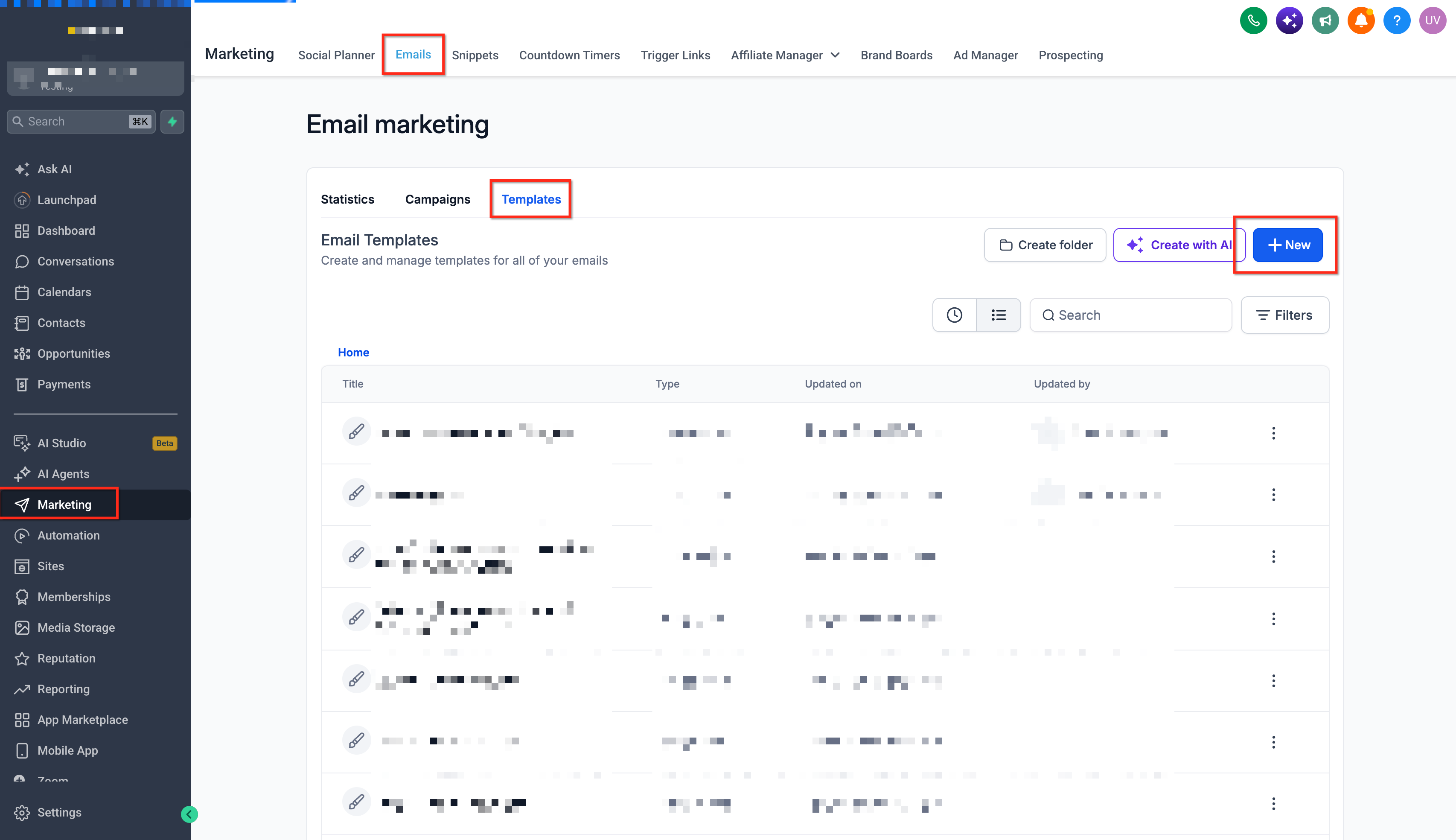
Choose the option to create a new email template from scratch. If the interface displays a template selection screen, choose the blank template option.
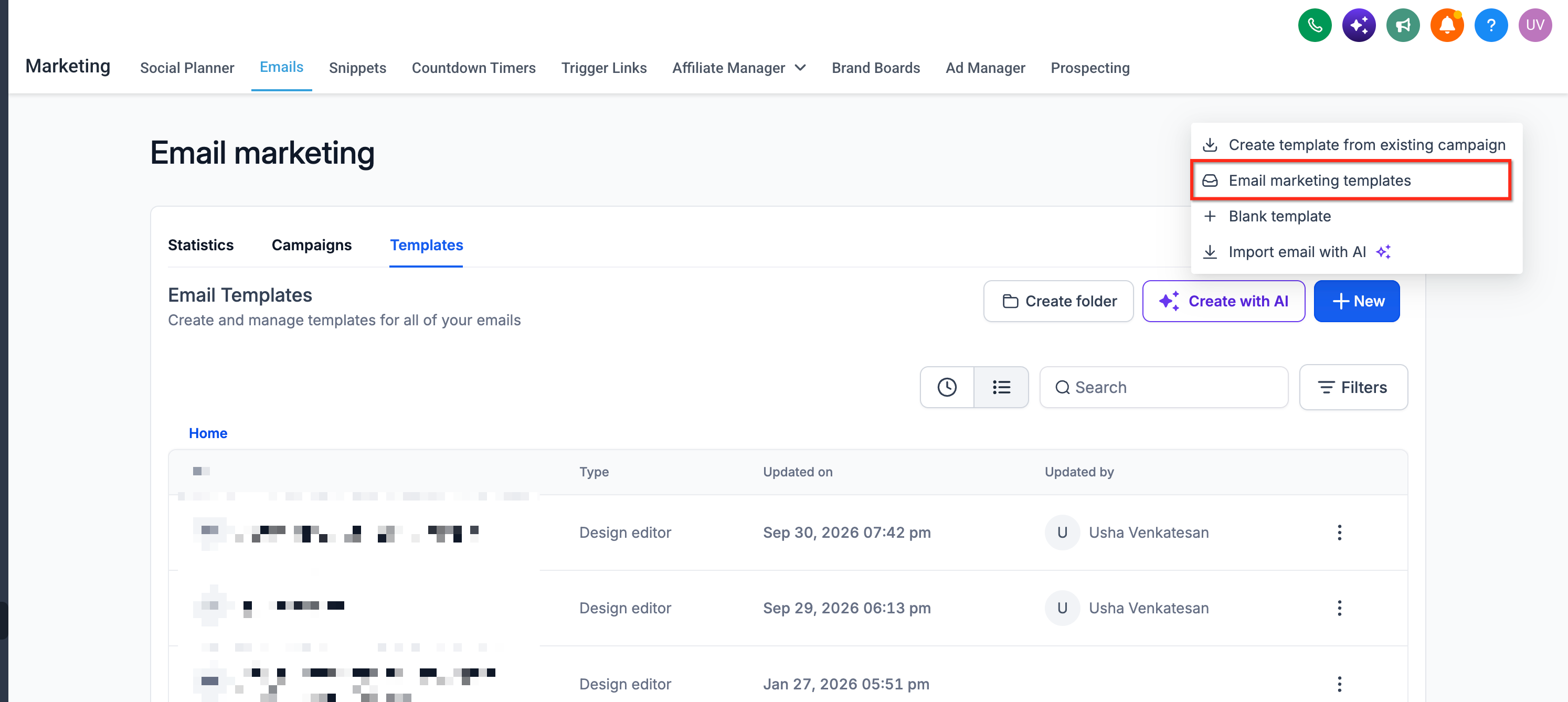
When prompted to select an editor, choose Edit with Vibe Editor to work directly with HTML.
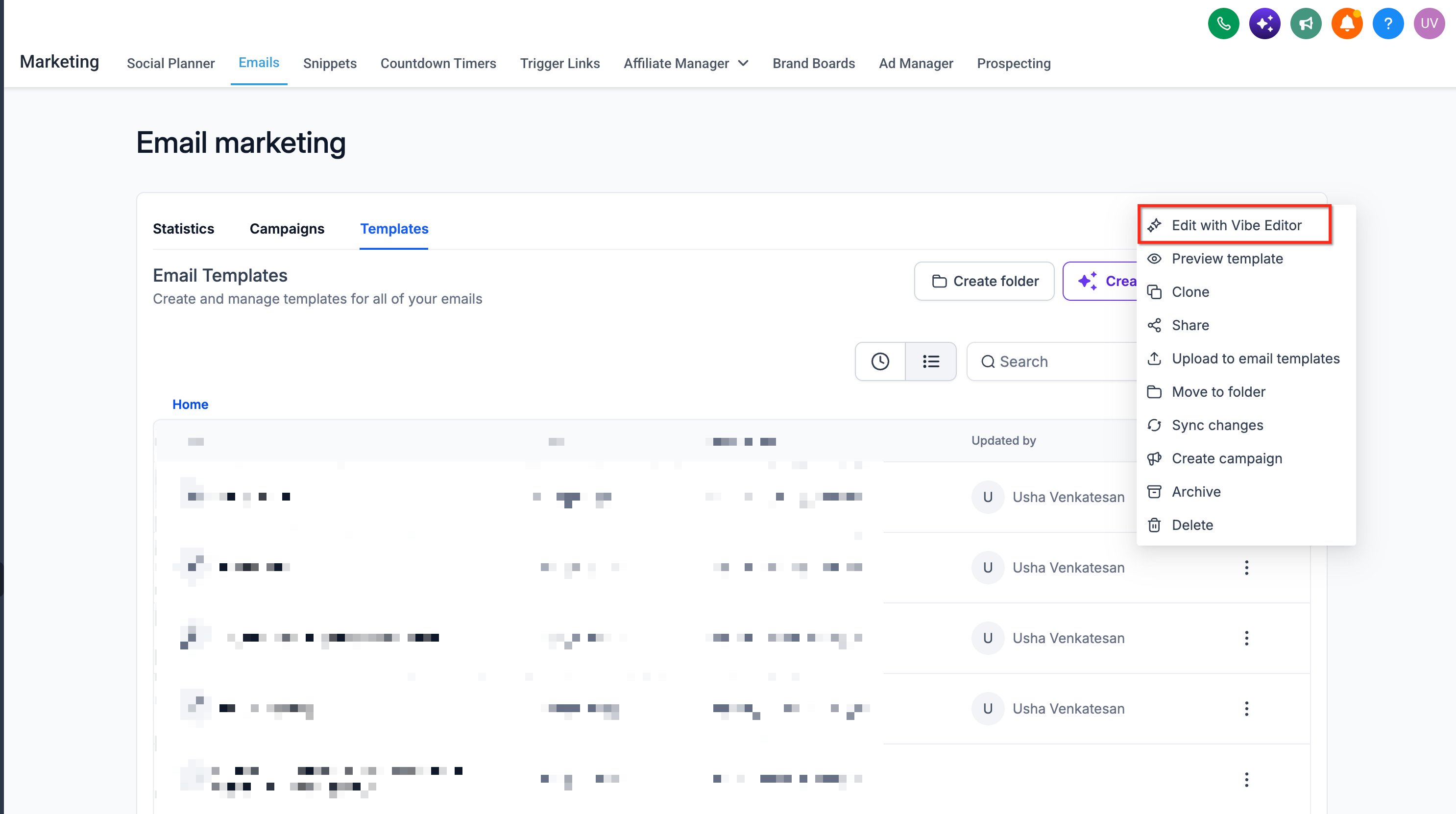
Once the Code Editor opens, paste your existing HTML code into the HTML editing area.
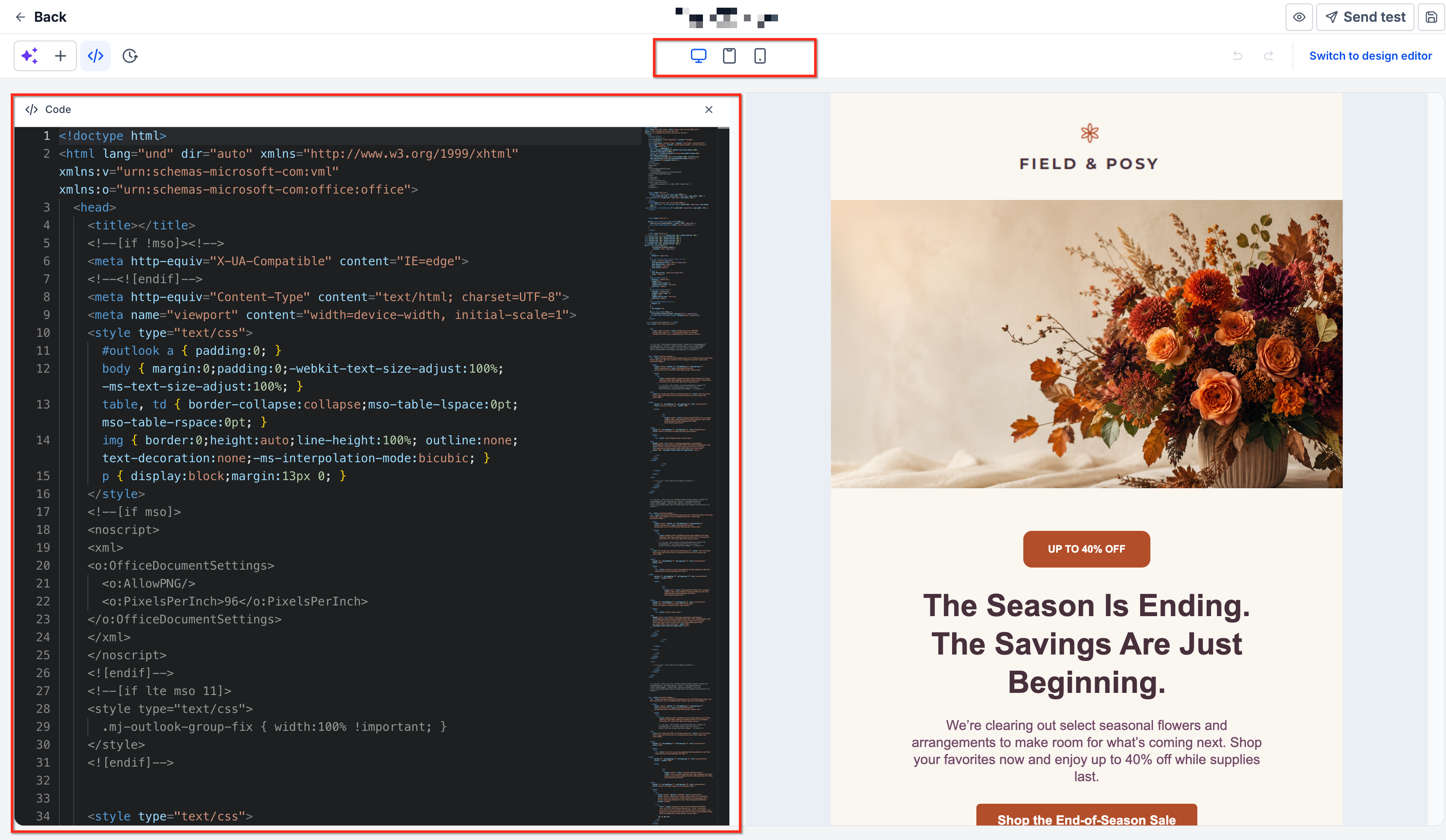
Review the rendered email preview to confirm that your layout, text, images, and styling appear as intended.
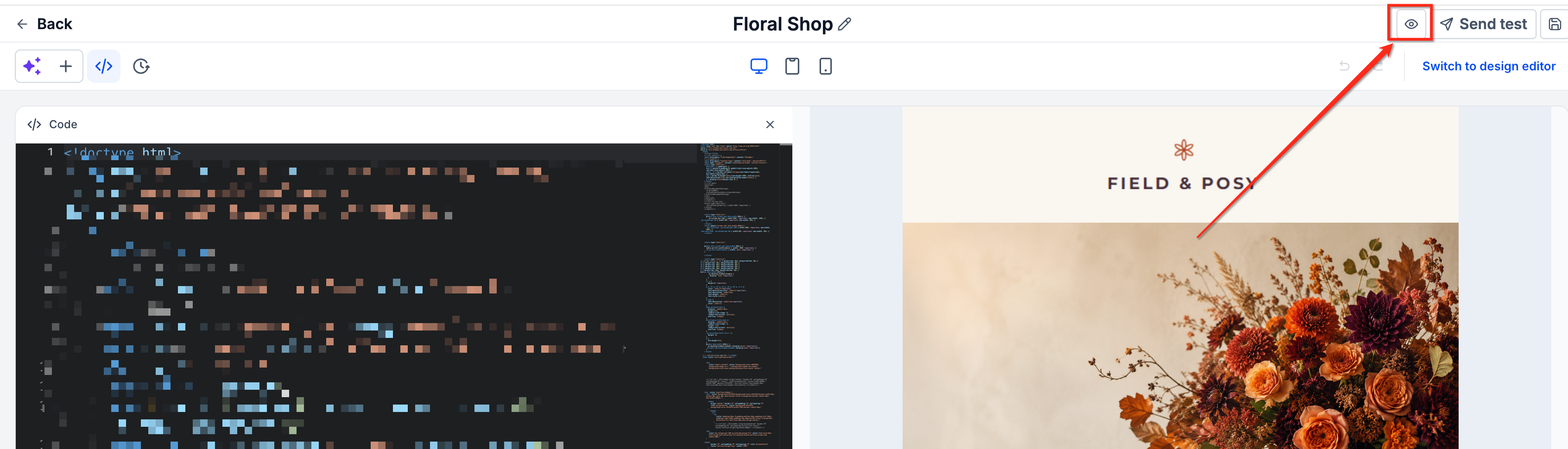
Make any necessary adjustments to the HTML code. Review the preview again after making changes.
Click Save Template, or use the available save control, to save your imported email.
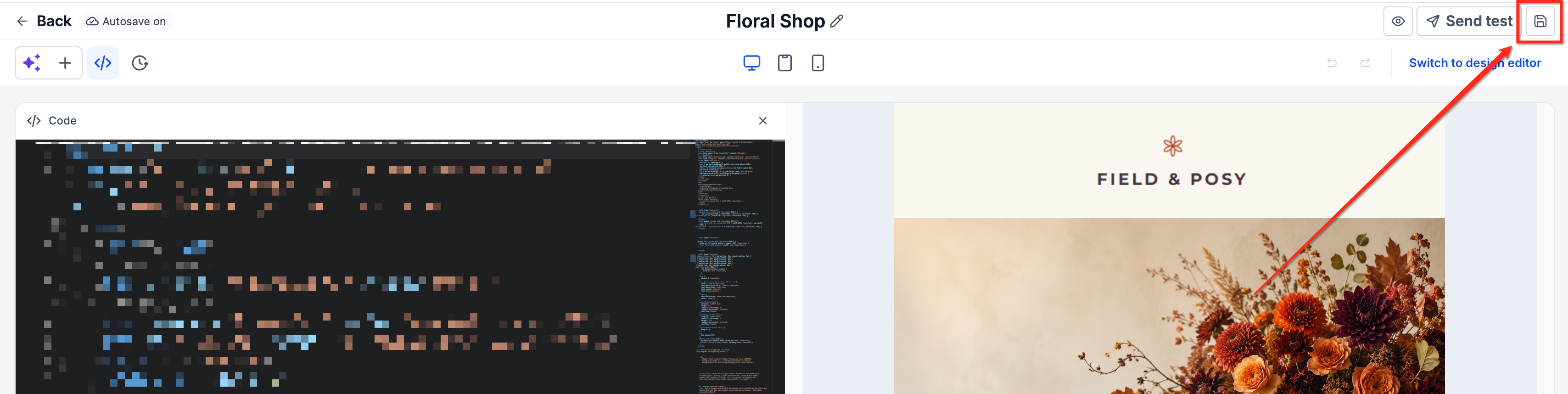
Your imported HTML template can now be reviewed, tested, and used when creating future email campaigns.
How to Import HTML Email Campaigns
Importing HTML directly into an email campaign allows you to prepare an existing email design for a particular audience or marketing event. This is useful when you already have completed HTML content and want to configure it for sending without first creating a separate reusable template.
Follow these steps to import your HTML email campaign:
Log in to your HighLevel sub-account.
Navigate to Marketing > Emails > Campaigns.
Click + New to begin creating a campaign.
Select the option to create a blank campaign rather than starting from a saved template.
When prompted to choose an editor, select Code Editor.
Paste your existing HTML content into the Code Editor.
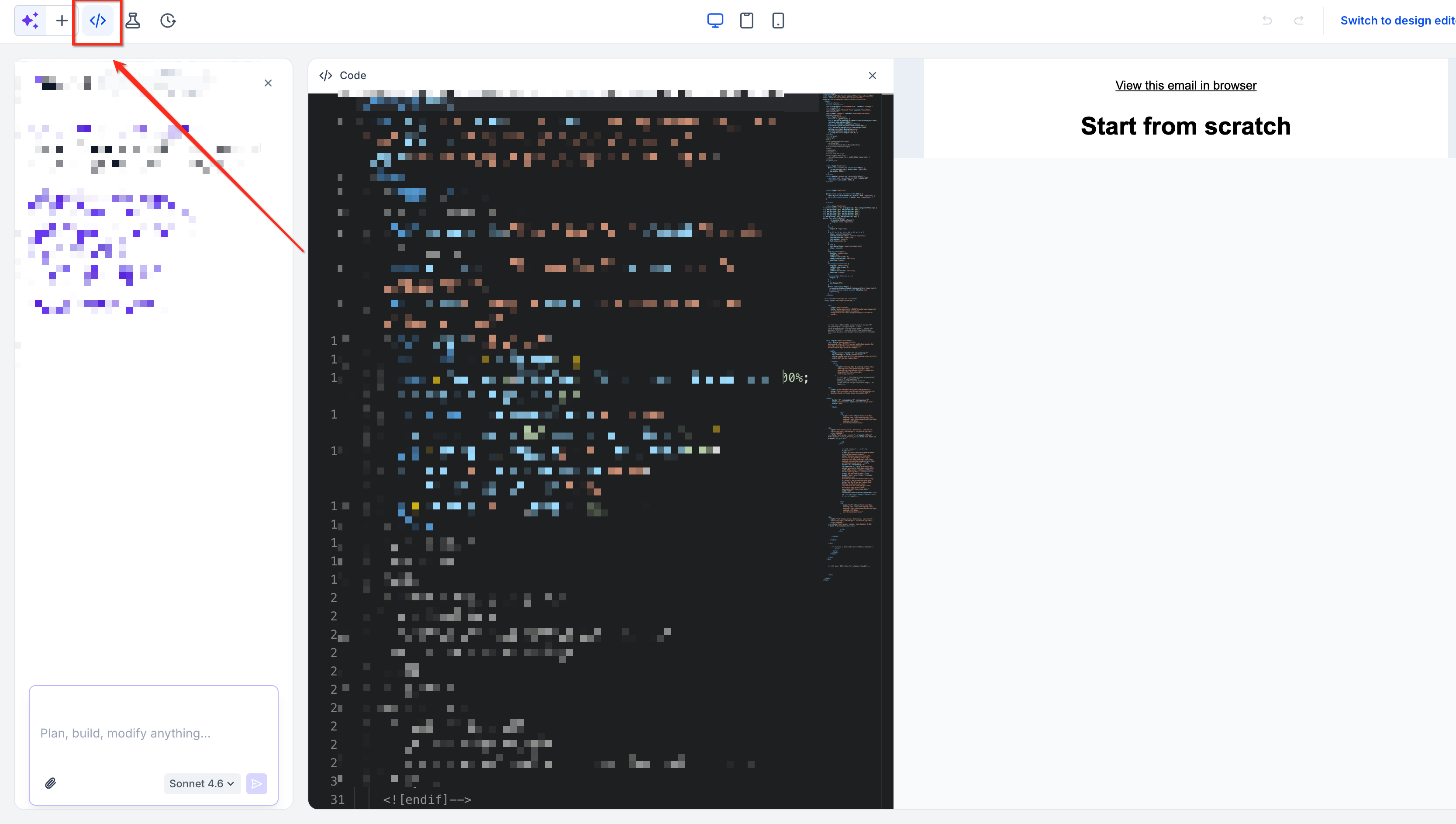
Review the rendered preview to confirm that the email appears as expected.
Make any necessary adjustments to your HTML, including text, links, images, and styling.
Save the campaign using the available save control.
Preview and test the imported email before proceeding to Send or Schedule.
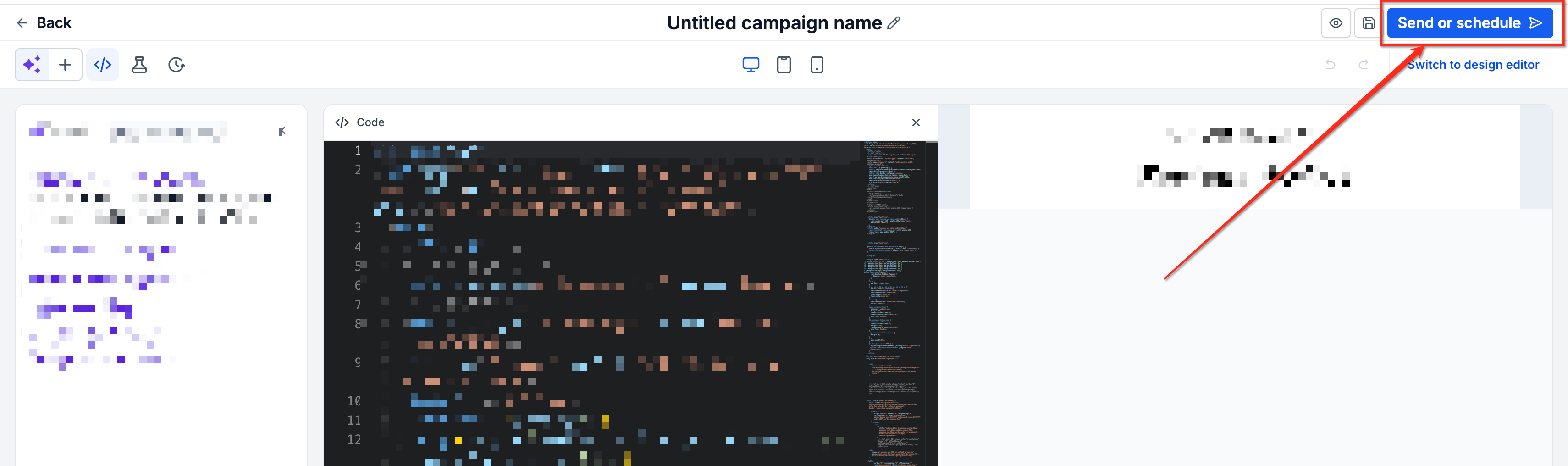
When the campaign is ready, configure the sender details, recipients, and delivery settings, then review the campaign before sending.
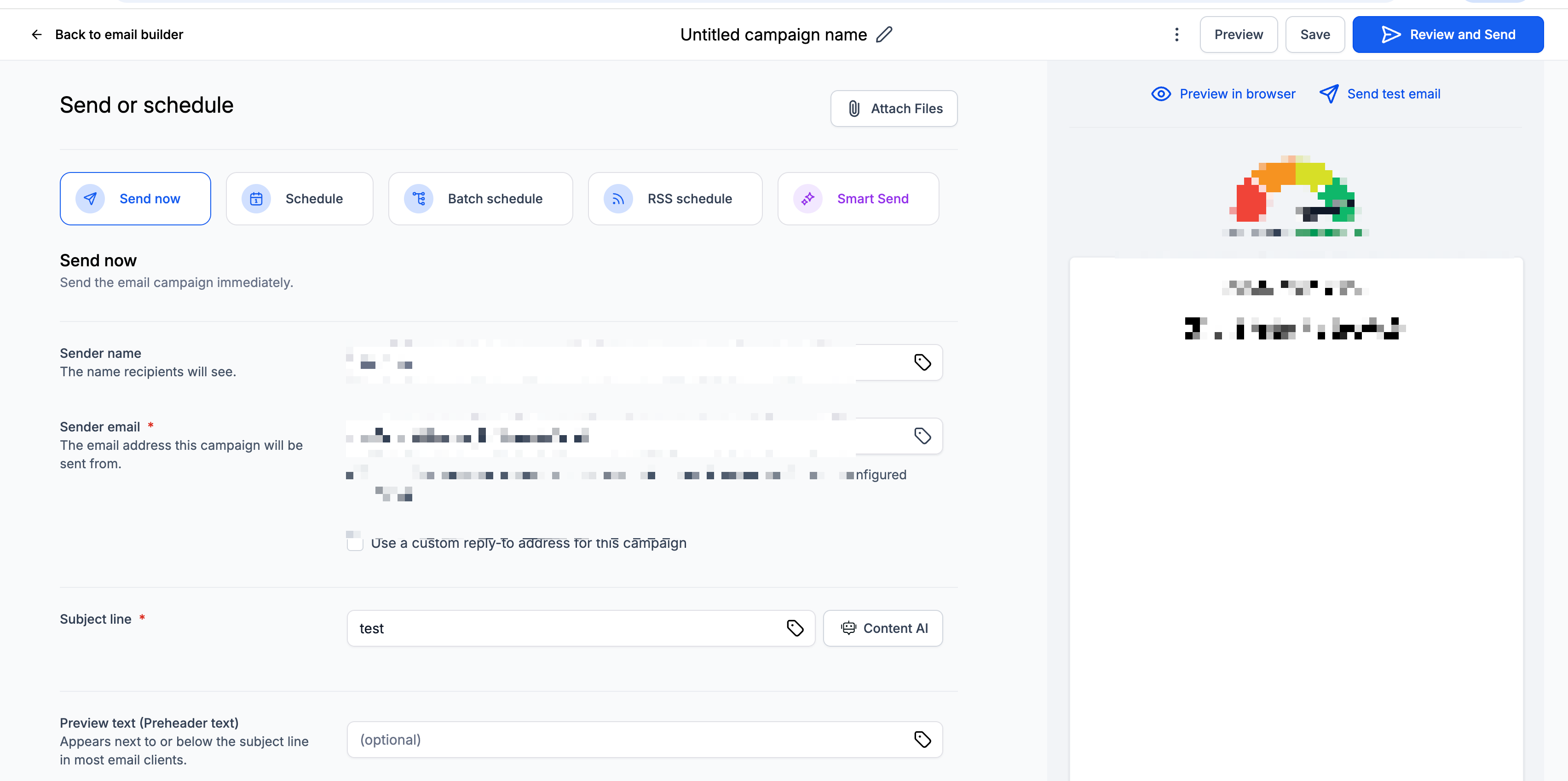
Note: Importing HTML into a campaign does not automatically send the email. You must complete the campaign's sending or scheduling process separately.
For detailed delivery instructions, see Getting Started – Launch an Email Campaign.
Previewing and Testing Imported HTML Emails
Previewing an imported HTML email helps identify layout or formatting issues before recipients receive it. Testing is especially important for custom-coded emails because different email clients may interpret HTML, CSS, images, and other elements differently.
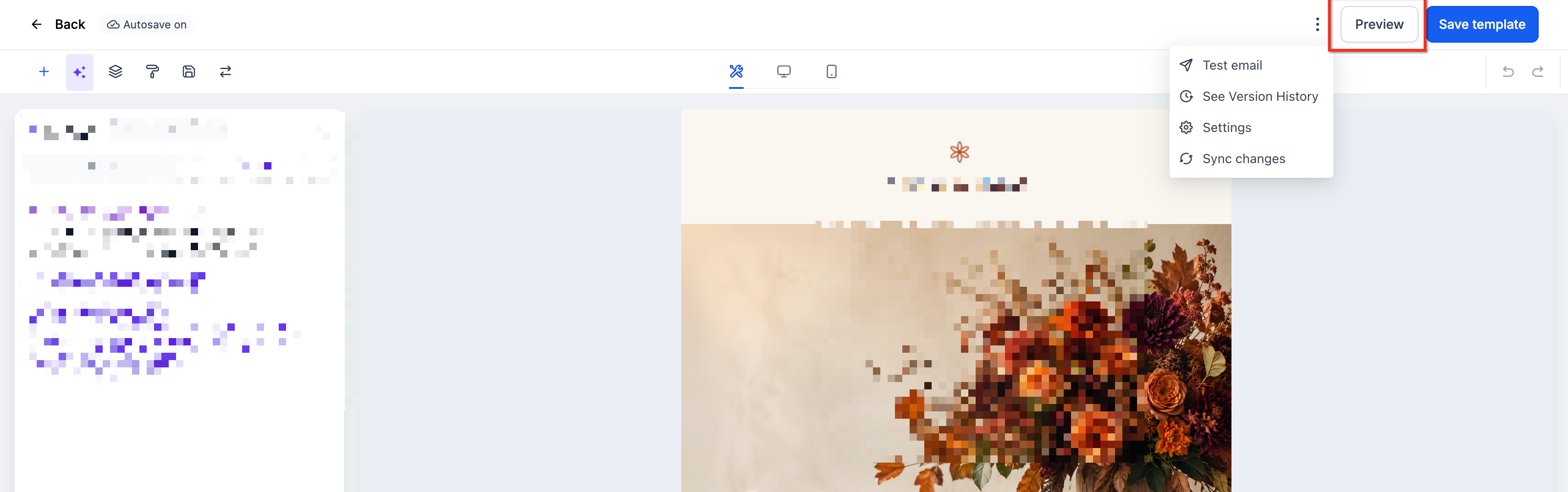
Click Preview in the upper-right area of the Email Builder.
Switch between Desktop, Tablet, and Mobile views to review the layout.
Check the formatting, images, buttons, text alignment, and spacing.
Send a Test Email
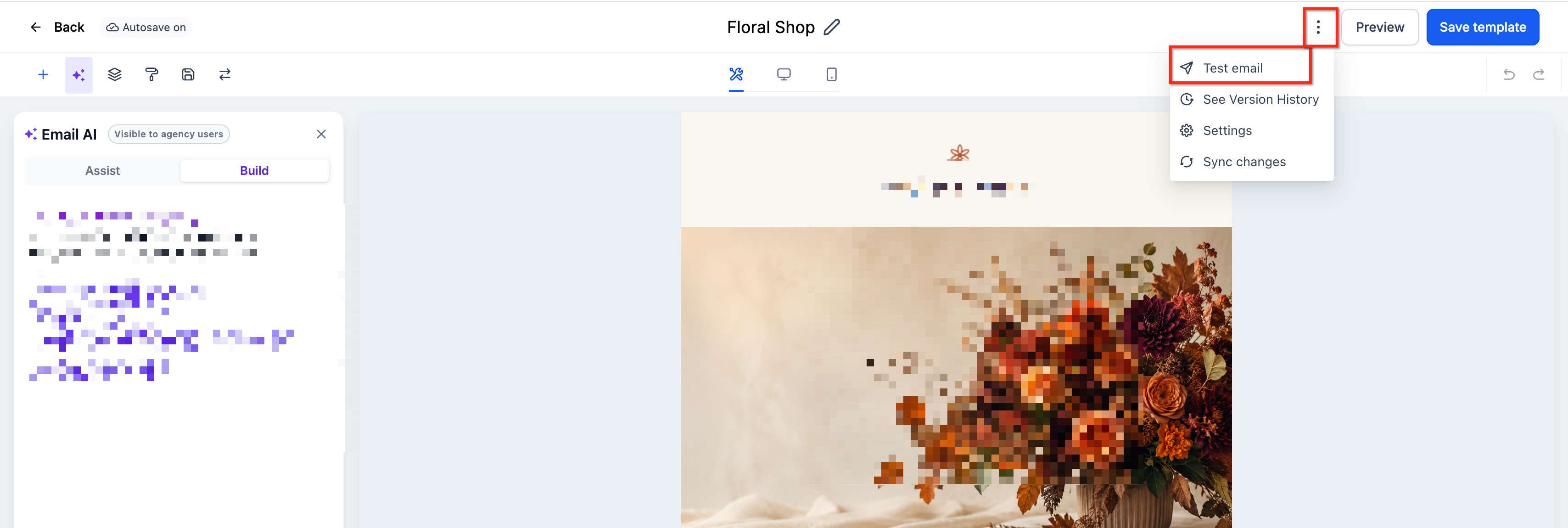
Click the three-dot menu beside Preview.
Select Test Email.
Enter the required test email details, including:
Sender Email
Sender Name
Receiver Email
Preview Text
Email Subject
Click Send Test Email.
Open the test email in your inbox and review the message.
Troubleshooting Imported HTML Emails
Imported HTML emails may need adjustments because email clients do not interpret every HTML or CSS feature in the same way. Identifying the cause of common display issues can help you correct your design before it reaches your audience.
Images Are Not Displaying: Confirm that your image URLs are correct and publicly accessible. Use HTTPS image URLs.
Email Layout Appears Broken: Review the HTML structure for missing or incorrectly nested tags. Check CSS compatibility with common email clients.
Fonts or Styling Look Different: Verify that your CSS is supported by the receiving email client. Use suitable fallback fonts.
Links or Buttons Are Not Working: Verify that each hyperlink contains the correct destination URL. Use full URLs, including the https:// prefix.
Personalization Fields Are Not Displaying Correctly: Check whether the HTML contains merge tags from your previous email provider. Replace unsupported platform-specific variables with the appropriate HighLevel custom values.
The HTML Preview Does Not Match the Delivered Email: Review the email in multiple inbox providers. Check whether unsupported CSS or HTML elements are being ignored.
Frequently Asked Questions
Q: Can I import HTML from any email marketing platform?
Yes, provided you can obtain suitable HTML source code for the email. Some platform-specific HTML may require modifications before it displays correctly in HighLevel.
Q: Will importing HTML automatically update my email if the original design changes?
No automatic synchronization is documented for the manual HTML import process. If the original HTML changes,
update the corresponding content in HighLevel.
Q: Can I use imported HTML emails in automated workflows?
Saved email templates can be used in supported HighLevel automation workflows. Review the relevant workflow email action and test any personalization before activating the automation.
Q: Do I need coding experience to import an HTML email?
You do not need to write HTML from scratch if you already have valid source code. However, basic HTML and CSS knowledge can help you troubleshoot formatting issues or customize the imported design.
Q: Why does my email look different in Gmail and Outlook?
Email clients use different rendering behavior and support different HTML and CSS features. Use email-compatible coding practices and send test emails to the inbox providers used by your audience.
Q: Can I import an entire HTML email using the Code Element?
The Code Element is intended for inserting custom HTML or CSS snippets into a Design Editor layout. For importing a complete custom-coded email, the full Code Editor is the more appropriate option.
Q: What should I do if a previously used email contains broken personalization tags?
Review the imported HTML for merge fields or dynamic variables from the original email platform. Replace them with the appropriate HighLevel custom values and test the results before sending.
Related Articles
Was this article helpful?
That’s Great!
Thank you for your feedback
Sorry! We couldn't be helpful
Thank you for your feedback
Feedback sent
We appreciate your effort and will try to fix the article