Learn how to pause, resume, or cancel a scheduled email campaign, what happens when a paused campaign is resumed, and when to use Reschedule instead.
What Are Pause, Resume, and Cancel?
These campaign controls manage pending email delivery. Pause temporarily stops a campaign, Resume restarts a paused campaign, and Cancel permanently stops that scheduled campaign from continuing.
Pause
Temporarily stops the campaign. The campaign can be resumed later.
Resume
Restarts a paused campaign. If the campaign is resumed before its original scheduled time, it sends according to that schedule. If it is resumed after the scheduled time, it sends immediately.
Cancel
Permanently stops the scheduled campaign from continuing. A canceled campaign cannot be resumed.
Note: Pause or Cancel is supported for Schedule, Batch Schedule, and RSS Schedule campaigns.
How to Pause, Resume, or Cancel a Scheduled Campaign
Open the campaign actions menu to manage a campaign that has already been scheduled but has not completed delivery.
- Go to Marketing → Email → Campaigns.
- Locate the scheduled campaign you want to manage.
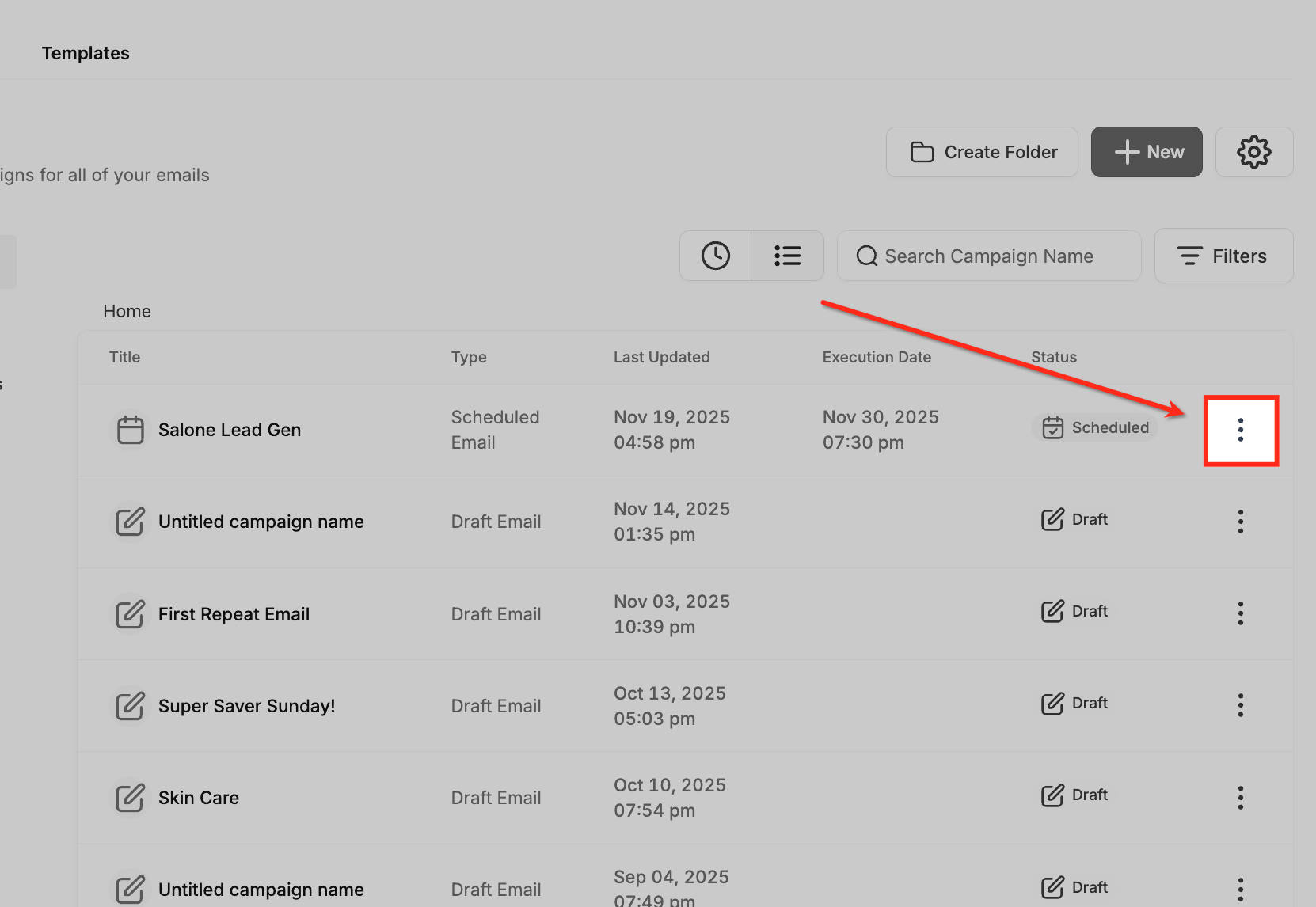
- Click the three-dot menu (⋮)next to the campaign.
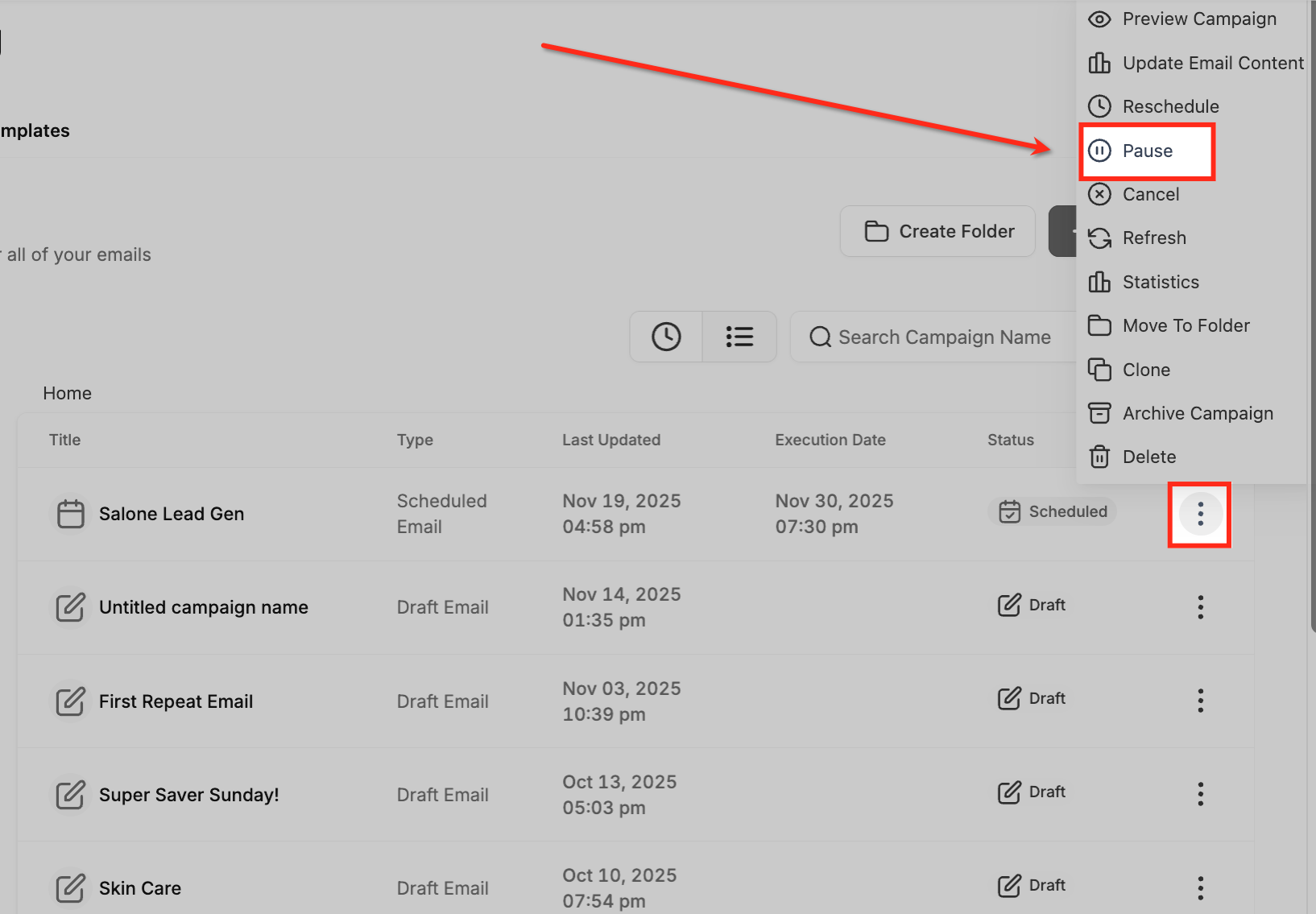
- Select Pause, Resume, or Cancel, depending on the campaign's current status and what you want to do.
Pause vs. Reschedule
Use Pause when you temporarily want to stop a campaign and may resume it later. Use Reschedule when you need to choose a different future delivery date or time.
Important: Rescheduling must be completed at least 60 minutes before the execution time for supported scheduled campaigns.
Frequently Asked Questions
Was this article helpful?
That’s Great!
Thank you for your feedback
Sorry! We couldn't be helpful
Thank you for your feedback
Feedback sent
We appreciate your effort and will try to fix the article