Use the AI Studio Form Submitted trigger to start a workflow whenever a visitor submits a connected form on an AI Studio site.
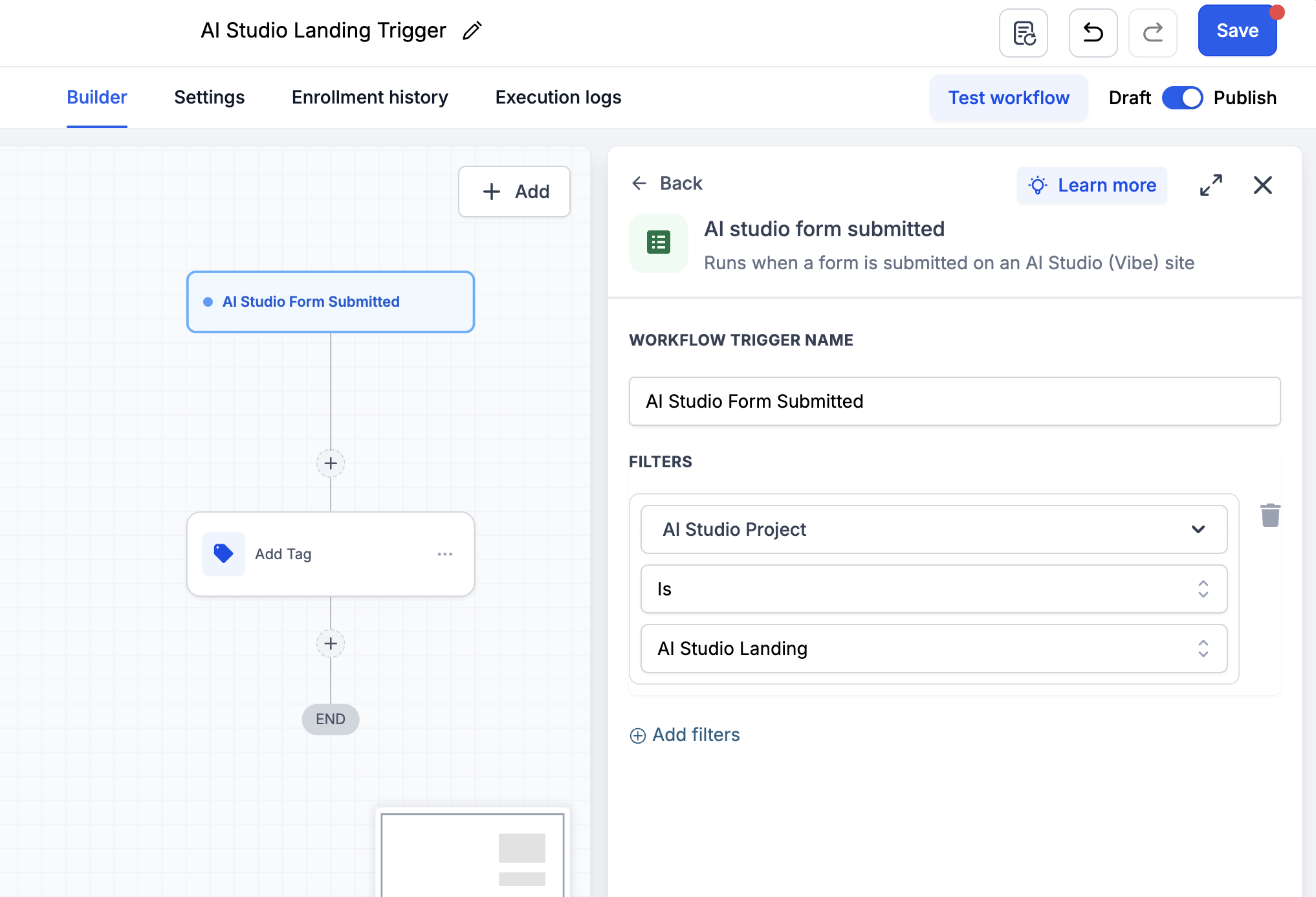
You can optionally limit the workflow to a specific AI Studio project, form, page path, or domain.
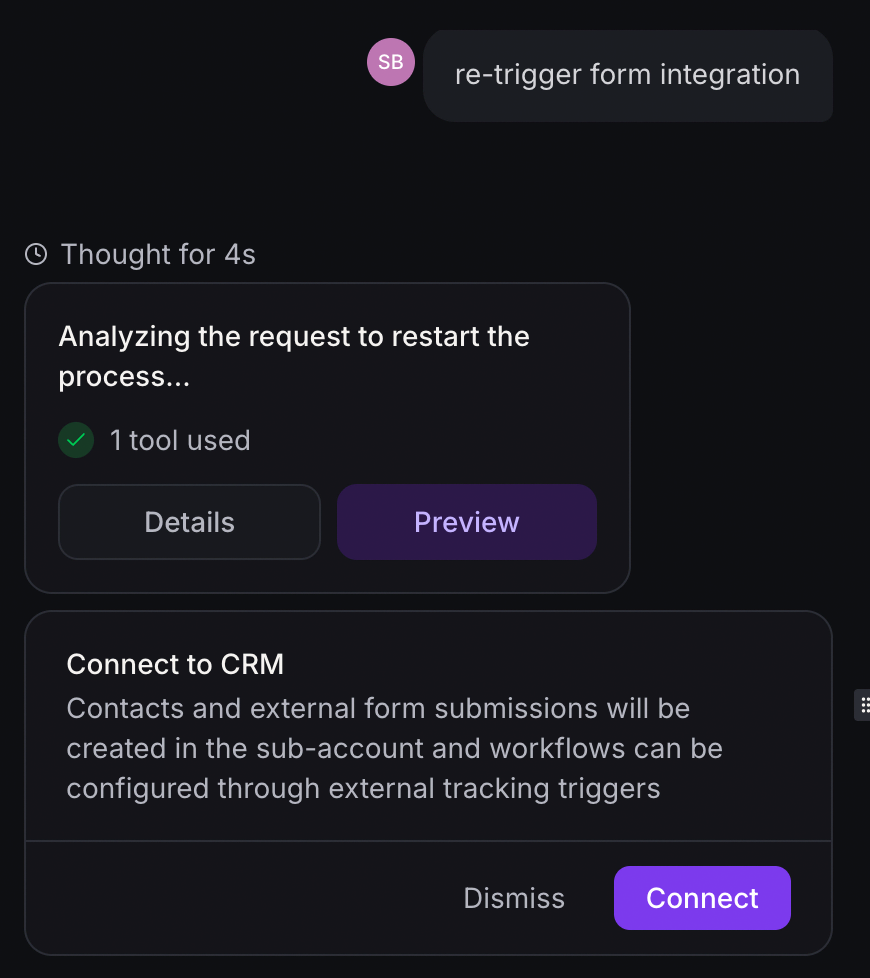
Important: For forms that existed before this trigger was released, open the AI Studio project and ask AI Studio to re-trigger the form integration. Use this prompt:
“Re-trigger form integration.”
Then connect the form to CRM again before using this workflow trigger. This updates the form tracking data required by the trigger.
Before You Begin
Before creating the workflow:
- Make sure AI Studio is enabled for your sub-account.
- Make sure your AI Studio project has a form.
- Connect the form to CRM tracking.
- Publish the project.
- Submit a test form entry so the trigger can load available filter options.
Reconnect Existing Forms
If your project already had a connected form before the AI Studio Form Submitted trigger was available, reconnect the form integration.
This refreshes the form tracking setup and adds the information needed for the trigger to identify the AI Studio project and form correctly.
- Open the AI Studio project that contains the existing form.
- In the AI Studio chat, ask AI Studio to re-trigger the form integration.
- Use this prompt:
Re-trigger form integration. - Allow AI Studio to update the form integration.
- Connect the form to CRM tracking again.
- Publish the project again.
- Submit a test entry after publishing.
Important: Reconnect each existing AI Studio form that you want to use with this trigger.
Create the Workflow
- Create a new workflow or open an existing workflow.
- Click Add New Trigger.
- Search for and select AI Studio Form Submitted.
- Add filters if needed.
- Add your workflow actions.
- Save and publish the workflow.
Available Filters
Use one or more filters to control which AI Studio submissions enter the workflow.
| Filter | Description |
|---|---|
| AI Studio Project | Runs the workflow only for submissions from a selected AI Studio project. |
| AI Studio Form | Runs the workflow only when a selected form is submitted. |
| Page Path | Runs the workflow only for submissions from selected page paths. |
| Domain | Runs the workflow only for submissions from selected domains. |
Note: Select an AI Studio Project first to narrow the available form, page path, and domain options.
Troubleshooting
I do not see my project or form in the filter list
- Confirm the form is connected to CRM tracking.
- For existing forms, ask AI Studio to
Re-trigger form integration. - Connect the form to CRM tracking again.
- Submit a new test form entry.
- Refresh the workflow builder and try again.
The workflow does not run after a submission
- Confirm the workflow is published.
- Confirm the form is connected to CRM tracking.
- For an existing form, re-trigger the form integration and connect it to CRM tracking again.
- Submit a new entry through the published AI Studio page.
- Check that selected filters match the project, form, page path, or domain used for the test submission.
Was this article helpful?
That’s Great!
Thank you for your feedback
Sorry! We couldn't be helpful
Thank you for your feedback
Feedback sent
We appreciate your effort and will try to fix the article