Redirection links in Countdown Timer
Modified on: Tue, 29 Sep, 2026 at 11:49 AM
Countdown Timer redirection links help you control where contacts go based on whether a timer is still active or has expired. By combining Active and Expired Links with a timer's redirection link, you can keep buttons, images, and other calls-to-action aligned with the offer's current availability. This is useful for limited-time offers, registration deadlines, appointment promotions, and other campaigns where access should change automatically after expiration.
TABLE OF CONTENTS
- What are Countdown Timer Redirection Links?
- Key Benefits of Countdown Timer Redirection Links
- How Active, Expired, and Redirection Links Work
- Copy Link, Redirection Link, and Copy Code
- Where You Can Use Redirection Links
- Using Redirection Links with Dynamic Countdown Timers
- Using Redirection Links with Recurring Countdown Timers
- How to Set Up Countdown Timer Redirection
- Testing Countdown Timer Redirection
- Frequently Asked Questions
- Related Articles
What are Countdown Timer Redirection Links?
Countdown Timer Redirection Links provide a conditional destination based on the current state of a countdown. Instead of manually changing campaign links after an offer expires, HighLevel can evaluate the timer and route the contact to the appropriate Active or Expired destination.
Three link concepts work together:
Active Link: The destination contacts should reach while the countdown is still active.
Expired Link: The destination contacts should reach after the timer has expired.
Redirection Link: The conditional link that checks the timer's current state and sends the contact to either the Active or Expired Link.
For example, a promotional email can use a Redirection Link on its Claim Offer button. While the timer is active, the button sends the contact to the offer page. After expiration, the same button can route the contact to an expired-offer or waitlist page.
Key Benefits of Countdown Timer Redirection Links
Redirection Links help keep campaign destinations aligned with countdown availability without requiring you to manually replace links when a timer expires.
Automatic routing: Contacts are directed to the appropriate destination based on whether the timer is active or expired.
Consistent campaign experience: Buttons, images, and text links can follow the same availability rules as the countdown.
Reduced manual updates: The same Redirection Link can continue working before and after expiration without manually replacing the CTA URL.
Better expiration handling: Contacts who interact after the deadline can be sent to a waitlist, expired-offer page, alternate promotion, or another relevant destination.
Flexible placement: Redirection Links can be used with supported calls-to-action where timer-aware routing is needed.
How Active, Expired, and Redirection Links Work
Active and Expired Links define the destinations associated with the timer, while the Redirection Link determines which destination a contact should reach. Understanding this relationship helps prevent contacts from reaching expired offers through campaign CTAs.
Active Link
The Active Link is the destination used while the countdown is still running.
Common Active Link destinations include:
Limited-time offer pages
Registration pages
Checkout pages
Booking pages
Promotional funnel steps
For example, if a registration offer closes at the end of the timer, the Active Link could point to the registration page.
Expired Link
The Expired Link is the destination used after the countdown has reached its expiration state.
Common Expired Link destinations include:
Offer expired pages
Waitlist pages
Alternate promotion pages
General information pages
Next-event registration pages
Using an Expired Link prevents contacts who return after the deadline from being directed to an offer that is no longer available.
Redirection Link
The Redirection Link acts as the conditional URL between the contact and your configured destinations.
When a contact clicks the Redirection Link:
HighLevel checks the associated timer state.
If the timer is active, the contact is routed to the Active Link.
If the timer has expired, the contact is routed to the Expired Link.
The Redirection Link itself can remain the same even though the final destination changes based on the timer state.
Copy Link, Redirection Link, and Copy Code
HighLevel provides several timer-related sharing options that serve different purposes. Choosing the correct option depends on whether you want to control navigation or display the countdown itself.
Redirection Link
Use a Redirection Link when a button, image, or text CTA should send contacts to different destinations depending on the timer's current state.
Examples include:
A Claim Offer button in an email
A linked promotional image
A text link such as Register Now
A CTA associated with a time-sensitive campaign
Copy Link
Depending on the timer type and where the timer is being used, HighLevel may provide a link action associated with the timer.
The available link options can vary by timer type and placement. When working with a Dynamic Timer inside an email, use the timer settings available in the Email Builder to obtain the appropriate redirection link.
Copy Code
Copy Code is used to embed or display the countdown timer itself on supported external websites or platforms.
Copy Code and Redirection Links serve different purposes:
Copy Code: Displays the countdown.
Redirection Link: Controls where contacts go when they click a CTA based on the countdown state.
Dynamic Timers can require additional implementation values when embedded outside HighLevel. Refer to the dedicated Copy Code documentation before implementing them externally.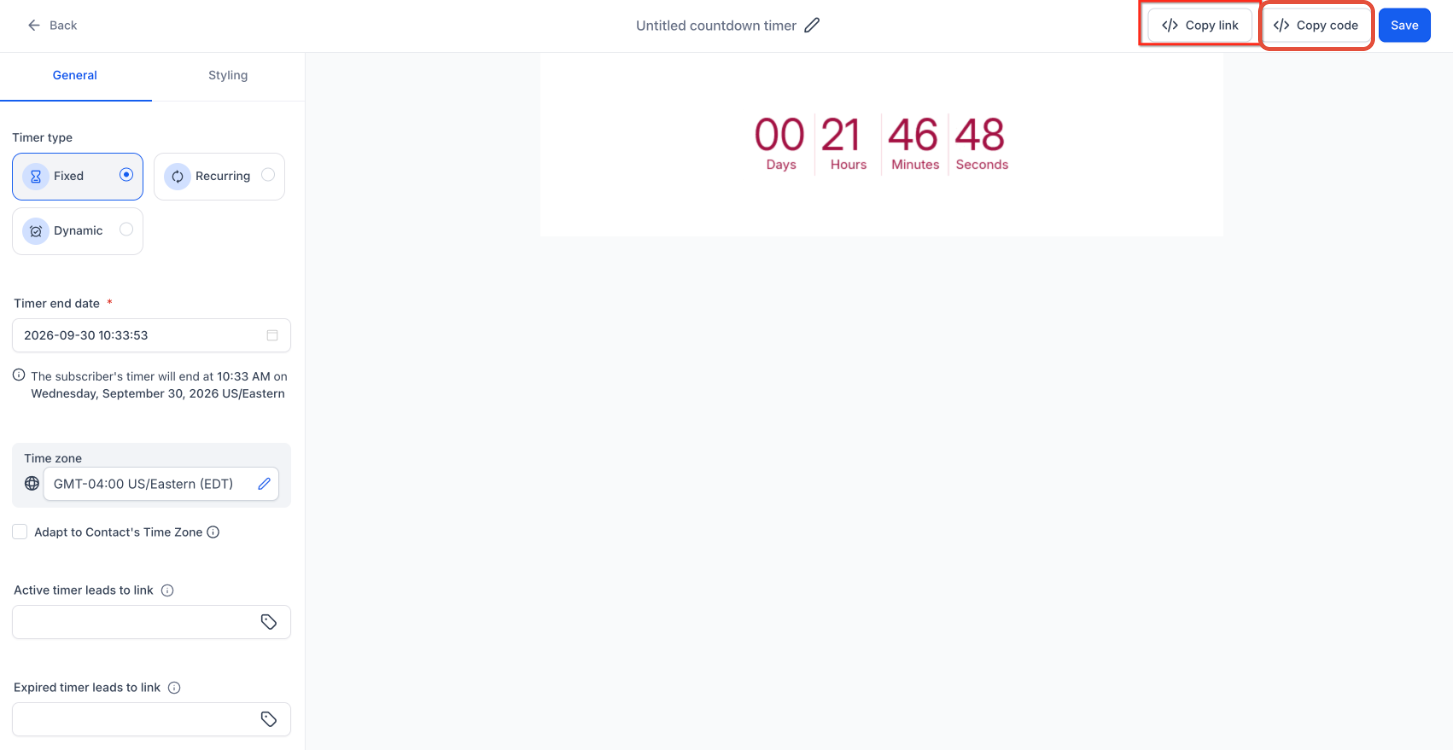
Where You Can Use Redirection Links
Redirection Links are most useful anywhere a call-to-action should respect the same deadline as the associated countdown. The implementation can differ depending on whether the timer is being used in an email, funnel, website, or another supported channel.
Emails
Redirection Links can be applied to email calls-to-action such as:
Buttons
Images
Linked text
A common workflow is to place a countdown timer in the email and use the timer's Redirection Link on the primary CTA.
For example:
Timer active → Shop Now sends the contact to the sale page.
Timer expired → the same Shop Now button sends the contact to an expired-offer page.
Funnels and Websites
Funnels and websites can use Countdown Timer elements directly on the page. Timer expiration behavior can then be configured as part of the page experience.
When coordinating an email and destination page, use the same timer configuration where supported so the deadline shown in the email and on the destination page remains aligned.
The timer displayed on the page and a CTA Redirection Link serve related but different purposes:
The timer displays or tracks the countdown state.
The Redirection Link determines the appropriate destination when a contact clicks a linked CTA.
For complete page-specific configuration, refer to the Countdown Timers in Funnels documentation.
External Platforms
If a countdown needs to be displayed outside HighLevel, use the timer's Copy Code feature where supported.
If the external campaign also needs timer-aware CTA routing, make sure the appropriate Redirection Link is used separately from the embed code.
Using Redirection Links with Dynamic Countdown Timers
Dynamic Timers create contact-specific countdown experiences, so their link behavior must remain associated with the individual timer state. This is especially important when the timer starts based on an email interaction.
When using a Dynamic Timer in an email:
Add the Dynamic Timer to the email.
Open the timer settings in the Email Builder.
Copy the available Redirection Link.
Apply that link to the appropriate button, image, or text CTA.
Test the active and expired destinations before sending the campaign.
Dynamic Timer Redirection Links should not be confused with the Copy Code option used to embed Dynamic Timers externally.
Using Redirection Links with Recurring Countdown Timers
Recurring Timers can cycle between active countdown periods and wait periods. This creates additional expiration behavior that should be considered when configuring destinations and testing campaign links.
During a Recurring Timer's wait state, contacts may be treated as being in an expired state until the next countdown cycle begins.
For this reason:
Configure an appropriate Expired Link.
Test the timer during both active and wait states.
Confirm that contacts are routed to the expected destination before using the campaign publicly.
For complete wait-state behavior, refer to the dedicated Recurring Timer Wait Time documentation.
How to Set Up Countdown Timer Redirection
Proper setup ensures that campaign CTAs continue to lead contacts to the correct destination both before and after the countdown expires. Configure both destination states and test the generated Redirection Link before launching the campaign.
Navigate to Marketing > Countdown Timers.
Create a new timer or open an existing timer.
Configure the timer type, duration, expiration behavior, and other applicable timer settings.
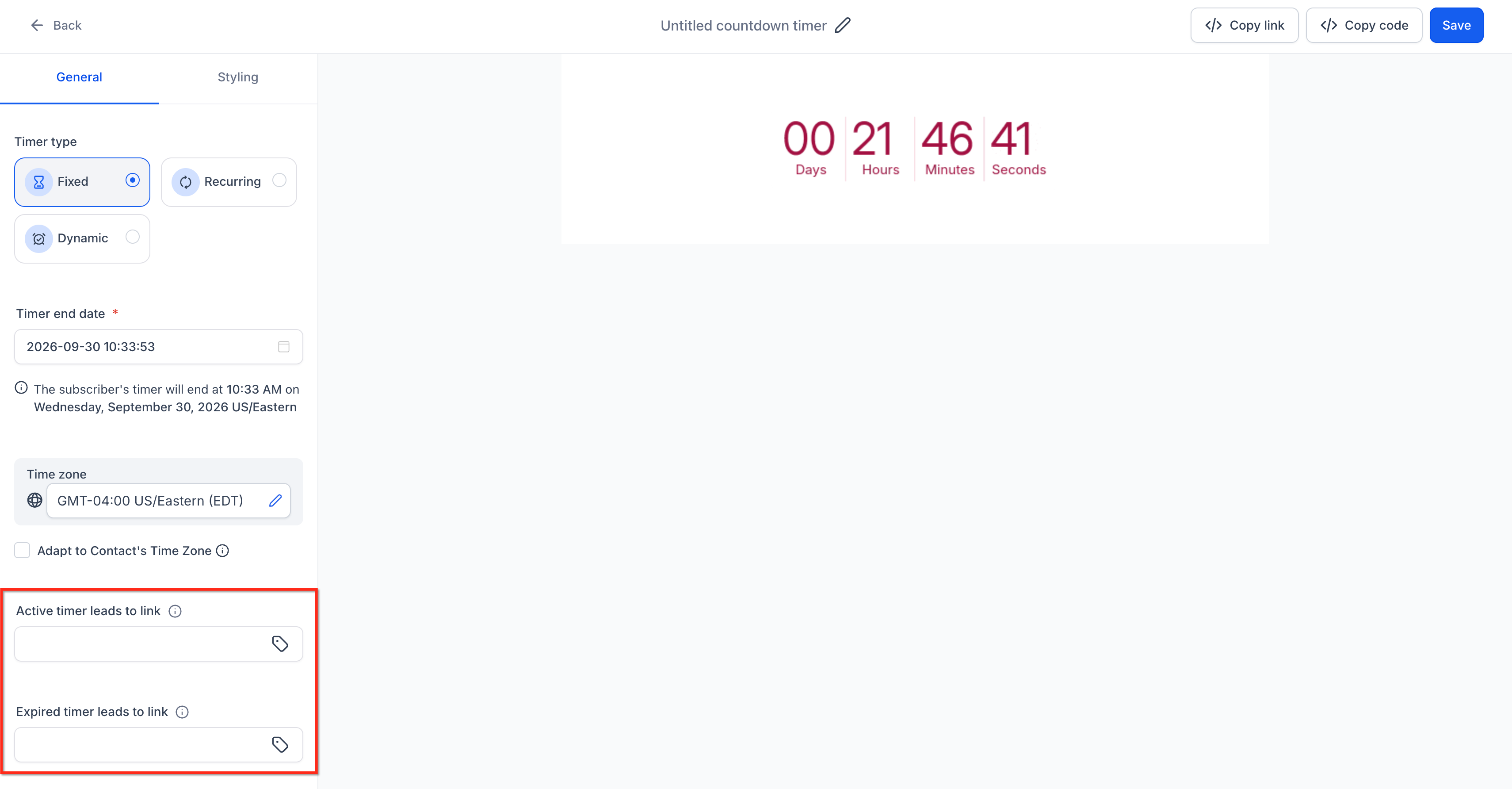
Enter the Active Link.
Use the URL contacts should access while the timer remains active.
Example:https://yourdomain.com/offerEnter the Expired Link.
Use the URL contacts should access after the timer expires.Save the timer.
Add the timer to the appropriate email, funnel, website, or supported campaign.
Copy the timer's available Redirection Link from the appropriate timer or builder settings.
Apply the Redirection Link to the relevant CTA.
This may include:
Button
Image
Text link
Other supported clickable elements
Test the CTA while the timer is active.
Confirm that it routes to the Active Link.
Test the expired state.
Confirm that the same CTA routes to the Expired Link after the countdown expires.
Testing Countdown Timer Redirection
Testing both timer states helps prevent contacts from reaching unavailable offers or incorrect destination pages. A timer that displays correctly can still create a poor campaign experience if its associated Active or Expired destination is misconfigured.
Before publishing or sending a campaign, verify:
The Active Link opens the intended live offer or destination.
The Expired Link opens the correct post-expiration destination.
The Redirection Link is used on the intended CTA.
Buttons, images, and text links using the Redirection Link route correctly.
The timer and destination page use consistent expiration behavior.
Dynamic Timer behavior is tested with the intended trigger.
Recurring Timer behavior is tested during both active and wait states.
External implementations use Copy Code separately from Redirection Link configuration where applicable.
Frequently Asked Questions
Q: What is the difference between an Active Link and a Redirection Link?
The Active Link is the destination contacts reach while the timer is active. The Redirection Link is the conditional URL contacts click. HighLevel checks the timer state and sends the contact to either the Active or Expired Link.
Q: Does the Redirection Link change after the timer expires?
The Redirection Link can remain the same. The destination it routes the contact to changes according to whether the associated timer is active or expired.
Q: Can I use the same Redirection Link on multiple CTAs?
Yes, the same Redirection Link can be used on multiple supported CTAs when those elements should follow the same timer state and destination rules.
Q: Can I use a Redirection Link with a Dynamic Timer?
Yes. When using a Dynamic Timer in an email, obtain the available Redirection Link through the timer settings in the Email Builder and apply it to the relevant CTA.
Q: Is Copy Code the same as a Redirection Link?
No. Copy Code is used to display or embed the countdown timer itself. A Redirection Link is used to route contacts to the Active or Expired destination based on the timer state.
Q: What happens if a contact clicks after the timer expires?
If the Expired Link is properly configured and the CTA uses the timer's Redirection Link, the contact is routed to the Expired destination.
Q: What should I use as an Expired Link?
Use a destination that remains useful after the original offer closes. Common examples include an expired-offer page, waitlist, alternate promotion, or upcoming-event page.
Q: Do Recurring Timers behave differently after expiration?
Recurring Timers can enter a wait state between countdown cycles. During that period, expired-state behavior may apply until the next active cycle begins.
Related Articles
Was this article helpful?
That’s Great!
Thank you for your feedback
Sorry! We couldn't be helpful
Thank you for your feedback
Feedback sent
We appreciate your effort and will try to fix the article