Managing agency user permissions helps you give team members the access they need without exposing unnecessary accounts, modules, or sensitive settings. HighLevel lets agency admins control user type, role, sub-account access, module visibility, and granular actions from one permission-management area.
Properly configured permissions make onboarding easier, support safer delegation, and help protect sensitive agency and client information.
If you need to manage users who work inside a specific sub-account, see Manage Sub-Account User Roles & Permissions.
TABLE OF CONTENTS
- What Are Agency User Roles and Permissions?
- Key Benefits of Agency User Roles and Permissions
- User Type and Role
- Restrict Access to Specific Sub-Accounts
- Module and Granular Permissions
- Sub-Account Settings Permissions
- User Management and Login As
- Copy Permissions
- Adding Clients to a Sub-Account With Limited Access
- Dashboard Export Permission
- Sub-Account Transfer Permission
- User Management API Support
- How to Set Up Agency User Roles and Permissions
- Frequently Asked Questions
- Related Articles
What Are Agency User Roles and Permissions?
Agency user roles and permissions determine which HighLevel accounts, modules, settings, and actions a team member can access. Understanding the difference between User Type, Role, account assignment, and individual permissions helps you provide the right level of access without giving users broader visibility than their responsibilities require.
HighLevel provides several layers of access control:
User Type: Determines the scope in which the user operates.
- Role: Determines whether the user operates as an Admin or User within that scope.
Sub-Account Assignment: Determines which specific sub-accounts an Account-type user can access.
Module Permissions: Control whether an entire feature or module is available.
Granular Permissions: Control individual actions within supported modules.
For users who need access to selected client accounts without agency-wide access, use the Account user type and assign only the required sub-accounts.
Key Benefits of Agency User Roles and Permissions
Granular permission management helps agencies match access to each team member's responsibilities. This becomes especially important as teams grow, responsibilities become more specialized, and sensitive functions such as billing, account transfers, integrations, and user administration need tighter controls.
Controlled access: Give users access only to the accounts, modules, and actions required for their responsibilities.
Safer delegation: Allow team members to manage specific functions without automatically giving access to unrelated settings.
Simplified onboarding: Reuse established permission configurations when adding team members with similar responsibilities.
Reduced account exposure: Assign users only to the sub-accounts they need to manage.
More precise administration: Combine module-level access with granular permissions for supported actions.
Protection for sensitive actions: Restrict high-impact functions such as creating sub-accounts, managing users, accessing billing settings, or transferring sub-accounts.
User Type and Role
User Type and Role solve different access-control needs. User Type determines the scope in which a person operates, while Role determines their level of authority within that scope. Configuring both correctly helps prevent users from receiving broader access than intended.
User Type
Agency: Use for team members who require agency-level access.
Account: Use for team members who should access only selected sub-accounts.
When you select Account, assign only the sub-accounts the user needs to access.
Role
Choose the role that matches the user's responsibilities:
Admin: Provides administrative capabilities within the user's applicable access scope.
User: Provides access according to the permissions configured for that user.
Restrict Access to Specific Sub-Accounts
Sub-account assignments let you give a team member access to the client accounts they manage without exposing unrelated client accounts. This is useful for account managers, sales teams, fulfillment teams, and other users responsible for a defined group of clients.
To give a user access to selected sub-accounts without agency-wide access:
Go to Agency View > Settings > Team.
Edit the applicable user.
Open Roles & Permissions.
Set User Type to Account.
Select the sub-accounts the user should be able to access.
Choose the appropriate Role.
Configure the user's module and granular permissions.
Save the changes.

The user can access only the sub-accounts assigned to them.
For a detailed walkthrough, see How to create a user or admin to manage multiple HL locations without giving them agency access?
Module and Granular Permissions
Module and granular permissions work together to control what a user can access and what they can do after gaining access. Module-level controls are useful when a feature should be unavailable entirely, while granular permissions provide more precise access to supported actions inside a module.
There are two primary levels of permission control:
Module: Turn the module off when the user should not access that feature at all.
Granular: Use the available individual permissions to control specific actions within a supported module.
If a module is turned off, the user cannot access the functionality contained within that module.
Available Permission Areas
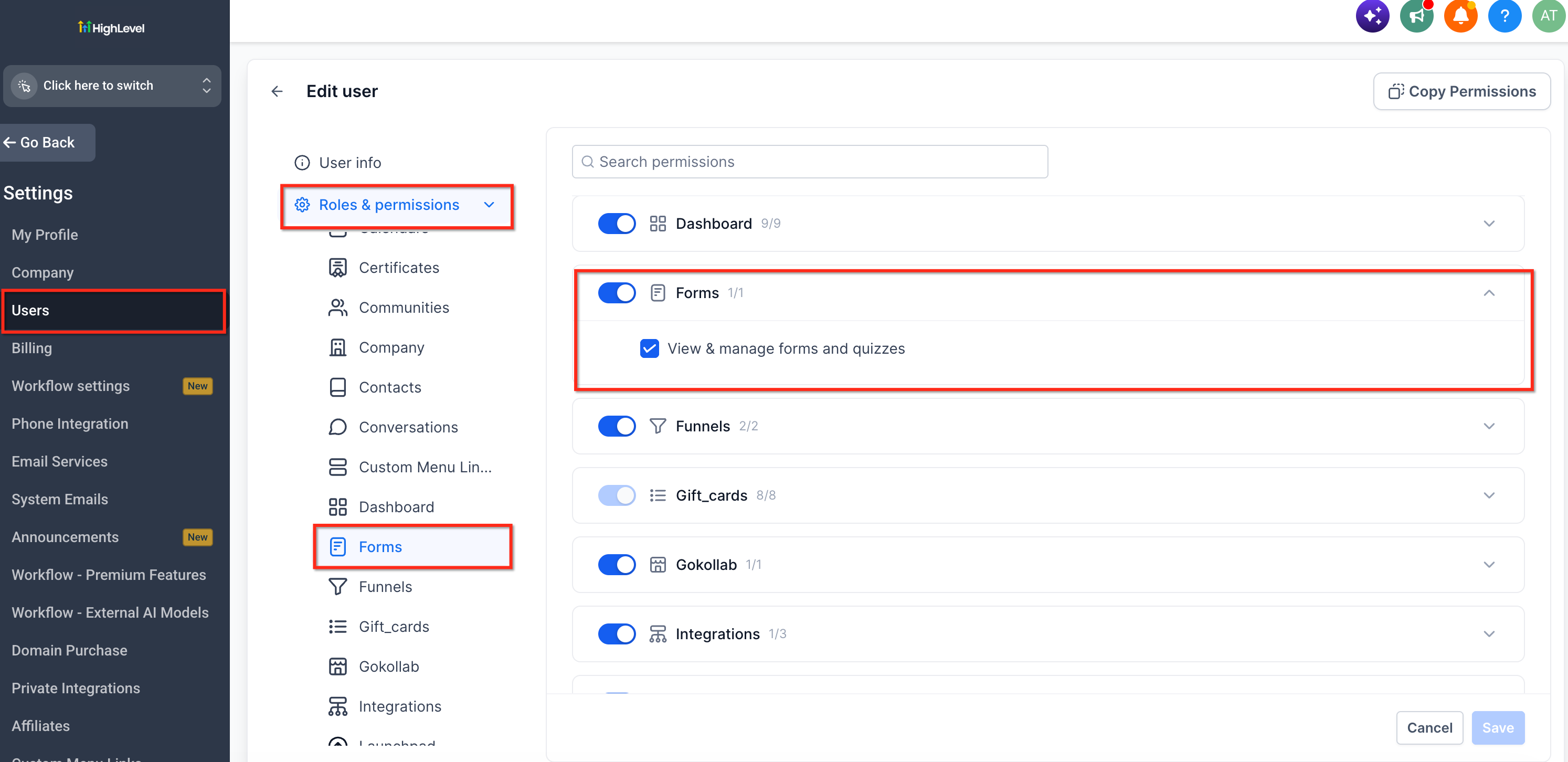
Forms, Surveys, Quizzes, and QR Codes support user-level permission controls. Admins can enable or disable access to each module and configure the available **View & manage** permission from the user's Roles & Permissions settings.
Affiliate Manager Payout Permission
The **Pay Affiliate Manager Payout** permission controls whether an eligible admin can process affiliate payouts.
1. Agency Admins: The permission is enabled by default and can be enabled or disabled.
2. Agency Users: Users cannot process affiliate payouts.
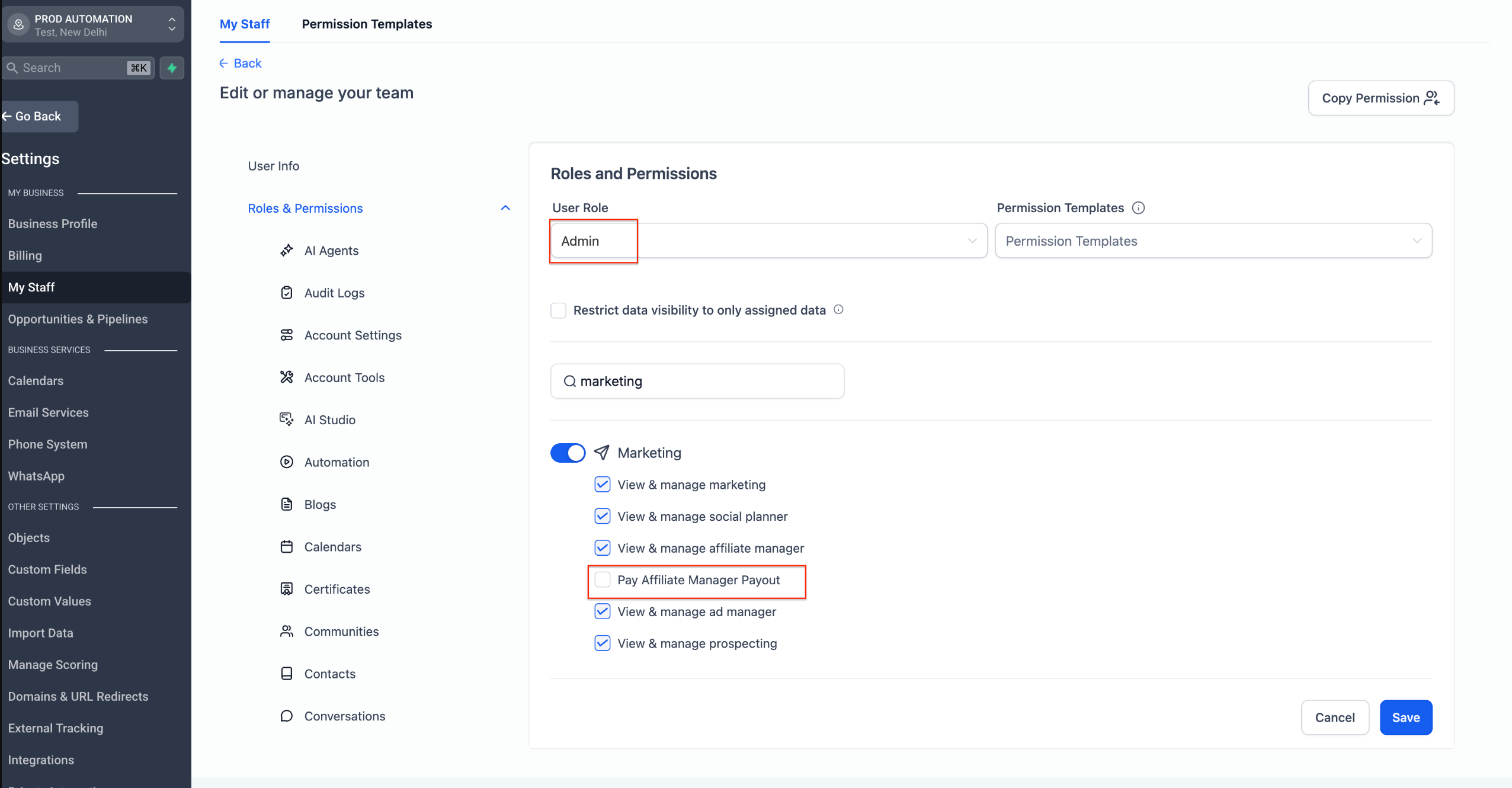
When payout permission is disabled, payout actions are hidden in Affiliate Manager.
The permissions available to a user can include the following modules and functions.
- AI Agents: Build and manage supported Managed Agents, Voice AI and Chat AI agents, training, logs, summaries, and related functionality.
- Account Settings: Manage supported business information, domains, branding, time zone, and other account settings.
- Account Tools: Access supported account utilities such as imports, exports, redirects, and administrative tools.
- Automation: Create and manage workflows, triggers, automation activity, and logs.
- Blogs: Create and manage blog posts, categories, authors, and blog settings.
- Calendars: Create and manage calendars, availability, assignments, appointment types, and supported scheduling settings.
- Certificates: Create and issue supported course-completion certificates.
- Communities: Manage supported groups, posts, members, and moderation functions.
- Contacts: Create, edit, delete, import, export, and perform supported actions on contacts.
- Conversations: Access supported inbox, messaging, calling, email, SMS, and social communication functionality.
- Dashboard: Access dashboard functionality and supported dashboard actions.
- Forms: Build and manage forms and form submissions.
- Funnels: Build and manage supported funnel and website assets.
- GoKollab: Access supported GoKollab functionality.
- Integrations: Connect and manage supported third-party integrations.
- Launchpad: Access supported onboarding and quick-start tools.
- Marketing: Access supported campaign, Social Planner, template, and scheduling functionality.
- Media: Manage supported images, videos, and files in the media library.
- Memberships: Manage supported courses, lessons, offers, access levels, learners, and related functionality.
- Opportunities: Manage pipelines, stages, opportunities, values, and statuses.
- Orders: View and manage supported order records.
- Payments: Access supported payments, invoices, refunds, receipts, and related financial records.
- Payment Settings: Manage supported payment gateways, taxes, receipts, dunning, and payment-related settings.
- Products: Create and manage products, prices, and supported product variations.
- QR Codes: Create and manage QR codes.
- Quizzes: Create and manage supported quizzes.
- Reputation: Access supported review-management, listings, responses, and related reputation tools.
- Subscriptions: Manage supported recurring plans, subscriber status, and cancellations.
- Sub-Account Transfers: Access eligible sub-account transfer functionality when the required role and permission are present.
- Surveys: Build and manage surveys and responses.
- Taxes: Manage supported tax rates and rules.
- Transactions: Access supported transaction records, charges, refunds, and payouts.
- WordPress: Access supported WordPress connection and site-management functionality.
Sub-Account Settings Permissions
Sub-Account Settings permissions provide additional control over administrative areas that can affect client configuration, billing, and other high-impact settings. These controls help agencies delegate everyday responsibilities while reserving sensitive configuration changes for authorized team members.
Depending on the permissions available, these controls can include:
Sub-Accounts List Page: Controls supported access to the sub-account list and related management actions.
Manage Client Page – Basic Details: Controls access to supported client-level configuration.
Sub-Account Billing: Restricts supported billing and financial actions at the sub-account level.
Sub-Account Company Settings: Restricts access to supported high-impact company configuration settings.
When a user tries to access an area or perform an action that their permissions do not allow, HighLevel displays contextual messaging indicating that their permission level does not allow the action
User Management and Login As
User Management permissions control access to supported user-administration actions, including whether an eligible agency admin can use Login As. Controlling impersonation separately from other administrative responsibilities helps agencies limit who can enter HighLevel as another user.
Enable Login As
The Enable Login As permission controls whether an eligible agency admin can impersonate another user through the Login As feature.
- Default: Enabled.
- When disabled: The Login As option is hidden for that admin.
- Location:Agency View > Settings > Team > Edit User > Roles & Permissions > User Management
For instructions on using the feature, see Login As User (Agency Admin Only).
Copy Permissions
Copying permissions helps reduce repetitive setup when multiple team members need the same access configuration. This is especially useful when onboarding users with similar responsibilities or standardizing permissions across a team.
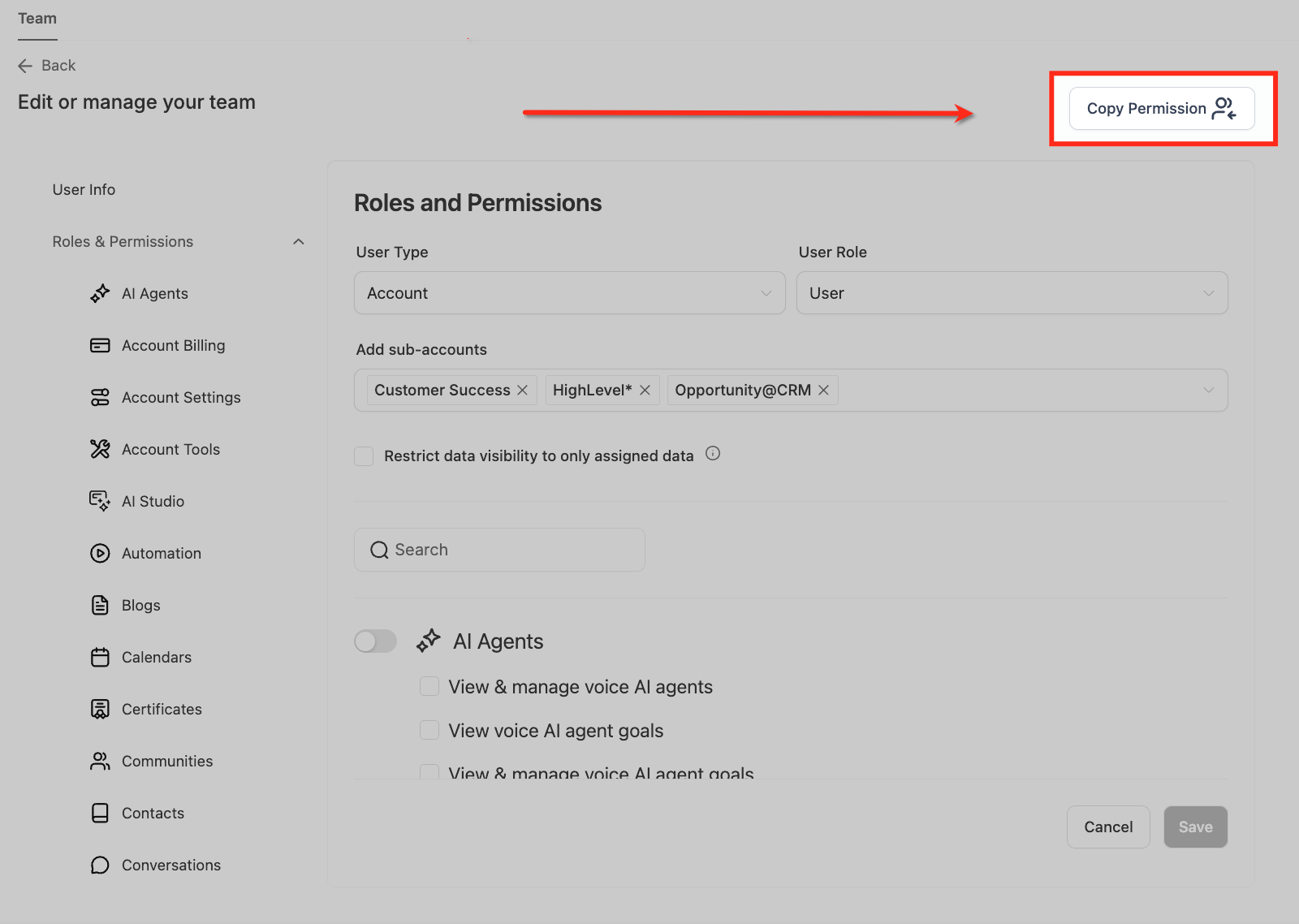
Agency admins can copy an existing user's granular permission configuration to another user instead of setting every permission manually.
Before copying permissions, review the destination user's role, responsibilities, and account scope to make sure the copied configuration is appropriate.
Adding Clients to a Sub-Account With Limited Access
Clients generally need access to their own sub-account rather than agency-level access. Adding clients within the appropriate sub-account keeps their access focused on their business and allows their role, module access, and data visibility to be configured independently.
To add a client as a sub-account user:
Open the client's sub-account.
Go to Settings > Users.
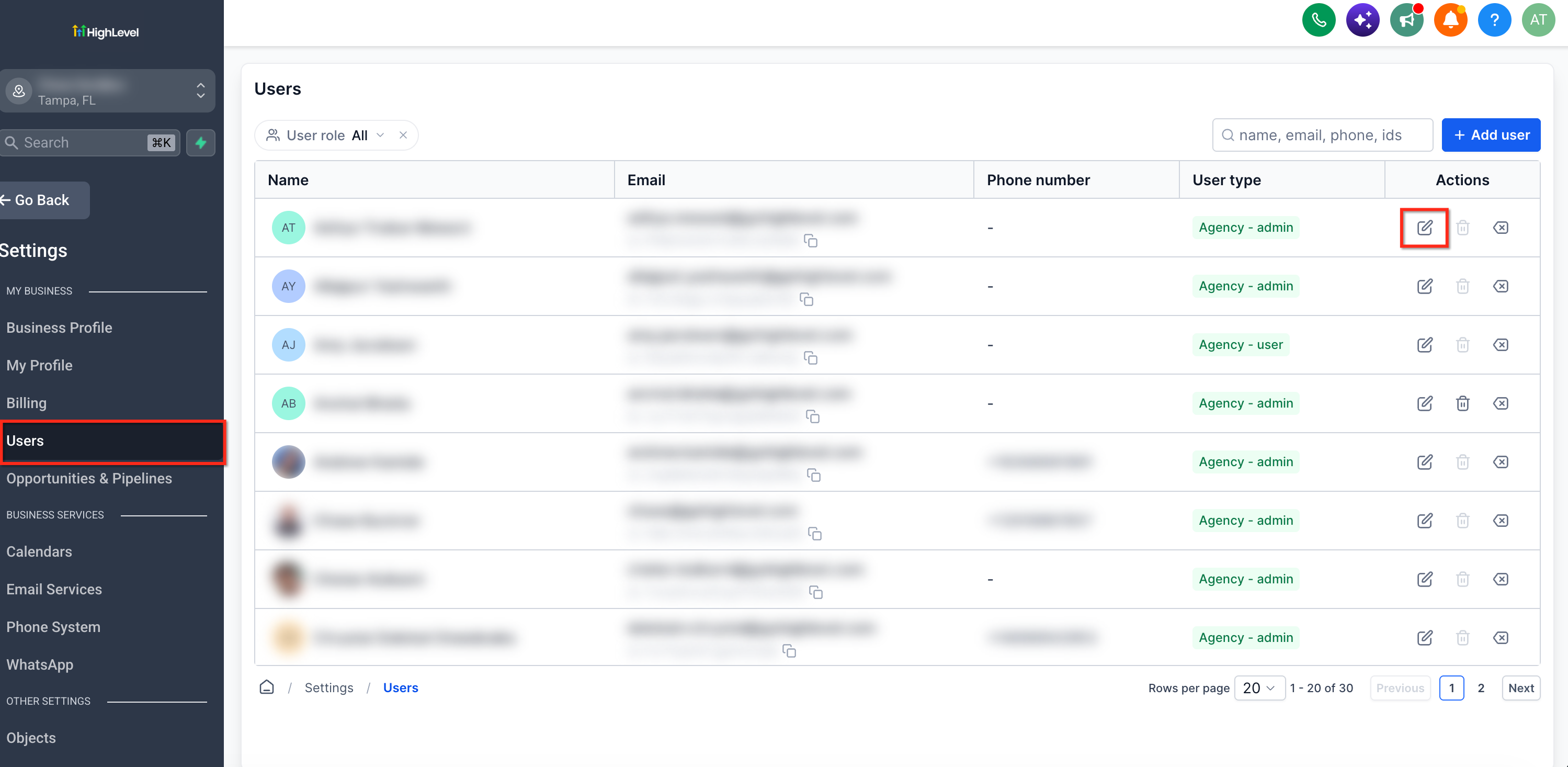
Click + Add Employee.
Enter the client's name, email address, and required user information.
Choose the appropriate Role.
Configure the modules and individual permissions the client should be able to access.
Enable Only Assigned Data if the user's visibility should be limited to supported records assigned to them.
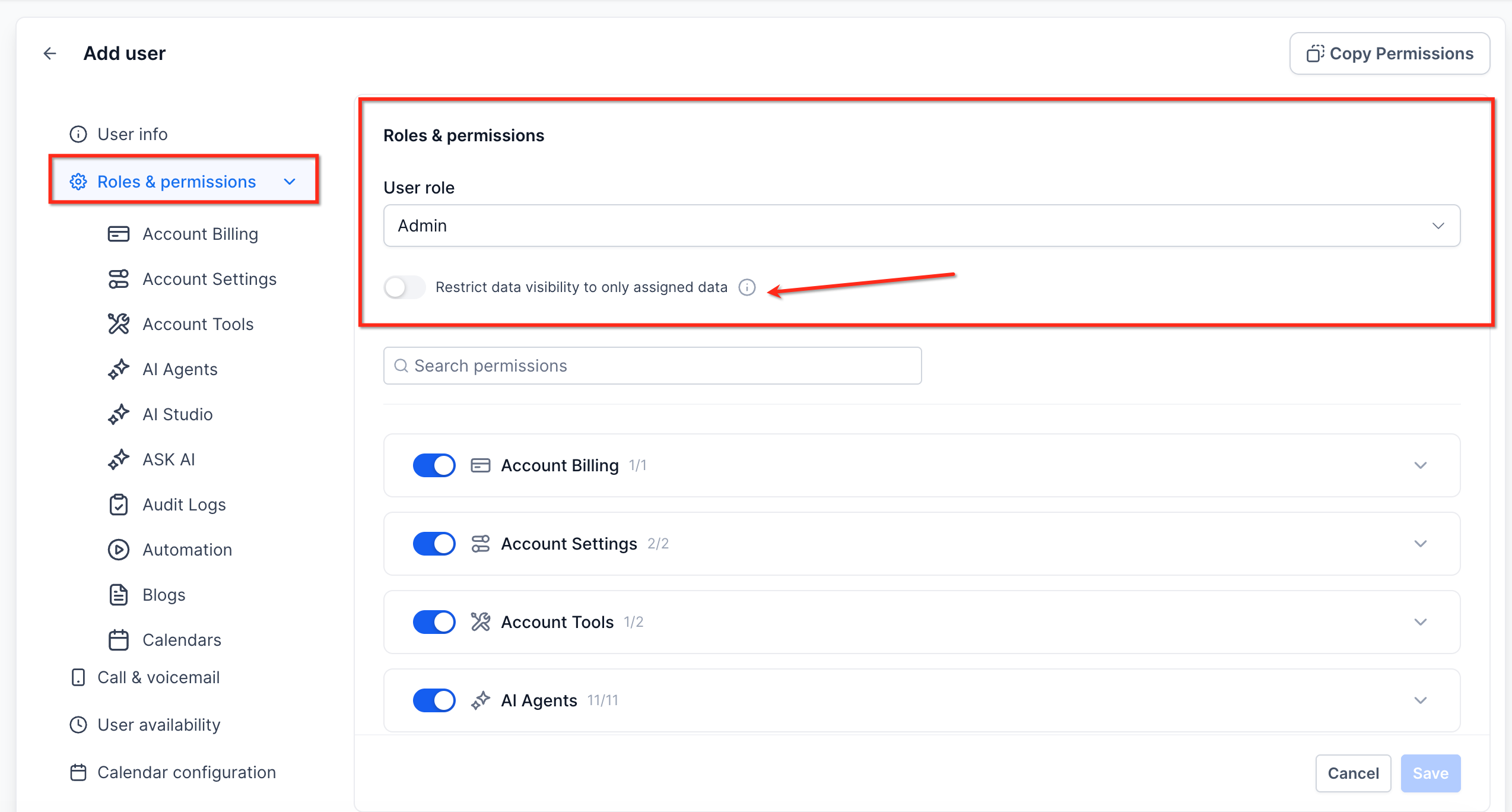
Click Save.
Only Assigned Data is different from module permissions. Module permissions determine whether a user can access a feature, while Only Assigned Data limits supported record visibility based on assignment.
Dashboard Export Permission
Dashboard permissions can be managed separately from general account access. The Export data permission is useful when a user needs dashboard visibility but should not be able to export widget data for external reporting or analysis.
Dashboard > Export data: Allows the user to export supported dashboard widget data.
Dashboard sharing and access can include additional controls beyond this granular permission. For more information, see How To Manage Dashboard Permissions.
Sub-Account Transfer Permission
Sub-account transfers can affect account ownership, access, billing, integrations, and other account resources. Transfer permissions should therefore be assigned only to users who are authorized to perform this high-impact action.
By default, the Agency Owner can request or complete eligible sub-account transfers. The Agency Owner can grant transfer permissions to specific Agency Admins.
Agency Admins without the required transfer permission cannot submit or approve transfer requests.
A sub-account transfer moves the entire eligible sub-account between agencies rather than moving only selected data.
For eligibility requirements and transfer behavior, see Sub-Account Transfer Guide.
User Management API Support
API-based user-management workflows are affected by HighLevel's Enhanced Security setting. Agencies using API-first or high-volume user-management processes should understand the security impact before changing this setting.
Supported User Management permission levels include:
- View & Manage Users: Allows supported viewing, creation, and editing of users.
- View Users: Allows supported viewing of users without broader user-management access.
When Enhanced Security is enabled, affected API-based User Management operations are restricted.
To allow documented API-based User Management workflows:
Go to Agency View > Settings > Company > Advanced Settings.
Locate Enhanced Security.
Disable the setting only if your agency requires the affected API-based user-management workflows.
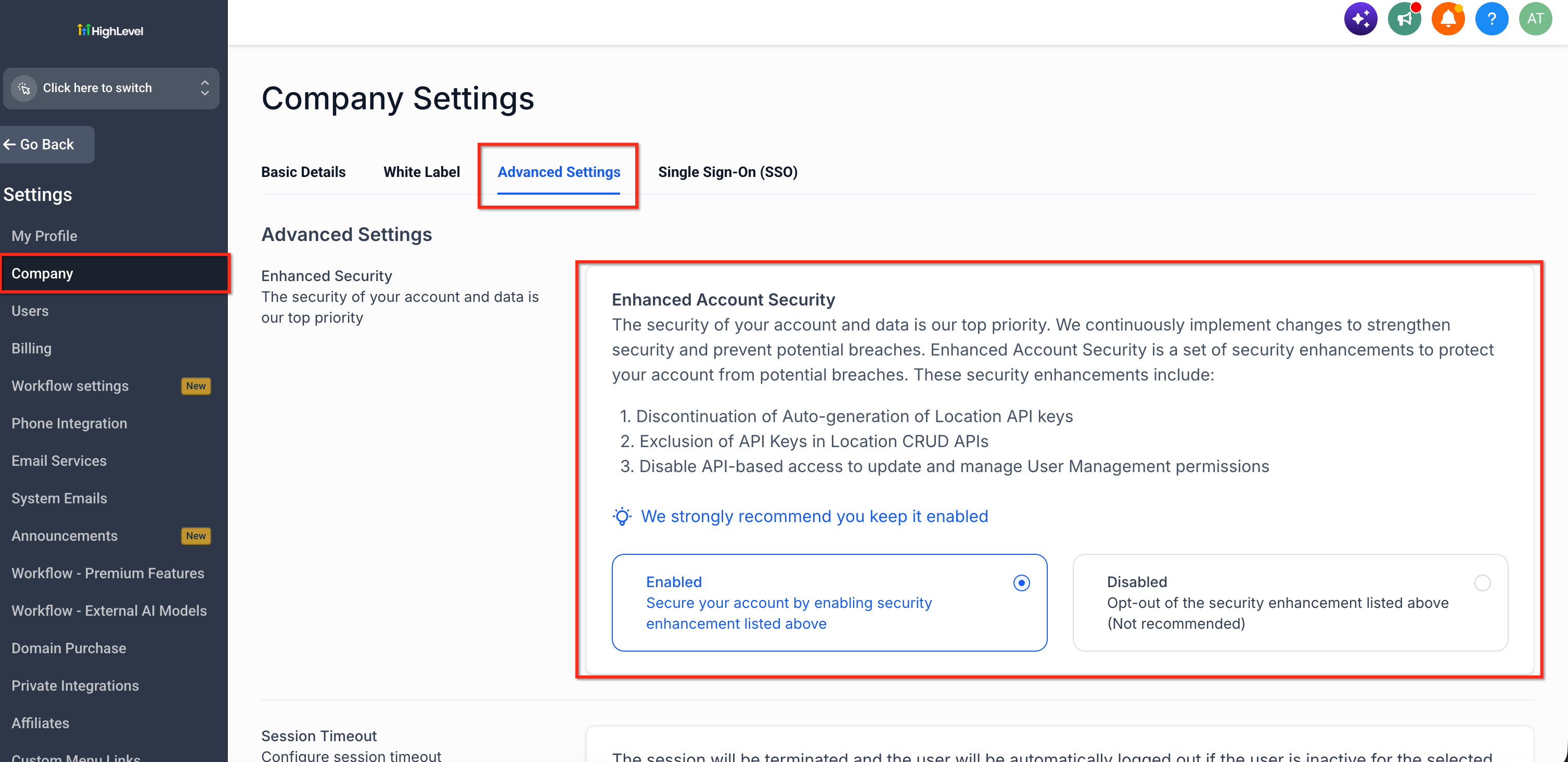
Important: Disabling Enhanced Security can increase account security risk. Keep Enhanced Security enabled unless your agency specifically requires the affected API-based workflows.
For more information before changing this setting, see Enhanced Account Security.
How to Set Up Agency User Roles and Permissions
A well-configured user starts with the correct access scope before individual permissions are assigned. Setting User Type, Role, account assignments, and feature permissions in the correct order helps ensure the user's access matches their responsibilities.
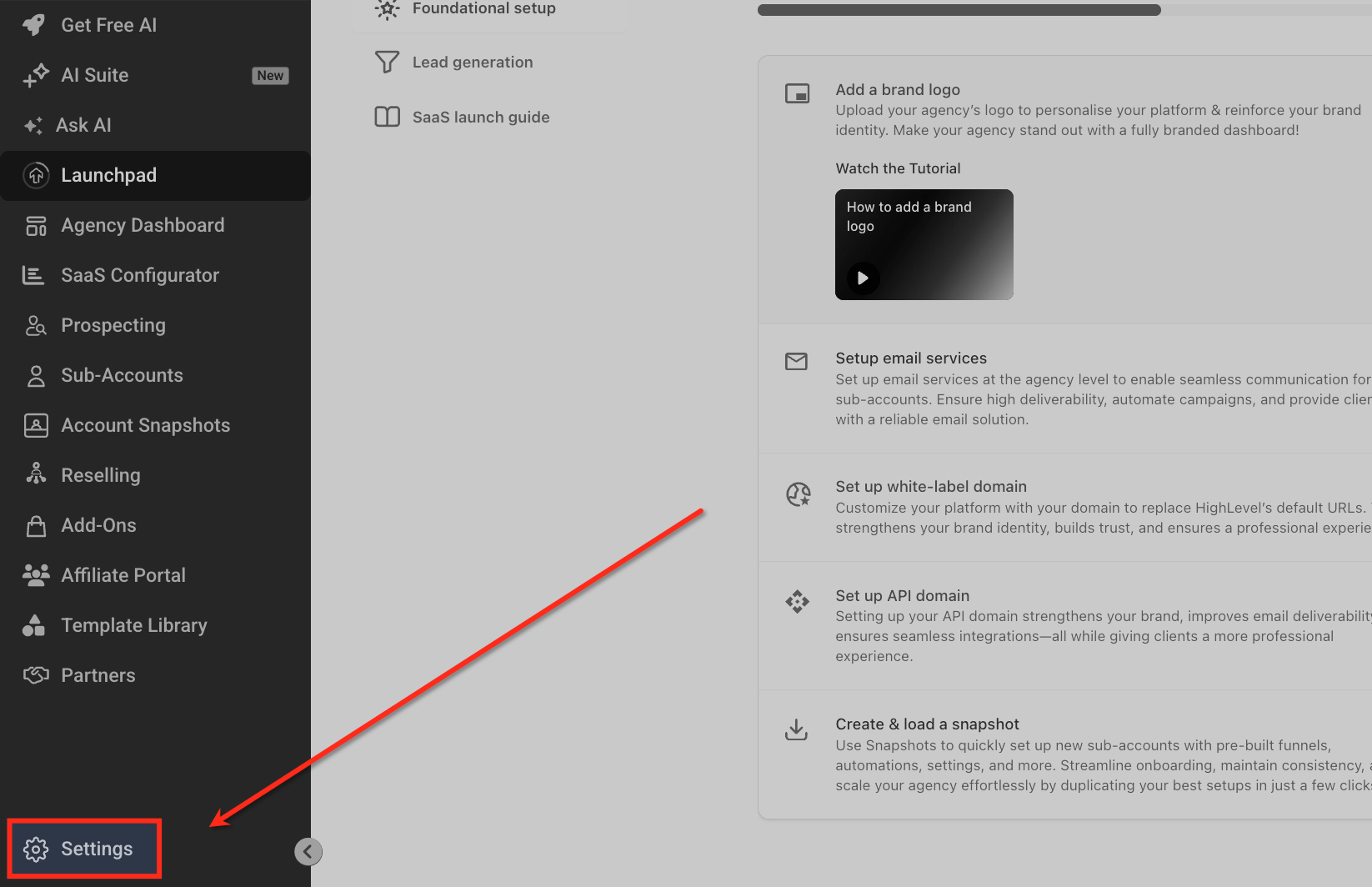
From Agency View, go to Settings.
Select Users tab and click the pencil icon to edit the user.
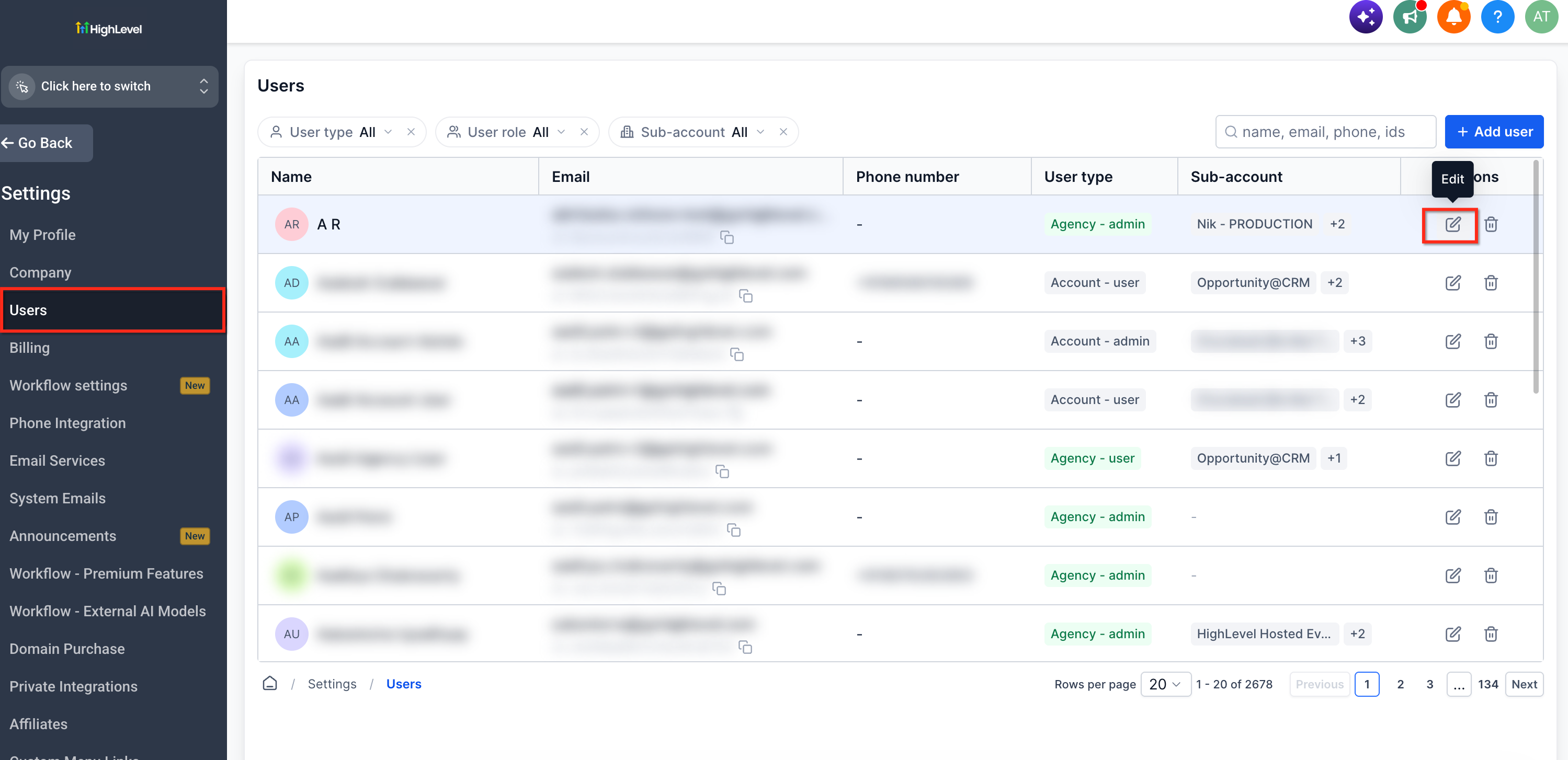
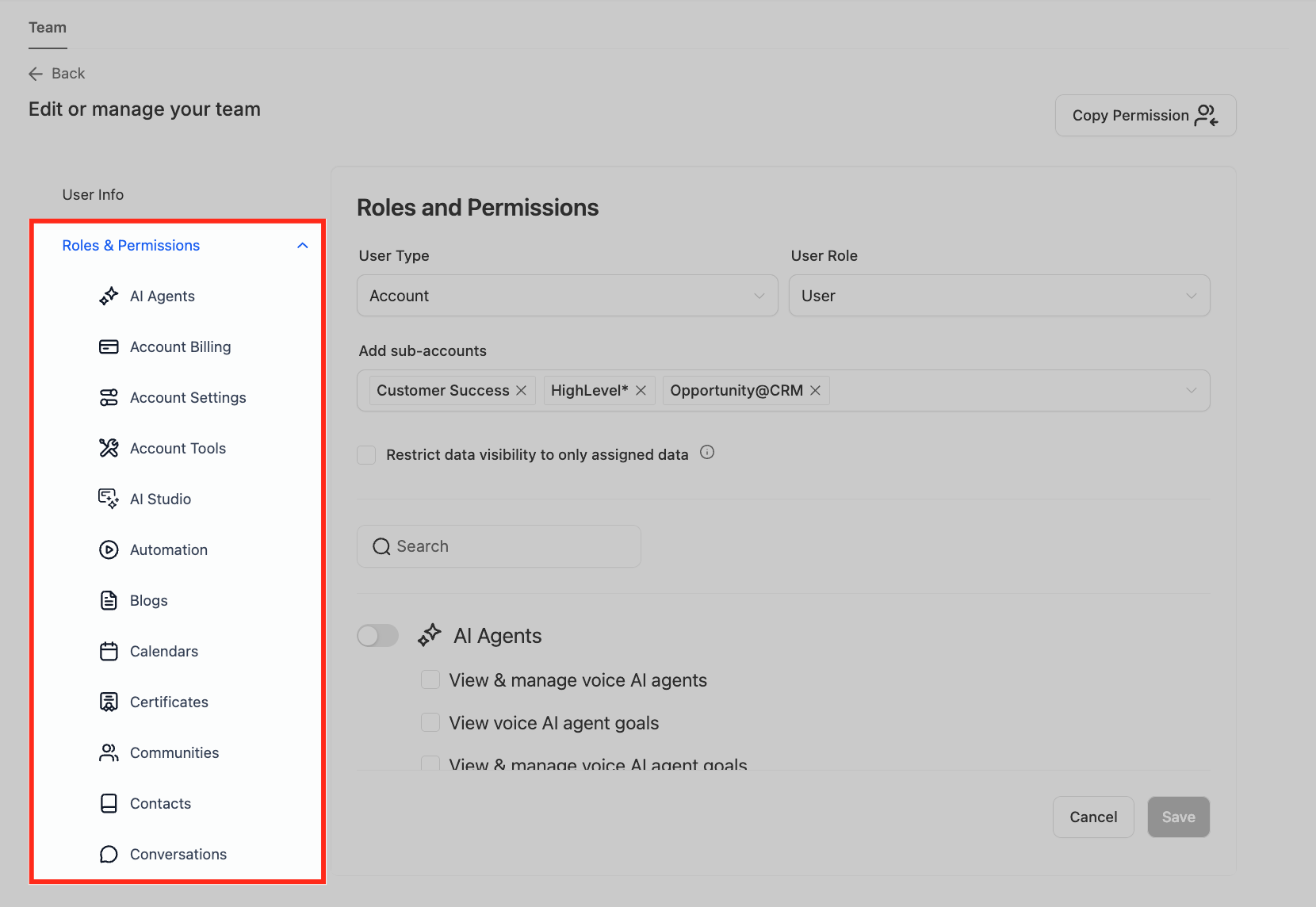
Select Roles & Permissions from the left menu.
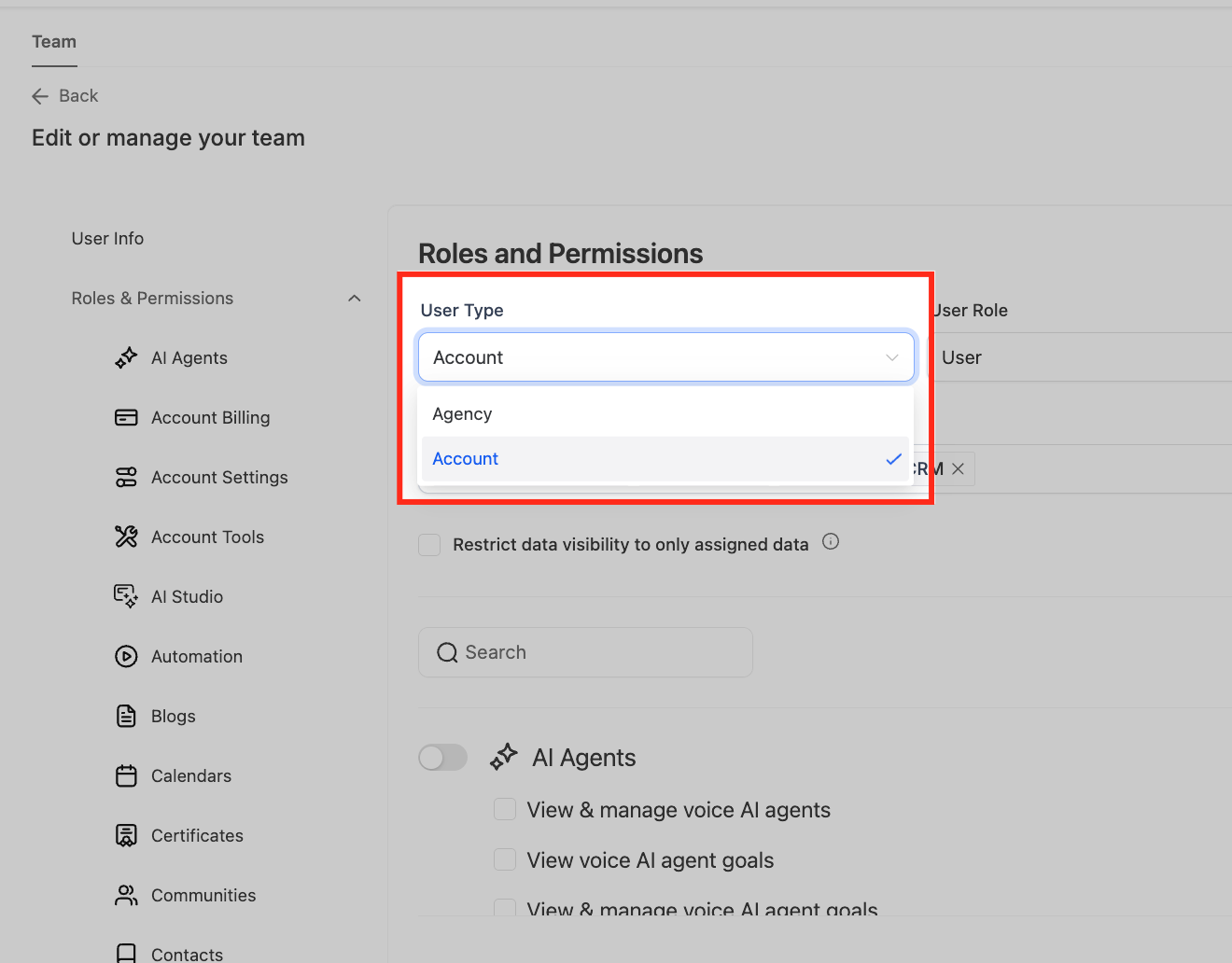
Choose the appropriate User Type:
Select Agency if the user requires agency-level access.
Select Account if the user should access selected sub-accounts.
Choose the appropriate Role.
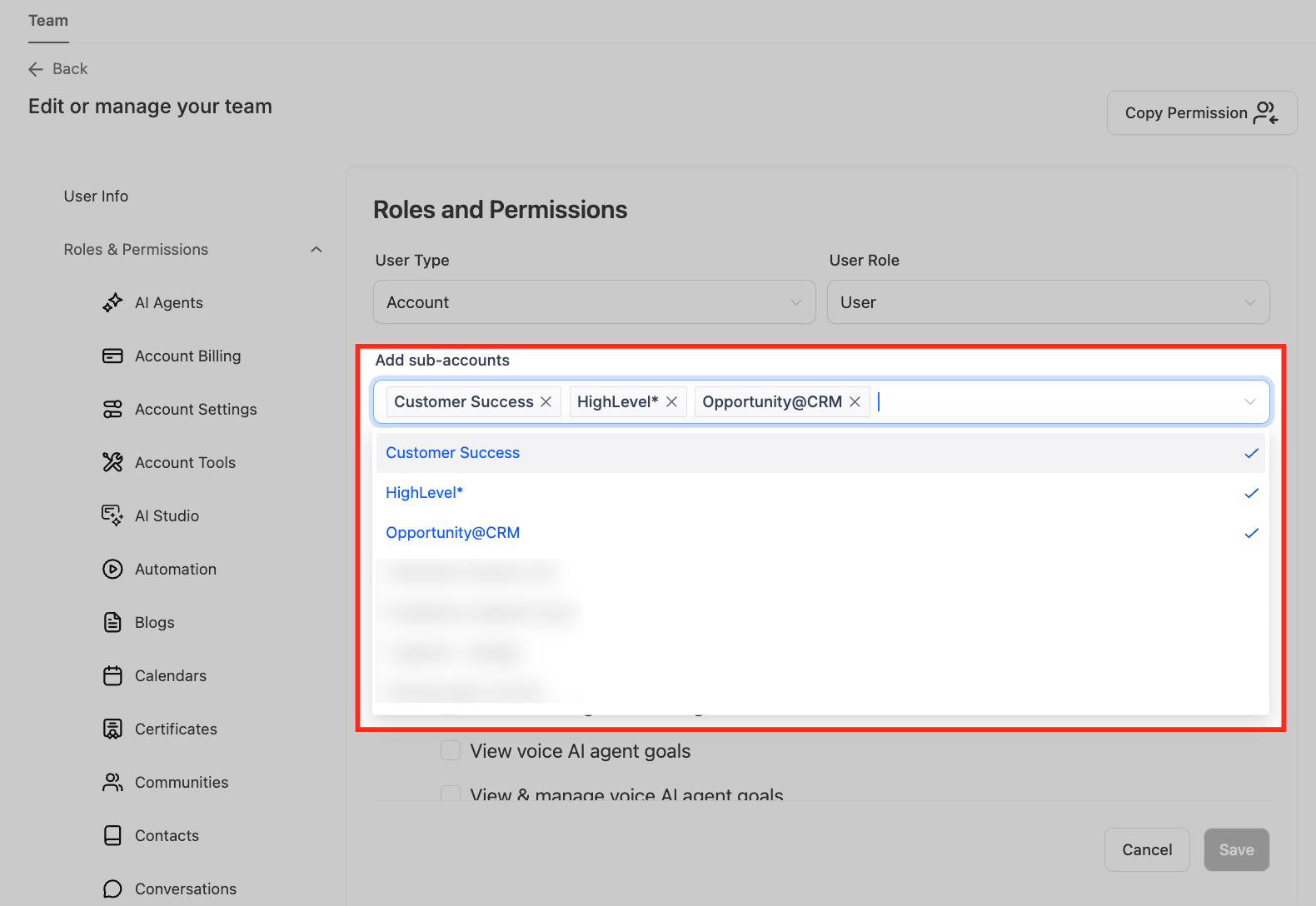
If the User Type is Account, select the sub-accounts the user should be able to access.
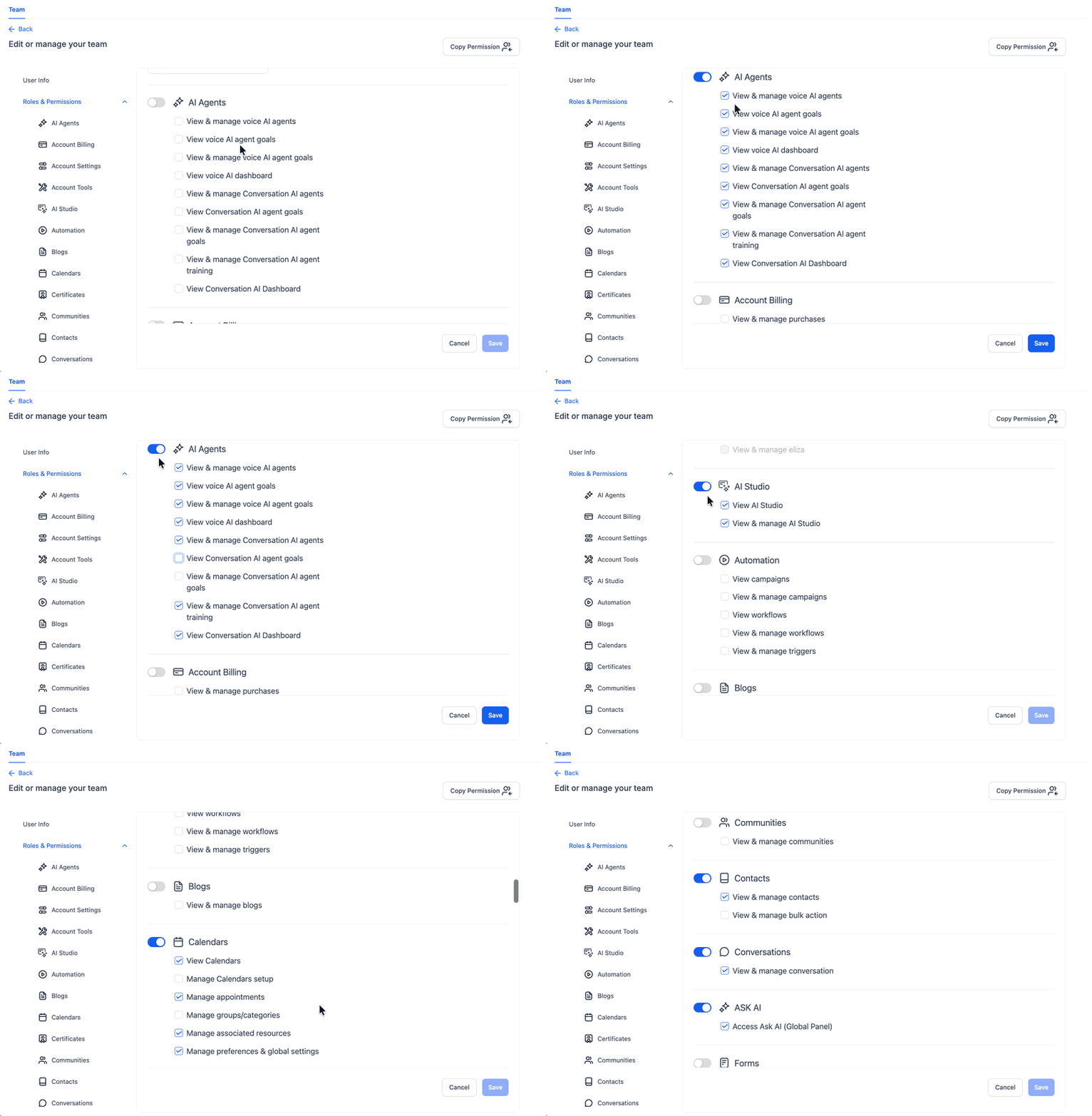
Review each module and turn off modules the user does not need.
Configure the available granular permissions within the modules the user can access.
Review sensitive permissions separately, including:
Creating or deleting sub-accounts
Sub-Account Settings
User Management
Login As
Dashboard exports
Sub-Account Transfers
Save the user's configuration.
Review user permissions periodically and update them when responsibilities change.
Note: For Forms, Surveys, Quizzes, and QR Codes, use the module toggle and the available **View & manage** permission to control user access.
Frequently Asked Questions
Q: What is the difference between User Type and Role?
User Type determines the scope in which the user operates, while Role determines their authority within that scope. For example, an Account-type user can be assigned to selected sub-accounts without receiving agency-wide access.
Q: Can I give someone access to multiple sub-accounts without giving them agency-wide access?
Yes. Set the user's User Type to Account and assign the specific sub-accounts they should be able to access.
Q: Why can a user open a sub-account but still be blocked from certain settings?
Sub-account assignment determines whether the user can enter the account. Module and granular permissions determine what the user can do after they enter it. A user can therefore access a sub-account while still being restricted from certain settings or actions.
Q: Is Only Assigned Data the same as turning off a module?
No. Module permissions determine whether a user can access a feature. Only Assigned Data limits supported record visibility based on assignment.
Q: Can every Agency Admin transfer a sub-account?
No. By default, the Agency Owner can request or complete eligible transfers. Transfer permission can be granted to specific Agency Admins.
Q:Why can't my API update User Management permissions?
Enhanced Security can restrict affected API-based User Management operations. Agencies that require those workflows may need to change the Enhanced Security setting after reviewing the associated security implications.
Q: Should I add a client as an agency-level user?
If the client only needs access to their own business account, add them as a user within the appropriate sub-account. This helps prevent unnecessary agency-level visibility.
Related Articles
Was this article helpful?
That’s Great!
Thank you for your feedback
Sorry! We couldn't be helpful
Thank you for your feedback
Feedback sent
We appreciate your effort and will try to fix the article