Social Planner's post approval feature allows team members to review social media content before it is published. Users can create and schedule posts, assign an approver, and receive feedback before the content is added to the publishing schedule.
Approvers can review posts, make edits, approve or reject content, and adjust the scheduled publication date and time. This helps teams maintain content quality and collaborate more effectively.
This article explains how to submit posts for internal approval, review approval requests, manage rejected posts, configure approval notifications, and submit bulk posts for approval.
Note: If you need approval from a client or external stakeholder who does not have access to HighLevel, see External Link Approval Flow in Social Planner.
Covered in this Article:
Steps to get started with post approval flow -
Editing and applying an Email Template as the Post Approval Email:
How to schedule the CSV for Approving bulk posts?
How to Submit a Post for Approval
Follow these steps to create a social media post and submit it for review.
- Navigate to Marketing > Social Planner in your HighLevel account.
- Click New Post and create your social media post.
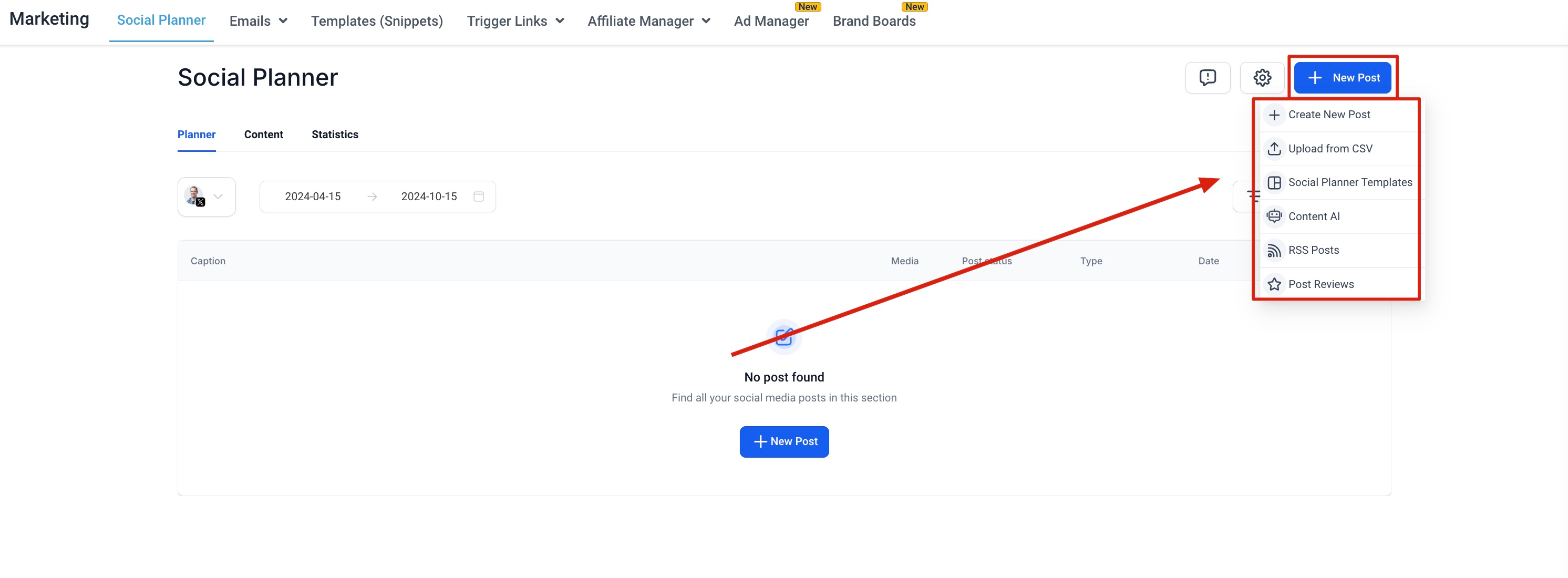
- Add the post content, media, hashtags, and other details as needed.
- Select the option to schedule the post for approval.
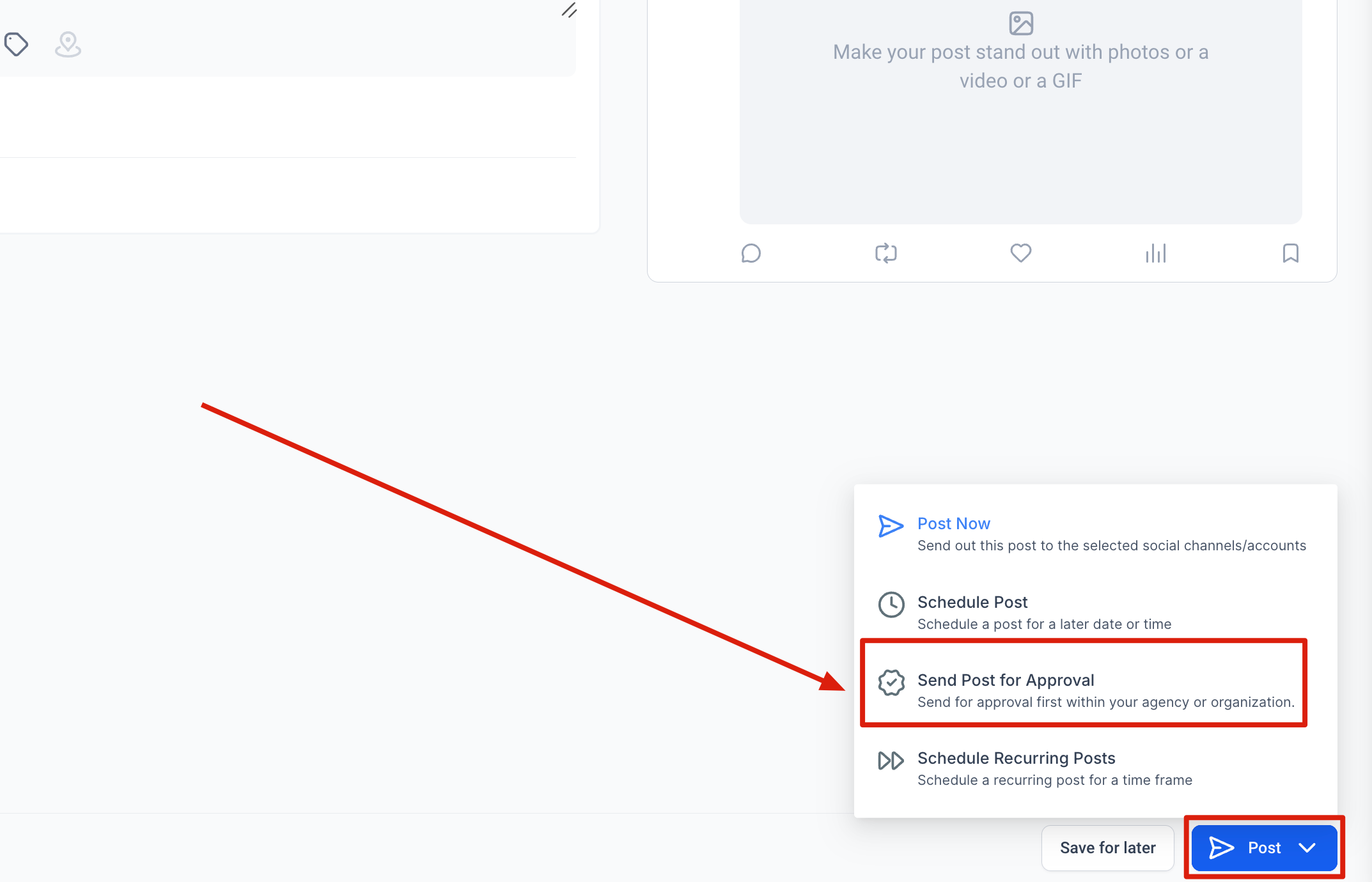
- Choose the date and time when the post should be published.
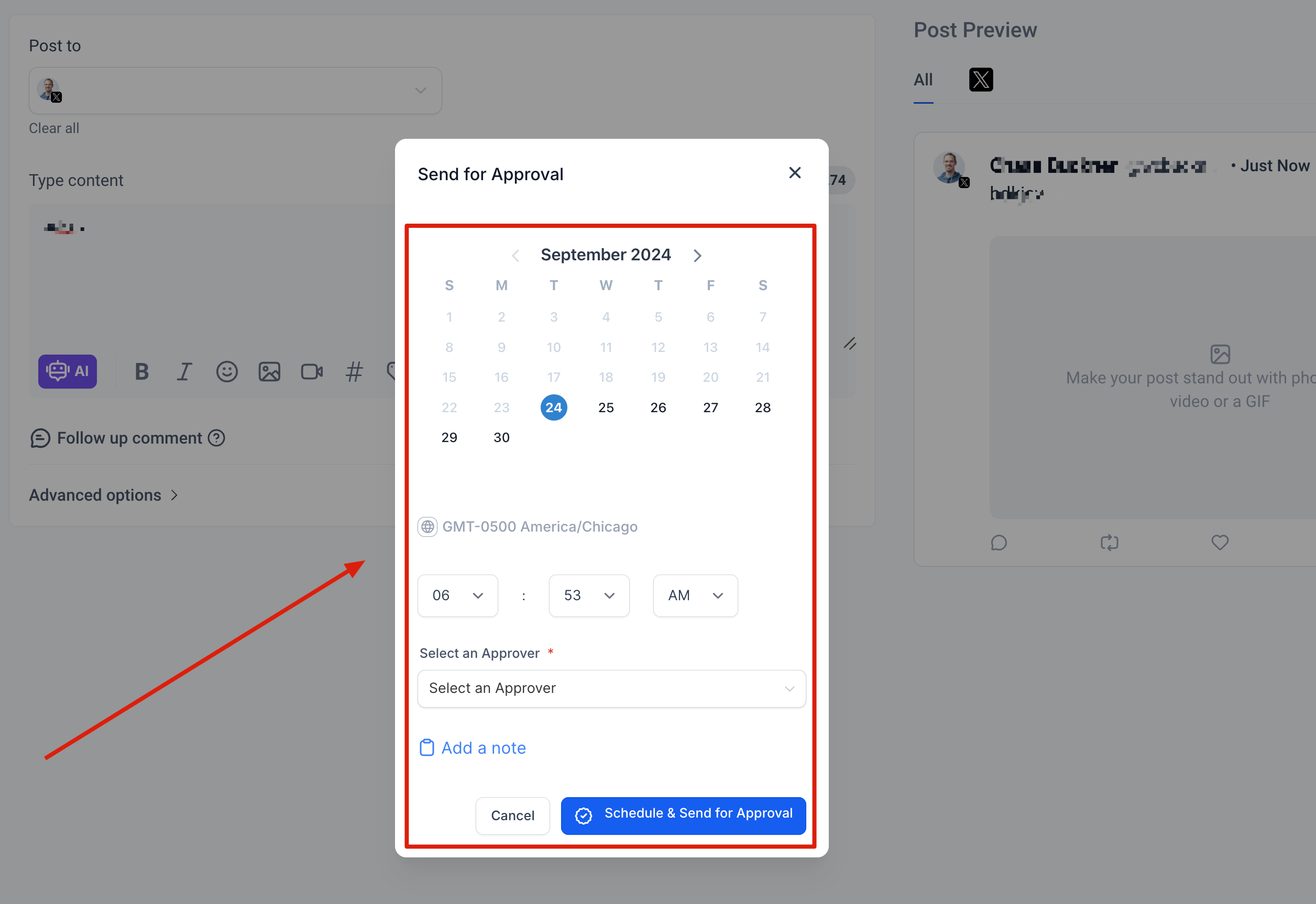
- Select the team member responsible for approving the post.
- Add an internal note to provide context or instructions for the reviewer, if needed.
- Submit the post for approval.
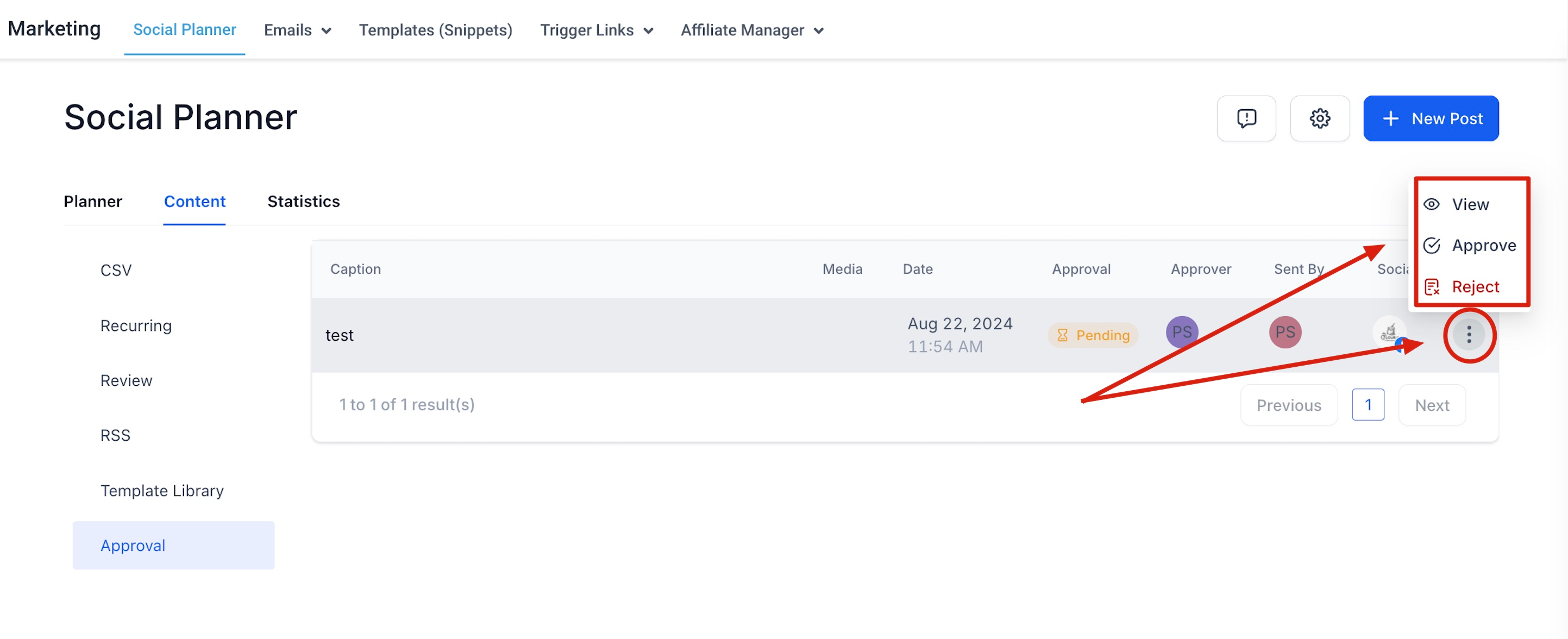
The post is then available for the selected approver to review.
Approval Request Notifications
When a post is submitted for approval, Social Planner can send an email notification to the selected approver.
The email is sent when the Request for Post Approval notification is enabled in Social Planner's notification settings.
Approvers can also access posts awaiting review from the Content > Approval tab in Social Planner.
For instructions on managing approval notifications, see How to Manage Social Planner Email Notifications.
Editing and applying an Email Template as the Post Approval Email:
Users can set the email for approval from Social Planner Settings. The email template can be branded by visiting Marketing > Emails> Templates > New > Email Marketing Templates
You will then be taken to the Template Library where you will need to head to System Templates> Social Planner : Post Approval and use the template. You can edit it as you see fit.
That template can then be applied to the Post Approval email flow in Social Planner Settings> Notifications:

Choose the email template under Setup Email template for Social Post Approval

How to schedule the CSV for Approving bulk posts?
- Create a new CSV when you click "New Post" button
- Once the user adds the CSV file and Select the Socials, there will be option to Select an Approver.

- Once the posts are imported, they go for review from the chosen approver. Once approved, they are scheduled on the social calendar.
How to Submit Bulk Posts for Approval
Social Planner allows users to submit multiple posts for approval as part of the bulk scheduling workflow.
You can use a CSV or XLSX file to prepare and upload multiple social media posts.
Submit Bulk Posts for Approval
Navigate to Marketing > Social Planner.
Click New Post and select Upload from CSV.
Select the appropriate CSV format and upload your completed CSV or XLSX file.
Click Next.
Select the social media accounts where the posts will be published.
Enable Send for approval.
Select the team member who should approve the posts.
Click Create.
Review the imported post information and correct any errors identified by the system.
Follow the remaining scheduling and import steps to complete the bulk upload.
For detailed instructions on preparing your file, validating posts, and completing the import, see Social Planner – Advanced CSV for Bulk Scheduling.
Note: Posts submitted for approval require review before they proceed through the approved publishing workflow.
Frequently Asked Questions
Where can I find posts awaiting approval?
Navigate to Marketing > Social Planner > Content > Approval to view posts awaiting review.
Can an approver edit a post before approving it?
Yes. Approvers can open a post and select Edit to make changes before approval.
Can an approver change the scheduled publication time?
Yes. The approver can update the date and time from the approval review screen before selecting Approve.
Why didn't the approver receive an approval request email?
Check whether the Request for Post Approval notification is enabled under Social Planner > Settings > Notifications.
Also verify that the intended approver was selected when submitting the post.
For notification configuration instructions, see How to Manage Social Planner Email Notifications.
Can external clients approve social media posts?
Yes. Social Planner supports a separate external approval process using secure approval links.
See External Link Approval Flow in Social Planner.
Can I submit multiple posts for approval at once?
Yes. Use the bulk CSV scheduling workflow and enable Send for approval when configuring the upload.
See Social Planner – Advanced CSV for Bulk Scheduling.
Related Articles
Was this article helpful?
That’s Great!
Thank you for your feedback
Sorry! We couldn't be helpful
Thank you for your feedback
Feedback sent
We appreciate your effort and will try to fix the article