TABLE OF CONTENTS
- Overview
- What You Can Do with This Feature
- Step 1: Generate an Approval Link
- Step 2: Share the Link
- Step 3: Approver Reviews the Post
- Step 4: Approver Takes Action
- Step 5: View Approval Status & Notes
- Managing Approval Links
- Link Expiry & Recovery
- Important Notes
- Best Practices
Overview
External Approval Flow allows you to share social media posts with clients or stakeholders for approval using a secure link (Magic Link) without requiring them to log in.
This helps you streamline approvals, reduce back-and-forth, and manage collaboration directly inside Social Planner.
What You Can Do with This Feature
- Share posts using a secure approval link
- Allow external users to approve, reject, or reschedule posts
- Add and view approval notes
- Track all approval links in one place
- Manage approvals without adding users to your account
Step 1: Generate an Approval Link
- Go to Marketing → Social Planner
- Select an Approver from the dropdown
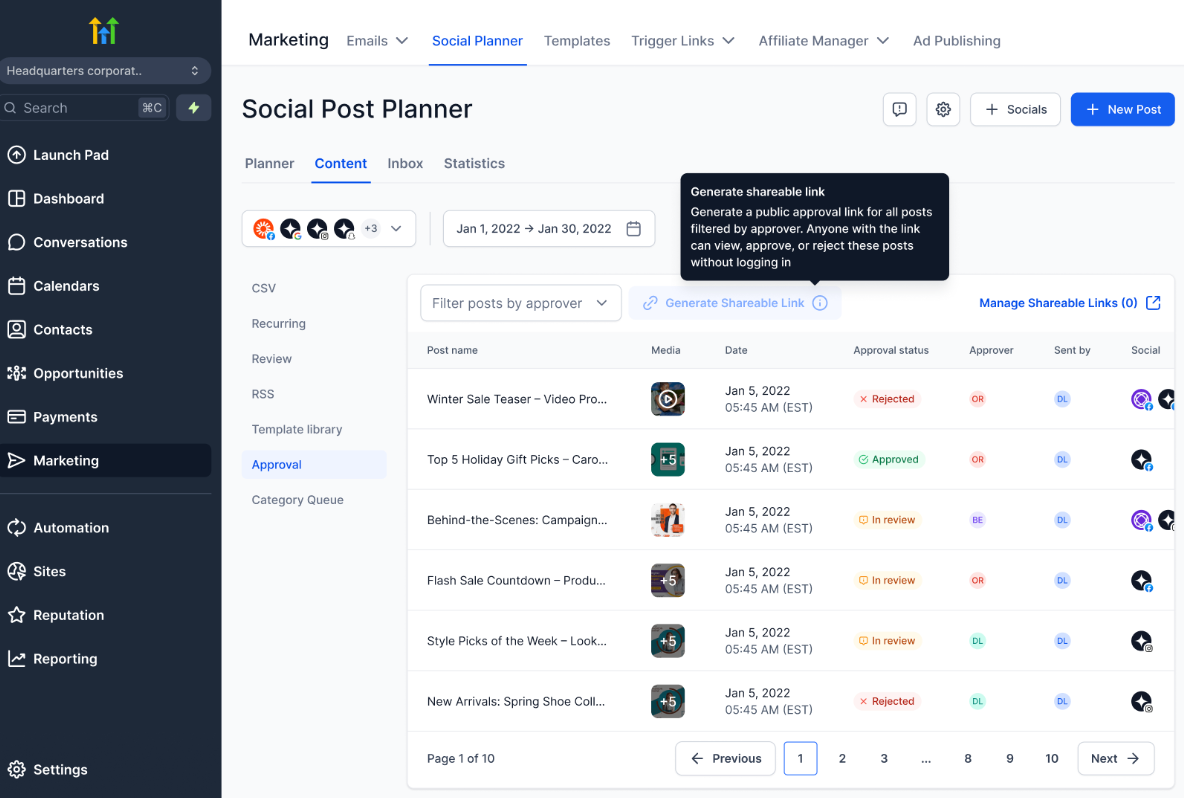
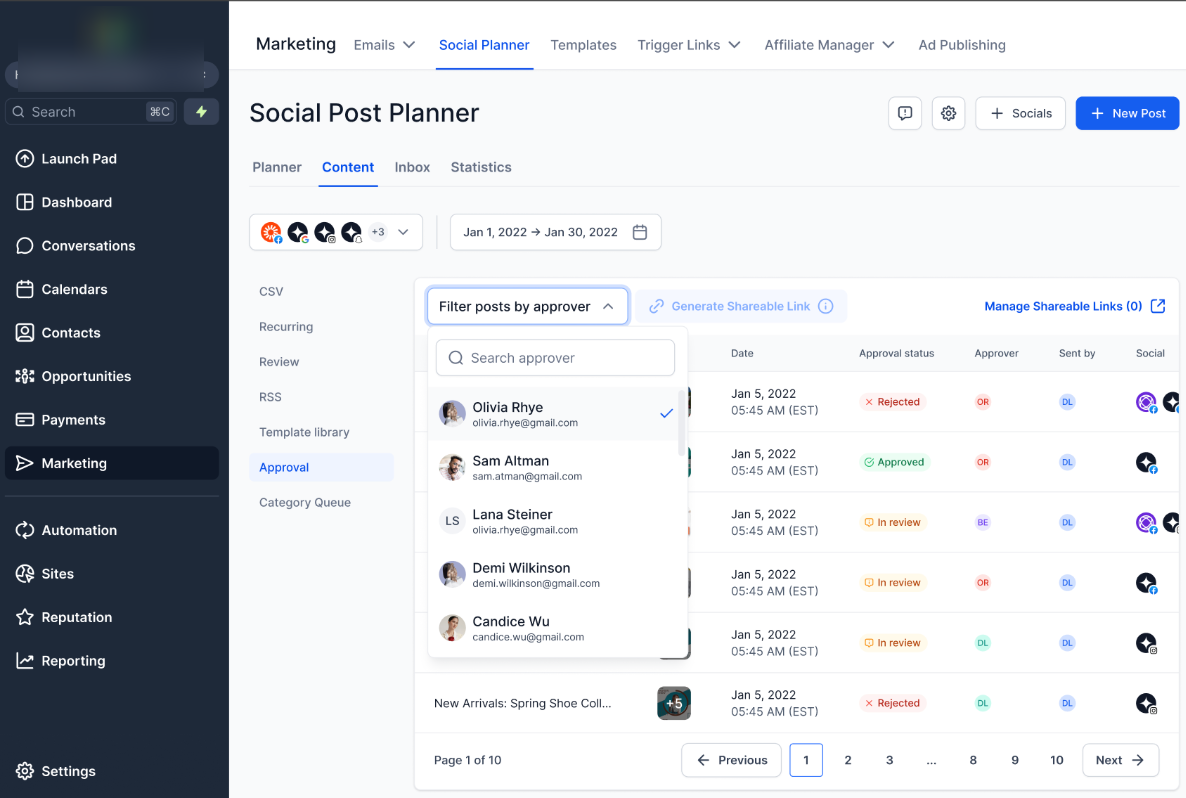
3. Click Generate Approval Link
4. Set a password:
- Auto-generate OR
- Enter a custom password
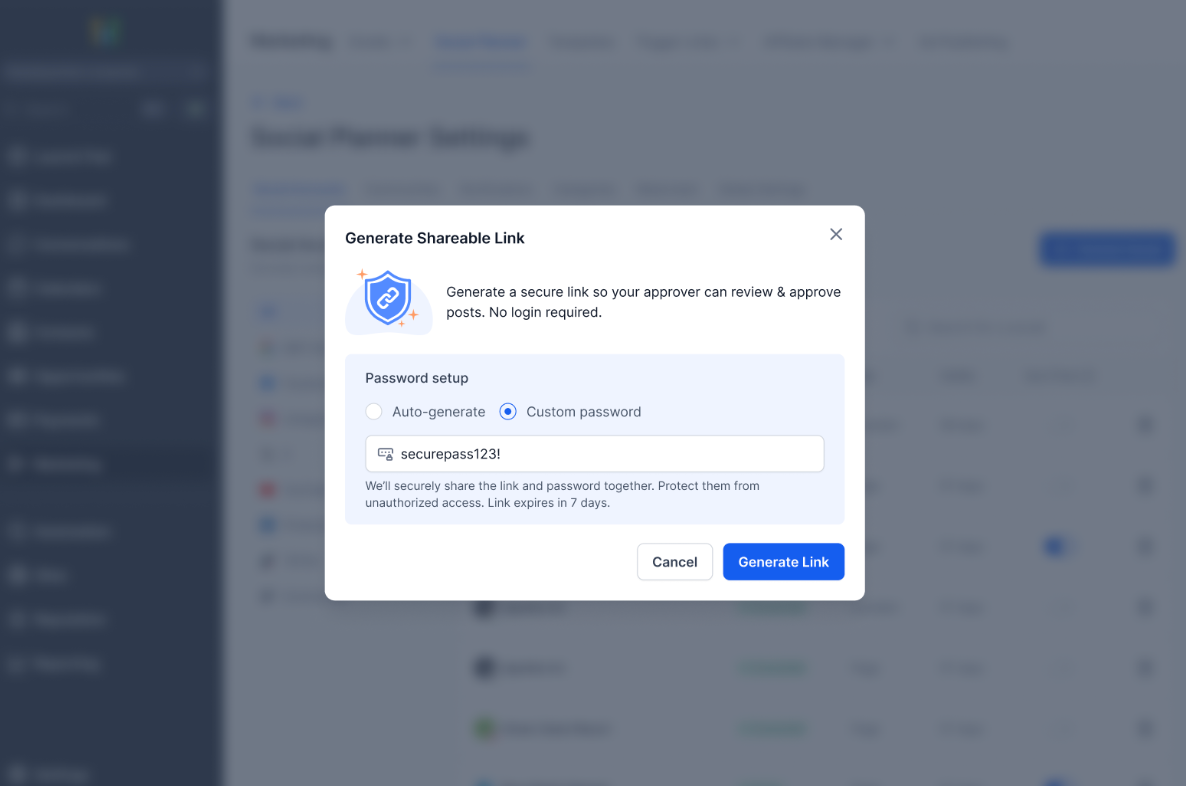
5. Copy and share the link with your client or stakeholder
Step 2: Share the Link
You can share the approval link via:
- Slack
- Any messaging platform
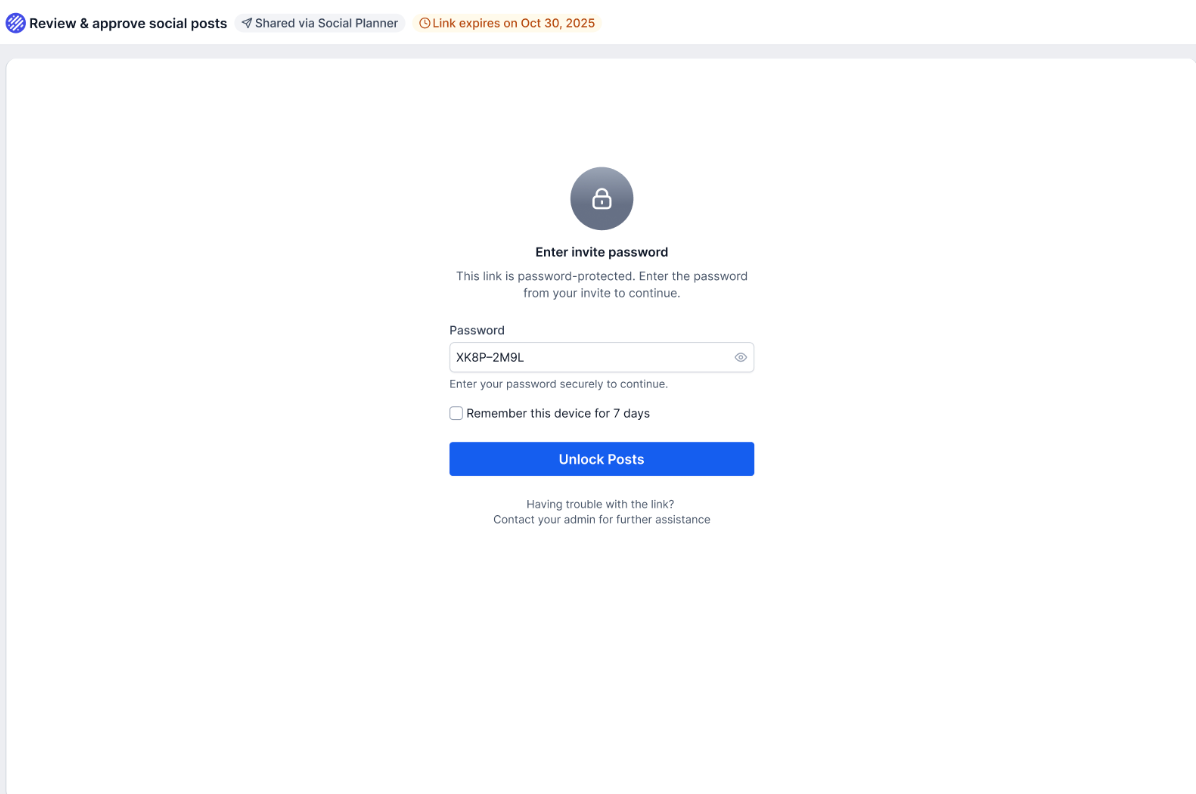
Step 3: Approver Reviews the Post
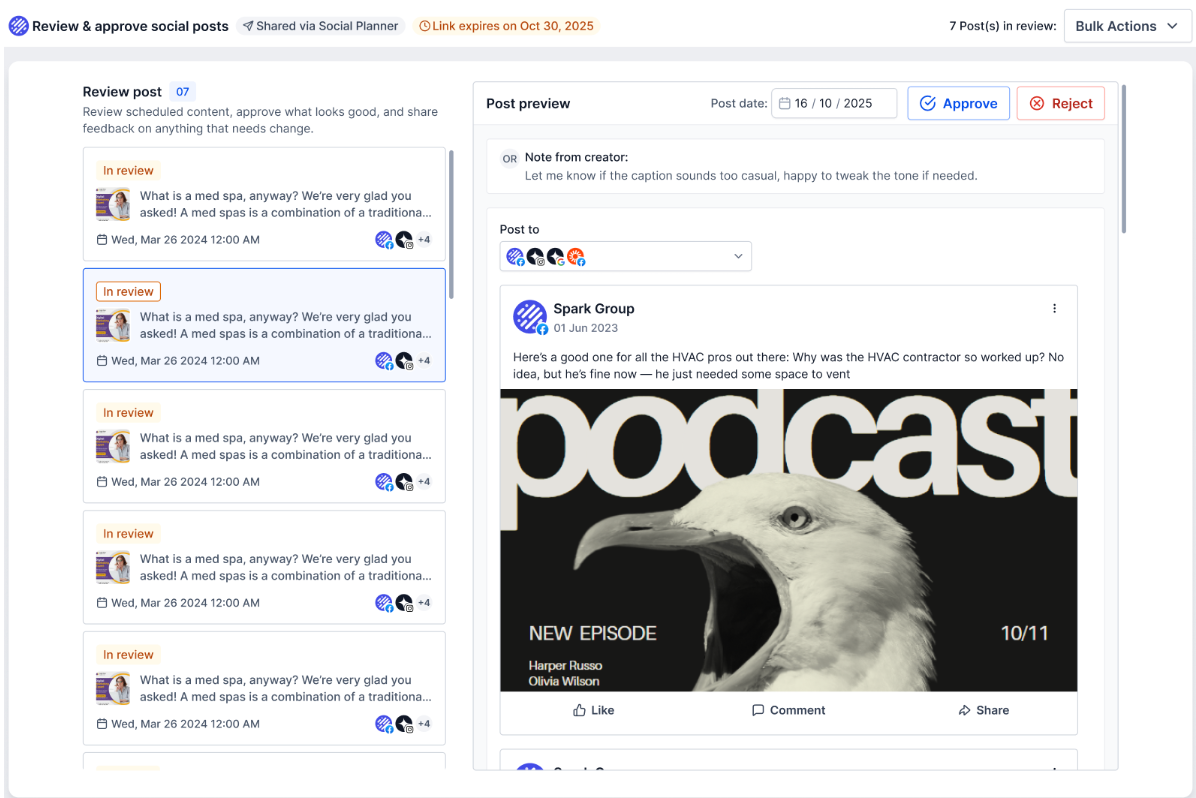
When the approver opens the link, they can view:
- Post content (caption + media)
- Scheduled date & time
- Platform details
- Notes added by the creator
This ensures they have full context before taking action.
Step 4: Approver Takes Action
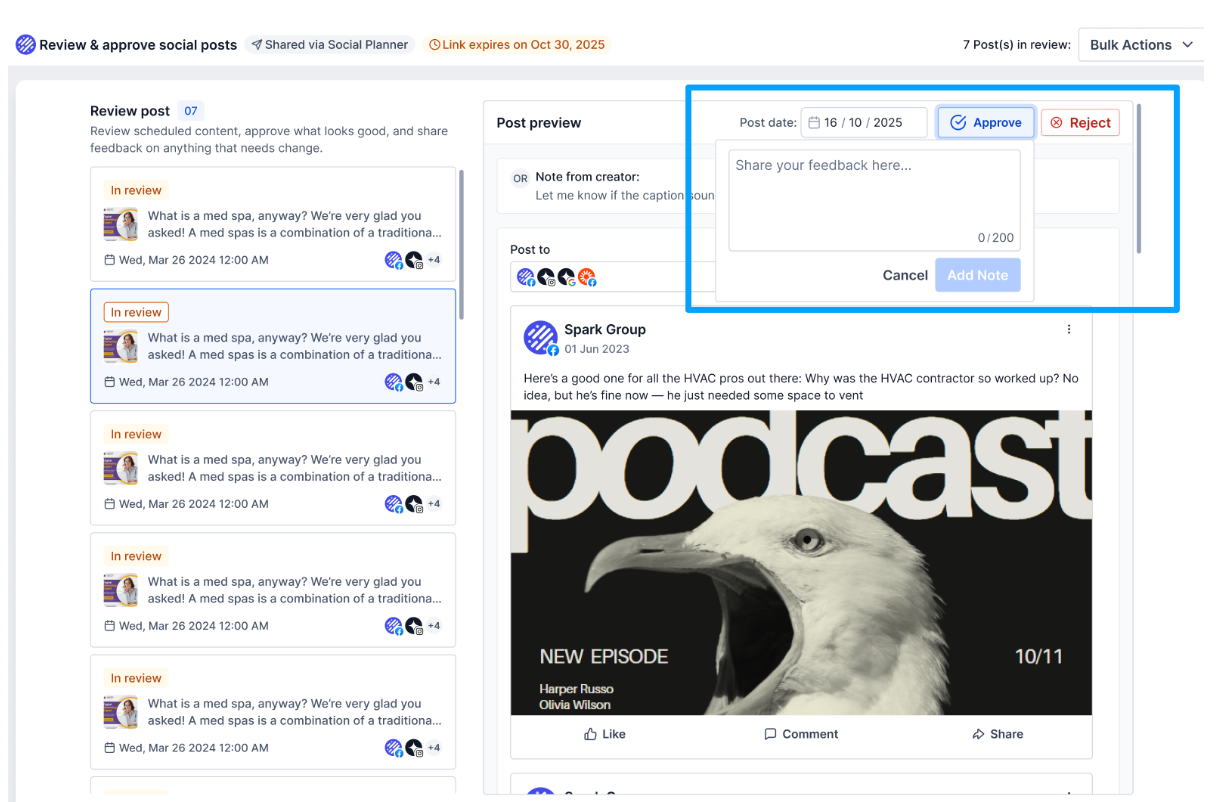
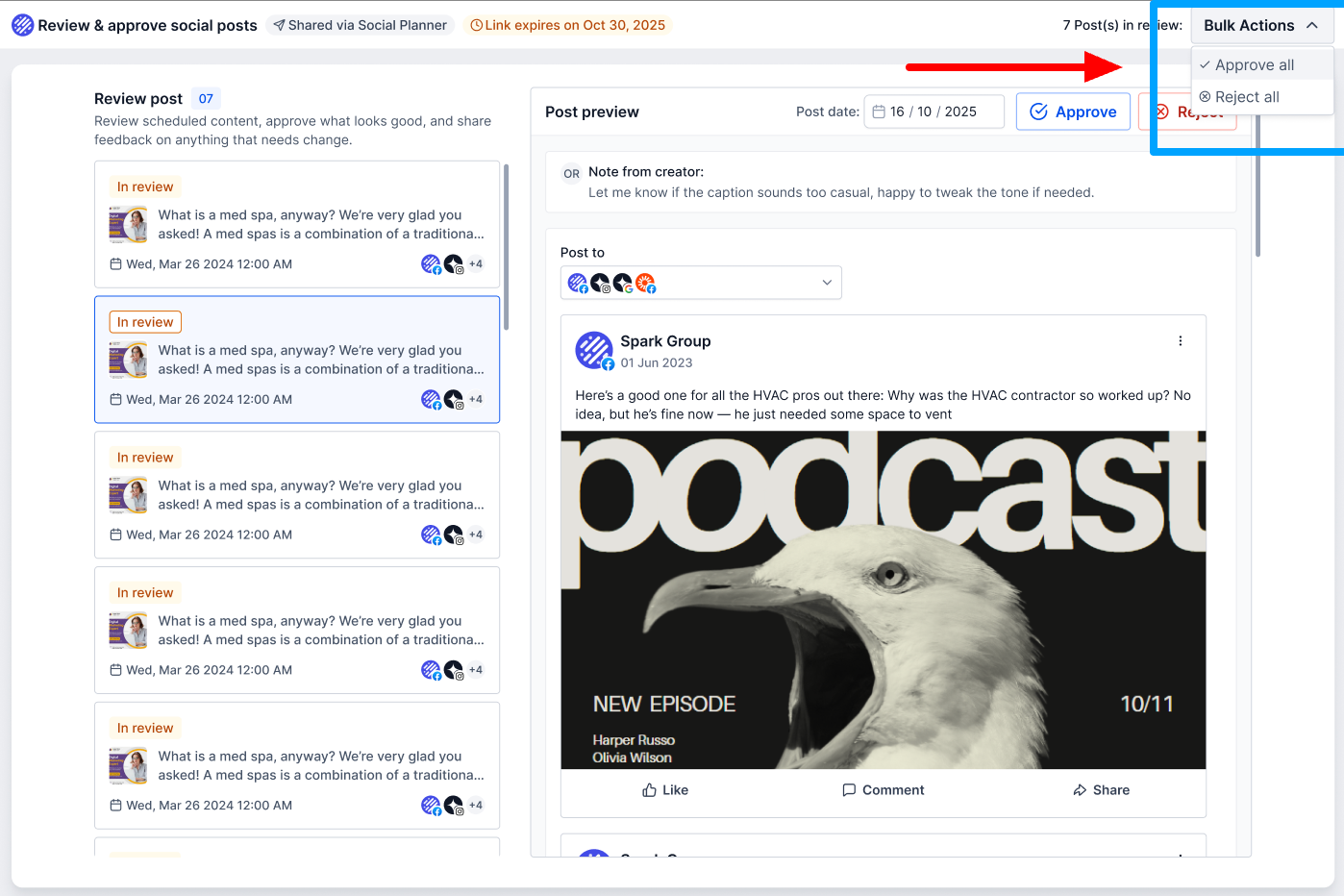
The approver can:
- Approve the post (with optional notes)
- Reject the post (with feedback)
- Reschedule the post
- Approve/Reject multiple posts (bulk actions)
Step 5: View Approval Status & Notes
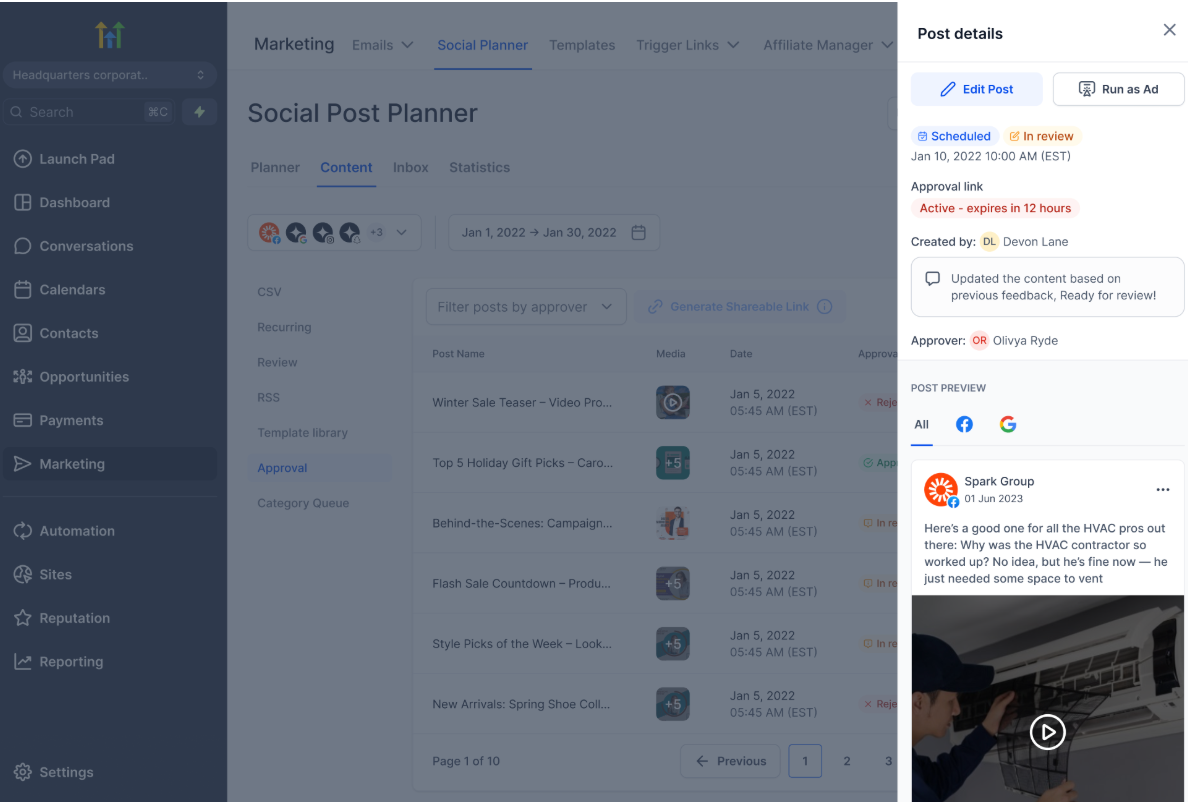
Once action is taken:
- The post status updates in Social Planner
- You can view approval/rejection notes
- You can edit and resend if changes are required
Approved posts will proceed to scheduled publishing.
Managing Approval Links
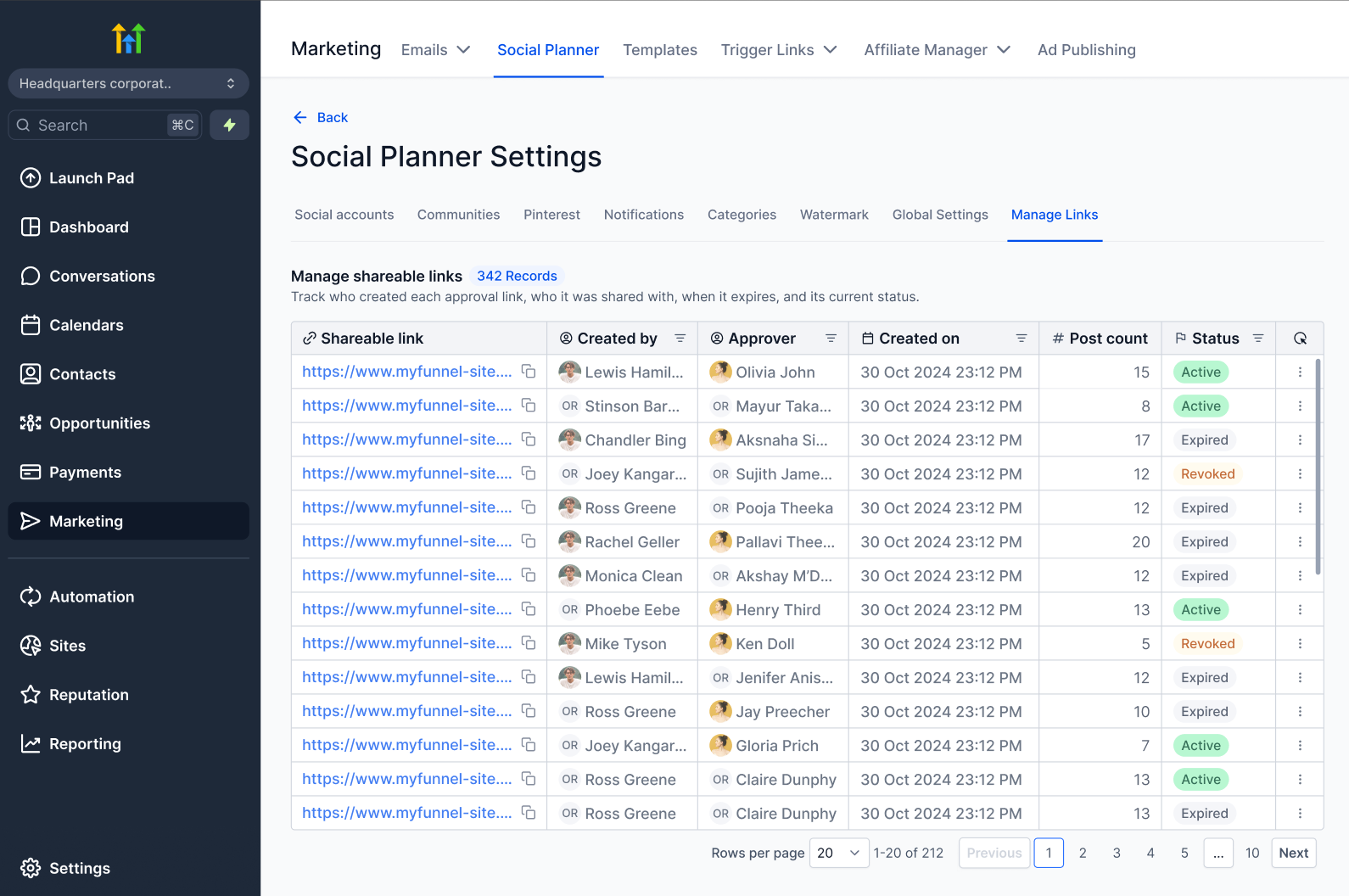
You can manage all your approval links from one place.
Steps:
- Go to Settings → Manage Links
Available Actions:
- View all approval links
- Check status:
- Active
- Expired
- Revoked
- Regenerate links
- Revoke access
- Extend validity
Link Expiry & Recovery
- Links are valid for 30 days
- After expiry:
- Approver can request a new link
- You can regenerate the link instantly
Important Notes
- Approval links are password protected
- Links expire after 30 days
- You can regenerate or revoke links anytime
- Actions are restricted once a post is published
- Only users with required permissions can generate links
- The Approver can only open the approval link desktop/web view and mobile view is currently is progress and will release soon.
Best Practices
- Add clear notes for approvers to avoid confusion
- Share links with the right stakeholders only
- Regularly monitor approval status to avoid delays
- Regenerate links if clients report access issues
Was this article helpful?
That’s Great!
Thank you for your feedback
Sorry! We couldn't be helpful
Thank you for your feedback
Feedback sent
We appreciate your effort and will try to fix the article