This guide explains how to port a phone number from an external carrier into a HighLevel sub-account. It covers the required documents, how to submit a port request, and what to expect during the transfer process.
Please prepare the information mentioned in the article and complete the Porting Form.
TABLE OF CONTENTS
- What is Porting a Phone Number?
What is Porting a Phone Number?
Porting a number is the transfer of a phone number between two telecom service providers. The process involves providing the right documentation to prove ownership of the number as well as the execution of the transfer between the current provider and the new provider.
When you’re ready to port your number, you’ll just need to send us a signed Letter of Authorization (LOA) that matches the service information your current carrier has on file. Once you submit your LOA, we’ll handle coordination with your current carrier to complete the port.
The porting process takes between two and four weeks from when you submit the required documentation for port requests of fewer than 50 numbers and six to eight weeks for larger, more complex ports. During this process, you’ll have full access to your phone number, as there is no downtime associated with porting a phone number.
You can find the Porting form here.
IMPORTANT! PLEASE READ

1. All Wireless Numbers REQUIRE a Pin for Port Requests. Providing a incorrect or fake pin in this box will cause the port request to be rejected by our carrier.

3. Please double check with your provider to make sure your wireless number has a pin and the pin is correct to avoid delays in the number porting process

4. If you are porting multiple numbers. Please check if there are multiple unique pins per number, if your carrier/provider allows a single pin for multiple numbers please note this in the wireless number pin field above.

5. Landline and Toll Free Port Request may not need a pin
Note: Name & address must match your carrier records exactly. PO Boxes are not accepted as service addresses.
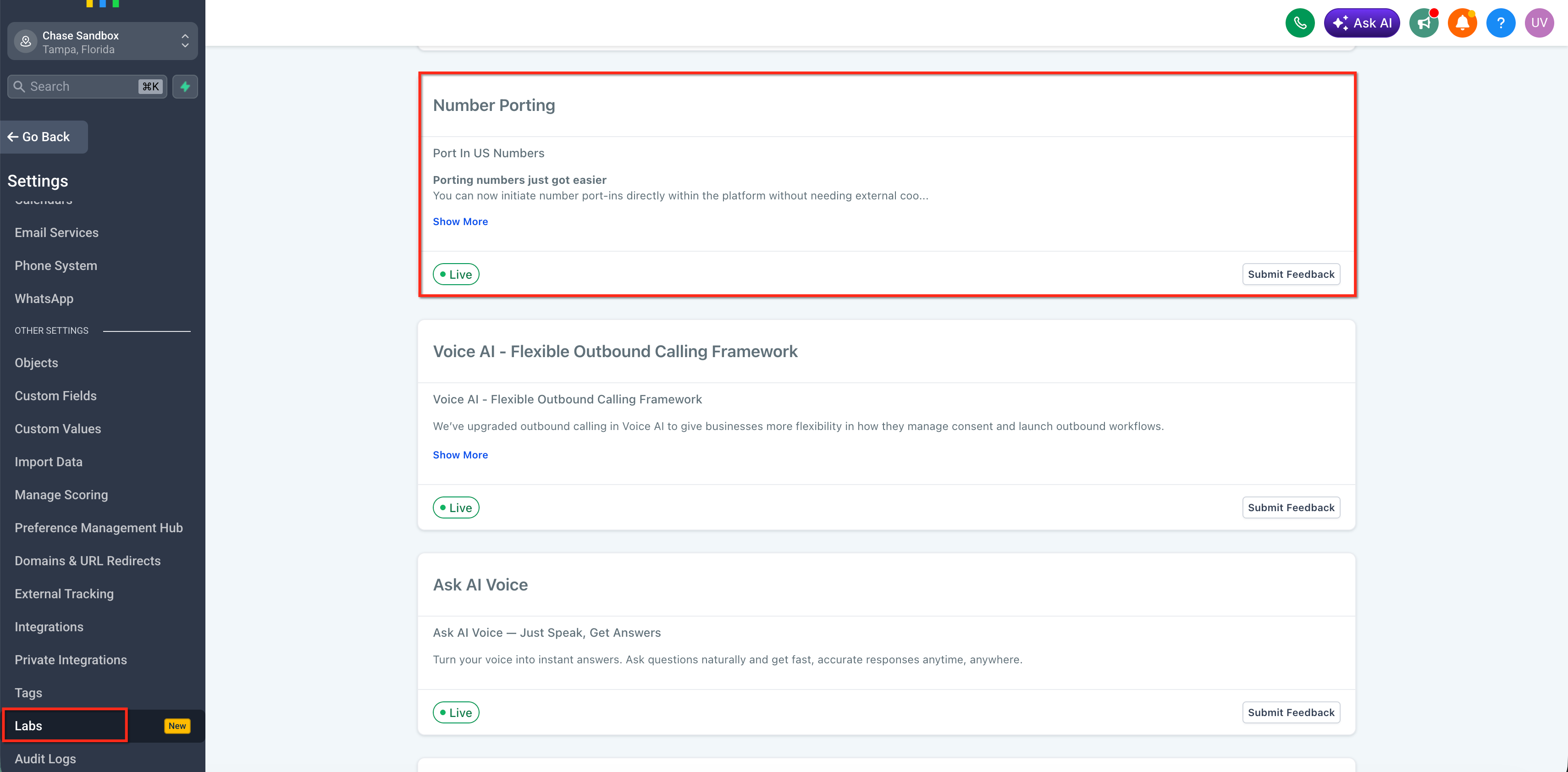
US Phone Number Porting: In-App Flow
US phone numbers use HighLevel's dedicated port-in process. Keeping the complete US workflow in one resource ensures you have the latest requirements, submission steps, and request-tracking information without relying on duplicate instructions that may become outdated.
For complete instructions, see How to Submit and Track Port-In Number Requests
The dedicated guide covers:
- Port-in eligibility and prerequisites
- Information and documents required to submit a request
- Submitting a port-in request from HighLevel
- Letter of Authorization (LOA) requirements
- Tracking the status of a port request
- Resolving rejected port requests
- What to expect while a port is being processed
Important: Follow the requirements in the dedicated US port-in guide rather than using a manual porting form for the US in-app workflow.

We are currently able to port in numbers from United States only through this flow. For international numbers, please reach out to support so we can submit Twilio's International Porting Form for you.
US Phone Number Porting: Manuel Port Request
Manual port request may be required for some US phone numbers or porting scenarios that are not supported by the dedicated in-app workflow. Accurate carrier information is critical when a phone number must go through a manual porting process. The information submitted for a port request generally needs to match the records maintained by the current carrier to reduce the likelihood of rejection or processing delays.
IMPORTANT: We are currently able to port in numbers from United States only. For international numbers, please reach out to support so we can submit Twilio's International Porting Form for you.
Step 1: Gather documents
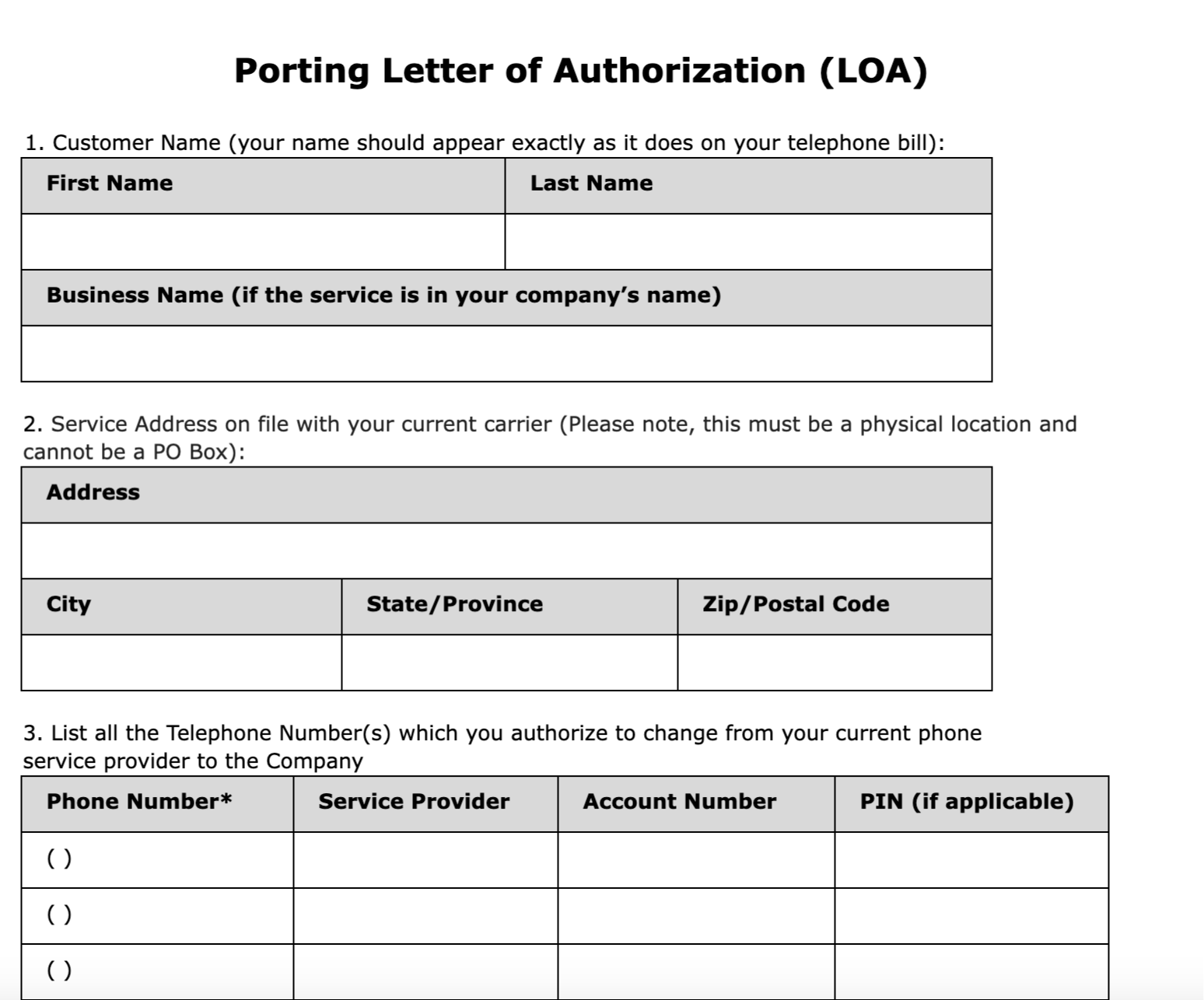
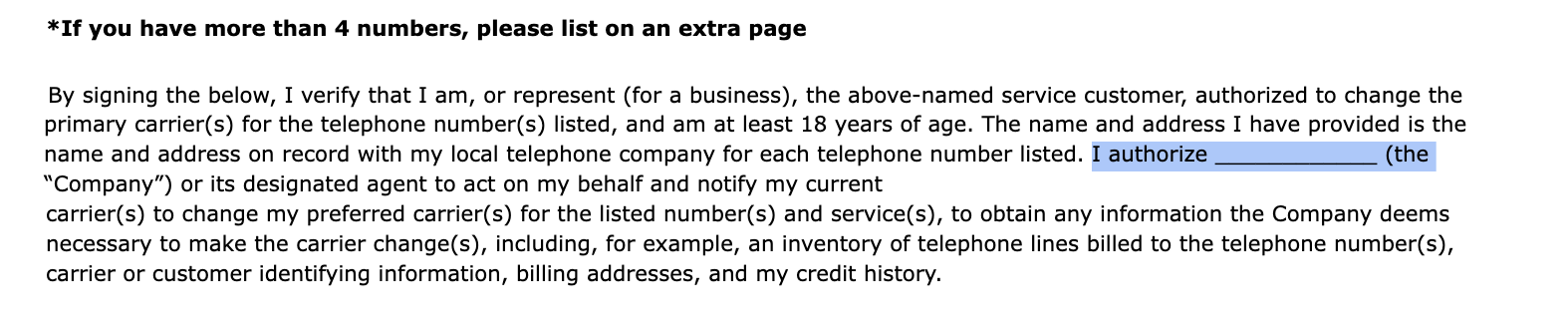
- LOA (Letter of Authorization) — signed by the authorized person. Note that the company name field (as shown in the screenshot) on the LOA can be left blank.
- Latest phone bill — clear/legible PDF, provided by the phone carrier.
The billing statement must not be older than 90 days.
The document must clearly show the phone number(s), account owner name, and provider name.
For Google Voice numbers, provide a screenshot showing the phone numbers and associated email assress.
For Landline or VoIP numbers, Provide the latest monthly billing statements whenever possoble.
If no bill is available, a receipt or account portal screenshot displaying the numbers and owner may be accepted.
- List of numbers to port — in E.164 format (e.g.,
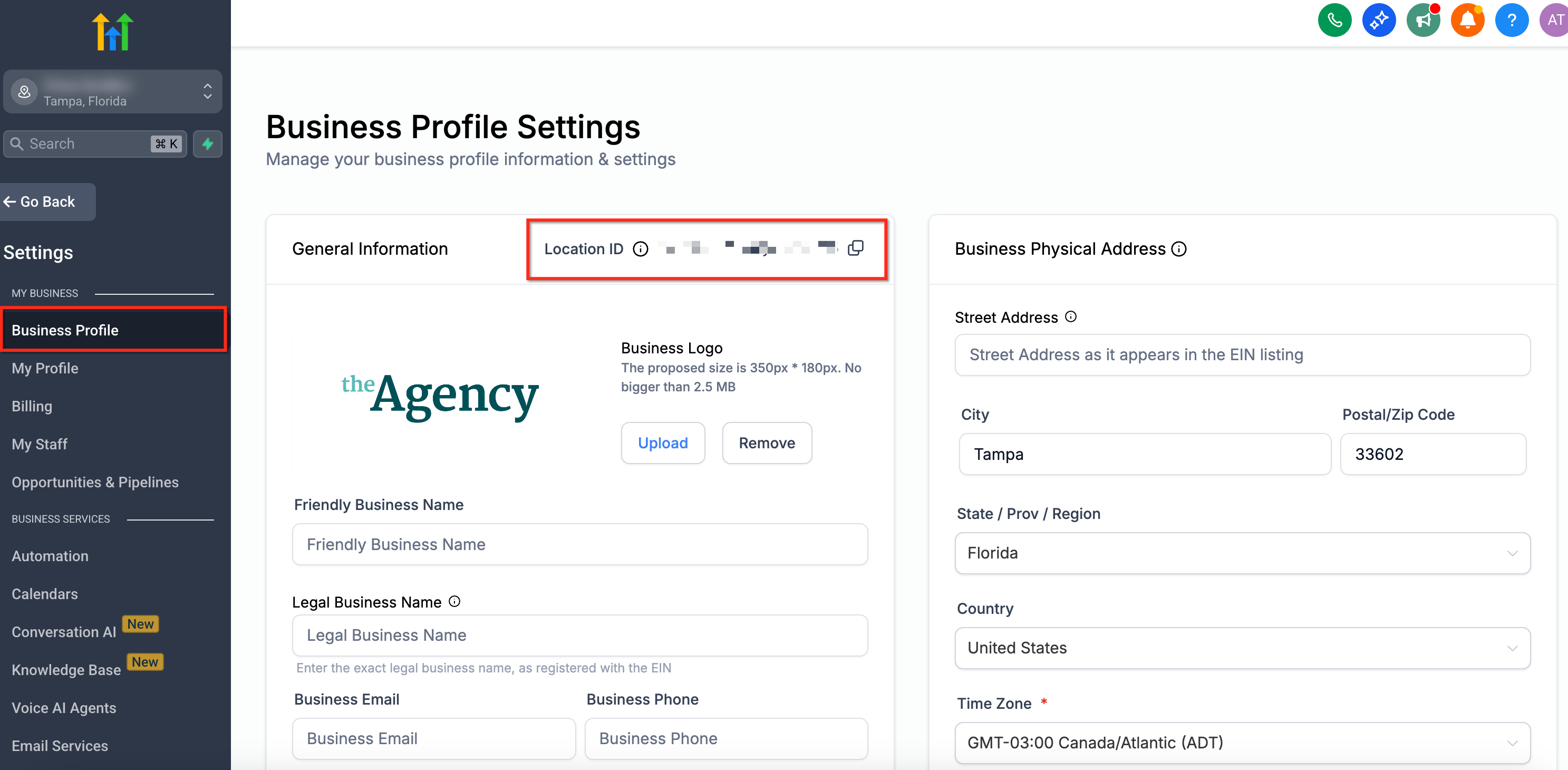
+15551234567). - Location ID — destination sub‑account. (Find it in the Location: Settings → Business Profile.)
- Carrier account details — account # and PIN/Passcode for any wireless numbers.
Step 2: Complete the High-Level Porting Form (US numbers)
Complete the manual port request form (Click here to view the form). Provide the following information.
Agency Relationship Number.
Contact name + email - support updates will go to this email.
Location ID (destination).
Customer/Business legal name and service address — must match the carrier’s records exactly.
Landline/Toll‑Free numbers (if any).
Wireless numbers (if any) + Account # + PIN/Last 4 SSN.
- Upload required PDFs: LOA and Billing Statements.
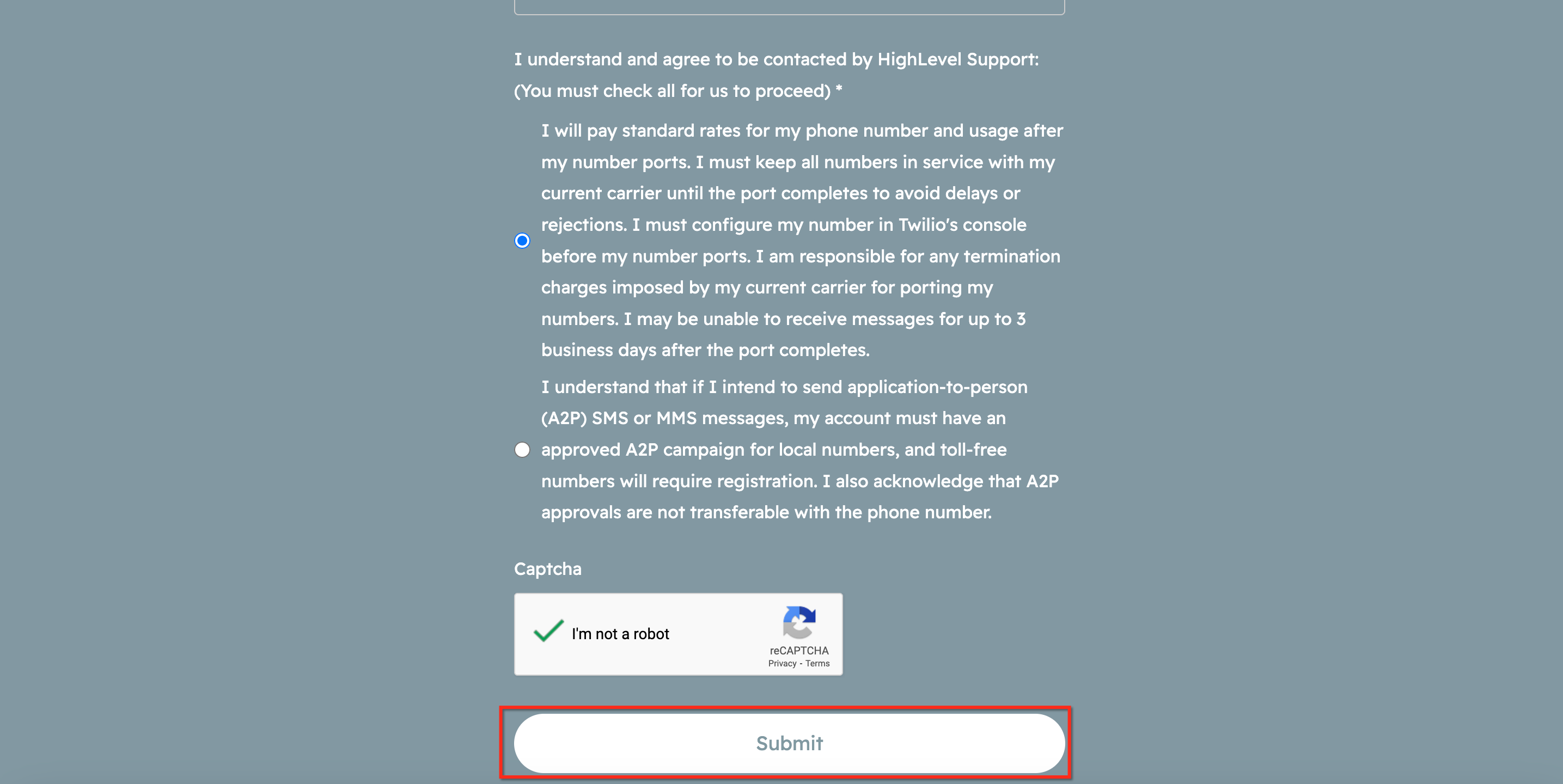
After filling in the required information, check the consent boxes and submit the porting form. Expect a brief service impact during the port window. Keep the old carrier active until completion.
Please Note: Your Letter of Authorization and Billing Statement(s) must be PDF files and cannot exceed 4MB.
Step 3: Approval & FOC (Firm Order Commitment)
After submission, you’ll receive status updates via email.
When approved, the carrier issues a FOC date/time window. Same‑day or date‑specific ports are not guaranteed.
International Phone Number Porting
International phone number porting is not currently available through the standard HighLevel port-in workflow. The standard flow currently supports porting in numbers from the United States only.
If you need to port an international number, please contact HighLevel Support. Our support team can submit Twilio's International Porting Form on your behalf and provide guidance on the required information and documentation.
International porting availability and requirements vary by country, number type, and telecommunications provider. Additional documentation or regulatory information may be required before the number can be transferred.
After Your Number is Ported
Completing a number transfer does not automatically complete every messaging or regulatory requirement associated with the number. Review the requirements for the number type and destination before using the newly ported number for customer communications.
For applicable numbers:
- US local numbers: Review A2P 10DLC requirements and ensure applicable numbers are associated with the appropriate approved campaign before sending SMS/MMS.
- US and Canadian toll-free messaging: Complete Toll-Free Verification as required before using the number to send SMS/MMS to US and Canadian recipients.
- International numbers: Ensure applicable regulatory requirements, addresses, or other country-specific documentation have been completed.
Keep your previous carrier account active until the port is confirmed as complete and you have verified that the number is working as expected.
Frequently Asked Questions
Q. What is the difference between the in-app port-in and the manual form?
The in-app option is available to Agency Owners and Admins with Labs enabled, supports US numbers only, and auto-generates the LOA. The manual form supports both LC Phone and Twilio destinations and requires you to upload a signed LOA yourself. Both options result in the same outcome your number ported into HighLevel.
Q. Where can I find the porting form?
Here is a link to the Porting Form.
Q. Can you port on a specific date/time?
Carriers do not guarantee exact dates/times. We’ll request preferences where available and confirm the port window once the carrier issues FOC.
Q. Will SMS history move with the number?
No. Porting moves the number; it does not migrate historic logs/conversations. Export any critical history from your prior provider.
Q. Can I change destination (LC Phone ↔ Twilio) after I submit?
No, the request once submitted cannot be changed. However, reach out to HighLevel support for any assistance.
Q. Do I need to cancel my old carrier?
Only after the port completes and you’ve verified calls/messages are working in HighLevel.
Q. My port request was rejected, what do I do?
Check the description shown in the Port-In Numbers tab (in-app) or the email notification for the rejection reason. Common causes include an invalid address, mismatched account number, incorrect PIN, suspended account, or a billing statement older than 90 days.
Important: Rejected requests cannot be edited. You must delete the request and create a brand new one with corrected information. Contact your current carrier to verify the correct details before resubmitting.
Related Articles
Was this article helpful?
That’s Great!
Thank you for your feedback
Sorry! We couldn't be helpful
Thank you for your feedback
Feedback sent
We appreciate your effort and will try to fix the article