If appointment time slots are missing, unavailable, or appearing unexpectedly on your calendar, several configuration factors may be responsible. This guide explains the most common causes—including updated slot capacity logic for overlapping appointments—and shows how to troubleshoot them effectively.
TABLE OF CONTENTS
- Overview
- Calendar Configuration Checks
- Confirm You Are Editing the Correct Calendar
- Verify Working Hours and Date Overrides
- Confirm Assigned Team Members
- Slot Duration, Interval, and Buffer Settings
- Multiple Appointments Per Slot and Capacity Limits (Updated Logic)
- Updated Slot Capacity Behavior
- External Calendar Conflicts and Sync
- Timezone Alignment
- Using the Calendar Troubleshooting Tool
- Frequently Asked Questions
- Related Articles
Overview
Time slot visibility determines whether booking times appear correctly on your public calendar.
Slots may not display as expected due to:
Calendar configuration settings
Assigned team members
Slot duration and interval setup
Buffer times
External calendar conflicts
Timezone mismatches
Slot capacity limits (for calendars that allow multiple appointments per slot)
Understanding how these settings interact will help you quickly identify and resolve booking issues.
Calendar Configuration Checks
Calendar configuration is the foundation of availability logic. Incorrect settings here are a common cause of missing time slots.
Confirm You Are Editing the Correct Calendar
Navigate to:
Calendars → Calendar Settings
Locate the correct calendar and click the Edit (pencil icon).
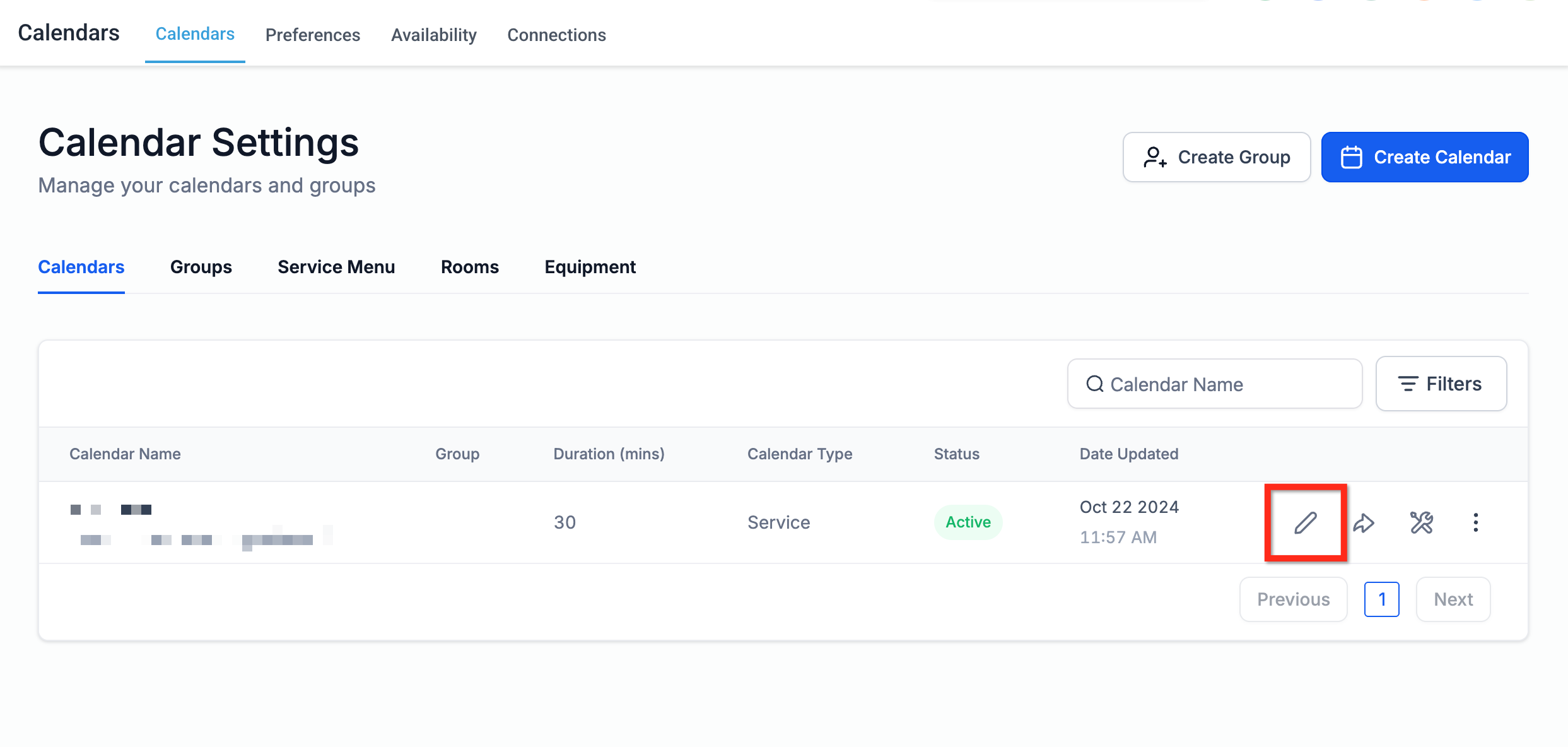
Make sure you are editing the intended:
Calendar Name
Calendar Type
Calendar Group
Verify Working Hours and Date Overrides
Inside the calendar editor:
Open the Availability tab.
Confirm:
Weekly hours are correctly configured.
No date-specific overrides are blocking availability.
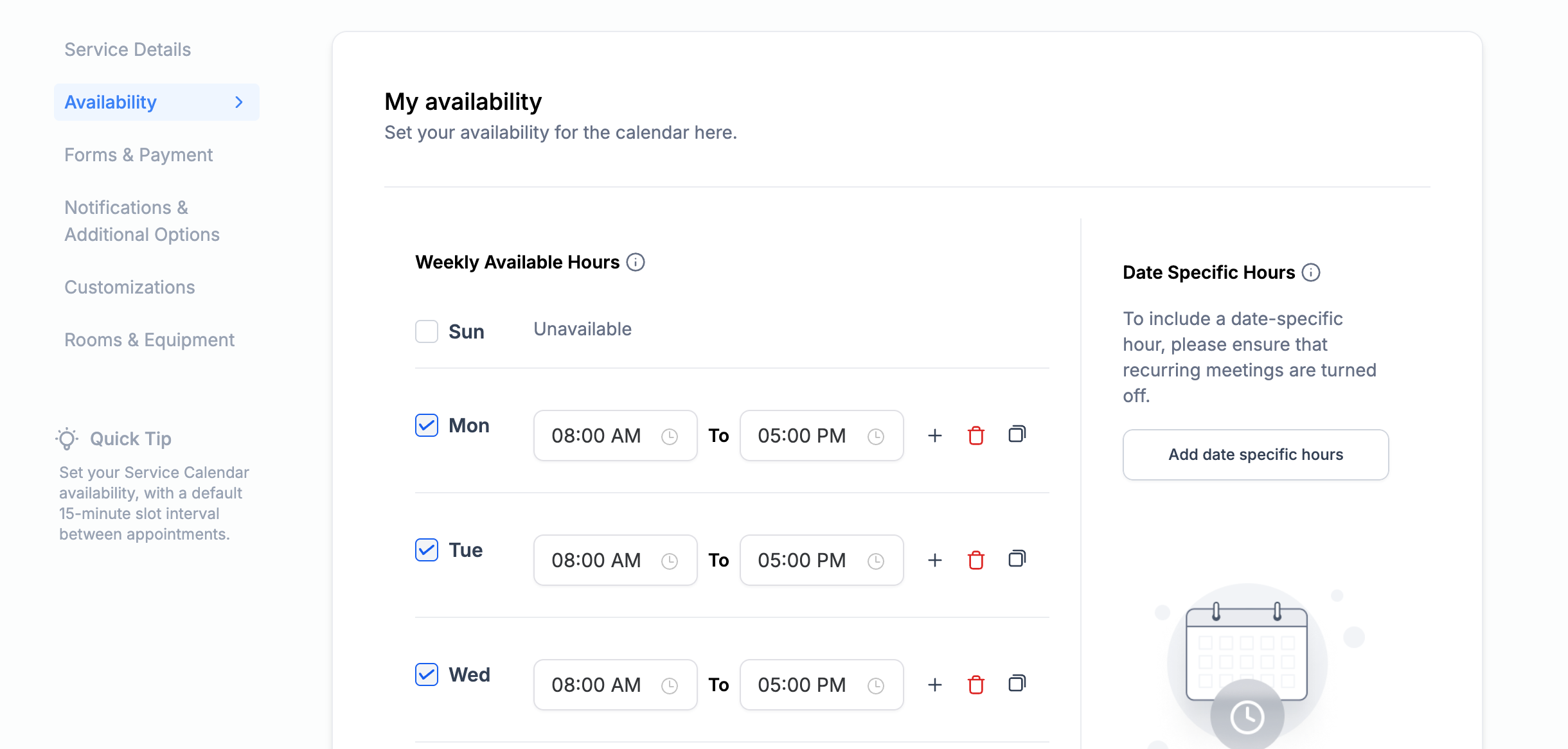
If recurring meetings are enabled, date-specific hours may not apply.
Confirm Assigned Team Members
Availability depends on assigned users.
Under Service Details, confirm at least one team member is selected.
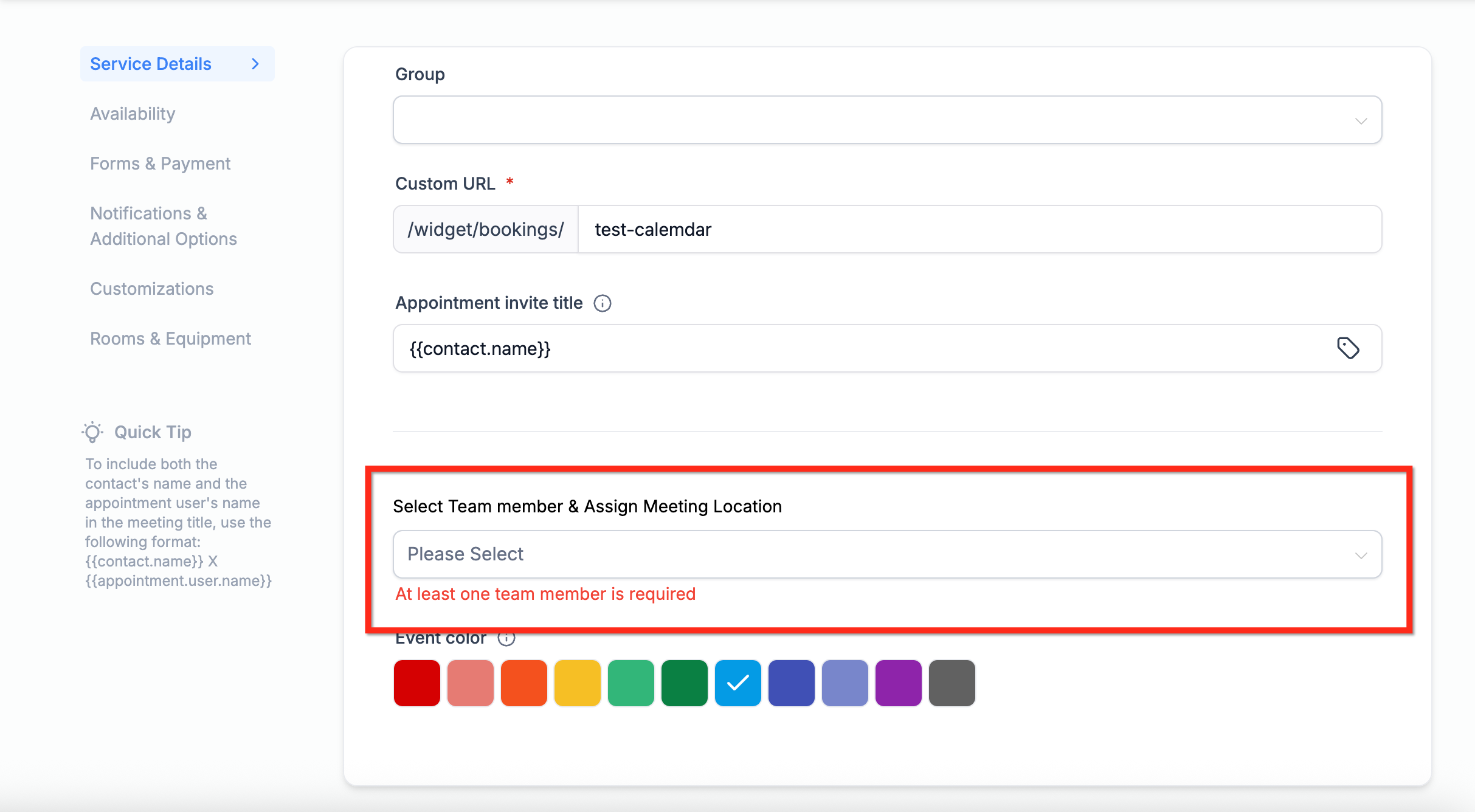
If no team member is assigned, slots will not appear.
Slot Duration, Interval, and Buffer Settings
Slot configuration affects how booking times are generated.
Under the Availability tab, review:
Service interval
Service duration
Post buffer time
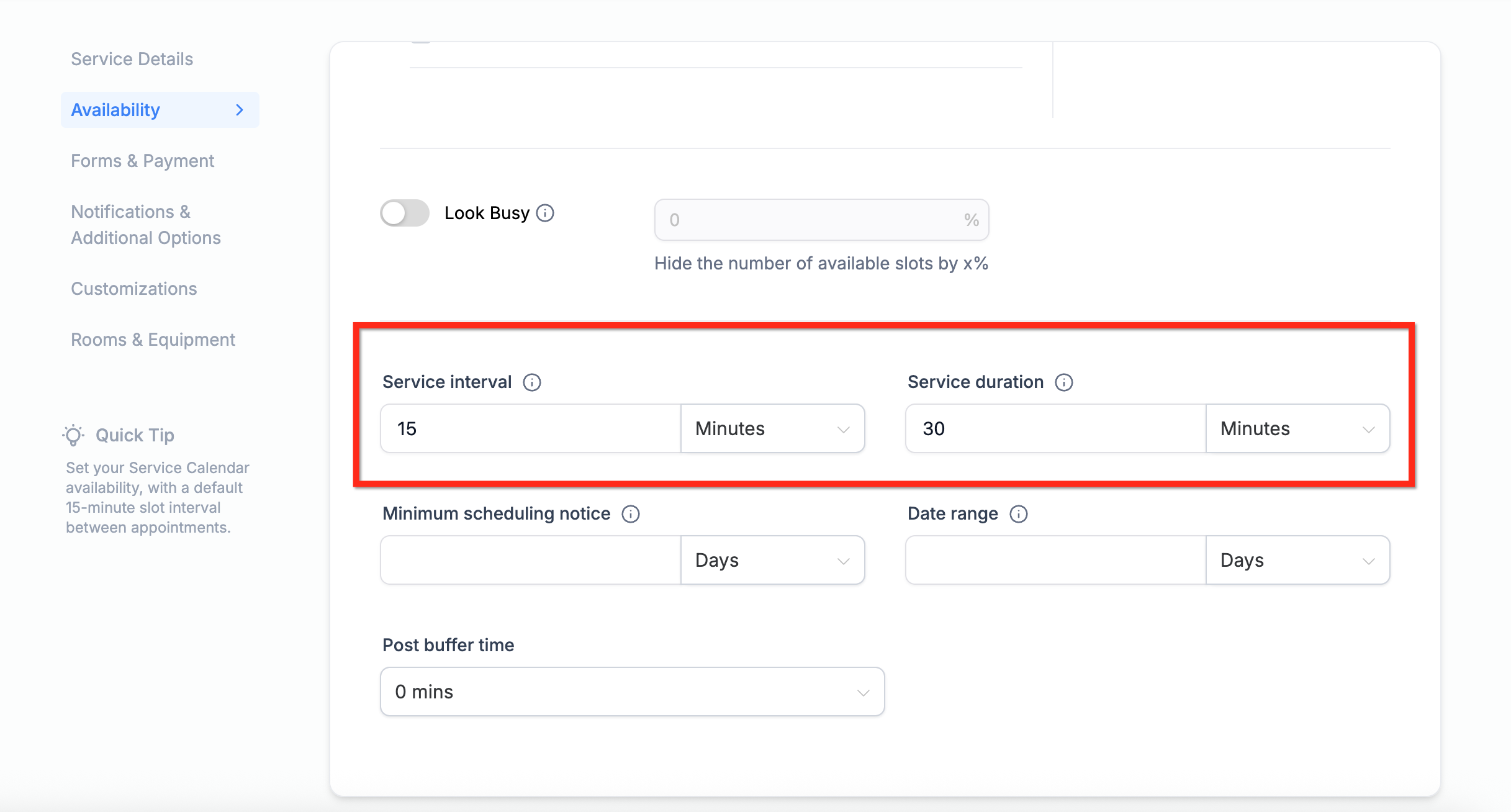
Improper interval and duration combinations can create gaps or prevent expected time slots from appearing.
Multiple Appointments Per Slot and Capacity Limits (Updated Logic)
If your calendar allows multiple appointments per slot—such as Event or Class calendars—slot visibility depends on capacity.
Updated Slot Capacity Behavior
Each confirmed appointment reduces slot capacity by 1.
If an appointment overlaps multiple time slots, each affected slot’s capacity is reduced by 1.
A slot is blocked only when its defined capacity limit is fully reached.
Overlapping appointments no longer fully block all affected slots prematurely.
If a slot is not appearing, verify whether the maximum appointment limit for that slot has already been reached.
External Calendar Conflicts and Sync
Connected Google or Outlook calendars may block availability.
If a synced event is marked Busy, it will prevent booking during that time range.
Review your connected calendar events and confirm their availability status.
External conflicts override internal availability settings.
Timezone Alignment
Timezone mismatches can cause slots to appear at unexpected times or not appear at all.
Verify:
Your user profile timezone
The calendar viewing timezone
Client-facing timezone display
A time that appears available for one user may not align with another user’s timezone.
Using the Calendar Troubleshooting Tool
The built-in Troubleshooting Tool provides a detailed breakdown of slot logic.
To access it:
Go to Calendar Settings.
Locate the calendar.
Click the Troubleshoot (wrench icon).
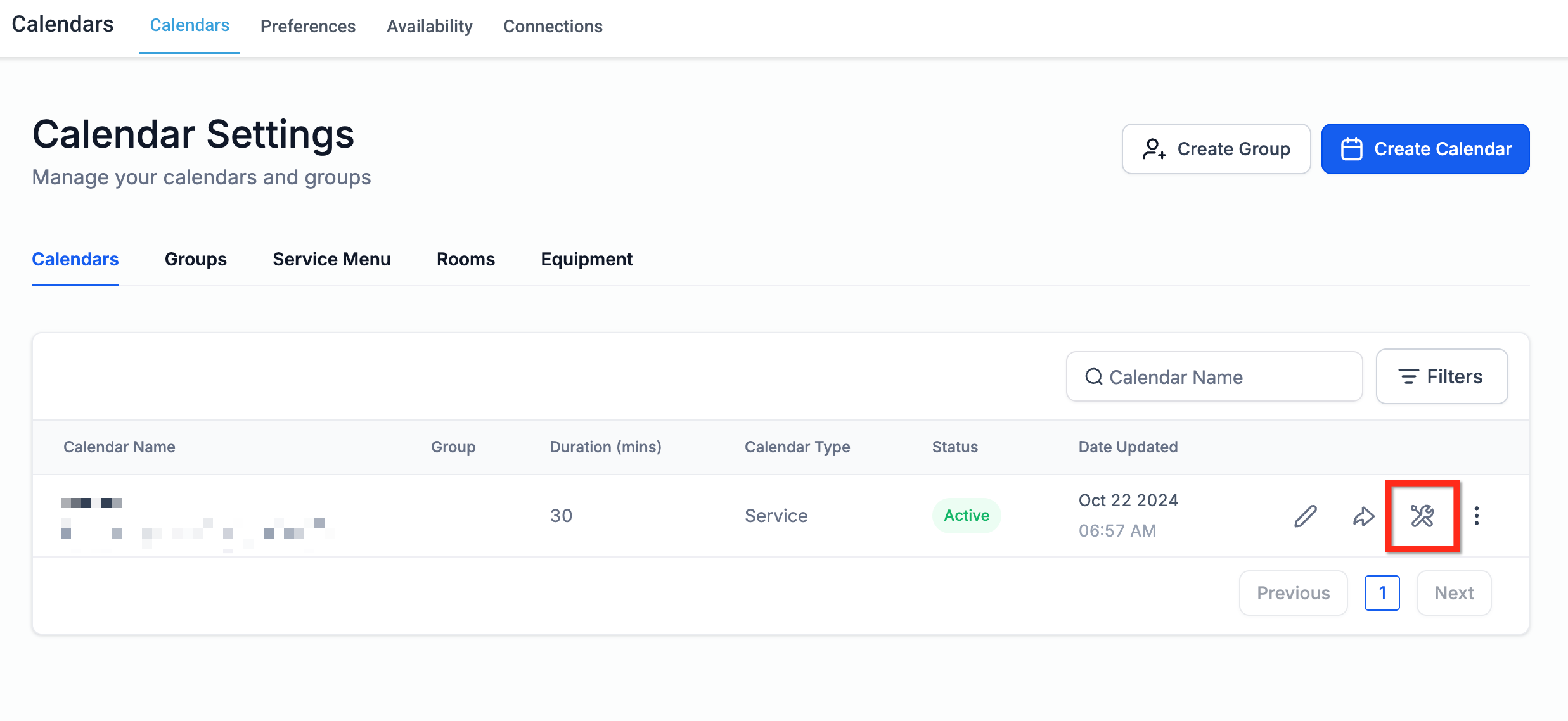
The tool shows:
Capacity rules
Buffer logic
Timezone checks
User assignment rules
External conflicts
Use it to determine exactly why a specific slot is blocked.
Frequently Asked Questions
Q: Why does a team member show available but isn’t getting booked?
Round Robin logic, availability priority, or user assignment configuration may prevent bookings.
Q: Why are my booking slots not aligning with my working hours?
Check slot interval, duration, buffer settings, and external conflicts.
Q: Do overlapping appointments block entire slots?
No. Overlapping appointments reduce slot capacity by 1. A slot is blocked only when its capacity limit is reached.
Q: Why do slots show differently across devices or browsers?
Browser cache or timezone mismatches may cause inconsistencies.
Q: Can clients choose a preferred team member?
Yes. Enable staff selection in calendar settings for Round Robin calendars.
Q: What does the Troubleshooting Tool show?
It lists all rules affecting slot visibility, including capacity limits, buffer times, timezone logic, and user assignment.
Related Articles
Was this article helpful?
That’s Great!
Thank you for your feedback
Sorry! We couldn't be helpful
Thank you for your feedback
Feedback sent
We appreciate your effort and will try to fix the article