The “Show seats per slot” setting allows you to display the total remaining seat availability for each time slot on Class Booking calendars. With the updated slot capacity logic, availability now reflects true remaining capacity even when appointments overlap multiple slots.
TABLE OF CONTENTS
- Overview
- How to Enable “Show Seats Per Slot”
- This toggle enables seat display on the public booking widget.
- How Seat Availability Is Calculated (Updated Logic)
- How Seats Appear on the Booking Widget
- Important Information
- Frequently Asked Questions
- Related Articles
Overview
Class Booking calendars allow multiple attendees to book the same time slot. The Show seats per slot option lets you display how many seats remain available for each time slot directly on the booking widget.
This provides:
Clear visibility of remaining capacity
Better booking transparency for customers
Improved scheduling efficiency for high-capacity events
How to Enable “Show Seats Per Slot”
To enable seat visibility on your booking widget:
Open your Class Booking calendar.
Click Edit.
Navigate to Customizations.
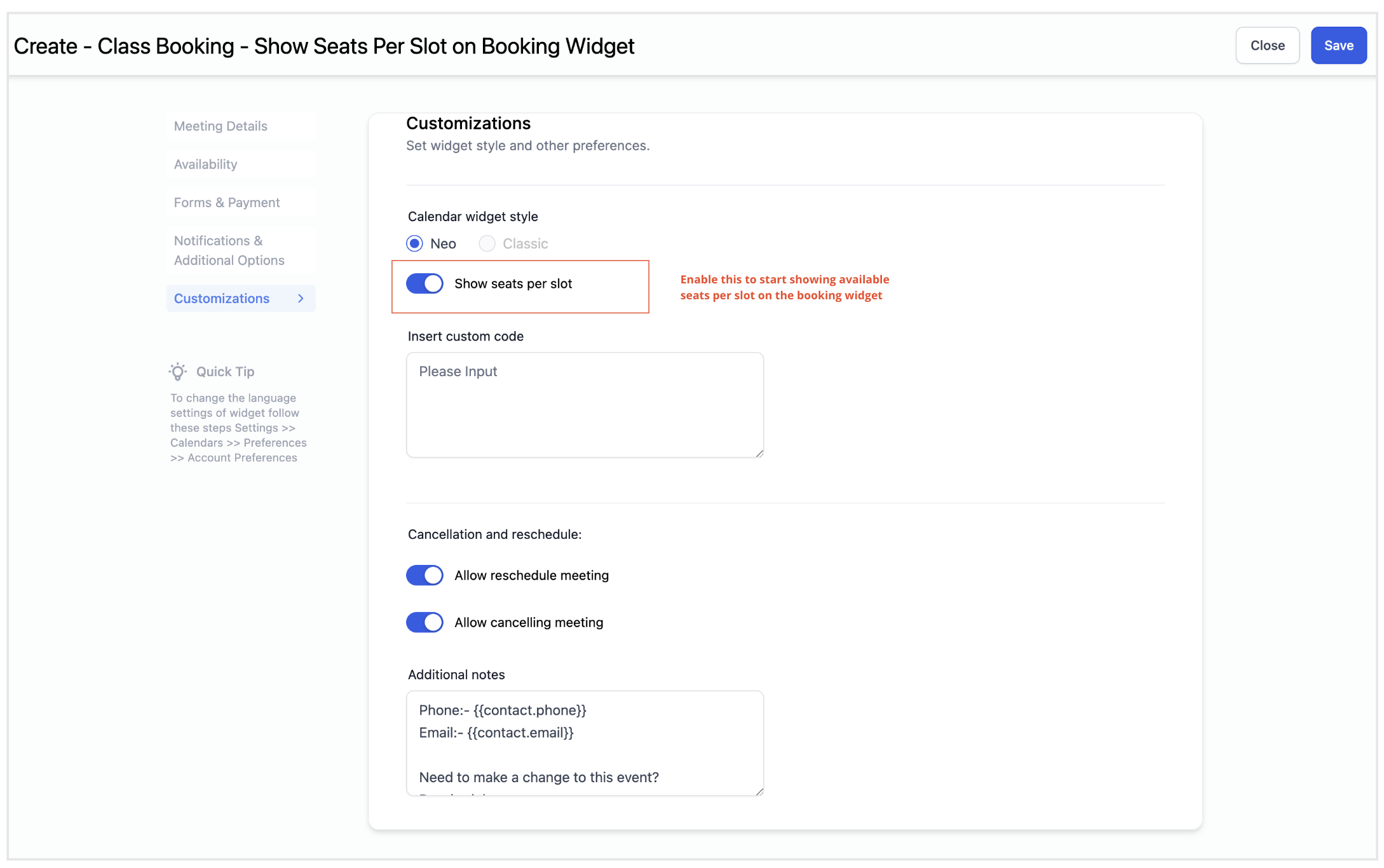
Under Calendar Widget Style, toggle Show seats per slot.
Click Save.
This toggle enables seat display on the public booking widget.
How Seat Availability Is Calculated (Updated Logic)
Seat availability is determined by the Seats per class value configured in your calendar settings.
With the updated scheduling logic:
Each confirmed appointment reduces seat availability by 1.
If an appointment overlaps multiple slots, only 1 seat is deducted from each affected slot.
A slot is blocked only when its total seat capacity is fully reached.
Overlapping appointments no longer fully block all affected slots prematurely.
This ensures more accurate availability and better utilization of high-capacity calendars.
How Seats Appear on the Booking Widget
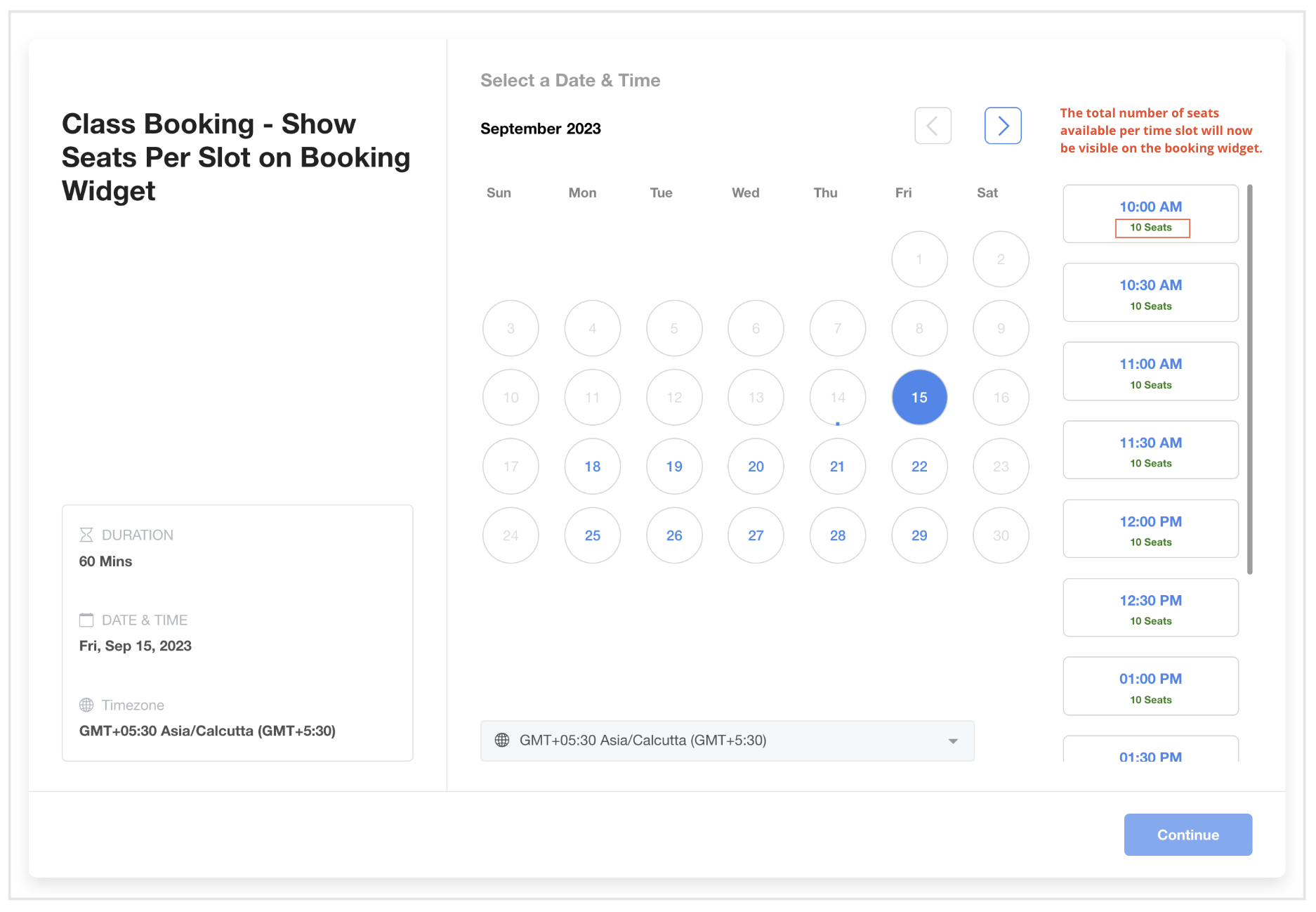
When enabled, the total remaining seats per time slot are displayed directly on the booking widget.
Customers can view remaining seats before selecting a time slot.
Important Information
This feature is available only for Class Booking calendars.
It requires the Seats per class setting to be greater than 1.
It works with Neo widgets.
Updated capacity logic applies across:
Public booking widget
In-app appointment modal
Personal calendars
Round Robin calendars
Event calendars
Slots remain available until their defined capacity limit is reached.
Frequently Asked Questions
Q: What does “Show seats per slot” do?
It displays the remaining seat availability for each time slot on Class Booking calendars.
Q: How is seat availability calculated?
Each confirmed appointment reduces the slot’s capacity by 1. A slot is blocked only when its defined capacity limit is reached.
Q: Do overlapping appointments block the entire slot?
No. Overlapping appointments reduce capacity by 1 per affected slot instead of blocking the slot completely.
Q: Does this work with recurring class bookings?
Yes.
Related Articles
Was this article helpful?
That’s Great!
Thank you for your feedback
Sorry! We couldn't be helpful
Thank you for your feedback
Feedback sent
We appreciate your effort and will try to fix the article