How to Enable Twilio Rebilling for Customers Using Their Own Twilio Account
Modified on: Fri, 27 Nov, 2026 at 9:00 AM
If your customer uses an independent Twilio account, you can enable eligible agency-managed Twilio rebilling by transferring their phone numbers to a Twilio sub-account under your agency. This allows you to manage phone usage and billing through HighLevel while retaining the customer's existing phone numbers. Follow these steps to complete the transfer, update the Twilio connection, and configure rebilling.
TABLE OF CONTENTS
- What is Twilio Rebilling for Customers Using Their Own Twilio Account?
- Key Benefits of Twilio Rebilling
- Requirements for Enabling Twilio Rebilling
- Understanding the Twilio Phone Number Transfer Process
- How to Enable Twilio Rebilling for Customers Using Their Own Twilio Account
- Frequently Asked Questions
- Related Articles
What is Twilio Rebilling for Customers Using Their Own Twilio Account?
Twilio Rebilling allows eligible agencies to charge customers for supported phone usage through HighLevel. To use the agency-managed Twilio rebilling setup described here, the customer's phone numbers must be transferred from their independent Twilio account to a sub-account under the agency's Twilio account.
Key Benefits of Twilio Rebilling
Agency-managed Twilio sub-accounts help streamline phone management and billing while maintaining each customer's phone numbers.
Centralized Management: Manage customer phone services through your agency's Twilio account.
Phone Number Retention: Transfer existing customer numbers without purchasing replacements.
Simplified Billing: Charge customers for eligible phone usage through HighLevel.
Organized Accounts: Keep each customer's phone numbers and usage associated with the correct Twilio sub-account.
Requirements for Enabling Twilio Rebilling
Before starting the transfer, ensure both the agency and customer have the necessary Twilio access and account information.
Access to the agency's and customer's respective Twilio accounts.
A new Twilio sub-account under the agency's Twilio account.
The customer's existing Twilio Account SID (Losing Account SID).
The new agency-managed Twilio Account SID (Gaining Account SID).
A list of phone numbers to transfer.
An eligible HighLevel phone rebilling configuration.
Important: Phone rebilling availability depends on your agency plan, phone provider, and SaaS configuration.
Understanding the Twilio Phone Number Transfer Process
The transfer method depends on whether the source and destination Twilio accounts belong to the same master account. Customers using independently owned Twilio accounts generally require a support-assisted transfer.
| Transfer Type | Method |
|---|---|
| Same master Twilio account | HighLevel Move Numbers tool, when eligible |
| Different master Twilio accounts | Twilio Support-assisted transfer |
Important: Do not release or delete existing phone numbers before the transfer is confirmed.
How to Enable Twilio Rebilling for Customers Using Their Own Twilio Account
Complete the following steps to transfer the customer's phone numbers, connect the destination Twilio sub-account, and configure rebilling in HighLevel.
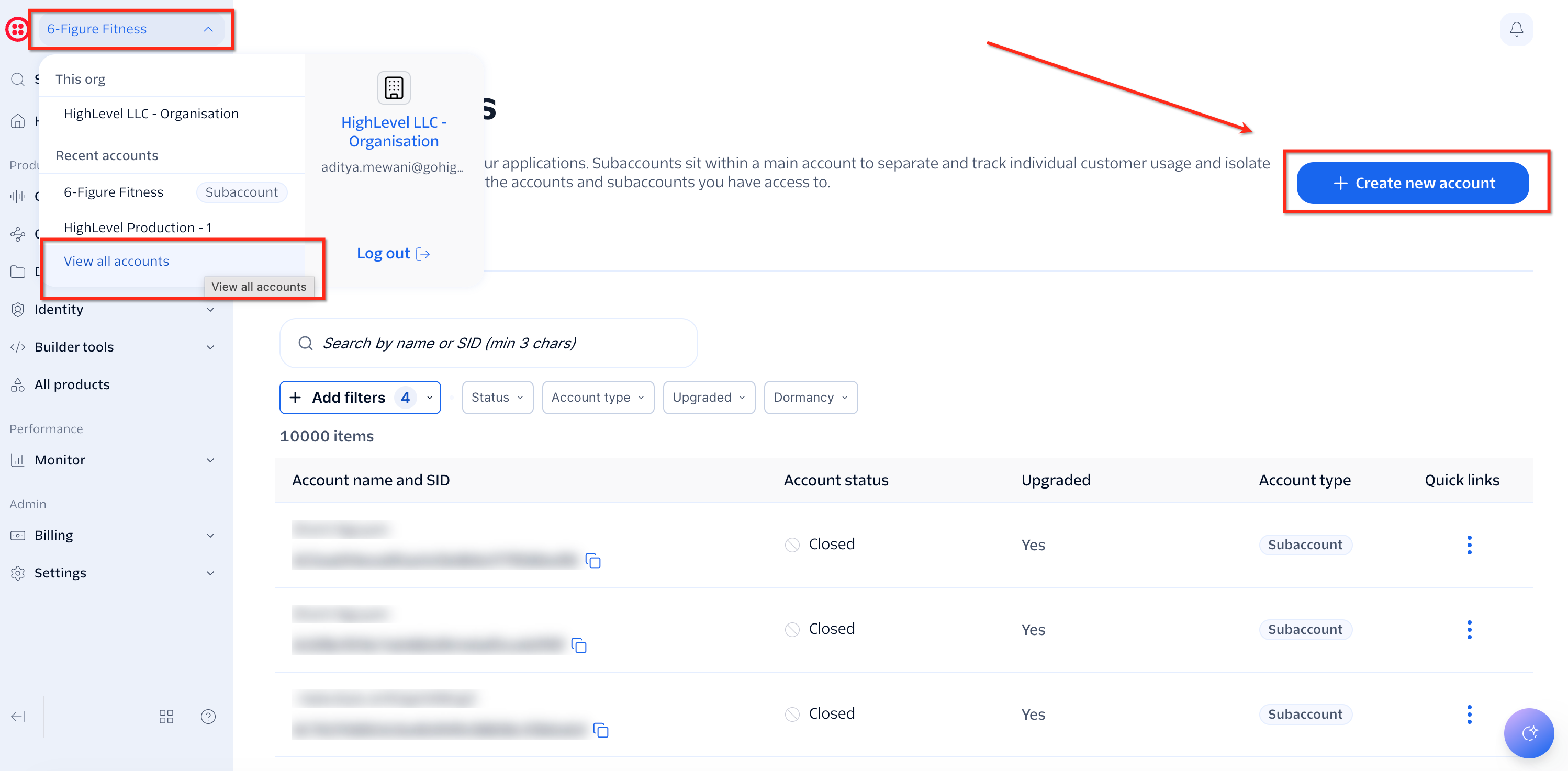
Step 1: Create a Twilio Sub-Account
Log in to your agency's Twilio account.
Navigate to the sub-account management area.
Create a new sub-account for the customer.
Copy its Account SID for the transfer request.
Step 2: Prepare the Phone Number Transfer Request
Prepare a transfer request containing the customer's phone numbers and both Twilio Account SIDs.
Agency Request Template:
Hi Twilio,
My client [Client Name], registered under [Client Email], would like to transfer the following phone numbers to a sub-account under my agency's Twilio account.
Phone Numbers: [List of Phone Numbers]
Losing Account SID: [Customer's Twilio Account SID]
Gaining Account SID: [Agency Sub-Account SID]
Please assist with this transfer and advise if additional authorization is required.
Thank you.
Step 3: Submit the Request to Twilio Support
Open the Twilio Support Center from your agency's Twilio account.
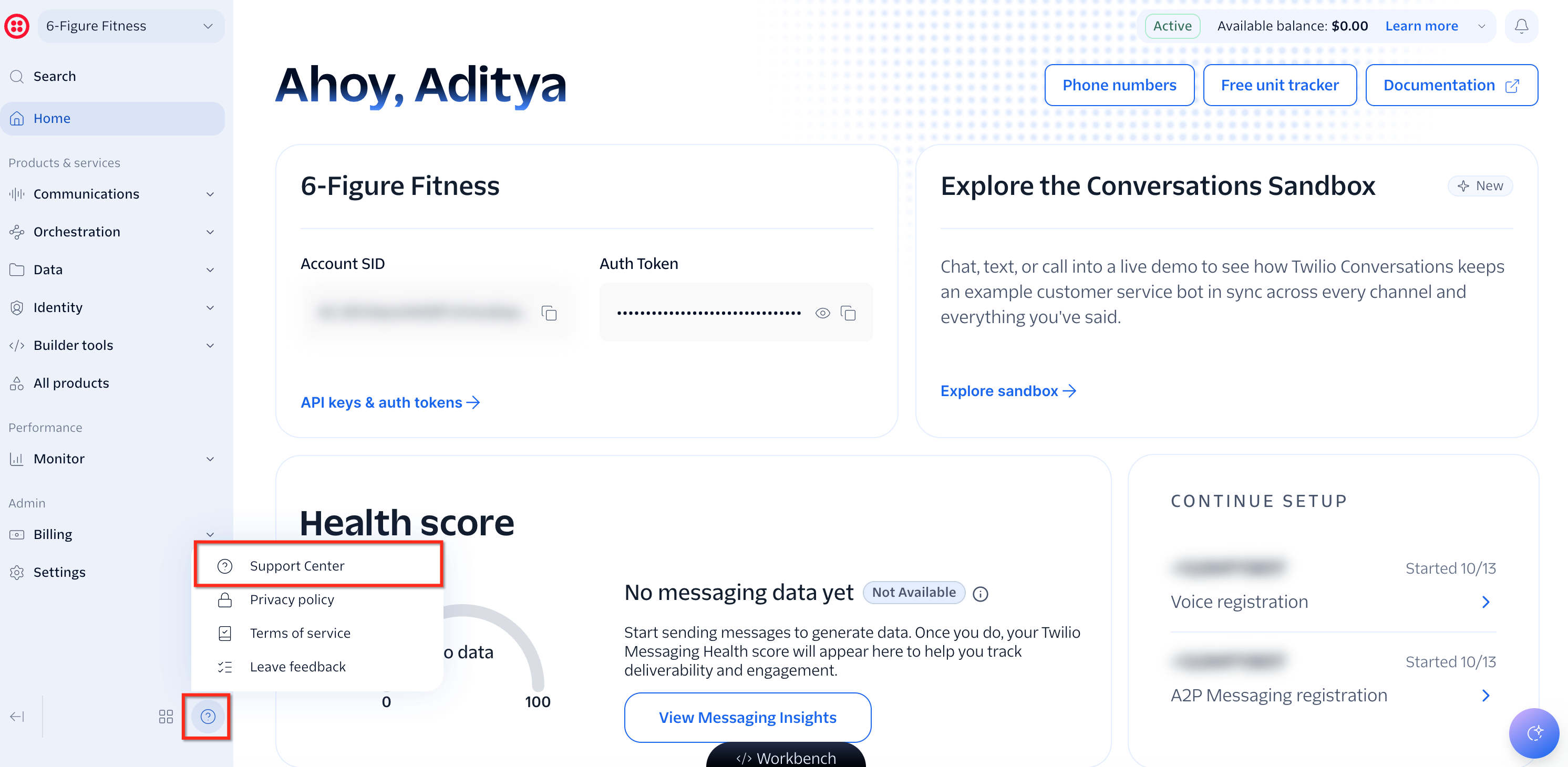
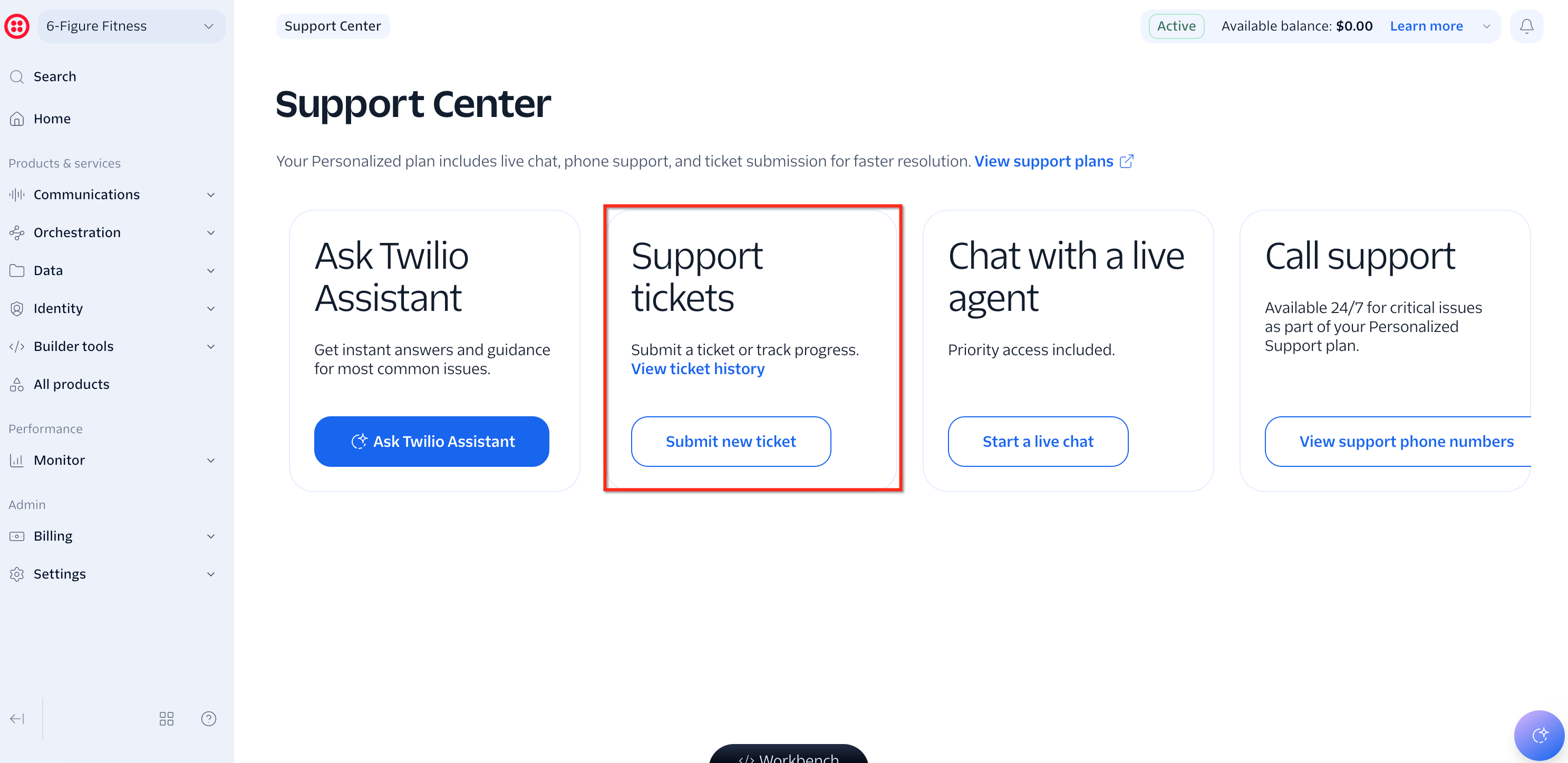
Create a phone number transfer request.
Include the completed transfer details.
Submit the request and retain the ticket reference.
Step 4: Request Customer Authorization
The customer must authorize transferring their numbers from their existing Twilio account.
Ask the customer to log in to their Twilio account.
Have them submit a corresponding transfer request to Twilio Support.
Ensure both requests contain the same phone numbers and Account SIDs.
Follow any additional authorization instructions from Twilio Support.
Step 5: Confirm the Phone Number Transfer
Before updating HighLevel, verify that Twilio has completed the transfer.
Wait for confirmation from Twilio Support.
Open the new agency-managed Twilio sub-account.
Confirm that all transferred numbers appear in its phone number inventory.
Verify the destination Account SID.
Step 6: Update Twilio Credentials
Open All Settings.
Navigate to Sub Account Settings > API keys & auth tokens.
Locate the customer's sub-account.
Access the available Twilio connection or credential management settings.
Update the Twilio Account SID and Auth Token using the destination sub-account's credentials, where required.
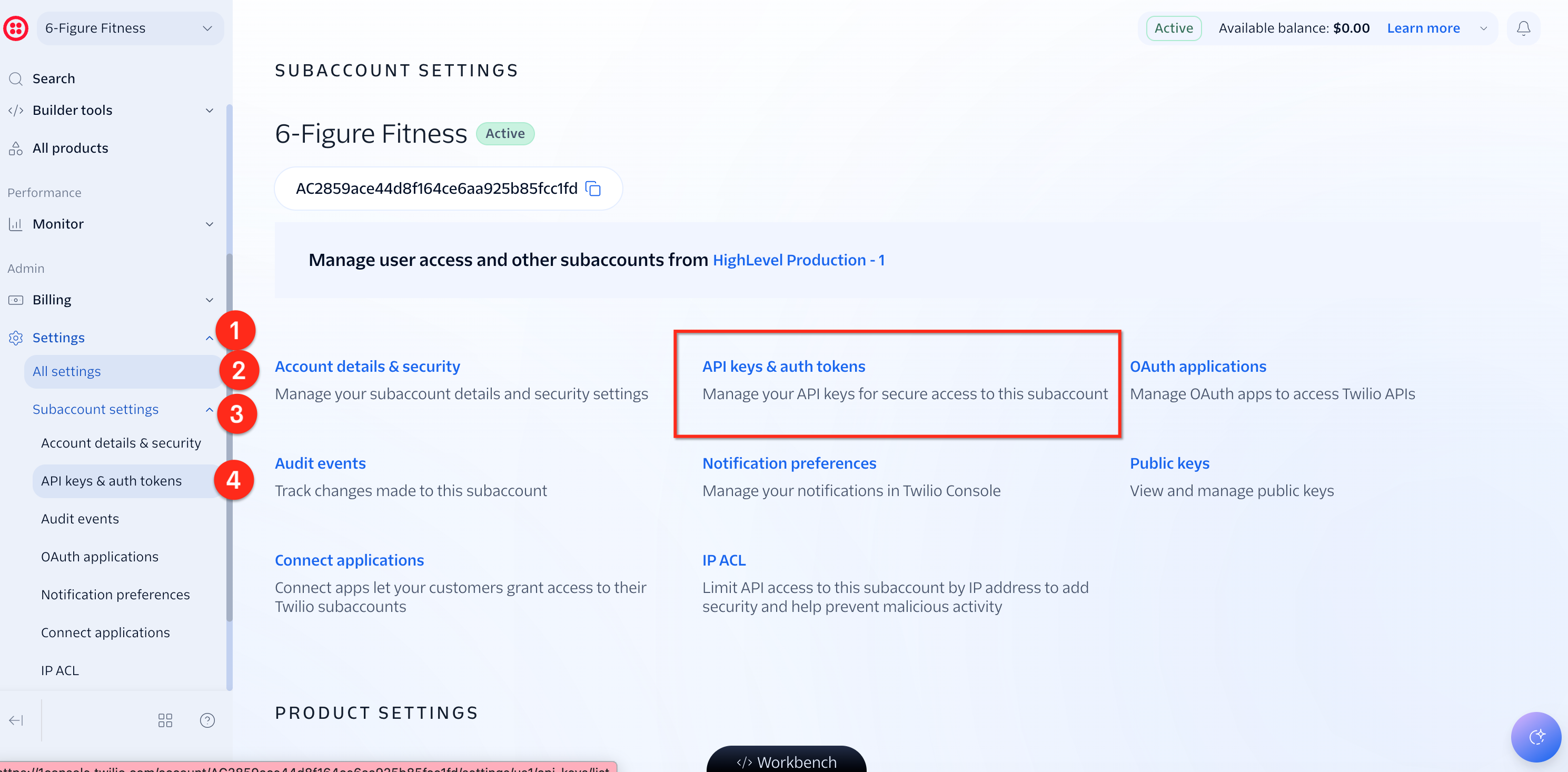
Save and verify the connection.
Important: Never share or expose Twilio Auth Tokens in screenshots.
Step 7: Configure Phone Rebilling
Completing the transfer and connecting Twilio does not automatically confirm that rebilling is enabled. Configure the appropriate billing settings for the customer.
Verify the customer's phone rebilling eligibility.
Open the customer's billing or Manage Client settings in Agency View.
Enable the available Phone System rebilling option.
Configure the applicable markup and payment settings.
Save the configuration.
For detailed instructions, see Activate SaaS Mode, Request Payment, and Configure Phone Rebilling.
Step 8: Verify the Setup
After completing the configuration, test the customer's phone services and billing readiness.
Confirm the correct Twilio Account SID is connected.
Verify the transferred numbers are available in HighLevel.
Test inbound and outbound calls.
Test SMS functionality where supported.
Confirm that eligible rebilling and payment settings are configured.
Frequently Asked Questions
Q: Can customers keep their existing Twilio phone numbers?
Yes. Customers can request a transfer of their existing phone numbers to the agency-managed Twilio sub-account.
Q: Can customers enable agency-managed Twilio rebilling without transferring their numbers?
Not through the workflow described here. The customer's location must connect to an appropriate Twilio sub-account under the agency's Twilio account.
Q: What if the customer does not authorize the transfer?
Contact the customer and coordinate with Twilio Support. Required authorization must be completed before the transfer proceeds.
Q: Can multiple phone numbers be transferred together?
Yes. List all intended phone numbers in the transfer request and confirm the requirements with Twilio Support.
Q: What if the transferred phone numbers do not appear in HighLevel?
Verify that the transfer is complete, confirm the connected Twilio Account SID, and check the destination account's phone number inventory.
Q: Why is phone rebilling unavailable after the transfer?
Rebilling availability depends on the agency's plan, phone provider, and SaaS configuration. Verify eligibility and the
applicable billing settings.
Related Articles
Was this article helpful?
That’s Great!
Thank you for your feedback
Sorry! We couldn't be helpful
Thank you for your feedback
Feedback sent
We appreciate your effort and will try to fix the article