Connect a Gmail or Google Workspace mailbox to HighLevel as a custom SMTP service when you need to send email through Google's outgoing mail servers. This guide explains how to prepare your Google account, create an app password, configure the service, and test delivery. It also covers sender-address requirements and common connection problems. For most users, HighLevel recommends its direct Gmail integration rather than SMTP.
TABLE OF CONTENTS
- What Is Google/Gmail/Google Workspace SMTP?
- Key Benefits of Using Google as Your SMTP Provider
- Before You Begin
- Create an App Password for Your Google Account
- Enable 2-Step Verification in Google Workspace
- How to Set Up Gmail or Google Workspace as Your SMTP Provider
- Test Your Google SMTP Connection
- Google SMTP Limits and Troubleshooting
- Error: 535-5.7.8 Username and Password Not Accepted
- Error: Configured Email Service Is Expired
- Other Common Connection Problems
- Frequently Asked Questions
- Related Articles
What Is Google/Gmail/Google Workspace SMTP?
SMTP (Simple Mail Transfer Protocol) is a method for sending outgoing email. When you connect Gmail or Google Workspace as an SMTP provider in HighLevel, HighLevel authenticates with a specific Google mailbox to send messages. This connection does not automatically connect every mailbox in your Google Workspace domain or synchronize your Gmail inbox.
For inbox synchronization, see Connect Google to Use Gmail for Email. If you're evaluating which sending service to use, review Setting Up SMTP Providers.
Key Benefits of Using Google as Your SMTP Provider
Google SMTP can be useful when you have an existing Google mailbox and a specific need to use its outgoing email service. These benefits apply only when the Google account and its security settings permit SMTP authentication.
- Existing mailbox: Send outgoing email through a Gmail or Google Workspace account you already manage.
- Recognizable sender address: Use the authenticated Google mailbox as your sender address, helping avoid mismatched sender settings.
- Sub-account control: Configure a custom email service inside the relevant HighLevel sub-account.
- Provider flexibility: Save more than one supported email service and choose which service is active.
Before You Begin
Preparing the right account and understanding SMTP limitations can prevent failed authentication and unexpected sending restrictions.
- Have access to the Gmail or Google Workspace mailbox you want to connect.
- Have access to Settings → Email Services in the intended HighLevel sub-account.
- Confirm that 2-Step Verification is enabled and that the Google account can create an App password.
- If you use Google Workspace and security controls prevent app passwords, ask your Workspace administrator to review the account policy.
- Plan to use the same mailbox address for SMTP authentication and the sender address, unless Google has authorized an alternative sender.
- Remember that this is an outgoing SMTP connection, not Gmail Two-Way Sync.
Important: HighLevel recommends its direct Gmail Two-Way Sync for inbox-style email conversations and the LeadConnector Email System for most general sending needs. SMTP is an advanced option and can have provider limits and fewer built-in deliverability tools.
Create an App Password for Your Google Account
A Google app password is a separate credential used by a supported application or SMTP client. Using it in HighLevel avoids entering your regular Google account password into the SMTP connection.
- Sign in to the Google account you want to connect. If you have multiple Google accounts, verify that the correct account is selected.

Select the Google account to connect.
- Open Manage your Google Account → Security.

Choose Manage your Google Account.

Open the Security page in your Google Account.
- Under How you sign in to Google, open 2-Step Verification. Follow the prompts to enable it if needed.

Review 2-Step Verification status before creating an app password.
- Locate App passwords in your Google account security settings. Depending on the account interface, you may find this option within the 2-Step Verification settings.
- Enter an app name such as HighLevel SMTP, then select Create.

Enter a name for the SMTP connection and choose Create.
- Copy the generated app password. You will enter it in the SMTP Password field in HighLevel.
Important: The App passwords option may be unavailable even after 2-Step Verification is enabled, depending on the account type or Workspace security policy. If it is unavailable, do not use your normal Google password as a substitute; contact your Workspace administrator or use the direct Gmail integration instead. Do not share app passwords in screenshots or support tickets.
Enable 2-Step Verification in Google Workspace
Google Workspace administrators may control whether users can enable 2-Step Verification or use app passwords. If the option is missing for a managed mailbox, the account owner may need assistance from an administrator before SMTP setup can continue.
For Google Workspace administrators only:
- Sign in to your Google Workspace Admin console with an administrator account.
- Open Security → Authentication → 2-Step Verification(the menu may vary with Admin console updates).
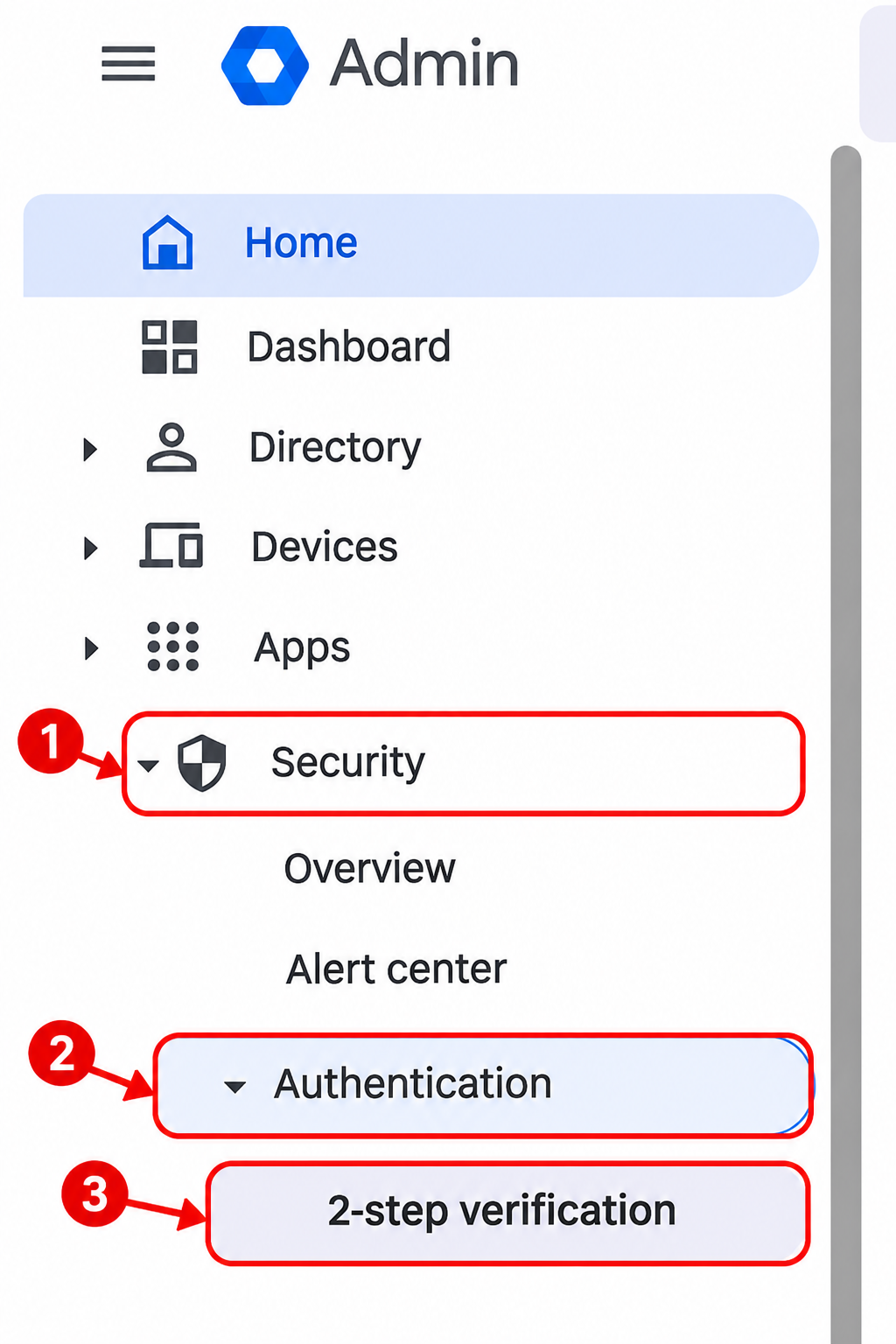
In the Admin console, open Security → Authentication → 2-Step Verification.
- Review whether users in the relevant organizational unit are allowed to enable 2-Step Verification.
- If appropriate under your organization's security policy, update the setting and ask the user to finish enabling 2-Step Verification in their own Google account.
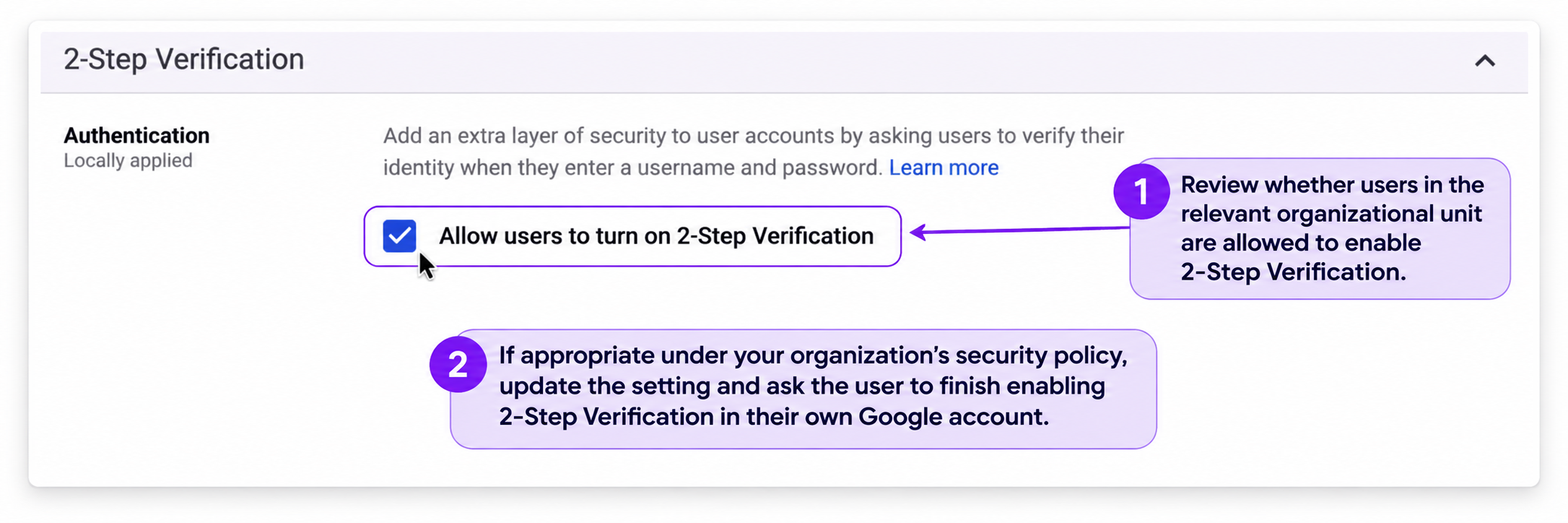
An administrator can review the setting that allows users to enable 2-Step Verification.
- Have the user check whether App passwords is available. Allowing 2-Step Verification does not guarantee that app passwords are permitted.
Note: Personal @gmail.com users do not have a Google Workspace Admin console. They should manage 2-Step Verification in their own Google account security settings.
How to Set Up Gmail or Google Workspace as Your SMTP Provider
Saving the provider alone may not make it active. Follow the complete sequence to create the connection, activate it, and configure reply handling.
Interface note: The screenshots below show an earlier Email Services layout labeled “Domain Service.” Your version may label this area “SMTP Service” or “Advanced Settings.” Follow the current labels displayed in your sub-account.
- Sign in to the HighLevel sub-account that will send email through Google.
- Go to Settings → Email Services.
- Open SMTP Service (or Advanced Settings, depending on the interface).
- Click + Add Service and select Gmailas the SMTP provider. HighLevel lists this option for both Gmail and Google Workspace accounts.
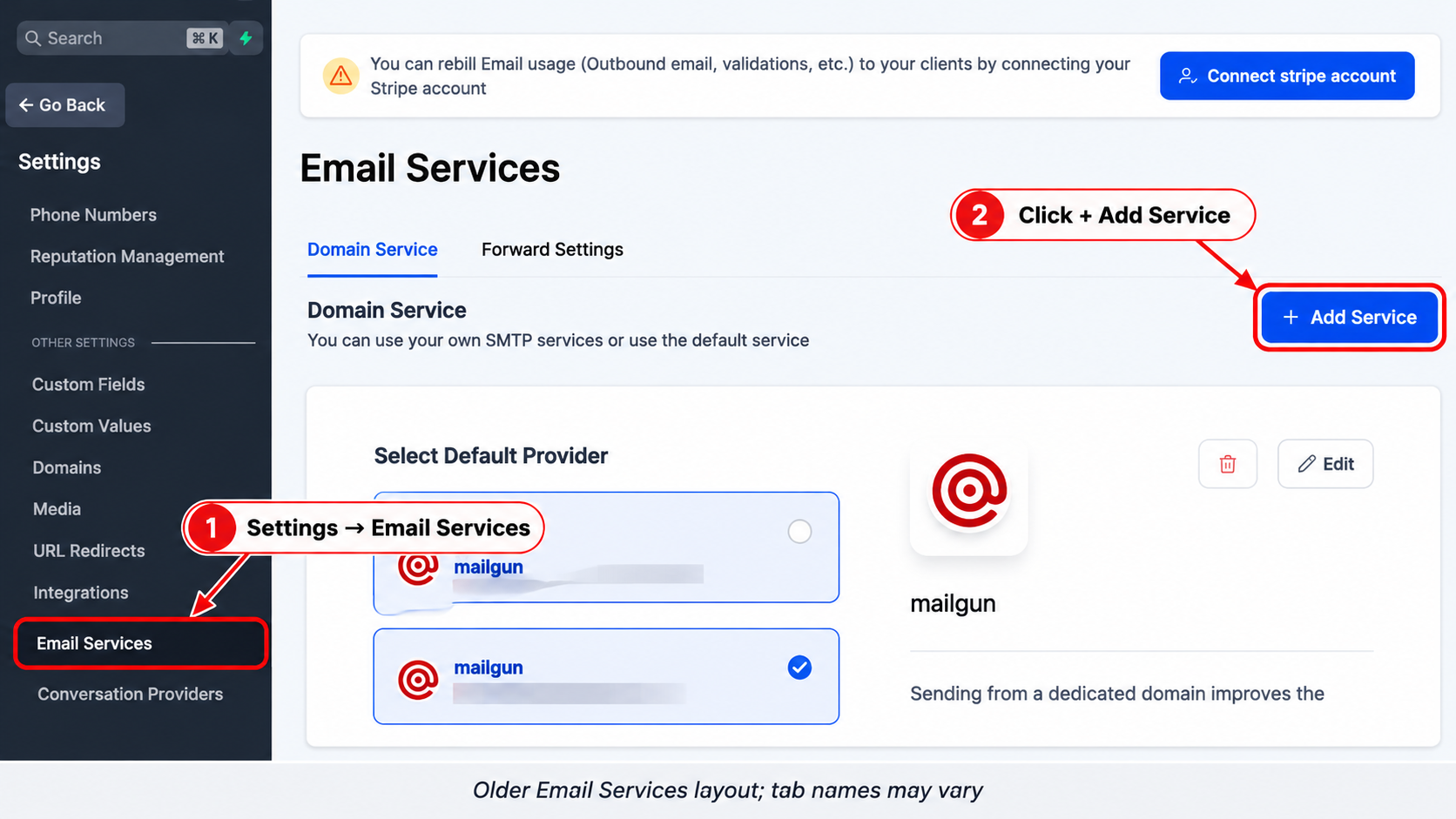
Select + Add Service in the Email Services area.
- Enter the Gmail login email associated with the Google account you prepared.

Choose Gmail and enter the complete Google mailbox address.
- Paste the Google app password into the password field. If the interface requests SMTP host or port values, use the Google settings shown below.
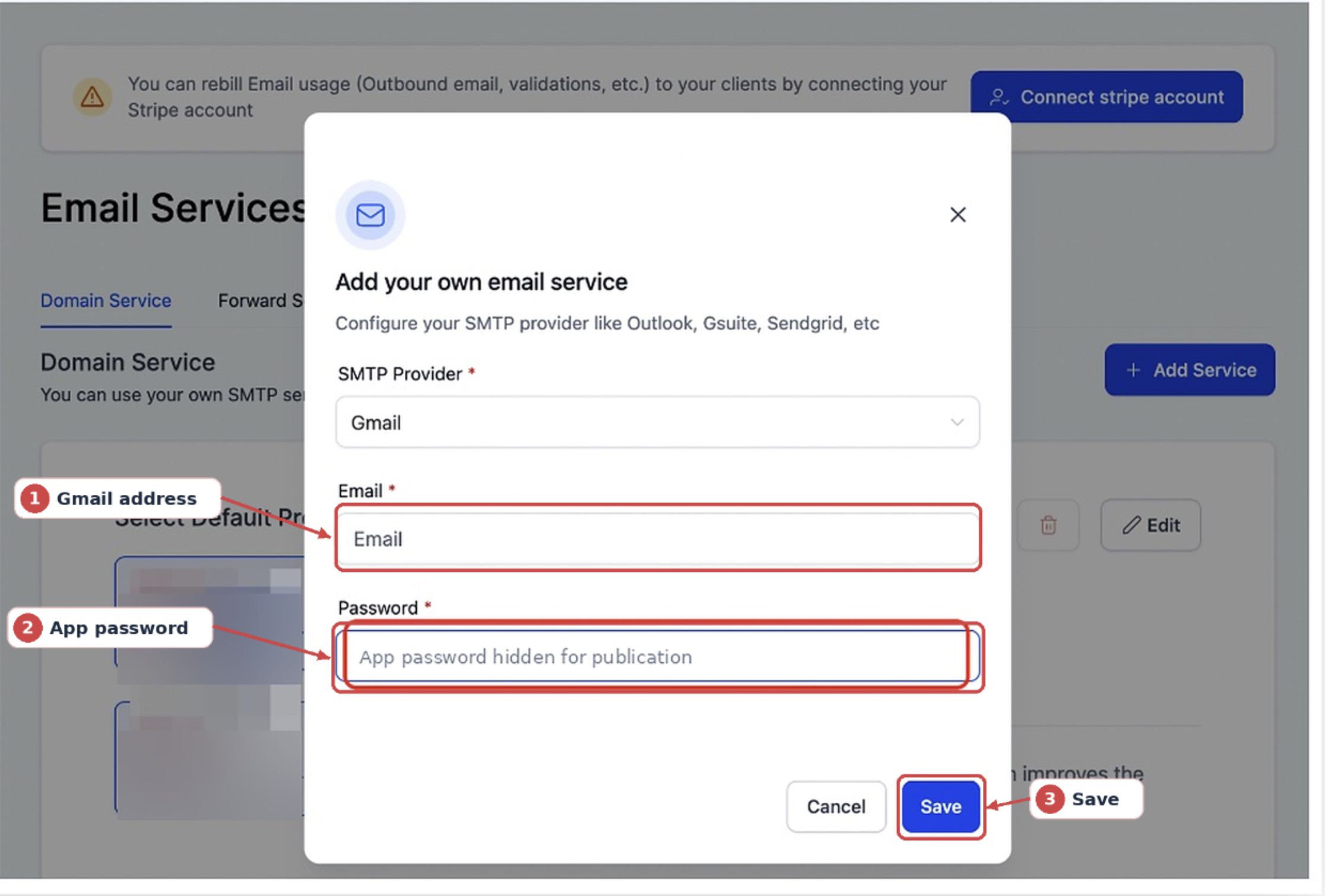
Enter the Google App Password in the Password field, then save.
- Complete any other required fields shown in your interface, including the sender information, then click Save.
- In the saved email services list, find the new Gmail service and click Set as active. Confirm your selection.
- If you want supported incoming replies to appear in Conversations, review the Enable reply checkbox for the active SMTP service and enable it.
| SMTP setting | Value |
|---|---|
| Provider | Gmail |
| SMTP host, if requested | smtp.gmail.com |
| Port, if requested | 587 with TLS/STARTTLS, or 465 with SSL |
| Username / login email | Full Gmail or Google Workspace email address |
| Password | App password created for the same Google account |
| Sender email | The authenticated mailbox address, unless another address is authorized by Google |
Important: You can save multiple supported SMTP services, but only one can be active at a time. Agency-level Email Services controls can determine whether sub-accounts can add services. Agency-level custom email setup uses Mailgun; this Gmail SMTP procedure is for an individual sub-account. Connecting one mailbox does not connect every sub-account.
Test Your Google SMTP Connection
A successful save does not confirm that messages will reach recipients. A test email checks the active provider, sender address, and basic delivery behavior before you rely on the connection.
- In the same sub-account, open Contacts and select a test contact with an email address you can access.
- Open the contact's Conversation and choose Send Email.
- Check the From Email field. It may default to the logged-in user's email address.
- Change From Email to the email address authenticated with Google SMTP, unless you have a Google-authorized sender alias.
- Send the message and check the recipient's inbox and spam folder.
- Reply to the message and verify whether it appears in HighLevel Conversations if Enable reply was selected.
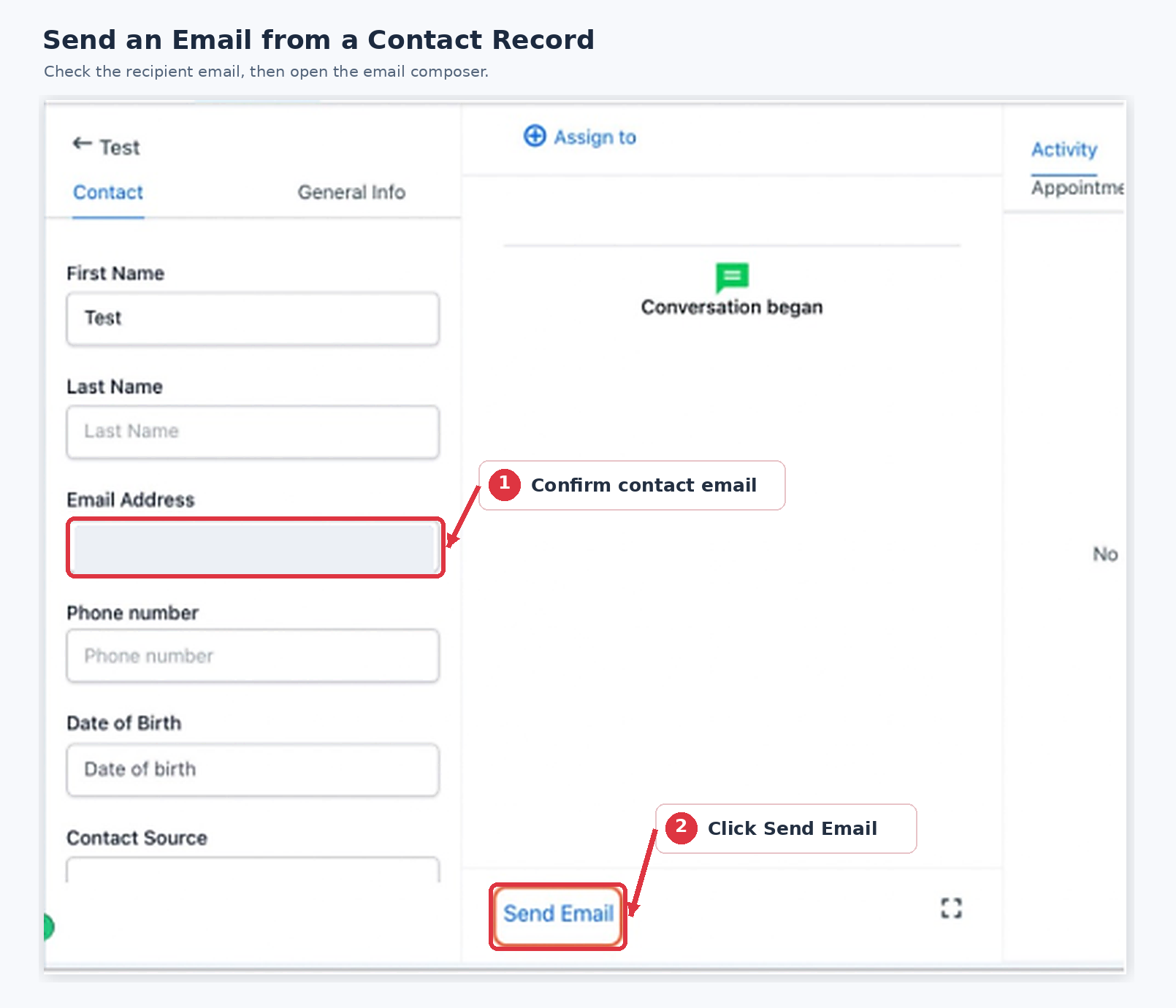
If the send fails, select the error indicator in Conversations to inspect the SMTP provider's response. For more detailed testing steps, see How to Send a Test Email in a Conversation.
Google SMTP Limits and Troubleshooting
Google controls SMTP authentication and sending limits, while HighLevel manages the saved email-service configuration. The error message, active service, and sender address are the best places to start when a connection fails.
Error: 535-5.7.8 Username and Password Not Accepted
This error means Google rejected the credentials submitted for SMTP authentication. It can occur when the wrong account or password is entered, an app password is no longer valid, or account security policies prevent the connection.
- Verify that the SMTP username is the complete Gmail or Google Workspace email address.
- Make sure you entered a Google App Password, not your usual Google account password.
- Confirm that 2-Step Verification is enabled and the Google account is eligible to use app passwords.
- If necessary, generate a new app password for the same mailbox and update the saved SMTP credentials.
- If the copied password contains spaces between groups of characters and authentication fails, try entering the 16 characters without spaces. This is a troubleshooting suggestion from a support case, not a required format in every interface.
- Save the configuration and send another test email.
Google Workspace users: If App passwords is unavailable, ask your Workspace administrator to check the organization's security policy. Do not substitute your normal Google password.
Error: Configured Email Service Is Expired
This message concerns the configured email service's status. It does not, on its own, prove that the Google App Password has expired.
- Go to Settings → Email Services → SMTP Service in the relevant sub-account.
- Confirm that the Gmail service is still listed and Set as active is selected.
- Check the saved email address and connection settings.
- If the interface provides a way to update or reconnect the service, re-enter valid credentials and save the changes.
- Send a test email. If the error continues, provide the exact error message to HighLevel Support, without sharing your password.
Other Common Connection Problems
If authentication succeeds but the service still cannot send or receive as expected, check the sender identity, provider status, and relevant sub-account controls.
- From Email mismatch: Use the email address authenticated for Google SMTP, or an alias that Google has authorized. HighLevel notes that an unauthorized sender address can prevent delivery.
- Add Service button is missing: Have an agency administrator review Agency View → Settings → Email Services → Advanced Settings and any sub-account override controlling the Add Email Service button.
- Browser autofill changes a credential: Enter the username and app password manually or try another browser. Chrome was recommended in one support case, but it is not required to configure SMTP.
- Sending limit reached: Google applies sending quotas. HighLevel's SMTP guide cites approximately 100–150 messages per day for Gmail through a remote email client; that figure is guidance, not a guaranteed allowance.
- Email remains marked Sent: Third-party SMTP does not supply HighLevel with a separate delivered event. Review the recipient's inbox and the available message events.
- Replies are missing from Conversations: Check Enable reply on the active SMTP service, then send a test email and reply to it.
- Unused app passwords: Revoke old app passwords that are no longer used. Do not revoke credentials that still support an active connection.
Important: Gmail SMTP is not recommended for bulk marketing. HighLevel recommends its direct Gmail integration for inbox-style conversations and the LeadConnector Email System for most general email-sending needs. For sender-related failures, see Limitation of Using SMTP When Emails Are Not Sending.
Frequently Asked Questions
Q: Does connecting a Google Workspace email address connect the whole company's Google Workspace domain?
No. SMTP authentication uses a specific mailbox and its credentials. Connecting one mailbox does not configure every mailbox in the domain.
Q: Does enabling 2-Step Verification guarantee that App passwords will appear?
No. Google account and organization policies may still hide or block app passwords, even with 2-Step Verification enabled. Google Workspace users should check with their administrator.
Q: Can I use a different From Email address than the Google account I connected?
Only if Google recognizes the other address as an authorized sender. Otherwise, sending may fail. For the first test, use the authenticated mailbox address.
Q: Can I add the same Gmail provider twice in one sub-account?
HighLevel's SMTP documentation says the same provider cannot be added twice within a sub-account and identical SMTP credentials cannot be reused in multiple integrations there.
Q: Will changing the active email service affect emails that have already been sent?
No. Switching the active SMTP provider affects future outgoing emails, not previously sent messages.
Q: Why do some test emails show Sent instead of Delivered?
Third-party SMTP does not send HighLevel a separate delivered event. A Sent status therefore does not prove that a message reached the recipient's inbox; check the recipient mailbox and any available events.
Related Articles
Was this article helpful?
That’s Great!
Thank you for your feedback
Sorry! We couldn't be helpful
Thank you for your feedback
Feedback sent
We appreciate your effort and will try to fix the article