Inventory Status on Store Product Pages lets shoppers see product availability before purchasing. HighLevel allows you to display stock messages, set low-stock thresholds, and customize inventory status colors. You can also show the exact number of units remaining to help customers make informed purchasing decisions.
TABLE OF CONTENTS
- What is Inventory Status on Store Product Pages?
- Key Benefits of Inventory Status
- Inventory Status Types and Behavior
- How To Setup Inventory Status on Store Product Pages
- Frequently Asked Questions
- Related Articles
What is Inventory Status on Store Product Pages?
Inventory Status displays product availability directly on your storefront, indicating whether a product is in stock, running low, or out of stock. It is supported on the Product Details Page (PDP), Custom Product Details Page, and Featured Product element.
The feature works only for products with Track Inventory enabled. In the V2 Product Details layout, inventory status settings are available within the Product Quantity element.
Key Benefits of Inventory Status
- Stock Visibility: Show product availability and highlight items running low on inventory.
- Custom Stock Messages: Personalize High Stock, Low Stock, and Out of Stock messages.
- Dynamic Quantity Display: Show the exact number of units remaining for a product or variant.
- Flexible Styling: Customize inventory status text and background colors to match your store.
Inventory Status Types and Behavior
Inventory Status automatically updates based on the product's available quantity and the configured low-stock threshold. Each status can display a customized message.
| Status | Condition | Example |
|---|---|---|
| High Stock | Inventory exceeds the low-stock threshold | 100 available |
| Low Stock | Inventory is greater than zero but at or below the threshold | Only 25 left |
| Out of Stock | Inventory is zero or below, unless continued selling is enabled | Out of stock |
For example, with a Low Inventory Threshold of 25, products with 1–25 units remaining display Low Stock, while products with more than 25 units display High Stock.
Inventory Status Examples:
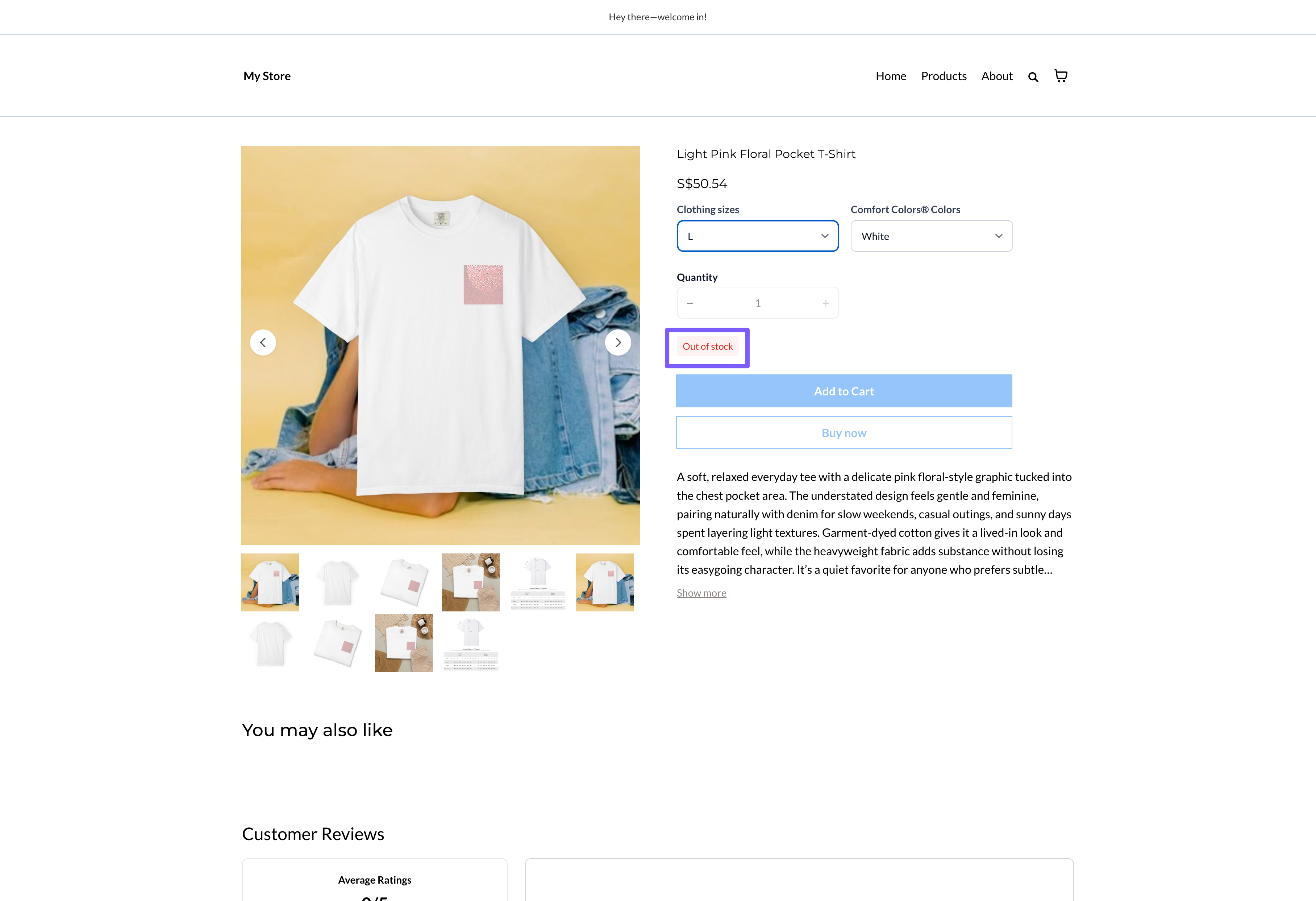
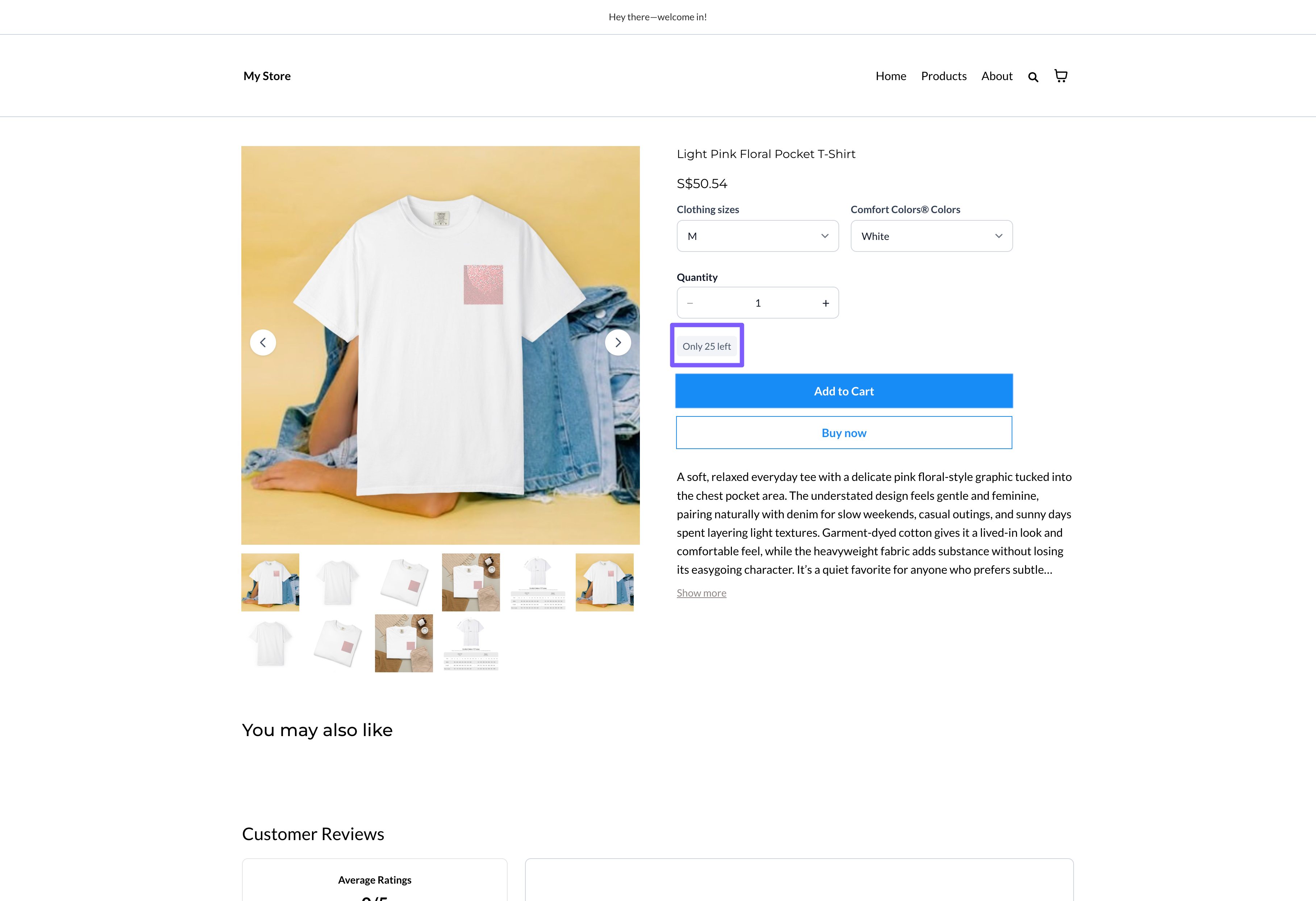
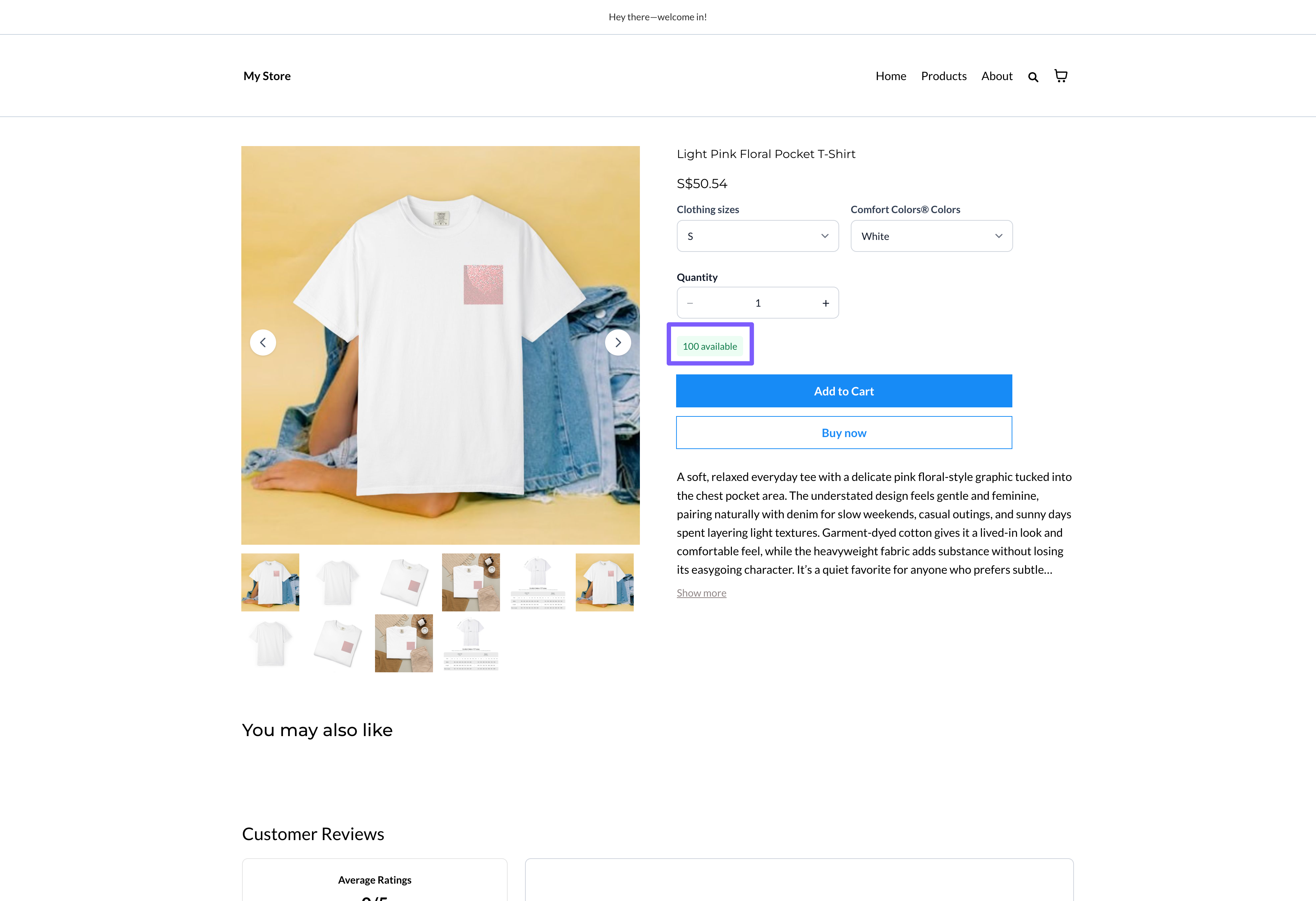
Important: Products with Continue Selling When Out of Stock enabled never display the Out of Stock status. When inventory reaches zero or becomes negative, the High Stock message configured for Show Available Quantity OFF is displayed, regardless of whether Show Available Quantity is enabled.How To Setup Inventory Status on Store Product Pages
Configuring Inventory Status ensures customers see accurate stock messages based on tracked inventory. You can control when low-stock alerts appear, customize the displayed text, and adjust inventory status colors.
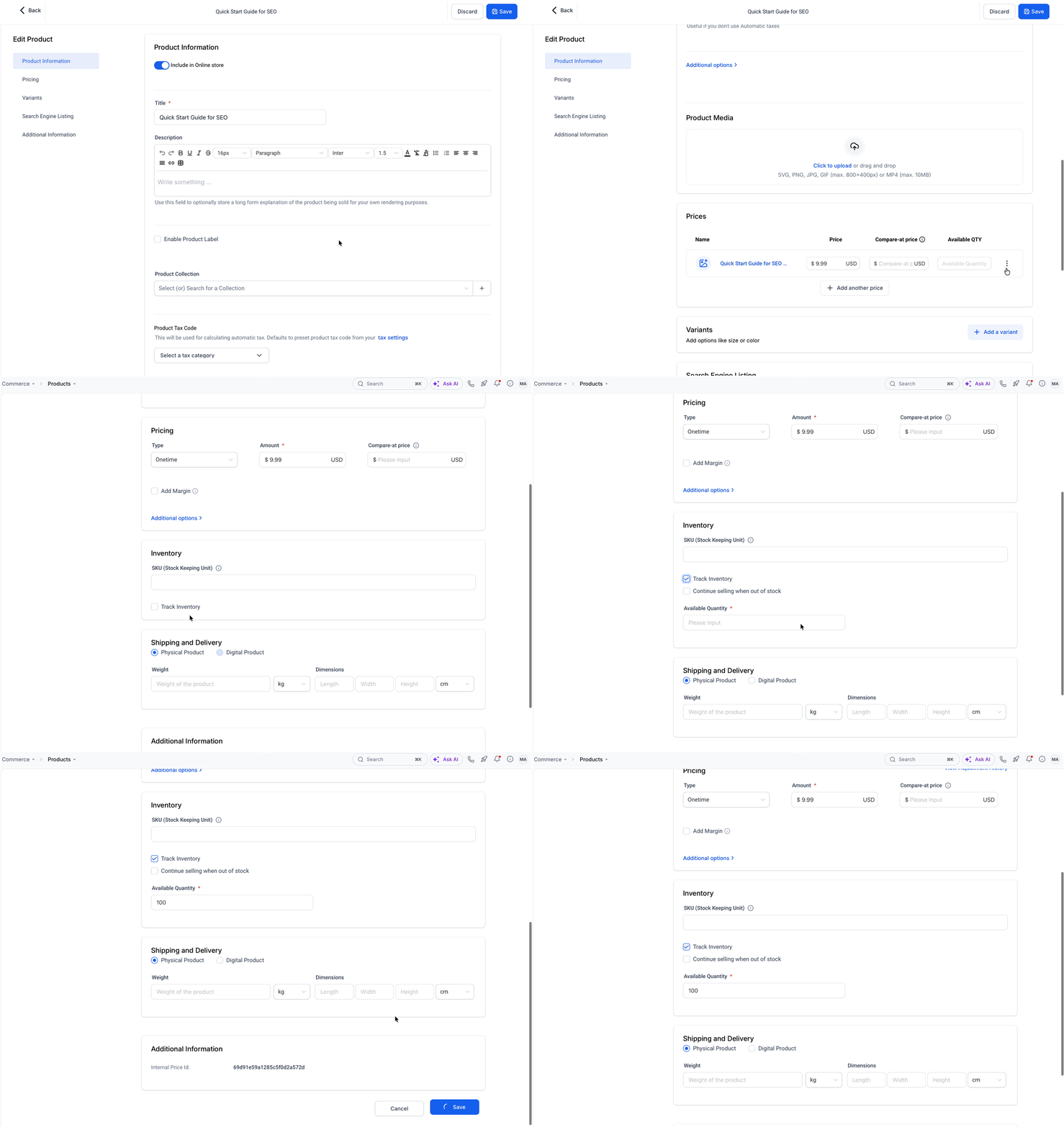
- Navigate to Payments → Products, open the product, enable Track Inventory, enter the available quantity, and save your changes.
- Navigate to Sites → Stores and open the Product Details Page, Custom Product Details Page, or page containing the Featured Product element.
- Select the applicable product element. For the V2 Product Details layout, select the Product Quantity element.
- Under the General tab, enable Show Inventory Status (labeled Enable inventory status in V2).
- Set the Low Inventory Threshold using the slider or numeric field to determine when the Low Stock message appears.
- Customize the Low Stock, High Stock, and Out of Stock messages. Enable Show Available Quantity (called Show inventory count in V2) to display remaining units using {{product.price_available_qty}}. For example, Only {{product.price_available_qty}} left displays Only 11 left when 11 units remain.
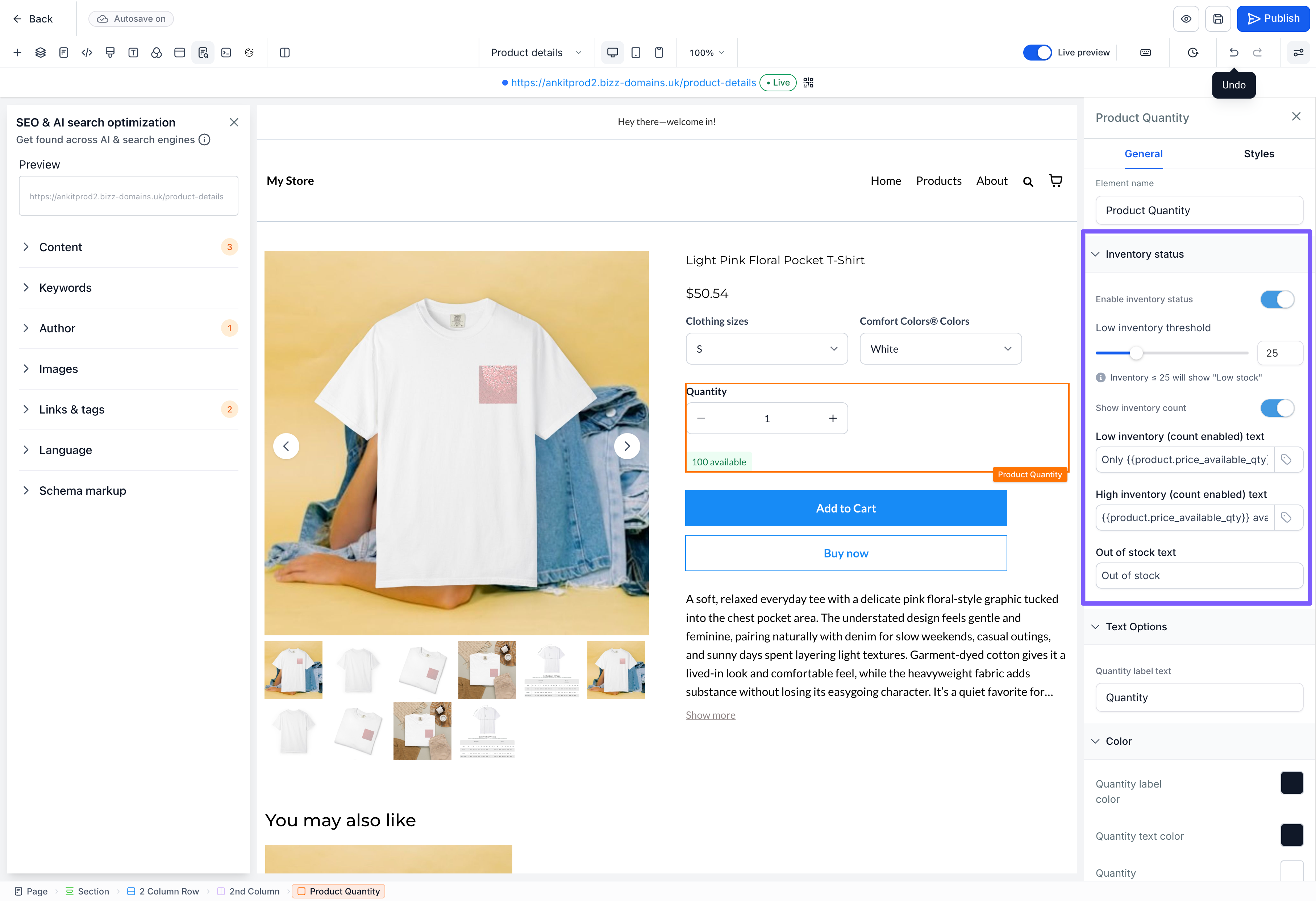
- Open the Styles tab and locate Inventory Styles (called Inventory styling in V2). Customize the text and background colors for In Stock, Low Stock, and Out of Stock.
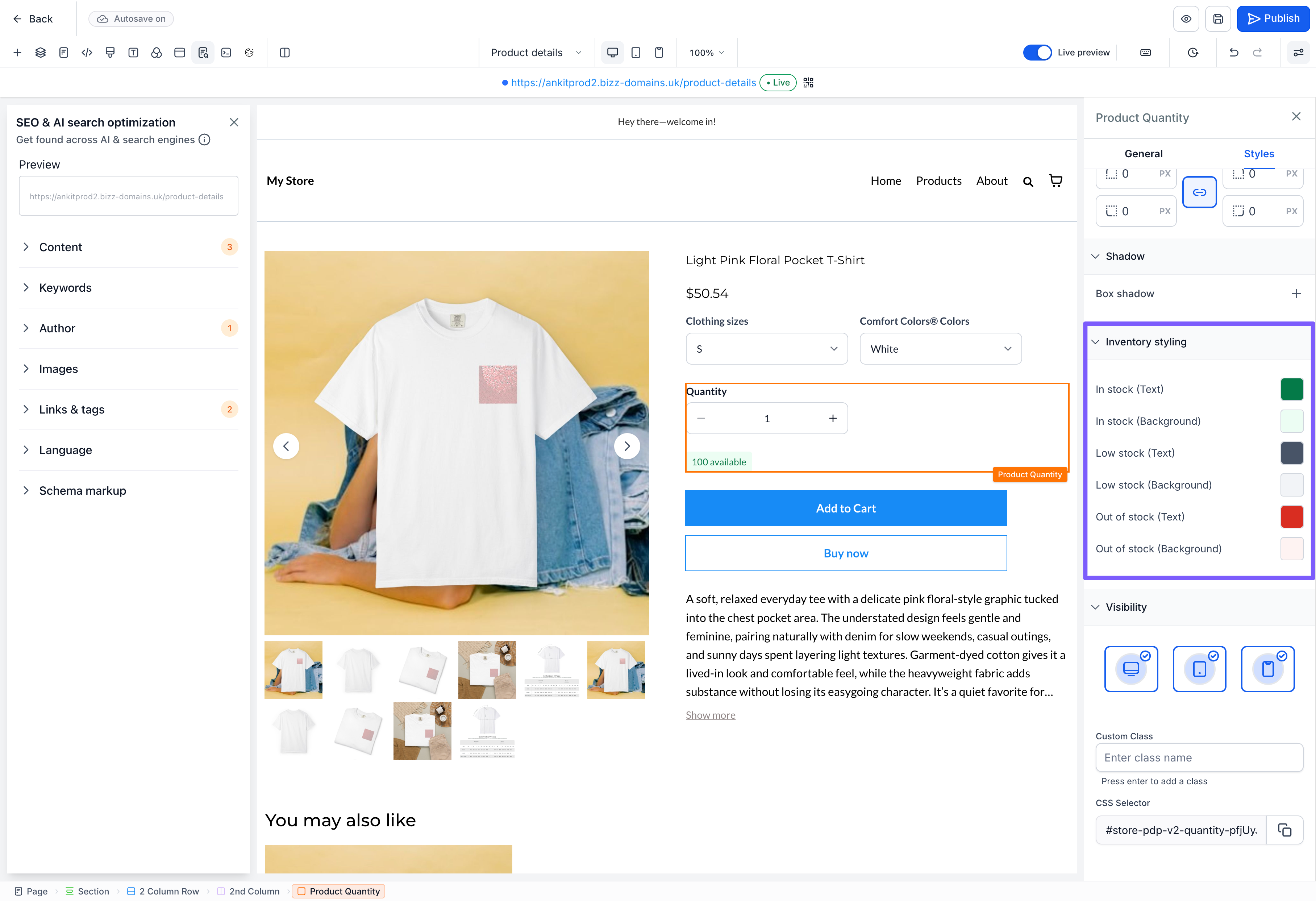
- Preview the product page, verify inventory messages for different product variants, and Publish your changes.
Note: Custom Product Details Pages do not have the same Live Preview toggle as the standard Product Details Page. Check the published page to verify inventory status with actual product data.Frequently Asked Questions
Q: Why isn't my inventory status appearing?
Inventory Status only appears for products with Track Inventory enabled. Confirm that inventory tracking and the storefront inventory status setting are both enabled.
Q: Will changing inventory status messages affect actual inventory quantities?
No. Inventory Status controls how stock information appears on your storefront. Actual inventory quantities are managed separately under Payments → Products.
Q: Will changes to the default Product Details Page automatically update existing Custom Product Details Pages?
No. Existing Custom Product Details Pages do not automatically synchronize subsequent changes from the default page. Review each page's settings separately.
Q: Can inventory status be displayed on all product cards?
The feature supports the Product Details Page, Custom Product Details Page, and Featured Product element. Support for other product-card elements is not confirmed in this release.
Related Articles
- Getting Started - Create & Sell Products
- How to Use the Inventory Management Features for Your Online Store in HighLevel
- Customize the Product Detail Page Layouts
- Custom Product Details Page for E-commerce Stores
Was this article helpful?
That’s Great!
Thank you for your feedback
Sorry! We couldn't be helpful
Thank you for your feedback
Feedback sent
We appreciate your effort and will try to fix the article