Redeem gift cards directly in the HighLevel mobile app by entering a gift card code or scanning a QR code. Available for Point of Sale (POS), invoices, and orders, this feature supports full and partial payments, including tips. Businesses can collect payments without switching to a computer, making checkout faster and more flexible.
TABLE OF CONTENTS
- What is Gift Card Redemption?
- Key Benefits of Gift Card Redemption
- Gift Card Payment Methods
- Full and Partial Gift Card Payments
- Gift Card Redemption Rules and Limitations
- How to Redeem Gift Cards in the HighLevel Mobile App
- Frequently Asked Questions
- Related Articles
What is Gift Card Redemption?
Gift Card Redemption lets businesses accept previously issued gift cards through the HighLevel mobile app. Available alongside Cash, Cards, and External payment record, it allows staff to validate gift cards, check balances, and apply them toward payments, including tips.
Key Benefits of Gift Card Redemption
Redeeming gift cards directly during mobile checkout saves time and provides greater payment flexibility while keeping transactions accurately recorded.
Faster Checkout: Accept gift cards without switching to a computer.
Flexible Redemption: Enter a gift card code or scan its QR code.
Split Payments: Cover the full amount or collect the remainder through another payment method.
Balance Visibility: Review the available balance, applied amount, remaining payment, and balance after redemption.
Tip Support: Use gift card balances toward tips and the bill.
Accurate Records: Track gift card payments in transaction details, confirmations, and printed receipts.
Gift Card Payment Methods
Customers can present a gift card code or QR code for redemption. Both options validate the gift card and display its balance before payment.
Manual Entry: Enter the code in the Gift Card Code field and select Apply. Codes accept uppercase and lowercase letters, spaces, and dashes.
QR Code: Select Scan QR Code and point the device's camera at the gift card. If camera access is disabled, enable it in device Settings or enter the code manually.
Full and Partial Gift Card Payments
Gift cards can cover an entire payment or contribute toward a larger amount. HighLevel displays the payment breakdown before checkout, including any remaining amount to collect.
| Payment details | Full payment | Partial payment |
|---|---|---|
| Amount to pay | $5.00 | $5.50 |
| Gift card balance | $5.00 | $5.00 |
| Applied to payment | $5.00 | $5.00 |
| Remaining to pay | $0.00 | $0.50 |
| Gift card balance after payment | $0.00 | $0.00 |
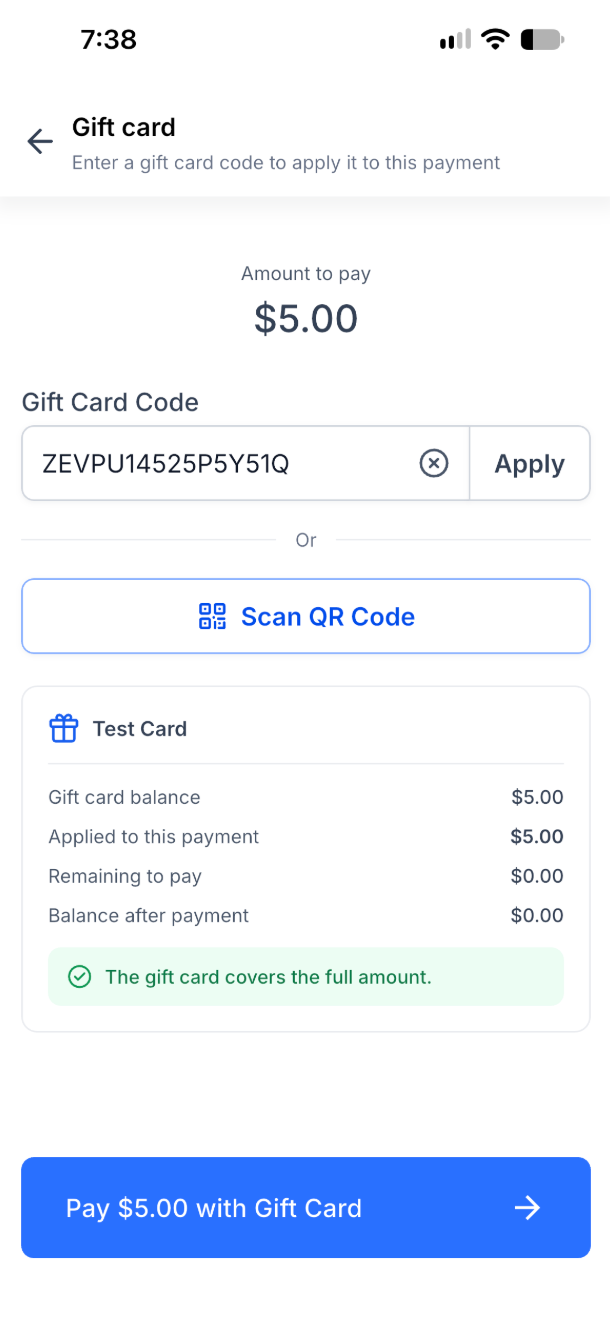
Full Payment: When the gift card covers the total, including any tip, select Pay [amount] with Gift Card to complete checkout.
Partial Payment: Select Continue to apply the available balance. The checkout displays Gift card applied: -[amount] above the outstanding amount. Collect the remainder using Tap to Pay, a card reader, a saved or manually entered card, cash, or an external payment record.
Important: For partial payments, the gift card is charged only after the remaining payment is successfully completed. Exiting checkout before completion does not deduct the gift card balance.
Gift Card Redemption Rules and Limitations
Understanding the requirements and restrictions helps ensure gift card payments are processed correctly.
Availability: Supported on iOS and Android, starting with mobile app version 4.27.0, for payments through POS, invoices, and orders.
Permissions: Users must have payment collection access. No separate gift card redemption permission is required.
One Gift Card: Only one gift card can be applied per payment. Once applied, it cannot be swapped or combined with another gift card.
Validation: Gift cards must be valid and have an available balance.
Tips: Gift cards can cover tips up to their available balance.
Payment Completion: Full payments require no additional payment method. Partial payments are charged to the gift card only after the remaining amount is successfully collected.
Transaction Records: Gift card payments appear on success screens, in transaction details, and on printed receipts. Split-payment receipts can show both methods, such as Paid by: Visa ****4242, Gift Card.
How to Redeem Gift Cards in the HighLevel Mobile App
Select an eligible payment, validate the customer's gift card, and review the amount applied before completing checkout. The process differs slightly depending on whether the gift card covers the full amount or requires an additional payment method.
Step 1: Start a Payment
Open the HighLevel mobile app.
Start a payment through POS, an invoice, or an order.
For a new POS payment, add products or enter the amount, review the details, and proceed to payment selection.
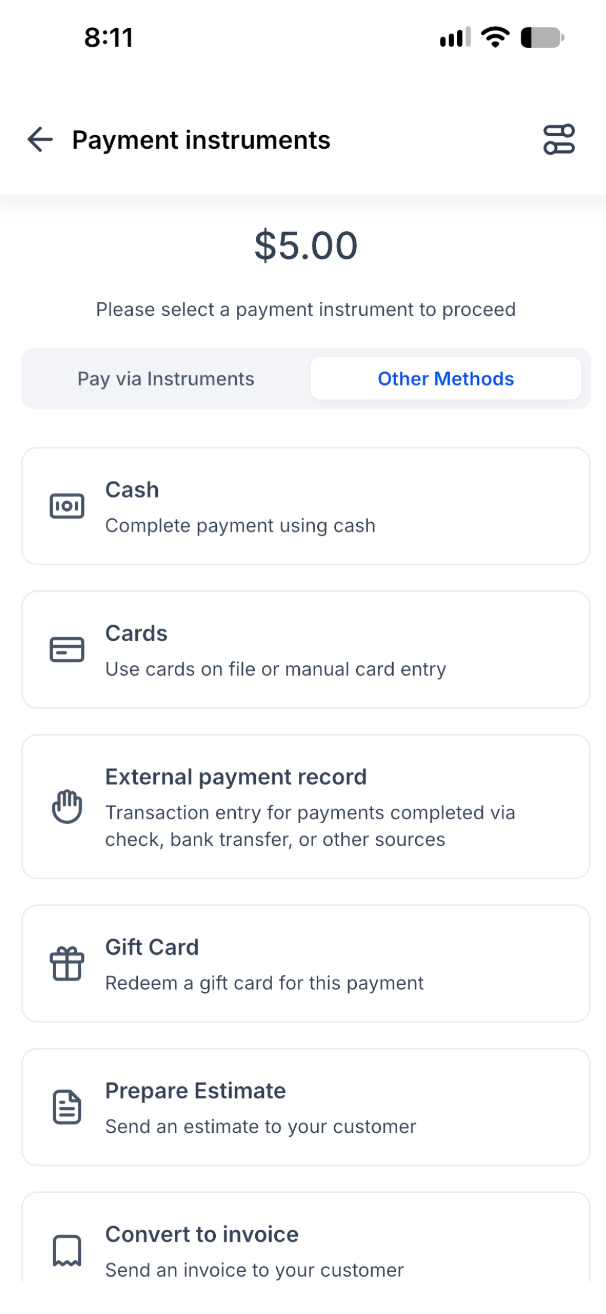
Step 2: Select Gift Card
On the Payment instruments screen, open Other Methods.
Select Gift Card to display the amount due, code entry field, and QR code scanner.
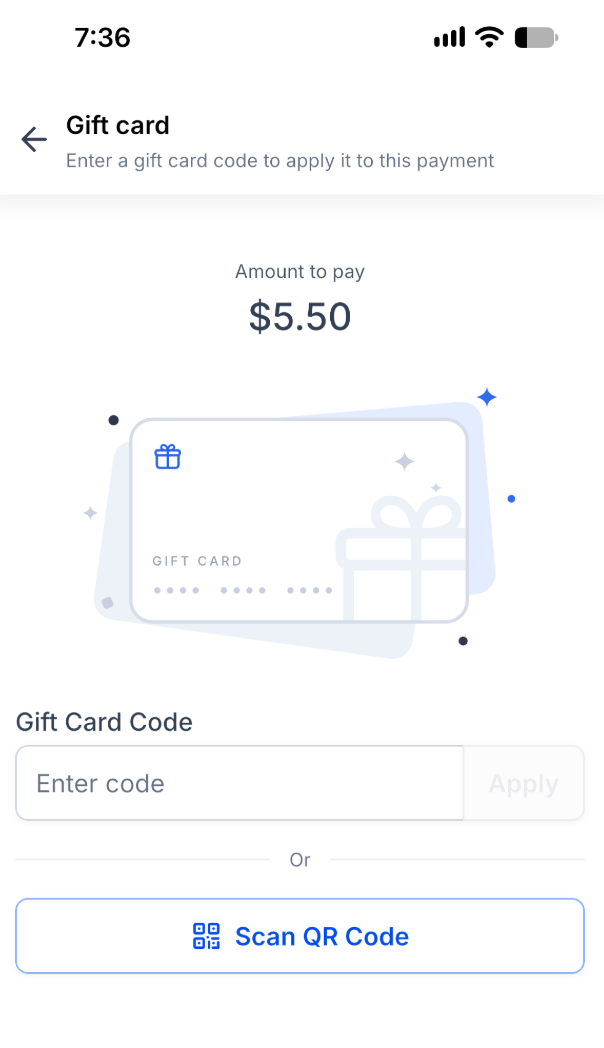
Step 3: Enter or Scan the Gift Card
Ask the customer for their gift card code or QR code.
Enter the code and tap Apply, or tap Scan QR Code and scan the card.
Review the validated gift card's balance, applied amount, remaining payment, and balance after redemption.
If the code is invalid or the card has no available balance, HighLevel displays "Gift card not found or has no balance". Verify the code or request another valid payment method.
Step 4: Complete a Full Gift Card Payment
When the gift card covers the total amount:
Confirm Remaining to pay is $0.00 and review the applied amount.
Tap Pay [amount] with Gift Card (for example, Pay $5.00 with Gift Card).
Wait for the payment confirmation.
Step 5: Complete a Partial Gift Card Payment
When the gift card covers only part of the total:
Verify the applied gift card amount and Remaining to pay.
Tap Continue.
Review Gift card applied: -[amount] on the checkout screen.
Select Tap to Pay, a card reader, a card, cash, or an external payment record.
Collect the remaining amount and complete checkout.
For example, a $5.00 gift card applied to a $5.50 purchase leaves $0.50 to collect.
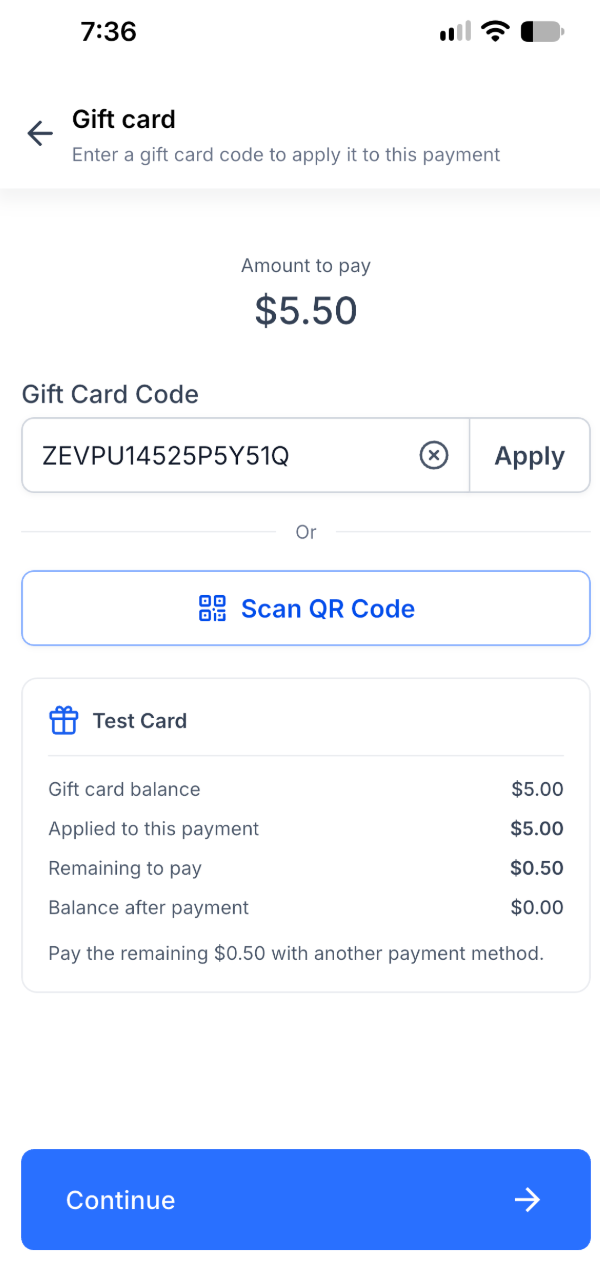
Important: The gift card balance is deducted only after the remaining payment succeeds. Canceling or exiting before completion leaves the gift card unchanged.
Step 6: Confirm the Payment
Verify the Approved status and total amount on the confirmation screen.
Select Share to share the confirmation or Done to finish.
Use Set up printer if receipt printer setup is needed.
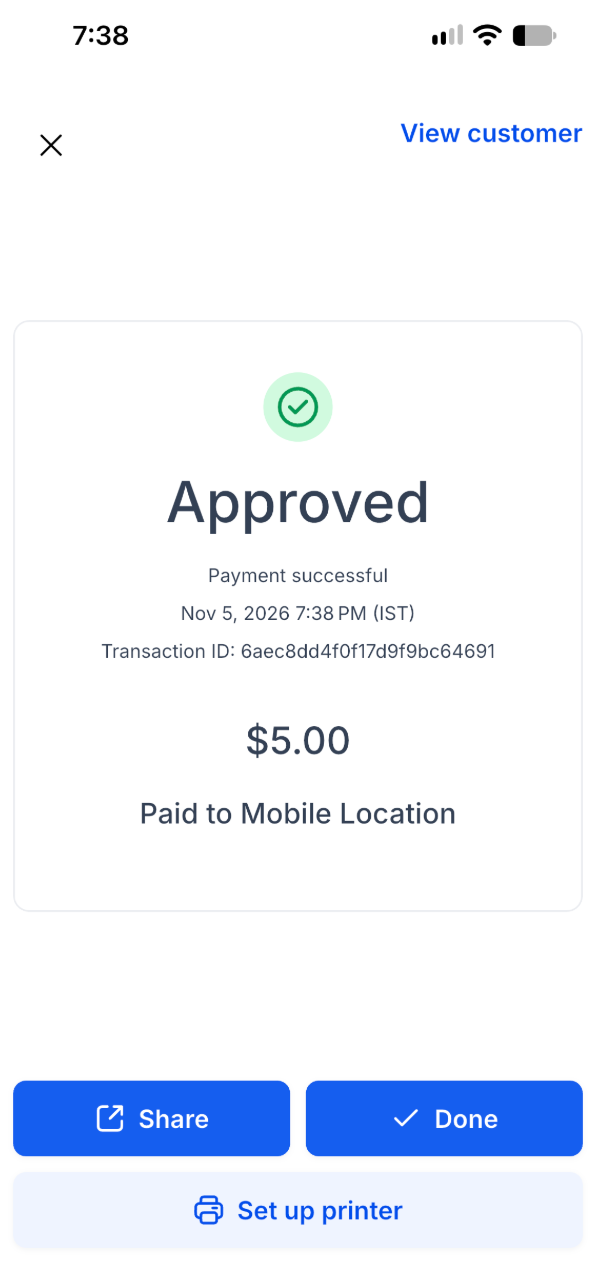
Completed payments can also be reviewed in transaction details, and printed receipts identify Gift Card alongside any other payment method used.
Frequently Asked Questions
Q: What happens if I enter an incorrect gift card code?
HighLevel displays "Gift card not found or has no balance". Verify the code and try again.
Q: What if the QR code scanner does not open?
Enable camera access for the HighLevel app in your device's Settings, or manually enter the code.
Q: Can I use multiple gift cards for one payment?
No. Only one gift card is allowed per payment. Collect any remaining amount with another supported payment method.
Q: Can I replace an already applied gift card?
No. An applied gift card cannot be swapped for another card during that payment.
Q: Is the gift card charged if a partial payment is canceled?
No. The gift card is charged only after the remaining payment is completed successfully.
Q: Can I pay tips using a gift card?
Yes. Gift cards can cover tips included in the payment, up to the available balance.
Q: Do staff members need additional permissions?
No separate gift card permission is required, but staff must have payment collection access.
Q: Where can I review gift card transactions?
Gift card payments appear on payment success screens, in transaction details, and on printed receipts.
Q: Is Gift Card Redemption available on older app versions?
The feature requires version 4.27.0 or later. Update the HighLevel mobile app if necessary.
Related Articles
Was this article helpful?
That’s Great!
Thank you for your feedback
Sorry! We couldn't be helpful
Thank you for your feedback
Feedback sent
We appreciate your effort and will try to fix the article