This article explains how to use Tap to Pay on Square to easily accept in-person contactless payments using the HighLevel or LeadConnector mobile POS. Tap to Pay allows merchants to accept cards, Apple Pay, Google Pay, and other contactless options without additional hardware—right from their iPhone
TABLE OF CONTENTS
- What is Tap to Pay on Square?
- Key Benefits of Tap to Pay on Square
- Prerequisites for Square Tap to Pay
- Supported Payment Methods
- Tap to Pay Availability
- How To Use Tap to Pay on Square
- Frequently Asked Questions
- Next Steps
What is Tap to Pay on Square?
Tap to Pay on Square lets merchants accept in-person contactless payments using a supported mobile device and their connected Square account. It expands the payment methods available through HighLevel mobile POS while allowing businesses to continue using existing Square options when another payment method better fits the transaction.
Tap to Pay on Square works through the HighLevel or LeadConnector mobile POS and integrates with the Square account connected to the selected sub-account. For the iPhone workflow, the phone itself acts as the payment acceptance device, so a separate Square Reader is not required. Customers can present supported contactless credit or debit cards or compatible digital wallets such as Apple Pay and Google Pay.
Key Benefits of Tap to Pay on Square
Tap to Pay gives businesses another flexible way to collect payments during face-to-face transactions. It can reduce reliance on additional payment hardware while keeping payment collection inside the existing HighLevel POS workflow.
- No additional reader required: Accept supported contactless payments directly on a compatible iPhone without using a separate Square Reader.
- Contactless payment flexibility: Customers can use supported contactless credit or debit cards and compatible digital wallets, including Apple Pay and Google Pay.
- Built into mobile POS: Process the transaction without leaving the HighLevel or LeadConnector mobile POS workflow.
- Works with existing Square options: Tap to Pay complements Cards on File, Manual Card Entry, and supported Square Reader payment methods.
- Faster in-person checkout: Customers can present a contactless payment method directly to the mobile device instead of requiring card details to be entered manually.
Prerequisites for Square Tap to Pay
Meeting the Square, device, and mobile app requirements helps ensure that Square Payments and Tap to Pay are available when a user reaches checkout. The Square location connected to the sub-account is especially important because HighLevel uses that location when processing payments through the integration.
Before using Tap to Pay on Square, confirm the following:
- An active Square account with payment processing capabilities is connected to the appropriate HighLevel sub-account.
- An active Square location is selected under Square Live Mode in Payments → Integrations.
- You are signed in to the mobile app and have opened the same sub-account connected to Square.
- For the iPhone workflow, HighLevel's existing Square Tap to Pay documentation lists iPhone XS or newer running iOS 16.4 or later.
- The latest release requires HighLevel v3.98.1 or LeadConnector v3.98.1, based on the current feature changelog.
- White-labeled mobile apps require an applicable app update and additional Tap to Pay configuration. HighLevel maintains separate setup guidance for white-labeled apps.
If Square was connected before mobile Square payment support was enabled, HighLevel's Square mobile payment documentation instructs users to reconnect the Square account to enable mobile compatibility.
For more information about connecting Square and mapping Square locations to sub-accounts, see How to Connect and Use Square Payment Processor in HighLevel.
Supported Payment Methods
Square Tap to Pay gives customers multiple ways to complete a contactless transaction while preserving other Square payment options for situations where Tap to Pay is not appropriate. Understanding the available methods helps users select the best checkout option for each customer.
With Tap to Pay, customers can use supported:
- Contactless credit cards
- Contactless debit cards
- Apple Pay
- Google Pay
- Other compatible contactless payment methods
After selecting Square Payments, users may also have access to payment alternatives such as Manual card entry. HighLevel's broader Square mobile payment integration also supports Cards on File and supported Square Readers.
Tap to Pay Availability
Tap to Pay availability depends on the mobile app, device, Square configuration, and the type of HighLevel mobile application being used. Keeping the app current and confirming the correct Square location can prevent payment options from being unavailable during checkout.
For the Tap to Pay on iPhone workflow documented here:
- Use a supported iPhone.
- The existing HighLevel Square Tap to Pay documentation lists iPhone XS or newer with iOS 16.4 or later.
- Use HighLevel v3.98.1 or LeadConnector v3.98.1, based on the current feature changelog.
- White-labeled mobile apps require an update and app-specific Tap to Pay configuration.
- Important: This feature is iOS-only at this time. Android support is not yet available.
White-labeled app owners should follow HighLevel's dedicated Tap to Pay setup process because entitlement and distribution requirements differ from the standard HighLevel and LeadConnector apps. HighLevel's current white-label documentation provides separate instructions for Tap to Pay on iPhone and Android.
How To Use Tap to Pay on Square
Correctly connecting Square and selecting the appropriate location ensures that mobile POS can route the transaction through the intended Square account. After setup, users can move from creating a POS sale to accepting a contactless payment in just a few steps.
Connect your Square account.
- On the HighLevel web platform, go to Payments → Integrations.
- Connect your Square account.
- Under Square Live Mode, select the active Square location associated with the sub-account.
- If your Square account was connected before Square mobile payment functionality was enabled, reconnect it to ensure mobile compatibility.
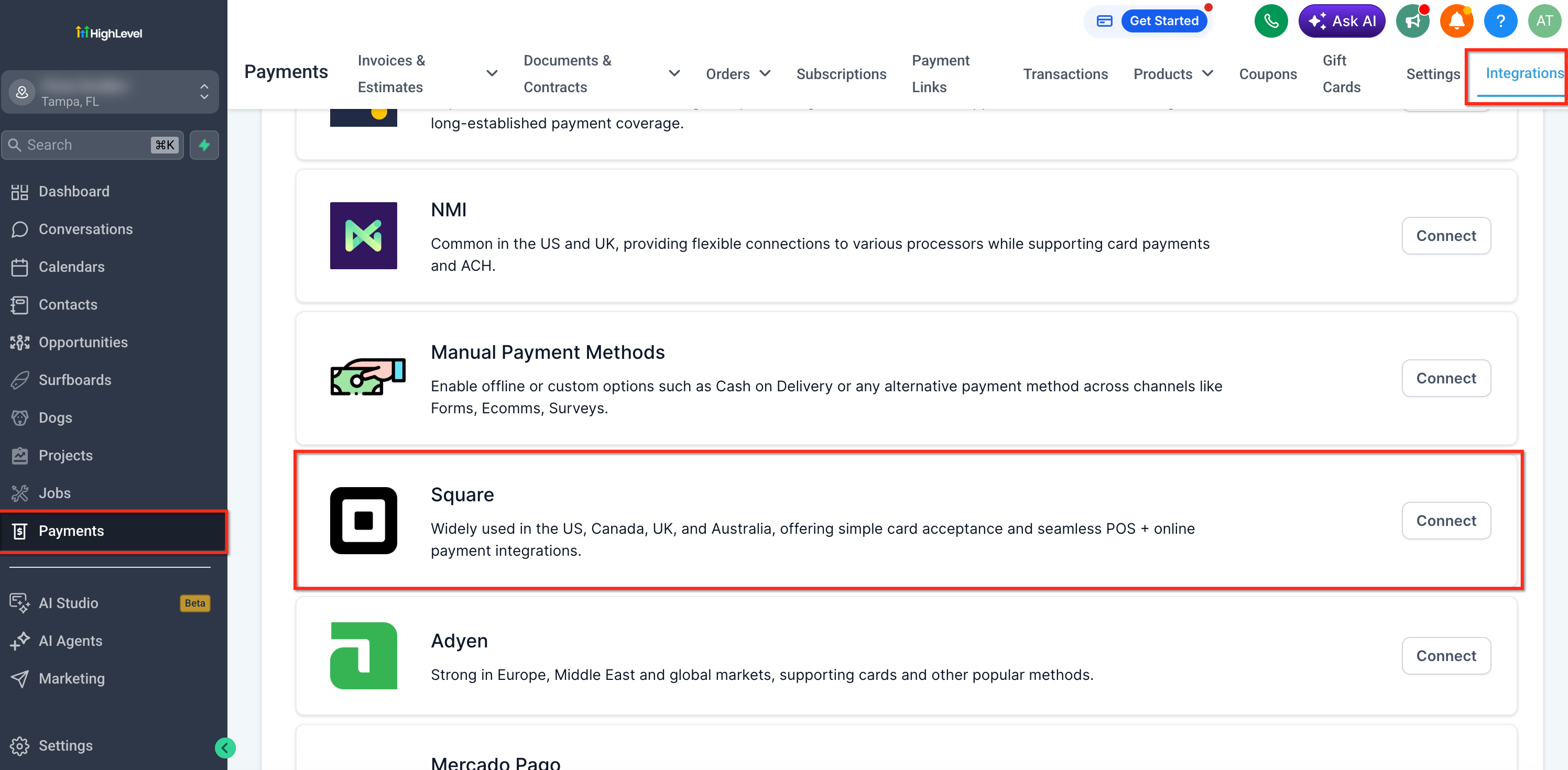
- On the HighLevel web platform, go to Payments → Integrations.
- Open the correct sub-account in the mobile app.
- Sign in to the HighLevel or LeadConnector mobile app.
- Open the sub-account that has the Square account and location connected.
- Sign in to the HighLevel or LeadConnector mobile app.
Start a Point of Sale transaction.
- Open POS.
- Start a new sale.
- Use Keypad to enter an amount or Catalog to add products.
- Add any applicable item details, contact information, taxes, or discounts.
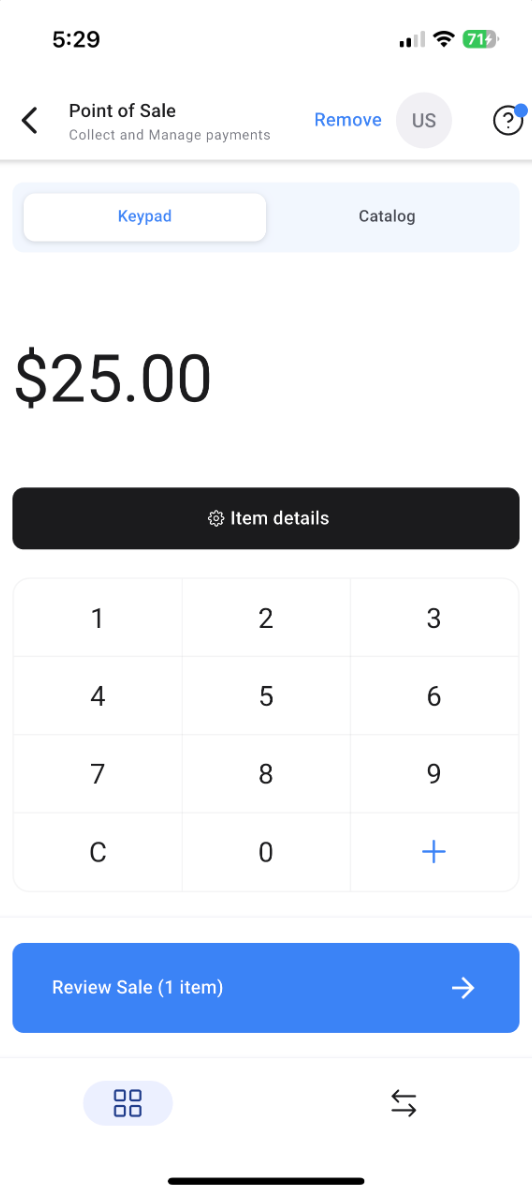
- Open POS.
Review the sale.
- Tap Review Sale.
- Confirm the customer, items, subtotal, total amount, discounts, and other payment details.
- Tap Choose Payment Instrument when the sale is ready for payment.
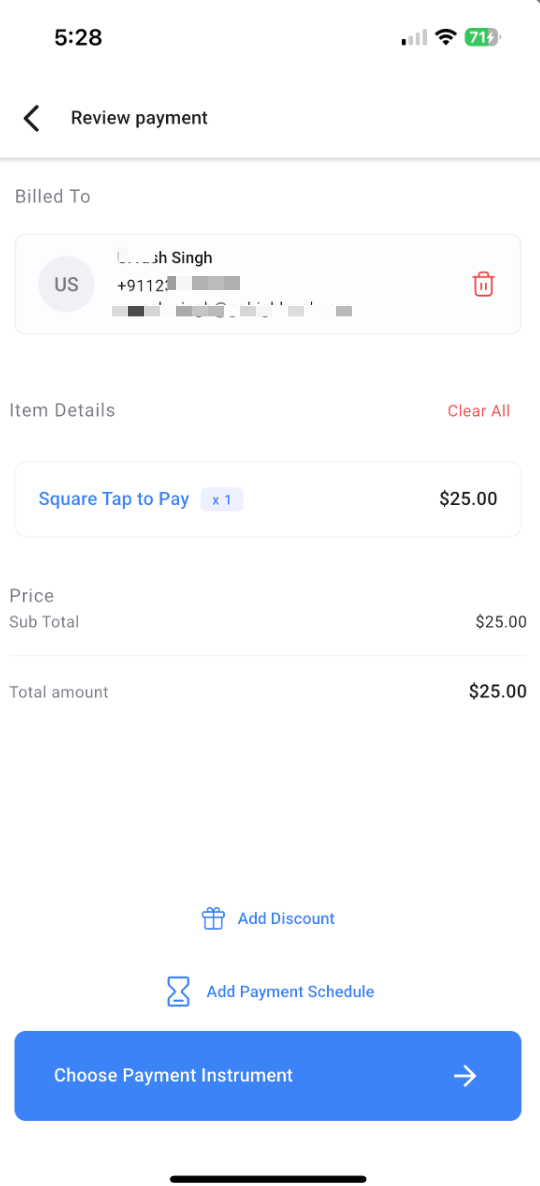
- Tap Review Sale.
Choose Square Payments.
- On the Payment instruments screen, select Square Payments.
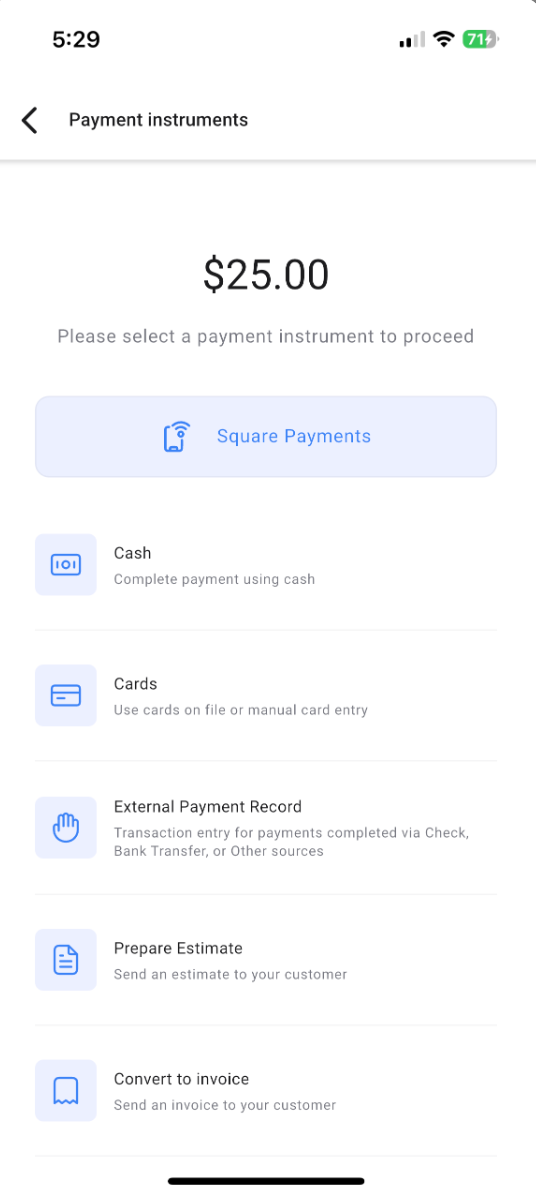
- On the Payment instruments screen, select Square Payments.
Select Tap to Pay.
- From the Square payment screen, select Tap to Pay on iPhone.
- The screen also provides Manual card entry as an alternative when available.
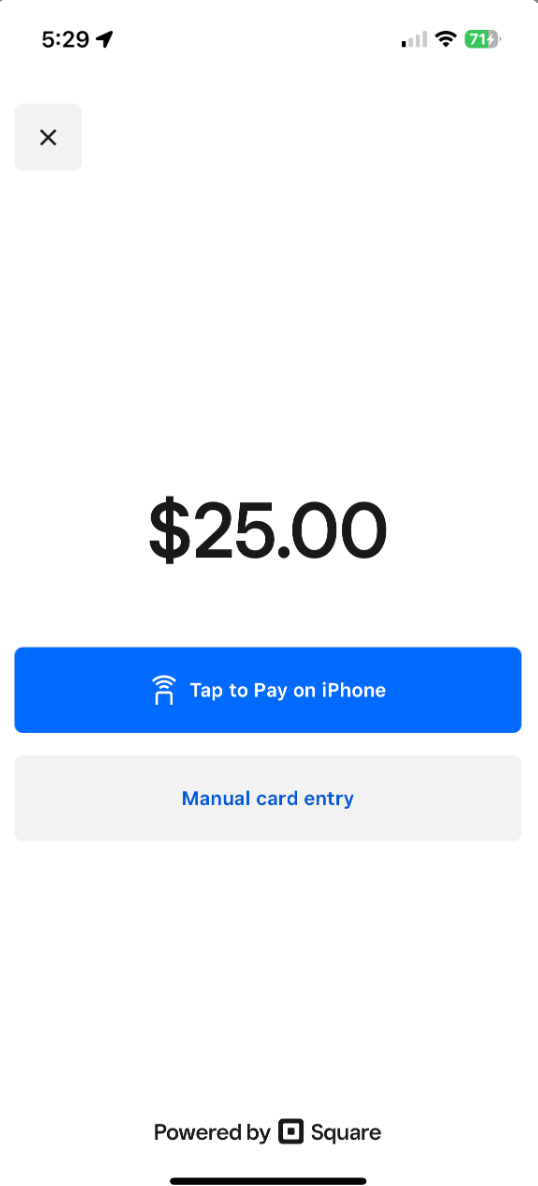
- From the Square payment screen, select Tap to Pay on iPhone.
- Accept the customer's payment.
- Follow the on-screen Tap to Pay instructions.
- Have the customer present their supported contactless card or digital wallet to the iPhone.
- Wait for the payment confirmation before completing the transaction.
- Follow the on-screen Tap to Pay instructions.
Frequently Asked Questions
Q: Is Tap to Pay available on Android devices?
Not at this time. Tap to Pay is currently available for iPhone XS or newer on iOS 16.4+.
Q: Do I need to buy additional hardware to use Tap to Pay?
No. Your iPhone serves as the payment acceptance device. No Square Reader is required for Tap to Pay transactions.
Q: Can I use Tap to Pay on multiple sub-accounts?
Yes, but each sub-account must have an active Square integration and location connected.
Q: Does Tap to Pay support Apple Pay and Google Pay?
Yes. Tap to Pay supports Apple Pay, Google Pay, and contactless credit/debit cards.
Q: How do I request the whitelabel mobile app update?
Submit a request through HighLevel Support to update your whitelabel mobile app to v3.98+.
Q: Can I use other Square payment methods too?
Yes. You can also use Cards on File, Manual Card Entry, and Square Readers alongside Tap to Pay.
Q: Does Tap to Pay incur additional Square processing fees?
Tap to Pay transactions follow Square’s standard processing fee structure. No additional fees are charged by HighLevel.
Next Steps
Connect your Square account and test Tap to Pay today!
If you use a Whitelabel mobile app, submit an update request for v3.98.
Explore additional mobile POS capabilities to streamline your in-person sales process.
Was this article helpful?
That’s Great!
Thank you for your feedback
Sorry! We couldn't be helpful
Thank you for your feedback
Feedback sent
We appreciate your effort and will try to fix the article