Gift Card user permissions let admins control which team members can view Gift Card information and perform sensitive Gift Card actions. Access can be granted separately for Gift Card Orders, Products, sending, selling, full Gift Card codes, details pages, and product management. This guide explains each permission and how to configure Gift Card access for staff members in HighLevel.
Learn what each Gift Card permission controls, how to configure permissions for a User, how full Gift Card code access is protected, and how assigned-data restrictions work alongside Gift Card access.
What Are Gift Card User Permissions?
Gift Card user permissions are granular access controls that determine what a staff member can see and do within Gift Cards.
Admins can allow a User to view Gift Card Orders while separately restricting actions such as sending Gift Cards, managing Gift Card Products, opening Gift Card details, or revealing the full Gift Card code.
This lets businesses give staff the Gift Card capabilities required for their role without automatically granting access to every Gift Card action or sensitive detail.
Key Benefits of Gift Card User Permissions
Granular Gift Card permissions help businesses separate everyday Gift Card tasks from actions that expose sensitive information or change Gift Card products.
- Protect Gift Card Information: Control access to Gift Card Orders, details, products, and sensitive Gift Card codes.
- Separate Viewing From Management: Allow staff to view Gift Card Products without automatically giving them permission to create or edit products.
- Control Gift Card Issuing: Decide which users can send Gift Cards directly to customers.
- Restrict Product Actions: Limit access to creating, editing, deleting, or deactivating Gift Card Products.
- Control Selling Access: Decide who can access Gift Card Sell links or share Gift Card Products through QR codes.
- Support Role-Based Access: Give Users only the Gift Card capabilities required for their responsibilities.
Prerequisites and Limitations
Review each staff member's role before changing Gift Card permissions so access matches the tasks they are expected to perform.
- Gift Card permissions are configured from the staff member's sub-account Roles and Permissions settings.
- Admin users retain full sub-account access by default.
- User accounts can be configured with granular Gift Card permissions.
- View Full Gift Card Code is separate from general Gift Card Order and details access.
- Assigned-data restrictions can be used with applicable User accounts when access should also be limited by data assignment.
- The Gift Card permission set does not include a dedicated permission specifically for Gift Card redemption.
- Users still need the appropriate access to the payment area where Gift Card redemption is performed.
Gift Card Permission Types
Each permission protects a specific part of the Gift Card experience, allowing admins to separate read-only access from issuing, selling, product management, and sensitive Gift Card information.
| Permission | What It Controls |
|---|---|
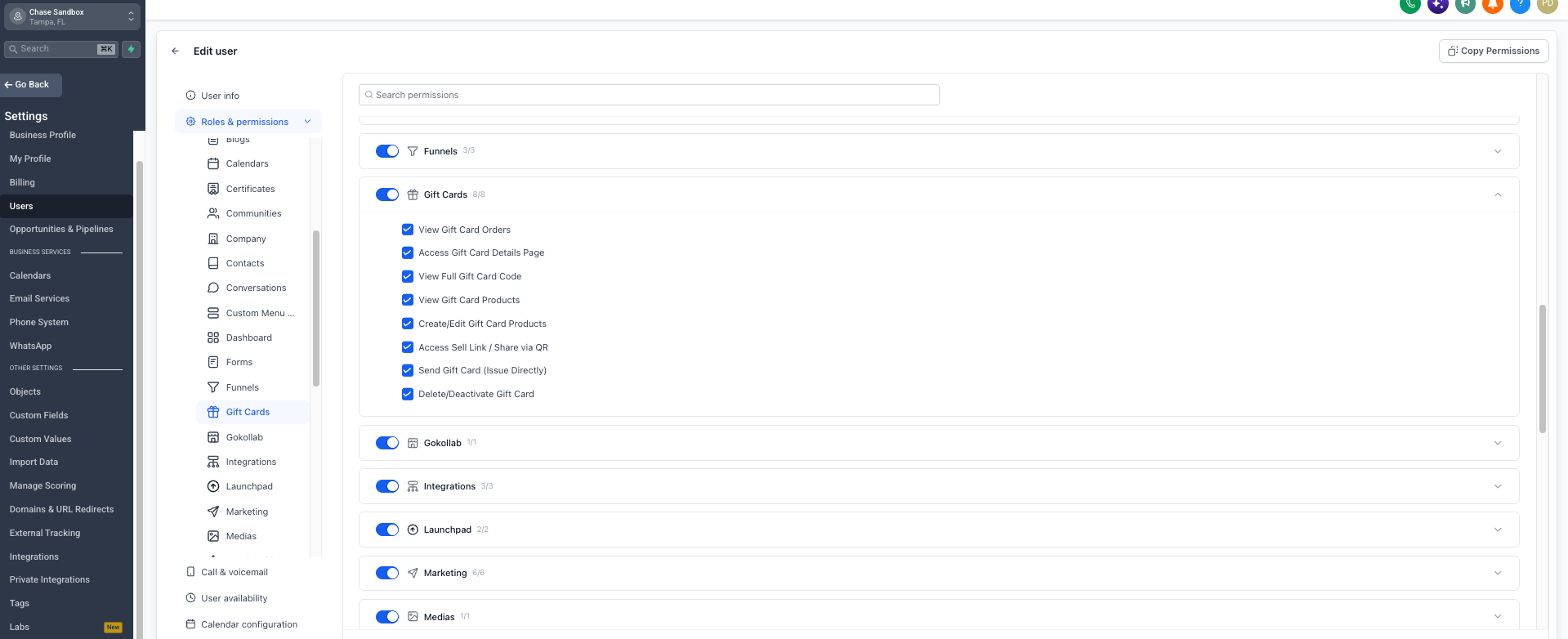
| View Gift Card Orders | Allows access to the list of issued Gift Cards and Gift Card Order information. |
| Access Gift Card Details Page | Allows the user to open the details page for an individual Gift Card Order. |
| View Full Gift Card Code | Allows the user to reveal the complete Gift Card code from the Gift Card Order details page. |
| View Gift Card Products | Allows access to Gift Card Products and their configurations without automatically granting editing access. |
| Create/Edit Gift Card Products | Allows the user to create new Gift Card Products or modify existing ones. |
| Access Sell Link / Share via QR | Allows access to Gift Card selling links and QR-based sharing options. |
| Send Gift Card (Issue Directly) | Allows the user to issue Gift Cards directly to customers through the Send flow. |
| Delete/Deactivate Gift Card | Controls access to Gift Card Product deletion and deactivation actions. |
How To Configure Gift Card User Permissions
Configure Gift Card permissions from the staff member's Roles and Permissions settings so their access matches the Gift Card tasks they need to perform.
- From the Sub-Account view, select Settings.
- Select My Staff.
- Locate the staff member whose Gift Card access you want to configure.
- Click the Edit pencil icon.
- Open Roles and Permissions.
- Confirm the staff member is configured with the appropriate role.
- Locate the Gift Cards permission section.
- Enable only the Gift Card permissions the staff member needs.
- Leave permissions disabled when the user should not access that information or action.
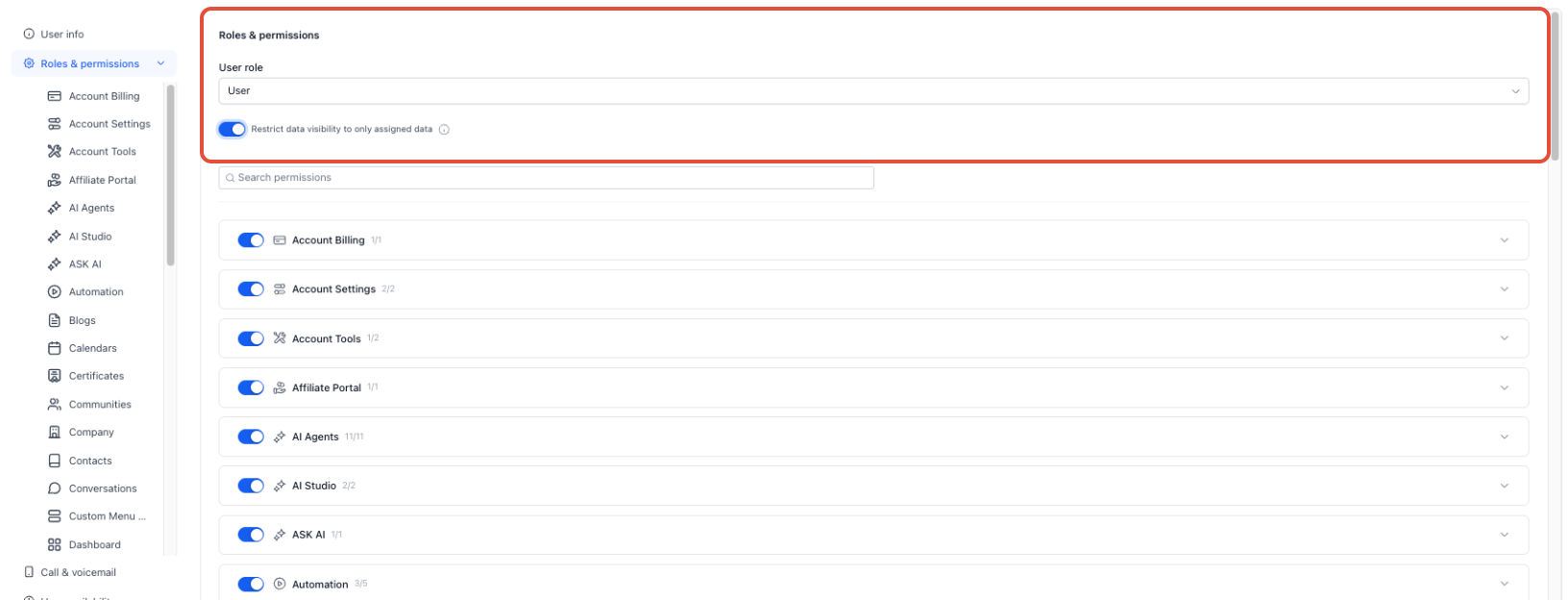
- Review Only Assigned Data when the User's data visibility should also be restricted.
- Save the changes.
Best practice: Grant only the permissions required for the user's responsibilities. Keep access to full Gift Card codes and destructive product actions limited to users who need them.
How Assigned Data Works with Gift Cards
Gift Card permissions determine which Gift Card features and actions a User can access, while assigned-data controls can further limit the applicable data available to that User.
When applicable, use Only Assigned Data for Users who should be restricted to assigned information rather than having visibility into all available data.
Assigned-data restrictions do not replace Gift Card permissions. The User must still have the required Gift Card permission for the page or action they are trying to access.
Frequently Asked Questions
Was this article helpful?
That’s Great!
Thank you for your feedback
Sorry! We couldn't be helpful
Thank you for your feedback
Feedback sent
We appreciate your effort and will try to fix the article