Manual Tax Zones in HighLevel help businesses manage manual tax rates by customer location. You can group countries or states into geographic zones and assign tax rates to each zone. This helps control which manual taxes apply to products sold in different regions. This article explains how to create, configure, and manage Manual Tax Zones.
TABLE OF CONTENTS
- What Are Manual Tax Zones?
- Key Benefits of Manual Tax Zones
- How Manual Tax Zones Work
- Manual Tax Zones and Automatic Taxes
- How to Create and Manage Manual Tax Zones
- Managing Tax Rates Within Zones
- Frequently Asked Questions
- Related Articles
What Are Manual Tax Zones?
Manual Tax Zones are geographic groups that determine which manual tax rates can apply based on a customer's country or state.
Each zone can contain selected countries or states and up to 10 manual tax rates. A country or state can belong to only one Manual Tax Zone at a time.
For example, you can create a zone named US – Alabama, Texas, select those states, and attach the manual tax rates you want to use for customers in those locations.
Manual Tax Zones are optional. Existing product-attached manual taxes continue working as before when no zones are configured.
Key Benefits of Manual Tax Zones
Manual Tax Zones help businesses organize regional tax configurations without creating separate tax setups for every location.
Geographic Control: Configure manual taxes for selected countries and states.
Flexible Grouping: Combine multiple regions into one named zone.
Reusable Tax Rates: Assign existing manual tax rates to different zones.
Multiple Rates: Attach up to 10 tax rates to each zone.
Easy Management: Add, review, or remove rates as needed.
Automatic Tax Fallback: Use manual zone rules when Automatic Taxes are disabled or unavailable.
How Manual Tax Zones Work
Manual Tax Zones filter product-attached manual tax rates according to the customer's location. The following rules determine when those rates apply.
Product and Zone Tax Matching
For customers within a configured zone, a manual tax rate must be attached to both the product and the applicable zone.
For example:
A product has Sales Tax (5%) attached.
The customer belongs to the US – Oregon zone.
The same Sales Tax (5%) rate is attached to that zone.
The rate can apply when Automatic Taxes do not take priority.
| Rate Attached to Product | Rate Attached to Zone | Result |
|---|---|---|
| Yes | Yes | Rate can apply |
| Yes | No | Rate does not apply |
| No | Yes | Rate does not apply |
| No | No | Rate does not apply |
These rules apply when the customer is located within a configured zone and Manual Taxes are applicable.
Customers Outside Configured Zones
When a customer's region is not included in any zone, all manual tax rates attached to the product remain eligible to apply without zone filtering.
Automatic Taxes still take priority when available.
Zones Without Tax Rates
Customers in a zone with no assigned tax rates will not be charged manual taxes through that zone.
To apply a manual rate, attach it to both the zone and the relevant product.
Geographic Restrictions
A country or state can belong to only one Manual Tax Zone at a time.
Note: The exact behavior of country-wide selections when individual states are already assigned elsewhere requires verification.
Manual Tax Zones and Automatic Taxes
Automatic Taxes and Manual Tax Zones can coexist. Automatic Taxes take priority when available for the applicable country and product combination.
Manual Tax Zone rules apply when Automatic Taxes are disabled or unavailable.
| Situation | Tax Behavior |
|---|---|
| Automatic Taxes are available | Automatic Taxes take priority |
| Automatic Taxes are disabled | Applicable Manual Tax Zone rules can apply |
| Automatic Taxes are unavailable | Manual Tax Zones can provide a fallback |
| No Manual Tax Zones exist | Existing product-attached manual taxes work as before |
Important: Automatic Tax nexus settings and Manual Tax Zones serve different purposes. Nexus settings support automatic tax calculations, while Tax Zones organize regions for manual tax rates.
Checkout Availability
Manual Tax Zone functionality depends on the checkout experience being used.
Calendars checkout support is coming soon and is not included in this feature's announced launch.
Support for other checkout types, including invoices, courses, Communities, Rentals, and specialized payment experiences, should be confirmed before documenting zone-specific behavior.
How to Create and Manage Manual Tax Zones
Correct configuration requires selecting the appropriate regions and attaching matching manual tax rates to both zones and products. Follow these steps to create and maintain your zones.
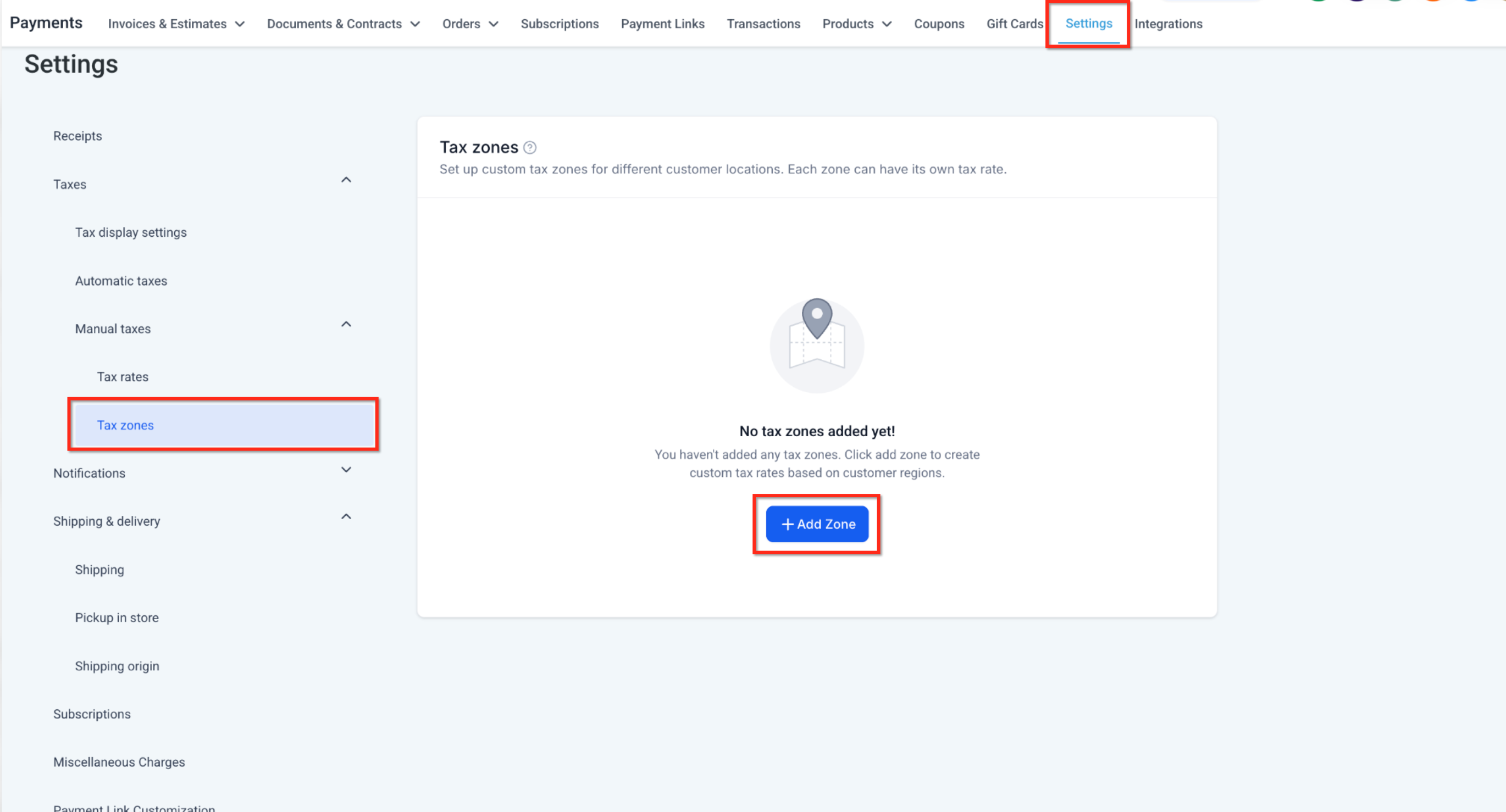
Step 1: Open Tax Zones
The Tax Zones page contains the controls for creating and managing geographic manual tax configurations.
Open Payments → Settings.
Expand Taxes → Manual taxes.
Select Tax zones.
If you have not created any zones, the page displays an Add Zone button.
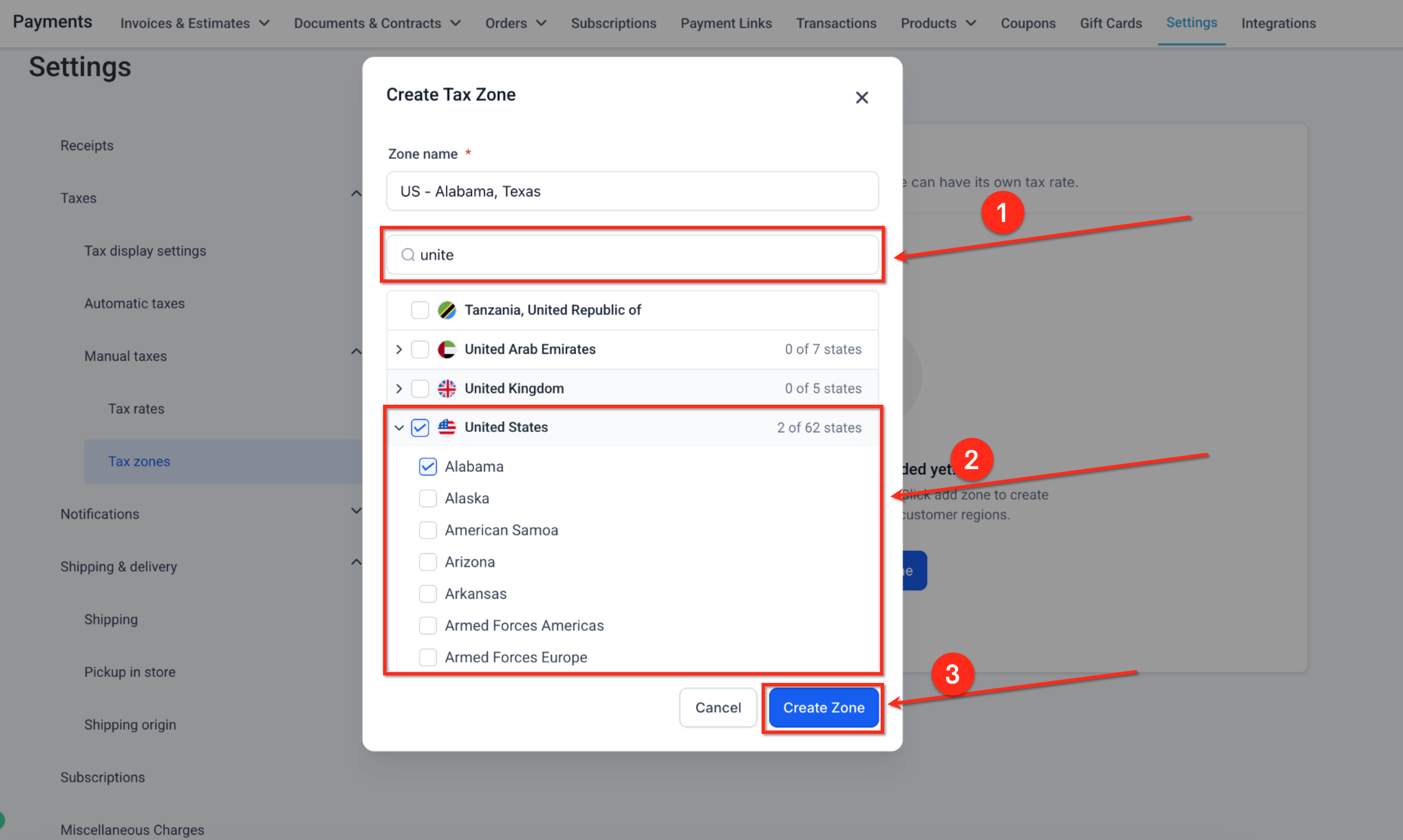
Step 2: Create a Tax Zone
Creating a zone lets you apply one manual tax configuration to selected countries or states.
Click Add Zone.
Enter a Zone name, such as
US – Alabama, Texas.Search for a country.
Expand the country to view its states or regions, where available.
Select the locations to include.
Click Create Zone.
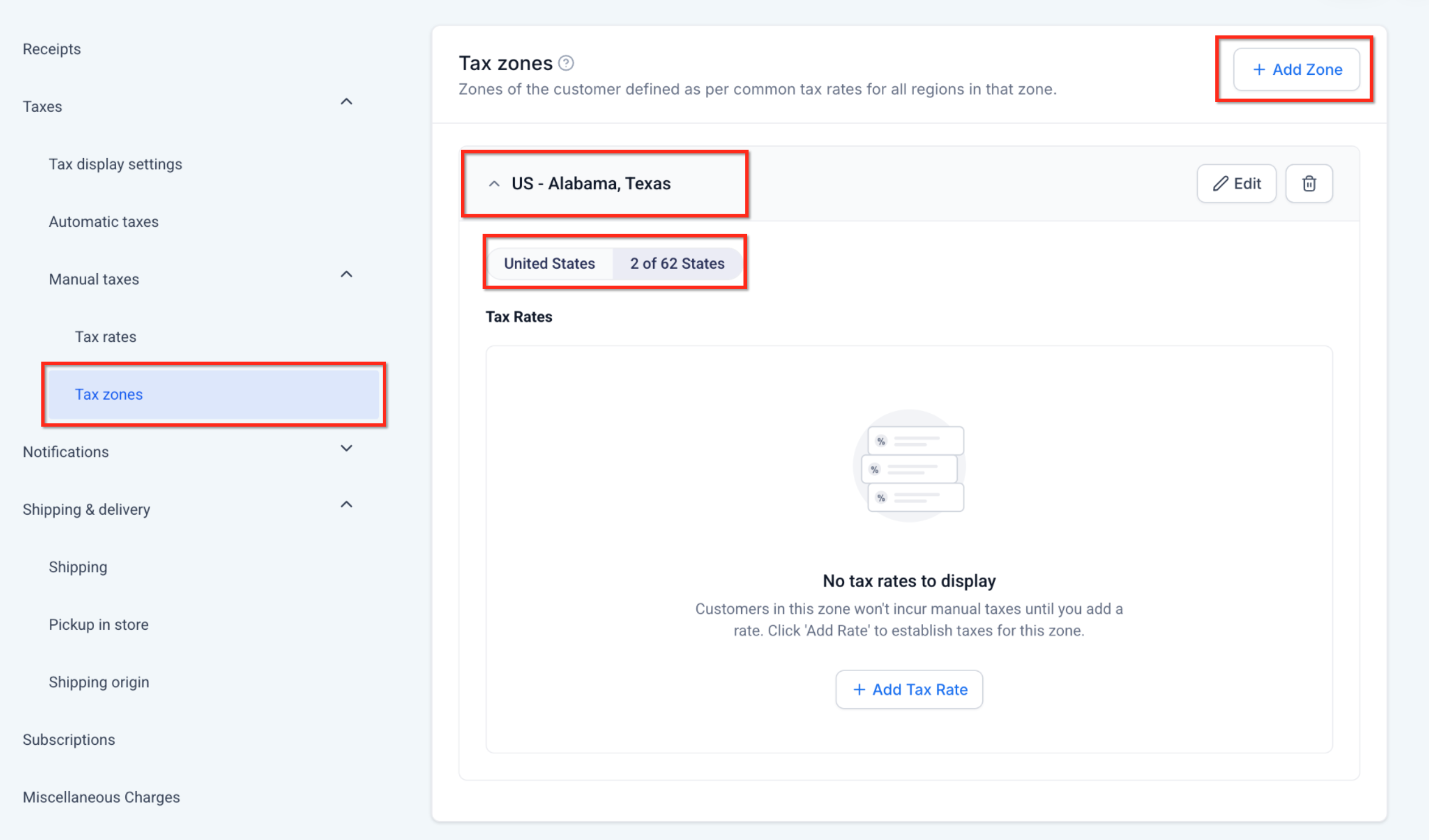
Step 3: Review the Created Zone
Checking the zone's geographic coverage helps ensure customers are assigned to the intended tax configuration.
Find the new zone on the Tax Zones page.
Expand it if necessary.
Review its name, country, and selected-region count.
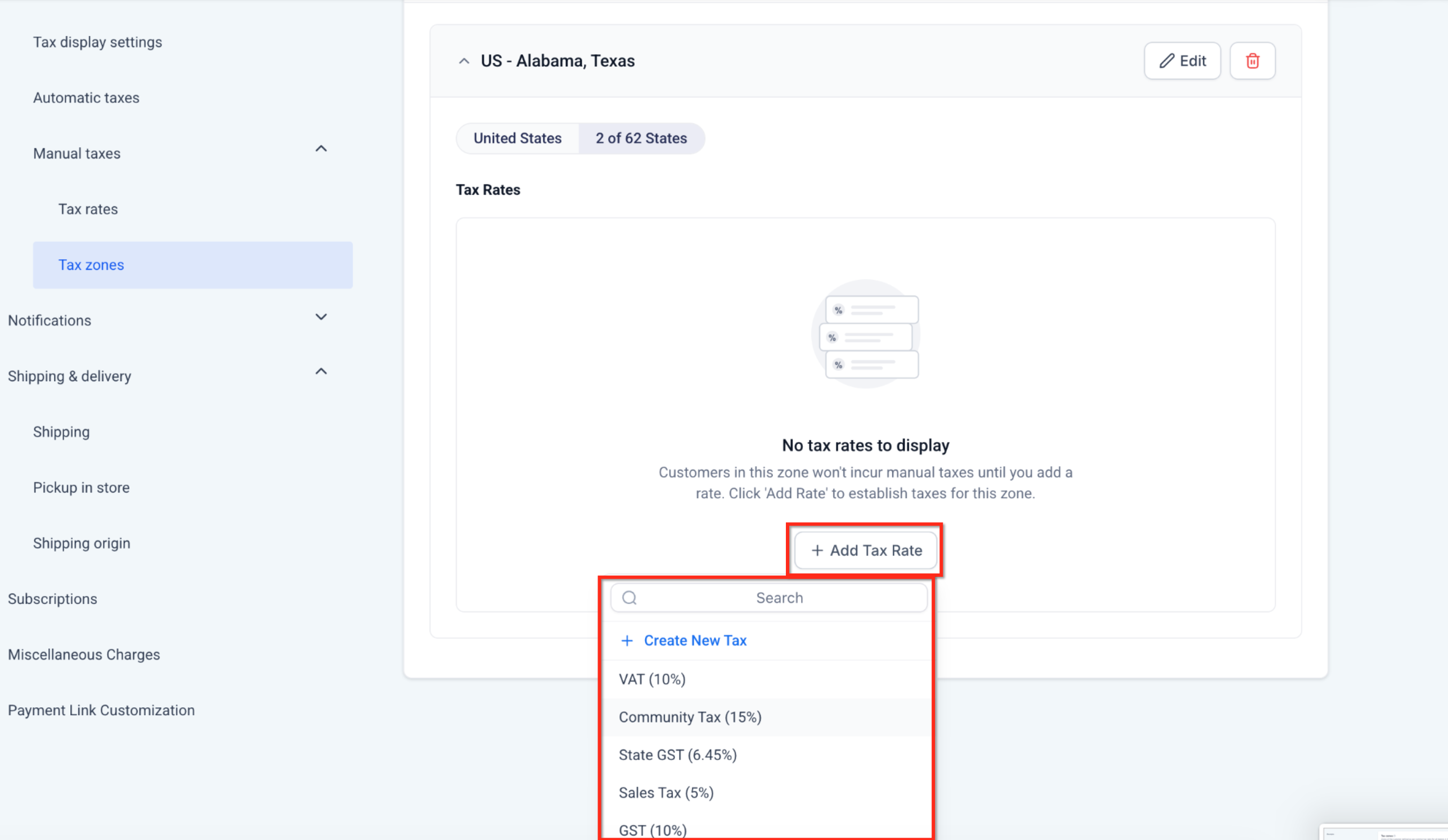
Step 4: Add Tax Rates to the Zone
Attaching rates defines which manual taxes can apply to products purchased by customers in that zone.
Expand the zone.
Click Add Tax Rate.
Select an existing rate or choose Create New Tax.
Attach the required rate.
Repeat as needed, up to 10 rates per zone.
Step 5: Attach the Same Tax Rate to the Product
Matching product and zone assignments are required for manual zone-based taxation.
Open Payments → Products.
Edit the product that requires the manual tax rate.
Find Attach Tax Rates.
Select the rate assigned to the customer's zone.
Save the product.
When Manual Taxes are applicable, the rate can apply if it is assigned to both the product and the customer's zone.
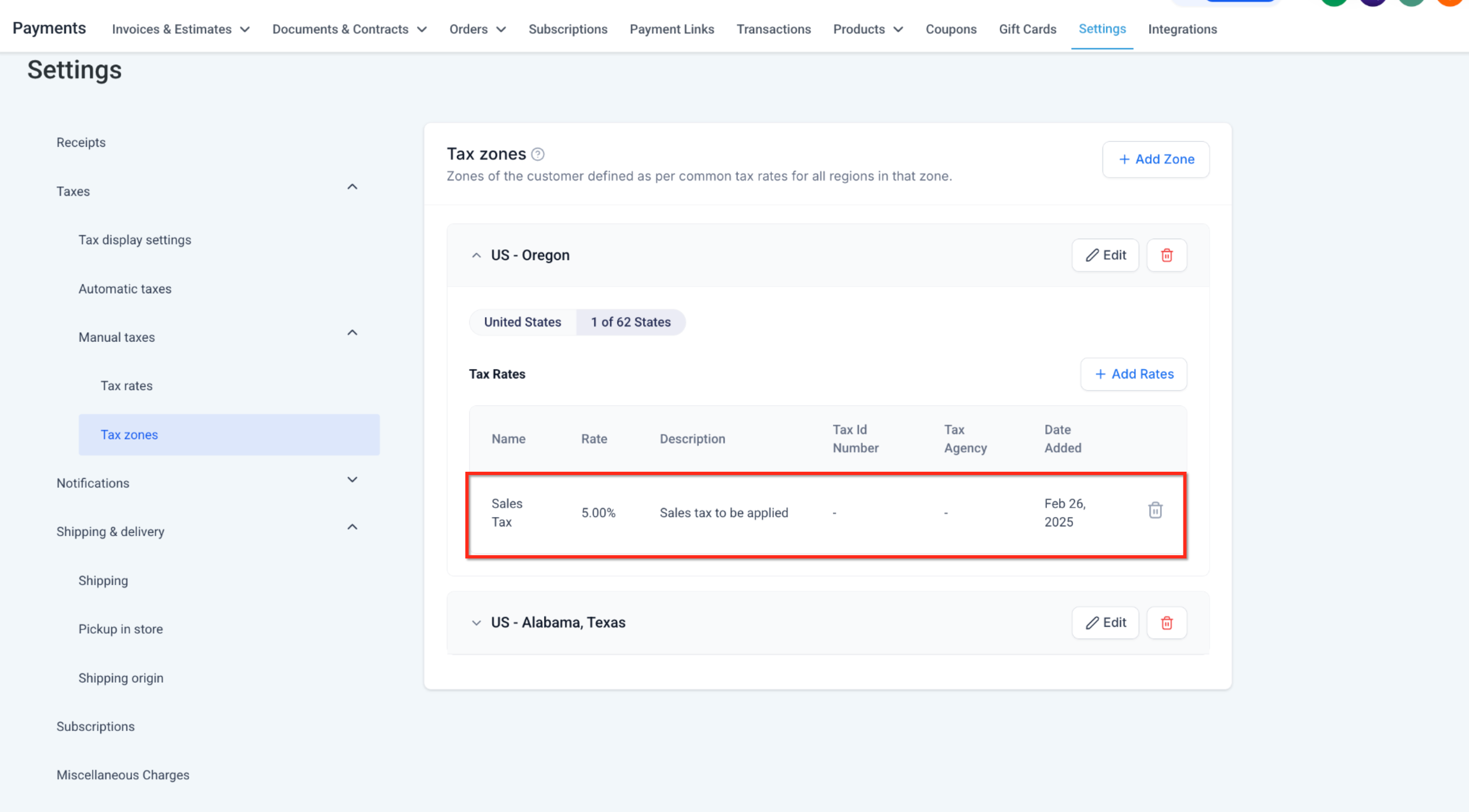
Note: Also verify the corresponding assignment in the product's tax settings.
Step 6: Create and Manage Multiple Zones
Separate zones help you maintain different regional tax configurations.
Return to Tax zones.
Click Add Zone to create another zone.
Select locations not already assigned to another zone.
Name the zone and click Create Zone.
Attach the required manual tax rates.
You can expand or collapse zones to review their configurations.
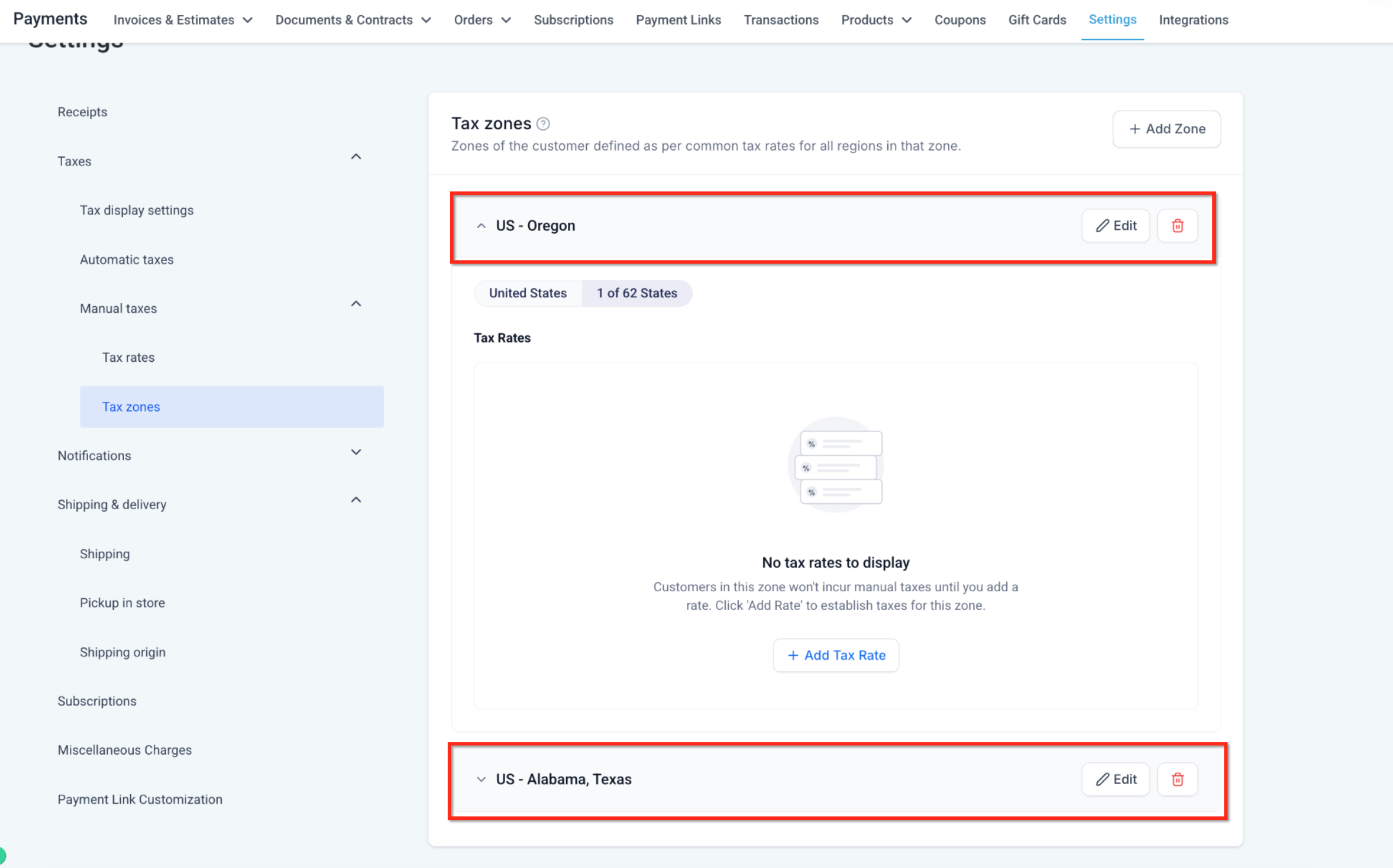
Step 7: Edit a Tax Zone
Editing a zone helps keep its name and geographic coverage accurate.
Find the zone you want to change.
Click Edit.
Update the zone name or selected regions.
Save your changes using the available control.
Note: Confirm how the interface handles regions already assigned to other zones before changing geographic coverage.
Step 8: Delete a Tax Zone
Deleting a zone removes its geographic tax configuration and may change how manual taxes apply to customers in those regions.
Open Tax zones.
Locate the zone.
Click its Delete icon.
Review the confirmation message.
Click Cancel to keep the zone or Yes, Delete to remove it.
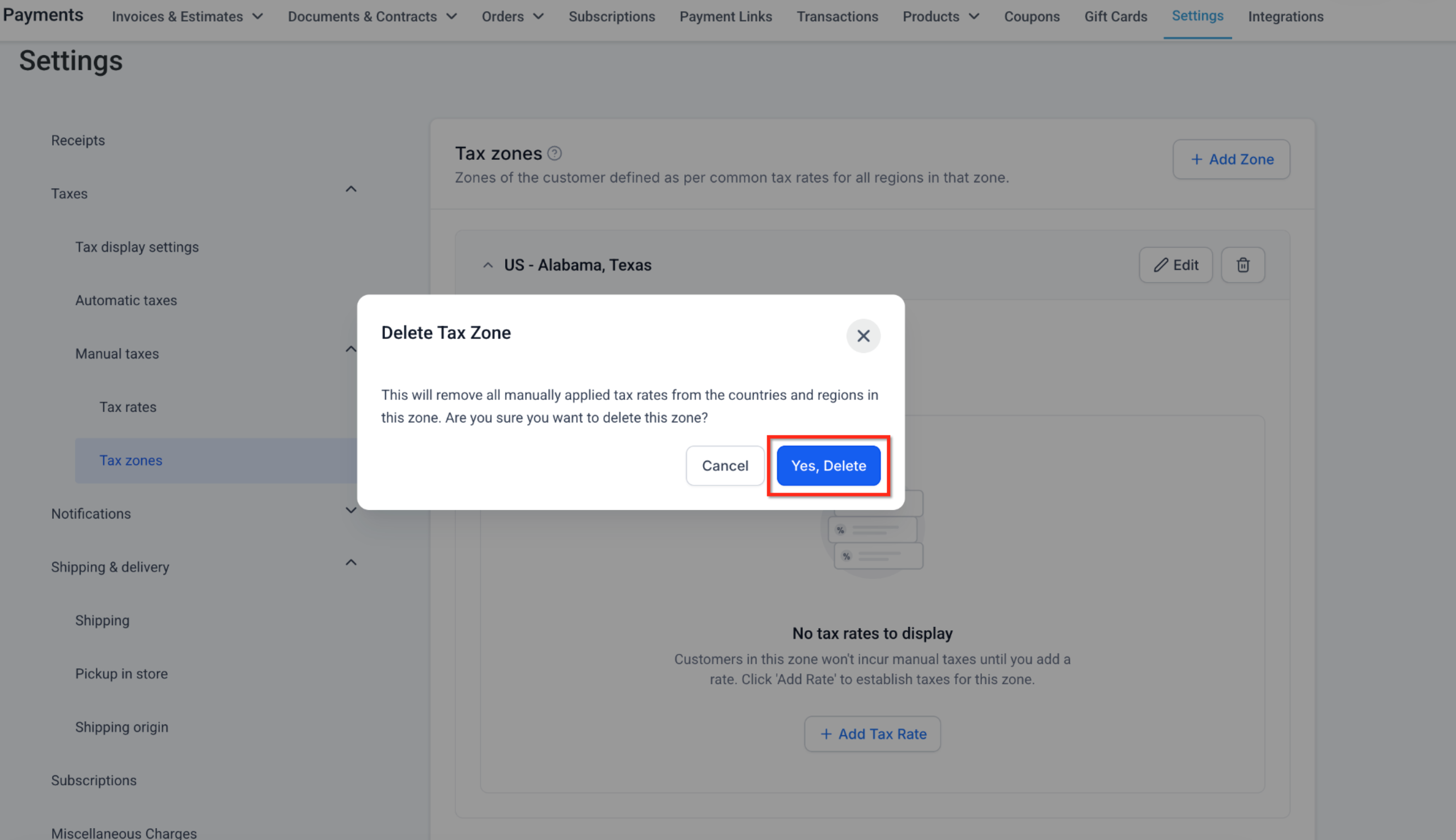
Important: Deleting a zone removes the manual tax configuration associated with its selected regions. The precise effect on underlying tax-rate records and existing product assignments requires verification.
Verify Your Tax Configuration
Testing your settings helps identify missing rate assignments or unexpected tax calculations before customers complete purchases.
At a supported checkout, verify that:
Customers are matched to the intended zones.
The required manual rate is attached to both the product and zone.
Automatic Taxes take priority when available.
Customers outside all zones follow the expected product-rate behavior.
Empty zones do not apply manual tax rates.
The customer address field used for geographic matching should be confirmed for the supported checkout.
Managing Tax Rates Within Zones
Manual Tax Zones use existing manual tax rates. You can attach rates to zones, review their details, and remove assignments when needed.
Adding Tax Rates
Click Add Tax Rate within a zone to select an existing manual tax rate.
The menu also provides Create New Tax to begin creating another rate.
You can attach up to 10 tax rates per zone.
Reviewing Tax Rates
Expand a zone to view its assigned tax rates.
The table may display details such as the tax name, percentage, description, tax ID number, tax agency, and date added.
Removing Tax Rates
Removing a rate from a zone removes only its association with that zone.
The primary manual tax-rate record is not deleted.
The rate remains available for other supported uses.
Frequently Asked Questions
Q: Are Manual Tax Zones required to use manual taxes?
A: No. Manual Tax Zones are optional. Existing product-attached manual taxes continue working when no zones are configured.
Q: Can I include multiple states or countries in one zone?
A: Yes. You can group selected countries or states into a single zone.
Q: Can a state belong to multiple zones?
A: No. Each country or state can belong to only one Manual Tax Zone at a time.
Q: How many rates can I add to one zone?
A: You can add up to 10 manual tax rates per zone.
Q: Does a tax rate apply if it is assigned only to the zone?
A: No. For customers within a configured zone, the rate must also be attached to the product.
Q: What happens when a customer's region is outside all zones?
A: Product-attached manual rates remain eligible to apply without zone filtering, subject to Automatic Tax priority.
Q: What happens when a zone has no tax rates?
A: Customers in that zone are not charged manual taxes through the zone.
Q: Can Automatic Taxes and Manual Tax Zones work together?
A: Yes. Automatic Taxes take priority when available. Manual zone rules can act as a fallback.
Q: Does removing a rate from a zone delete the rate itself?
A: No. It removes the zone assignment, not the primary manual tax-rate record.
Q: Are Manual Tax Zones available for Calendars checkout?
A: Not in the announced launch. Calendars checkout support is planned for a future release.
Related Articles
Was this article helpful?
That’s Great!
Thank you for your feedback
Sorry! We couldn't be helpful
Thank you for your feedback
Feedback sent
We appreciate your effort and will try to fix the article