HighLevel Communities now supports tax collection for eligible paid community purchases using the tax settings configured in HighLevel Payments. This helps businesses collect applicable taxes for paid memberships, courses, paid events, and event subscriptions while giving members a clearer checkout experience. Use this guide to understand how Communities tax support works, which settings to review, and how to test tax behavior before selling.
TABLE OF CONTENTS
- What is Tax Support in Communities?
- Key Benefits of Tax Support in Communities
- Supported Communities Payment Types
- Automatic Taxes in Communities Checkout
- Manual Tax Rates for Communities Payments
- Payments and Product Settings to Review
- How To Setup Tax Support in Communities
- Frequently Asked Questions
- Related Articles
What is Tax Support in Communities?
Tax Support in Communities allows eligible Communities payments to use the tax configuration already available in HighLevel Payments. Instead of creating a separate tax setup for Communities, businesses can rely on their existing Payments tax settings for supported paid community purchases.
When taxes are configured in HighLevel Payments, Communities checkout experiences can apply applicable taxes to paid community memberships, courses purchased through Communities, paid Community Events, and event subscriptions. This includes support for automatic taxes based on customer and nexus information, as well as manual tax rates attached where applicable.
Key Benefits of Tax Support in Communities
Tax-ready Communities checkouts help businesses monetize memberships, courses, and events with clearer pricing and fewer manual workarounds. Members can review applicable taxes before completing payment, while admins can manage tax setup from the same HighLevel Payments settings used for other payment flows.
- Transparent pricing: Members can see applicable taxes before completing checkout.
- Reduced under-charging: Taxes can be included upfront, helping businesses charge the correct total at the time of purchase.
- Centralized tax setup: Communities uses tax configurations from HighLevel Payments instead of requiring a separate Communities-only tax setup.
- Support for multiple monetization flows: Paid memberships, courses purchased through Communities, paid events, and event subscriptions can follow the business’s tax configuration.
- Flexible tax handling: Businesses can use automatic taxes, manual tax rates, or a combination of both where applicable.
- Improved regional selling: Automatic tax settings can use customer address and nexus configuration to help determine applicable tax.
Supported Communities Payment Types
Communities tax support applies to the core ways businesses monetize their communities. Reviewing each supported payment type helps ensure the correct tax settings are applied before members purchase access, register for an event, or enroll in paid learning content.
Supported Communities payment types include:
- Paid Community Memberships / Paid Groups: Admins and owners can charge users for access to public or private Community groups. Paid Groups support community monetization through paid access.
- Courses purchased through Communities: Community owners and admins can sell courses directly inside Communities through paid course options.
- Paid Community Events: Community Events can be free or paid and can be used for workshops, launches, meetups, Q&A sessions, and similar event experiences.
- Event subscriptions / recurring event access: When a paid event flow supports recurring access, applicable tax behavior can follow the configured Payments tax setup.
Automatic Taxes in Communities Checkout
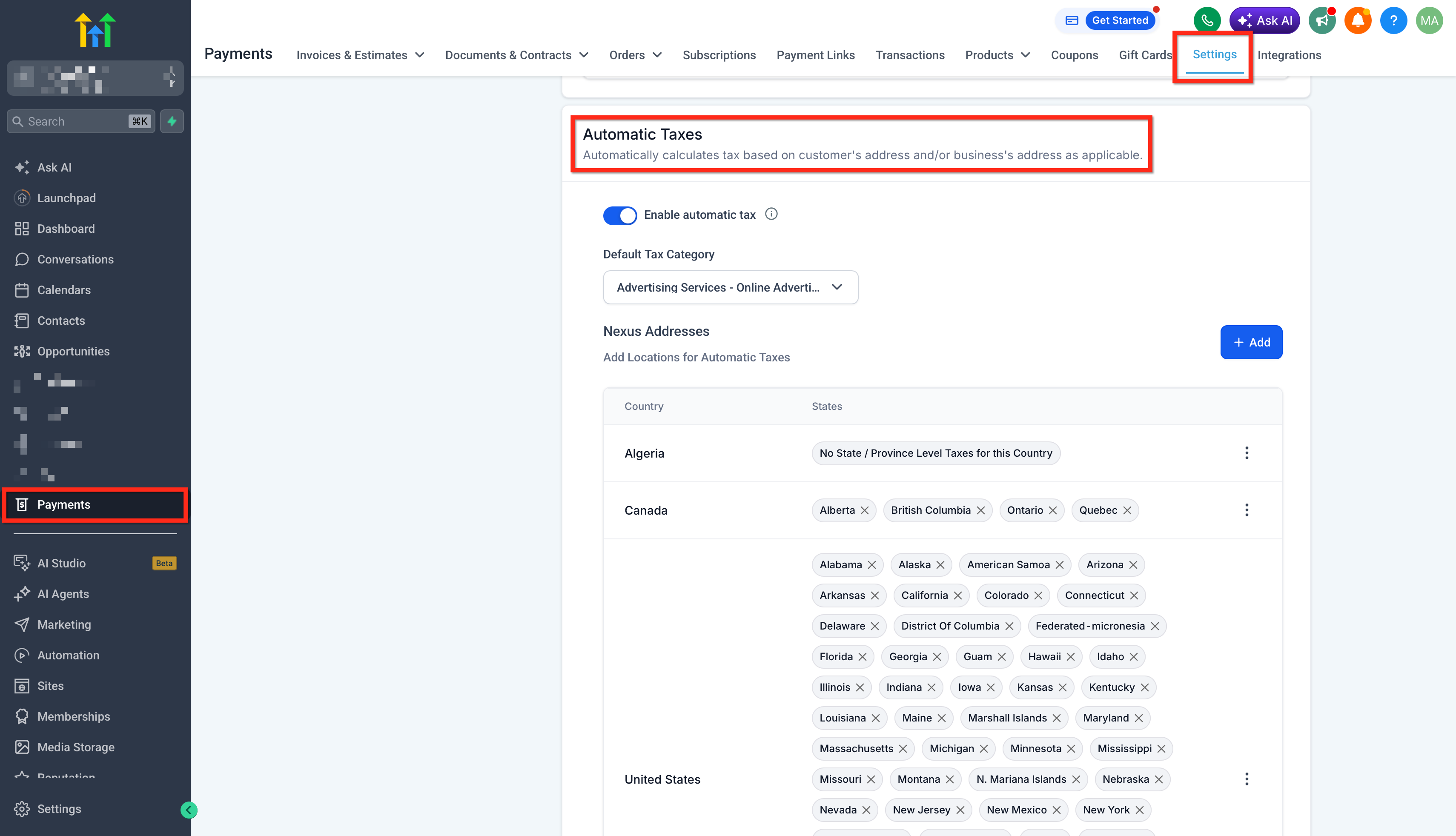
Automatic taxes help calculate applicable tax based on the customer’s address and the business’s configured tax settings. This is useful for businesses selling across multiple regions because the tax calculation can account for where the customer is located and where the business has configured nexus.
Communities can honor automatic tax settings when automatic taxes are enabled in HighLevel Payments. Automatic taxes in HighLevel are configured from Payments → Settings → Taxes and can use nexus addresses, customer location, tax categories, and tax-inclusive or tax-exclusive behavior.
Automatic taxes may consider:
- Customer billing address
- Business nexus addresses
- Product tax category or tax code, where applicable
- Global tax behavior, such as tax-inclusive or tax-exclusive pricing
- Any relevant tax IDs or registrations configured in Payments
Manual Tax Rates for Communities Payments
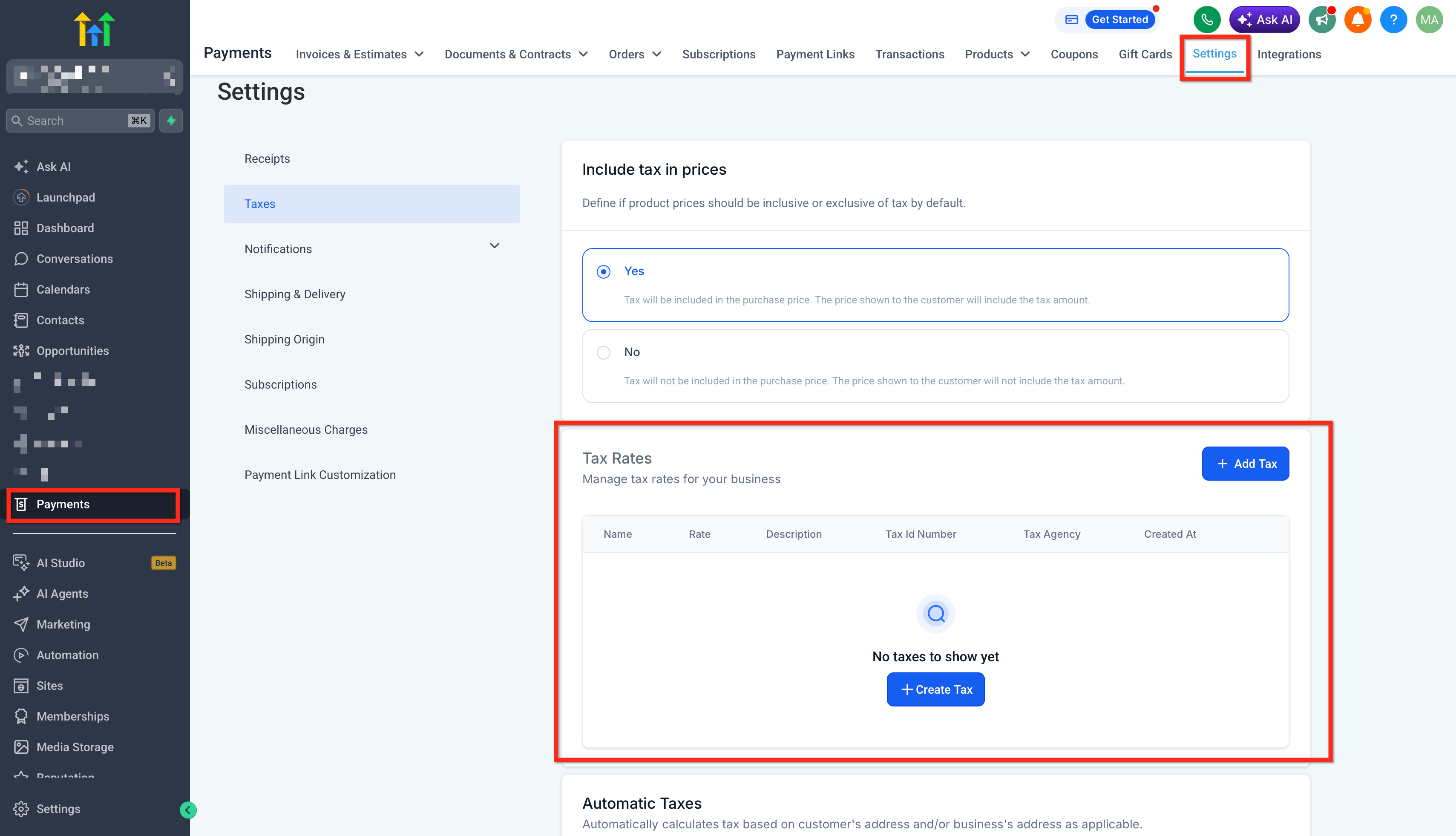
Manual tax rates are useful when a business needs to apply predefined tax percentages or manage scenarios that are not covered by automatic tax calculation. These rates are created in HighLevel Payments and can be attached to products where applicable.
Manual tax rates are created from Payments → Settings → Taxes. HighLevel’s manual tax setup allows users to create a tax name, rate, description, tax ID, and tax agency where needed. Manual rates can also be attached to products using the Attach Tax Rates option.
Manual tax rates may be helpful when:
- A specific flat tax rate must be applied
- Automatic tax does not apply to a specific region or scenario
- A business wants additional control over product-level tax behavior
- A product needs one or more manual tax rates attached
Note: When automatic taxes and manual taxes are both configured, manual rates may help cover scenarios where automatic tax does not apply. Keep invoice-specific exceptions in mind when reviewing behavior across different HighLevel payment flows.Payments and Product Settings to Review
Communities tax support depends on correct setup in HighLevel Payments. Reviewing payment settings, tax rules, addresses, and product configuration helps ensure taxes calculate as expected during checkout.
| Setting | What to Review |
|---|---|
| Payment Provider Connection | Confirm Payments is connected and ready to process community purchases. |
| Automatic Taxes | Confirm whether automatic taxes should be enabled under Payments → Settings → Taxes. |
| Nexus Addresses | Add or review the regions where the business collects tax. |
| Business Address | Confirm the location’s business address is accurate. |
| Product Tax Category | Review the tax category or tax code for products where applicable. HighLevel tax categories help apply more accurate tax calculations across products, subscriptions, and transactions. |
| Manual Tax Rates | Confirm whether manual tax rates should be attached to relevant products. |
| Tax-Inclusive or Tax-Exclusive Behavior | Review whether taxes should be included in displayed prices or added on top at checkout. |
Avoid assuming that every paid Communities item uses the exact same product setup path. Review the payment and product configuration connected to each paid Communities item where applicable.
How To Setup Tax Support in Communities
Proper setup helps taxes apply correctly before members purchase paid community access, courses, or events. Review your Payments tax settings, then test checkout to confirm the expected total.
- Go to Payments → Integrations and confirm your payment provider is connected.
- Go to Payments → Settings → Taxes and enable Automatic Taxes if needed.
- Add or review your nexus addresses, business address, and tax-inclusive or tax-exclusive pricing settings.
- Create or review manual tax rates if your business uses predefined tax percentages.
- Review the paid Communities item, such as a paid membership, course, event, or event subscription.
- Check the related product or payment configuration where applicable, including tax category and attached manual tax rates.
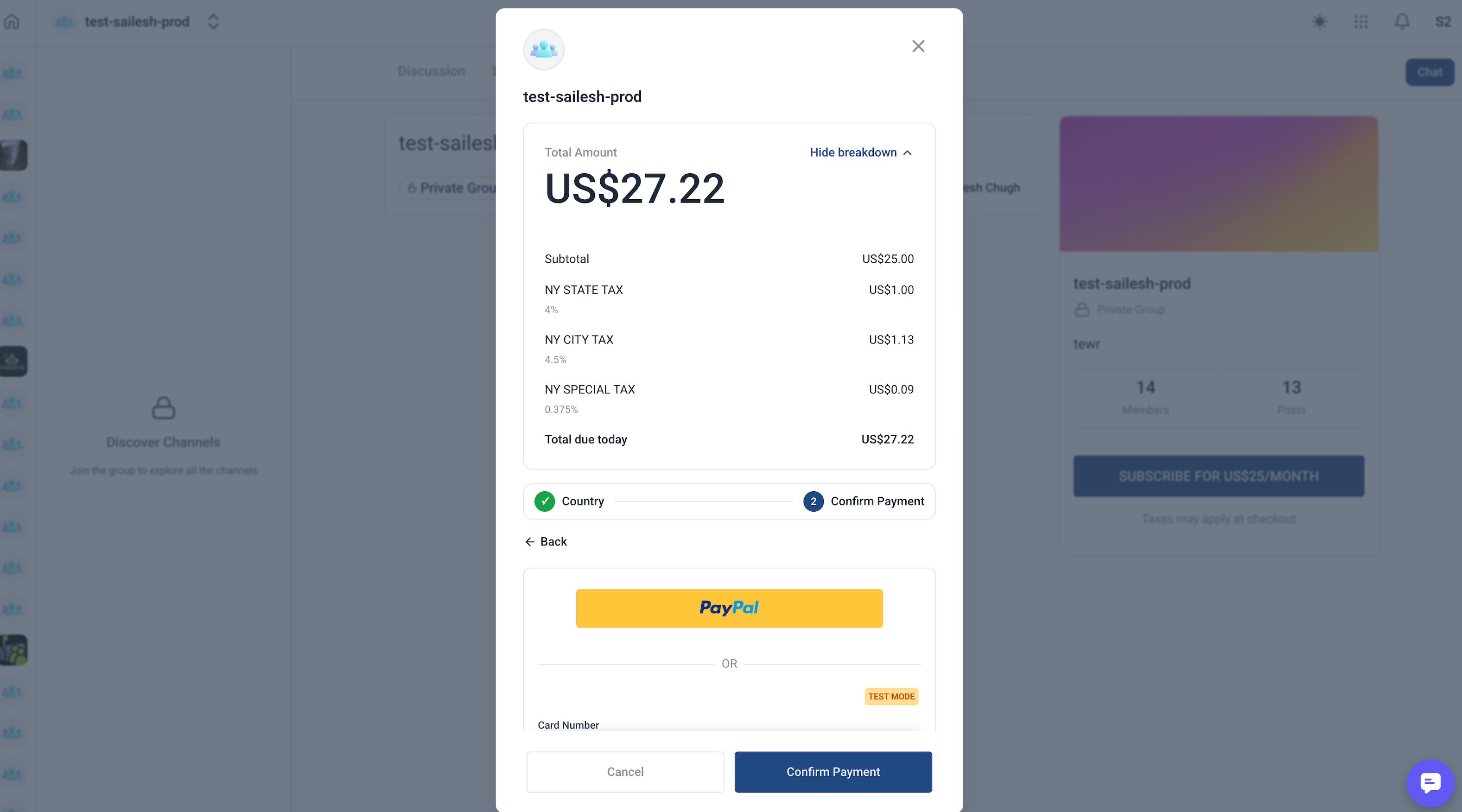
- Run a test Communities checkout and confirm the subtotal, tax, and final total appear as expected.
Frequently Asked Questions
Q: Do I need to create a separate tax setup for Communities?
No. Communities tax support uses tax settings configured in HighLevel Payments for eligible paid Communities purchases.
Q: Which Communities purchases can support taxes?
Supported flows include paid Community memberships, courses purchased through Communities, paid Community Events, and event subscriptions.
Q: Do taxes apply automatically if I have not configured taxes in Payments?
No. Taxes need to be configured in HighLevel Payments before they can apply to eligible Communities checkout experiences.
Q: Can I use automatic taxes and manual tax rates together?
Yes. Businesses can use automatic taxes and manual tax rates where applicable. Manual tax rates may help cover scenarios where automatic taxes do not apply.
Q: What address is used for automatic tax calculation?
Automatic taxes generally use the customer’s address along with the business’s configured nexus addresses and tax settings.
Q: Why is tax not showing during checkout?
Tax may not appear if automatic taxes are disabled, nexus addresses are missing, the customer address is incomplete, manual rates are not attached where needed, or the paid item’s tax configuration has not been reviewed.
Q: Can taxes be included in the displayed price?
Yes. Tax-inclusive pricing can be configured in HighLevel Payments where supported. Review your tax-inclusive or tax-exclusive settings before launching paid Communities offers.
Related Articles
Was this article helpful?
That’s Great!
Thank you for your feedback
Sorry! We couldn't be helpful
Thank you for your feedback
Feedback sent
We appreciate your effort and will try to fix the article