HighLevel Social Planner lets you create LinkedIn document posts using an existing PDF or a collection of images. You can prepare the document in the post composer, add a title, and publish it to a connected LinkedIn Profile or Page. LinkedIn documents can contain up to 300 pages and have a maximum file size of 100 MB. This guide explains both PDF publishing workflows and the requirements to follow.
TABLE OF CONTENTS
- What is a LinkedIn PDF or Document Post?
- Key Benefits of LinkedIn Document Posts
- Prerequisites and Limitations
- How to Create a LinkedIn PDF or Document Post
- How PDF and Image Conversion Works
- LinkedIn PDF Requirements
What is a LinkedIn PDF or Document Post?
A LinkedIn document post publishes a PDF that viewers can move through page by page directly from their LinkedIn feed. Social Planner lets you prepare these posts by uploading an existing PDF or converting selected images into a PDF before publishing.
You can use either workflow:
Upload an Existing PDF: Import a prepared PDF into Social Planner and publish it as a LinkedIn document.
Convert Images to PDF: Select images in Social Planner and use the PDF publishing option to combine them into a LinkedIn document.
Key Benefits of LinkedIn Document Posts
LinkedIn document posts provide a flexible way to publish multi-page content from the same Social Planner workflow used for your other social posts.
Existing PDF Uploads: Use a PDF you have already created as LinkedIn document content.
Image-to-PDF Conversion: Combine selected images into a PDF for LinkedIn.
Profile and Page Publishing: Publish to a connected LinkedIn Profile or Company Page.
Document Titles: Add a title to identify the LinkedIn document.
Scheduled Publishing: Publish immediately or schedule the document through Social Planner.
Cross-Channel Customization: Review and adjust media separately when publishing to multiple social networks.
Prerequisites and Limitations
LinkedIn document publishing requires a connected LinkedIn destination and media that meets the supported PDF requirements.
Connect the LinkedIn Profile or Page before creating the post.
LinkedIn documents support a maximum file size of 100 MB.
A LinkedIn document can contain up to 300 pages.
This workflow is for organic LinkedIn document posts. It does not apply to LinkedIn carousel ads.
Media requirements differ when other social platforms are selected with LinkedIn.
Use Customize for Each Channel when the media needs to differ by destination.
How to Create a LinkedIn PDF or Document Post
Use the Social Planner composer to select LinkedIn, add your PDF or images, configure the document, and publish or schedule the post.
Step 1: Create a New Post
Start from the HighLevel Sub-Account where the LinkedIn account is connected.
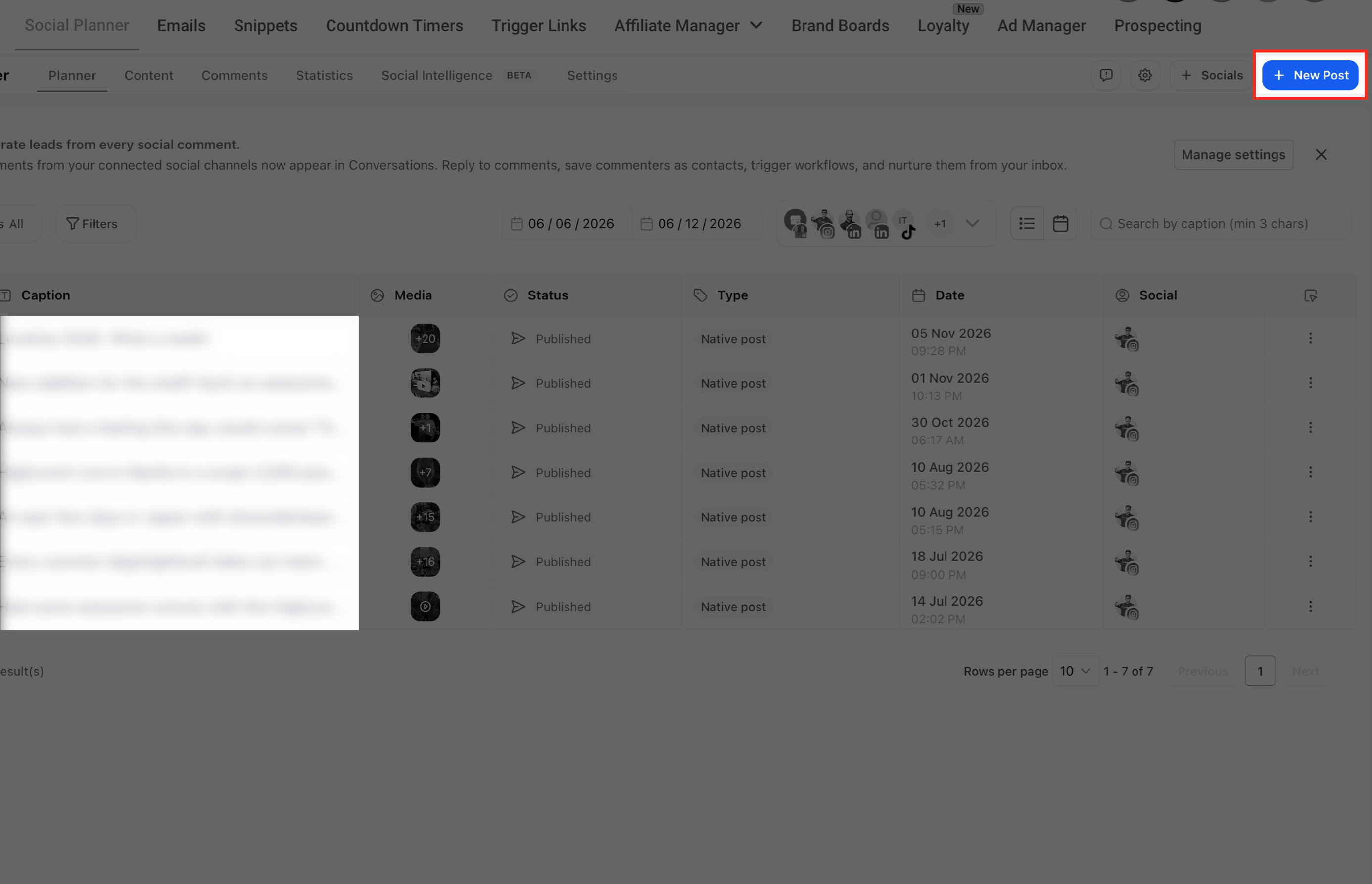
Go to Marketing → Social Planner.
Click + New Post.
Select Create New Post.
Select the connected LinkedIn Profile or Page.
Add the text you want to include with the LinkedIn post.
Step 2: Upload an Existing PDF or Add Images
You can build the LinkedIn document from an existing PDF or from selected images.
Option 1: Upload an Existing PDF
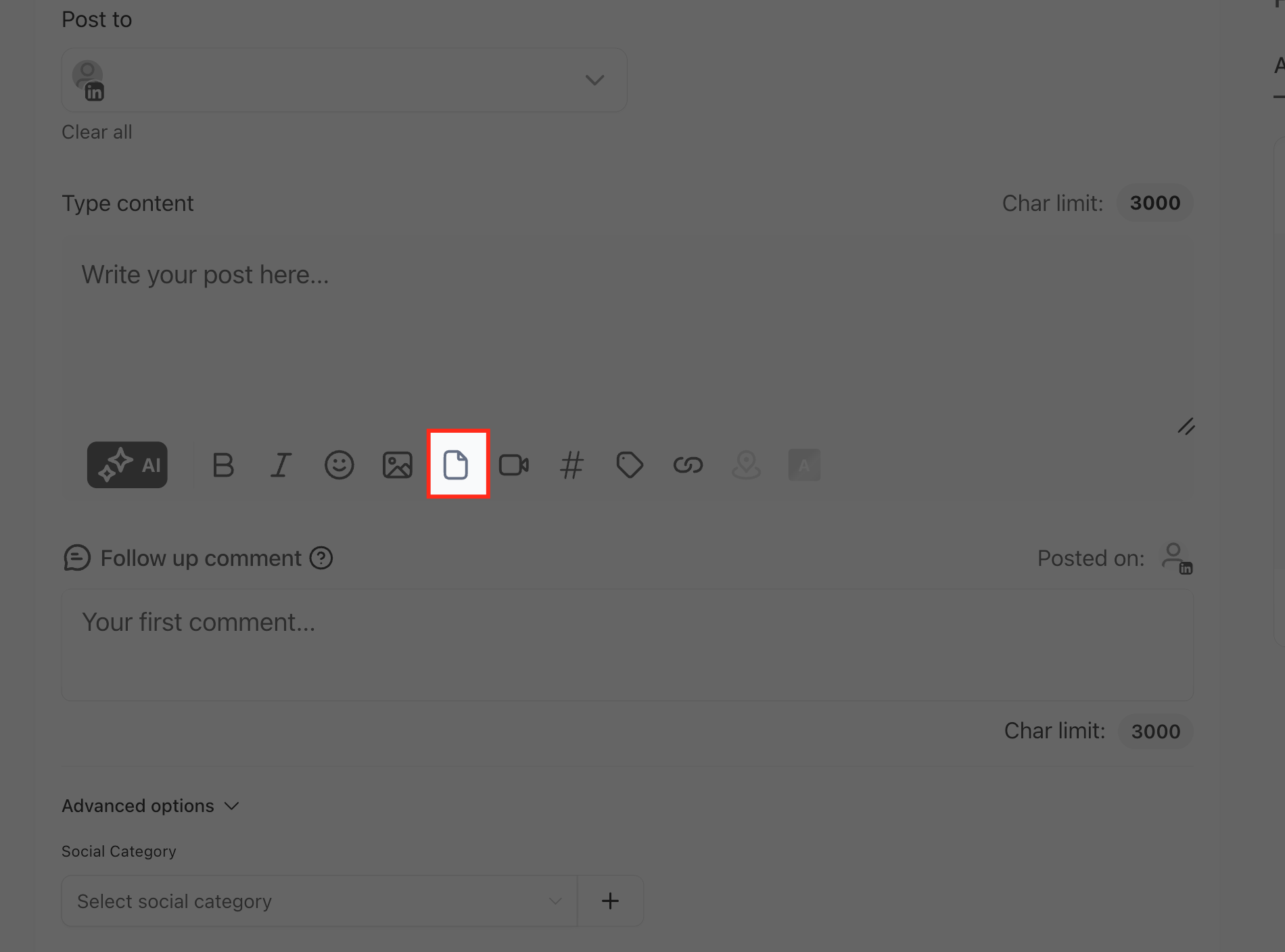
In the post composer, click the file upload control.
Select the PDF you want to publish.
Wait for Social Planner to process the document.
Review the imported pages before continuing.
Option 2: Convert Images Into a PDF
Add the images you want to include in the LinkedIn document.
Review the image order.
Use the LinkedIn PDF publishing option to publish the selected images as a document.
Confirm that the pages appear in the intended order.
Step 3: Add the Document Title
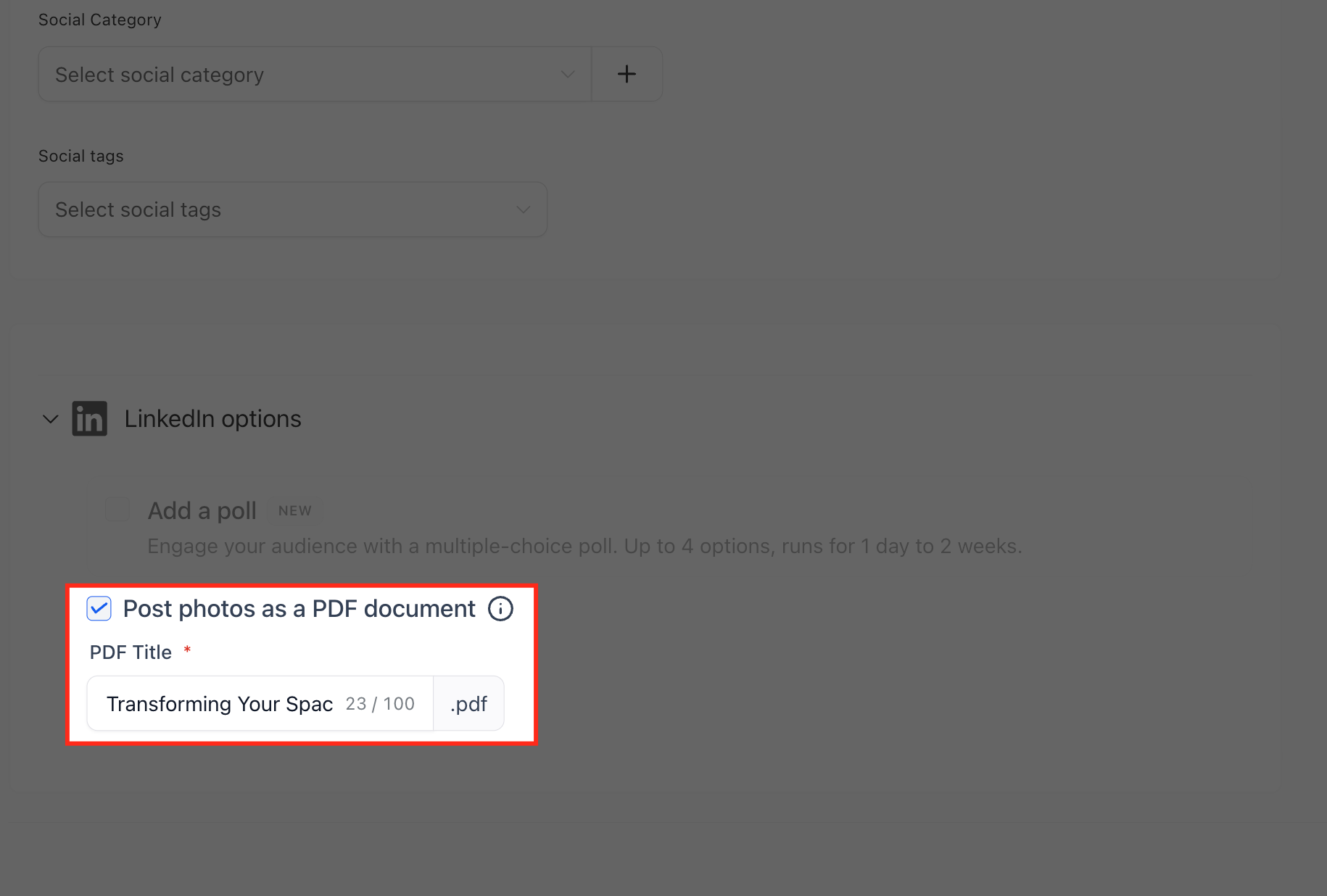
The document title identifies the PDF when it is published to LinkedIn.
Enter the title or name you want to use for the LinkedIn document.
The current LinkedIn bulk-publishing fields also support a dedicated pdfTitle, confirming that LinkedIn document titles remain supported in Social Planner.
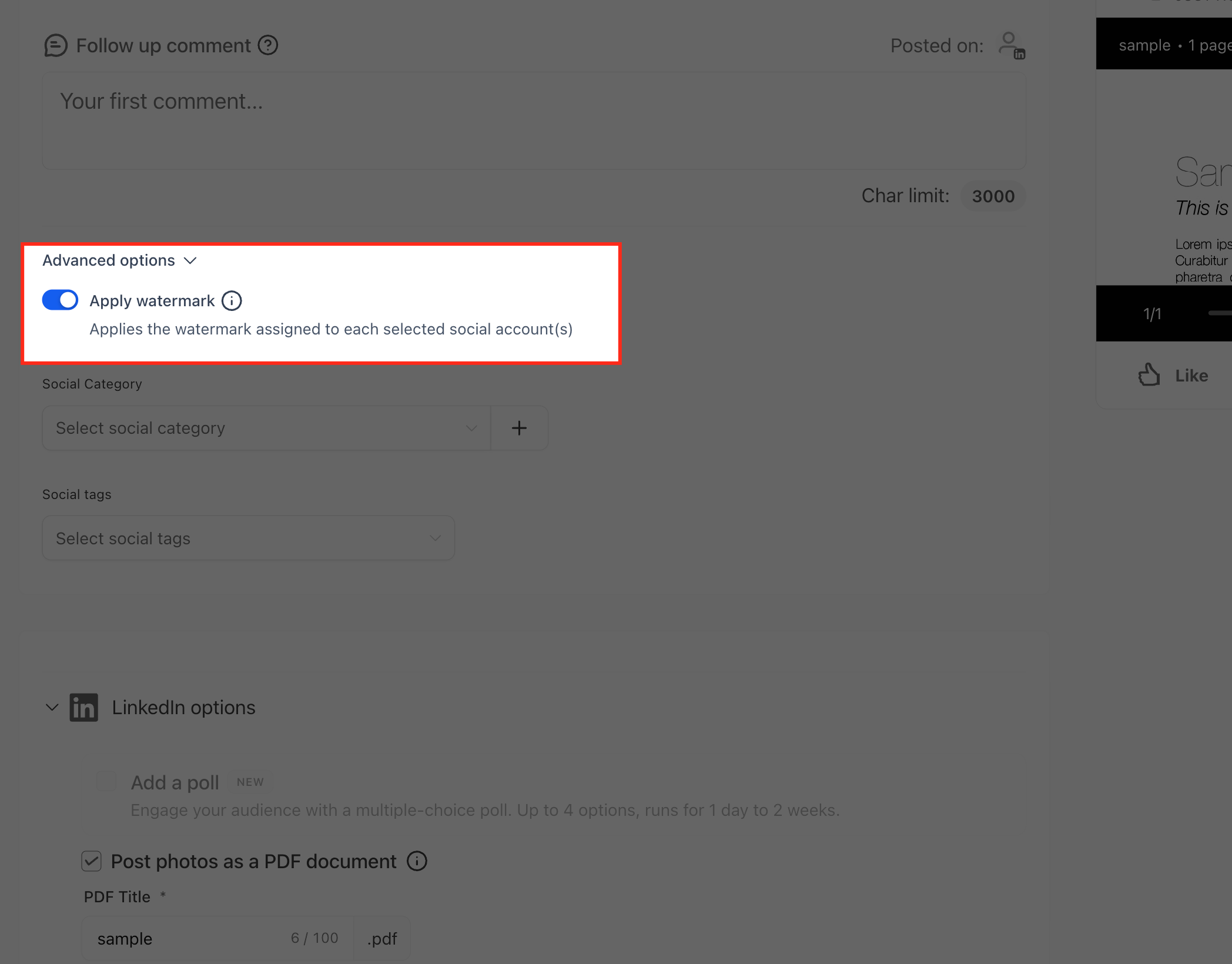
Step 4: Apply a Watermark, If Needed
If watermark controls are available for the selected media, apply the watermark before publishing and review the resulting pages.
Step 5: Publish the Content as a PDF
Use the PDF publishing option when LinkedIn should receive the selected pages or images as a document instead of standard image media.
Enable Post as PDF for the LinkedIn post.
When this option is enabled, Social Planner combines the selected images or document pages into a PDF for LinkedIn.
Step 6: Review Other Selected Social Channels
Different social networks have different media requirements, so review the content separately if the same post is going to multiple destinations.
Use Customize for Each Channel to review or adjust the media for LinkedIn, Instagram, or any other selected social network.
Step 7: Schedule or Publish the Post
Review the post before completing the publishing workflow.
Confirm the LinkedIn Profile or Page.
Review the post text.
Check the document pages and their order.
Confirm the document title.
Verify that Post as PDF is enabled when you want a LinkedIn document post.
Choose the appropriate Social Planner publishing option.
Publish immediately or schedule the post for a later date and time.
How PDF and Image Conversion Works
Social Planner can represent PDF pages as images while you prepare the post, then publish the selected content as a
LinkedIn document when the PDF option is enabled.
An uploaded PDF can be processed into individual pages inside the Social Planner composer.
Those pages can be reviewed before publishing.
Images added directly to the composer can also be combined into a LinkedIn PDF.
When Post as PDF is enabled, the selected pages or images are published to LinkedIn as a document.
When publishing to multiple networks, each platform may use the media differently.
This distinction explains why document pages can appear as images while editing even though the final LinkedIn post is published as a PDF.
LinkedIn PDF Requirements
Review these requirements before publishing a LinkedIn document post.
| Requirement | Supported Value |
|---|---|
| Maximum document size | 100 MB |
| Maximum document length | 300 pages |
| LinkedIn destination | Profile or Page |
| Existing PDF upload | Supported |
| Image-to-PDF conversion | Supported |
| Document title | Supported |
| Scheduling | Supported through Social Planner |
Frequently Asked Questions
Q: Can I upload an existing PDF to LinkedIn through Social Planner?
Yes. Upload the PDF in the Social Planner composer, review its pages, and use the LinkedIn PDF publishing option to create the document post.
Q: Can I turn images into a LinkedIn PDF post?
Yes. Add the images to the composer and use the PDF publishing option to combine them into a LinkedIn document.
Q: What is the maximum LinkedIn PDF file size?
LinkedIn document posts through Social Planner support documents up to 100 MB.
Q:" How many pages can a LinkedIn document contain?
A LinkedIn document can contain up to 300 pages.
Q: Can I publish a document to a LinkedIn Profile and a LinkedIn Page?
Yes. Social Planner supports connected LinkedIn Profiles and Pages as publishing destinations.
Q: Can I schedule a LinkedIn PDF post?
Yes. After preparing the document in Social Planner, use the standard publishing controls to schedule it for a later date and time.
Q: Can I create LinkedIn PDF posts with Advanced CSV?
Yes. Advanced CSV includes the LinkedIn-specific pdfTitle and postAsPdf fields for supported bulk scheduling workflows.
Q: Can I publish the same PDF content to LinkedIn and Instagram?
You can select multiple social networks, but their media requirements differ. Use Customize for Each Channel to review and adjust the content for each destination before publishing.
Related Articles
\
Was this article helpful?
That’s Great!
Thank you for your feedback
Sorry! We couldn't be helpful
Thank you for your feedback
Feedback sent
We appreciate your effort and will try to fix the article