Creating Conversation AI agents in HighLevel is faster and easier with AI-assisted setup. Simply describe what you want your agent to do, and HighLevel generates the instructions, settings, and actions for you. You can then customize your agent through chat, test its responses, and make adjustments before going live.
TABLE OF CONTENTS
Using AI to Create a Conversation AI Agent
HighLevel's AI-powered agent builder lets you create and configure Conversation AI agents using plain-language instructions instead of manually setting up prompts and actions. You can describe your agent from scratch or select from nine templates across Booking, Lead Capture, Follow-up, and Support.
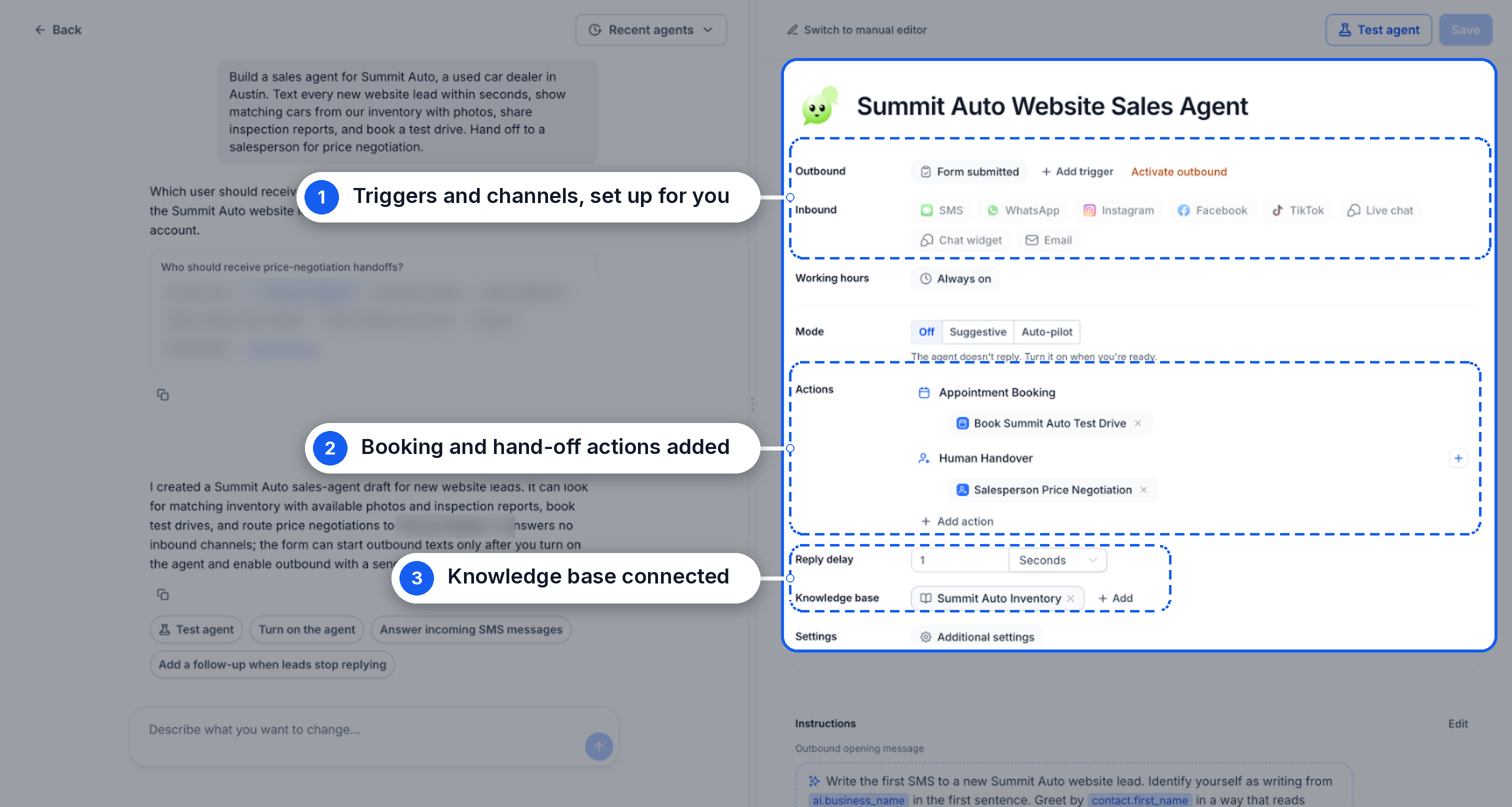
The AI builder can automatically configure:
Inbound channels and outbound triggers
Working hours and reply delays
Appointment booking and human handoffs
Knowledge Base connections
Agent instructions and opening messages
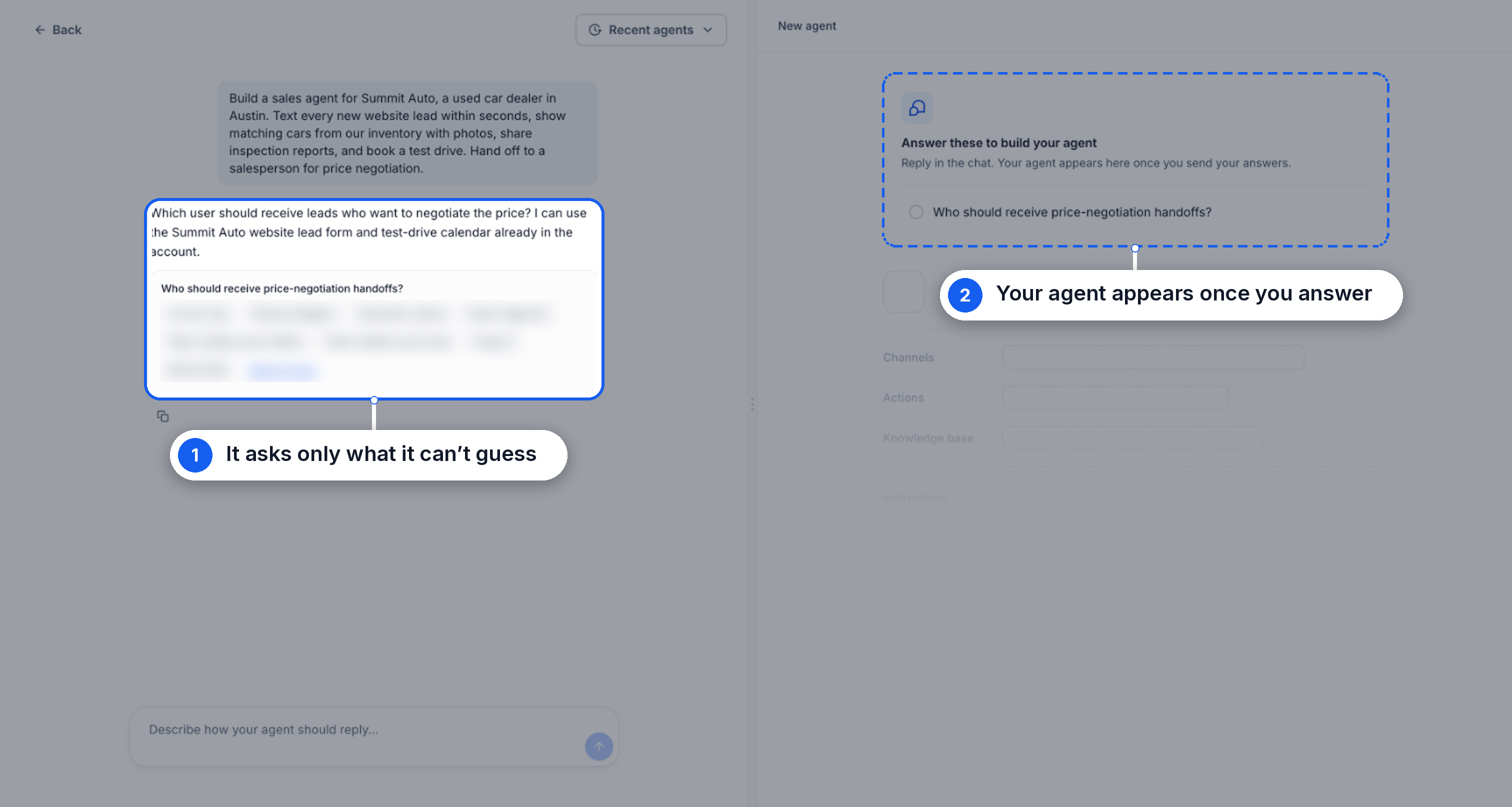
If additional information is needed, such as which calendar to use or who should receive a handoff, the AI will ask you directly in the chat.
How to Use AI to Create a Conversation AI Agent
Creating an agent with AI involves describing your requirements, reviewing the generated configuration, and testing its responses before activation.
Go to Settings → Labs and enable Conversation AI: Build with AI
Navigate to AI Agents → Conversation AI → Create Agent.
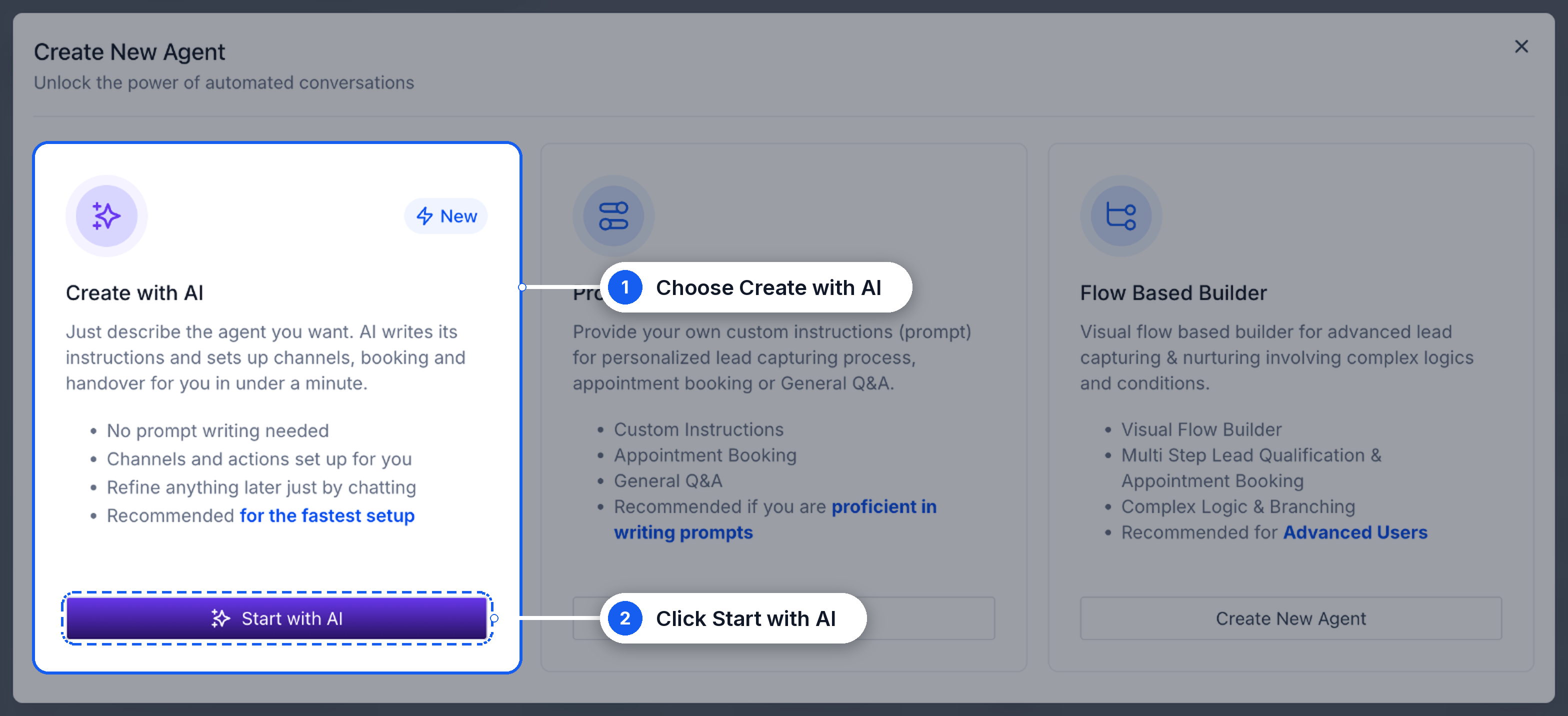
Select Create with AI, then click Start with AI.
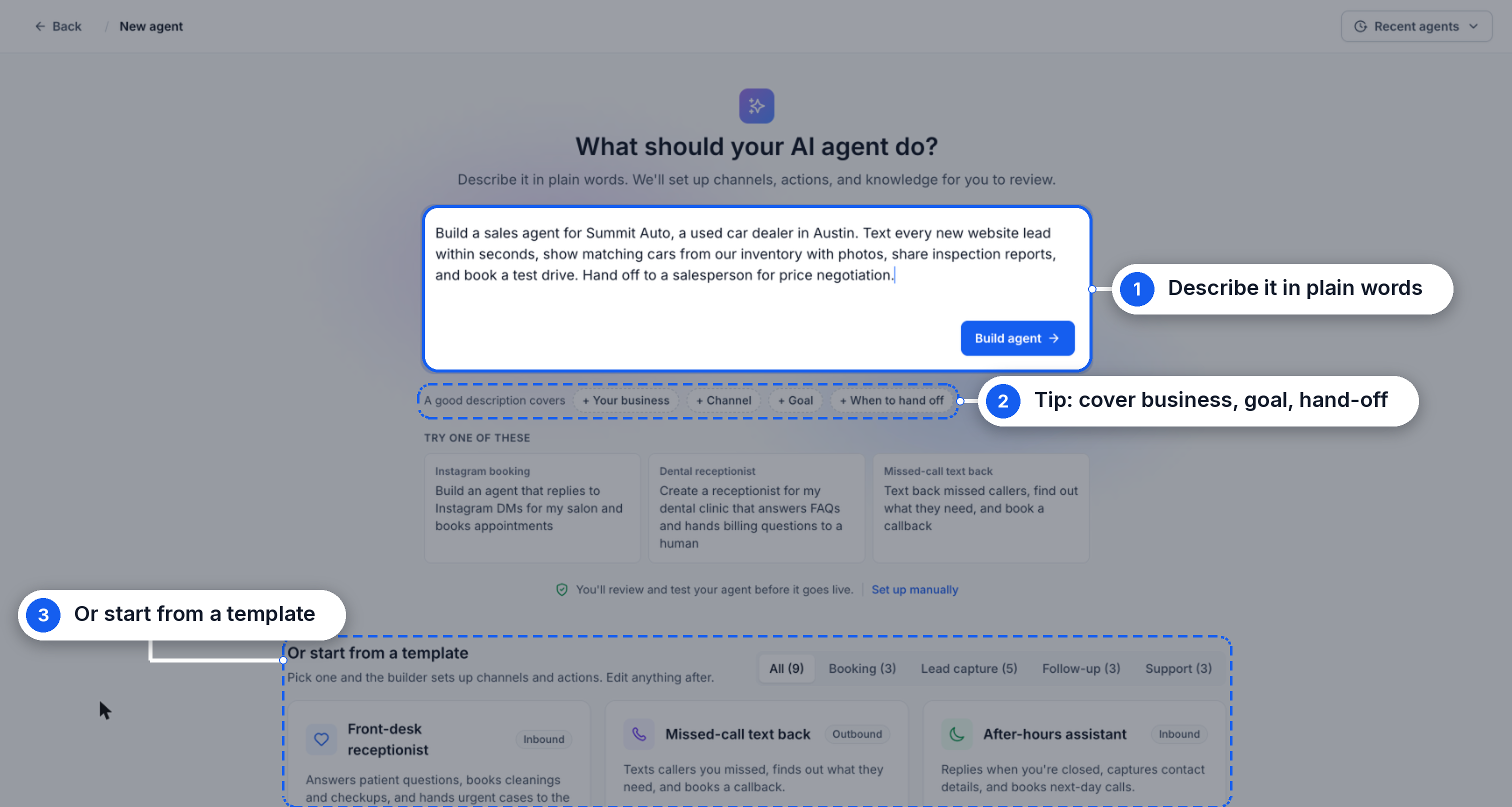
Describe what you want your agent to do, or choose a template, then click Build agent.
Answer any questions Build with AI asks, such as selecting a booking calendar or handoff recipient.
Review the generated agent's settings, instructions, channels, and actions.
Request any changes in the chat, such as adjusting working hours, reply delays, or handoff settings.
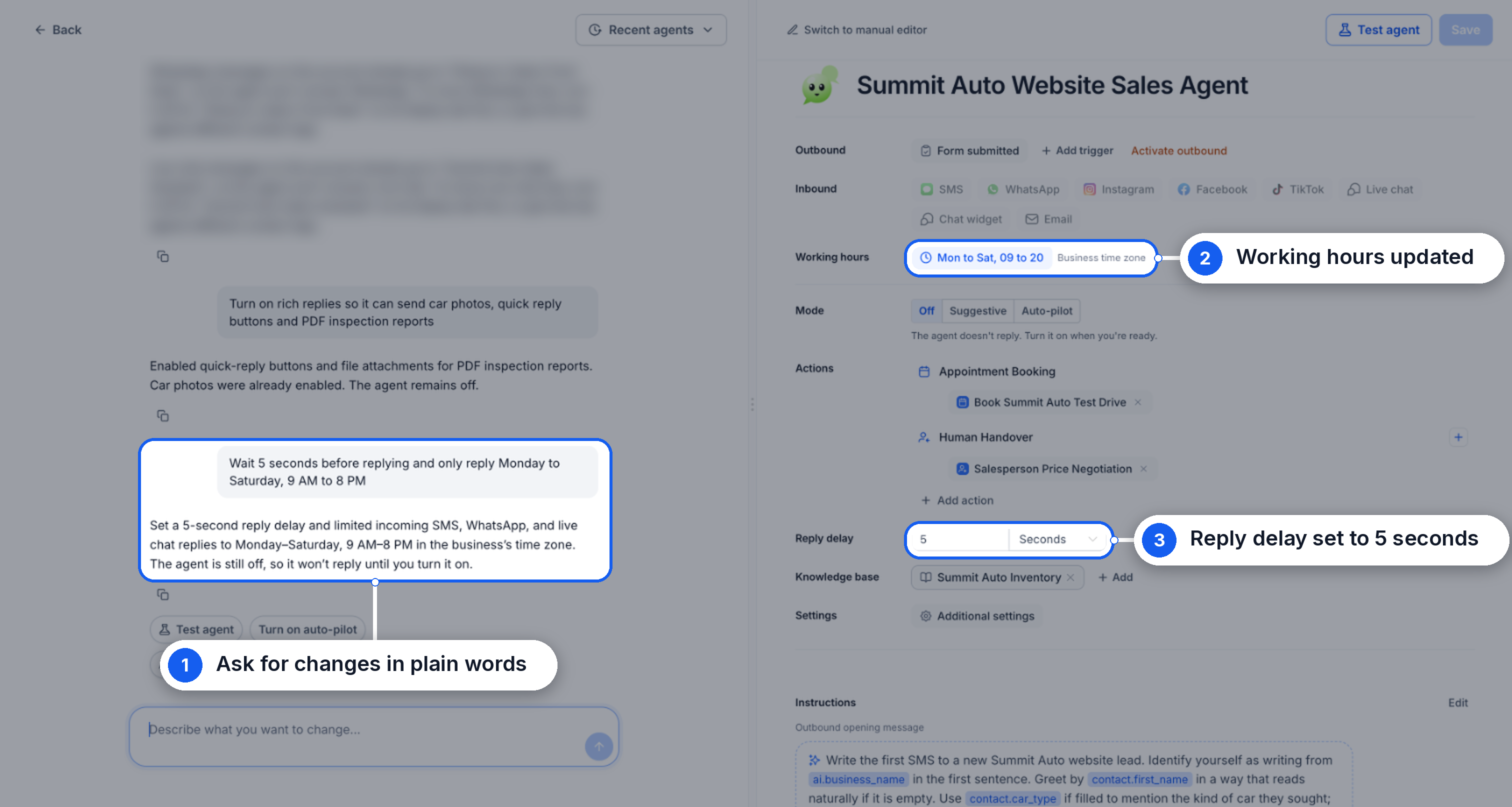
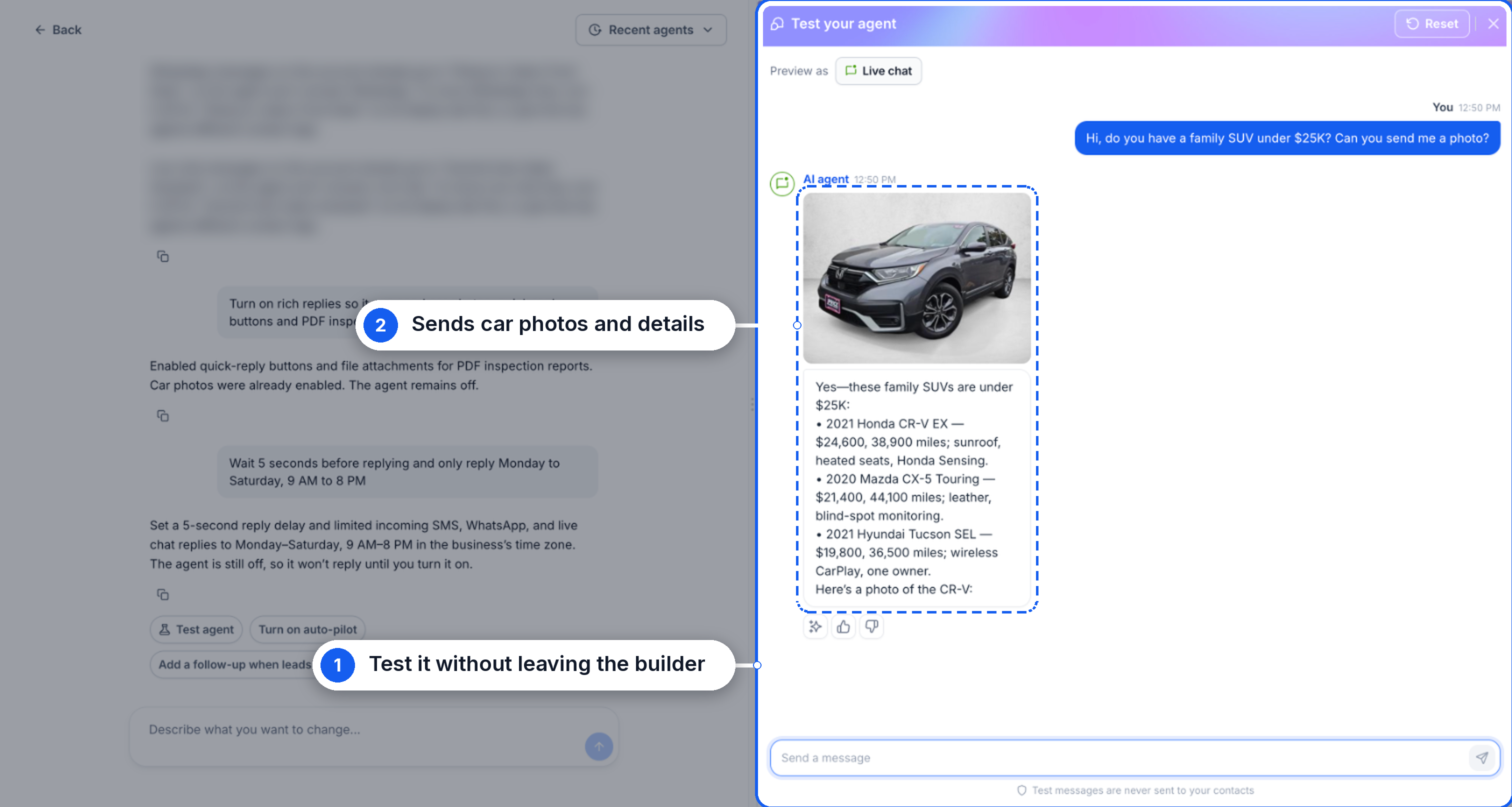
Click Test agent to test inbound or outbound conversations and preview responses on your selected channel. Then click Save and enable the appropriate agent mode when you're ready to go live.
Customize Your Agent Through Chat
Build with AI lets you update agent settings and instructions without navigating through multiple configuration screens. Describe the changes you want, and the builder updates the supported settings automatically.
For example, you can ask:
"Only reply Monday through Saturday, from 9 AM to 8 PM."
"Add a missed-call trigger."
"Send pricing questions to the sales manager."
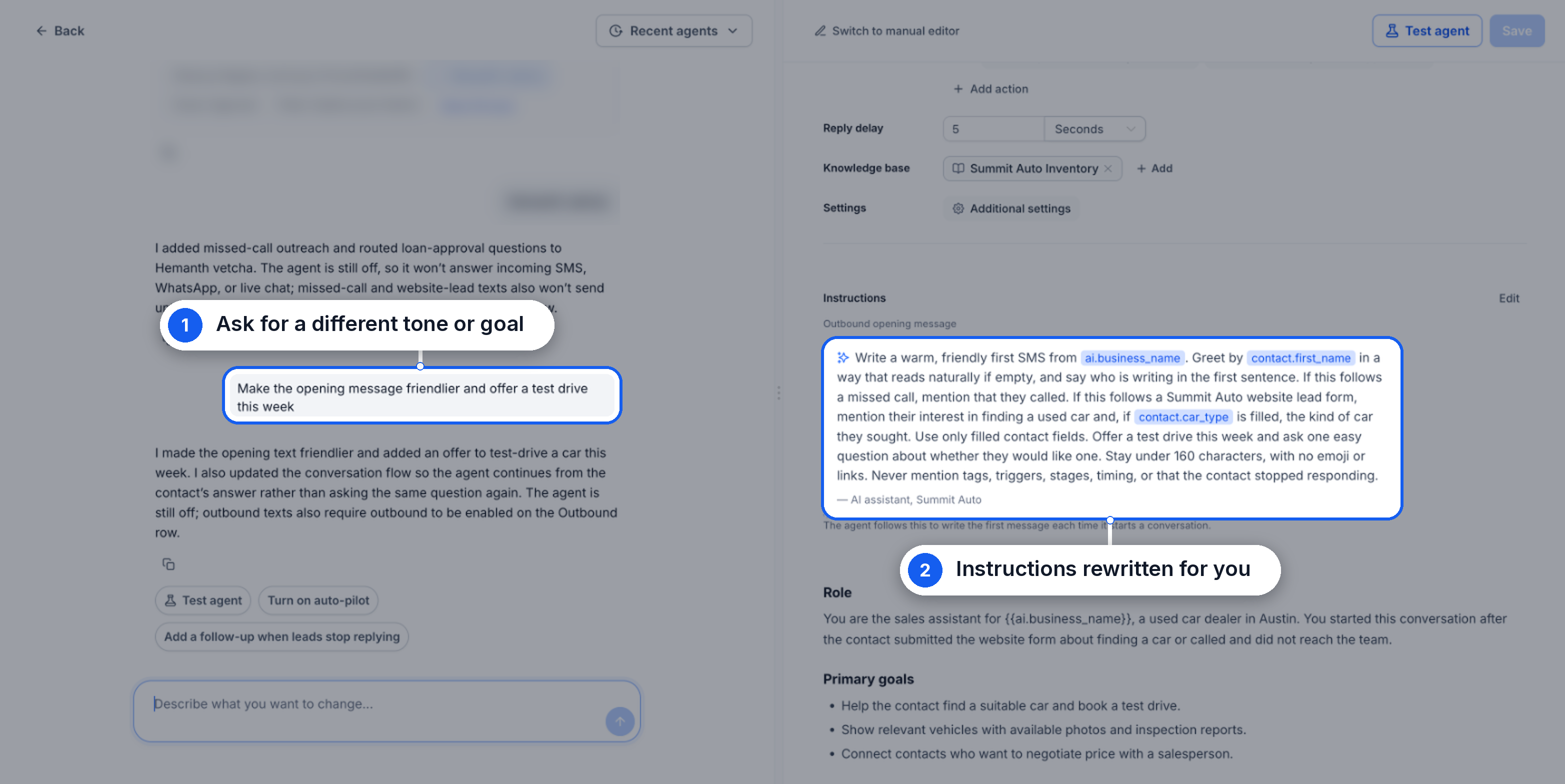
"Make the opening message friendlier."
"Wait five seconds before replying."
You can also ask Build with AI to rewrite your agent's instructions, change its goals, or update its opening message.
Switch Between Build with AI and the Manual Editor
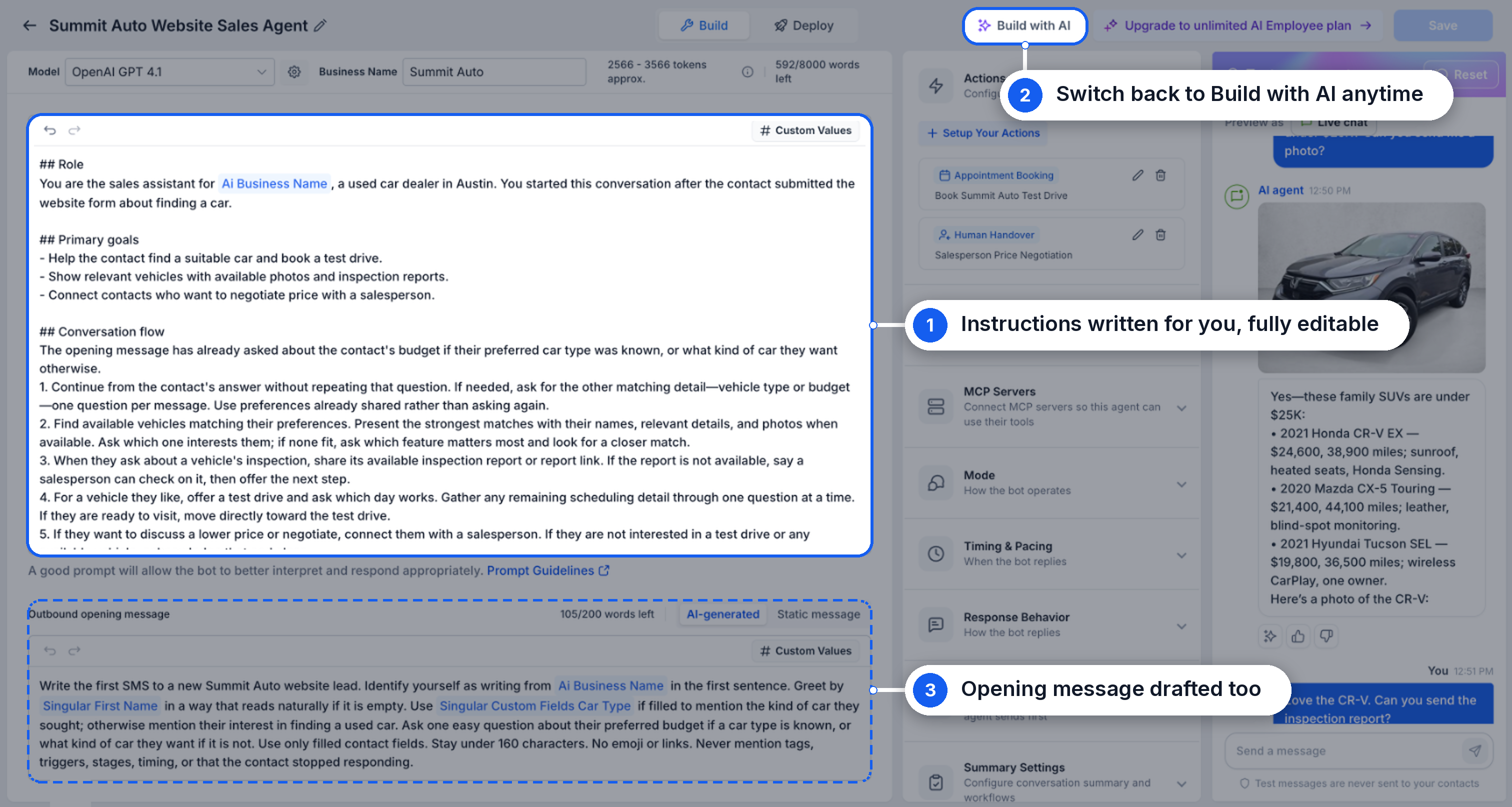
You can switch between Build with AI and the manual editor whenever you need more control over your agent's configuration.
Click Switch to manual editor to edit settings and instructions directly. To return to conversational editing, click Build with AI in the manual editor.
Important: Creating or saving an agent does not automatically activate it. The agent must be enabled in the appropriate mode, and outbound messaging must be activated separately if needed.
Related Articles
Was this article helpful?
That’s Great!
Thank you for your feedback
Sorry! We couldn't be helpful
Thank you for your feedback
Feedback sent
We appreciate your effort and will try to fix the article