Customize your HighLevel navigation menu to keep frequently used products easy to find. Rename navigation groups, change icons, reorder entries, hide products, and organize items into new groups. Custom Navigation is available on all HighLevel agency plans, but customization capabilities vary by subscription level. All plans include the redesigned navigation experience, while higher-tier plans provide additional customization options.This guide explains how navigation customization works in the new HighLevel interface, how shared layouts affect a sub-account, and how to customize and save your navigation.
TABLE OF CONTENTS
- What Is Navigation Menu Customization?
- Key Benefits of Navigation Menu Customization
- Availability and Shared Navigation
- Navigation Levels and Customization Options
- Naming Rules and Fixed Navigation Items
- Navigation Visibility vs. Product Access
- How to Customize the Navigation Menu
- Frequently Asked Questions
- Related Articles
What Is Navigation Menu Customization?
Navigation menu customization changes how groups and products appear in the left sidebar. The navigation editor lets you adjust their organization and visibility without changing product functionality or access permissions.
Your changes belong to the sub-account's navigation layout rather than an individual user's personal settings.
Key Benefits of Navigation Menu Customization
Organizing the menu around your team's work makes frequently used products easier to locate while keeping their functionality unchanged.
- Familiar organization: Rename groups and arrange products around your team's workflows.
- Less clutter: Hide groups or products that do not need a prominent place in the sidebar.
- Faster access: Reorder frequently used groups and products so they are easier to find.
- Visual organization: Change navigation icons to make entries easier to recognize.
- Consistent navigation: Give users in the same sub-account a shared layout, subject to their individual product permissions.
Availability and Shared Navigation
Navigation customization requires an eligible agency plan and access to the navigation editor. Plan eligibility determines how many sub-accounts can be customized.
| Agency Plan | Navigation Customization |
|---|---|
| $97/month | Default navigation only. Customization is not included. |
| $297/month | Customize one sub-account. Reusable layouts and application across multiple sub-accounts are not included. |
| $497/month | Customize all sub-accounts, create reusable layouts, and apply layouts across multiple sub-accounts. |
Once applied, group names, ordering, hidden items, and product organization affect the sub-account's shared navigation layout.
Note: Recents and Pinned remain personal to each user and are not changed by editing a shared layout. Product permissions continue to determine what each user can access.
Navigation Levels and Customization Options
The available customization actions depend on the navigation level:
- L1: A top-level navigation group.
- L2: A product or item inside an L1 group.
- L3: A nested item beneath an L2 item.
| Action | L1: Navigation Group | L2: Product or Item | L3: Nested Item |
|---|---|---|---|
| Rename | Yes | No | No |
| Change icon | Yes | Yes | Yes |
| Reorder | Among top-level groups | Within its existing L1 group | Within its existing L2 parent |
| Hide or show independently | Yes | Yes | No |
| Create through the editor | Yes | No | No |
| Move into another L1 group | Not applicable | Yes | Yes, directly into the group's menu |
Important: Reordering changes an item's position within its current parent. Moving changes which group contains the item. Creating a navigation group does not create a new HighLevel product.
Naming Rules and Fixed Navigation Items
Navigation group names should be easy to recognize, while protected navigation items remain available for essential navigation.
- Group names cannot be empty or contain only spaces.
- A group name cannot duplicate another L1 group name in the same navigation.
- Leading and trailing spaces are removed.
- Recents and Pinned are reserved names.
- Long labels can display an ellipsis. Hover over a shortened label to view the full name.
- Settings remains in its fixed position.
- Recents and Pinned cannot be hidden.
- Custom menu links and custom pages cannot be renamed through the navigation editor. Update their names from the area where they were originally created.
Navigation Visibility vs. Product Access
Navigation visibility determines whether an item appears in the sidebar. Permissions determine whether a user can access the product.
Hiding a product does not disable it or restrict access. Users with the required permissions can still open a hidden product through a direct URL or All Products.
Showing a product in a navigation layout also does not override restrictions imposed by user permissions or the SaaS Configurator.
Important: Use feature or user permissions when you need to restrict access to a product. Use navigation customization to control how products are organized and displayed in the sidebar.
How to Customize the Navigation Menu
Start in the sub-account whose navigation you want to change. Use the navigation editor to organize the menu, then review the layout and its application scope before saving.
Step 1: Locate the Navigation Editor
The editing entry point is located at the bottom of the sidebar and is separate from controls used to edit the page currently displayed.
- Open the sub-account in the new HighLevel interface.
- Locate Edit at the bottom of the left navigation.
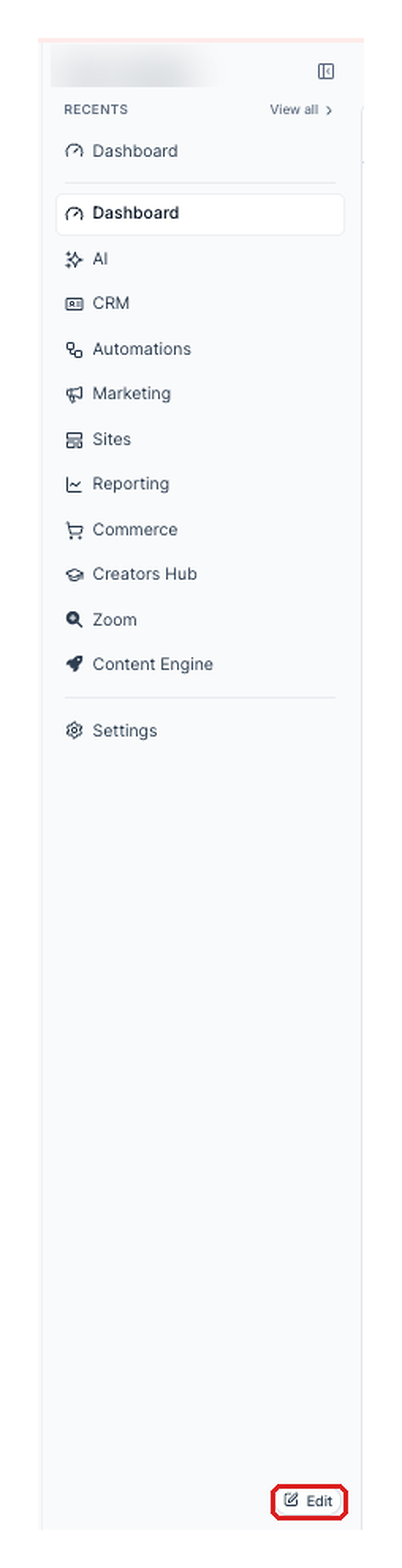
Note: Select Edit in the sidebar. Do not select Edit dashboard from the Dashboard toolbar.
Step 2: Open Editing Mode
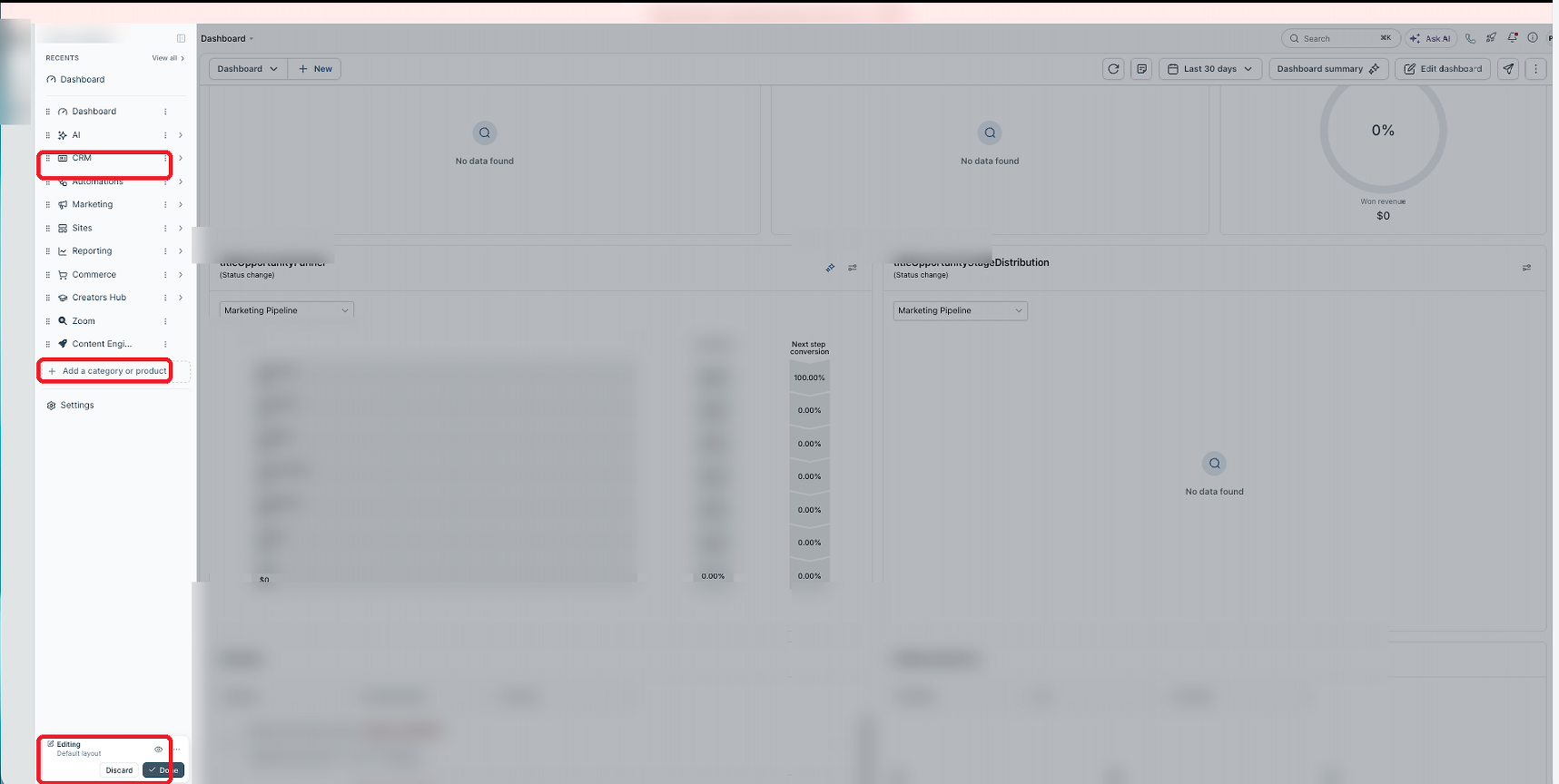
Editing mode displays customization controls beside the navigation entries so you can organize the menu without opening individual products.
- Click Edit at the bottom of the sidebar.
- Review the navigation in editing mode.
The main page appears dimmed, and the sidebar displays controls such as drag handles, three-dot menus, Add a category or product, and the Editing panel at the bottom.
Step 3: Reorder Navigation Groups and Items
Reordering changes an entry's position within its current navigation level.
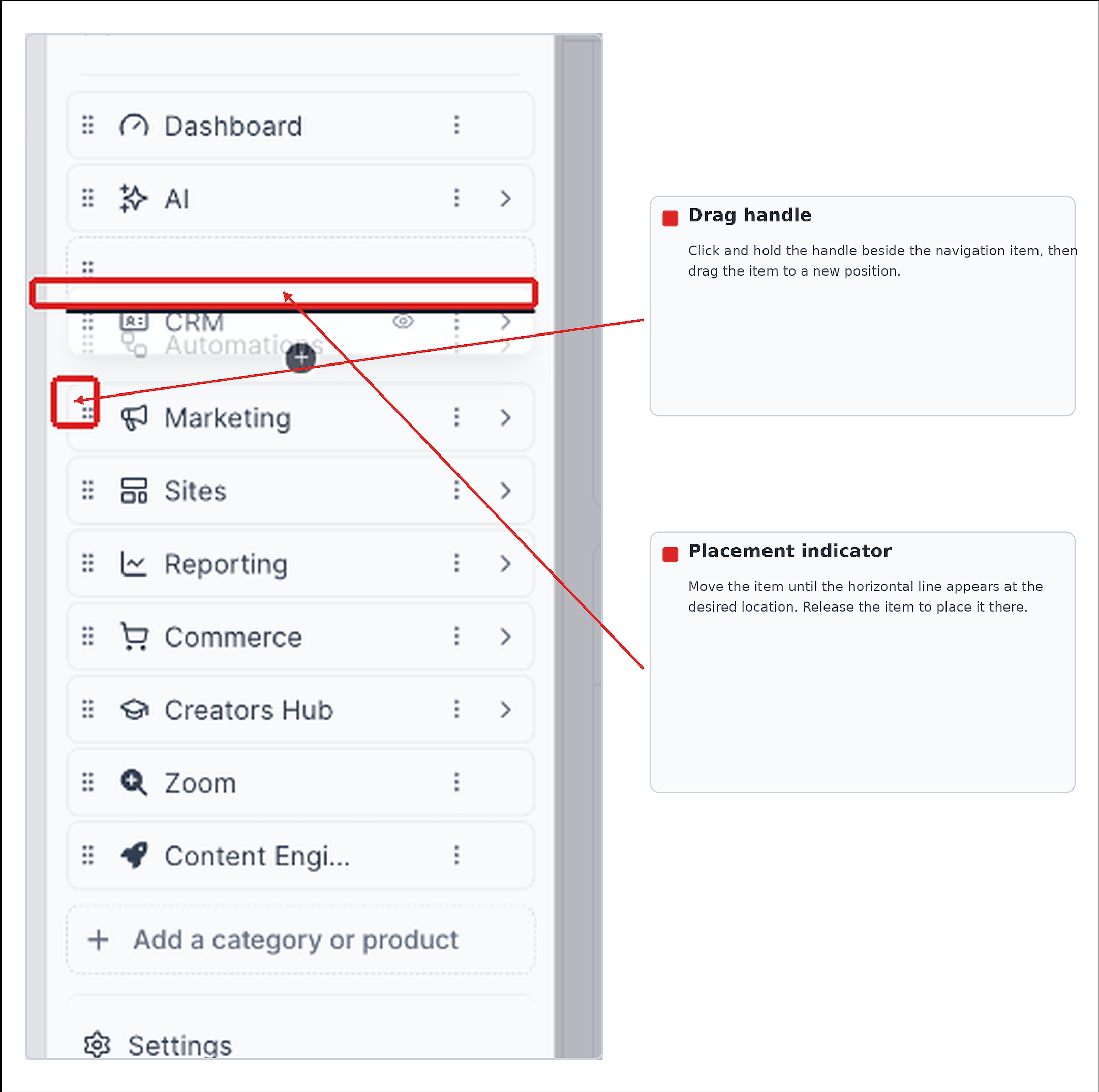
- Click and hold the drag handle beside the group or item.
- Drag it to the desired position.
- Use the horizontal placement indicator to identify where the item will appear.
- Release the item to place it in that position.
For top-level groups, you can also select Move up or Move down from the group's three-dot menu.
- L2 items can be reordered within their existing L1 group.
- L3 items can be reordered within their existing L2 parent.
- Moving an item into another group is a separate action.
- Settings cannot be reordered.
Step 4: Rename a Group or Change an Icon
Group names and icons help your team recognize where products belong. Renaming is available for L1 groups only, while supported navigation icons can be changed at all three levels.
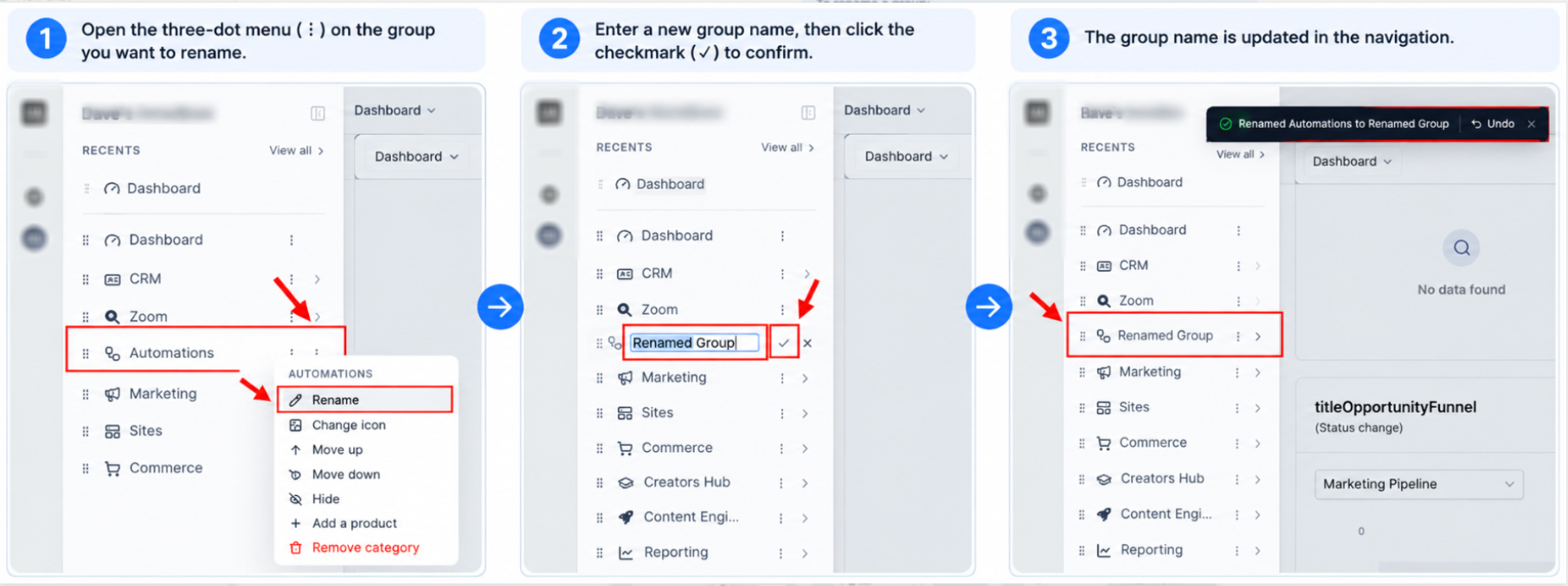
- Click the three-dot menu (⋮) beside the group or item you want to customize.
To rename a group:
- Select Rename.
- Enter a short, descriptive group name that follows the naming rules above.
- Complete the change using the available confirmation control.
To change an icon:
- Open the item's three-dot menu (⋮).
- Select Change icon.
- Choose the navigation icon you want to use.
- Complete the change using the available control.
Note: Changing a navigation icon changes the icon beside that navigation entry. It does not change the account avatar or logo.
Step 5: Review Available Navigation Layouts
Use the Navigation Layouts picker to identify the layout you are editing and review how other saved layouts are being used.
The picker includes a Search layouts field. A check mark identifies the selected layout, and usage labels can indicate whether another layout is not in use or is applied to a sub-account.
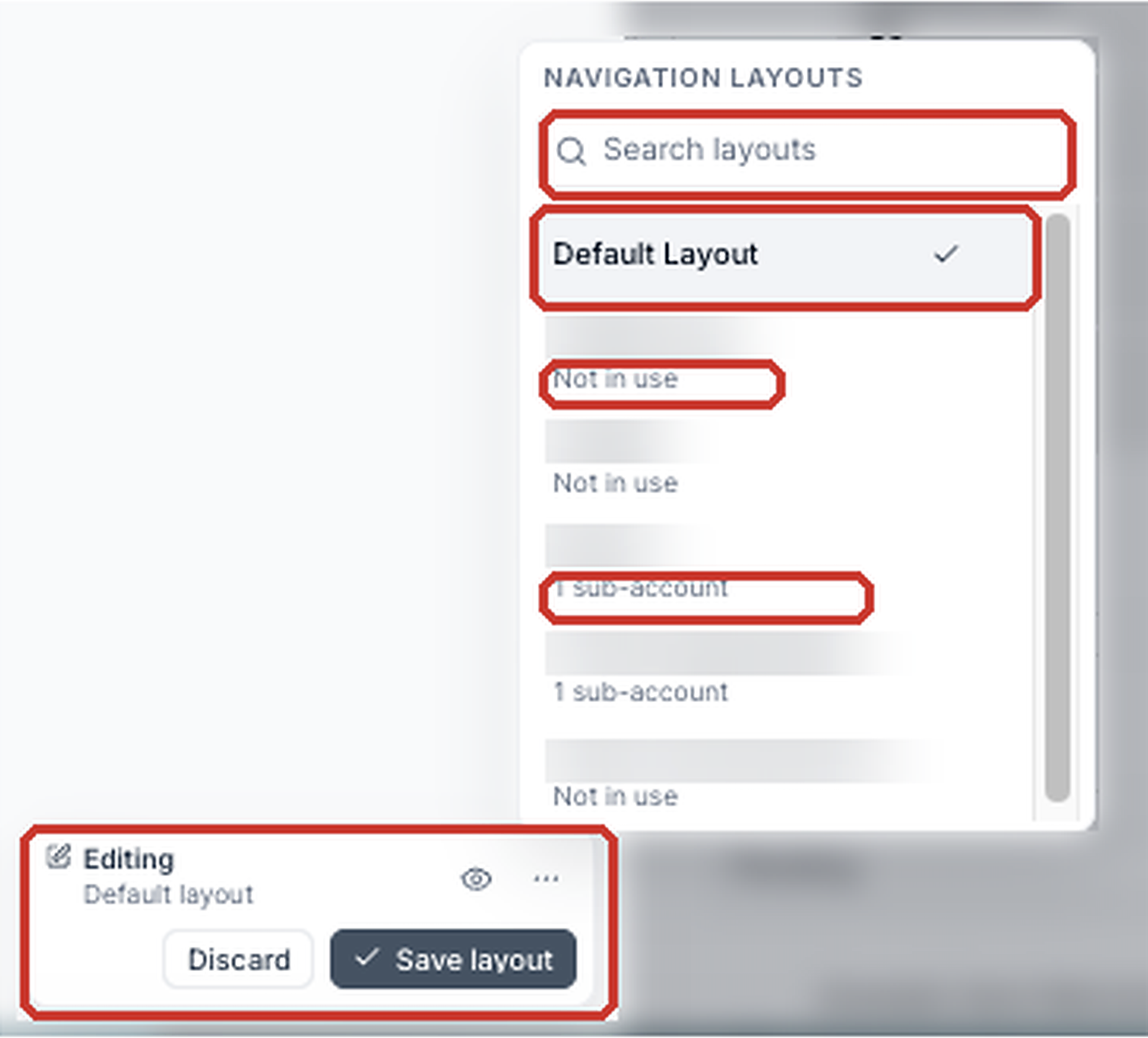
Note: The Navigation Layouts picker shows layout selection and usage. It is not a save-confirmation screen.
Step 6: Manage Visibility and Organize Groups
Visibility controls simplify the sidebar, while group-organization controls let you arrange products around your team's work.
Open a group's three-dot menu (⋮) to access available actions such as Hide and Add a product.
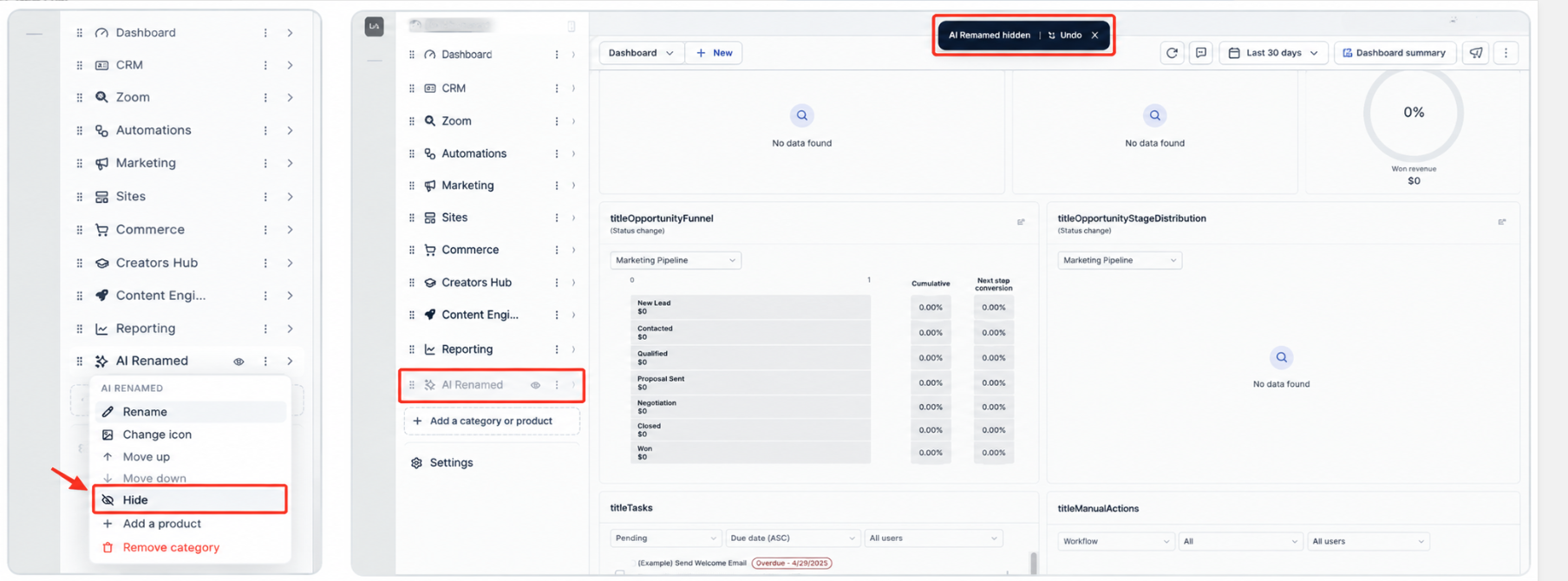
Hide or Show a Group or Product
Use visibility controls when you want to remove an item from the sidebar without removing access to the underlying product.
- L1 groups can be hidden or shown.
- Individual L2 products can be hidden or shown.
- L3 items cannot be hidden independently.
Select Hide from the available menu to hide a supported group or product. Hidden items can be restored through the navigation editor's available visibility controls.
Create a Navigation Group
Create a new navigation group when you want to organize related products together. The editor can use the term category to refer to a navigation group.
- Select Add a category or product.
- Choose the available option for creating a category.
- Enter a name for the new group.
- Complete the creation using the available control.
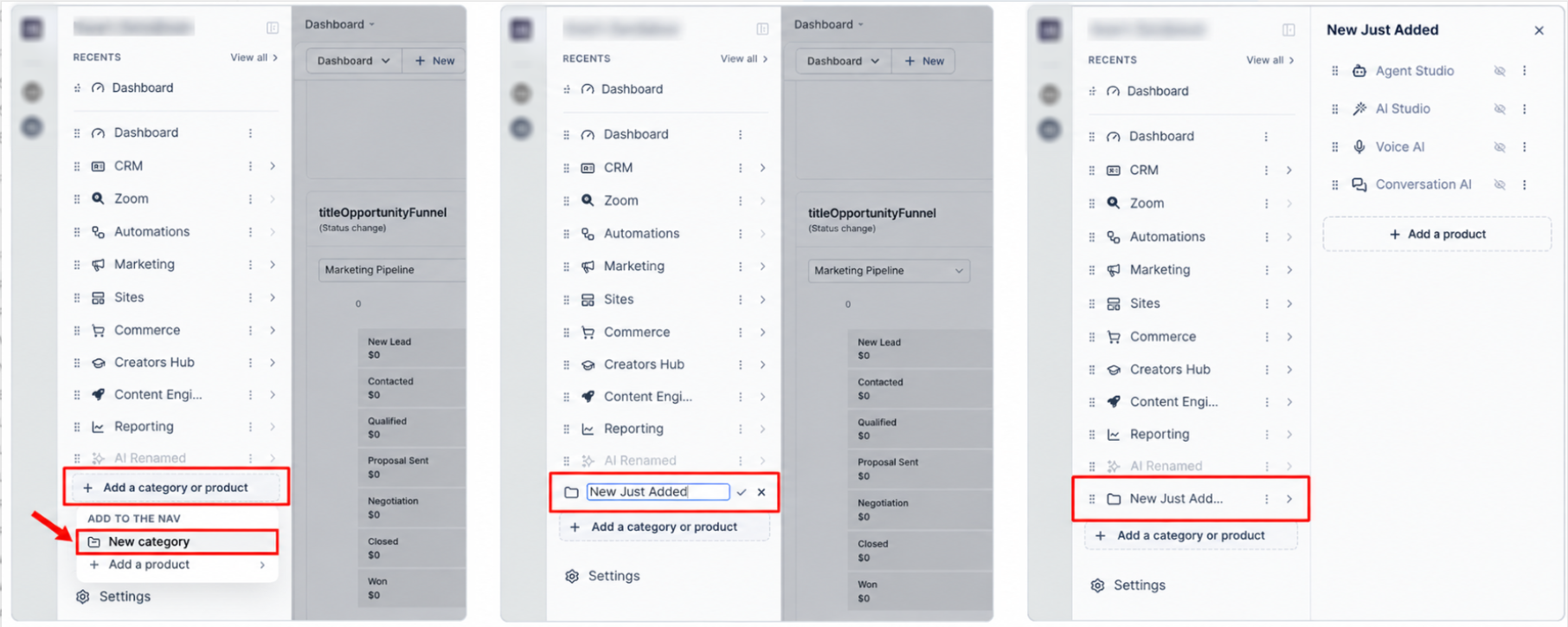
New groups can be renamed, assigned an icon, and reordered alongside existing groups.
Add Products to a Group
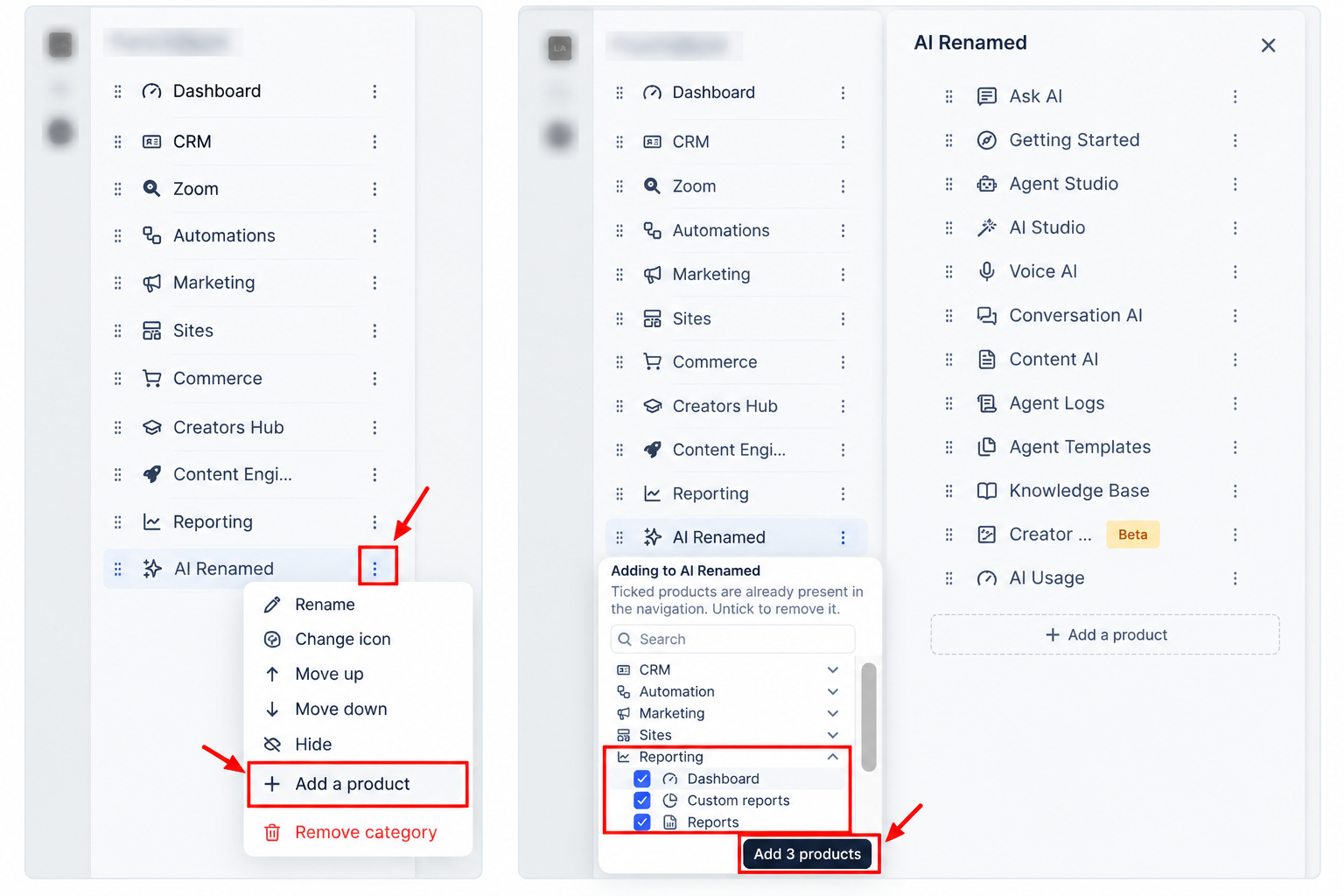
- Open the group's three-dot menu (⋮).
- Select Add a product.
- Use the available product-selection controls to organize products within the group.
Move Products Between Groups
Moving changes which navigation group contains an item. This is different from reordering an item within its current group.
- An L2 product can be moved into another L1 group, including a renamed or newly created group.
- An L3 item can be moved out of its L2 parent and placed directly inside an L1 group's menu.
Moving an L3 item into an L1 group does not create another top-level navigation group.
Step 7: Review and Save the Layout
Review the navigation before saving, especially when the layout is already used by other sub-accounts.
- Review the group names, icons, order, visibility, and product placement.
- Check whether the layout is already used by other sub-accounts.
- Click Save layout in the bottom Editing panel.
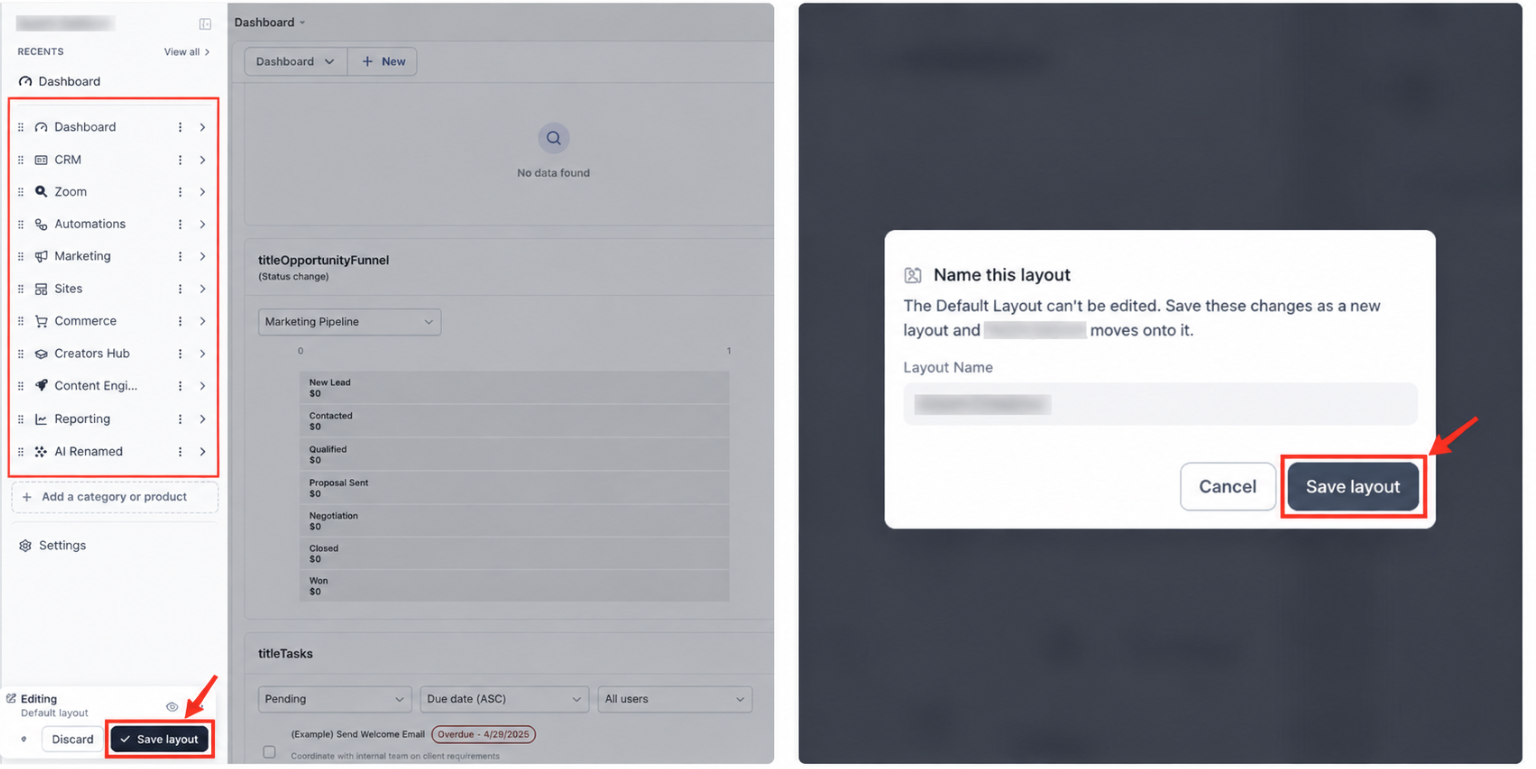
- If an application-scope prompt appears, review where the changes will be applied.
- Complete the save.
- Review the resulting navigation to confirm the layout appears as intended.
Saving records the configuration and, by default, applies it to the sub-account being edited. Applying a saved layout to additional sub-accounts is a separate action.
Important: Updating a saved layout already used by multiple sub-accounts can affect those sub-accounts. On the $497 plan, a one-off edit can update the shared layout or be saved separately for the current sub-account. Review layout usage before saving.
Frequently Asked Questions
Q: How can I find a product when the navigation groups have unfamiliar names?
Select View all beside Recents to open All Products. The directory lists products under their original HighLevel names regardless of customized group labels.
Q: Does hiding a product remove access to it?
No. Hiding a product changes its visibility in the navigation. Users with the required permissions can still access it through All Products or a direct URL.
Q: Are navigation layouts included in snapshots?
No. Navigation layouts and snapshots operate independently in this release. Applying a snapshot does not replace the existing navigation layout or restore items hidden through navigation customization.
Q: Do newly created sub-accounts automatically inherit an agency's custom navigation layout?
No. Layouts are applied to the sub-accounts selected by the agency. Newly created sub-accounts do not automatically inherit an agency's custom base navigation.
Q: What happens to existing layouts when an agency downgrades from $497 to $297?
Existing customizations remain in place across sub-accounts. Future editing is limited to one sub-account. The first sub-account edited after the downgrade becomes the editable sub-account, while other sub-accounts retain their existing layouts but cannot be modified under the $297 entitlement.
Q: Will my customization be preserved if I disable the new navigation?
No. Disabling the new navigation discards the customization. Re-enabling the new navigation starts from the default navigation rather than restoring the previous customized layout.
Q: Are Recents and Pinned shared with everyone using the navigation layout?
No. Recents and Pinned remain personal to each user and are not changed by editing the shared navigation layout.
Related Articles
Was this article helpful?
That’s Great!
Thank you for your feedback
Sorry! We couldn't be helpful
Thank you for your feedback
Feedback sent
We appreciate your effort and will try to fix the article