Custom Navigation introduces a redesigned interface that makes it easier to find features, move between products, and organize your workspace in HighLevel. With grouped navigation menus, improved search, and customizable layouts, agencies can create a navigation experience that better fits their business and sub-accounts.
This article explains how Custom Navigation works, how to preview, enable, or disable it through Labs, and which customization options are available with your HighLevel plan.
TABLE OF CONTENTS
- Getting Started with Custom Navigation
- Custom Navigation Availability by Plan
- How to Enable Custom Navigation
- Customizing Your Navigation
- Saving and Managing Navigation Layouts
- Custom CSS and JavaScript
- Frequently Asked Questions
- Related Articles
Getting Started with Custom Navigation
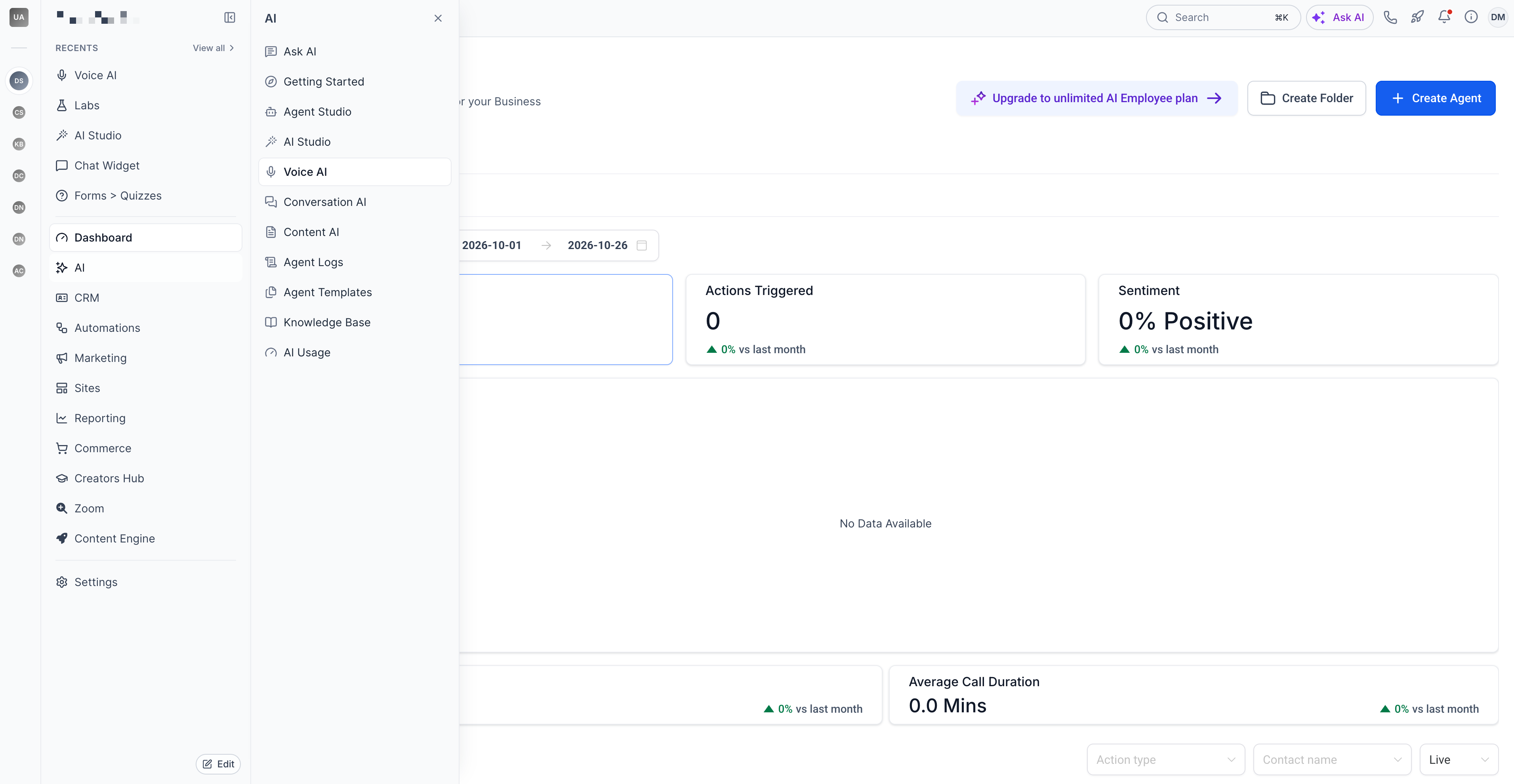
Custom Navigation introduces a redesigned interface that makes it easier to find products and move between different areas of HighLevel. Instead of scrolling through a long list of menu items, related products are organized into groups in the left sidebar, creating a cleaner and more intuitive workspace.
Frequently used features are easier to reach with Recents and Pinned, while Global Search and breadcrumbs help you find and switch between products without navigating back through the sidebar. The All Products directory also makes it easy to locate features, even when navigation groups have been customized.
Note: Custom Navigation changes how products are organized and accessed, not their functionality or user permissions.
Custom Navigation Availability by Plan
Custom Navigation is available on all HighLevel agency plans, but customization capabilities vary by subscription level. All plans include the redesigned navigation experience, while higher-tier plans provide additional options for organizing navigation and managing layouts across sub-accounts.
| Agency Plan | Available Features |
|---|---|
| $97/month | Access the redesigned navigation with the default layout. Navigation customization is not available. |
| $297/month | Access the redesigned navigation and customize the navigation menu for one sub-account. Reusable layouts cannot be applied across multiple sub-accounts. |
| $497/month | Customize navigation across all sub-accounts, create and manage reusable layouts, and apply layout changes to multiple sub-accounts. |
Note: All plans receive the redesigned sidebar, search, breadcrumbs, and other navigation improvements. Customization features require an eligible plan.
How to Enable Custom Navigation
Custom Navigation can be enabled through Settings > Labs from Agency View or Sub-Account View. You can enable it for Agency View, select specific sub-accounts, or activate it directly from an individual sub-account.
Important: Enabling Custom Navigation for Agency View does not automatically enable it for sub-accounts. However, disabling it at the agency level also disables Custom Navigation for all sub-accounts using it.
Enable Custom Navigation from Agency View
From Agency View, you can enable Custom Navigation for Agency View or selected sub-accounts from one location. These options are managed separately, so you can choose where the redesigned navigation becomes available.
- From Agency View, navigate to Settings > Labs.
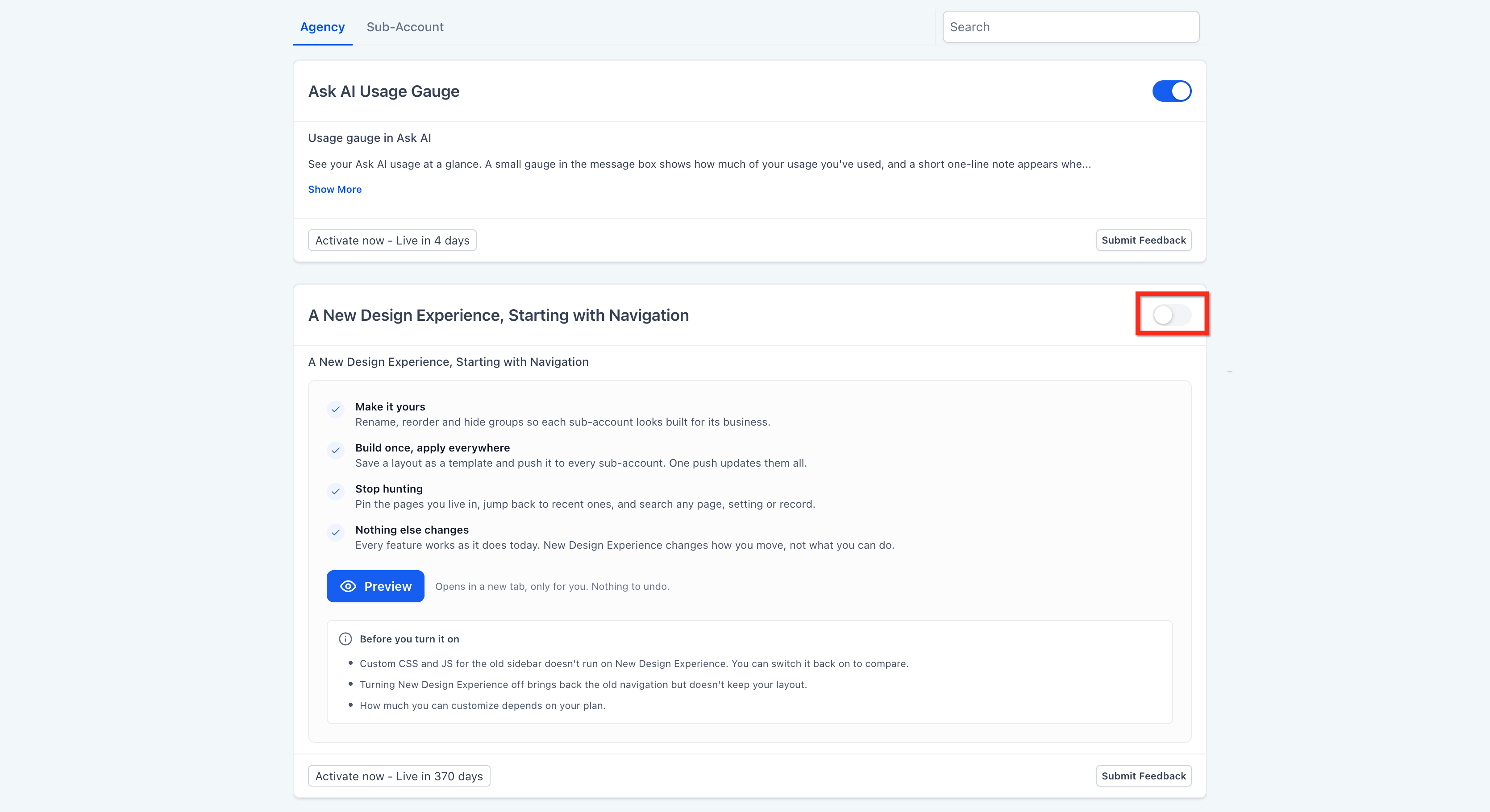
- Select the Agency or Sub-account tab, then scroll down to A New Design Experience, Starting with Navigation.
- Agency tab: Optionally, click Preview to explore the redesigned interface before enabling it. Then turn on the toggle to activate Custom Navigation for Agency View.
- Sub-account tab: Optionally, click Preview to explore the interface. Then click Activate Feature, select the sub-accounts where you want to enable Custom Navigation, and save your selection.
Enable Custom Navigation from Sub-Account View
Agency admins can also enable Custom Navigation directly from an individual sub-account. This activates the redesigned interface for that sub-account without affecting other sub-accounts or Agency View.
Open the desired sub-account and navigate to Settings > Labs.
Scroll down to A New Design Experience, Starting with Navigation.
Optionally, click Preview to explore the redesigned interface before enabling it. Then turn on the toggle to activate Custom Navigation for the current sub-account.
Preview Custom Navigation Before Enabling
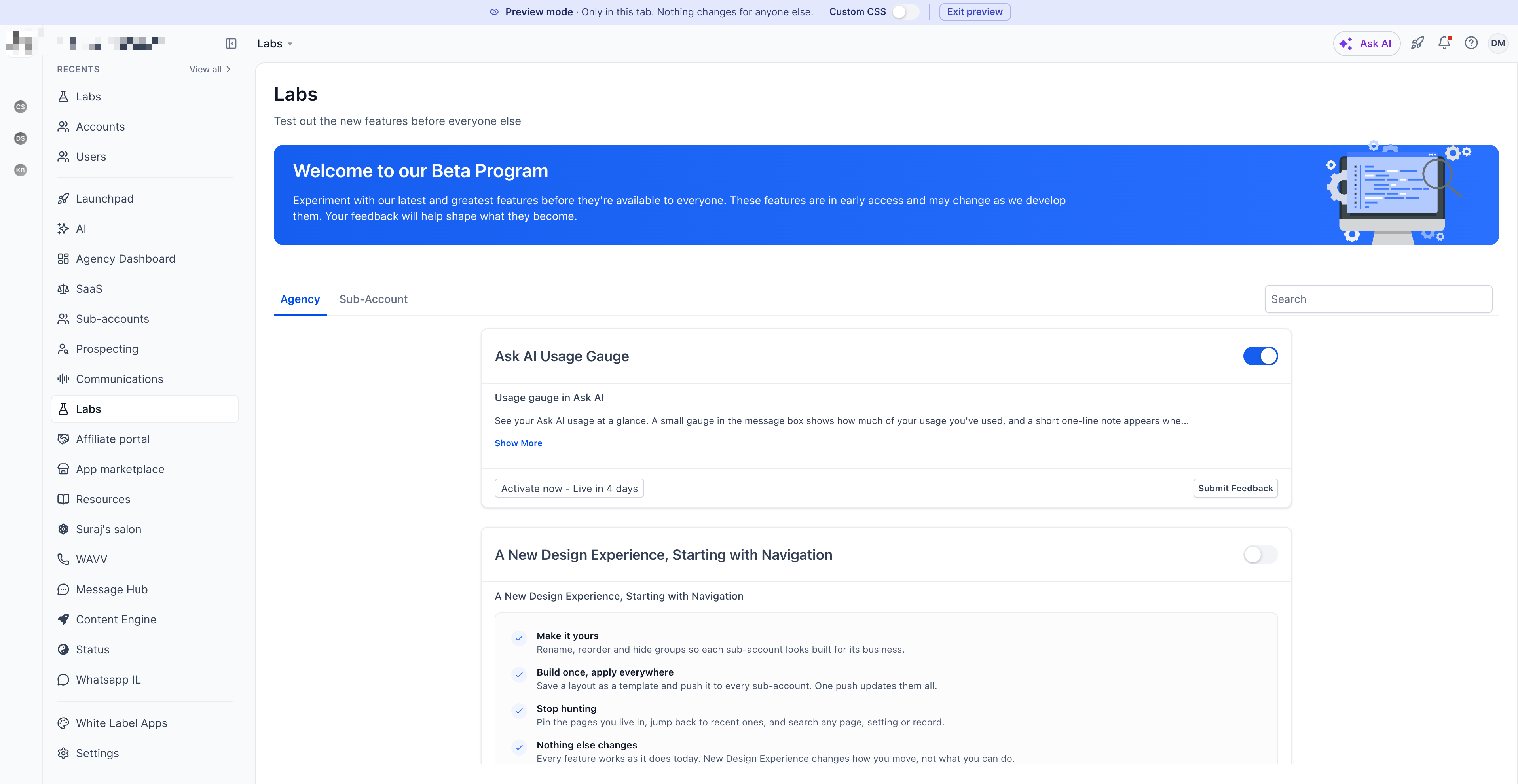
Preview mode lets you explore the redesigned interface before activating Custom Navigation. It opens the new navigation in a separate browser tab without changing your current account configuration, making it easy to explore the interface before deciding whether to enable it.
Click Preview on the A New Design Experience, Starting with Navigation feature in Labs to open the redesigned interface.
When previewing, you can use the Custom CSS toggle at the top of the screen to compare how the interface appears with your existing custom styling enabled or disabled. Click Exit Preview or close the browser tab when finished.
Note: Preview mode does not enable Custom Navigation or modify your existing navigation settings. Legacy custom CSS and JavaScript are disabled by default in the preview.
How to Disable Custom Navigation and Revert to Legacy Navigation
You can disable Custom Navigation at any time through Settings > Labs, using the same controls you used to enable it. Disabling the feature returns the affected account to the previous navigation experience.
The behavior depends on where Custom Navigation is disabled:
Agency View: Disabling Custom Navigation at the agency level also disables it for all sub-accounts using it.
Sub-account level: Disabling Custom Navigation for an individual sub-account only affects that sub-account. Agency View and other sub-accounts remain unchanged.
Important: Disabling Custom Navigation resets your navigation customizations. If you enable it again later, your previous customizations will not be automatically restored.
Customizing Your Navigation
Agencies on the $297 and $497 plans can customize how products and features appear in the navigation sidebar. Using the navigation editor, you can organize groups and products around your team's workflows, making frequently used tools easier to find while reducing unnecessary clutter. Navigation customizations apply to the sub-account's shared layout, not individual users.
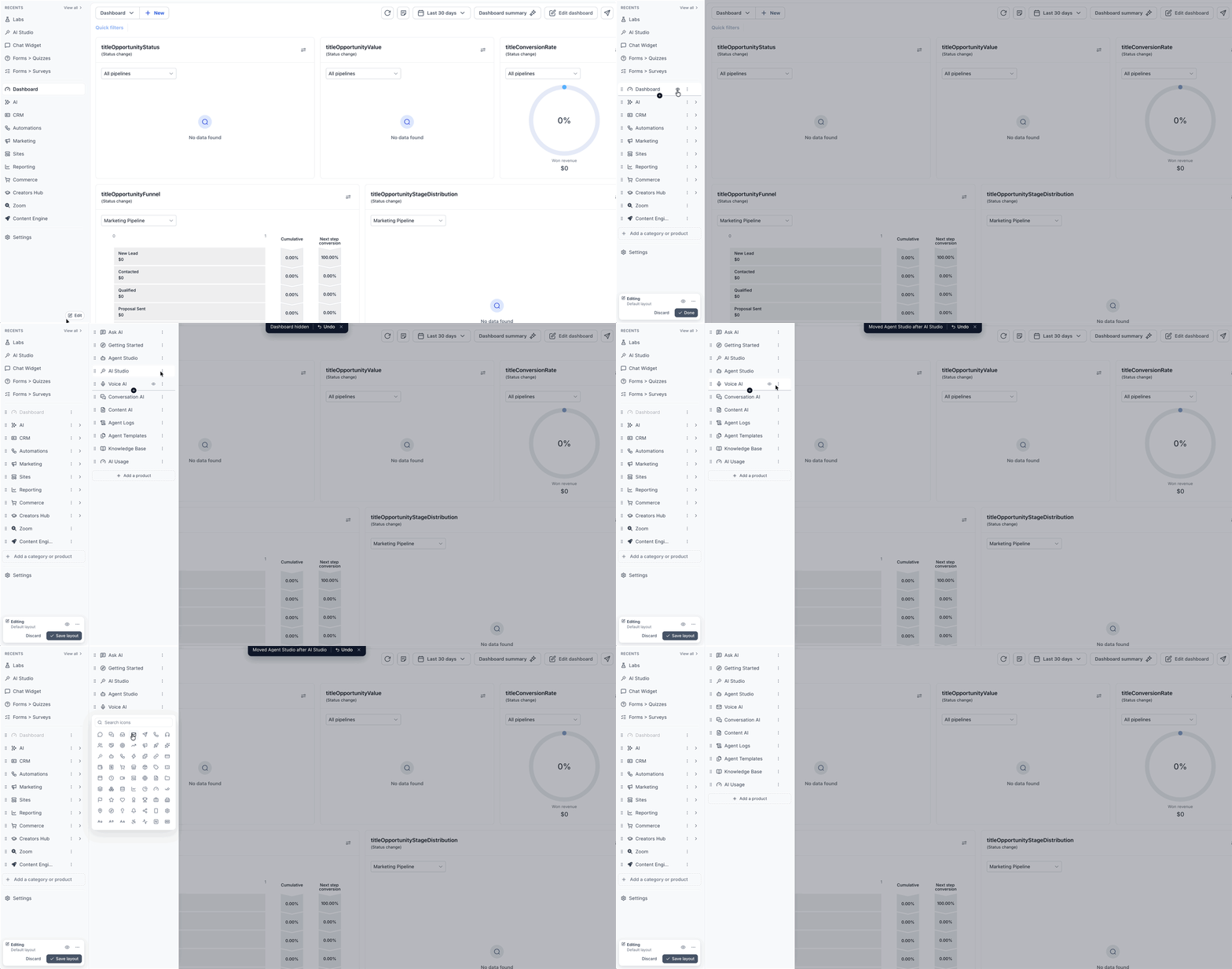
Select Edit at the bottom of the navigation sidebar to access customization options, including:
Rename Groups: Change the names of top-level navigation groups to match your business terminology.
Change Icons: Customize icons for supported navigation groups and items.
Reorder Navigation Items: Rearrange groups and products to prioritize frequently used tools.
Hide or Show Items: Control which groups and products appear in the sidebar.
Create Navigation Groups: Add new groups to organize related products.
Move Products Between Groups: Organize products under different navigation groups.
For example, an agency could create a group for frequently used marketing tools, move relevant products into that group, and hide less frequently used items from the sidebar.
Plan availability: Navigation customization is not available on the $97 plan. The $297 plan allows customization for one sub-account, while the $497 plan supports customization across all sub-accounts.
For more information and detailed instructions, see How to Customize the Navigation Menu.
Important: Hiding a product does not disable it or remove access for users with the required permissions.
Saving and Managing Navigation Layouts
Saved Layouts allow agencies to save customized navigation configurations and reuse them across sub-accounts. Instead of rebuilding the same navigation structure for multiple clients, agencies can create a layout once and apply it wherever that organization is needed.
Depending on your plan, layout management capabilities include:
Saving customized navigation configurations.
Selecting an existing saved layout.
Renaming or duplicating layouts.
Applying a layout to multiple sub-accounts.
Updating a shared layout across the sub-accounts using it.
For example, an agency managing several businesses in the same industry can create a navigation layout that highlights the most relevant products, then apply that layout to those businesses instead of customizing each sub-account individually.
Plan availability: Customizing navigation for one sub-account is available on the $297 plan. Creating and managing reusable layouts across multiple sub-accounts requires the $497 plan.
For detailed instructions, see How to Create and Manage Navigation Layouts.
Note: Navigation layouts are not included in snapshots and are not automatically applied to newly created sub-accounts.
Custom CSS and JavaScript
Custom Navigation uses a redesigned interface that may affect existing custom CSS and JavaScript created for the previous navigation. To prevent styling conflicts, HighLevel disables legacy custom code by default when Custom Navigation is enabled, without deleting your existing code.
Agencies can choose to reuse their existing custom CSS and JavaScript through White Label settings. However, some custom styling, including dark mode, sidebar modifications, and custom menu links, may not display correctly with the new interface.
You can also use the Custom CSS toggle when previewing Custom Navigation from Agency View to compare how the redesigned interface looks with your existing custom styling enabled or disabled before activating the feature.
For details on reusing legacy code and compatibility limitations, see Using Custom CSS and JavaScript with the Custom Navigation.
Note: Existing custom CSS and JavaScript remain active for sub-accounts using the legacy navigation. Enabling Custom Navigation does not delete or modify your saved custom code.
Frequently Asked Questions
Q: Does the changed navigation change how any HighLevel features work?
No. Custom Navigation changes how products and features are organized and accessed. Existing product functionality remains unchanged.
Q: Can I use Custom Navigation without customizing anything?
Yes. All plans can use the redesigned interface with its default navigation layout.
Q: Can I enable Custom Navigation for only one sub-account?
Yes. Custom Navigation can be enabled for individual sub-accounts without enabling it for every sub-account.
Q: Can I return to the previous navigation?
Yes. You can disable Custom Navigation through Labs. However, disabling it resets your navigation customizations.
Q: Does hiding a product prevent users from accessing it?
No. Hiding a product removes it from the navigation menu but does not change access permissions. Users with the appropriate permissions may still access it through a direct URL or All Products.
Q: Are navigation layouts included in snapshots?
No. Navigation layouts and snapshots are managed separately. Applying a snapshot does not replace an existing navigation layout.
Related Articles
Was this article helpful?
That’s Great!
Thank you for your feedback
Sorry! We couldn't be helpful
Thank you for your feedback
Feedback sent
We appreciate your effort and will try to fix the article