Snapshot Asset Dependencies helps keep related assets together when you create, refresh, or load a Snapshot. HighLevel identifies the supporting assets that selected Workflows and Email Templates need, reducing the chance of transferring an automation or template without the components it references. Use this guide to understand dependency coverage, review automatically included assets, and manage dependency selection before loading a Snapshot.
TLDR: Creating or refreshing a Snapshot automatically includes available dependencies for supported selected assets. When loading the Snapshot, turn on Auto include dependent assets in the Assets step to select those dependencies for the load. Use View dependencies to review them before continuing.
TABLE OF CONTENTS
- What Are Snapshot Asset Dependencies?
- Key Benefits of Snapshot Asset Dependencies
- Supported Assets and Dependencies
- How Dependencies Work
- Dependency Controls and Indicators
- How To Use Snapshot Asset Dependencies
- Important Notes and Limitations
- Frequently Asked Questions
- Related Articles
What Are Snapshot Asset Dependencies?
A dependency is an asset that another asset references or needs to function correctly. For example, a Workflow may use an Email Template, reference a Custom Field, or apply a Tag. Transferring the Workflow without its supporting assets can leave parts of the automation incomplete.
Snapshot Asset Dependencies helps address this at two points: when assets are captured in a Snapshot and when they are selected for loading into a destination sub-account.
For example, when a selected Workflow references an Email Template, HighLevel can include that template in the Snapshot automatically. During loading, enabling Auto include dependent assets also selects the template for the destination sub-account.
Key Benefits of Snapshot Asset Dependencies
Dependency handling reduces the manual work involved in transferring interconnected assets.
Fewer missing components: Include supporting assets that selected Workflows and Email Templates reference.
Less manual selection: Reduce the need to find and select every related field, value, tag, or template individually.
Clearer asset review: Use dependency indicators and tooltips to understand why an additional asset is included.
More reliable reuse: Reduce missing-dependency issues when deploying configurations across sub-accounts.
Supported Assets and Dependencies
Automatic dependency detection initially covers Workflows and Email Templates. The asset selector identifies email builder templates under Email Builder Templates.
Depending on what these assets reference, their dependencies can include Email Templates, Custom Fields, Custom Values, Tags, Pipelines and pipeline stages, Custom Objects, Trigger Links, and Brand Colors.
Important: An asset being included as a dependency is different from that asset type having its own automatic dependency detection. For example, a Tag may be included because a selected Workflow requires it. This does not mean automatic dependency detection covers every Snapshot asset category.
How Dependencies Work
Creating or refreshing a Snapshot determines what it contains. Loading the Snapshot determines which of those assets are transferred to a destination sub-account.
| Snapshot action | Dependency behavior |
|---|---|
| Create a Snapshot | HighLevel detects and automatically includes available dependencies for supported assets you select. |
| Refresh a Snapshot | HighLevel checks the selected supported assets again and includes any newly required dependencies it can resolve. |
| Load a Snapshot | Turning on Auto include dependent assets automatically selects dependencies alongside the assets you choose to load. |
A dependency must be captured in the Snapshot and included in the load to be transferred through that Snapshot. Selecting a Workflow alone is not a substitute for reviewing whether its supporting assets are included.
Dependency Controls and Indicators
The asset-selection screen and Version History provide several ways to inspect dependencies.
| Control or indicator | What it means |
|---|---|
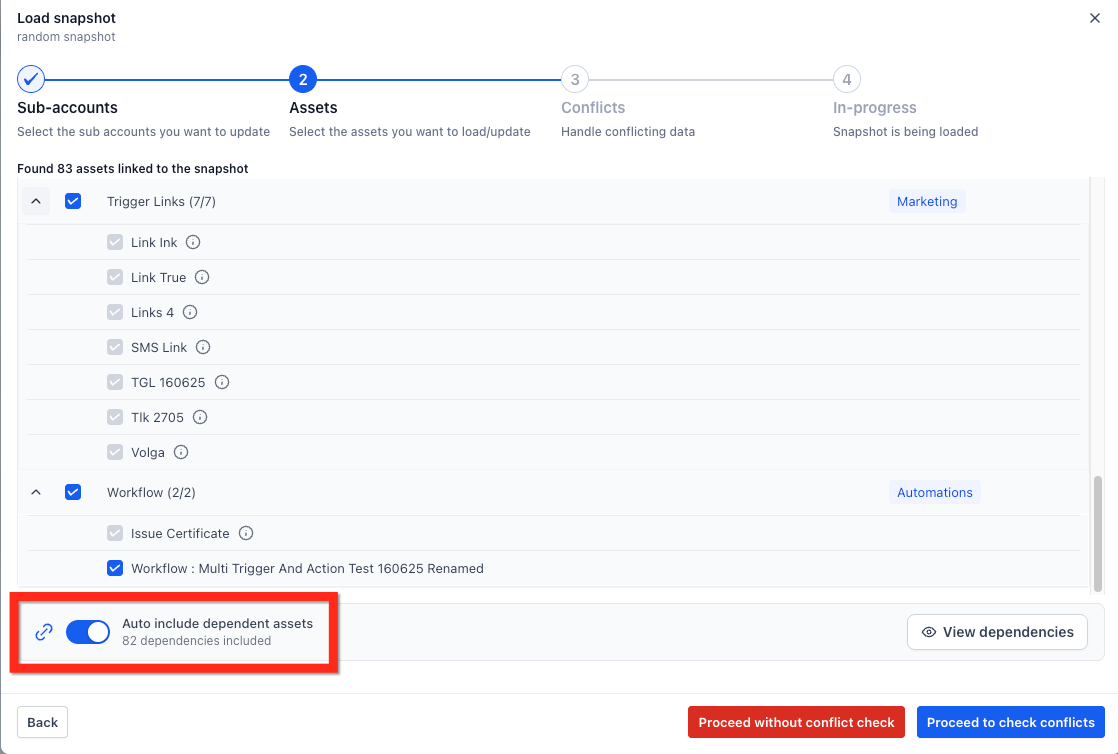
| Auto include dependent assets | Controls automatic dependency selection during the Snapshot load. Turn it on to select dependencies with their related assets. |
| Dependencies included | Shows the number of dependencies included in the current load selection. |
| Dependencies not included | Warns that detected dependencies are not included in the current load selection. |
| Gray checked boxes | Identify dependencies selected automatically while automatic inclusion is enabled. |
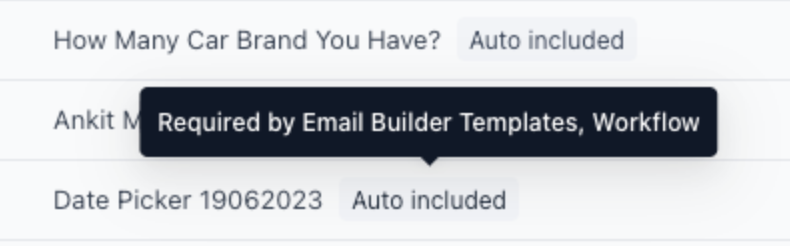
| Information icon | Provides dependency details. Hover over it to see a message such as Required by Email Builder Templates or Required by Email Builder Templates, Workflow. |
| Orange warning icon | Identifies a dependency that has not been selected for loading. Hover over the icon to review why it is required. |
| View dependencies | Filters the asset list to show dependencies. A Dependencies filter appears above the list. |
| Show all assets | Returns from the dependency-filtered view to the full asset list. |
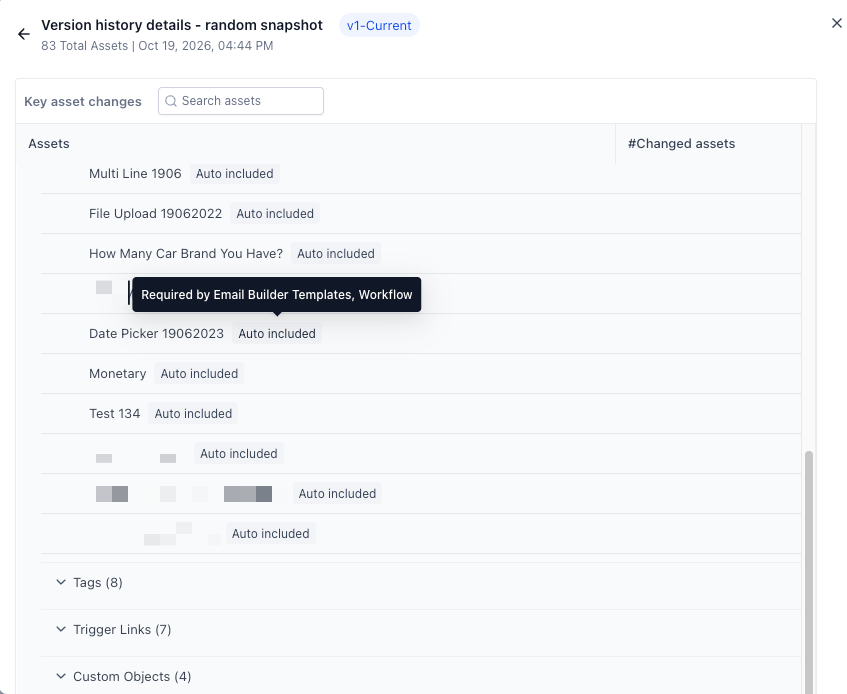
| Auto included | Identifies an automatically included asset in Snapshot Version History details. |
Note: A dependency warning during asset selection does not necessarily mean the asset is missing from the Snapshot. It can mean the asset is available but has not been selected for the current load.
How To Use Snapshot Asset Dependencies
Use the following steps to capture dependencies, review them, and include them when loading a Snapshot.
Create a Snapshot With Dependencies
Go to Agency View > Account Snapshots.
Click + Create New Snapshot.
Enter a Snapshot name and select the source sub-account.
Select the Workflows, Email Templates, and other assets you want to capture.
Click Create.
HighLevel automatically includes available dependencies for the supported assets you selected. You do not need to find and select each of those dependencies separately.
Refresh a Snapshot to Recheck Dependencies
Refresh an existing Snapshot after changing its source assets so the Snapshot can capture the latest configuration and dependencies.
Go to Agency View > Account Snapshots.
Locate the Snapshot and click its Refresh icon.
Select the assets you want to include or update.
Click Refresh.
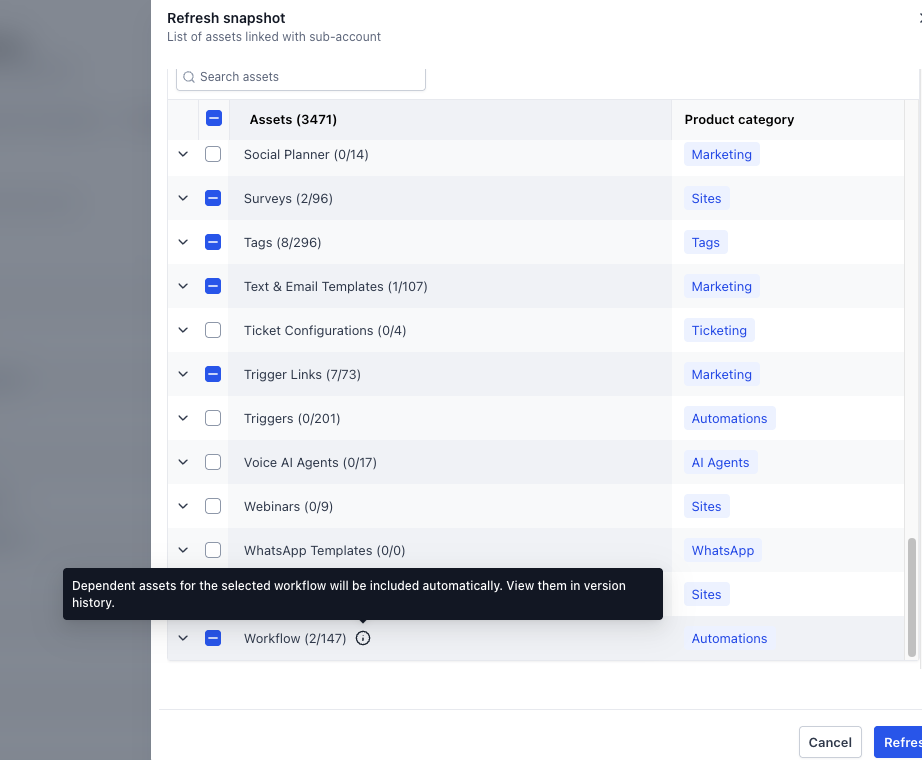
Each refresh rechecks the dependencies of selected supported assets. In the refresh selector, information icons beside categories such as Workflow and Email Builder Templates explain that dependent assets will be included automatically and can be reviewed in Version History.
Important: Changes in the source sub-account do not update the Snapshot automatically. Refreshing the Snapshot also does not, by itself, distribute those changes to destination sub-accounts. Use the applicable loading or push-update process afterward.
Include Dependencies When Loading a Snapshot
Step 1: Open the Snapshot load flow.
From Agency View > Account Snapshots, locate your Snapshot and open Load Updates to Sub-Account. Select the destination sub-account or sub-accounts, then continue to the asset-selection step.
You can also start from Agency View > Sub-Accounts, open the destination sub-account’s three-dot menu, select Manage Client, and choose Actions > Load Snapshot. Select the Snapshot and continue.
Step 2: Select the assets you want to load.
In the Assets step, expand the relevant categories and select the Workflows or Email Templates you want to transfer.
Step 3: Turn on Auto include dependent assets.
Enable Auto include dependent assets beneath the asset list. Required dependencies are selected automatically, and the status shows how many dependencies are included.
Step 4: Review the dependencies.
Click View dependencies to focus the list on dependent assets. Hover over an information icon to see which asset type requires an item. Click Show all assets to return to the full list.
Step 5: Review conflicts and complete the load.
Click Proceed to check conflicts to review potential conflicts before loading. Review any choices to replace or retain existing destination assets, then complete the confirmation steps. Standard Snapshot conflict handling allows you to override an existing asset or skip the conflicting Snapshot asset.
The screen also provides Proceed without conflict check. Dependency inclusion and conflict checking are separate controls: including dependencies does not replace reviewing how the load may affect existing assets.
Step 6: Verify the destination assets.
After loading, inspect the transferred Workflows and Email Templates. For Workflows that send email, review the Send Email actions, confirm the template connections and content, and send a test email before activating the automation.
Review Automatically Included Assets in Version History
Version History helps you inspect what a Snapshot version contains.
Go to Agency View > Account Snapshots > My Snapshots.
Click the Snapshot name to open its asset viewer.
Open the Version History tab.
Select a version to open its details.
Look for assets marked Auto included. Hover over the dependency indicator to see which asset types required them. A dependency can be required by more than one asset type, such as both Email Builder Templates and Workflow.
Important Notes and Limitations
Automatic dependency detection has limited asset-type coverage.
The initial coverage is Workflows and Email Templates. Review supporting assets manually for other asset types rather than assuming every relationship will be detected.
Automatic inclusion can be disabled during loading.
When Auto include dependent assets is off, dependencies can remain unselected. Review the warning count and affected items before proceeding. Leaving a required asset out may result in an incomplete configuration in the destination.
Unresolved dependencies are skipped.
If HighLevel cannot find or resolve a referenced dependency, that item is left out without blocking the remaining Snapshot processing. However, the asset that requires it may still need correction before it can function as intended.
A successful load is not a substitute for testing.
Review the destination configuration before using it with live contacts. For workflow emails, verify the imported email content and template mapping rather than assuming that completing the load confirms the automation is ready.
Frequently Asked Questions
Q: Do I still need to select every related asset manually?
For supported selected Workflows and Email Templates, available dependencies are included automatically when you create or refresh a Snapshot. During loading, turn on Auto include dependent assets to select those dependencies automatically.
Continue reviewing related assets for categories outside the initial dependency-detection coverage.
Q: Why are some assets checked even though I did not select them?
They were selected automatically because another selected asset requires them. Hover over the information icon to see the dependency explanation.
Q: What does “dependencies not included” mean?
It means detected dependencies are not included in your current load selection. Click View dependencies to inspect them, then enable Auto include dependent assets or review and select the required items manually.
Q: Why does the Snapshot include more assets than I selected?
Supported assets can reference other assets. HighLevel includes those dependencies in addition to your direct selections, so the final asset count can be higher. Review Auto included labels in Version History to identify the additional items.
Q: What happens when a required dependency cannot be found?
HighLevel skips the unresolved dependency and continues processing the remaining assets. Check the source asset’s references and correct the missing dependency before relying on the affected Workflow or Email Template.
Q: How do I capture new dependencies in an existing Snapshot?
Refresh the Snapshot with the relevant Workflows or Email Templates selected. The refresh rechecks their dependencies. Then review the updated Snapshot and use the appropriate load or push-update process to distribute the changes. Source-account edits do not automatically update an existing Snapshot.
Q: Does including dependencies remove the need for conflict checking?
No. Dependency inclusion determines which supporting assets are selected. Conflict checking helps you review whether a selected Snapshot asset should replace or be skipped in favor of an existing destination asset.
Related Articles
Creating New Snapshots in HighLevel — Create a Snapshot from a source sub-account and select its assets.
Refresh or Update Snapshots — Capture source-account changes and prepare updated assets for distribution.
Load Snapshots Into Existing Sub-Account — Load selected assets, review conflicts, and confirm the import.
Load Multiple Sub-Accounts to a Snapshot — Use the centralized load flow to select multiple destination sub-accounts.
Snapshot Version Management — Review Snapshot versions and their asset changes.
Snapshot Workflow Email Action – Enhanced Flow — Understand workflow-email template connections and verify transferred email actions.
Was this article helpful?
That’s Great!
Thank you for your feedback
Sorry! We couldn't be helpful
Thank you for your feedback
Feedback sent
We appreciate your effort and will try to fix the article