Preview email templates with your brand colors before creating them in HighLevel. Select a saved Brand Design Kit to see how its colors look on a template, compare different styles, and create an email with your preferred branding already applied. This reduces manual customization and helps you create consistent, professional emails faster.
What is Brand Design Kit Preview for Email Templates?
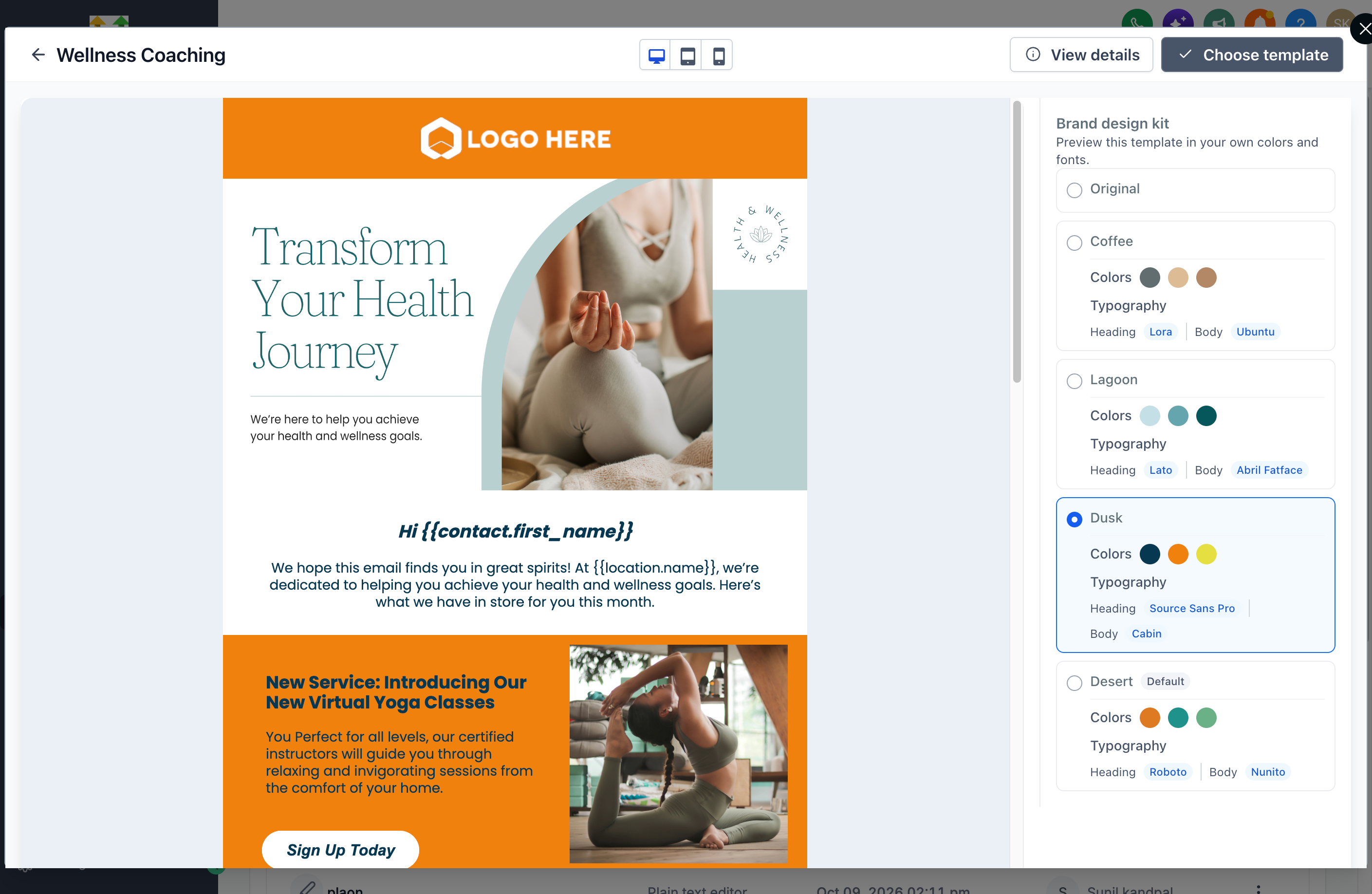
Brand Design Kit Preview lets you apply saved brand colors to email templates before selecting them. Choose a Design Kit from the preview sidebar to instantly see its colors across the template, including headings, buttons, backgrounds, and other supported elements. When you click Choose Template, the email is created with your selected brand colors applied.
Key Benefits of Brand Design Kit Preview
Previewing templates with your brand colors helps you choose designs that match your business while reducing manual styling.
- Consistent Branding: Apply saved brand colors across email templates.
- Faster Email Creation: Reduce manual color adjustments when creating emails.
- Easy Style Comparison: Switch between Brand Design Kits to compare color palettes before choosing a template.
- Ready-to-Customize Templates: Start editing with your selected brand colors already applied.
Brand Design Kit Options
The Brand design kit sidebar displays the available Design Kits saved in your sub-account, allowing you to compare different brand styles without leaving the template preview.
Available options include:
- Original: Displays the template with its original styling.
- Saved Brand Design Kits: Applies the selected kit's colors to the template preview.
- Colors and Typography: Displays the color palette and associated heading and body font names for each kit.
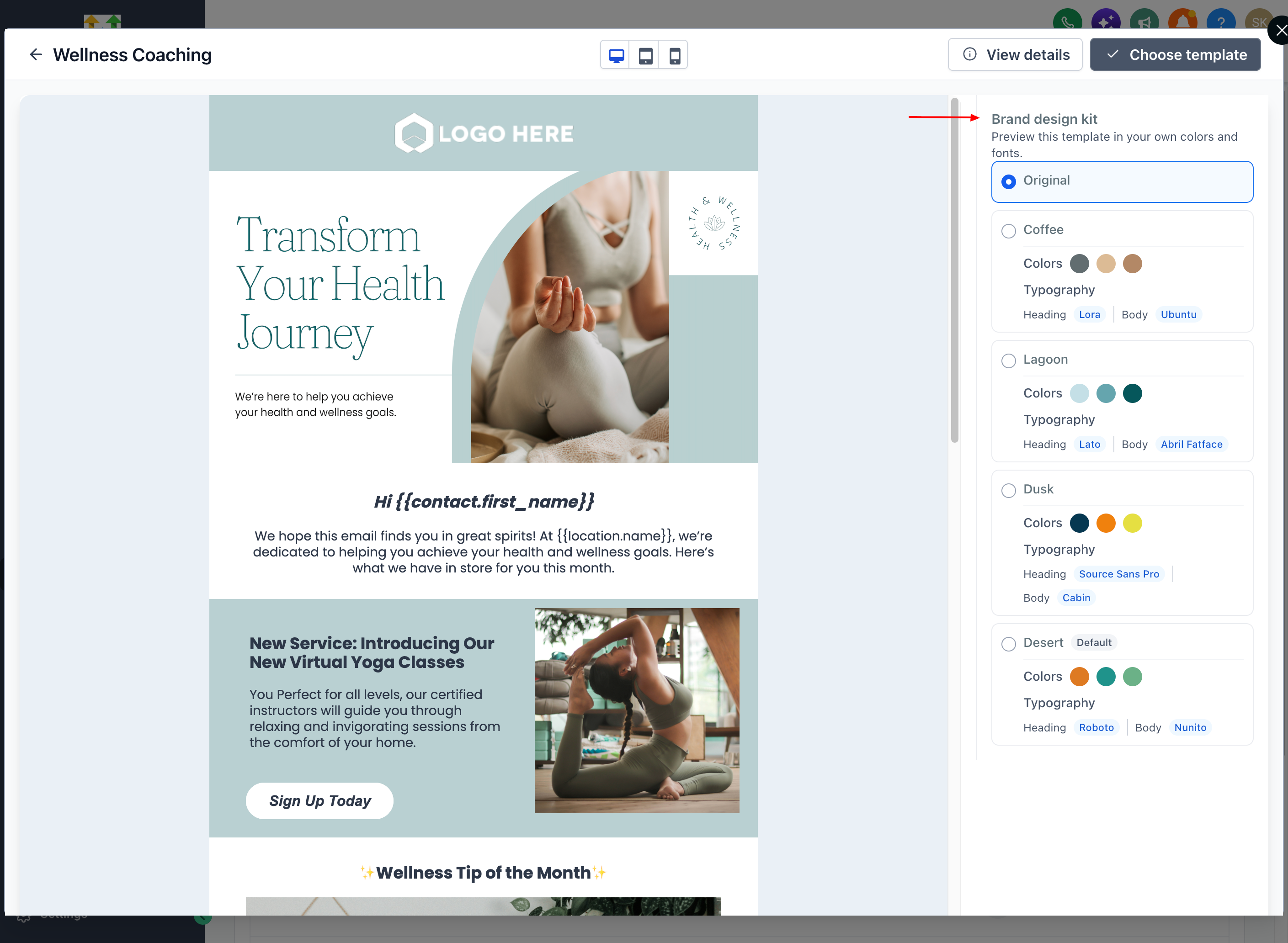
How to Preview Email Templates with Brand Design Kits
Selecting your brand colors before choosing a template gives you a more personalized starting point for email creation. Make sure you have a saved Brand Design Kit in your sub-account. If needed, follow How to Create a Brand Board in HighLevel.
- Navigate to Marketing > Emails > Templates, click + New, and open the Template Library.
- Find an email template and click Preview.
- Select a Brand Design Kit from the sidebar to preview its colors. Switch between kits to compare different styles.
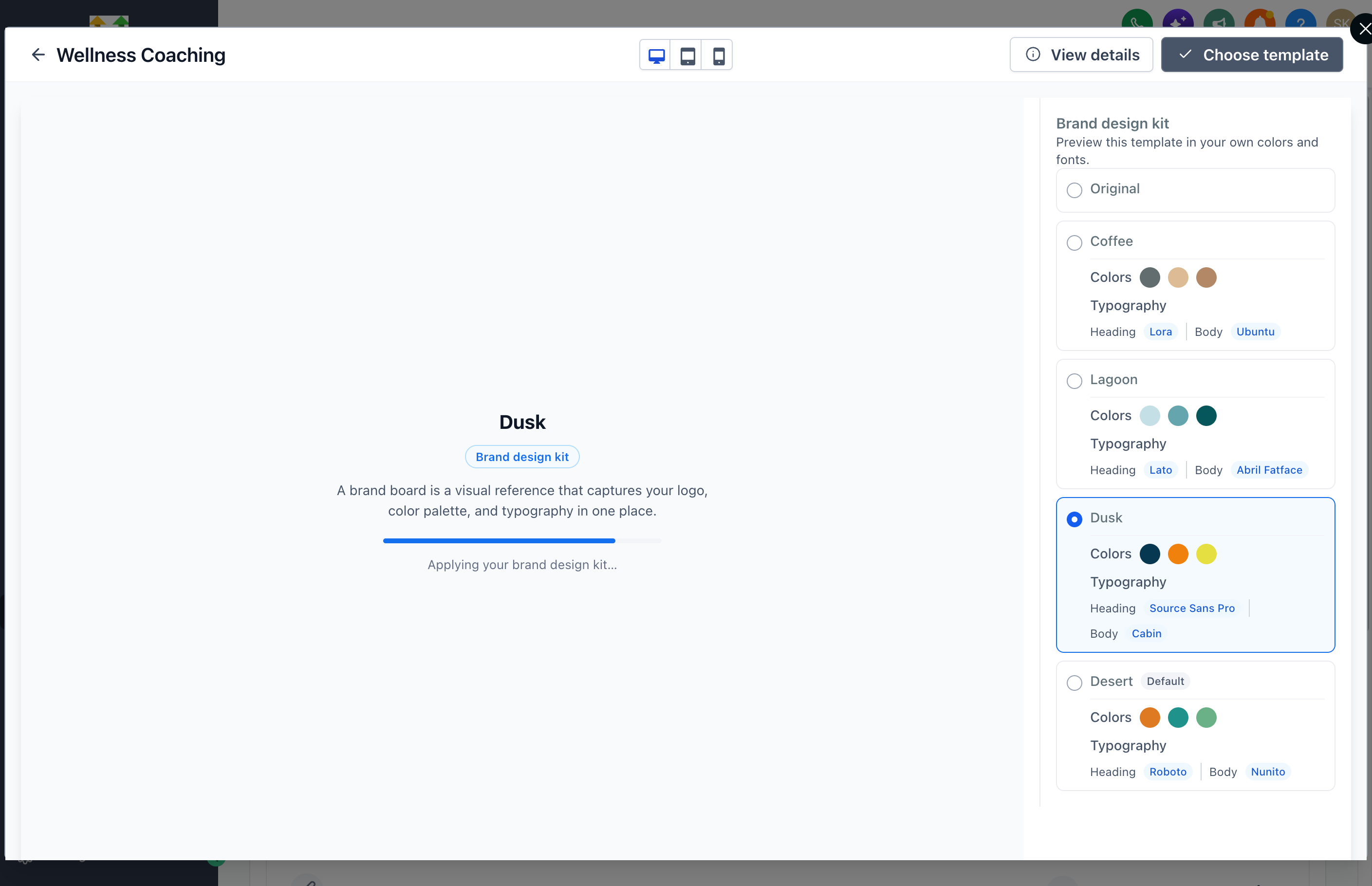
- Click Choose Template to create the email with your selected brand colors applied.
Frequently Asked Questions
Q: Can I preview a template without applying a Brand Design Kit?
Yes. Select Original in the Brand design kit sidebar to view the template with its original styling.
Q: What if I don't see a Brand Design Kit I want to use?
Make sure the Brand Design Kit has been saved in the sub-account where you're creating the email. To create a new kit, see How to Create a Brand Board in HighLevel.
Q: Can I preview multiple brand color combinations before choosing a template?
Yes. Select another saved Design Kit in the sidebar to compare how its colors look on the same template. Choose your preferred kit before clicking Choose Template.
Q: Will changes to a saved Brand Design Kit update previously created emails?
No. Changes to a saved Design Kit do not automatically restyle existing emails.
Related Articles
- How to Create a Brand Board in HighLevel
- How to Use Brand Boards in Emails
- Template Library Overview & Setup
- How to Change Default Brand Boards in HighLevel
Was this article helpful?
That’s Great!
Thank you for your feedback
Sorry! We couldn't be helpful
Thank you for your feedback
Feedback sent
We appreciate your effort and will try to fix the article