Managed Agents in HighLevel can pause their work and automatically resume at a scheduled time. You can use this feature to send reminders, manage appointment follow-ups, and complete tasks at the right time without manually restarting the agent. This article explains how to create, test, and manage scheduled follow-ups using the AI builder in Agent Studio.
TABLE OF CONTENTS
- What are Scheduled Follow-Ups for Managed Agents?
- Understanding Follow-Up Schedules
- Scheduling Follow-Ups Around Events
- Adding Conditions and Stop Rules
- Editing Follow-Up Schedules
- Monitoring and Canceling Waiting Runs
- Testing and Billing
- How to Set Up Scheduled Follow-Ups for Managed Agents
- Frequently Asked Questions
- Related Articles
What are Scheduled Follow-Ups for Managed Agents?
Scheduled Follow-Ups allow a Managed Agent to perform an action, wait for a specified time, and continue working with its previous conversation context.
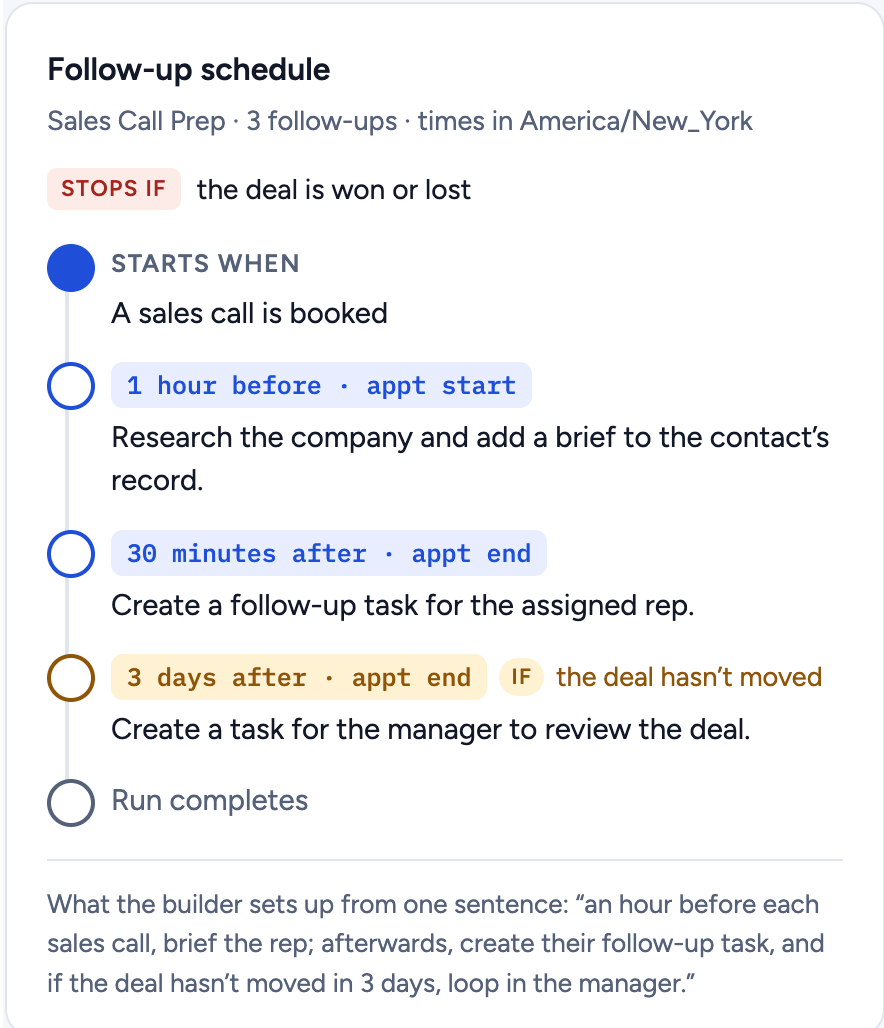
For example, when a customer books a sales call, an agent can prepare a brief before the appointment, create a follow-up task afterward, and check whether the deal has progressed a few days later. You can create and manage these schedules by describing what you want to the AI builder.
Note: Scheduled Follow-Ups are different from Scheduled Triggers. A Scheduled Trigger starts an agent at a specific time, while a Scheduled Follow-Up allows an already-started agent to pause and resume.
Understanding Follow-Up Schedules
A follow-up schedule contains actions that a Managed Agent performs at different times. Each step has its own timing and instructions.
You can schedule actions:
After a delay: For example, two hours after the agent starts.
Before an event: For example, one hour before an appointment.
After an event: For example, 30 minutes after an appointment ends.
Waiting periods can range from 5 minutes to 30 days. Scheduled times are displayed in your sub-account's time zone.
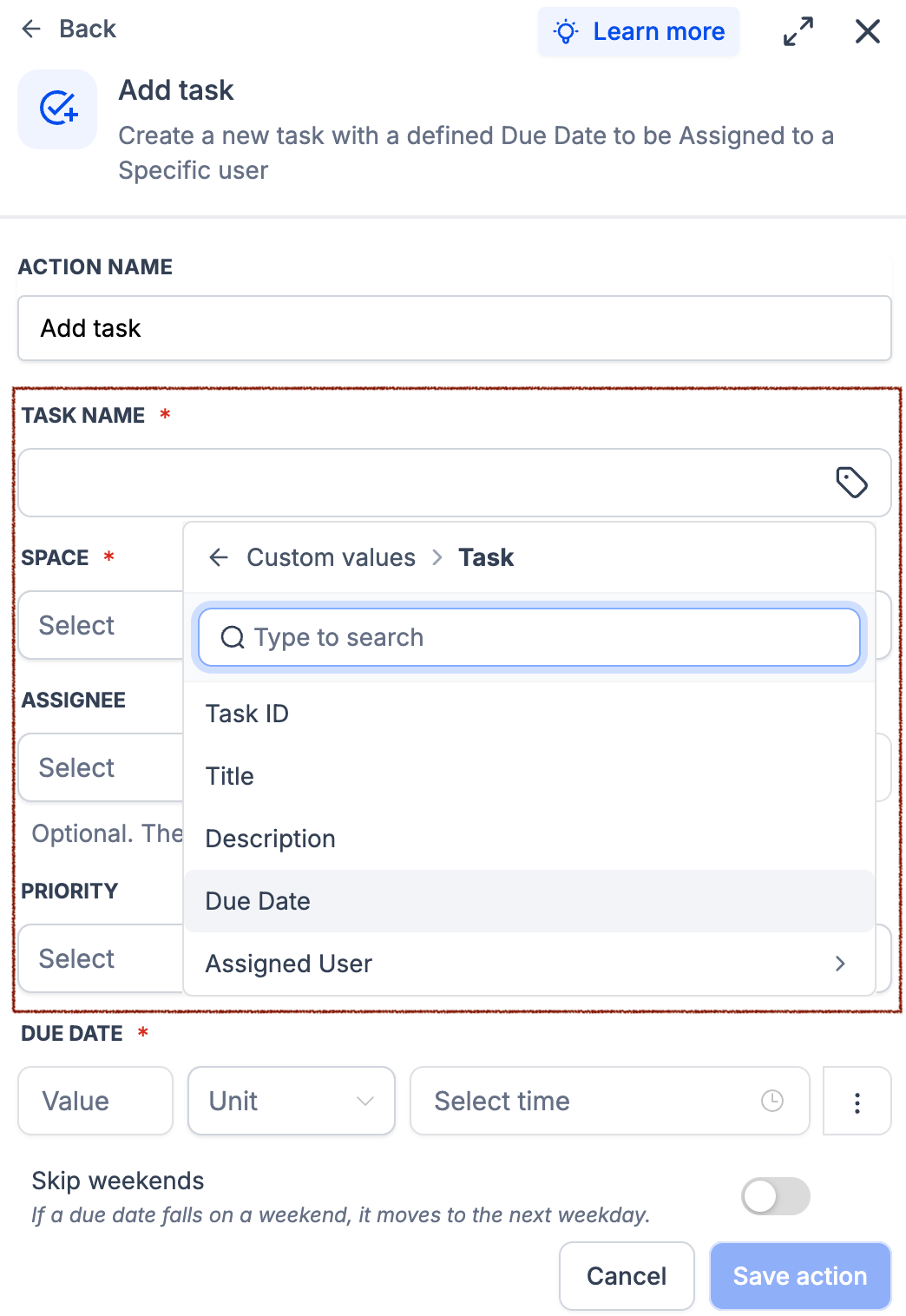
For example, a sales call follow-up schedule could include:
One hour before the call, prepare a company brief.
Thirty minutes after the call, create a follow-up task.
Three days after the call, create a manager review task if the deal has not progressed.
Scheduling Follow-Ups Around Events
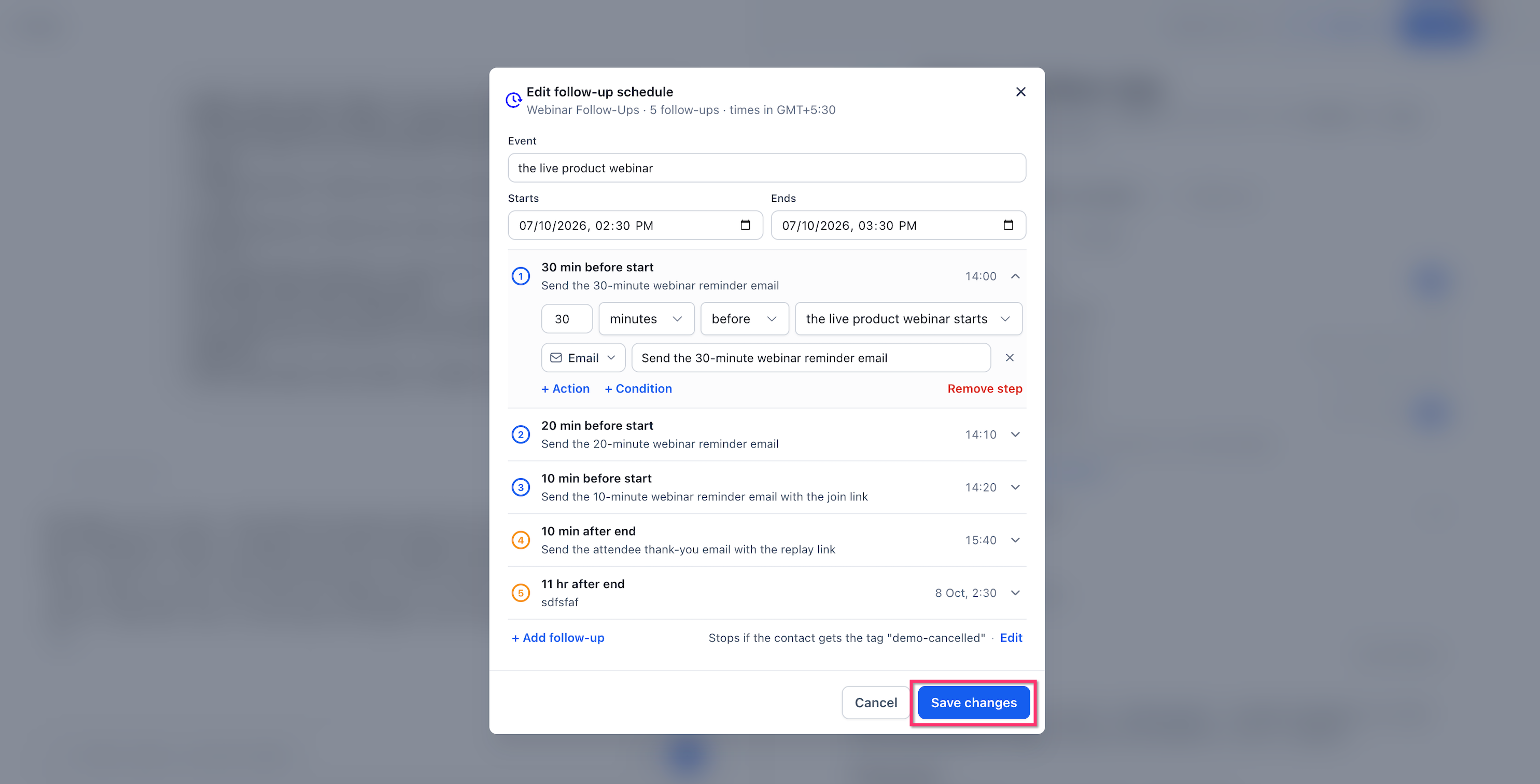
Event-based scheduling lets you time actions around appointments, webinars, or other supported events. This helps keep follow-ups aligned with event dates.
For example, you can send a webinar reminder 30 minutes before it starts and a thank-you message 10 minutes after it ends.
If an appointment is rescheduled, the agent checks the updated details and adjusts applicable future reminders. If the appointment is canceled, related follow-ups can be skipped.
Adding Conditions and Stop Rules
Conditions control whether a scheduled action runs. Stop rules determine when the remaining follow-ups should end.
For example:
Condition: Send a reminder only if the contact has not replied.
Stop Rule: Stop the follow-ups once the contact books an appointment.
You can describe these requirements to the AI builder or adjust them using the schedule editor.
Editing Follow-Up Schedules
You can change an existing schedule by telling the AI builder what to update or by editing the schedule directly.
For example, you can ask:
"Change the first reminder to two hours before the appointment."
"Send the reminder by SMS instead of email."
"Move the webinar follow-ups to Friday."
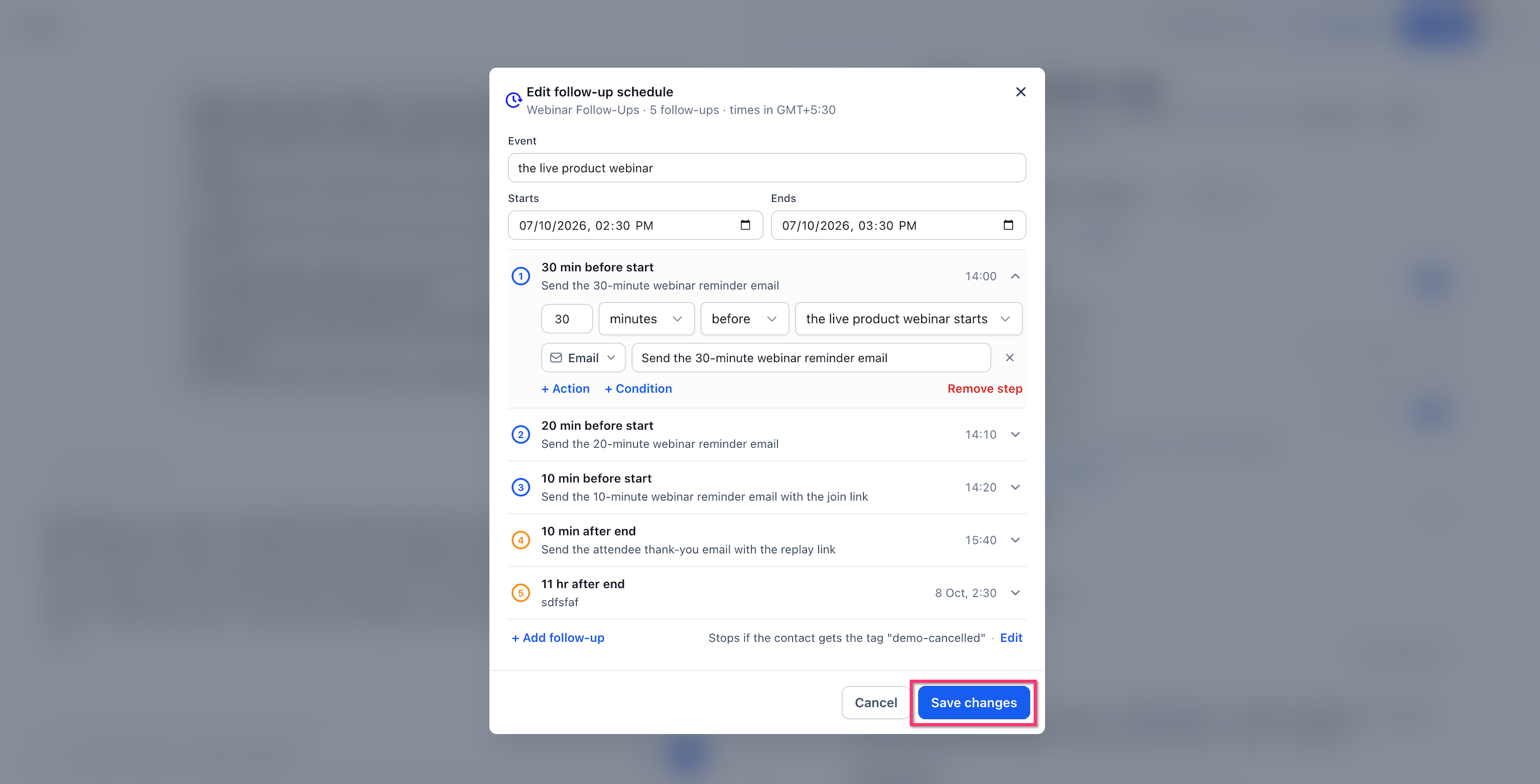
The schedule editor also lets you review actions, add follow-ups, change conditions, and manage stop rules.
Important: When you publish an updated plan, agents that are already waiting switch to the newly published plan.
Monitoring and Canceling Waiting Runs
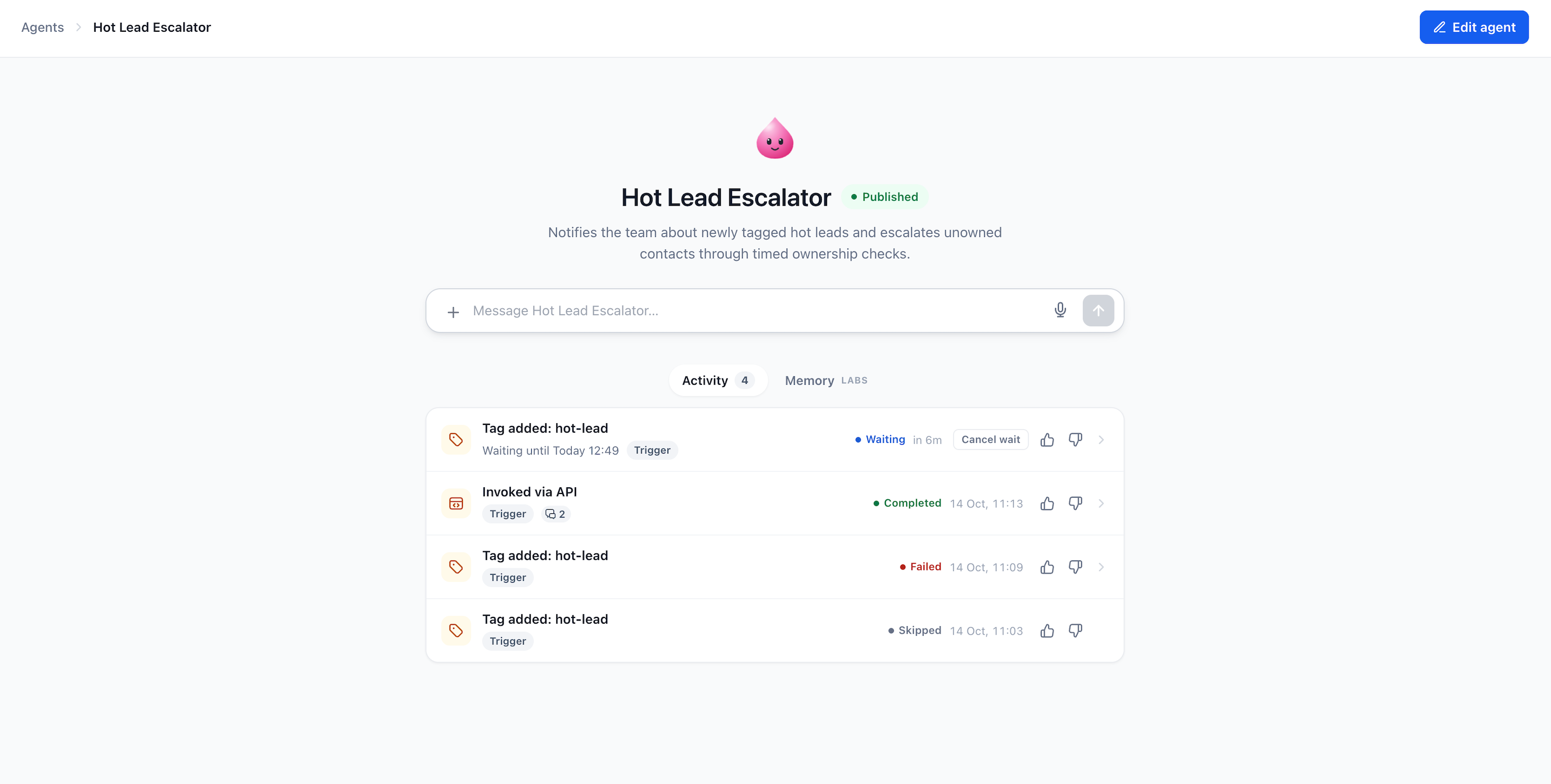
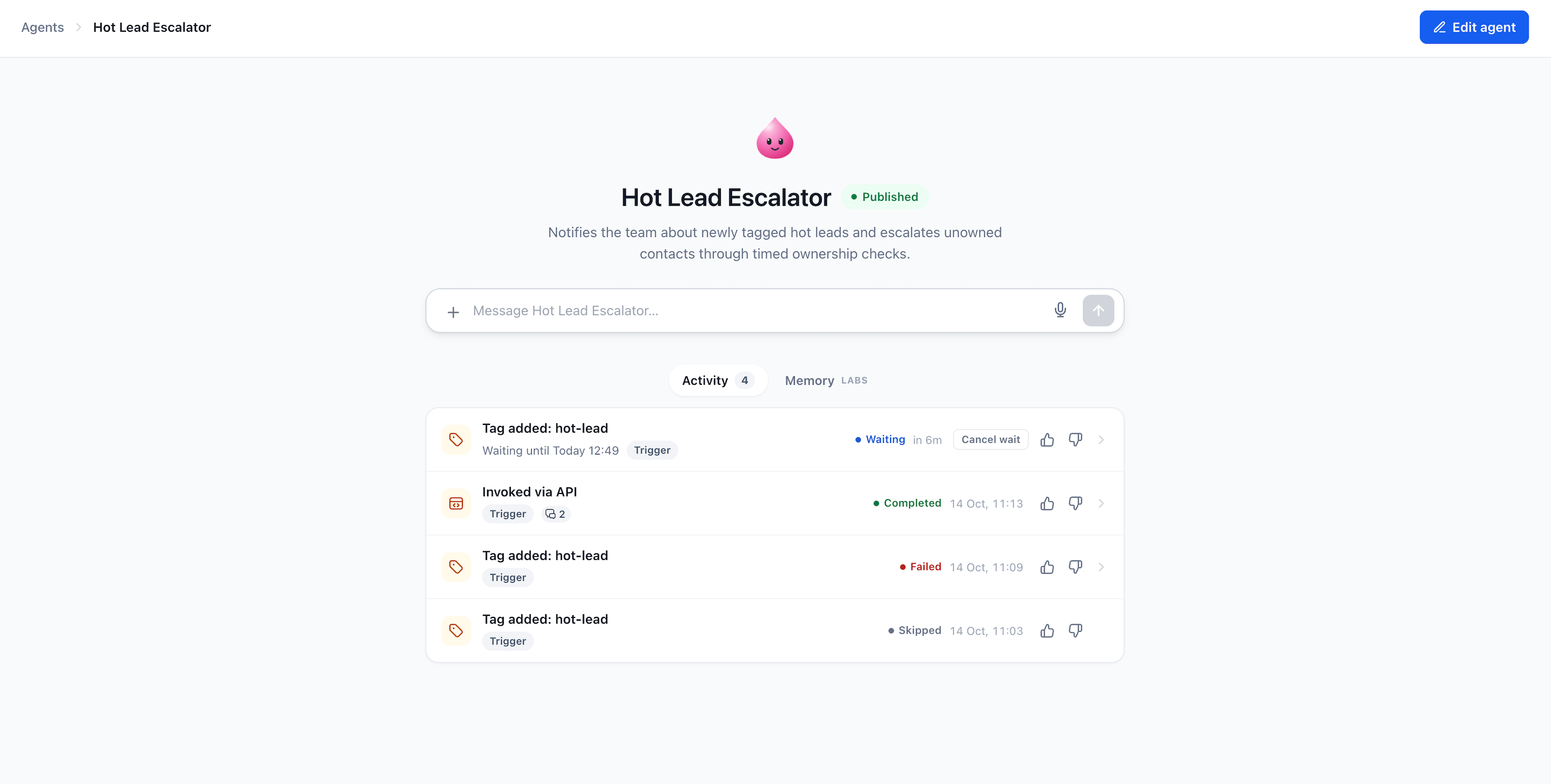
The Managed Agent Activity Feed shows the progress of agent executions, including follow-ups waiting to resume.
| Status | Meaning |
|---|---|
| Waiting | The agent is paused until its next scheduled action |
| Completed | The execution finished successfully |
| Failed | The execution could not be completed |
| Skipped | The scheduled action did not run |
To review or cancel a waiting execution:
Go to AI Agents → Agent Studio.
Open the Managed Agent.
Select Activity.
Find the execution marked Waiting.
Review the resume time or click Cancel wait to stop it.
You can also open an execution to review its individual steps.
Note: Unpublishing a Managed Agent stops its pending follow-up executions.
Testing and Billing
Testing lets you check a follow-up schedule before publishing it. Waiting and execution are billed differently.
Testing
Use Test Agent to run through the follow-up sequence without waiting for the scheduled delays.
Important: Tests can send real messages and perform real actions. Always test using your own contact information.
Billing
Waiting is free, whether it lasts 10 minutes or 30 days.
Applicable usage charges occur when the agent resumes and performs work.
For more information, see AI Product Pricing.
How to Set Up Scheduled Follow-Ups for Managed Agents
You can set up scheduled follow-ups by describing the actions and timing to the AI builder. The following example creates a follow-up plan for a booked sales call.
Step 1: Open a Managed Agent
Go to AI Agents → Agent Studio.
Open an existing Managed Agent or create a new one.
Click Edit agent if you're updating an existing agent.
Step 2: Describe Your Follow-Up Plan
Tell the AI builder what should happen and when.
For example:
"When someone books a sales call, prepare a company brief one hour before the appointment. Create a follow-up task 30 minutes after the call ends. If the deal has not progressed after three days, create a manager review task. Stop the remaining follow-ups if the deal is won or lost."
The AI builder prepares the follow-up schedule and may ask questions if more information is needed.
Step 3: Review and Edit the Schedule
Before publishing, make sure the follow-up timing and actions are correct.
Review the timeline created by the AI builder.
Check each step's scheduled time.
Review the conditions and stop rules.
Ask the builder to make changes if needed.
Click Save changes if you're using the schedule editor.
Step 4: Test the Schedule
Open Test Agent.
Use your own test contact.
Run the follow-up scenario.
Review the actions and results.
Make adjustments if needed.
Test Agent skips waiting periods so you can check the sequence without waiting hours or days.
Important: Test runs can send real messages.
Step 5: Publish the Managed Agent
Once the schedule is correct:
Review the agent's instructions and follow-up plan.
Publish the Managed Agent.
Confirm that it shows as published.
New executions will follow the published schedule.
Step 6: Monitor Follow-Ups
Open the Managed Agent.
Select Activity.
Find executions marked Waiting.
Review the scheduled resume time.
Open the execution for details or select Cancel wait if needed.
Frequently Asked Questions
Q: How long can a Managed Agent wait?
A: Between 5 minutes and 30 days per waiting period.
Q: Can I schedule follow-ups around appointments?
A: Yes. You can schedule actions before or after appointments and other supported events.
Q: What happens if an appointment is rescheduled?
A: The agent checks updated event details and adjusts applicable future reminders.
Q: Can follow-ups stop when a customer replies or books?
A: Yes. Use conditions and stop rules to prevent unnecessary follow-ups.
Q: Can I edit a schedule after publishing?
A: Yes. After publishing the updated plan, waiting executions switch to the new plan.
Q: Does Test Agent wait for the scheduled delays?
A: No. It skips waiting periods, but it can still perform real actions.
Q: Am I charged while an agent is waiting?
A: No. Waiting is free. Applicable charges occur when the agent resumes work.
Q: Can I cancel a waiting execution?
A: Yes. Open the agent's Activity Feed and select Cancel wait.
Q: What happens if I unpublish the agent?
A: Its pending follow-up executions stop.
Related Articles
Was this article helpful?
That’s Great!
Thank you for your feedback
Sorry! We couldn't be helpful
Thank you for your feedback
Feedback sent
We appreciate your effort and will try to fix the article