Conversation AI Activity in Audit Logs helps you track when AI agents are activated, deactivated, paused, or reassigned in HighLevel. You can identify what triggered a change, who made it, and when it occurred. This makes troubleshooting unexpected agent behavior easier.
TABLE OF CONTENTS
- What Is Conversation AI Activity in Audit Logs?
- Key Benefits of Conversation AI Activity
- What Information Is Recorded?
- How to Access Conversation AI Activity in Audit Logs
- Frequently Asked Questions
- Related Articles
What Is Conversation AI Activity in Audit Logs?
Conversation AI Activity records changes to AI agent status and assignments. These records help you understand why an agent stopped responding, was paused, or another agent took over a conversation.
You can review activity across your location or for a specific contact.
Key Benefits of Conversation AI Activity
Audit history gives you greater visibility into agent behavior so you can investigate changes without relying on support.
- Track Agent Changes: View when agents are turned on, turned off, paused, or reassigned.
- Identify Triggers: Understand whether changes resulted from workflows, appointment bookings, human handovers, agent actions, or user updates.
- See Who Made Changes: Identify the responsible user or System for automated actions.
- Troubleshoot Faster: Find out why an agent stopped responding or another agent took over.
What Information Is Recorded?
Each audit entry provides details about changes to Conversation AI activity, helping you identify what happened and why.
Audit Logs can record:
| Information | Description |
|---|---|
| Agent Activity | Activation, deactivation, pauses, reassignments, and updates to pause times. |
| Triggers | The action that caused the change, such as a workflow, agent action, or human handover. |
| Date and Time | When the change occurred. |
| Modified By | The user responsible, or System for automated changes. |
| Modified Details | Updated fields such as trigger, status, and sleepingTill, when applicable. |
How to Access Conversation AI Activity in Audit Logs
You can access audit history from the location's Audit Logs or directly from a contact's conversation. Choose the location-wide view to monitor activity across contacts or the contact-specific view to investigate an individual conversation.
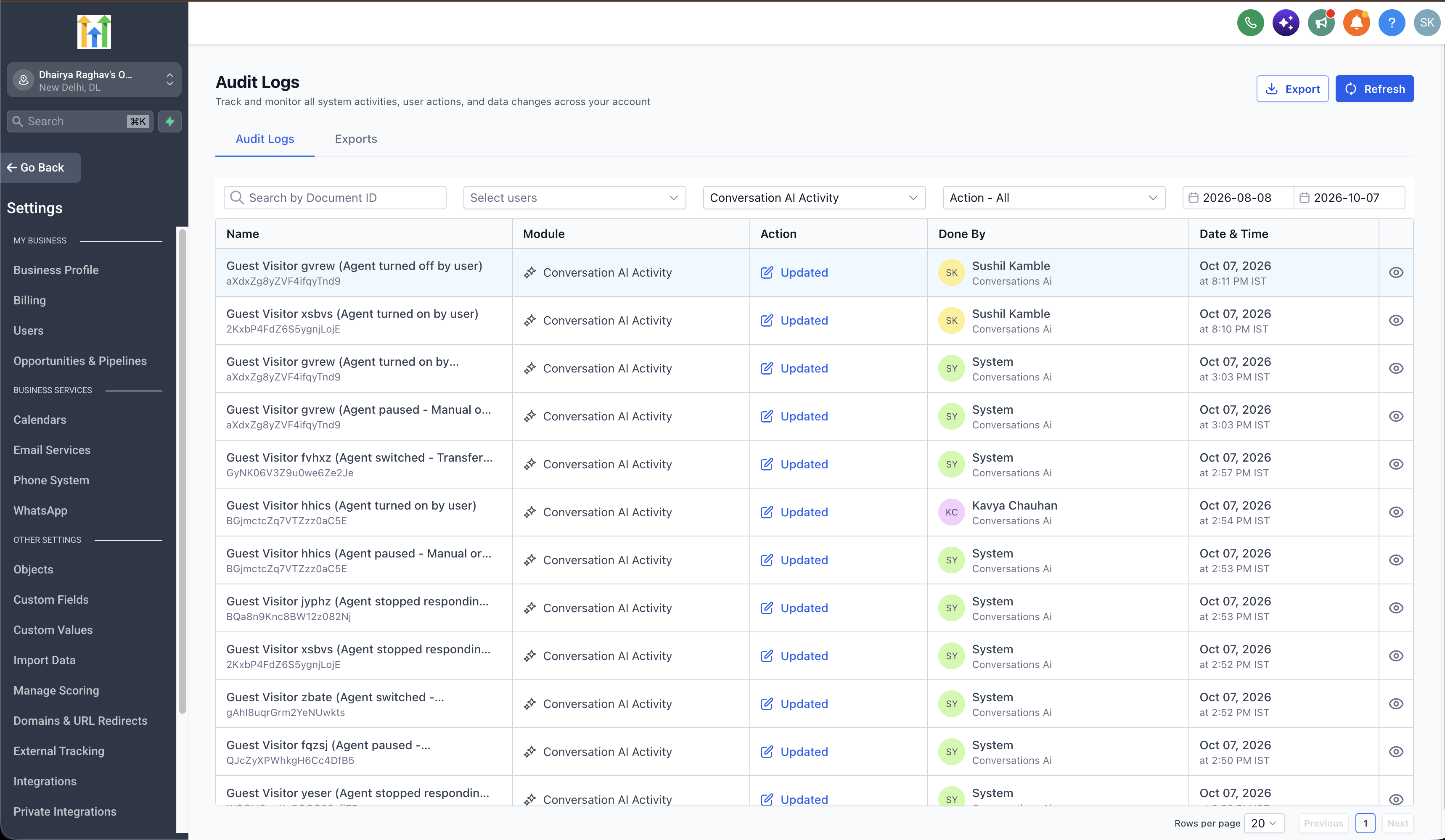
Option 1: Across Your Location
- Navigate to Settings → Audit Logs.
- Select Conversation AI Activity from the Module filter.
- Browse activity across contacts and filter results by user, date range, or other available filters.
- Open an entry to review its details.
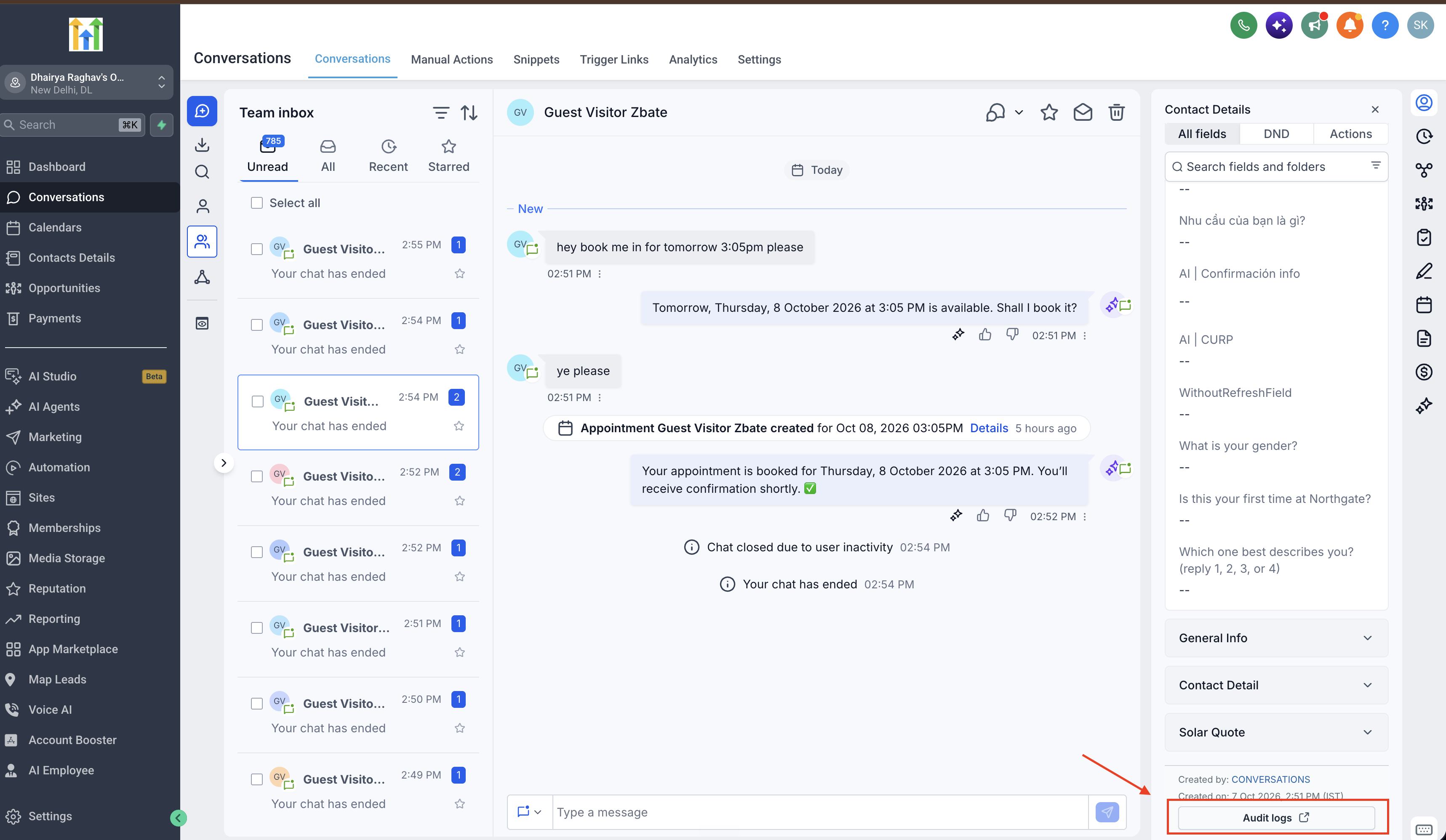
Option 2: For a Specific Contact
- Navigate to Conversations and open the contact's conversation.
- Locate the Contact Details panel on the right.
- Click Audit logs at the bottom of the panel.
- Review the audit history filtered to that contact.
Frequently Asked Questions
Q: How are Conversation AI Activity logs different from Agent Logs?
Conversation AI Activity tracks agent status changes, triggers, and attribution. Agent Logs focus on AI interactions, execution steps, and responses.
Q: Why don't I see Conversation AI Activity in Audit Logs?
Check that you are accessing Audit Logs in the correct location and have the required permissions. Contact your account administrator if the module is unavailable.
Q: Do all audit entries show the same details?
No. The information displayed depends on the type of activity recorded. Some events may include additional fields, such as sleepingTill.
Q: How long are audit records retained?
HighLevel's general Audit Logs documentation specifies a 60-day retention period. No separate retention period was announced for Conversation AI Activity.
Related Articles
Was this article helpful?
That’s Great!
Thank you for your feedback
Sorry! We couldn't be helpful
Thank you for your feedback
Feedback sent
We appreciate your effort and will try to fix the article