Audit Logs Export helps agencies and locations export audit history to CSV for compliance reviews, investigations, and internal reporting. The feature uses the same filters available in Audit Logs, adds a dedicated Exports tab for tracking jobs, and keeps completed files available for 30 days. This guide explains what Audit Logs Export is, why it matters, how permissions work, and how to enable and use it in HighLevel.
TABLE OF CONTENTS
- What is Audit Logs Export?
- Key Benefits of Audit Logs Export (CSV Download)
- Audit Log Export Permissions
- The Exports Tab
- Export Limits, Performance & File Availability
- How To Setup Audit Logs Export
- Frequently Asked Questions
- Related Articles
What is Audit Logs Export?
Audit Logs Export (CSV Download) extends HighLevel’s Audit Logs experience by letting authorized users export filtered audit history into a CSV file. Audit Logs provide a time-stamped record of important account activity so admins and power users can review changes, improve accountability, and support troubleshooting. HighLevel retains Audit Logs in the app for 60 days, while this export feature gives teams a way to download and store the records they need outside the platform.
This feature is released through Labs before broader default enablement, so some accounts may need to turn it on first in Agency Settings.
Key Benefits of Audit Logs Export (CSV Download)
- Downloadable records: Export filtered audit history to CSV so your team can store, review, and reference activity outside HighLevel.
- Better support for compliance and investigations: Keep a portable record of account activity for internal reviews, audit preparation, or security analysis.
- Background processing: Exports run asynchronously, so users can continue working while the export is being prepared.
- Controlled access: Limit who can export sensitive audit history with the dedicated Export audit logs permission.
- Clear limits and retention: Each export supports up to 500,000 records, and completed files remain available to download for 30 days.
- Traceable export activity: Export requests and file downloads are also recorded in Audit Logs, helping reinforce accountability.
Audit Log Export Permissions
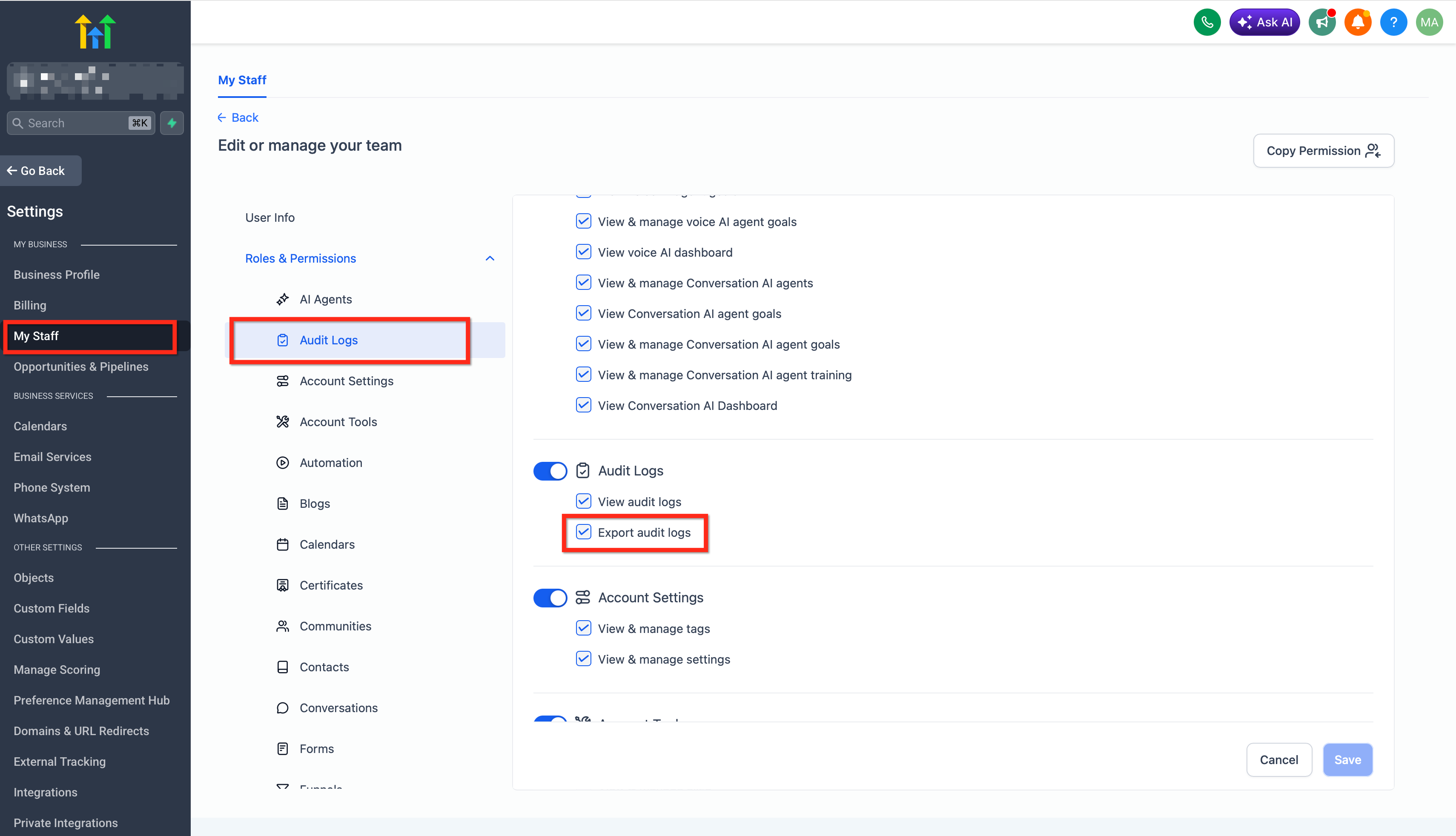
Access to downloadable audit history should be limited to trusted users because exported files may contain sensitive operational data. Permission controls help agencies and locations follow least-privilege access practices while still giving admins and compliance-focused users the tools they need. HighLevel also separates user-management workflows by Agency and Sub-Account, so it is important to use the correct navigation path for each context.
Important permission details:
- By default, Agency Owners, Agency Admins, and Account Admins can manage this access, based on the release note for the feature.
- A user may be able to view Audit Logs without being allowed to export them.
- Export access should be granted only to users who need downloadable audit data for reporting, compliance, or investigations.
How to manage access:
- In Agency view, go to Settings → Team and open the user profile to review roles and permissions.
- In Sub-Account view, go to Settings → My Staff and open the user profile to review roles and permissions.
The Exports Tab
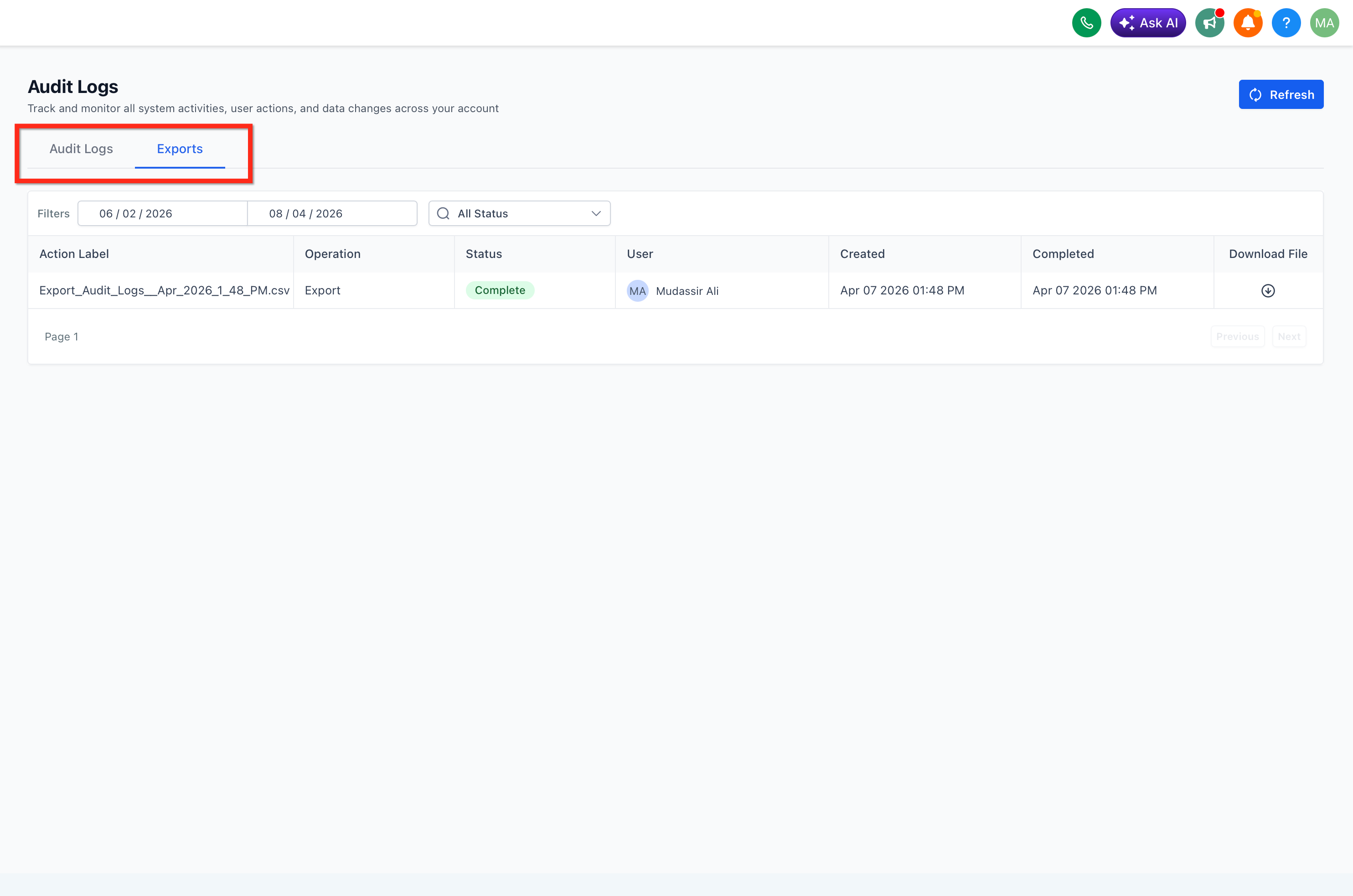
The Exports tab gives users a central place to track export activity after a request is submitted. This makes it easier to monitor progress, avoid duplicate export requests, and download finished files once they are ready. For teams working with large date ranges or recurring reviews, having a dedicated export-tracking view improves visibility and keeps the process organized.
Once an export is complete, eligible users can download the CSV from the Exports tab. Export requests and download activity are also logged under the Audit Logs module for additional traceability.
When Audit Logs Export is enabled, the Audit Logs page includes:
- The existing Audit Logs tab for viewing and filtering activity
- A new Exports tab for tracking export jobs
Export Limits, Performance & File Availability
Clear limits help keep exports reliable while protecting overall platform performance. Knowing how long files remain available and how large an export can be helps teams plan their reporting process more effectively. This is especially useful when building a recurring compliance or review workflow around Audit Logs data.
| Item | Details |
|---|---|
| Maximum records per export | Each export supports up to 500,000 records. |
| Export processing | Exports run asynchronously in the background, so users can continue working while the file is being prepared. |
| File availability | Completed CSV files remain available for 30 days. |
| Expired files | After 30 days, the file is no longer available to download, and a new export must be requested. |
| In-app Audit Logs retention | Audit Logs are retained in HighLevel for 60 days, so exporting on a regular cadence can help preserve important historical data outside the app. |
How To Setup Audit Logs Export
Using Audit Logs Export is simple once the feature is available in your account. Follow the steps below to export Audit Logs, track the export job, and review export-related activity.
Go to Settings → Audit Logs in either Agency view or Sub-Account view, depending on which Audit Logs you want to export.
Stay on the Audit Logs tab, apply the filters you want to use and click Export.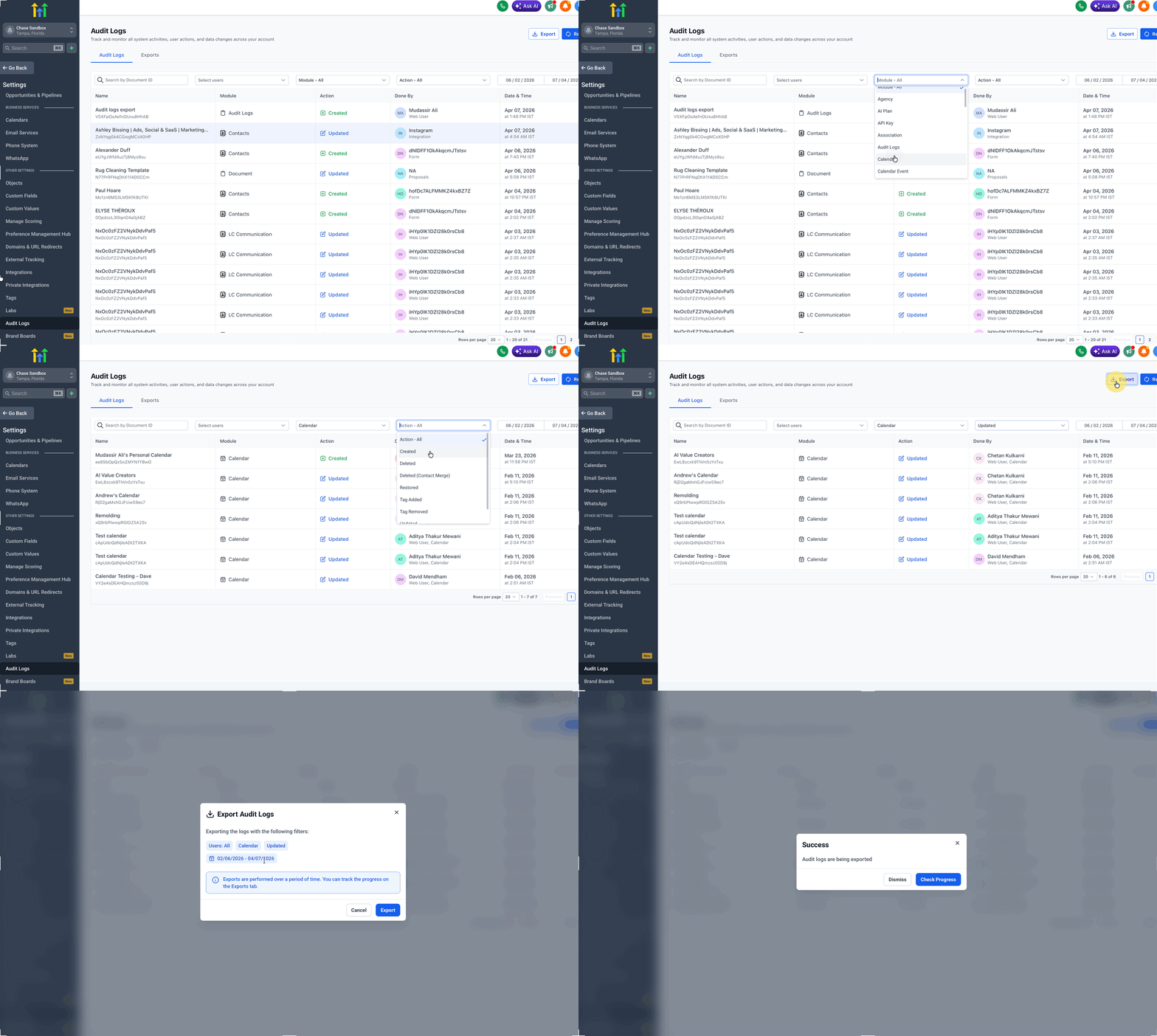
Open the Exports tab, monitor the export status, and download the file when it is complete.
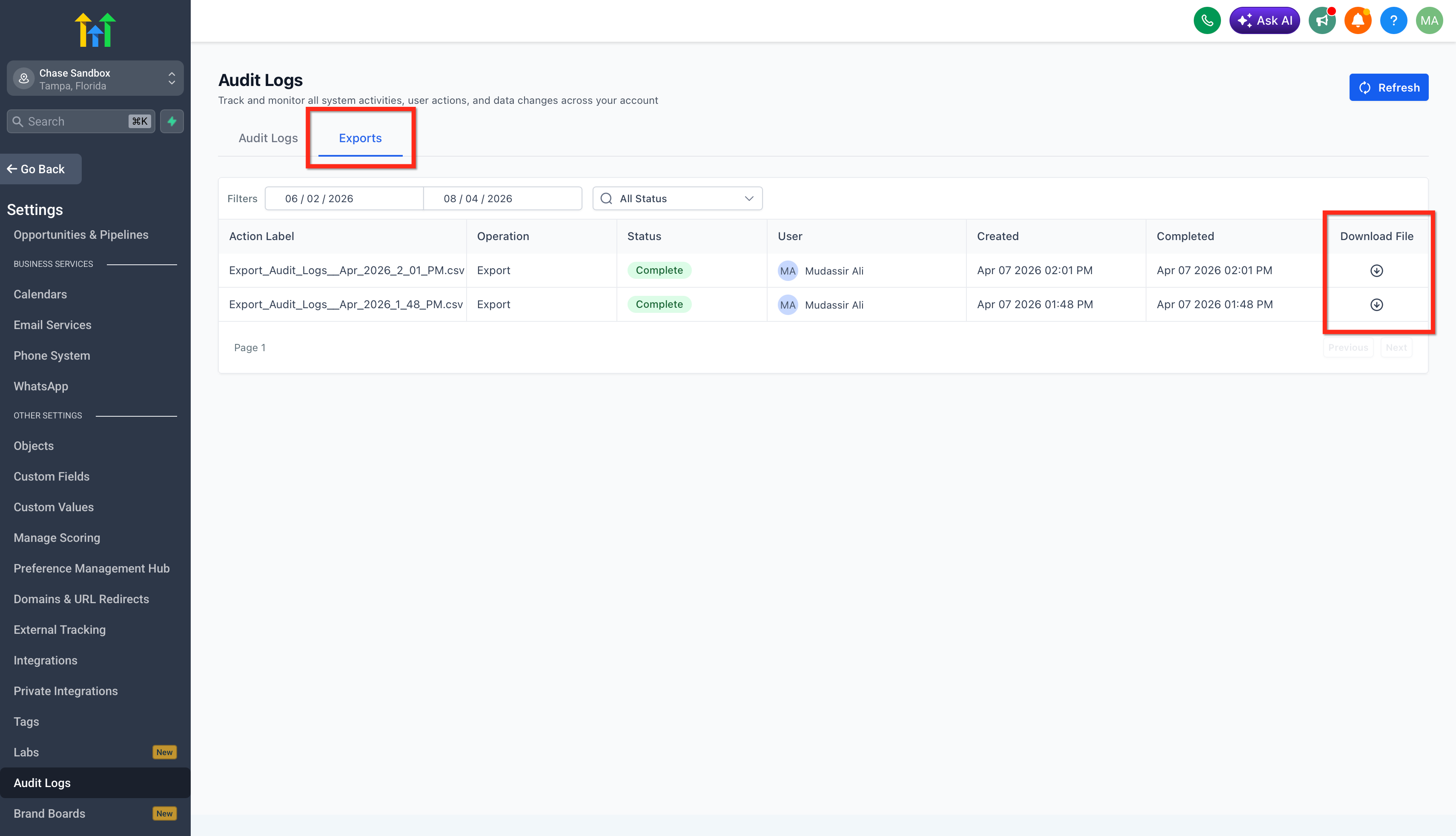
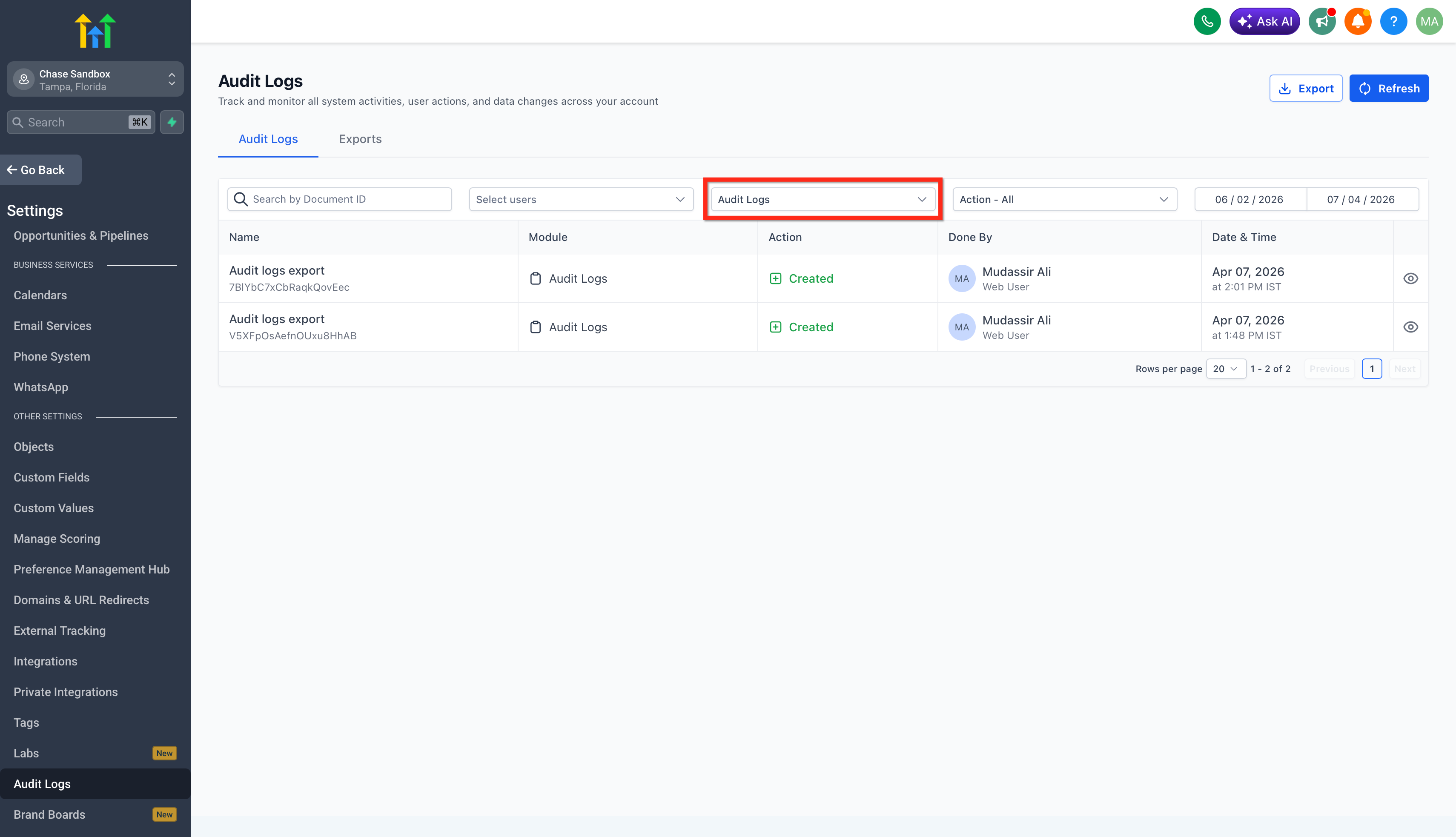
In Audit Logs, filter Module → Audit Logs to review export-related actions and see when exports were requested or downloaded.
Labs Feature Flag Updates in Audit Logs
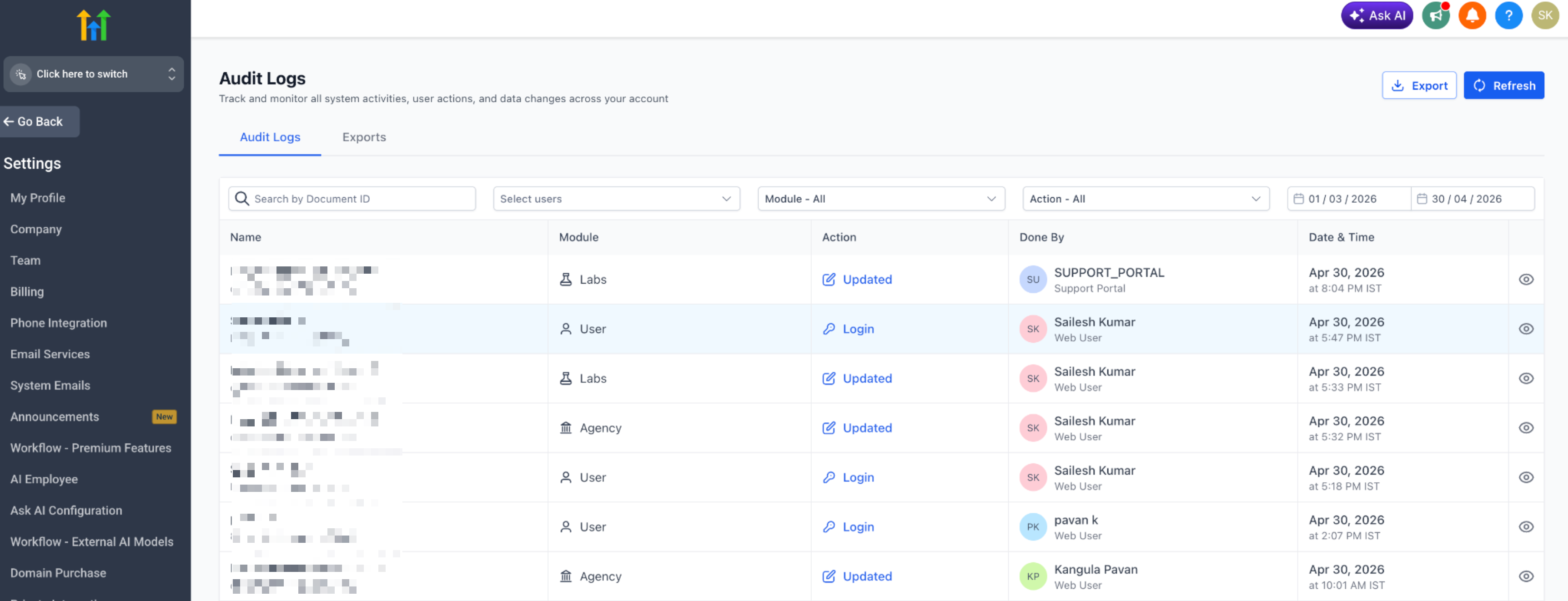
Audit Logs now track changes made to Labs feature flags. This gives teams a clear record of feature enablement changes and makes it easier to review when a feature was turned on or off.
Labs audit logging includes:
- Company-level feature flag updates
- Location-level feature flag updates
- Changes made through the Support Portal
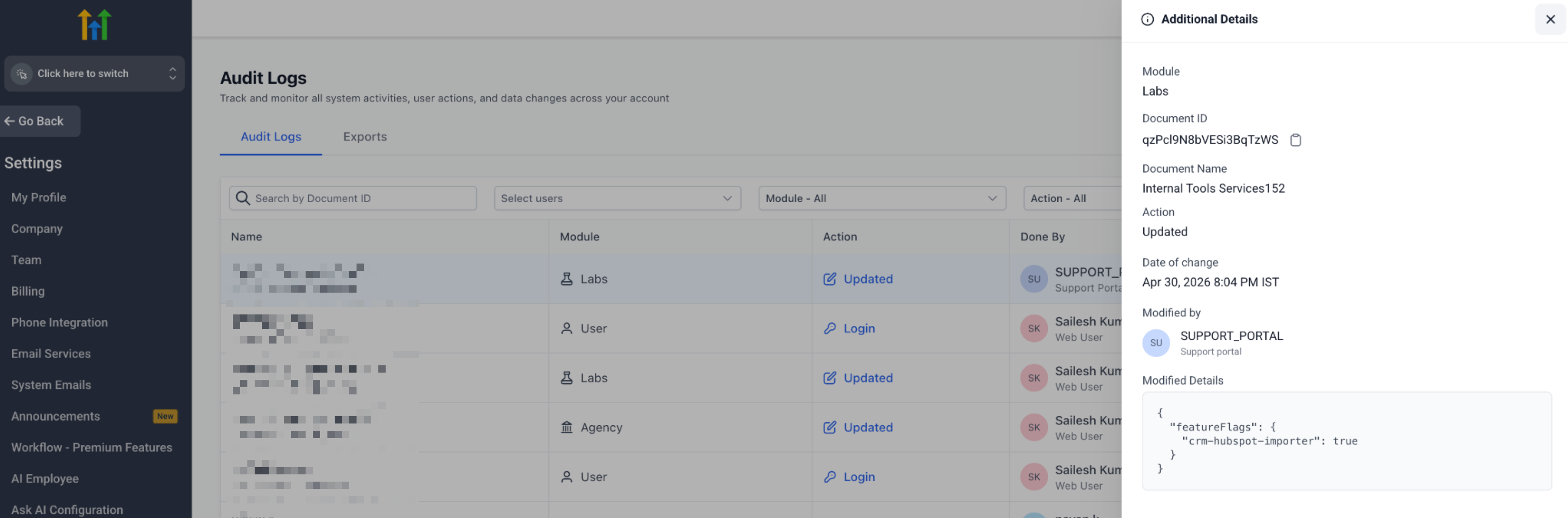
When a Labs feature flag is updated, you can review the entry in Audit Logs and open the details panel to see the related document, action, date and time, who made the change, and the modified details.
If the change was made through Support tools, the entry is attributed to Support Portal.
Frequently Asked Questions
Q: Who can export Audit Logs to CSV?
Only users with the Export audit logs permission can create and download exports.
Q: Do exports include all audit records automatically?
No. Exports use the filters applied in Audit Logs at the time the export is requested.
Q: How many records can one export include?
Each export supports up to 500,000 records. If the result is too large, narrow your filters and try again.
Q: How long can I download the CSV file?
Completed files remain available for 30 days after they are generated.
Q: How long are Audit Logs stored inside HighLevel?
Audit Logs are retained in HighLevel for 60 days.
Q: Can I see whether an export was requested or downloaded?
Yes. Export requests and download actions are also recorded in Audit Logs.
Related Articles
Was this article helpful?
That’s Great!
Thank you for your feedback
Sorry! We couldn't be helpful
Thank you for your feedback
Feedback sent
We appreciate your effort and will try to fix the article