How to Use the WhatsApp Template Library
Create WhatsApp message templates from prebuilt content instead of writing every message from scratch.
The WhatsApp Template Library lets you browse templates, filter by category, industry, and language, preview messages, and customize the content before submitting to Meta.
Important: Prebuilt templates are not pre-approved for your account. Selecting one creates a new template in your sub-account, which must receive its own Meta approval before you can send it.
Table of Contents
What Is the WhatsApp Template Library?
The WhatsApp Template Library provides ready-made content sourced from templates that have previously been approved by Meta. You can use this content as a starting point, make changes for your business, and submit your version through the standard WhatsApp template creation process.
When creating a template, you can choose from three options:
The library helps you spend less time drafting common messages while keeping control over the final content. It does not bypass Meta's review or guarantee approval.
Before You Begin
The steps below apply when Use Prebuilt Template is available in your sub-account.
How to Create a WhatsApp Template from the Library
Open WhatsApp Templates
From the relevant sub-account, navigate to Settings → WhatsApp → Templates and click Create Template.
Choose Use Prebuilt Template to open the Template Library in a modal without leaving the WhatsApp creation flow.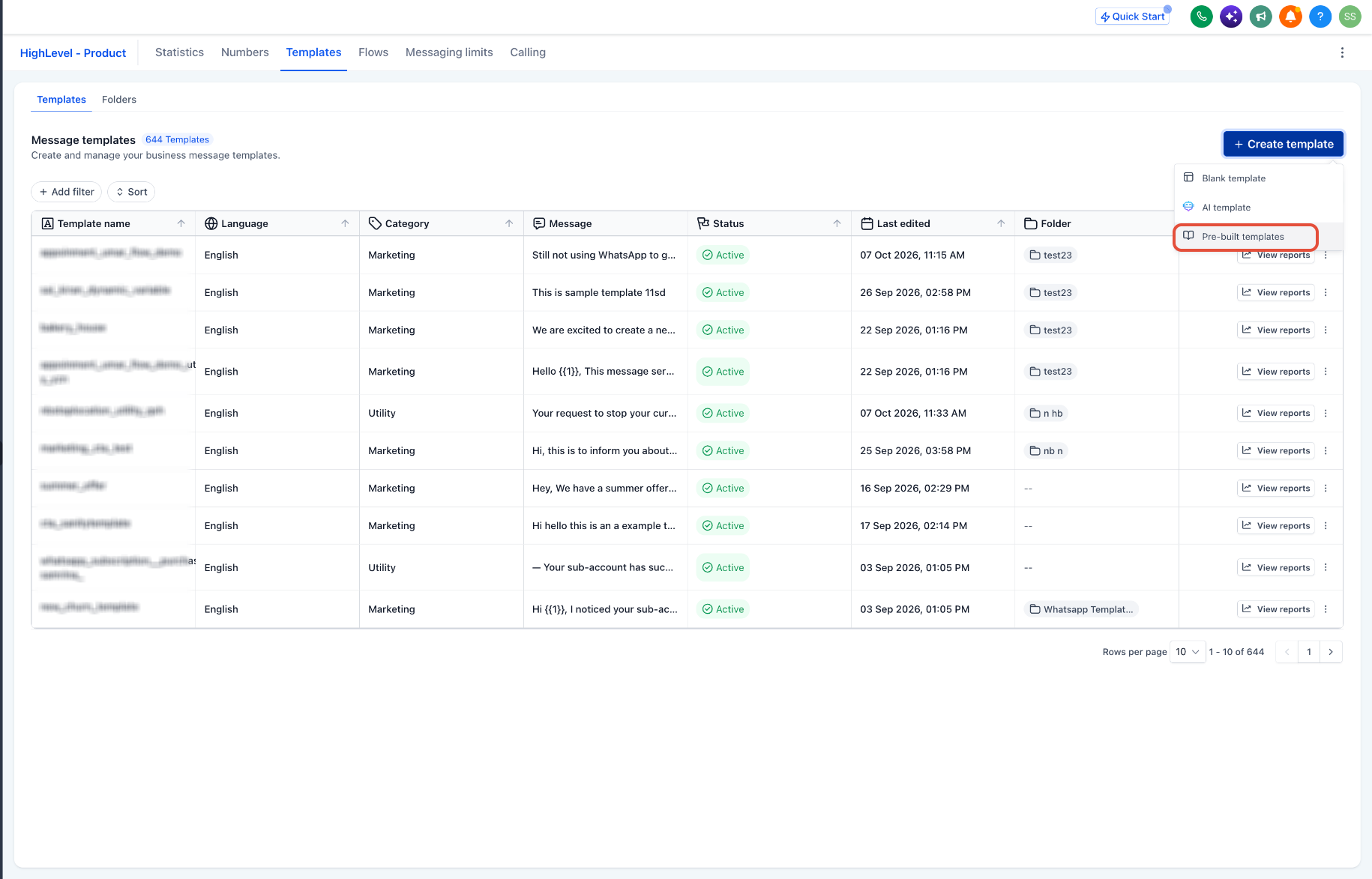
Browse and Filter Templates
Use the library's search and sorting options to find suitable content. The left-hand filter panel helps narrow your results:
You can also favorite templates for easier access later. When your search returns no suitable results, broaden the search or remove some filters.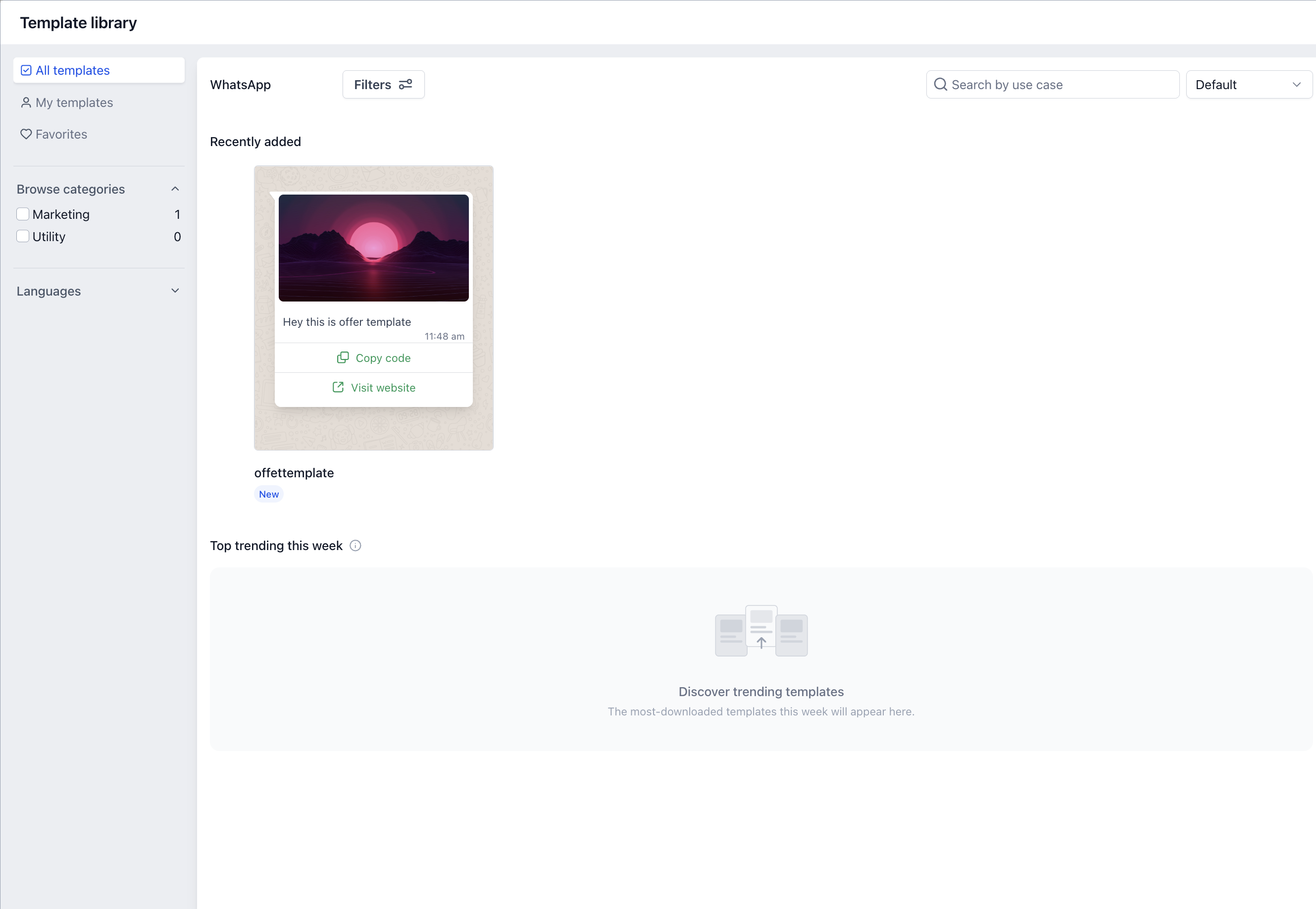
Preview the Message
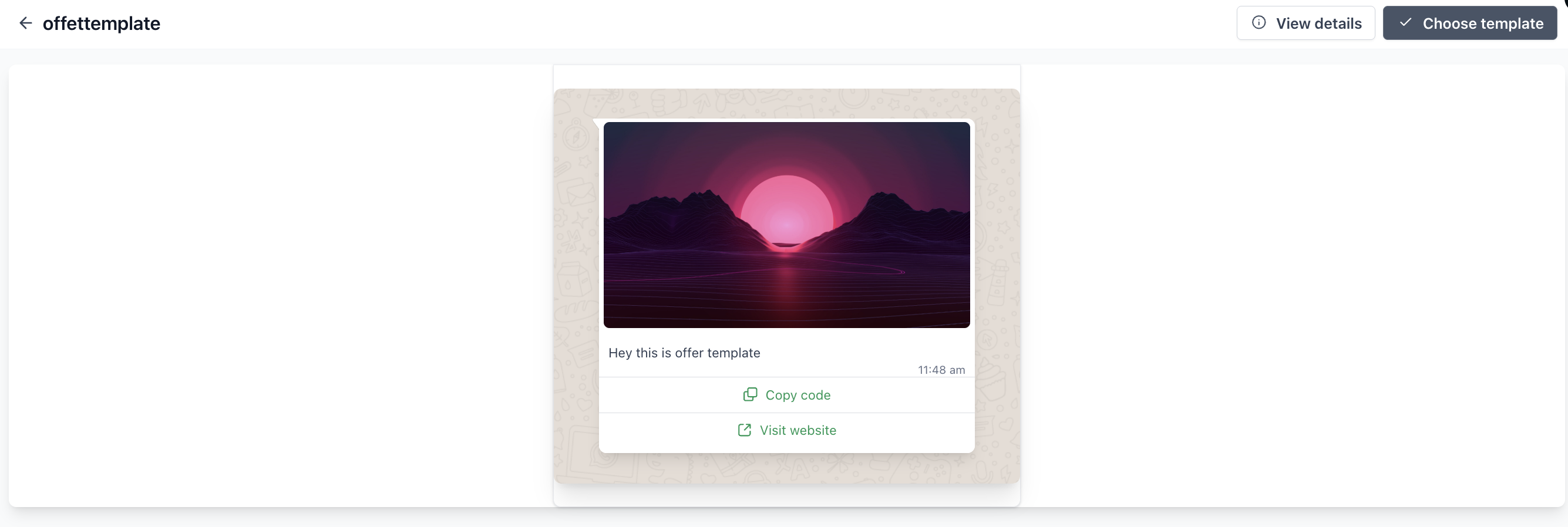
Select a template to view its WhatsApp message preview. Review how the message is presented, including its header, body, footer, and buttons, where included. Check that the content, language, and intended customer action fit your needs before continuing.
Note: The preview helps you evaluate the message. It is not confirmation that the template is approved for your sub-account.
Customize the Template
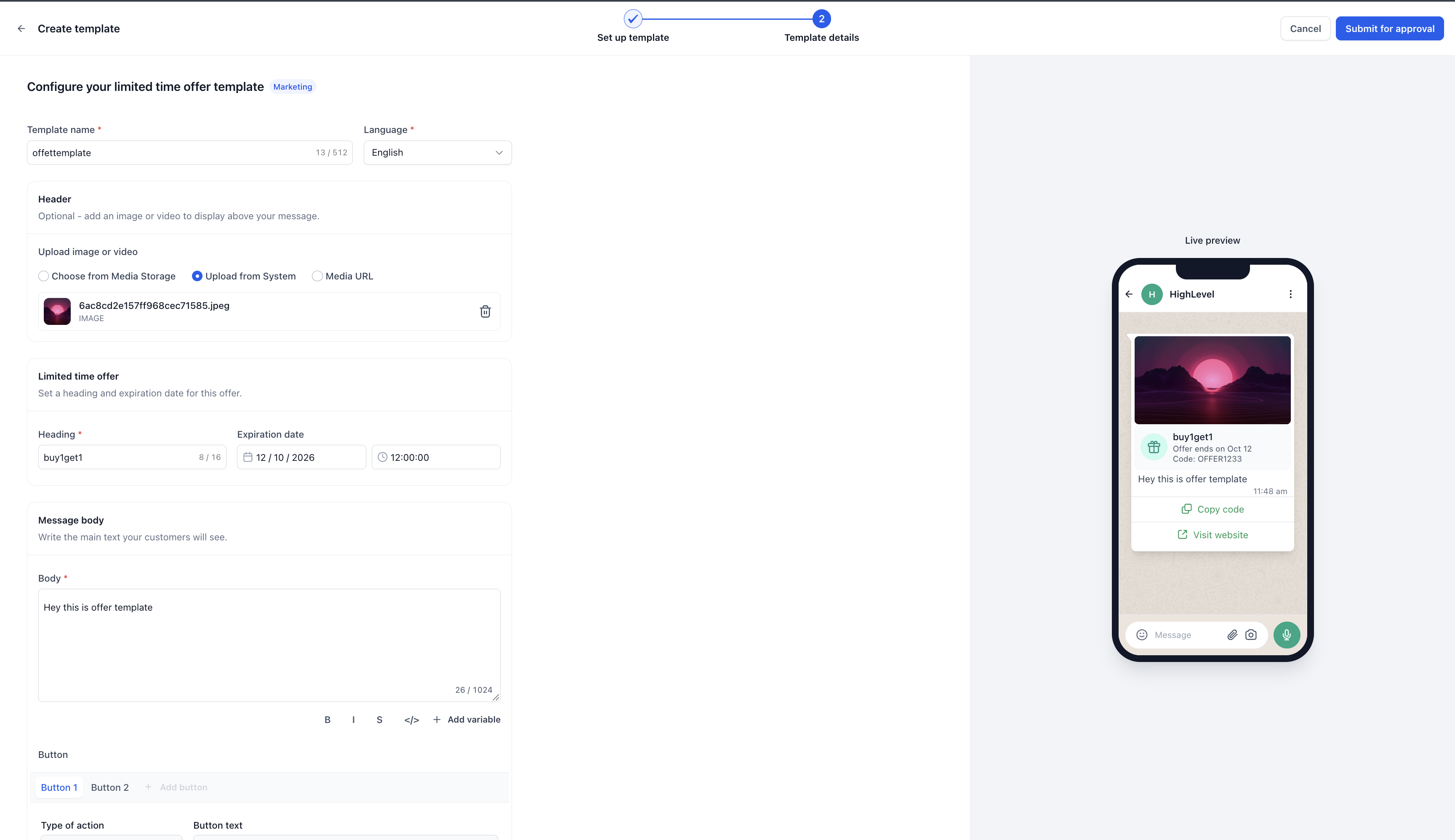
Selecting a library template prefills the creation form. The form remains editable so you can adapt the content before submission. Review the following:
Complete any required fields and provide realistic sample values for variables. Correct any validation errors shown by the builder before submitting.
Important: You are editing your own new template — not changing the original library entry or templates created by other businesses.
Submit to Meta
Review the completed template and submit it through the standard template creation flow. Meta reviews the submitted version for content, category, formatting, and policy compliance. Previous approval of the library's source content does not guarantee approval of your submission.
Return to Settings → WhatsApp → Templates to monitor the status. A template marked In Review is still being assessed. If it is rejected, review Meta's reason before making corrections and resubmitting.
Use Your Approved Template
Once approved and active, a template created from the library behaves like any other WhatsApp template in your sub-account.
Creating or submitting a template does not automatically send it to customers.
How to Save a WhatsApp Template to the Template Library
Agency admins can use the Save Template action to enter the existing Template Library save flow from WhatsApp.
Open Settings → WhatsApp → Templates.
Locate the template you have created.
Open its three-dot menu and select Save Template.
Complete the required details in the Template Library save flow.
Important: Saving to the library and obtaining Meta approval are separate actions. Saving content for reuse does not transfer its approval to another sub-account or remove the need for approval when a new WhatsApp template is created from it.
Access and Permissions
The WhatsApp library creation flow uses the existing WhatsApp template management permission. There is no separate WhatsApp library permission to enable.
Being able to view existing WhatsApp templates does not necessarily mean a user can create or edit them. Review the user's Create/edit WhatsApp templates permission when a creation action is unavailable.

The centrally maintained library content is read-only. Authorized users can customize their own template during creation, but they cannot directly modify the original library entry.
Troubleshooting
Builder validation errors and Meta rejection reasons are separate checks. Fix errors shown in the creation form first; after submission, use Meta's status and rejection details to identify the next action.

When contacting Support, include the Location ID, template name, affected user role, exact error message, and a screenshot or recording showing the issue.
Frequently Asked Questions
Are library templates already approved for my account?
No. Their source content has previously passed Meta review, but selecting a library template creates a new template in your sub-account. Your version requires its own approval — even when you do not change the wording.
Does using the library guarantee faster Meta approval?
No. The library reduces the work involved in preparing the message. It does not provide a separate approval process or a guaranteed review timeframe.
Can I change the content before submitting?
Yes. The selected template prefills an editable form. Review and customize the content, business details, variables, and buttons before submission.
Will my changes affect the original library template?
No. Changes made during creation apply to your new template. They do not modify the centrally maintained library entry.
What happens when I cannot find a suitable template?
Use Blank Template to write your own message or AI Template for assistance drafting it. The library is an additional creation option, not a replacement for either existing method.
Is an approved template required for every WhatsApp reply?
No. Free-form messages can be sent within the active 24-hour customer service window following a customer's message. Approved templates are required for messaging outside that window. The library changes how you prepare templates — it does not change these messaging rules.
Was this article helpful?
That’s Great!
Thank you for your feedback
Sorry! We couldn't be helpful
Thank you for your feedback
Feedback sent
We appreciate your effort and will try to fix the article