Course Pricing lets eligible HighLevel users price and sell an individual course directly without first creating a separate Offer. Choose Free, One-time, or Recurring pricing, save the configuration to generate a checkout link, and configure supported access and promotional settings. This guide explains how direct Course Pricing works, how to set it up, and what to review before sharing the course.
Learn how to configure direct Course Pricing, generate and test the course checkout link, manage Advanced access settings and coupons, share the course, and understand the Not set up pricing status.
What Is Course Pricing?
Course Pricing lets you configure how learners access and pay for an individual course directly from the course.
When direct Course Pricing is available in your sub-account, you can choose Free, One-time, or Recurring pricing. Saving the pricing generates a checkout link that can be used to enroll or sell the course.
Direct Course Pricing provides an additional sales path without requiring a separate Offer for that checkout. Existing Offer-based course sales remain available for businesses that use the Offers experience.
Key Benefits of Course Pricing
Direct Course Pricing shortens the path between finishing a course and making it available to learners while keeping pricing, checkout, and access controls connected to the course.
- Price Courses Directly: Configure pricing from the course without creating a separate Offer for the direct checkout flow.
- Flexible Pricing: Offer the course for free, charge once, or use recurring billing.
- Automatic Checkout Link: Generate a shareable course checkout link after saving pricing.
- Checkout Preview: Review and test the learner checkout experience before sharing it.
- Access Controls: Configure supported access timing and duration settings.
- Course Promotions: Enable supported coupons for course-specific promotions.
- Clear Pricing Status: Identify courses that still require pricing through the Not set up status.
Prerequisites and Limitations
Confirm that direct Course Pricing is available and review your payment setup before building the course checkout experience.
- Course Pricing is rolling out gradually. During the initial rollout, it is enabled for 20% of newly created sub-accounts and is not currently available in existing sub-accounts.
- A supported connected payment provider is required for paid Course Pricing.
- A connected payment provider is not required for Free pricing.
- Courses without configured direct pricing display Not set up.
- Checkout and Advanced Course Pricing controls become available after the applicable pricing configuration is saved.
- Cloned or kajabi-imported courses without configured direct pricing can require Course Pricing to be set up before using the direct checkout flow.
- Offer-based course sales remain available for businesses using Membership Offers.
Don't see direct Course Pricing? The feature is currently in a limited rollout. If the Pricing tab is not available in your sub-account, continue using the existing Membership Offer flow.
How To Set Up Course Pricing
Configure and save the course pricing before sharing the course so HighLevel can generate the direct checkout experience and make the related pricing controls available.
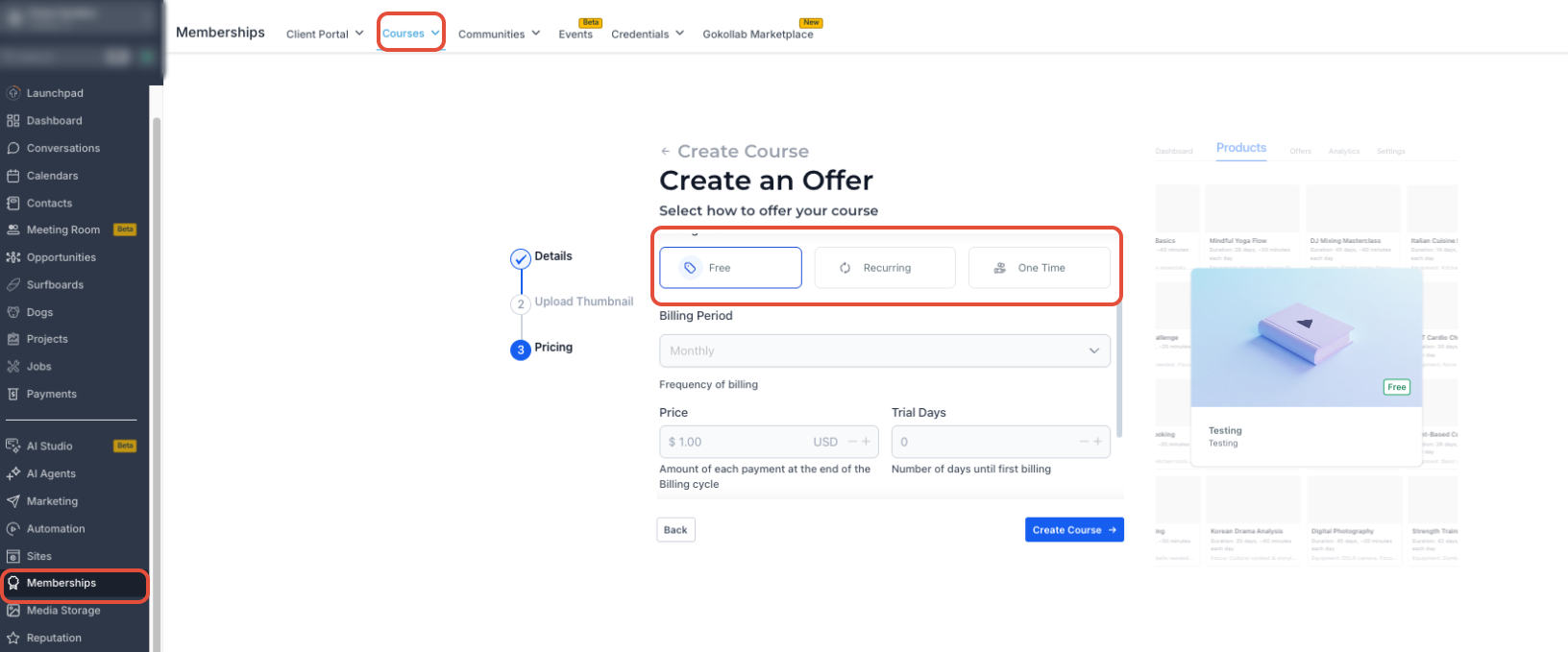
- From the Sub-Account view, select Memberships.
- Select Courses.
- Open Products.
- Select the course you want to price.
- Open the Pricing tab.
- Select Free, One-time, or Recurring.
- For paid pricing, enter the applicable price and billing details.
- Review the configuration.
- Save the course pricing.
After pricing is saved, HighLevel generates the course checkout link.
- Preview the learner checkout.
- Test the checkout flow before sharing the link with learners.
Paid courses: Confirm that a supported payment provider is connected before testing a live payment. Courses are supported in HighLevel's payment-provider channel configuration.
How To Configure Advanced Course Pricing Settings
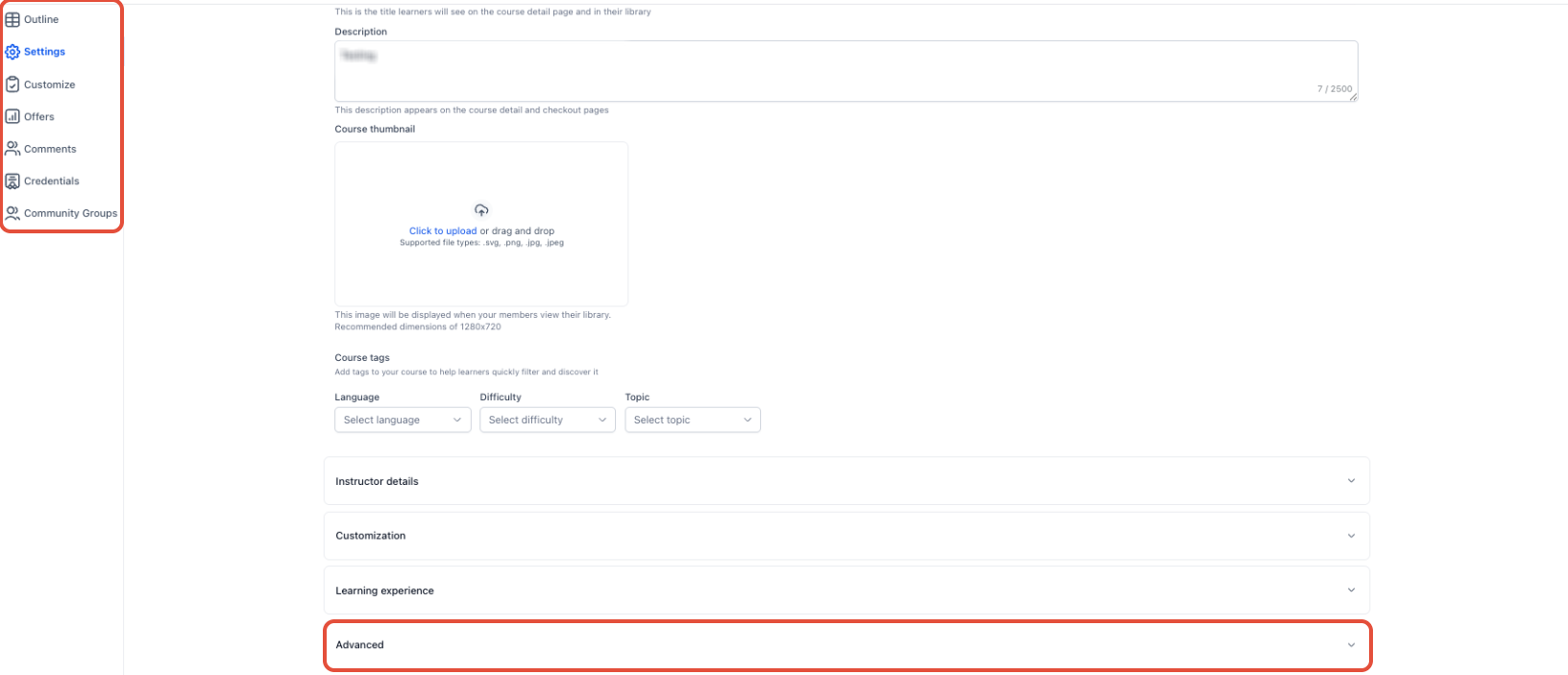
Advanced settings let you refine how course access works and whether supported promotions can be applied after the main Course Pricing configuration is saved.
- Go to Memberships → Courses → Products.
- Open the applicable course.
- Select Pricing.
- Confirm that the main Course Pricing has been configured and saved.
- Open Advanced.
- Configure the available access-start setting when learner access should begin at a defined time.
- Set the applicable access duration when course access should expire after a defined number of days.
- Enable coupons when supported course promotions should be available.
- Save the updated settings.
How To Share a Priced Course
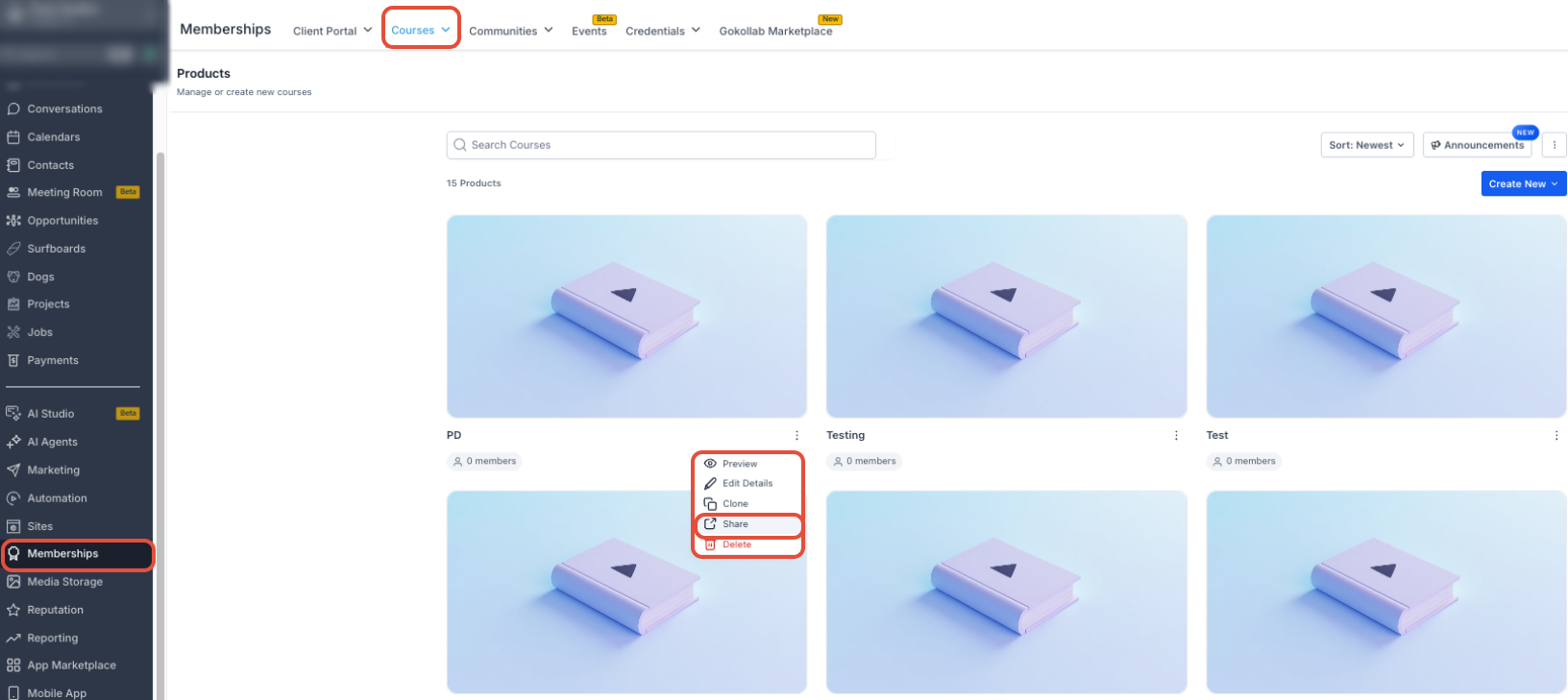
Once pricing is configured, use Share Course to access the generated checkout link and distribute the course through the channel learners should use to enroll or purchase.
- Go to Memberships → Courses → Products.
- Open the applicable course or locate it on the Products page.
- Select Share Course.
- Review the available checkout-link controls.
- Copy the generated checkout link.
- Share the link through the channel you want learners to use.
Course Pricing Status
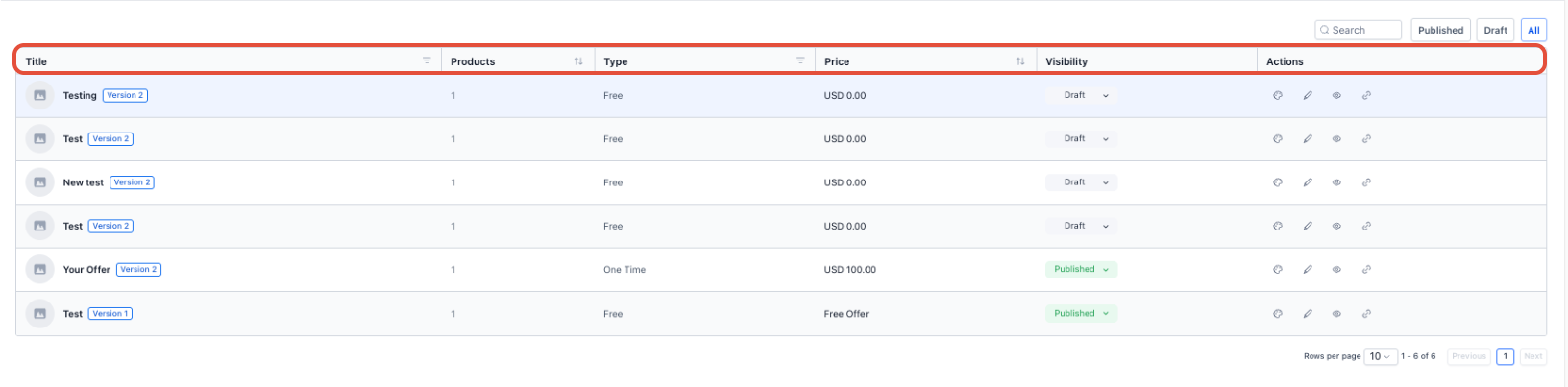
Pricing status helps identify whether a course is ready to use the direct checkout experience or still requires a Course Pricing configuration.
Courses without configured direct pricing display Not set up. This can include newly created, cloned, or kajabi-imported courses that do not yet have direct Course Pricing configured.
Configure and save the applicable pricing before using the direct checkout and related Advanced Course Pricing controls.
Frequently Asked Questions
Was this article helpful?
That’s Great!
Thank you for your feedback
Sorry! We couldn't be helpful
Thank you for your feedback
Feedback sent
We appreciate your effort and will try to fix the article