Track your Google Ads performance directly inside HighLevel — without switching platforms. Google Ads widgets bring dedicated ad analytics into your sub-account dashboard and custom reports, giving agencies and their clients a clear picture of spend, clicks, impressions, conversions, and campaign-level performance in one place.
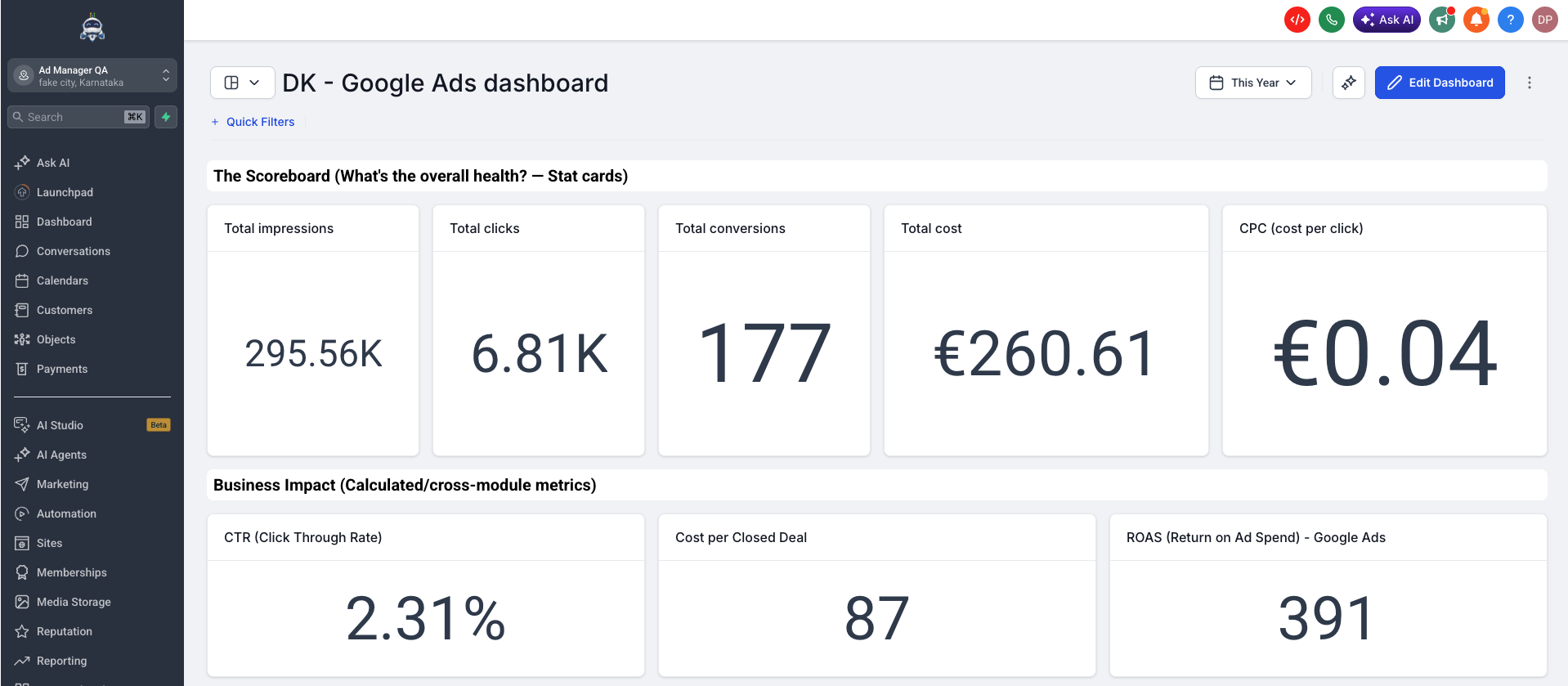
TABLE OF CONTENTS
- What are Google Ads widgets?
- Key benefits
- Prerequisites & access
- Available Google Ads widgets
- Dashboard widgets vs. custom report widgets
- How to add Google Ads widgets
- Configuring Google Ads widgets
- Using Google Ads in Custom Metrics
- Frequently asked questions
- Related articles
What are Google Ads widgets?
Google Ads widgets are pre-built visual reporting blocks that surface Google Ads data directly inside any HighLevel sub-account dashboard or custom report. Connect your Google Ads account once at the sub-account level and all 11 widgets pull data automatically — no manual exports, no switching between platforms.
With widgets covering total spend, clicks, impressions, conversions, cost trends, and campaign-level breakdowns, you can build a complete Google Ads performance view for any location in minutes and share it on a schedule.
Key benefits
- Monitor ad spend at a glance — Total cost and Cost over time show exactly what is being spent and when, so there are no surprises at the end of the month
- Track the full ad funnel — Impressions, clicks, and conversions in one view show how audiences move from seeing an ad to taking action
- See which campaigns are working — Clicks by campaign and Conversions by campaign break performance to the campaign level, making it easy to spot top performers and underperformers
- Understand cost efficiency — CPC (cost per click) shows the average cost per click across all campaigns to monitor bidding health
- Connect ad spend to business outcomes — Google Ads metrics are available in Custom Metrics so you can combine ad data with pipeline and revenue data to calculate ROAS and Cost per closed deal
Prerequisites & access
- Google Ads connected at the sub-account level — This is required before any widget will show data. Go to Sub-account → Settings → Integrations → Google Ads and connect using your Google account, Manager account (MCC), and Ad account. All Google Ads widgets in that sub-account inherit this connection automatically — no per-widget setup is needed.
- Dashboards & Reporting access — Verify the user has permission to view or edit dashboards and to create or schedule custom reports.
Available Google Ads widgets
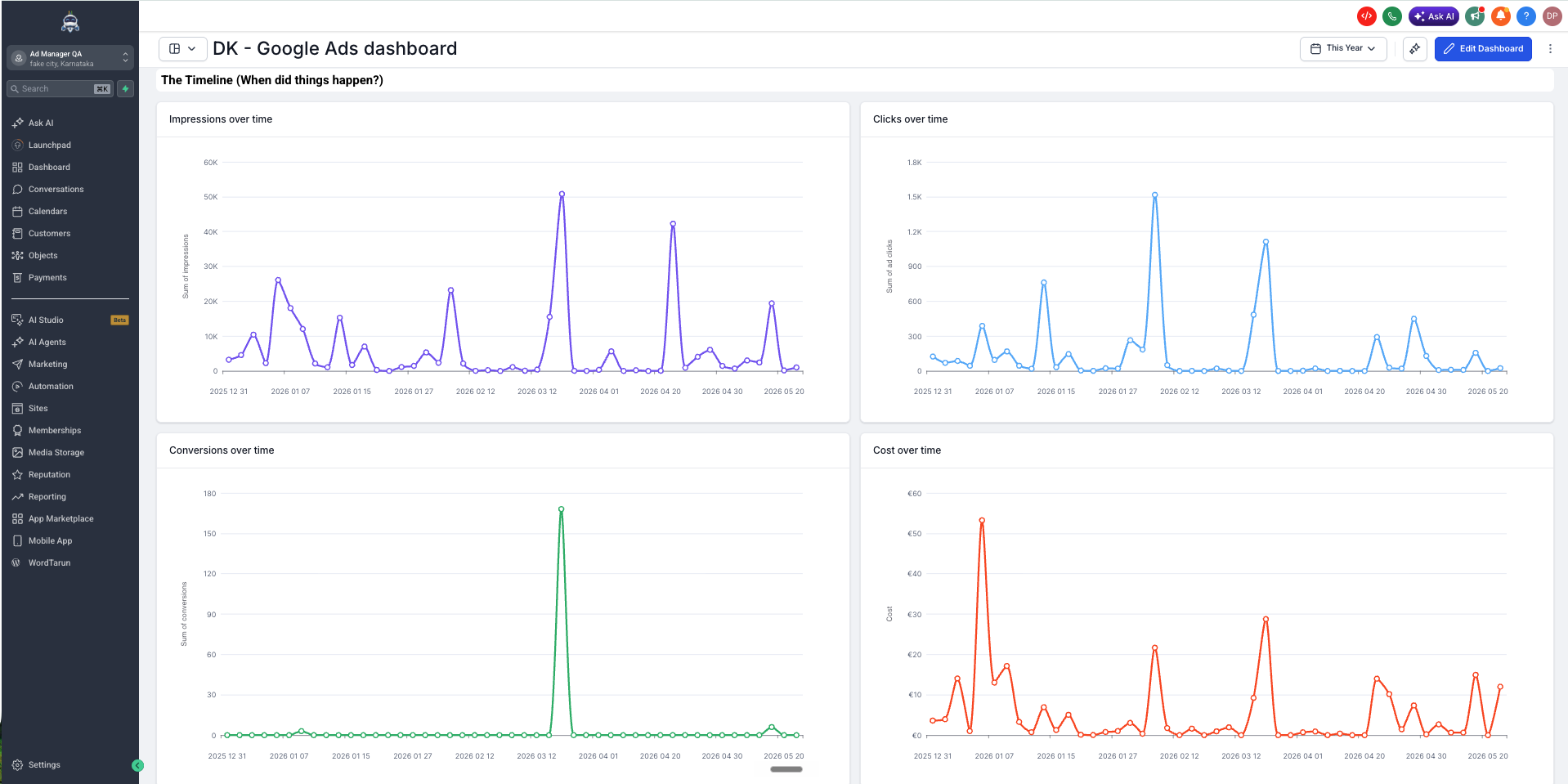
11 Google Ads widgets are available, each configurable with chart type, conditions, and themes.
| Widget | What it shows |
|---|---|
| Total conversions | Total conversions across ads for the selected date range and campaigns. Use this as the top-line indicator of whether your ads are delivering results. |
| Conversions over time | Conversion trend over the selected date range . Spot peaks, drops, and seasonal patterns in conversion volume. |
| Total cost | Total ad spend for the selected date range. The first number most business owners want to see. |
| Cost over time | Ad spend trend over the selected date range. Correlate budget changes with performance shifts. |
| Total clicks | Total ad clicks for the selected date range. Measures the volume of traffic your ads are driving. |
| Clicks over time | Clicks trend over the selected date range. Track pacing and identify days or periods with high or low engagement. |
| Total impressions | Total ad impressions for the selected date range. Measures how many times your ads were shown. |
| Impressions over time | Ad impressions trend over the selected date range. Understand reach over time and how it correlates with spend. |
| Clicks by campaign | Campaign-level click performance as a bar chart. Identify which campaigns drive the most traffic. |
| Conversions by campaign | Campaign-level conversion comparison as a bar chart. Identify your top-converting campaigns. |
| CPC (cost per click) | Average cost per click across all campaigns. Monitor bidding efficiency and cost trends. |
Dashboard widgets vs. custom report widgets
Both environments use the same 11 Google Ads widgets. Choose based on how you need to view and share data.
- Dashboard — Best for always-on monitoring. Widgets live on a sub-account dashboard and update automatically. Build a Google Ads performance section alongside your other reporting widgets for a full marketing overview.
- Custom reports — Best for scheduled client delivery. Add Google Ads widgets to a report layout and schedule automatic email delivery on a daily, weekly, or monthly cadence.
Combine Google Ads widgets with Meta Ads and Google Analytics widgets on the same dashboard for a unified cross-channel marketing view.
How to add Google Ads widgets
1) Add Google Ads widgets to a dashboard
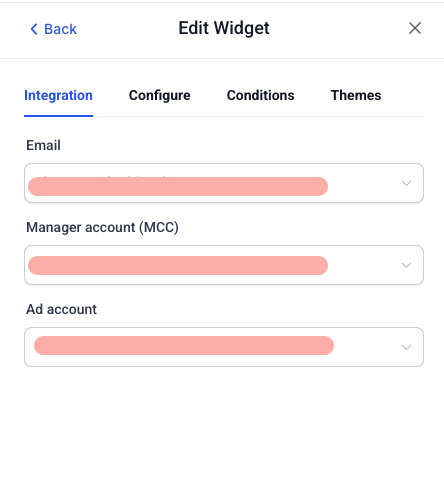
- Confirm Google Ads is connected at the sub-account level (Settings → Integrations → Google Ads). If not connected, widgets will not show data.
- In your sub-account, navigate to Dashboards and open the dashboard you want to edit, or create a new one.
- Click Edit dashboard in the top right corner.
- Click + Add widget — the widget panel opens on the right side
- Scroll to the Google Ads section and click the widget you want to add — it is placed on your dashboard canvas.
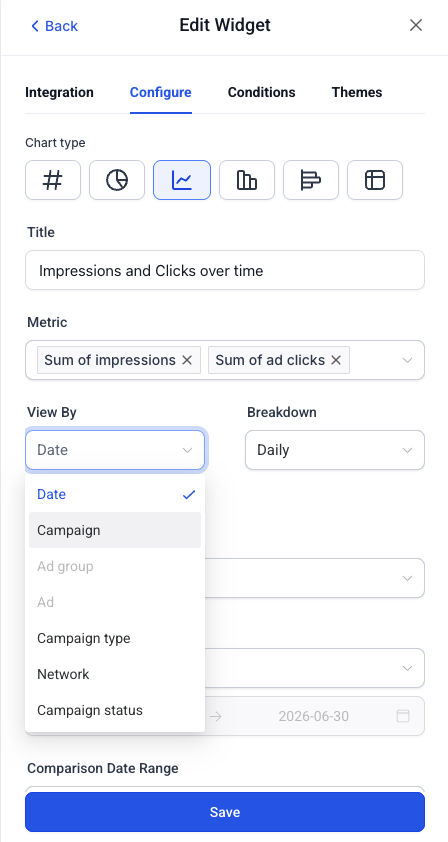
- Configure the widget using the Integration, Configure, Conditions, and Themes tabs (see below).
- Click Save changes to publish the widget to your dashboard.
Tip: Add Total cost, Total conversions, and CPC (cost per click) as stat cards in a top row for an instant spend and performance summary. Follow with Cost over time and Conversions over time as trend lines below.
2) Add Google Ads widgets to a custom report
- In your sub-account, go to Reporting → Custom reports and open an existing report or click New report.
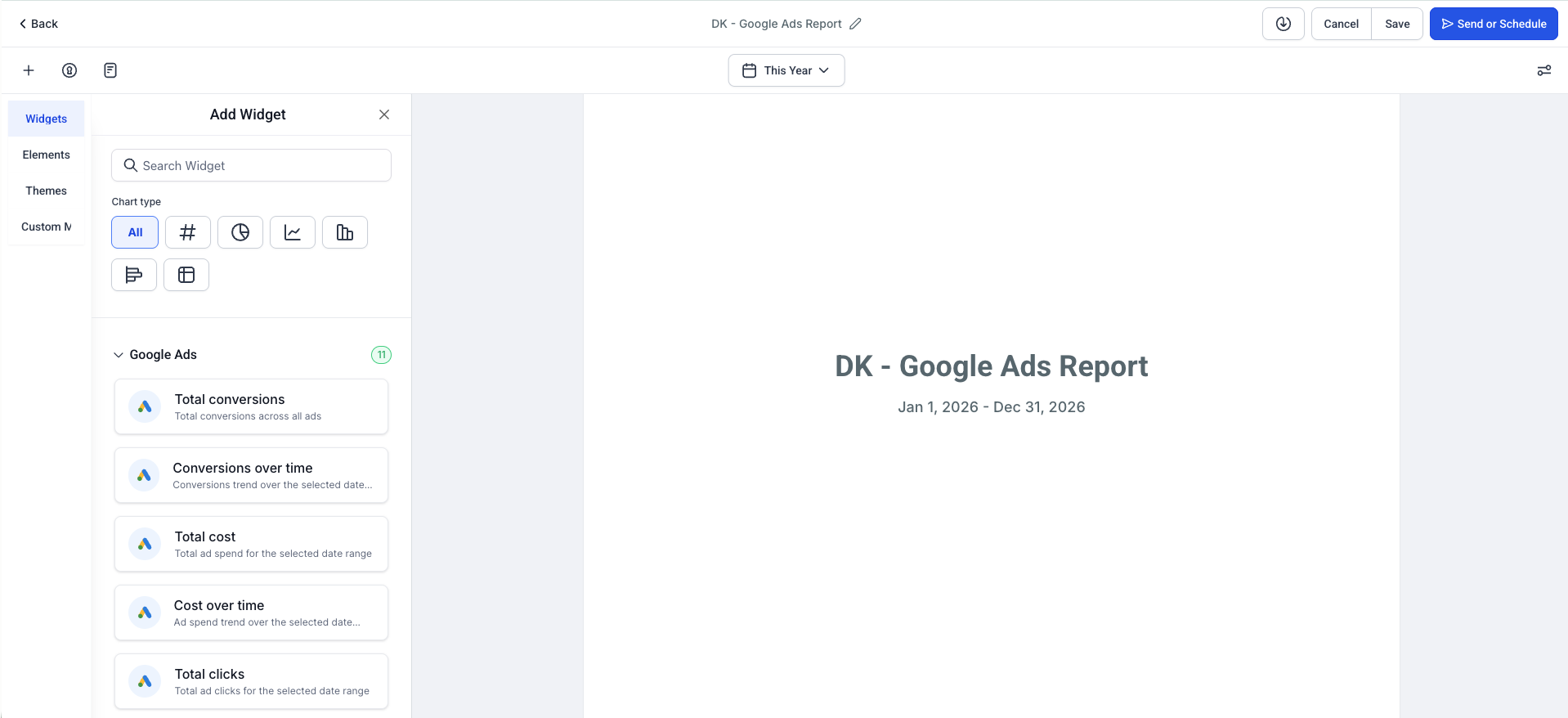
- Choose to start from a blank canvas, use a template, or import an existing dashboard layout.
- Click Add widget / element in the top left of the report builder.
- Scroll to the Google Ads section and drag the widgets you want into your report layout.
- Configure each widget using the Integration, Configure, Conditions, and Themes tabs.
- Click Save.
- Click Send or Schedule to set up automatic email delivery of the report.
Configuring Google Ads widgets
Each Google Ads widget has four configuration tabs in the Edit widget panel.
Integration tab
The Integration tab confirms which Google Ads account the widget pulls data from. This is set once at the sub-account level — you do not need to reconfigure it per widget.
| Field | Description |
|---|---|
| This determines which Google Ads account the widget reads. If multiple Google ads accounts are connected in Highlevel, pick the one linked to the ad account you want to report on. | |
| Manager account (MCC) | The manager account containing your client accounts. Or the client account itself, if there is no manager account. |
| Ad account | The specific ad account whose data (campaigns) this widget handles and display. |
Tip: If these fields are empty or showing an error, the Google Ads connection needs to be set up or reconnected. Go to Sub-account → Settings → Integrations → Google Ads.
Configure tab
The Configure tab controls how the widget looks and what data range it covers.
| Option | Description |
|---|---|
| Chart type | Choose from Numeric (#), Line, Bar, Horizontal bar, or Table. Availability varies by widget. |
| Title | Rename the widget to suit your dashboard or client context. |
| Date range | Defaults to the dashboard date range. Override with a custom range if needed. |
| View by | Controls how widget data is grouped. Options: Date, Campaign, Ad group, Ad, Campaign type, Network, Campaign status |
| Breakdown | Controls the time granularity when View by = Date. Options: Daily, Weekly, Monthly, Quarterly, Yearly |
Tip: To see performance broken down by campaign, set View by → Campaign. To see a specific campaign's ads, first filter by Campaign in the Conditions tab, then set View by → Ad.
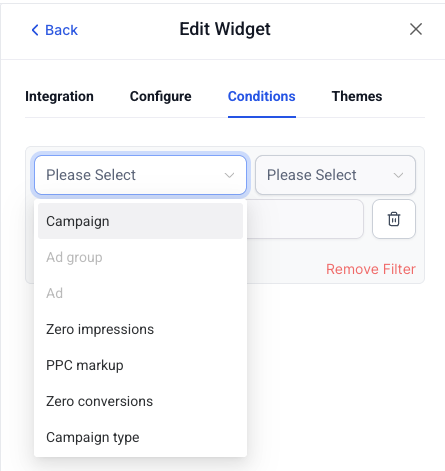
Conditions tab
Add filters to control exactly which Google Ads data the widget displays.
| Condition | Description |
|---|---|
| Campaign | Filter widget data to one or more specific campaigns |
| Ad group | Filter to a specific ad group within a campaign |
| Ad | Filter to a specific ad |
| Zero impressions | Include or exclude ads with zero impressions |
| Zero conversions | Include or exclude ads with zero conversions |
| PPC markup | Filters widget data based on PPC markup configured for the account. Used by agencies to reflect marked-up costs in client-facing dashboards. |
| Campaign type | Filter by campaign type (e.g. Search) |
Tip: Use the Campaign condition to build a widget scoped to a single high-priority campaign, then duplicate the widget for each campaign to create a side-by-side campaign comparison view.
? How PPC markup works:
Agencies often charge clients a percentage on top of actual ad spend as a management fee. For example, if Google charges €100 and your markup is 20%, the widget shows €120 to the client.
To use this:
- Ensure PPC markup is configured for the account in Ad Manager settings
- In the Conditions tab, enable the PPC markup filter
- The widget will now display marked-up costs automatically — no manual math needed
This eliminates the need for a separate reporting layer to present client-facing pricing.
Themes tab
Match widget colors to your dashboard or client brand. Select from available theme presets or customize individual widget colors to align with your agency or client branding.
Using Google Ads in Custom Metrics
Google Ads metrics are available as dimensions in Custom Metrics. Use them in the formula builder to create KPIs that combine ad data with other modules like Opportunities.
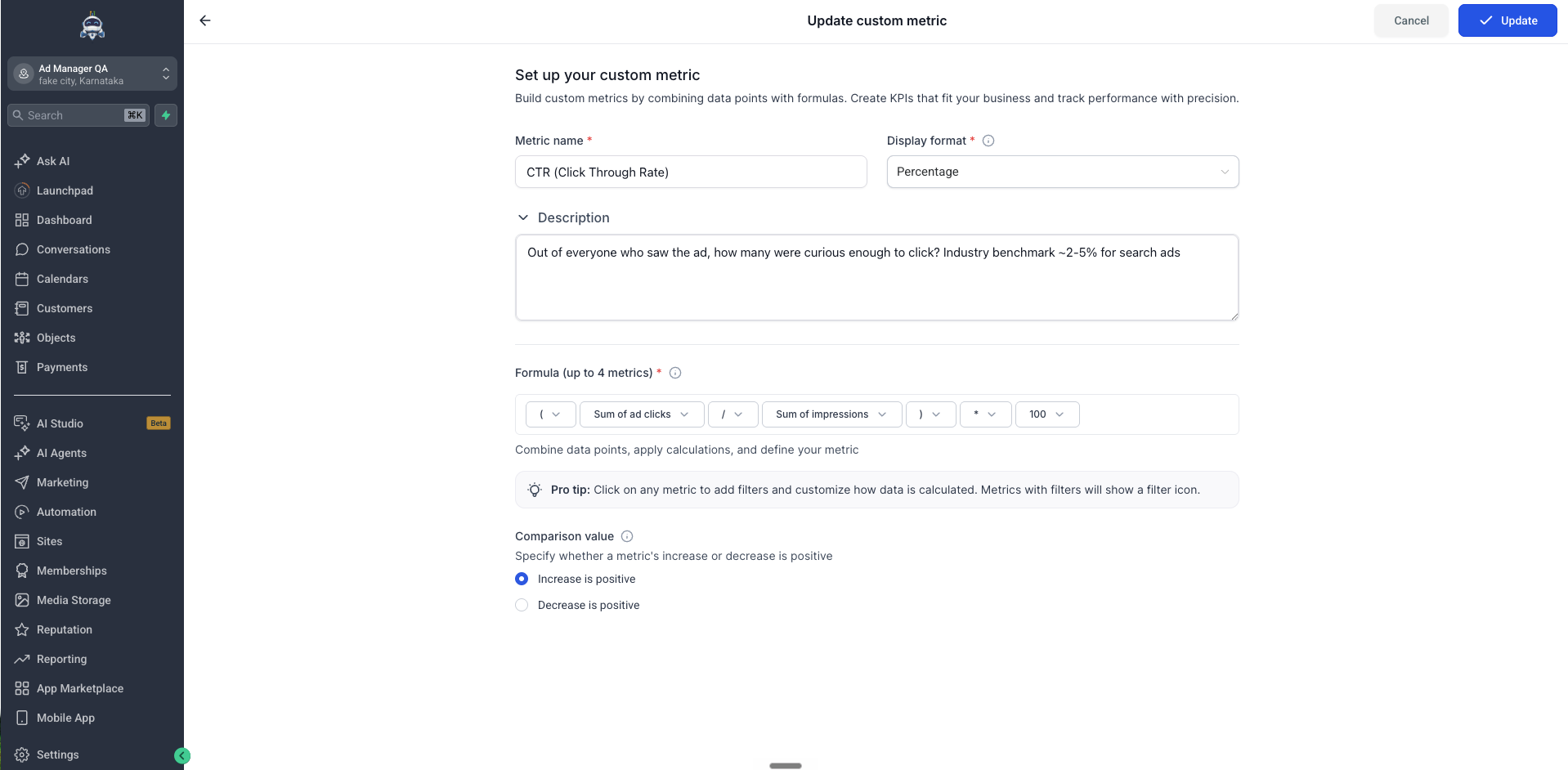
Available Google Ads metrics in the formula builder:
| Metric | Description |
|---|---|
| Cost | Total Google Ads spend for the period |
| Sum of conversions | Total conversions recorded in Google Ads |
| Sum of ad clicks | Total clicks across all ads |
| Sum of impressions | Total impressions across all ads |
| Average Cost Per Click (CPC) | Average CPC across all campaigns |
How to create a Google Ads custom metric:
- Go to Dashboards → Custom metrics and click Create custom metric
- In the Formula builder, select a Google Ads metric (e.g. Cost) as your first metric
- Add an operator and a second metric from another module (e.g. Count of Opportunity from Opportunities)
- Click on any metric in the formula to open its Configuration panel and apply filters (e.g. filter Count of Opportunity to Status = Won)
- Name your metric, set display format, and click Create
Example KPIs you can build:
| Custom metric | Formula | Filter | What it tells you |
|---|---|---|---|
| CTR (click through rate) | Sum of ad clicks ÷ Sum of impressions × 100 | None | What percentage of people who saw the ad clicked it |
| Cost per closed deal | Cost ÷ Count of Opportunity | Count of Opportunity: Status = Won | Average ad spend per won deal |
| ROAS (return on ad spend) | Sum of Revenue ÷ Cost | Sum of Revenue: Status = Won | Revenue returned for every dollar spent on ads |
| Cost per opportunity | Cost ÷ Count of Opportunity | No status filter | Ad spend per pipeline entry, regardless of outcome |
| Revenue per click | Sum of Revenue ÷ Sum of ad clicks | Sum of Revenue: Status = Won | Closed revenue value per ad click |
Note: Cross-module metrics like Cost per closed deal and ROAS use blended averages — they divide total Google Ads spend by total opportunities or revenue for the period. For these metrics to be meaningful, ensure your location is actively logging opportunity values and moving pipeline stages in HighLevel CRM.
Frequently asked questions
Q: Do I need to connect Google Ads for every widget separately?
The Integration tab pre-fills with your connected Google Ads account automatically. If only one account is connected, no action is needed. If multiple Google Ads accounts are connected at the sub-account level, verify the correct Email, Manager account (MCC), and Ad account are selected before saving each widget.
Q: Where do I connect Google Ads?
Go to your sub-account → Settings → Integrations → Google Ads. You will need your Google account email, Manager account (MCC), and Ad account details.
Q: What filters are available in the Conditions tab?
Campaign, Ad group, Ad, Zero impressions, Zero conversions, PPC markup, and Campaign type.
Q: Can I filter a widget to show only one campaign?
Yes. In the Conditions tab, add a Campaign filter and select the campaign you want. The widget will show data only for that campaign.
Q: Can I combine Google Ads widgets with other widgets on the same dashboard?
Yes. Google Ads widgets can sit alongside Email, SMS, Calls, and any other widgets on the same dashboard for a unified marketing performance view.
Q: Can I schedule a Google Ads report for clients?
Yes. Add Google Ads widgets to a custom report and schedule automatic email delivery on a daily, weekly, or monthly cadence.
Q: Is Google Ads available in Custom Metrics?
Yes. Cost, Sum of conversions, Sum of ad clicks, Sum of impressions, and Average Cost Per Click (CPC) are all available in the Custom Metrics formula builder.
Q: Why is my Google Ads widget showing no data?
Common causes: Google Ads is not connected at the sub-account level, the selected date range has no ad activity, or the applied conditions are too narrow. Check Settings → Integrations → Google Ads first, then try widening the date range or removing conditions.
Q: How often do Google Ads widgets update?
Widgets update automatically. No manual refresh is needed.
Q: Which plans include Google Ads widgets?
Google Ads widgets are available on all plans that include Dashboards & Reporting.
Q. My Total cost widget shows $0, but the Reporting tab shows spend. Why?
The widget is reading from a different Google Ads account than the Reporting tab. Open the widget's Integration tab and confirm the Email, Manager account (MCC), and Ad account selections match the account with active spend.
Q. Do I have to select the account every time I add a Google Ads widget?
Yes — each widget stores its own account selection. Double-check the Integration tab on every new widget before saving.
Q. How does PPC markup work in Google Ads widgets?
The PPC markup condition allows agency-configured markup to be reflected in widget cost data. For setup and configuration details, contact your HighLevel support team or refer to the Ad Manager documentation.
Related articles
Was this article helpful?
That’s Great!
Thank you for your feedback
Sorry! We couldn't be helpful
Thank you for your feedback
Feedback sent
We appreciate your effort and will try to fix the article