Granular WhatsApp user permissions let admins control which WhatsApp configuration actions each user can perform. Instead of granting broad access, admins can separately allow or restrict template management, Flows, phone numbers, business profile updates, and WhatsApp disconnection.
TABLE OF CONTENTS
- What Are WhatsApp User Permissions?
- Available WhatsApp Permissions
- How WhatsApp Permissions Work
- Agency and Sub-Account Permissions
- Audit Logs
- WhatsApp Permissions and Reselling
- Set Up WhatsApp User Permissions
- Frequently Asked Questions
- Related Articles
What Are WhatsApp User Permissions?
WhatsApp user permissions are granular access controls that determine which WhatsApp configuration actions an individual user can perform.
They allow admins to restrict sensitive configuration changes without necessarily removing a user's broader access to WhatsApp.
Available WhatsApp Permissions
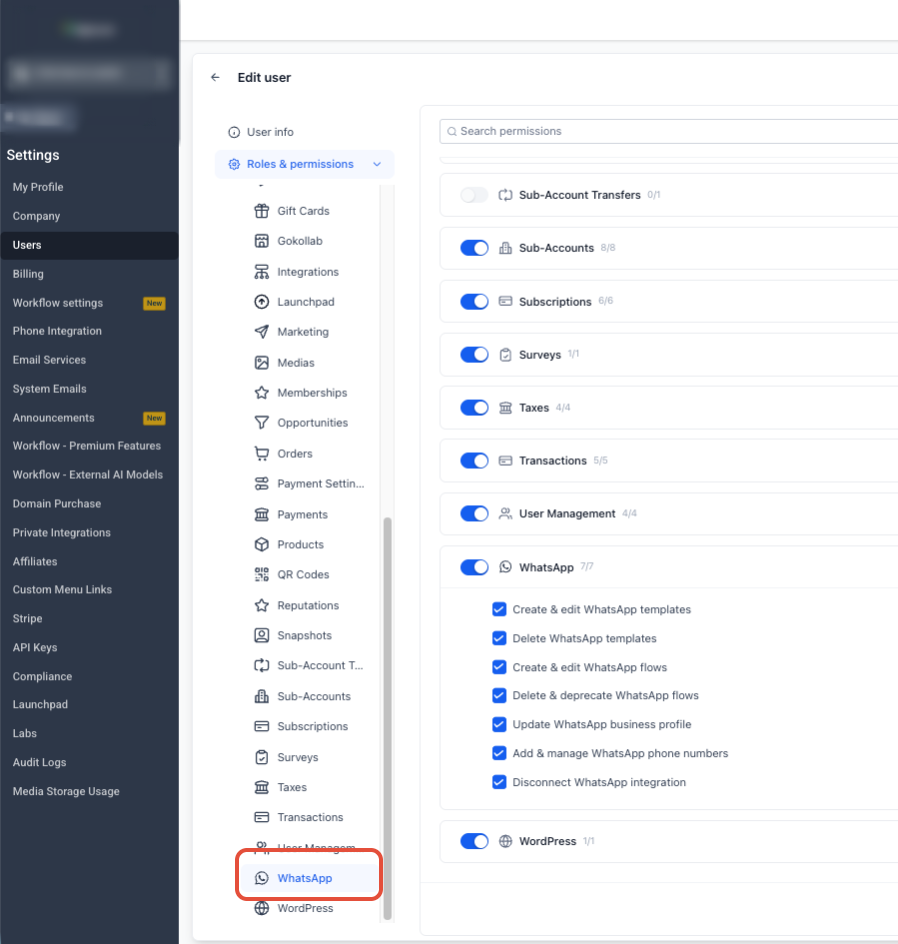
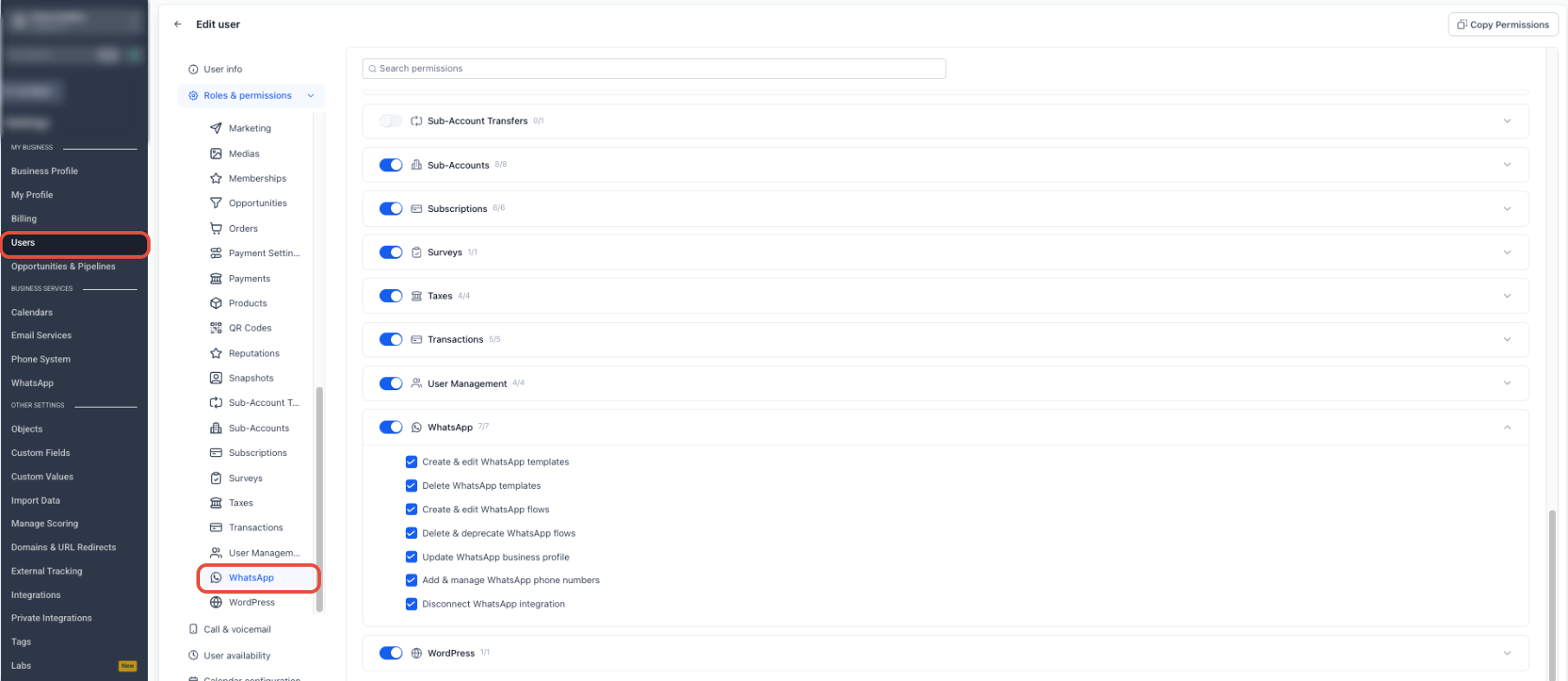
Seven individual permissions are available:
- Create/edit WhatsApp templates: Create new templates and make supported changes to existing templates.
- Delete WhatsApp templates: Delete templates where deletion is supported.
- Create/edit WhatsApp Flows: Create new Flows and make supported changes to existing Flows.
- Delete/deprecate WhatsApp Flows: Perform supported delete or deprecate actions on Flows.
- Update WhatsApp business profile: Update supported WhatsApp Business Profile information.
- Add/manage WhatsApp phone numbers: Add and manage supported phone numbers connected to WhatsApp.
- Disconnect WhatsApp integration: Disconnect the WhatsApp integration.
Note: Disconnecting the WhatsApp integration and canceling a WhatsApp subscription are separate actions.
How WhatsApp Permissions Work
The granular permissions apply to configuration actions such as creating, editing, deleting, managing, or disconnecting supported WhatsApp resources.
Read and preview behavior continues to use the existing broader WhatsApp access controls. Disabling a create or edit permission does not automatically remove all visibility into that resource.
Default Permission Behavior
The granular permissions use an opt-out rollout. Supported existing users retain their current WhatsApp management access by default until an administrator disables individual permissions.
What Happens When Permission Is Disabled?
When a required WhatsApp permission is disabled:
- The corresponding action is unavailable in the HighLevel interface.
- The user can receive contextual permission messaging for the restricted action.
- Supported direct API requests for unauthorized actions return a 403 Forbidden response.
For example, a user may still be able to open WhatsApp Templates but be unable to create or edit a template if Create/edit WhatsApp templates is disabled.
Agency and Sub-Account Permissions
WhatsApp permissions can be managed from the Users area that matches the user's access scope.
- Agency admins: Manage applicable user permissions from Agency View → Settings → Users.
- Sub-Account admins: Manage applicable user permissions from Sub-Account → Settings → Users.
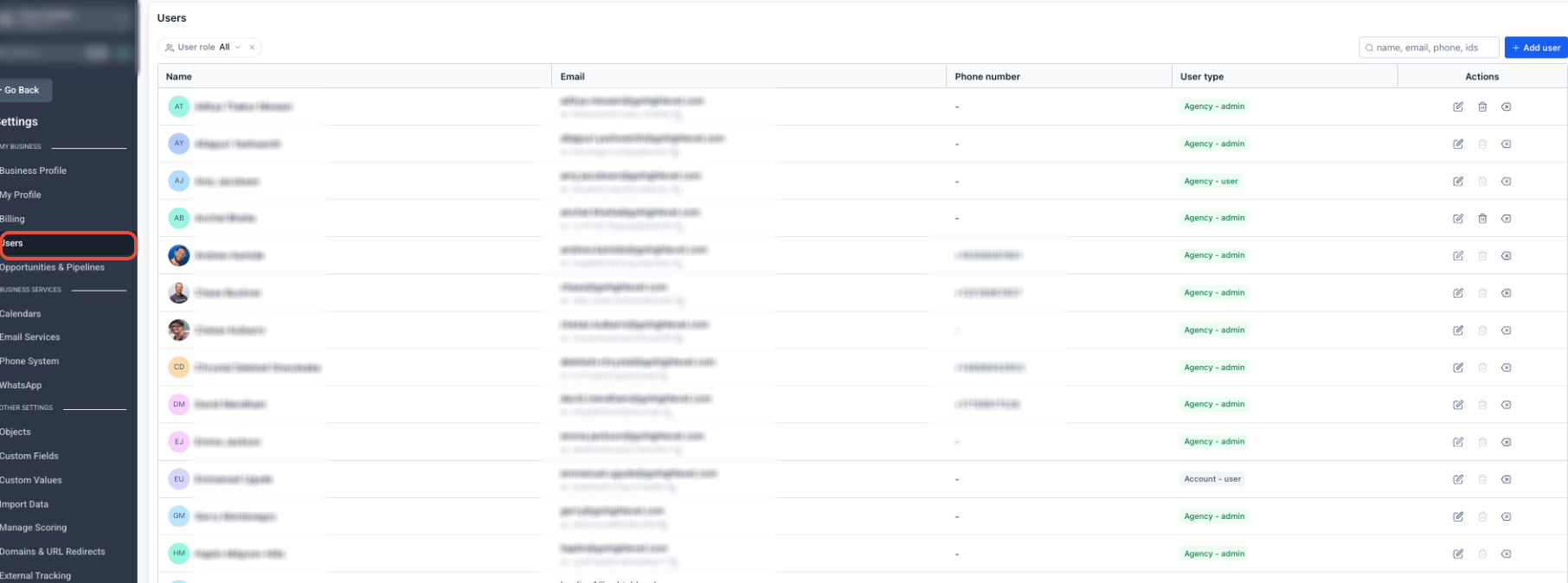
WhatsApp permissions are user-scoped. When a permission is granted or revoked, it applies to that user's applicable access rather than creating a separate WhatsApp permission profile for every individual Sub-Account.
Audit Logs
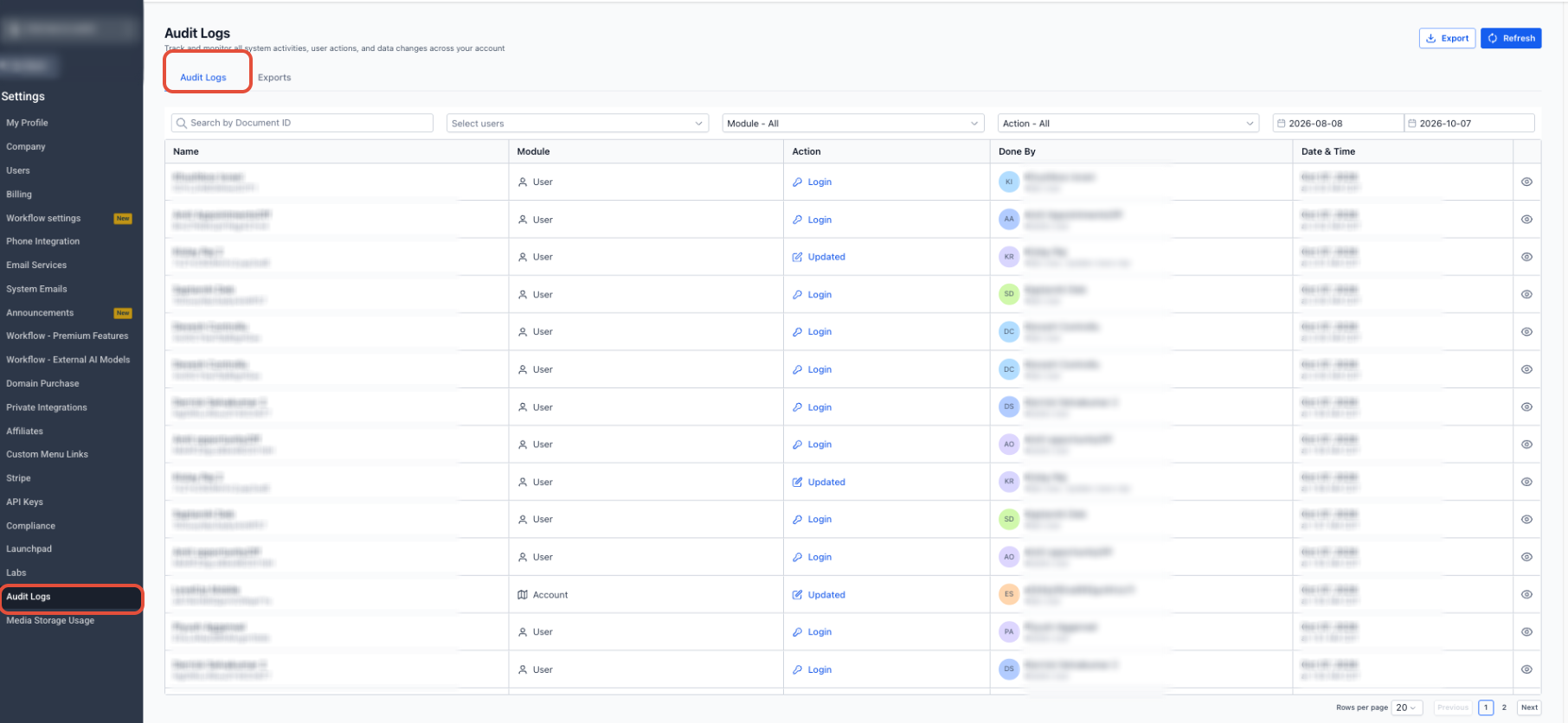
Applicable WhatsApp permission changes are recorded as user-related audit activity at the Agency level.
To review changes, go to Agency View → Settings → Audit Logs and use the available filters to locate the relevant user or activity.
WhatsApp Permissions and Reselling
WhatsApp user permissions and WhatsApp reselling are separate controls.
The WhatsApp permission toggles remain available in user management even when WhatsApp reselling is turned off. Disabling reselling does not remove the WhatsApp controls from Roles & Permissions.
Set Up WhatsApp User Permissions
Agency Users
- From Agency View, go to Settings → Users.
- Open the user you want to update.
- Open Roles & Permissions.
- Locate the WhatsApp permissions section.
- Turn each permission on or off based on the user's responsibilities.
- Review the user's remaining module and granular permissions.
- Save the changes.
Sub-Account Users
- Open the applicable Sub-Account.
- Go to Settings → Users.
- Open the user you want to update.
- Open Roles & Permissions.
- Locate the WhatsApp permissions section.
- Enable or disable each permission based on the actions the user should be allowed to perform.
- Save the changes.
Tip: If a user suddenly cannot perform a specific WhatsApp configuration action, compare that action with the seven WhatsApp permission toggles before changing broader module access.
Frequently Asked Questions
Q: Why can a user open WhatsApp Settings but not create a template?
The user may have WhatsApp access but not the Create/edit WhatsApp templates permission. Review the user's Roles & Permissions settings and confirm that the required WhatsApp permission is enabled.
Q: Can I allow someone to edit templates without letting them delete templates?
Yes. Template creation/editing and template deletion are separate permissions.
Q: Can I let a user create WhatsApp Flows without allowing them to delete or deprecate existing Flows?
Yes. Create/edit WhatsApp Flows and Delete/deprecate WhatsApp Flows are controlled separately.
Q: Does removing a create or edit permission prevent the user from viewing the resource?
Not necessarily. Granular permissions govern supported configuration changes, while read and preview behavior continues to use broader WhatsApp access controls.
Q: What happens if an integration performs a WhatsApp action the user is not permitted to perform?
Supported unauthorized API mutation requests return a 403 Forbidden response.
Q: Why is the WhatsApp permissions section still visible when WhatsApp reselling is turned off?
User permissions and reselling are separate controls. Turning off WhatsApp reselling does not remove the WhatsApp permission controls from user management.
Q: Where can I see who changed a user's WhatsApp permissions?
Applicable permission changes are recorded as user-related audit activity. Agency admins can review them from Agency View → Settings → Audit Logs.
Q: Does the Disconnect WhatsApp permission also allow a user to cancel the WhatsApp subscription?
No. Disconnecting the integration and canceling a subscription are separate actions. Follow the documented subscription-cancellation process when canceling service.
Related Articles
- Manage Agency User Roles and Permissions in HighLevel
- Sub-Account: User Roles, Permissions and Assigned Data
- WhatsApp Settings
- How to Create a WhatsApp Template
- WhatsApp Flows for Appointment Booking
- WhatsApp Business Profile Management
Was this article helpful?
That’s Great!
Thank you for your feedback
Sorry! We couldn't be helpful
Thank you for your feedback
Feedback sent
We appreciate your effort and will try to fix the article