Dark Mode gives GoKollab members a darker web interface across Communities, Courses, and other supported areas. Members can switch their appearance from the top navigation, while community owners can define separate brand palettes for Light and Dark Mode. The selected appearance is retained across refreshes and most supported navigation, helping create a more comfortable and consistent viewing experience.
TABLE OF CONTENTS
- What is GoKollab Dark Mode?
- Key Benefits of GoKollab Dark Mode
- Where Dark Mode is Available
- How to Set Up GoKollab Dark Mode
- Frequently Asked Questions
- Related Articles
What is GoKollab Dark Mode?
GoKollab Dark Mode is a web appearance option that changes supported interface surfaces to a darker color scheme while maintaining readable text, controls, and community branding. Members can choose the appearance that works best for them, while community owners can separately configure how their brand looks in Light and Dark Mode. This makes it possible to support different viewing preferences without relying on automatic color inversion.
Key Benefits of GoKollab Dark Mode
- One-click appearance switching: Members can move between Light and Dark Mode directly from the GoKollab top navigation.
- Independent brand palettes: Community owners can configure Light and Dark color palettes separately so changes to one mode do not overwrite the other.
- More comfortable viewing: Darker surfaces can provide a more comfortable experience during longer sessions or in low-light environments.
- Broad GoKollab coverage: Dark Mode adapts Communities, Courses, discovery, onboarding, account surfaces, and other supported areas.
- Persistent preferences: A member's selected appearance is automatically restored after refreshes and across most supported navigation.
- Existing community compatibility: Existing communities continue to work without requiring a new Dark Mode configuration.
Where Dark Mode is Available
Dark Mode is available across the supported GoKollab web experience, including Communities, Courses, account areas, discovery, onboarding, and other member-facing surfaces. Interface elements such as backgrounds, text, forms, menus, tabs, and controls automatically adapt to the selected appearance.
The selected appearance also carries into supported learning experiences, including course navigation, lessons, assessments, assignments, quizzes, and live-session surfaces. Members do not need to configure a separate appearance for Courses.
Dark Mode is available for GoKollab on the web. Appearance preference may not persist during navigation in some areas, including GoKollab Studio.
How to Set Up GoKollab Dark Mode
Using the correct workflow ensures members can choose their preferred appearance while community owners maintain appropriate branding for both modes. Members only need to change their personal appearance preference, while owners can separately configure how the community looks when each mode is selected.
For Members
- Open GoKollab or a Community on the web.
- Locate the appearance switcher in the top navigation.
- Select Dark Mode.
- Continue navigating GoKollab normally. Your selection will be remembered across refreshes and most supported areas.
- Use the appearance switcher again whenever you want to return to Light Mode.
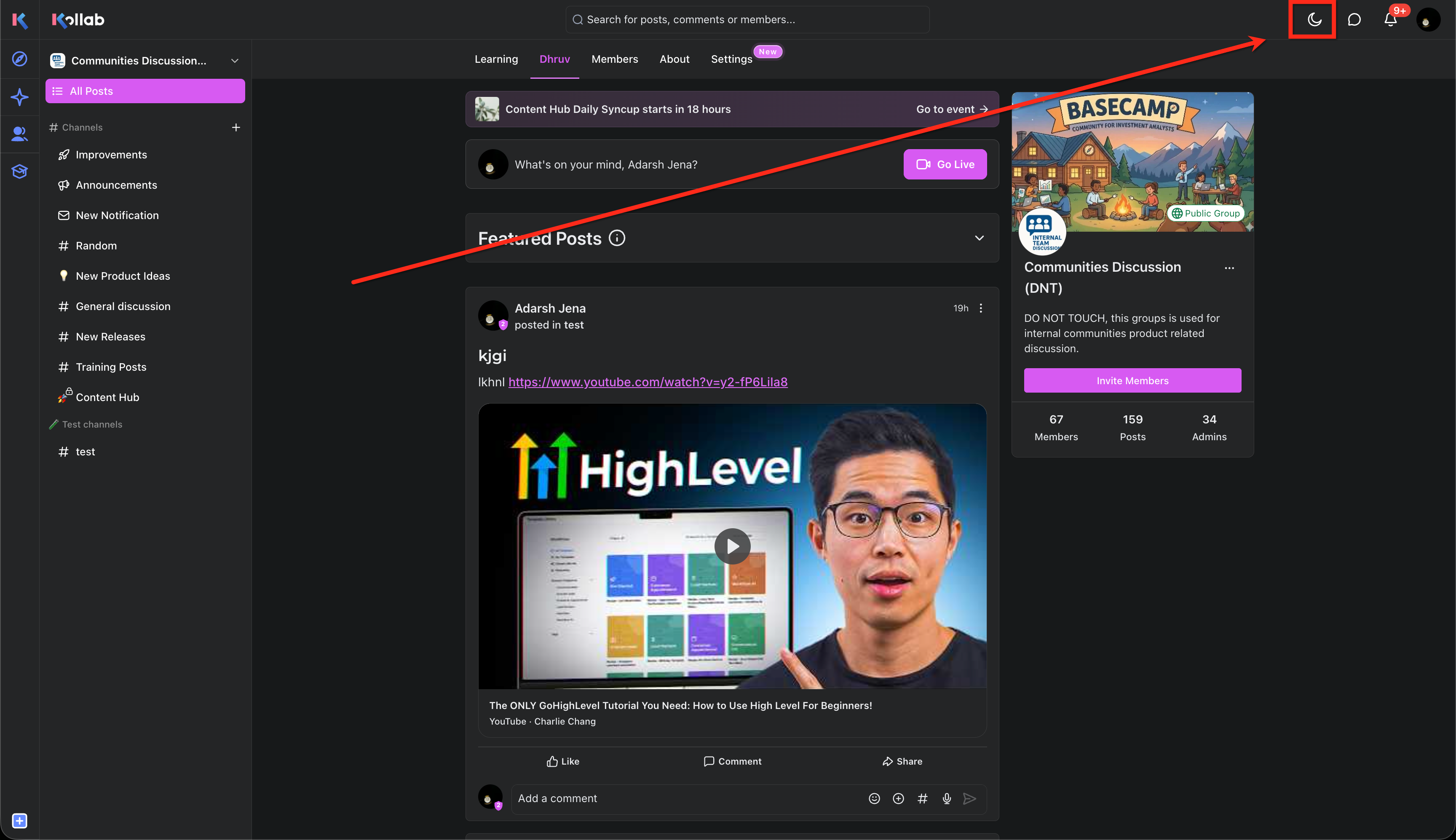
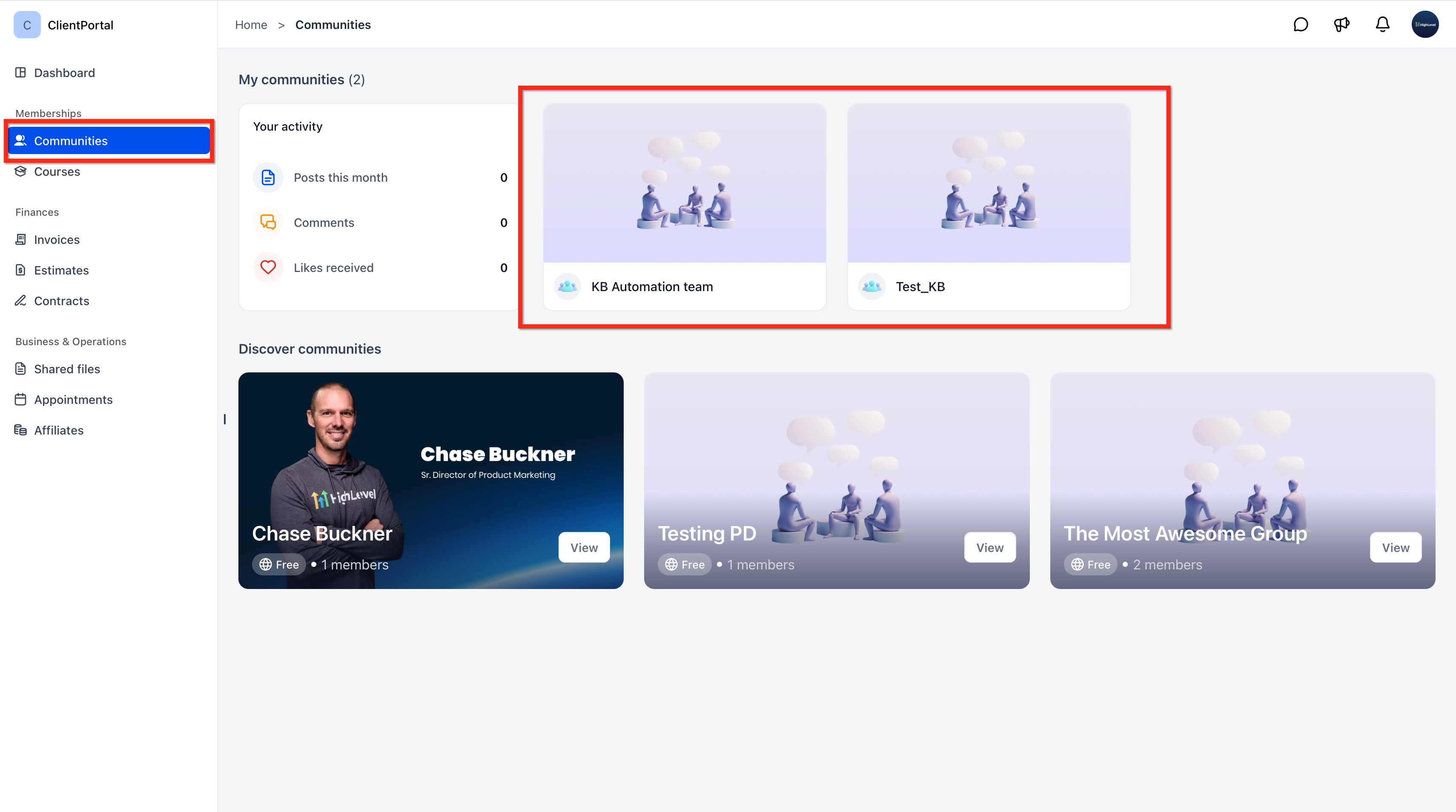
For Community Owners
- Open the community you want to configure.
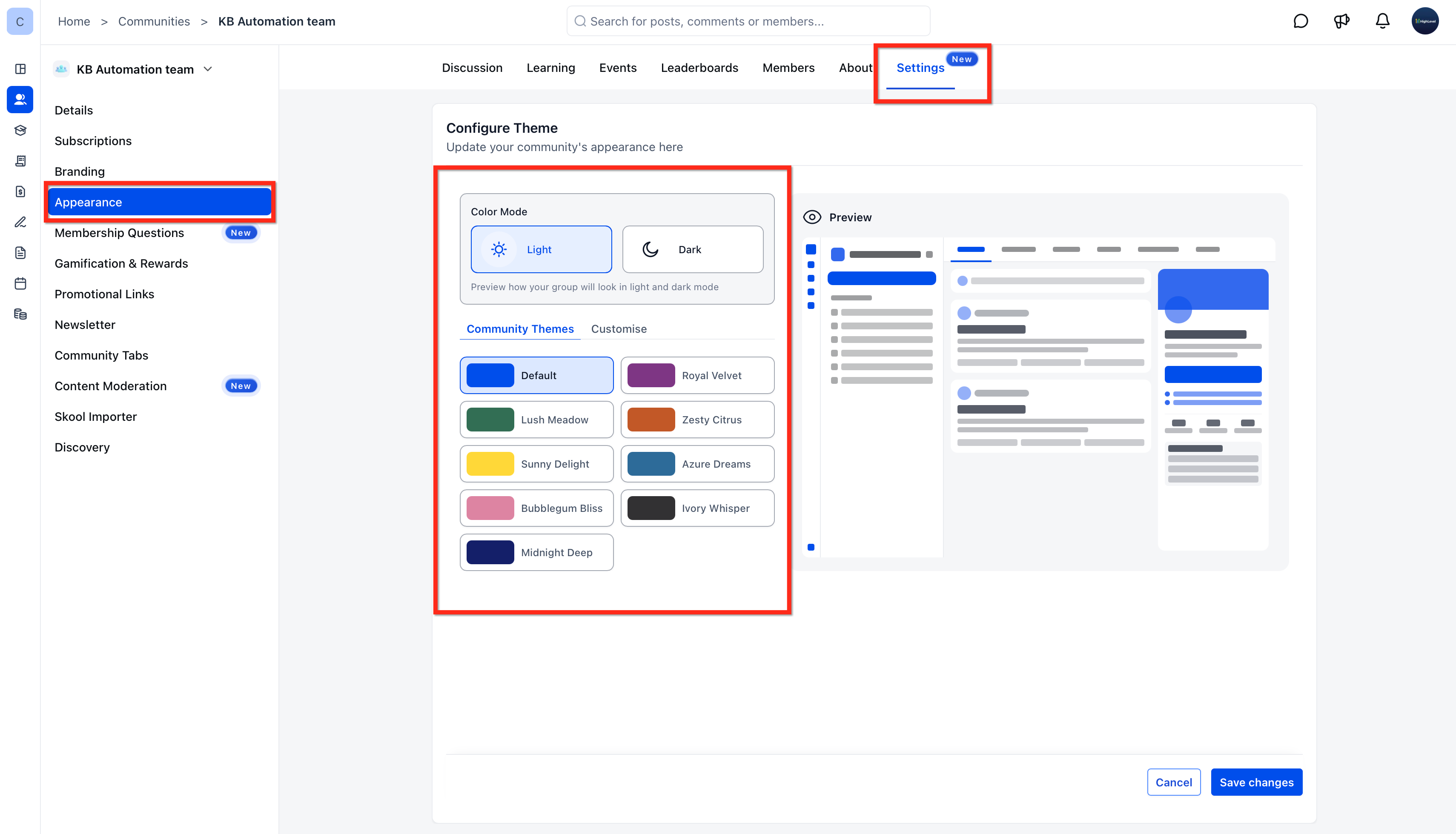
- Go to Settings. Select Appearance.
- Under Color Mode, select Light or Dark depending on the palette you want to configure.
- Choose a Community Theme or use the available customization controls.
- Review the Preview to verify how the selected appearance will look.
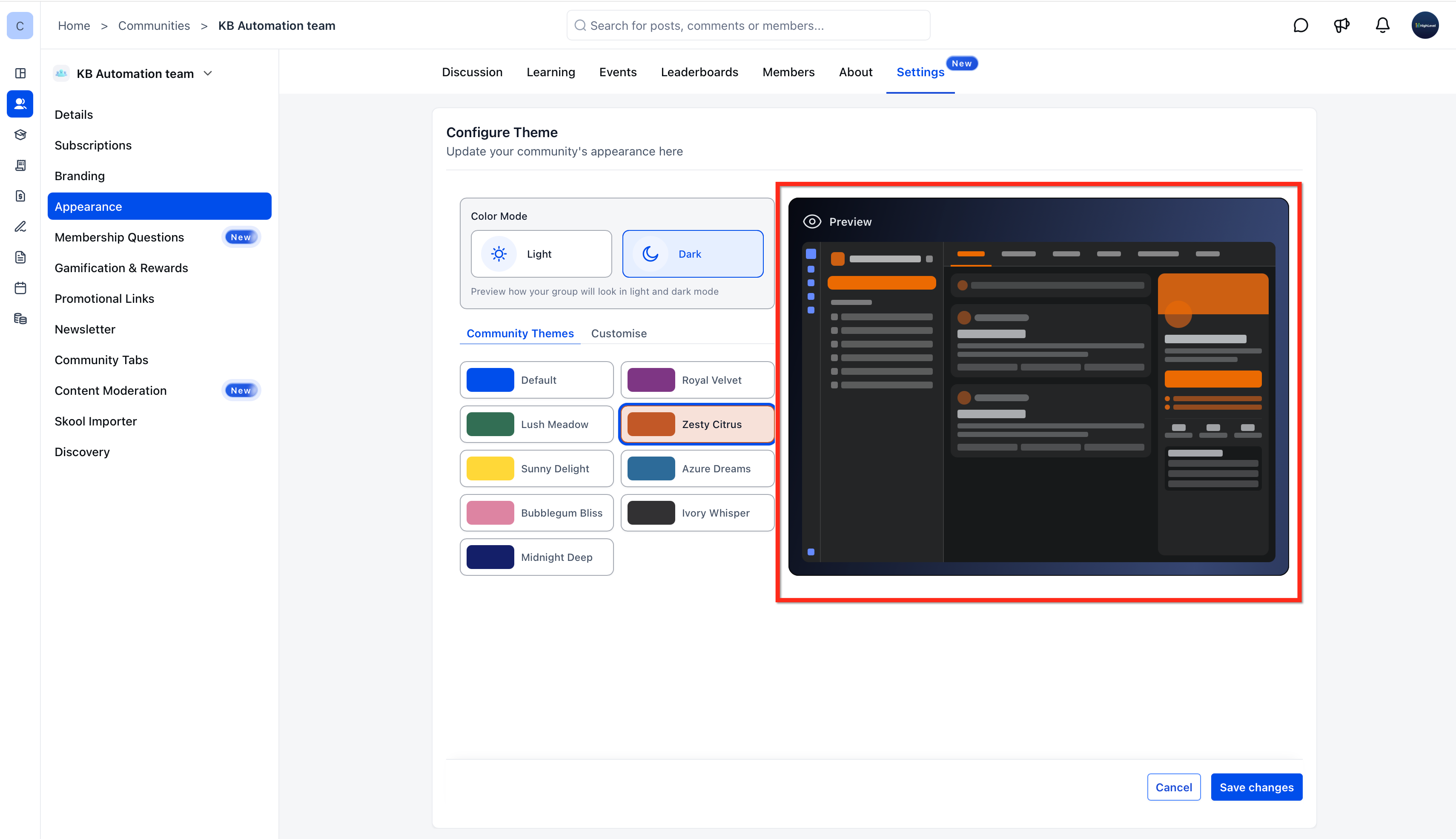
- Repeat the process for the other color mode if you want separate Light and Dark branding.
- Click Save changes.
Changes made to the Dark palette do not overwrite the Light palette, and changes to the Light palette do not overwrite the Dark palette.
Frequently Asked Questions
Q: If I switch to Dark Mode, will the appearance change for every community member?
No. Members select their own viewing appearance. Community owners configure how the community's branding looks when members use each available mode.
Q: Can a community owner require every member to use Dark Mode?
No. The appearance switcher is a member-controlled preference, so each member can choose their preferred appearance.
Q: Is Dark Mode available in the GoKollab mobile experience?
Dark Mode is currently available for GoKollab on the web. Mobile support for the same appearance controls is not currently available.
Q: Will Dark Mode automatically recolor uploaded images or videos?
Dark Mode adjusts supported interface elements such as backgrounds, text, borders, forms, menus, tabs, and controls. Uploaded images and videos retain their original appearance.
Q: Why does my appearance sometimes change when I navigate through Studio?
Preference persistence is not yet complete across every surface. Studio is a known area where the selected mode may not always remain applied during navigation.
Q: What should I check if my community looks incorrect only in Dark Mode?
If your community uses custom CSS, review any styles that specifically affect Light or Dark Mode and test the community in both appearances.
Related Articles
- Communities - Change your group theme
- How to Setup, Customize, and Manage Your Communities
- Communities - How to Add Custom CSS/JS to Groups
- Manage Your Communities and Courses with GoKollab Studio
- Learning Tab (Courses)
Was this article helpful?
That’s Great!
Thank you for your feedback
Sorry! We couldn't be helpful
Thank you for your feedback
Feedback sent
We appreciate your effort and will try to fix the article