Feature Permissions let agencies control which HighLevel tools and features their clients can see and use. The updated permission experience includes more than 80 controllable features and organizes them into clear groups, making it easier to find and manage access. Agencies can manage permissions for an individual subaccount or include them in SaaS plans.
TABLE OF CONTENTS
- What are Feature Permissions?
- Key Benefits of Feature Permissions
- How Feature Permissions are Organized
- Understanding the Selected Feature Counts
- Search for a Feature
- Feature Permissions for Individual Subaccounts
- Feature Permissions for SaaS Plans
- Feature Permissions vs. User Permissions
- What Happened to Existing Permissions?
- How To Manage Feature Permissions
- Troubleshooting Feature Permissions
- Frequently Asked Questions
- Related Articles
What are Feature Permissions?
Feature Permissions control which parts of HighLevel are available inside a subaccount. They help agencies create a cleaner client experience by showing only the tools each client should have access to.
For example, an agency may want one client to use:
AI Agents
Calendars
Opportunities
Phone System
while another client may need a different set of features.
Instead of showing every HighLevel feature to every client, Feature Permissions let the agency choose what each subaccount can access.
The updated system includes 80+ controllable features, compared with the smaller set of controls previously available.
Key Benefits of Feature Permissions
The updated Feature Permissions experience gives agencies more control while making the settings easier to understand and manage. This is especially useful for agencies managing several clients or offering different SaaS plans.
More feature controls: Manage access to more than 80 HighLevel features.
Better organization: Features are grouped into Categories, Modules, and individual Features.
More detailed control: Choose specific features instead of managing only large areas of the platform.
Easier feature discovery: Search for a feature instead of browsing through a long list.
Cleaner client experience: Clients see the features the agency has made available to them.
SaaS plan support: Pro agencies can choose which features are included in their SaaS plans.
Existing access is preserved: Existing subaccounts and SaaS plans were moved to the updated permission system without removing features they already had access to.
How Feature Permissions are Organized
The new permission screen organizes features into three levels so agencies can find related settings more easily. Think of these levels as folders that move from a broad area of HighLevel down to a specific feature.
The three levels are:
Category: A large area of HighLevel.
Module: A group of related tools inside that category.
Feature: A specific tool or function that can be controlled.
For example:
Category: CRM
Module: CRM core
Feature: Contacts & Conversations
The CRM category may also contain other features such as:
Custom Objects
Smartlists
Tags
Email System
Opportunities
Phone System
This structure makes it easier to find the exact feature you want to manage.
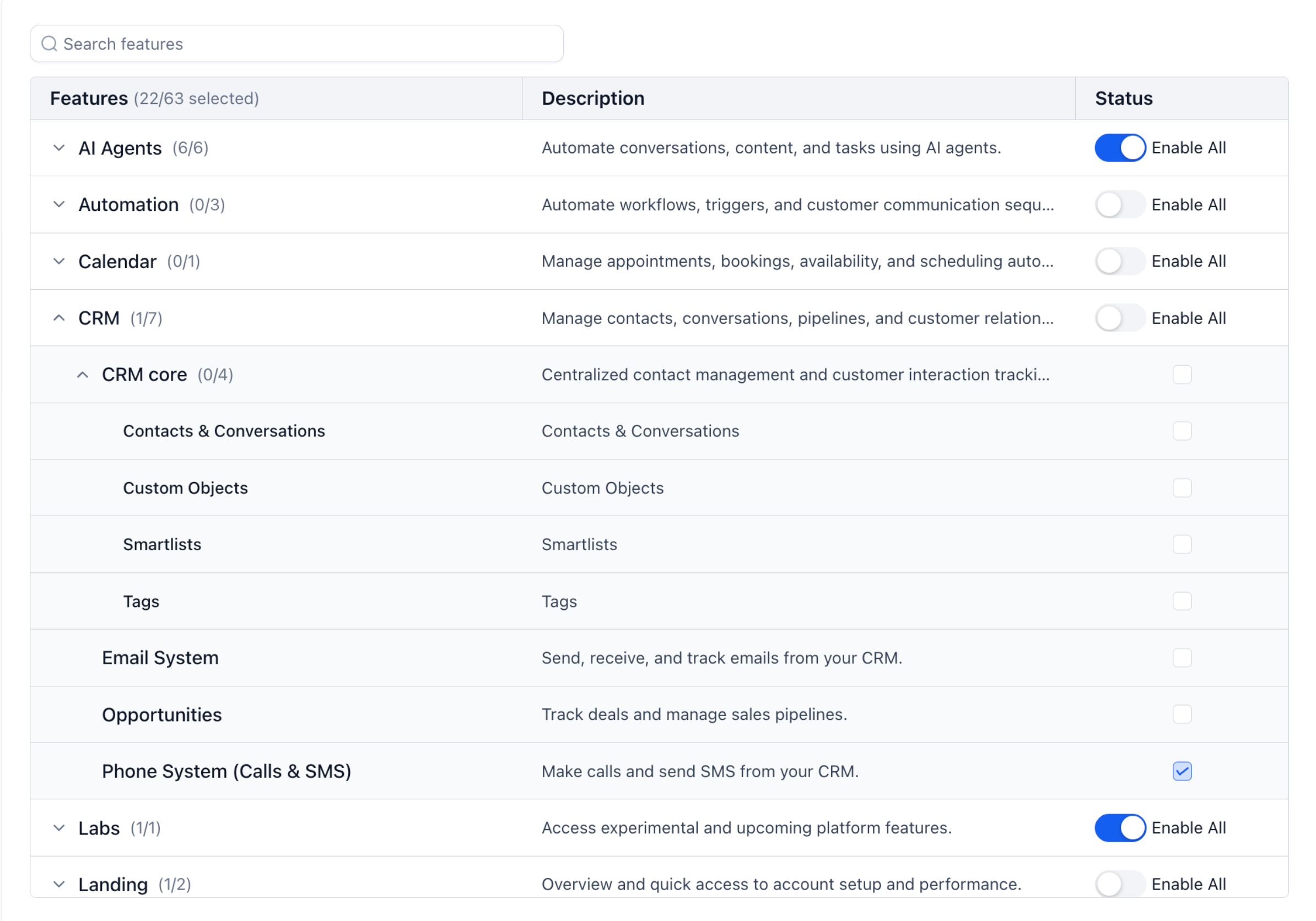
Screenshot description: Add the Feature Permissions screen showing the searchable feature list, the Category > Module > Feature structure, selected counts, Enable All controls, and individual feature checkboxes.
Understanding the Selected Feature Counts
The numbers beside Categories and Modules help you quickly see how many features are currently enabled. This makes it easier to review permissions without opening every group.
For example:
AI Agents (6/6) means all 6 available AI Agent features are selected.
CRM (1/7) means 1 of the 7 available CRM features is selected.
Features (22/63 selected) shows the total number of currently selected features in that permission setup.
These counts update as features are selected or removed.
Search for a Feature
The search field helps agencies quickly find a feature without opening each Category and Module. This is useful when you already know which feature you want to enable or disable.
Use the Search features field at the top of the permission list and enter the name of the feature you are looking for.
For example, you can search for:
Phone System
Opportunities
Smartlists
Calendar
AI Agents
The matching feature can then be reviewed and managed from the results.
Feature Permissions for Individual Subaccounts
Subaccount-level permissions are useful when one client needs a different set of HighLevel features from your other clients. These settings control what is available inside that specific subaccount.
An agency can review and manage Feature Permissions while managing an individual client.
This allows you to:
Review the features currently available to the subaccount.
Find a feature using search.
Open Categories and Modules to locate individual features.
Enable or disable supported features for that client.
Review the selected feature count.
Feature Permissions control what the subaccount itself can access.
They are different from individual user permissions, which control what a specific person inside that subaccount can access.
Feature Permissions for SaaS Plans
SaaS plan permissions let Pro agencies decide which HighLevel features are included with a plan. This makes it easier to offer different feature packages without manually setting up every new client.
When creating or editing a SaaS plan, the agency can select the features included with that plan.
When a subaccount subscribes to the SaaS plan, the plan's Feature Permissions are applied to that subaccount.
For example, an agency could create:
A basic plan with CRM and Calendar access.
A higher plan with CRM, Calendar, Automation, and AI features.
The exact features available depend on what the agency selects for the plan.
Note: At least one feature must be selected before a SaaS plan can be saved.
Feature Permissions vs. User Permissions
Feature Permissions and User Permissions control different levels of access. Understanding the difference helps prevent situations where a user permission is enabled but the feature is still unavailable.
Feature Permissions control what the entire subaccount can access.
User Permissions control what an individual user inside that subaccount can access.
For example:
The agency enables Opportunities for the subaccount.
The agency can then decide which users inside that subaccount are allowed to use Opportunities.
If the subaccount does not have access to Opportunities, giving an individual user permission to Opportunities does not give them access to the feature.
A user can therefore have the same or less access than the subaccount, but not more.
What Happened to Existing Permissions?
Existing subaccounts and SaaS plans were moved to the updated Feature Permissions system automatically. The migration was designed to preserve existing access so clients would not unexpectedly lose features they were already using.
Agencies do not need to recreate all existing permission settings from the beginning.
After the update:
Existing subaccounts keep the feature access they previously had.
Existing SaaS plans keep the access that was already configured.
Agencies can use the new permission screen to review and adjust access going forward.
How To Manage Feature Permissions
Managing Feature Permissions starts with choosing whether you are updating one client or configuring the features included in a SaaS plan. The new organized permission list then makes it easier to find and select the appropriate features.
Manage Permissions for a Subaccount
Open the agency area where you manage the client.
Select the subaccount you want to update.
Open its Feature Permissions settings.
Use Search features or browse the Categories.
Expand a Category to view its Modules and Features.
Select or clear the supported features you want to manage.
Review the selected feature count.
Save your changes.
Manage Permissions for a SaaS Plan
Open the SaaS Configurator.
Create a new plan or open an existing plan.
Go to the feature selection area.
Search for a feature or open the appropriate Category.
Select the features that should be included in the plan.
Make sure at least one feature is selected.
Review the feature choices.
Save the SaaS plan.
When the SaaS plan is assigned to a subaccount, the plan's feature configuration is applied to that account.
Troubleshooting Feature Permissions
Most permission issues happen because the feature is unavailable at the subaccount level or because an individual user's permissions are more limited. Checking both levels can help identify why a client cannot access something.
A client cannot see a feature
Check whether the feature is enabled in the subaccount's Feature Permissions.
A user cannot access a feature even though the subaccount has it
Check that user's individual permissions. A subaccount can have access to a feature while a specific user is restricted from it.
I cannot find a feature
Use the Search features field. If the feature still does not appear, it may not currently have a configurable permission.
The selected number is lower than expected
Open the Category or Module and review the individual selected features.
A permission appears unavailable
Some permission controls may not be available in every area of HighLevel at the same time. Review the current settings shown in your account before making changes.
Frequently Asked Questions
Q: What does 1/7 mean beside a Category?
A: It means 1 of the 7 available features in that Category is currently selected.
Q: Can I search for a specific feature?
A: Yes. Use the Search features field at the top of the Feature Permissions list.
Q: Are Feature Permissions the same as User Permissions?
A: No. Feature Permissions control what the subaccount can access. User Permissions control what an individual user
can access inside that subaccount.
Q: Can a user access a feature that is disabled for the subaccount?
A: No. User permissions cannot provide access beyond what is available to the subaccount.
Q: Can Feature Permissions be configured in SaaS plans?
A: Yes. Pro agencies can select which supported features are included with each SaaS plan.
Q: What happens when a SaaS plan is assigned to a subaccount?
A: The Feature Permissions configured for that SaaS plan are applied to the subaccount.
Q: Did existing clients lose access when the new permission system was introduced?
A: No. Existing subaccounts and SaaS plans were moved to the new system while preserving the feature access they already had.
Q: Does disabling a feature delete the client's existing data?
A: Feature Permissions control access to supported features. The article does not assume that changing access deletes existing client data; review the specific product's documentation before making decisions involving stored data.
Related Articles
Was this article helpful?
That’s Great!
Thank you for your feedback
Sorry! We couldn't be helpful
Thank you for your feedback
Feedback sent
We appreciate your effort and will try to fix the article