This feature is currently in Labs. To enable it, go to Settings → Labs and toggle Email AI (Beta 2.0) on for the desired sub-accounts.
Email AI is a guided, brand-aware experience inside the Email Marketing builder that helps you plan, draft, and design emails quickly. It leverages your Brand Board for fonts and colors, recommends layouts, and lets you refine content conversationally — so you can launch emails faster with more control and less rework.
Key Benefits
These improvements focus on speed-to-market, brand consistency, and safer iteration — while keeping you in control of copy and layout.
Generate complete, structured emails in minutes.
Brand Board colors and typography apply automatically to every generation.
Assist Mode helps you craft better prompts with fewer retries.
Recreate an email you like from a URL or image, then adapt it to your brand.
Improved models produce cleaner sections, CTAs, and responsive structure.
Ask AI to rewrite, shorten, translate, or add sections using plain language.
Undo/redo and version history capture every generation for easy rollback.
Spend more time on strategy — not formatting.
Limits & Known Behaviors (Beta)
Complex custom code, tracking pixels, or scripts from the reference won't carry over. AI recreates an editable layout instead.
Replace any sample images with licensed assets and confirm link targets after generation.
Updating your default Brand Board affects future generations only. Previously generated drafts remain unchanged unless edited.
For pixel-perfect vendor HTML or advanced custom code, import it into the Code Editor first. Then use Email AI in the visual builder to create new branded variations.
How To Set Up and Use Email AI
Follow these steps to enable access, prepare your brand styles, and generate your first on-brand draft.
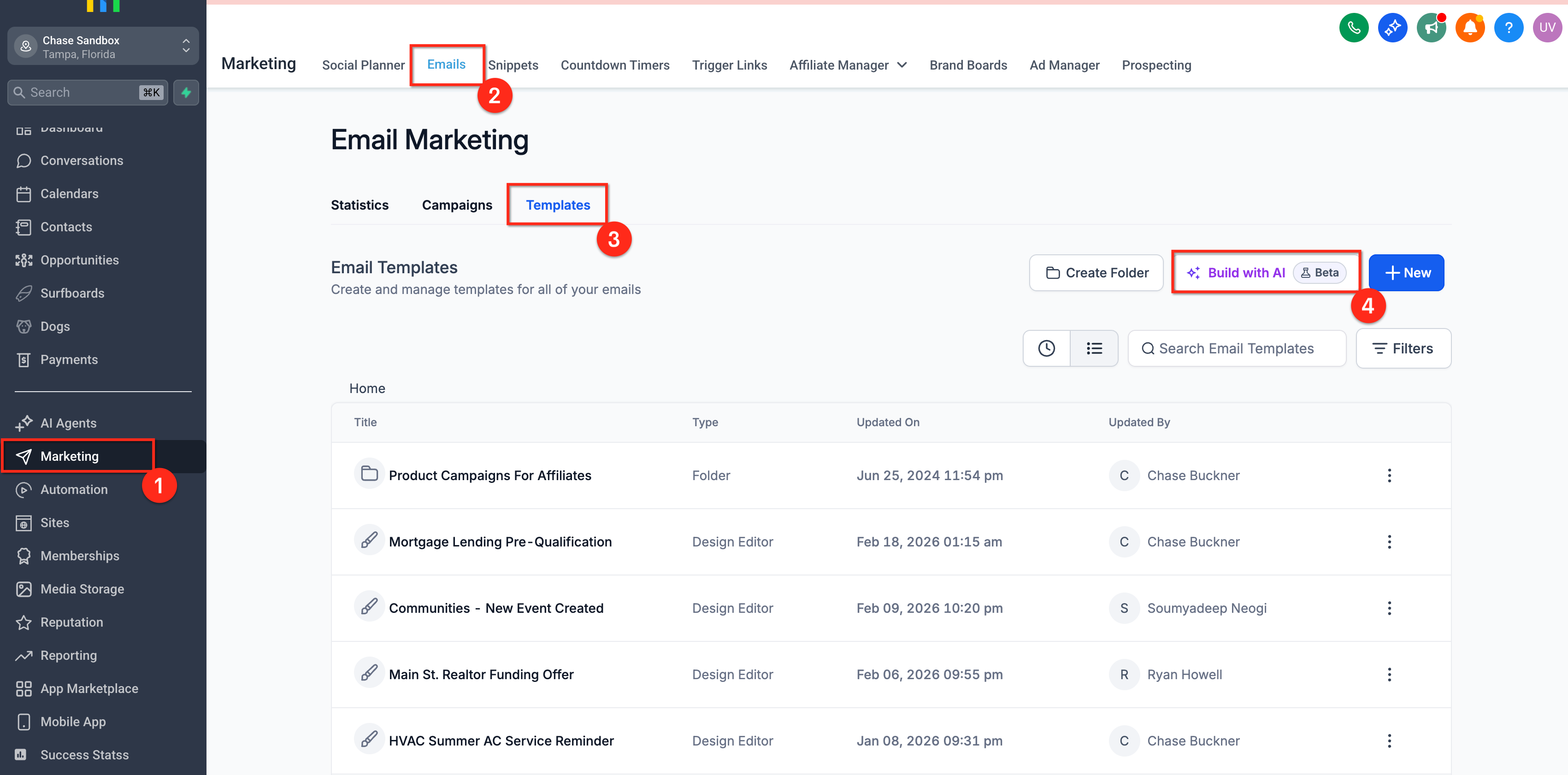
Navigate to Email Marketing → Emails, then click the Templates tab.
Click Build with AI. Alternatively, open an existing campaign or template and select the AI option in edit mode.
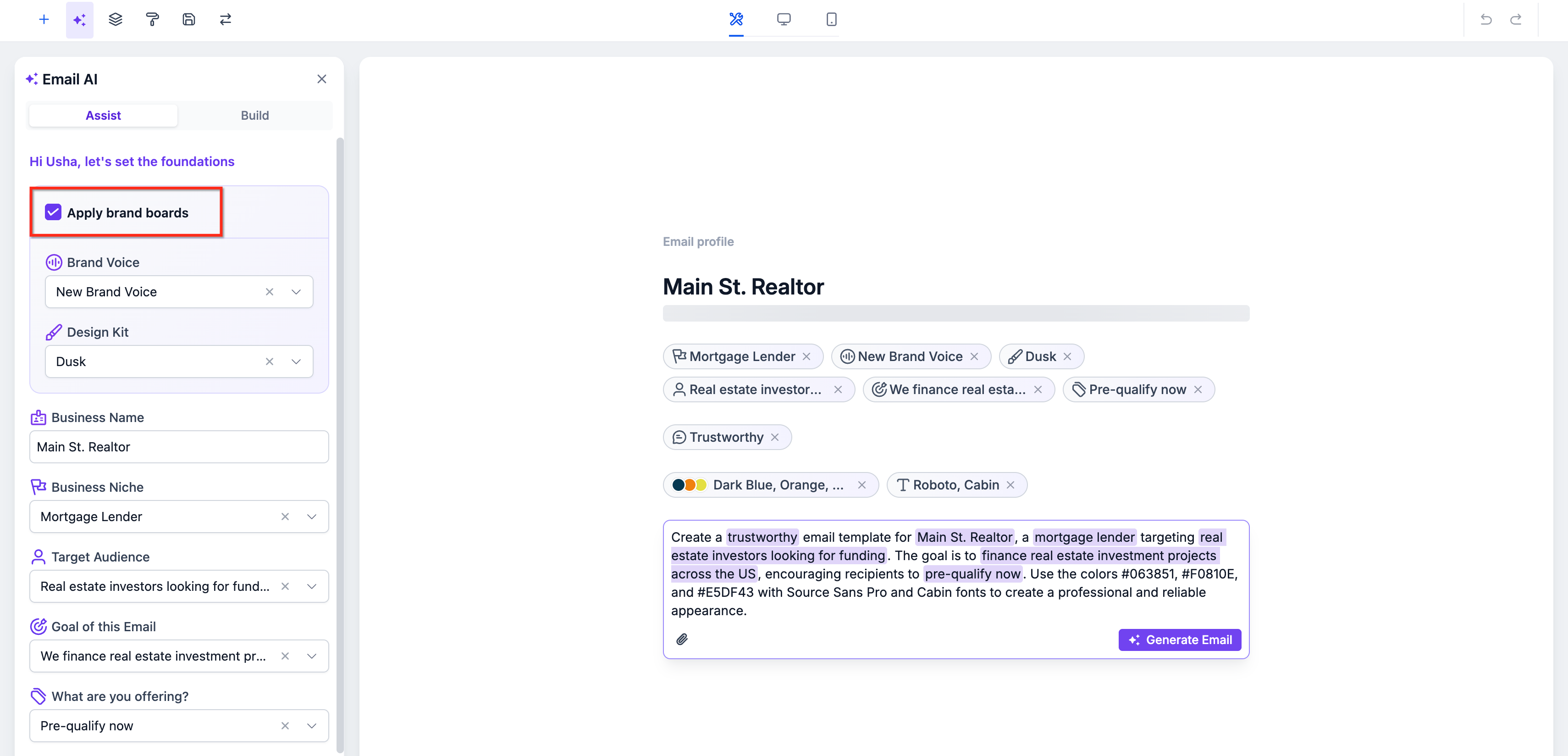
Click Assist Mode and verify the correct Brand Board is selected so generated emails use your colors and typography.
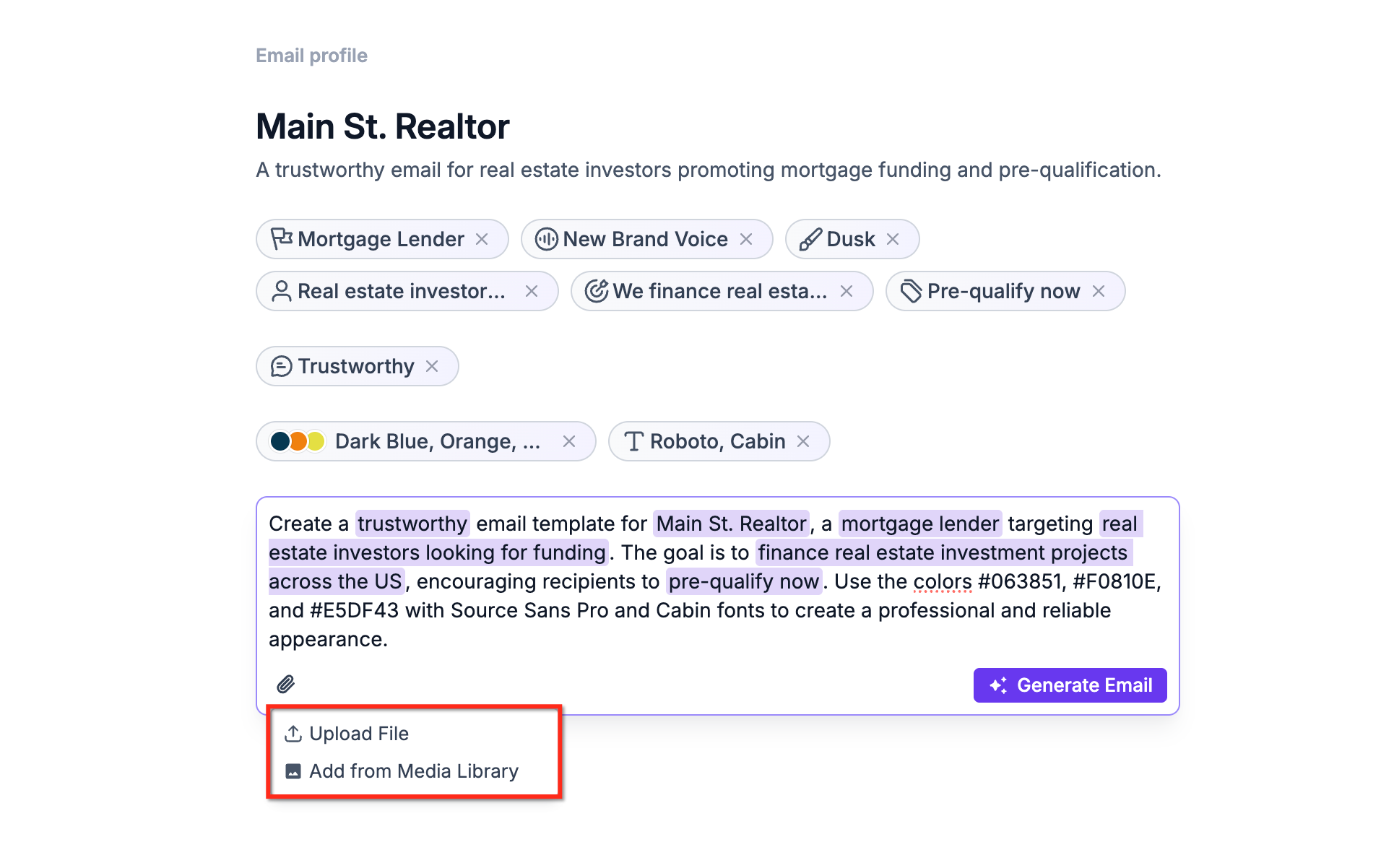
Pick one of two approaches:
- From a Reference — upload a file or image to recreate a layout you already like.
- From a Prompt — describe your audience, goal, offer, tone, and desired sections.
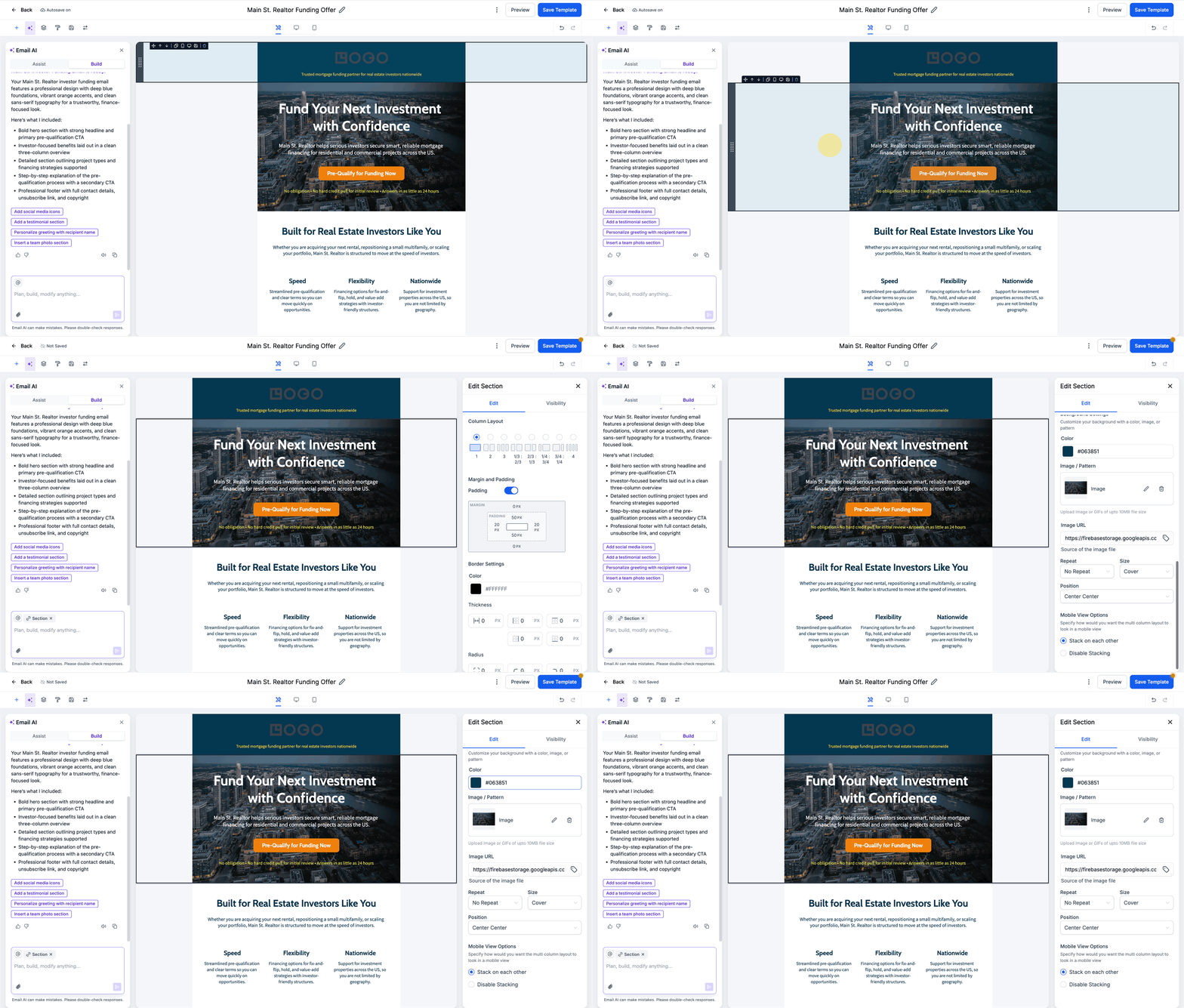
After the draft is generated, refine it using plain-language commands: Rewrite, Shorten, Translate, Add Section, or Change Theme.
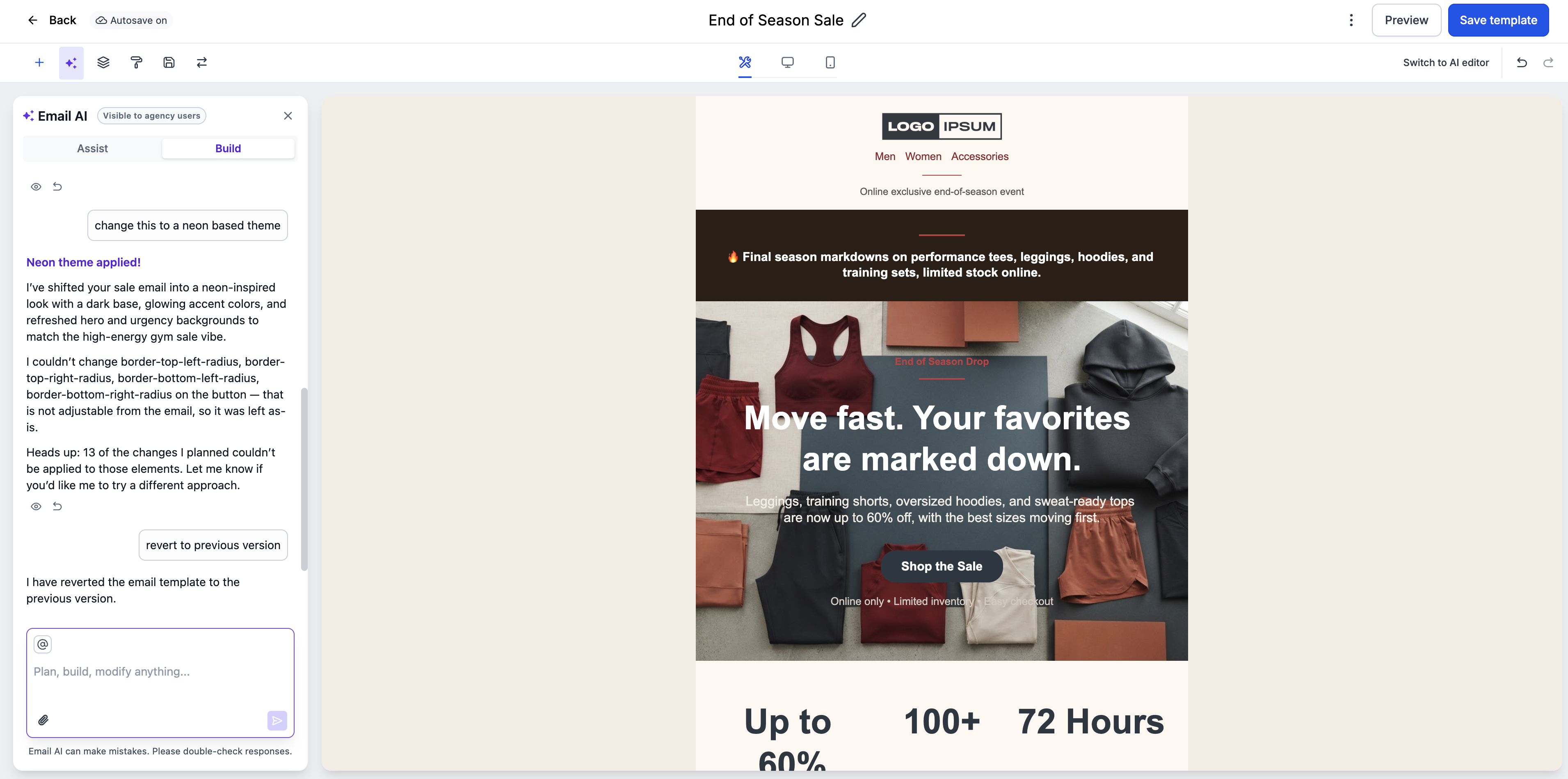
You can restore a saved version directly through the Email AI chat without manually recreating previous changes. This works for both templates and campaign emails.
- Open Email AI in Email Builder or Vibe Editor.
- Ask Email AI to restore the version you want. For example:
- “Revert to the previous version.”
- “Switch to version 2.”
- “Go back to where I changed the colors.”
- Review the restored version directly on the canvas.
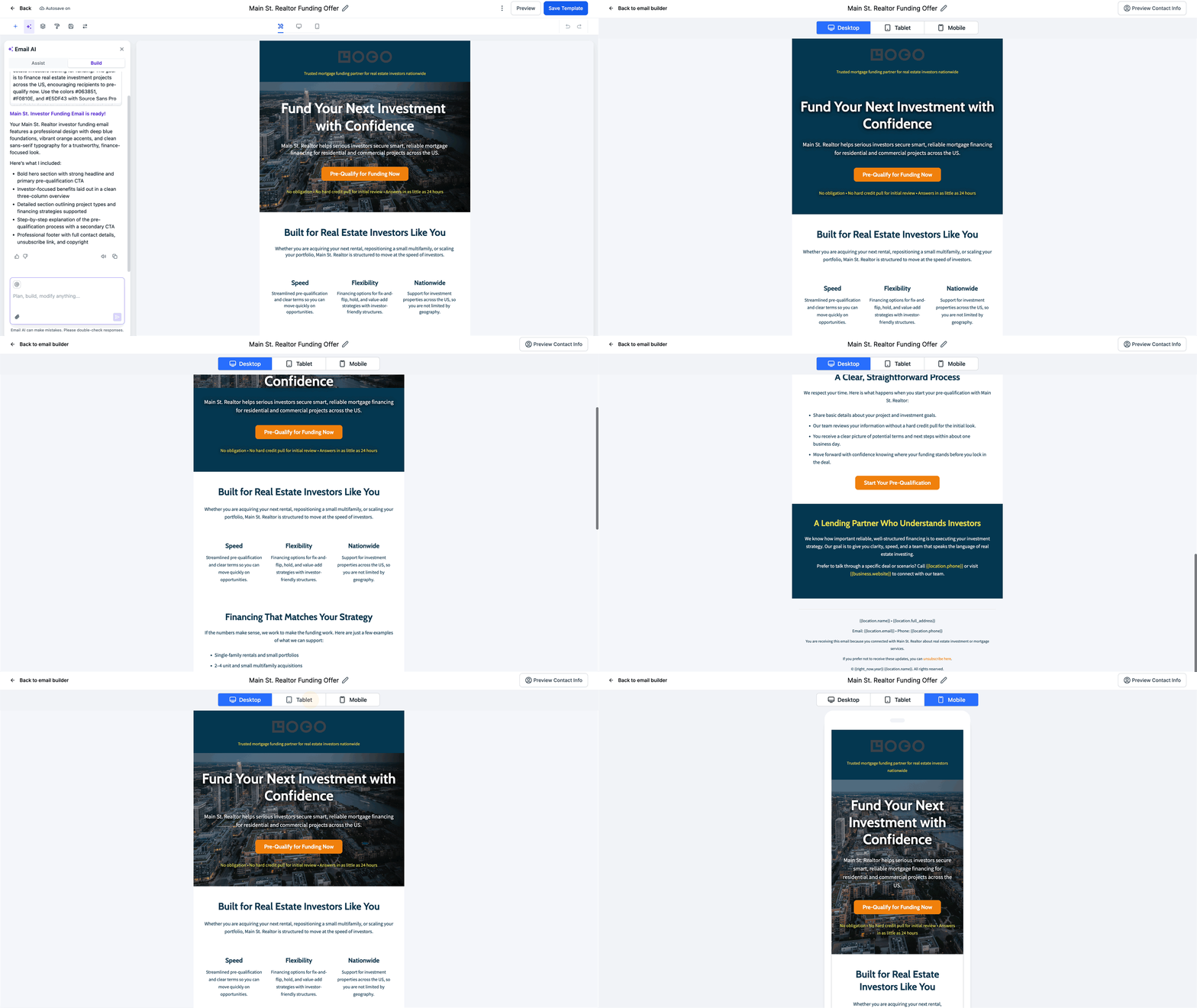
Preview all links, images, and compliance content. Make any final manual edits directly in the builder.
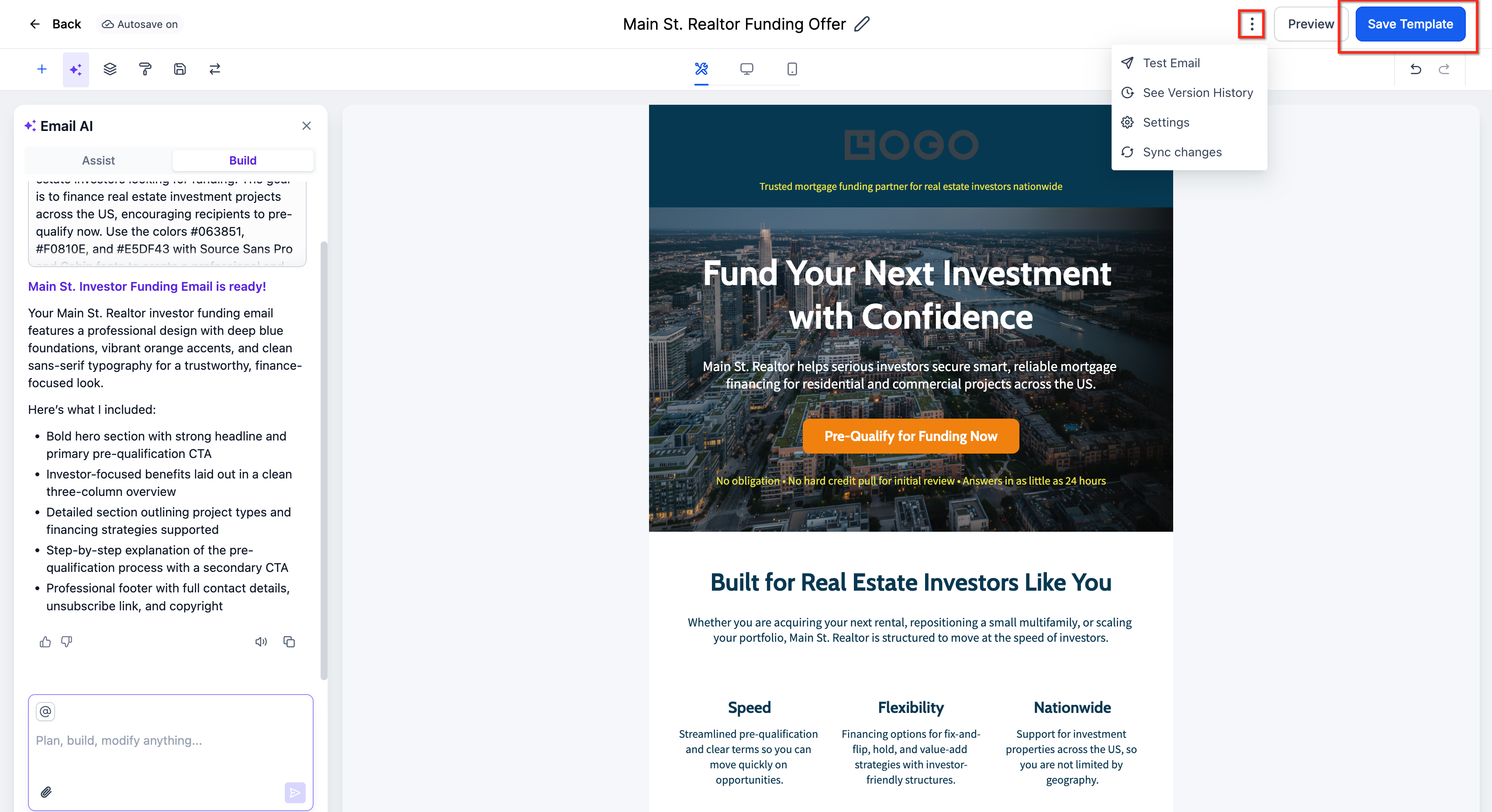
Open Version History from the Kebab Menu to compare and restore earlier generations. When ready, click Save Template to schedule or send in your campaign flow.
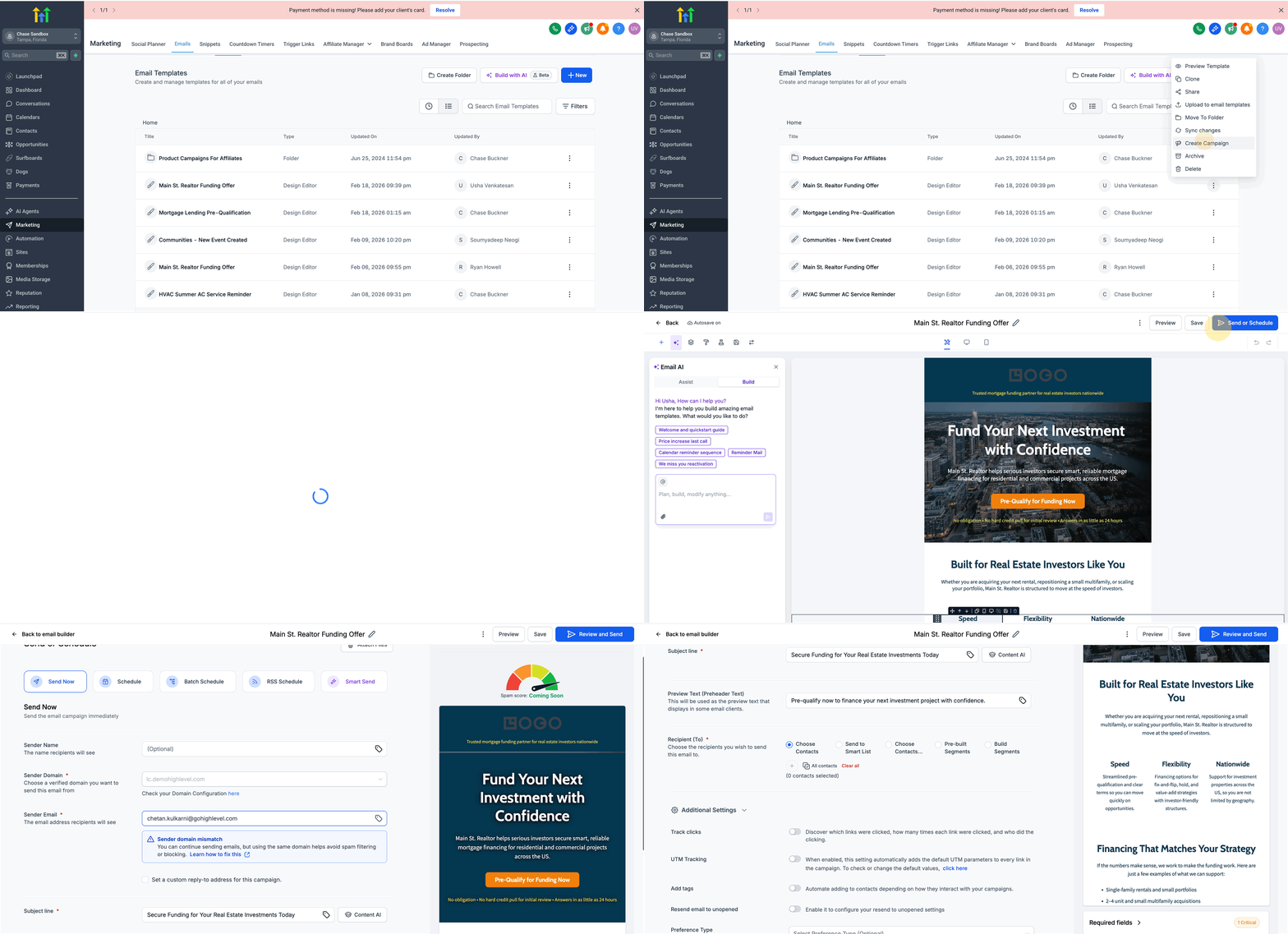
Your email is ready to schedule or send. To restore an earlier version, use Version History or ask Email AI to restore the version directly from the chat.
Frequently Asked Questions
Was this article helpful?
That’s Great!
Thank you for your feedback
Sorry! We couldn't be helpful
Thank you for your feedback
Feedback sent
We appreciate your effort and will try to fix the article