Calendar Setup Assistant
This guide explains how Calendar Setup Assistant helps you build a working booking calendar by describing your scheduling needs in natural language or selecting guided options.
You'll learn how to start the setup conversation, answer contextual questions, preview your booking page during setup, book test appointments, and refine calendars after creation.
What is Calendar Setup Assistant?
Calendar Setup Assistant is an AI-powered setup experience inside HighLevel Calendars that helps you create a booking calendar by answering simple questions. Instead of choosing a calendar type and configuring settings manually, you describe your scheduling needs in natural language or select suggested options, and the assistant builds the calendar for you.
The assistant guides you through key setup details such as calendar purpose, calendar name, team members, assignment logic, meeting location, availability, and related booking settings. This conversational approach reduces setup confusion and helps you reach a working calendar faster.
Once the calendar is created, you can review the generated booking link, preview the booking page, book a test appointment, or open calendar settings for additional changes. Calendar Setup Assistant may only be available to eligible users or accounts during rollout.
Key Benefits
Calendar Setup Assistant helps you move from setup to booking faster by removing rigid upfront decisions and guiding you through the right configuration questions. This is especially useful when creating your first calendar or setting up a common booking use case.
Where to Find Calendar Setup Assistant
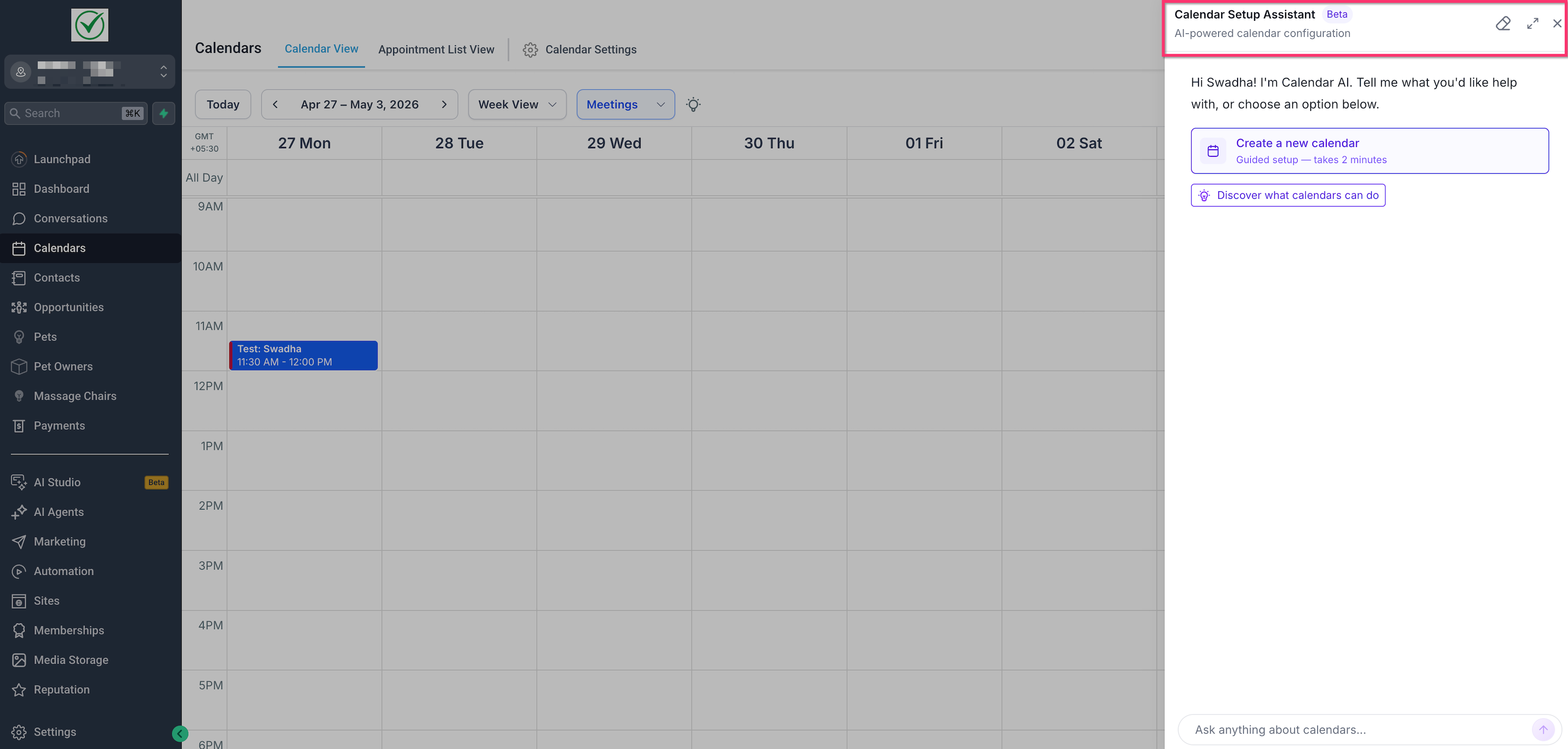
Calendar Setup Assistant appears inside the Calendars area for eligible users. It opens as a side panel so you can create or learn about calendars while staying in the Calendar workspace.
To find Calendar Setup Assistant:
Go to Calendars in HighLevel.
Open the calendar workspace.
Look for the Calendar Setup Assistant panel and choose one of the available options:
- Create a new calendar
- Discover what calendars can do
If the assistant is not visible, the account may not be eligible during the current rollout, or you may not have the required calendar permissions.
Starting a Calendar Setup Conversation
Calendar Setup Assistant lets you begin with either a guided option or a natural language request. This makes setup more flexible for users who know exactly what they want and users who need help choosing the right calendar structure.
You can start by:
Example requests:
- "Set up a calendar for onboarding calls."
- "Create a calendar for me and my colleague."
- "I need a class booking calendar."
- "Help me create a 1:1 appointment calendar."
Guided Calendar Setup Questions
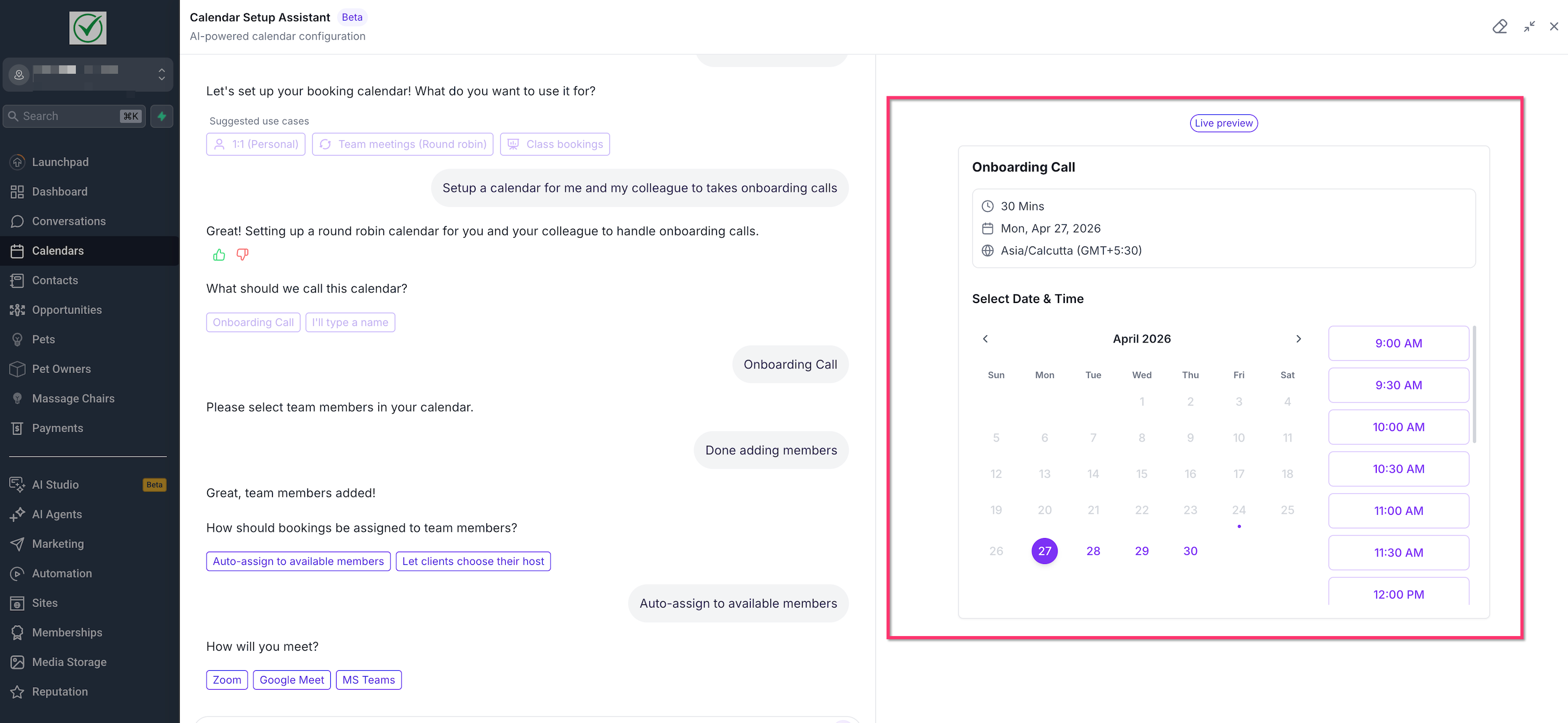
The assistant asks contextual questions based on the calendar use case. This helps gather only the information needed to create a usable calendar instead of requiring you to understand every calendar setting upfront.
The assistant may ask for details such as:
For team calendars, the assistant may ask how bookings should be assigned, such as auto-assigning to available team members or allowing clients to choose their host.
Booking Page Preview
The preview helps you understand how the booking page will appear to clients. As setup details are gathered, the preview shows booking details such as calendar name, appointment duration, date, timezone, and available time slots.
Use the preview to check:
Creating the Calendar
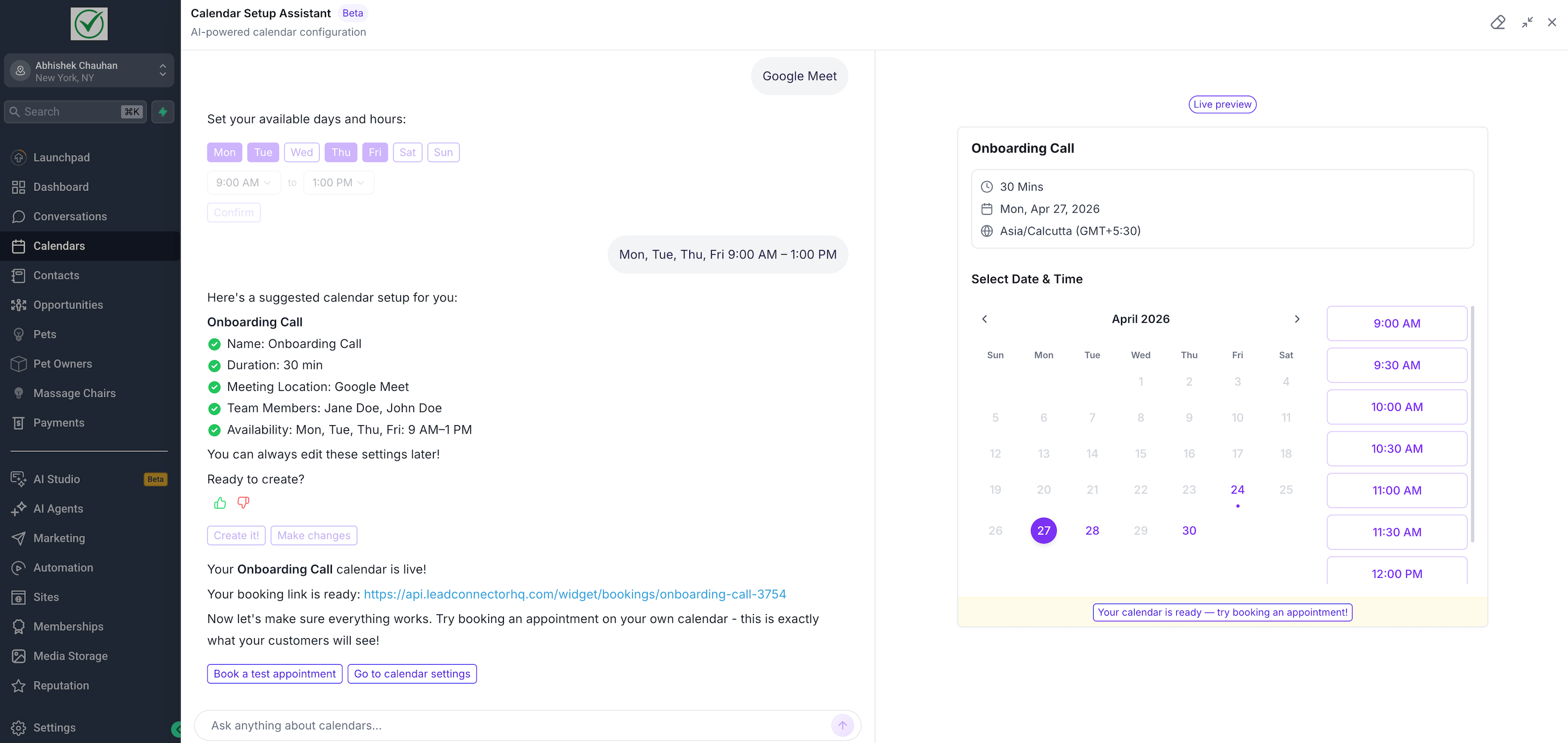
Once the assistant has enough information, it summarizes the suggested calendar setup for review. This gives you a chance to confirm key details before creating the calendar.
The summary may include:
After reviewing the suggested setup, you can create the calendar or request changes if the details need adjustment.
Booking a Test Appointment
After the calendar is created, you can book a test appointment to confirm that the booking flow works as expected. This helps you experience the calendar the same way a customer or client would.
Use the test booking option to confirm:
Editing the Calendar After Setup
Calendars created through Calendar Setup Assistant can be reviewed and adjusted in calendar settings. This is useful when you want to fine-tune settings after the assistant creates the initial calendar.
After creation, you can open calendar settings to adjust:
Use Go to calendar settings when available, or open the calendar manually from the Calendars settings area.
Permissions and Access
Calendar Setup Assistant respects existing HighLevel calendar permissions. You must have the required permissions to create or manage calendars.
If you cannot create a calendar through the assistant, check:
How to Create a Calendar with Calendar Setup Assistant
A guided setup helps create a working calendar faster while still giving you control over key details. Start by describing what the calendar is for, then answer the assistant's follow-up questions.
Go to Calendars in HighLevel.
Open Calendar Setup Assistant.
Click Create a new calendar.
Select a suggested use case or type what you need.
Answer the assistant's setup questions.
Add team members when prompted, if needed.
Choose booking assignment logic, if applicable.
Select a meeting location.
Set available days and hours.
Review the suggested calendar setup.
Click Create it when the setup looks correct.
Review the generated booking link.
Click Book a test appointment to validate the booking flow.
Click Go to calendar settings if you need to make additional changes.
Your calendar is now fully functional and appears in Calendar Settings with all standard configuration options available for manual adjustment.
Frequently Asked Questions
Was this article helpful?
That’s Great!
Thank you for your feedback
Sorry! We couldn't be helpful
Thank you for your feedback
Feedback sent
We appreciate your effort and will try to fix the article