Rentals
How to Set Up Self-Service Cancellations for Rentals
Let customers cancel upcoming rental bookings through a cancellation link while keeping refund, payment, and security deposit decisions under your control.
What You'll Learn
HighLevel Rentals can give customers a self-service cancellation link so they can cancel an upcoming booking without contacting your team first. You can also choose to limit how close to the booking start time customers are allowed to use that link.
This article explains how self-service cancellation works, how to configure the optional cancellation-link expiry, how customers complete a cancellation, how multi-listing bookings are handled, and what happens to payments and security deposits after a booking is canceled.
1
How Self-Service Cancellation Works
Self-service cancellation allows a customer to cancel an upcoming Rentals booking from a cancellation link associated with that booking. Instead of calling, emailing, or waiting for someone on your team to process the request, the customer can open the link, review the booking, and cancel it directly.
The customer does not need to wait for an approval step. When they successfully cancel the booking, the booking is canceled and the reserved availability is released. This makes the cancellation process faster for customers and reduces the number of routine cancellation requests your team needs to process manually.
No additional setup is required for the core cancellation flow
Self-service cancellation is available for eligible upcoming Rentals bookings. You only need additional setup if you want to control when the cancellation link expires or place the link into a custom communication.
Cancellation does not automatically issue a refund
Self-service cancellation changes the booking itself. Refund decisions, payment actions, and security deposit handling remain under the operator's control.
2
Configure the Cancellation Window
By default, customers can use the cancellation link any time before the booking begins. If you want to stop self-service cancellations earlier, you can enable an optional cancellation cutoff. This gives your team more control over last-minute cancellations while still allowing customers to manage earlier requests themselves.
Step 1
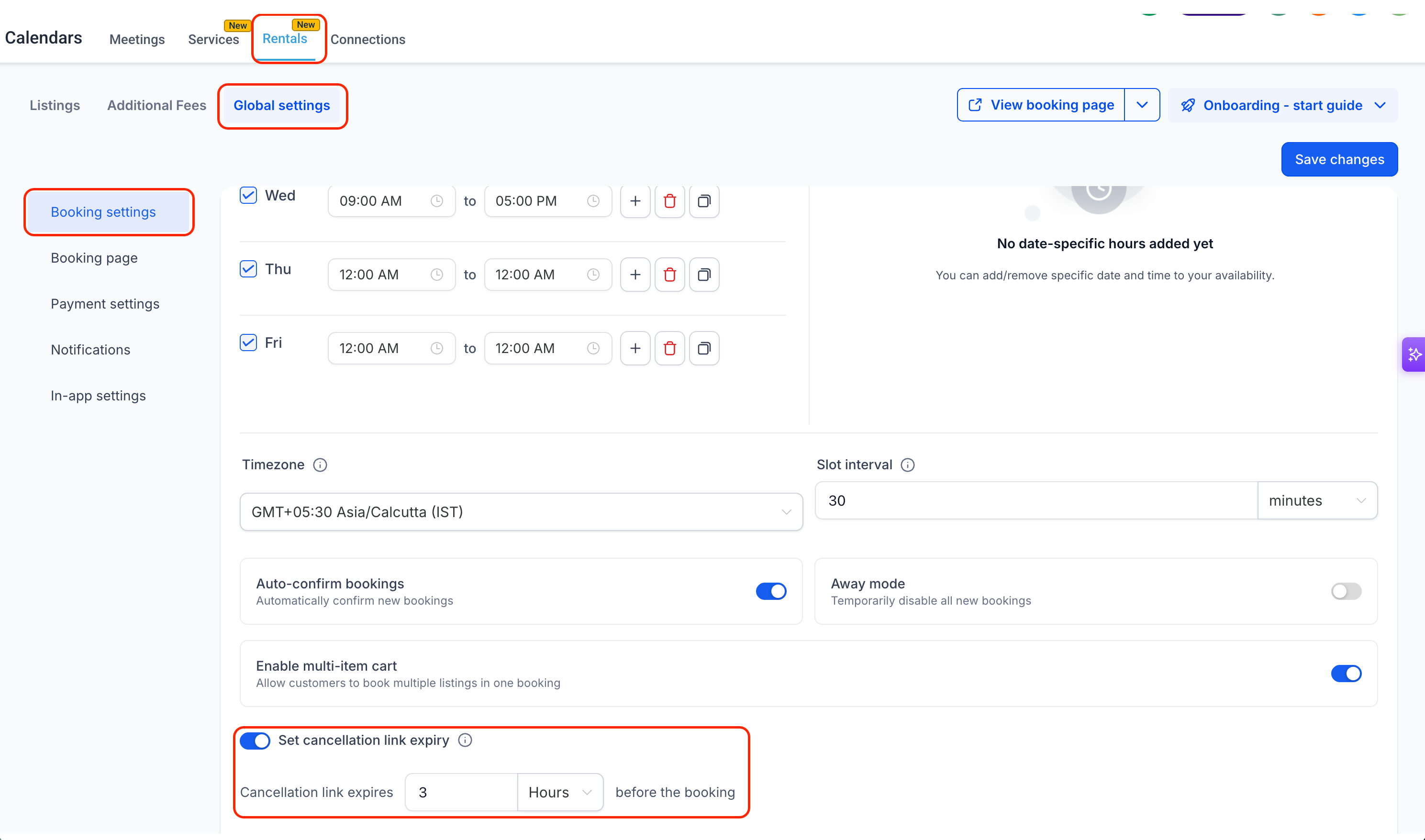
Open Rentals Global settings
Go to Calendars → Rentals → Global settings, then open Booking settings.
Step 2
Enable Set cancellation link expiry
Turn on Set cancellation link expiry to prevent customers from using their self-service cancellation link too close to the booking start time.
Step 3
Choose the cutoff period
Enter how long before the booking starts the link should expire. You can configure the cutoff using minutes, hours, or days. For example, setting the expiry to three hours means the customer can self-cancel until three hours before the booking begins.
Step 4
Save your changes
Select Save changes to apply the cancellation-link expiry to your Rentals booking experience.
What happens if you leave this setting off?
Customers can continue using the self-service cancellation link until the booking begins. Once the booking has started, self-service cancellation is no longer available.
3
Add the Cancellation Link to Customer Communications
The cancellation link gives each customer direct access to the self-service cancellation page for their booking. When you are customizing a supported customer notification or confirmation experience, you can insert the Rentals cancellation-link custom value where you want customers to access it.
Cancellation Link Custom Value
Use the Rentals cancellation link
{{rentalBooking.cancellation_link}}
Place this custom value wherever you want the customer to receive a direct link to the cancellation flow, such as an applicable confirmation or reminder message. When the communication is sent for a booking, HighLevel replaces the custom value with the cancellation link for that booking.
Make the purpose of the link clear
When adding the link to your own customer message, use clear wording such as “Cancel your booking” so customers understand that the link performs a booking cancellation rather than opening a general booking-management page.
Customer Self-Service
Let Customers Cancel Without Automating Financial Decisions
Customers can handle the booking cancellation themselves while your team keeps control of refunds, payment adjustments, and security deposit decisions.
4
What Customers See When Canceling
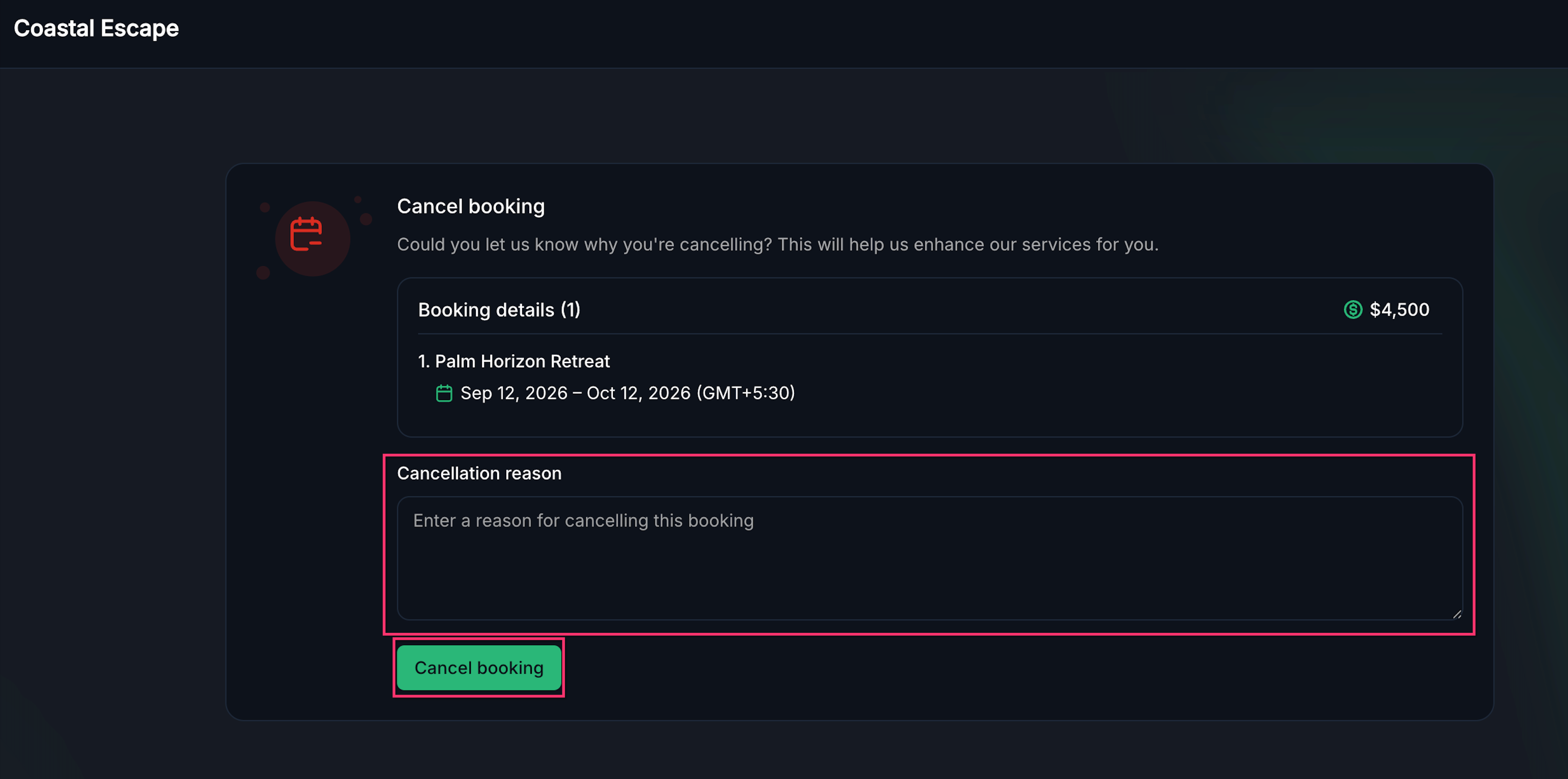
When the customer opens a valid cancellation link, they are taken to a customer-facing cancellation page. The page displays the booking information so the customer can confirm that they are canceling the correct reservation before they continue.
Step 1
Review the booking
The customer reviews the listing information, booking dates, and other booking details displayed on the page.
Step 2
Add a cancellation reason, if desired
The Cancellation reason field gives the customer a place to explain why they are canceling. This field is optional, so the customer can continue even if they do not enter a reason.
Step 3
Select Cancel booking
The customer selects Cancel booking to complete the self-service cancellation.
Why collect a cancellation reason?
Although the reason is not required, it can give your team useful context about the cancellation without requiring a separate follow-up conversation with the customer.
5
How Multi-Listing Bookings Are Handled
A single Rentals booking can include more than one listing. When a customer opens the cancellation page for a multi-listing booking, the Booking details area shows the listings that belong to that booking, including the relevant dates for each item.
Self-service cancellation applies to the complete booking. The customer is not choosing one listing to remove while keeping the others. Selecting Cancel booking cancels the booking together.
Multi-listing cancellation is all-or-nothing
Customers should review all listings shown under Booking details before proceeding because self-service cancellation applies to the full booking rather than only one selected listing.
6
What Happens After Cancellation
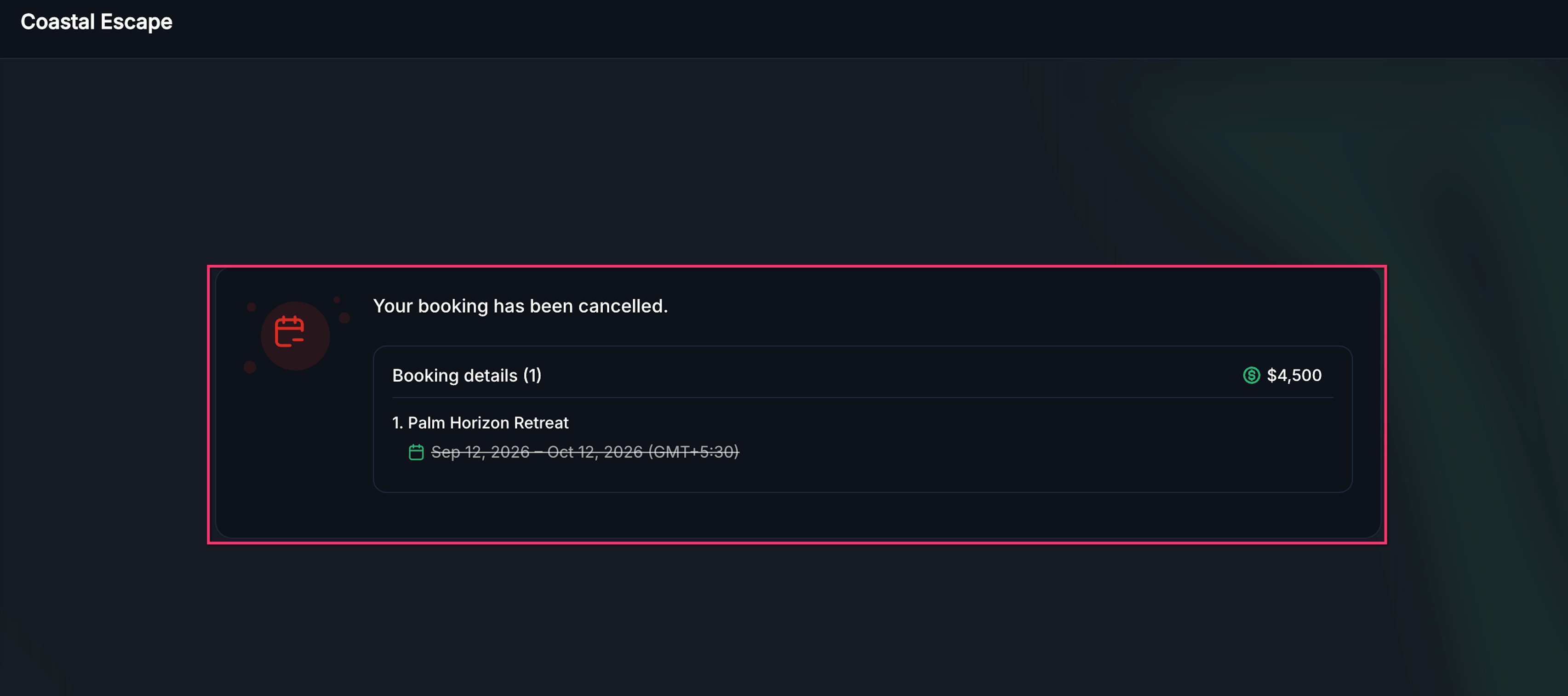
After the customer completes the cancellation, the booking is canceled and the customer is shown a confirmation page. This gives the customer immediate confirmation that the request was successfully completed instead of leaving them uncertain about whether the booking is still active.
The canceled booking no longer holds the rental availability. Your team can then review the booking and take any separate financial actions that are appropriate for your business and cancellation policy.
Booking cancellation and financial actions are separate
Canceling the reservation does not automatically determine whether money should be returned. This keeps refund amounts, payment changes, and security deposit decisions under the operator's control.
For example, your business may have different cancellation policies depending on how far in advance the booking was canceled. Self-service cancellation lets the customer release the booking, but your team can still apply your own financial policy before taking any refund-related action.
7
Expired and Previously Used Links
A cancellation link is only useful while the booking is still eligible for self-service cancellation. If the booking has already been canceled, the configured cancellation window has passed, or the booking has already started or completed, the customer can no longer use that link to perform another cancellation.
When a customer opens a link that is no longer valid for cancellation, HighLevel provides a customer-friendly message instead of showing a technical error. This helps the customer understand that the cancellation cannot be completed through that link.
Self-service cancellation is only for eligible upcoming bookings
Once a booking has started or completed, or once your configured cancellation cutoff has passed, the customer will need to contact your business if additional assistance is required.
8
Frequently Asked Questions
Q: Do I have to enable Set cancellation link expiry for customers to cancel?
No. The expiry setting is optional. If you leave it disabled, eligible customers can use the cancellation link until the booking begins.
Q: Can I stop customers from canceling shortly before a booking?
Yes. Enable Set cancellation link expiry under Rentals Global settings and choose a cutoff using minutes, hours, or days before the booking starts.
Q: Is the cancellation reason required?
No. Customers can optionally enter a reason for the cancellation, but they can complete the cancellation without providing one.
Q: Does canceling automatically refund the customer?
No. The self-service flow cancels the booking, but refund and payment decisions remain separate and must be handled according to your business process.
Q: What happens to a security deposit when a customer cancels?
Self-service cancellation does not automatically decide what should happen to a security deposit. The operator remains responsible for the appropriate deposit action.
Q: Can a customer cancel only one listing from a multi-listing booking?
No. The self-service cancellation applies to the complete booking. All listings included in that booking are handled together.
Q: Can customers cancel after the booking has started?
No. Self-service cancellation is available only before the booking begins. Once the booking is active or completed, the cancellation link can no longer be used to cancel it.
Q: What custom value can I use for the Rentals cancellation link?
Use {{rentalBooking.cancellation_link}} when adding the booking-specific cancellation link to a supported customer communication.