HighLevel Password Requirements & Security Best Practices
This guide explains HighLevel's password requirements for native accounts, including the minimum security standards your password must meet and recommended practices that make your account more secure.
You'll also learn how to set up your initial password, reset a forgotten password, update your password while signed in, and apply additional security measures that protect your HighLevel account from unauthorized access.
What Are HighLevel Password Requirements?
HighLevel password requirements establish a secure baseline for accounts that use a native email address and password to sign in. Understanding which conditions are required and which practices are recommended helps you create a password that HighLevel accepts while reducing the risk of unauthorized access.
Every new or updated HighLevel password must:
Passwords that do not meet the required conditions are rejected during setup or reset. HighLevel then prompts you to create a stronger password.
These requirements apply to native HighLevel passwords. Users who access HighLevel through single sign-on or another external authentication provider may need to manage their password through that provider.
Key Benefits of Strong HighLevel Passwords
Strong passwords make automated guessing and credential-based attacks more difficult. Applying these practices consistently helps protect both individual users and the customer information available through their accounts.
Password Requirements for Different Sign-In Methods
The correct password-recovery process depends on how your organization authenticates users. Identifying your sign-in method prevents unnecessary reset attempts and helps you contact the appropriate administrator when HighLevel does not manage the password directly.
These password requirements apply when you enter an email address and HighLevel password directly on the HighLevel login page.
You can use the native password workflow to:
- Create your password after receiving account access
- Reset a forgotten password
- Update your password while signed in
Your organization may use single sign-on or another external identity provider to authenticate users. In that situation, your password may be managed outside HighLevel.
Contact your organization's administrator when:
- The native password option is unavailable
- Your organization requires single sign-on
- You are redirected to another provider's login page
- Resetting a HighLevel password does not affect your access
How To Set Up Your HighLevel Password for the First Time
Creating a secure password during initial account setup establishes the first layer of protection for your HighLevel account. Complete the setup through the account email sent to you, and confirm that the password meets every required condition before submitting it.
Open the inbox associated with your HighLevel user account and locate the welcome or account activation email. Email wording and branding may vary when an agency uses customized system email templates.
Select the account setup link or button in the email to begin the password setup process.
Enter a new password that:
- Contain at least 12 characters
- Include uppercase and lowercase letters
- Include at least one number
- Include at least one special character
Enter the password again in the confirmation field to verify it.
Select Change Password to complete the setup and then sign in using your account email and new password when prompted.
Agency and sub-account administrators can manage user information, including the login email and password fields, through their user management settings. Access and available actions depend on the administrator's role and permissions.
How To Reset a Forgotten HighLevel Password
The password-reset process lets you restore access without knowing your current password. Using the correct account email is essential because HighLevel sends the secure reset instructions to the address associated with your user profile.
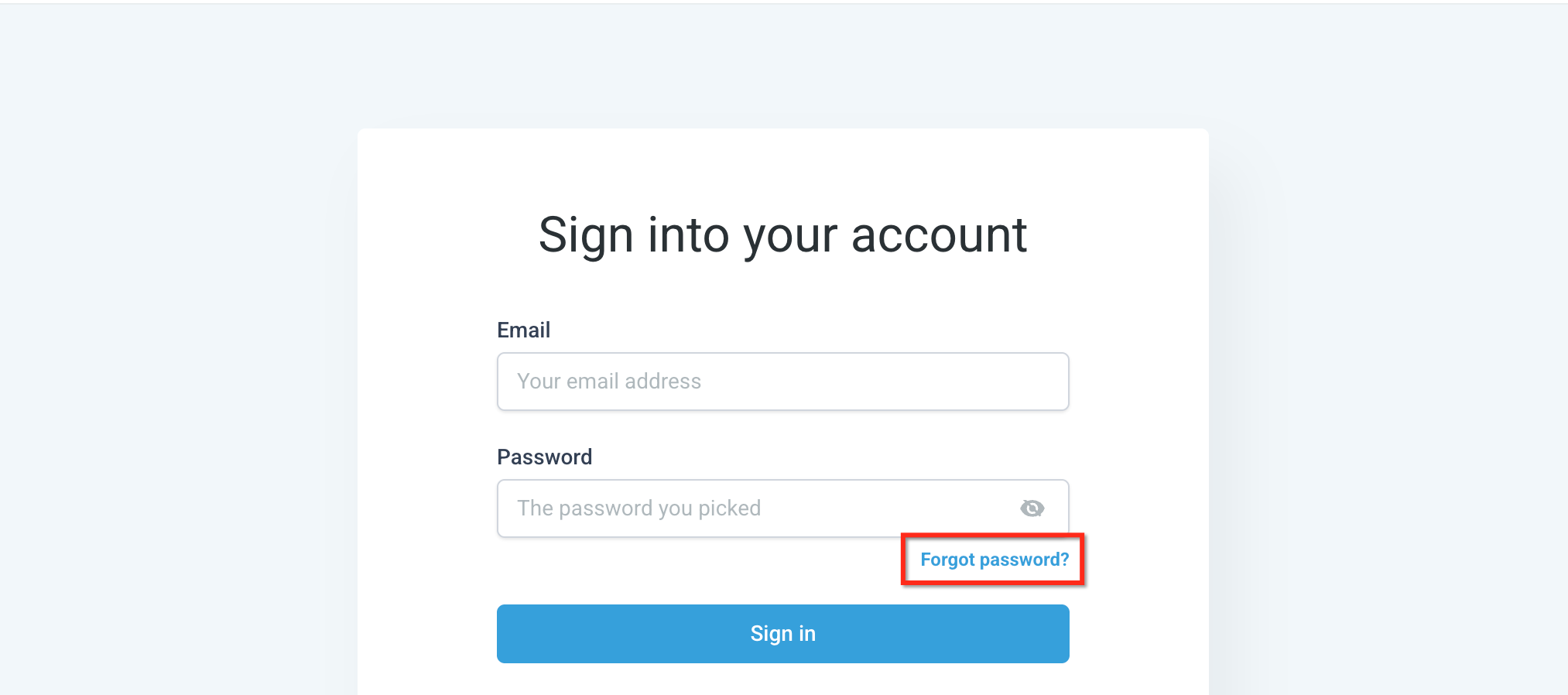
Navigate to the HighLevel login page and select Forgot Password?
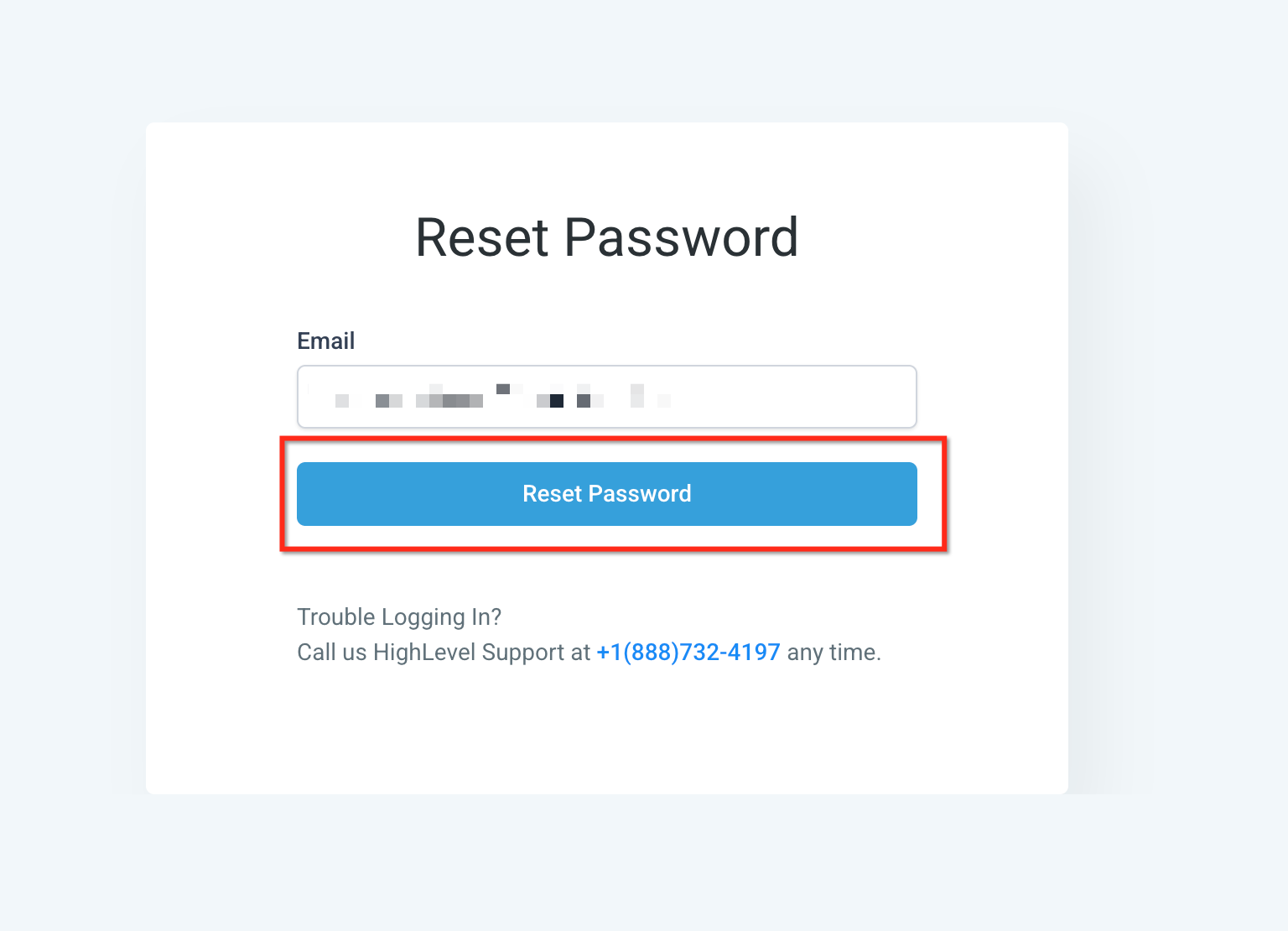
Enter the email address associated with your HighLevel account and submit the password-reset request.
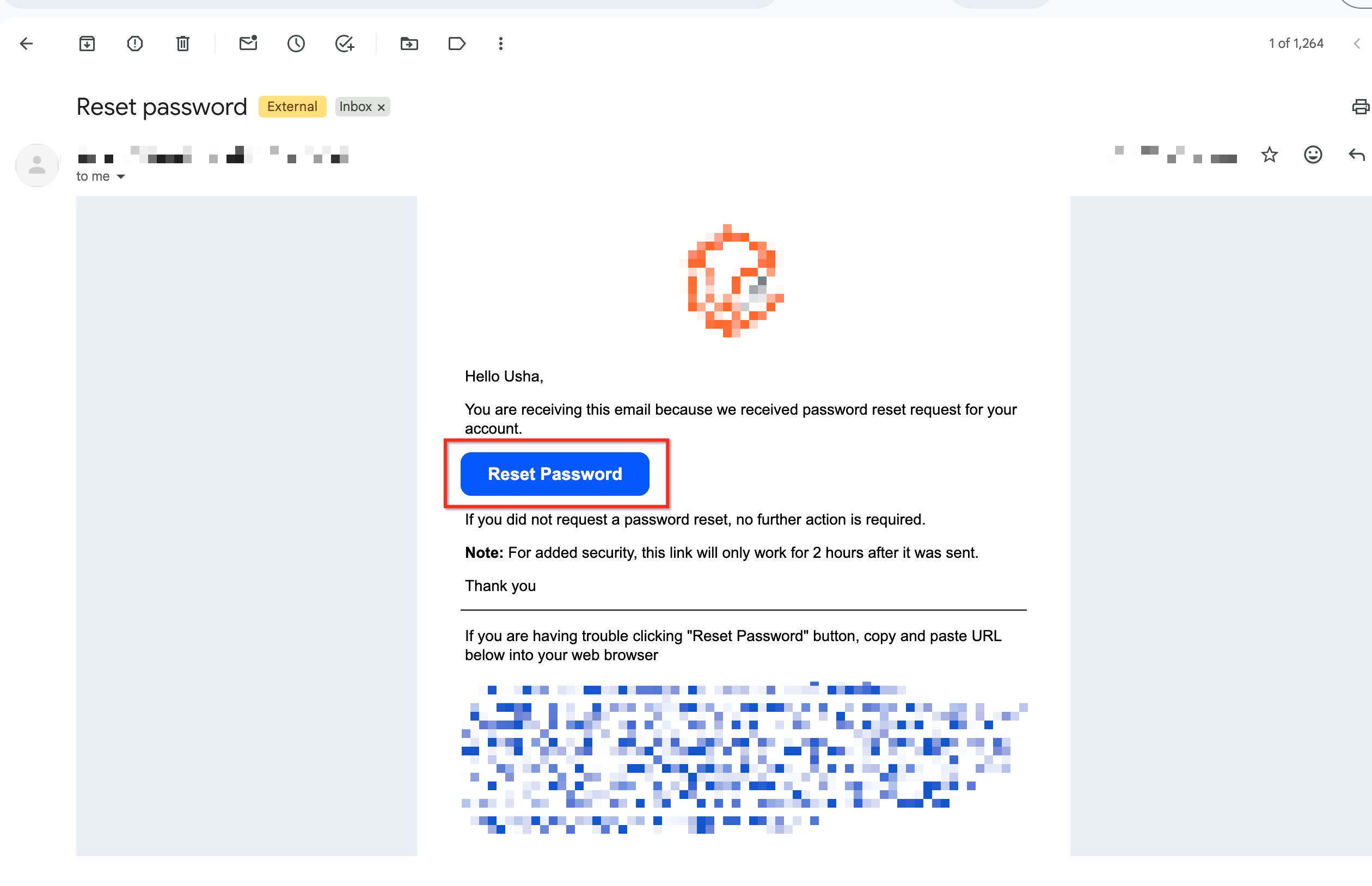
Check your inbox for the password-reset email and select the reset link or button in the email. Email design, branding, and button wording may differ by agency.
Enter a new password that meets the HighLevel password requirements, then enter the password again to confirm it.
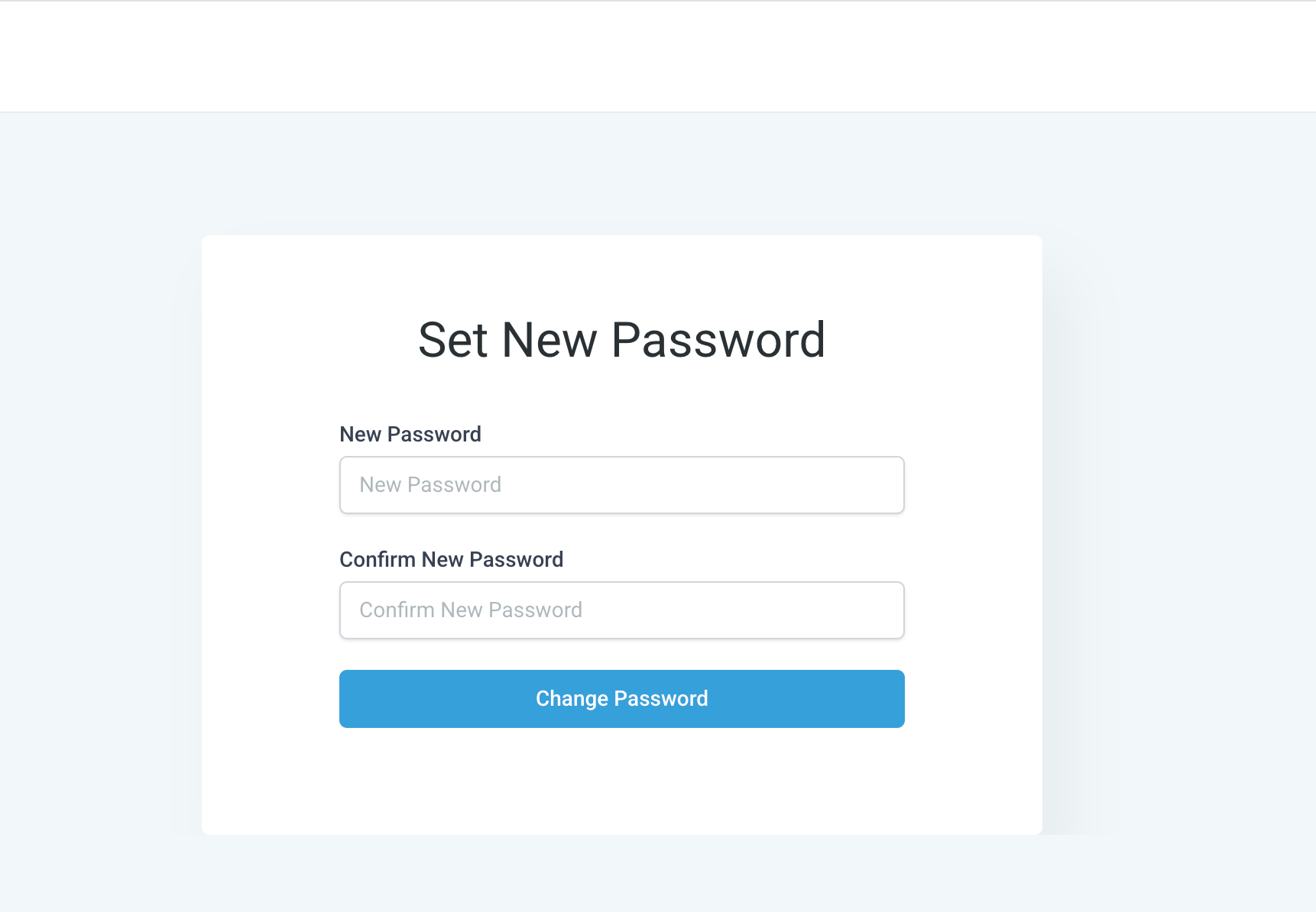
Select Save to set the new password, then return to the login page and sign in using the new password when prompted.
Try the following before requesting additional help:
- Check your spam, junk, promotions, or filtered-email folders.
- Confirm that you entered the email address associated with your HighLevel user profile.
- Search your inbox for messages from HighLevel or your agency.
- Allow a few minutes for the email to arrive.
- Submit one new password-reset request and use the most recent email.
- Ask your agency administrator to confirm the login email listed on your user profile.
When the issue continues, contact your agency administrator or use the available HighLevel Support options. Access to specific support channels depends on your user role.
How To Update Your Password from HighLevel
Updating your password while signed in is useful when you want to replace an old password or respond to a possible security concern. A new, unique password helps prevent continued access when an existing credential may have been exposed.
Sign in to HighLevel, go to Settings, and open My Profile.
Locate the Change Password section on your profile page.
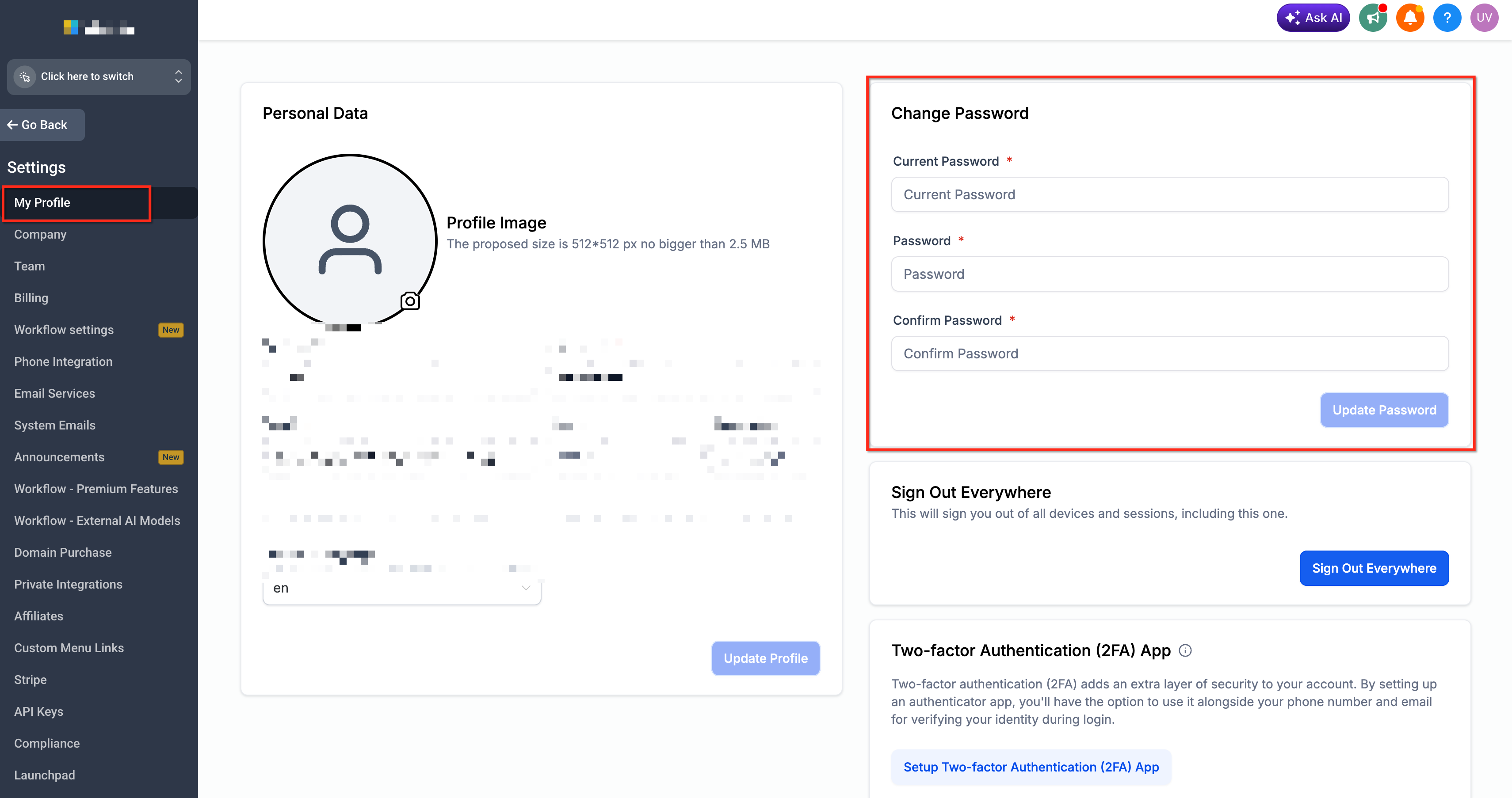
Enter your current password in the appropriate field.
Enter a new password that meets the required conditions, then enter the new password again in the confirmation field.
Select Update Password and reauthenticate using your new password when prompted.
Updating your password may end active sessions and require you to sign in again. Save any unfinished work before completing the change.
Additional Ways To Protect Your HighLevel Account
Password security is most effective when combined with secure authentication habits. Adding another verification method and protecting account-recovery channels reduces the likelihood that one exposed credential will lead to unauthorized access.
HighLevel supports time-based one-time password authenticator apps, including Google Authenticator, Microsoft Authenticator, Authy, and other compatible applications. Backup codes can provide account recovery when the authenticator app is unavailable.
Related Articles
Frequently Asked Questions
Was this article helpful?
That’s Great!
Thank you for your feedback
Sorry! We couldn't be helpful
Thank you for your feedback
Feedback sent
We appreciate your effort and will try to fix the article