Developer users are team members who have access to your HighLevel Developer Marketplace account. Role-Based Access Control (RBAC) determines which app-management, submission, earnings, and user-management capabilities each person can access. This allows you to collaborate on Marketplace apps while limiting higher-risk permissions to the appropriate team members.
TABLE OF CONTENTS
- What Are Developer Users and Roles?
- Key Benefits of Developer User Management
- Developer Roles and Maximum Permissions
- How Roles and Permission Toggles Work
- How to Add a Developer User
- How to Edit a Developer User
- How to Remove a Developer User
- Security Best Practices for Developer Accounts
- Frequently Asked Questions
- Related Articles
What Are Developer Users and Roles?
Developer users are managed separately from standard HighLevel Agency and Sub-Account users. Adding someone to your Developer Marketplace account does not replace the user-management controls used for your Agency or individual sub-accounts.
Important: HighLevel supports one Owner for a Developer account.
Key Benefits of Developer User Management
Developer User Management lets you give team members access based on the responsibilities they need to perform. Understanding the available roles and permission limits helps protect sensitive capabilities while still allowing developers and other contributors to collaborate on Marketplace apps.
Role-Based Access: Assign Owner, Admin, or User access based on each person's responsibilities.
Controlled Financial Access: Restrict app earnings visibility to roles that support that permission.
App Management Security: Limit high-impact actions such as deleting apps and managing Developer users.
Team Collaboration: Allow contributors to create, manage, and submit apps without giving every team member full administrative access.
Flexible Permissions: Reduce supported permissions within a role when a team member does not need every capability available to that role.
Developer Roles and Maximum Permissions
Each Developer role has a maximum level of access. Choosing the appropriate role helps ensure users can complete their responsibilities without receiving unnecessary access to financial information, user administration, or destructive app-management actions.
| Permission | Owner | Admin | User |
|---|---|---|---|
| View apps | Yes | Yes | Yes |
| Create and manage apps | Yes | Yes | Yes |
| Delete apps | Yes | Yes | No |
| Submit apps for review | Yes | Yes | Yes |
| View app earnings | Yes | Yes | No |
| Create and manage Developer users | Yes | Yes | No |
| View app dashboard | Yes | Yes | Yes |
Owner
The Owner has the highest level of access to the Developer account and is responsible for overall account administration.
The Owner can:
View, create, manage, and delete apps.
Submit apps for review.
View app earnings.
Create and manage Developer users.
Access the app dashboard.
Best for: The primary person responsible for the Developer Marketplace account.
Important: Only one Owner is supported.
Admin
An Admin has broad Developer Marketplace access but cannot modify the Owner. Admins can manage other Admins and Users within the permissions supported by their role.
Admins can have access to:
Viewing, creating, and managing apps.
Deleting apps.
Submitting apps for review.
Viewing app earnings.
Creating and managing Developer users.
Viewing the app dashboard.
Best for: Trusted team leads who need broad app-management, financial, and Developer-user administration capabilities.
User
A User can contribute substantially to app development without receiving the higher-risk administrative and financial permissions available to Owners and Admins.
Users can:
View apps.
Create and manage apps.
Submit apps for review.
View the app dashboard.
Users cannot:
Delete apps.
View app earnings.
Create or manage Developer users.
Best for: Developers and contributors who need to build and submit apps but do not need financial visibility or Developer-user administration.
How Roles and Permission Toggles Work
A Developer role establishes the maximum permissions that can be assigned to a user. Permission controls can then be used to reduce supported access within that role, allowing you to tailor access without granting capabilities that fall outside the role's maximum permission level.
Think of the configuration in two layers:
Role: Defines the highest level of access the user can receive.
Permission controls: Determine which supported capabilities within that role are enabled for the individual user.
For example, the User role cannot be granted access to app earnings, app deletion, or Developer-user management because those capabilities are outside the maximum permissions available to that role.
Similarly, assigning someone an Admin role does not mean you should automatically enable every available capability. Configure only the permissions the person needs for their responsibilities.
How to Add a Developer User
Adding individual Developer users gives each team member their own access instead of requiring team members to share account credentials. Assign the lowest role and permission level that still allows the person to complete their responsibilities.
Sign in to your Developer Marketplace account.
Go to Account.
Open User Management.
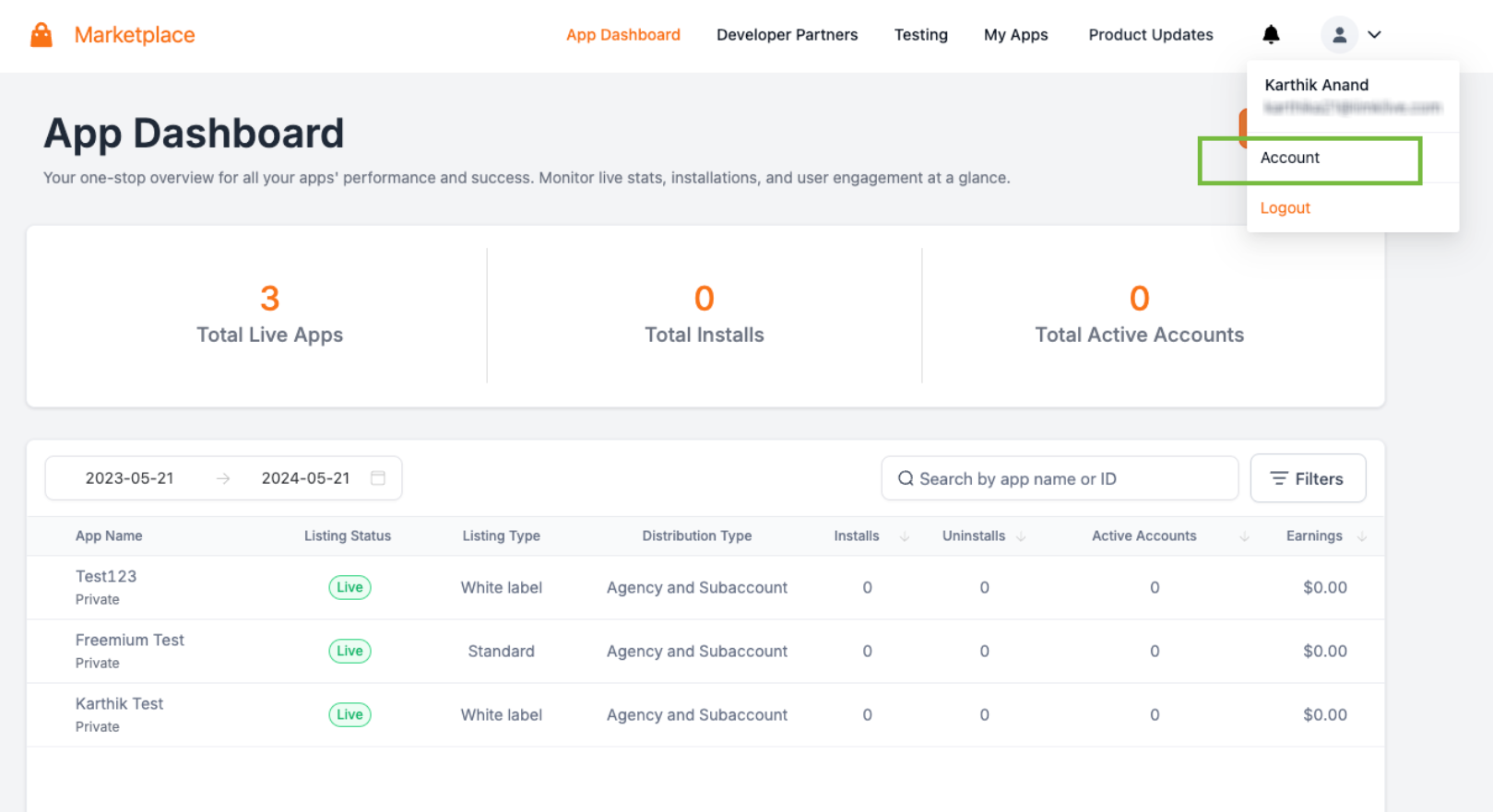
Click Add User.
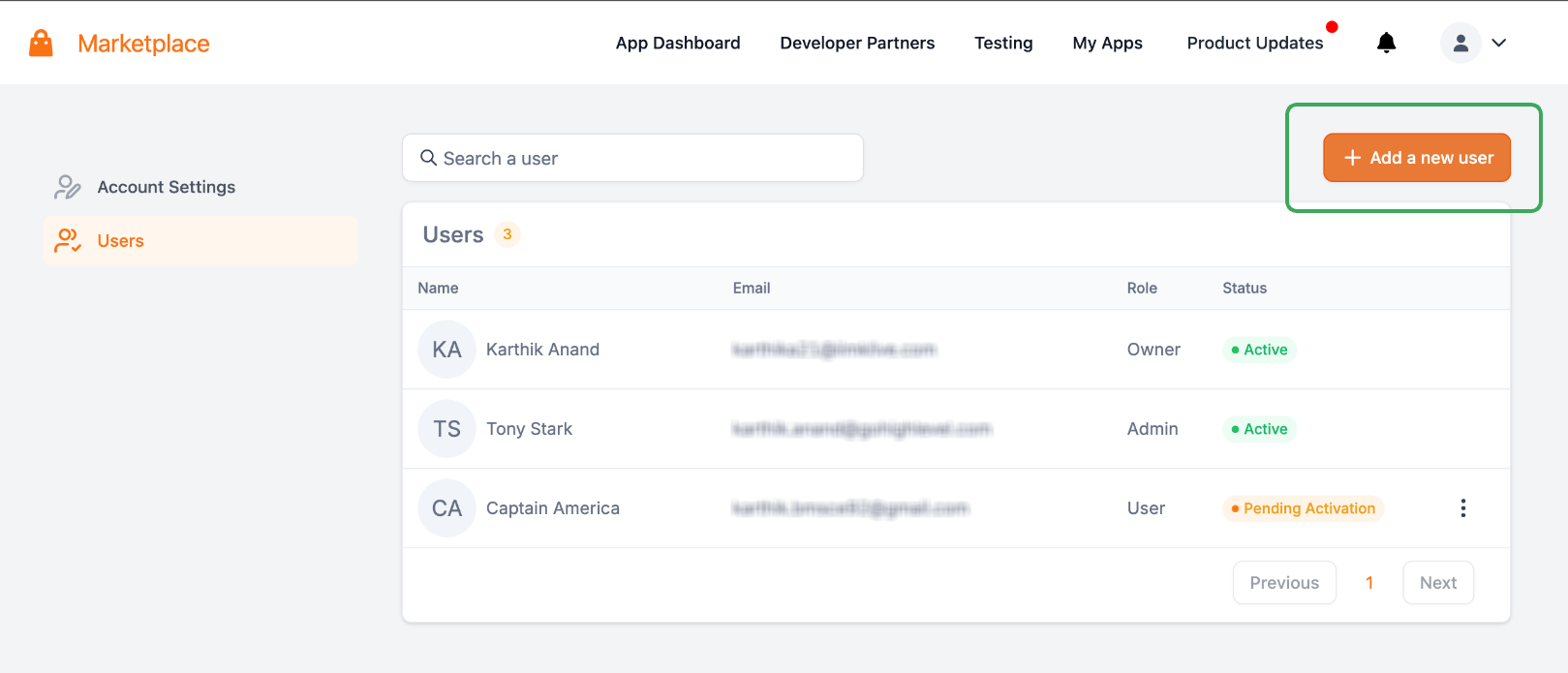
Enter the user's required account information, including their email address.
Select the appropriate role:
Owner, where applicable to the existing account structure
Admin
User
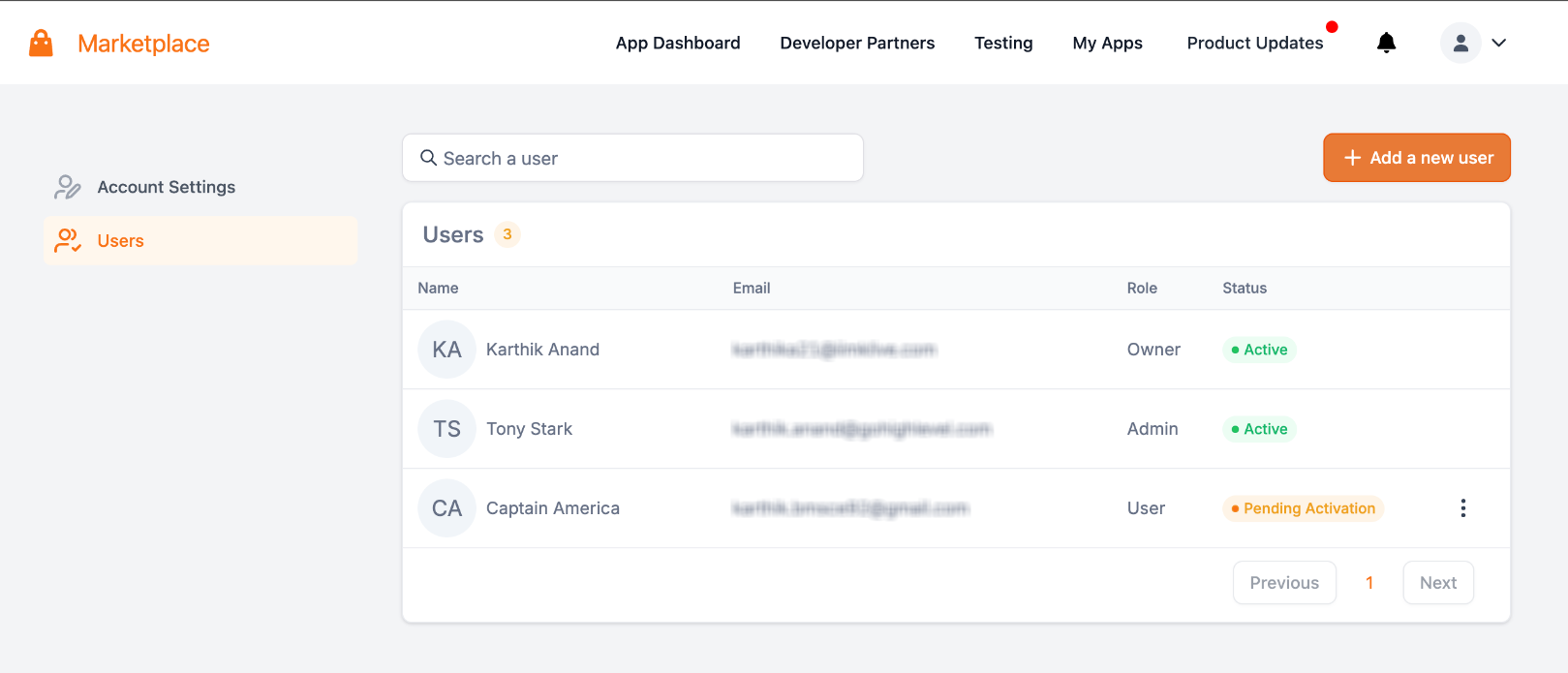
Review the permissions available for the selected role.
Enable only the permissions the person needs.
Complete the Add User process.
The new Developer user receives an activation email.
The user should open the activation link and complete the account setup, including creating their password when prompted.
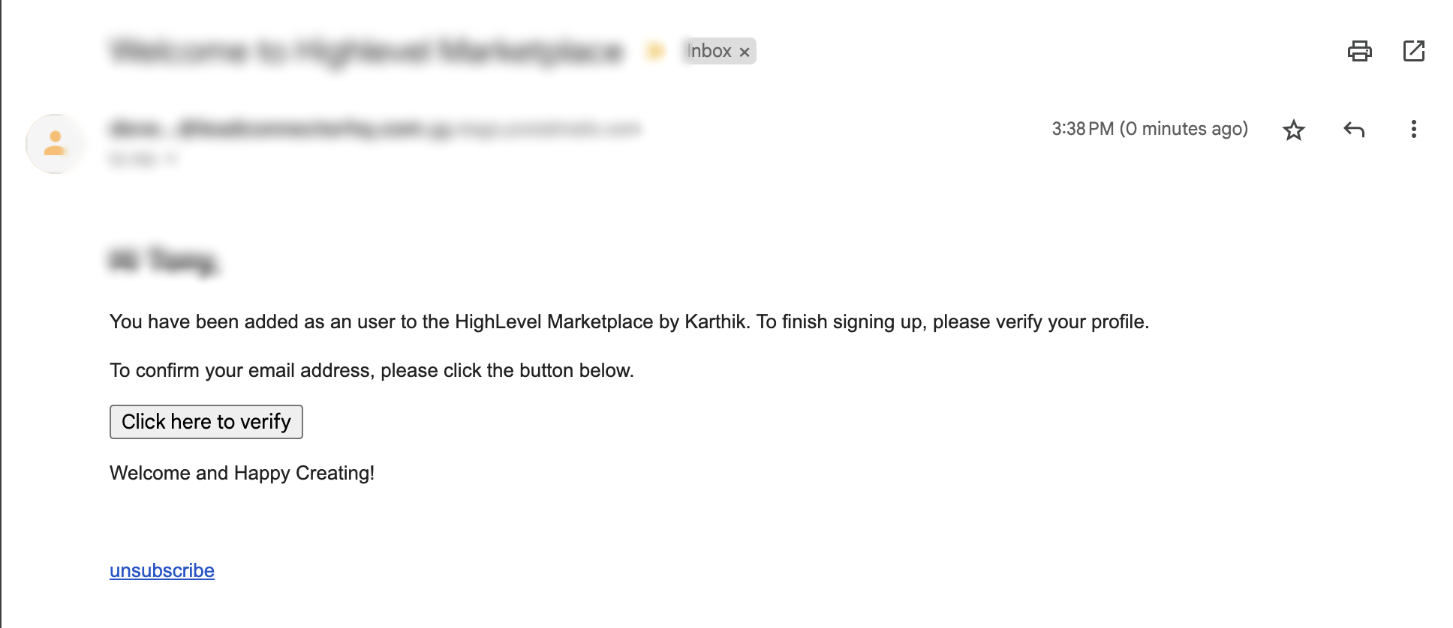
Note: If the activation email is not received, first verify that the correct email address was entered and ask the user to check their spam or junk folder.
Developer accounts themselves may be created through Developer Marketplace signup or eligible Marketplace onboarding flows. After the Developer account is established, additional team members can be managed through User Management.
For Developer Marketplace onboarding information, see How to Get Started with the Developer's Marketplace.
How to Edit a Developer User
Editing a Developer user lets you adjust access as responsibilities change without unnecessarily giving the person a different account. Role limits continue to determine which permissions can be assigned.
Go to Account > User Management in the Developer Marketplace.
Locate the Developer user you want to manage.
Open the available edit/manage-user controls.
Review the user's role and enabled permissions.
Adjust the supported permissions as needed.
Save your changes.
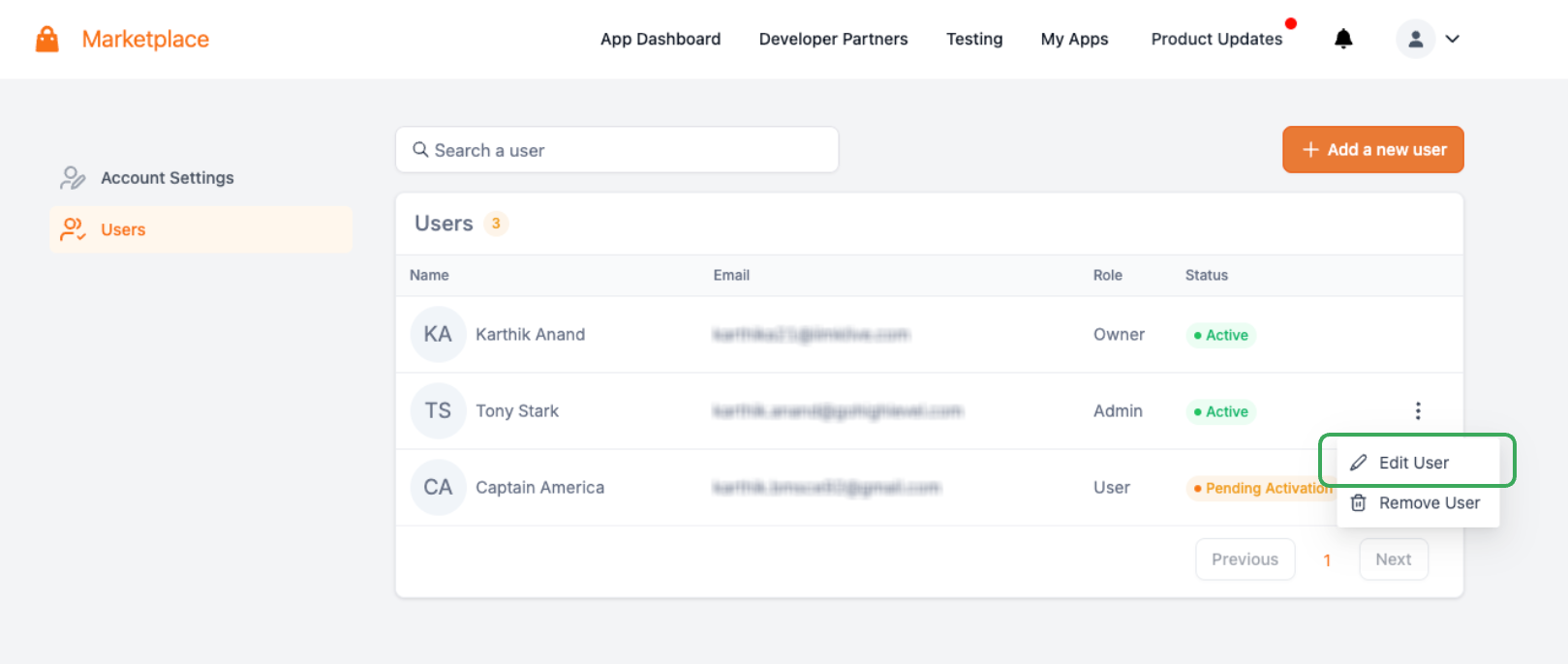
Owners and Admins can manage Developer users within their supported access. An Admin cannot modify the
Owner.
When adjusting permissions, consider whether the user still needs access to sensitive capabilities such as:
App deletion
App earnings
Developer-user management
App submission
Avoid maintaining elevated permissions simply because the user previously needed them.
How to Remove a Developer User
Removing access is important when a team member no longer needs to work in the Developer Marketplace account. Review the person's responsibilities before removal so your team can account for any active development or operational work they were handling.
Go to Account > User Management.
Locate the Developer user you want to remove.
Open the available user-management controls.
Select Remove User.
Confirm the removal when prompted.
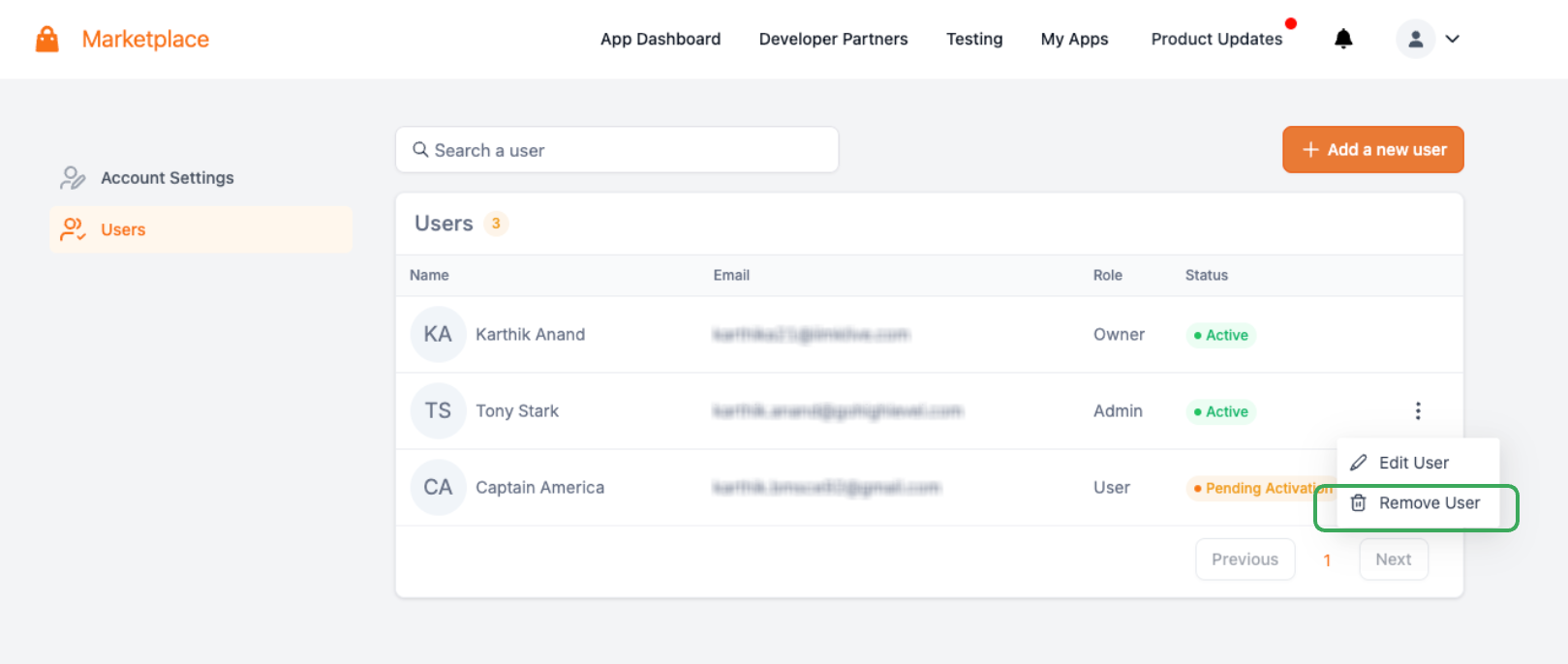
Owners and Admins can remove supported Developer users. Users do not have Developer-user management permission.
Important: Before removing someone, review any app-development, submission, or operational responsibilities they currently handle.
Security Best Practices for Developer Accounts
Developer Marketplace roles can provide access to sensitive capabilities such as app deletion, earnings, submissions, and user administration. Limiting those permissions to people who genuinely need them reduces unnecessary account exposure while still supporting team collaboration.
Follow these access-management practices:
Use Least Privilege: Assign the lowest role and permission level that supports the person's responsibilities.
Limit Admin Access: Reserve Admin roles for trusted team members who need capabilities such as app deletion, earnings visibility, or Developer-user management.
Use Individual Accounts: Give each team member their own Developer user rather than sharing credentials.
Review Access Regularly: Periodically review Developer users, roles, and permissions as responsibilities change.
Remove Unneeded Access: Remove former team members and other users who no longer require Developer Marketplace access.
Review Sensitive Permissions: Pay particular attention to app deletion, app earnings, user management, and app-submission capabilities.
Frequently Asked Questions
Q: What is the difference between Owner, Admin, and User?
The Owner has the highest Developer account access. Admins can have broad app, earnings, and user-management access but cannot modify the Owner. Users can build, manage, and submit apps but cannot delete apps, view earnings, or manage Developer users.
Q: Can I transfer ownership of my Developer account?
Current HighLevel Knowledge Base documentation states that a Developer account supports one Owner and that ownership cannot be transferred.
Q: Can an Admin manage another Admin?
Yes. Current Developer User Management documentation states that Admins can manage other Admins and Users. Admins cannot modify the Owner.
Q: Can a User view app earnings?
No. Viewing app earnings is not included in the maximum permissions available to the User role.
Q: What should I do if a new Developer user does not receive the activation email?
Confirm that the email address entered for the user is correct and ask them to check spam or junk folders. The current HighLevel KB does not separately document invitation expiration, resend, or cancellation behavior for Developer-user invitations.
Q: What happens to apps when a Developer user is removed?
Current HighLevel Knowledge Base documentation explains how to remove Developer users but does not separately document app ownership, reassignment, or historical activity behavior after removal. Review the user's active responsibilities before removing access and avoid assuming that user removal performs additional app-management actions.
Q: Are Developer users the same as Agency or Sub-Account users?
No. Developer users belong to the Developer Marketplace user-management system and control access to Developer Marketplace capabilities. Standard HighLevel Agency and Sub-Account users are managed separately through the
applicable HighLevel team/user settings.
Related Articles
Was this article helpful?
That’s Great!
Thank you for your feedback
Sorry! We couldn't be helpful
Thank you for your feedback
Feedback sent
We appreciate your effort and will try to fix the article