Entrance Animations for Sections, Rows & Columns
This article explains how to apply entrance animations to Sections, Rows, and Columns in HighLevel's page builder. You can choose from dozens of animation styles, adjust timing and easing, and let the builder sequence each block automatically as visitors scroll.
You'll learn how to preview animations before committing, control whether animations run on mobile devices, and create cohesive page reveals without calculating delays by hand.
What Are Entrance Animations for Layout Blocks?
Entrance animations for Sections, Rows, and Columns let you animate entire layout blocks in the page builder. Instead of animating each element individually, you can apply a single entrance animation to a Section, Row, or Column and everything inside that block animates together.
When a visitor scrolls a block into view, the animation plays automatically. The builder sequences animations in hierarchical order—Section, then Row, then Column, then content—so each block waits for the one above it to finish before it begins. This eliminates the need to calculate delays manually and ensures your page reveals itself in a deliberate, cohesive order.
Blocks stay visible after they animate in. Content waiting to animate sits in its normal state rather than disappearing, so visitors never see blank space or flicker as they scroll.
Key Benefits
Applying entrance animations to layout blocks provides several advantages over animating individual elements:
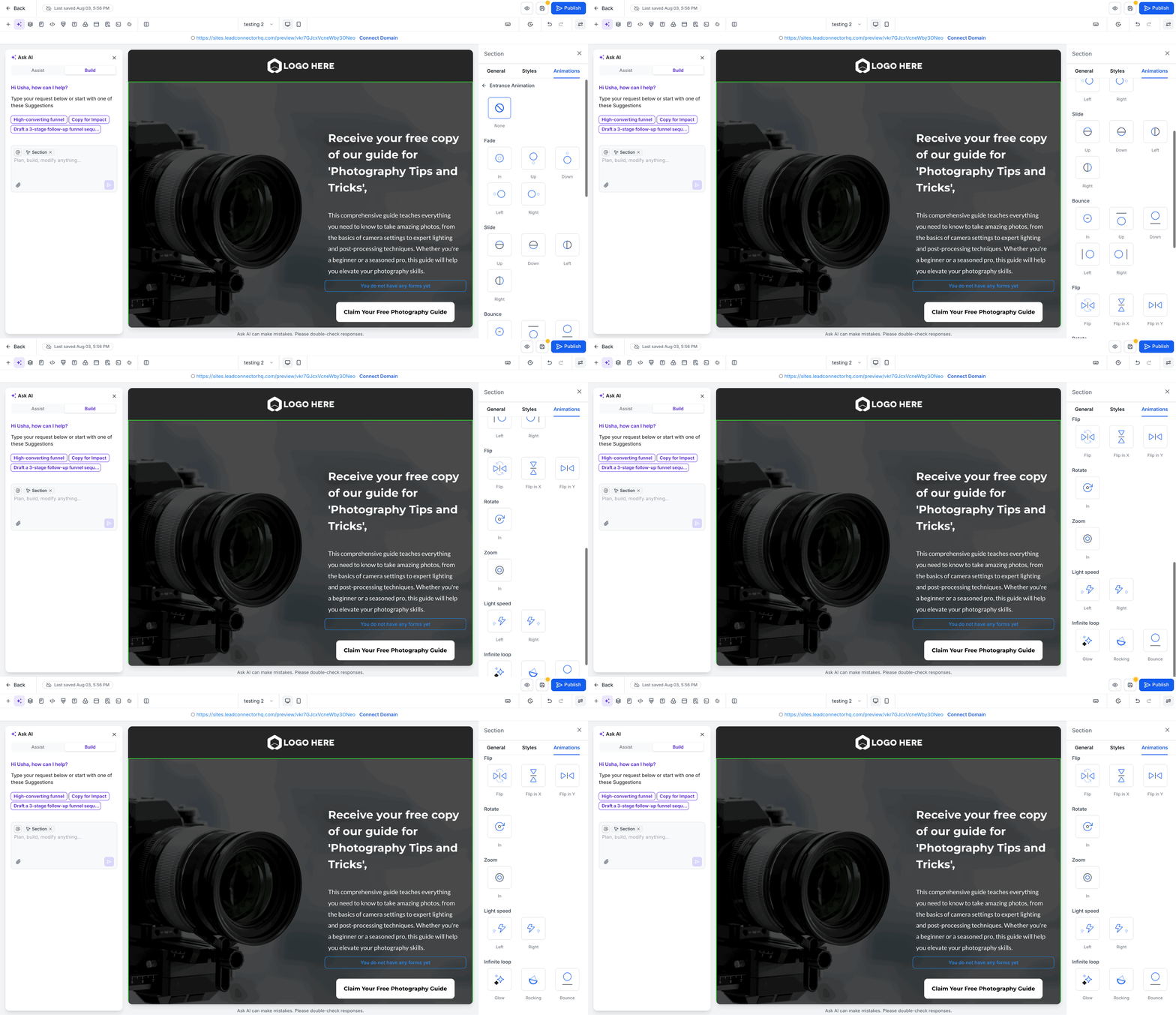
Available Animation Categories
HighLevel provides dozens of entrance animations organized into nine categories. Each category includes multiple directional or stylistic variations:
In, Up, Down, Left, Right — blocks fade in while sliding from the specified direction.
Up, Down, Left, Right — blocks slide in from off-screen in the specified direction.
In, Up, Down, Left, Right — blocks bounce into position from the specified direction with an elastic effect.
Flip, Flip In X, Flip In Y — blocks rotate around their horizontal or vertical axis.
In — blocks rotate clockwise while fading into view.
In — blocks scale up from a smaller size while fading into view.
Left, Right — blocks slide in with a skew effect for a fast, dynamic entrance.
Glow, Rocking, Bounce — blocks continuously repeat the animation after entering, ideal for call-to-action sections.
Animation Settings & Controls
After selecting an entrance animation, you can adjust how the block enters using four settings: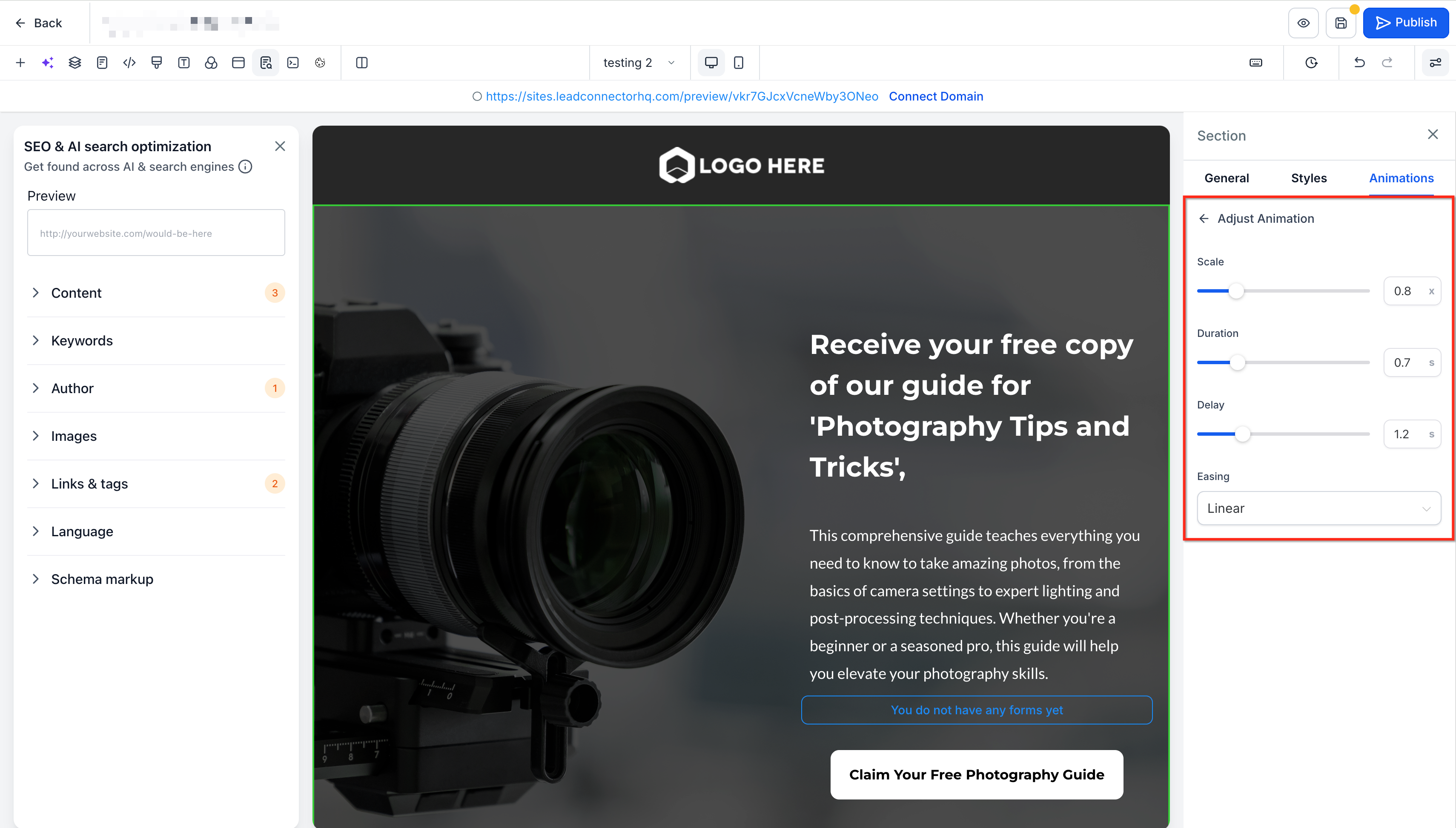
Hover any entrance animation card in the sidebar and it plays on the selected block on the canvas. Move your cursor away and the preview clears. This lets you compare options side by side before committing.
How Automatic Sequencing Works
HighLevel sequences entrance animations in hierarchical order:
- The Section animates first.
- Rows inside that Section animate after the Section finishes.
- Columns inside each Row animate after the Row finishes.
- Content (elements) inside each Column animates after the Column finishes.
Each block waits for the one above it to complete before it begins. If you add a new Row between two existing Rows, the builder inserts it into the sequence automatically. If you remove a block, the sequence closes the gap. You never recalculate delays manually.
Animations trigger when a block scrolls into view. Blocks that have already animated remain visible. Content waiting its turn stays in its normal state rather than disappearing, so visitors see a smooth reveal without flicker or blank space.
Sequencing corrects itself automatically when a page renders. Existing published pages benefit from the updated sequencing logic without requiring a re-save.
How to Apply Entrance Animations
Follow these steps to apply an entrance animation to a Section, Row, or Column:
Click a Section, Row, or Column on the canvas to select it. The block's bounding box appears with resize handles.
In the right sidebar, click the Animations tab, then expand the Entrance Animation section.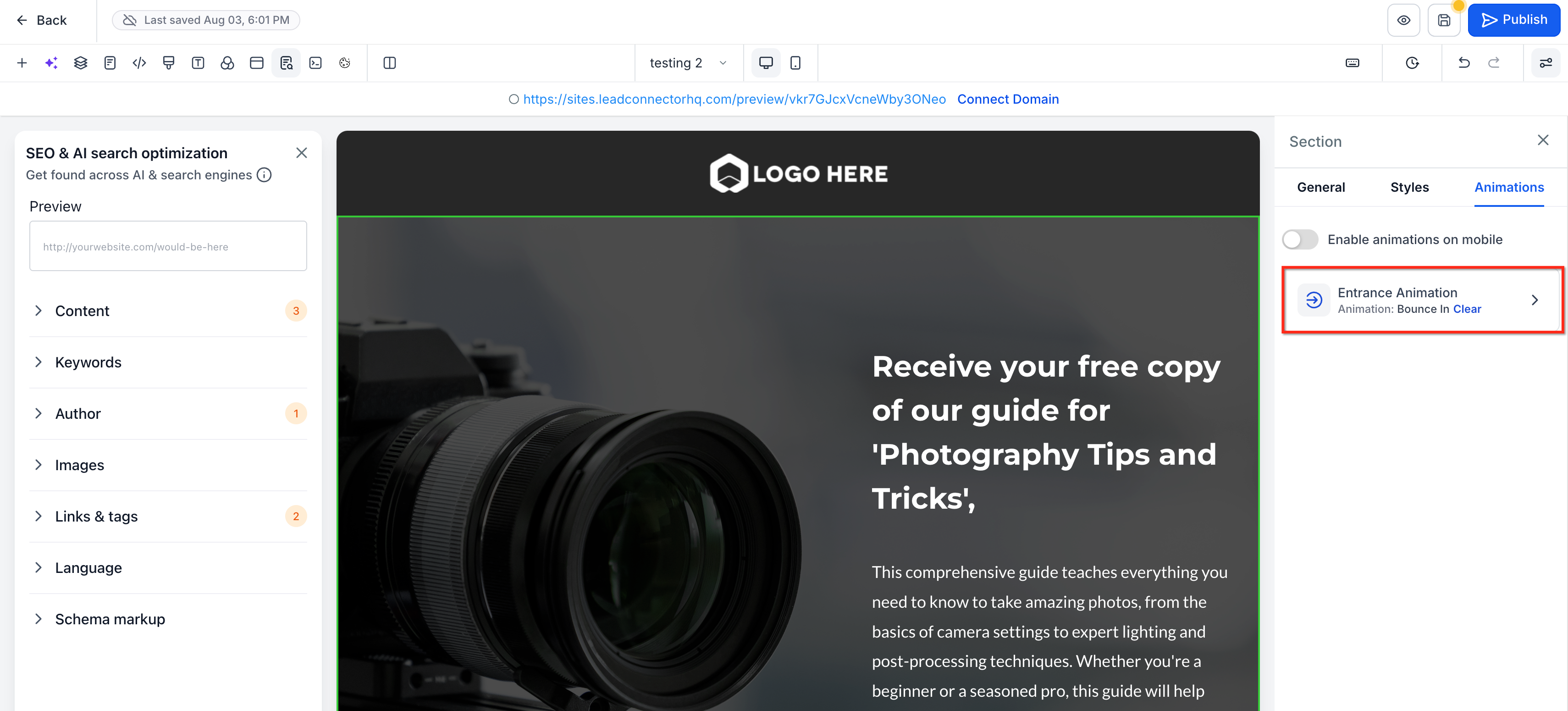
Hover over any entrance animation card. The animation plays immediately on the selected block on the canvas. Move your cursor away to clear the preview.
Click the animation card you want to apply. The animation is assigned to the block and appears in the Entrance Animation section.
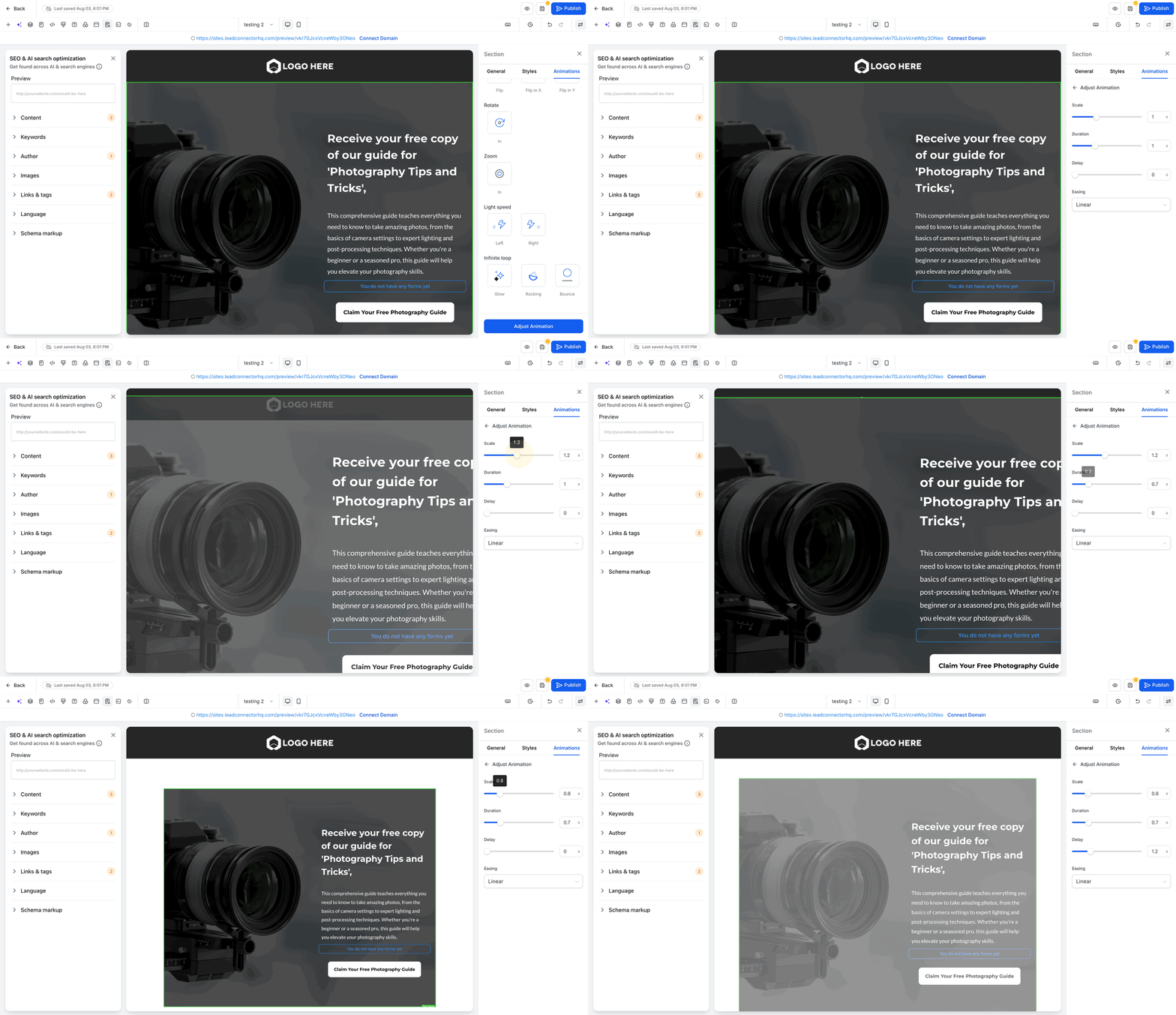
Tune the animation using the sliders and dropdowns:
- Duration — 0.1s to 3s
- Delay — 0s to 5s (adds wait time before this block animates, in addition to sequencing delay)
- Scale — 0.5× to 2× (start size for zoom effects)
- Easing — Linear, Ease-in, Ease-out, Ease-in-out
Click Save in the top-right corner of the page builder, then publish the page. The animation plays on the live page when a visitor scrolls the block into view.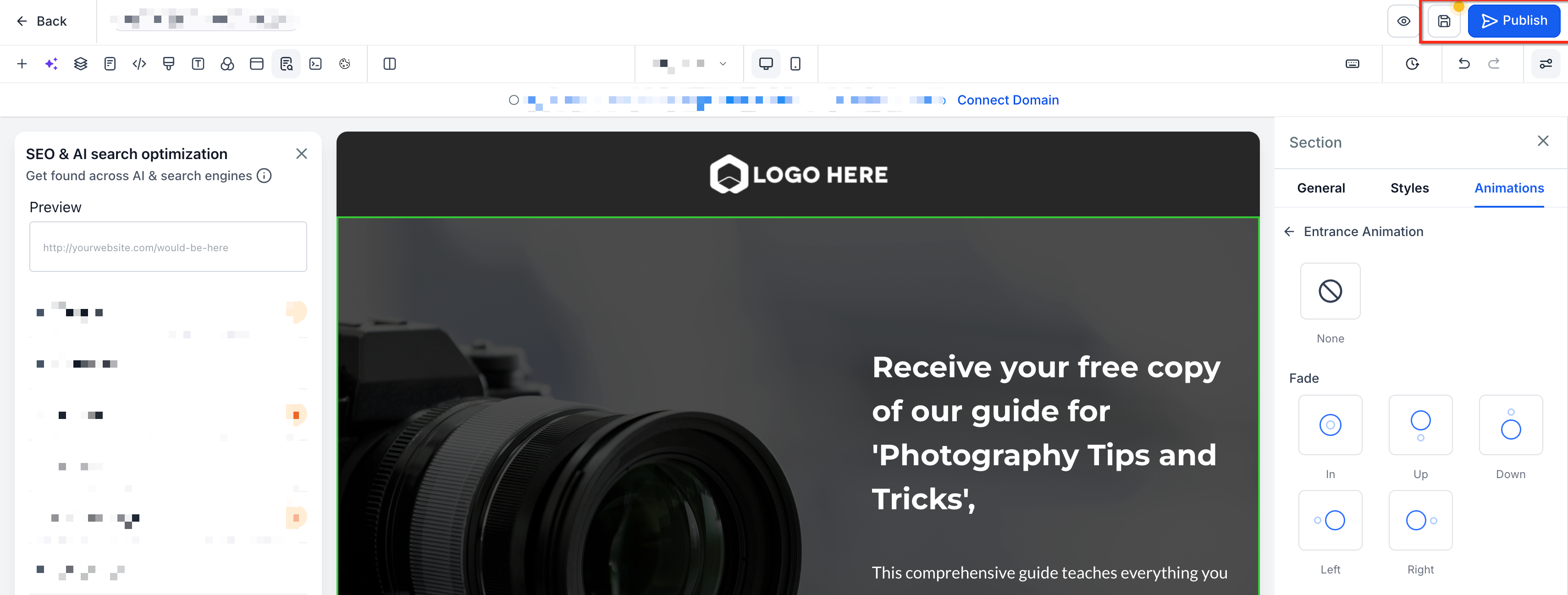
Mobile Animation Controls
Entrance animations are disabled on mobile devices by default. This keeps mobile pages fast and eliminates motion that can slow down phones or distract mobile visitors.
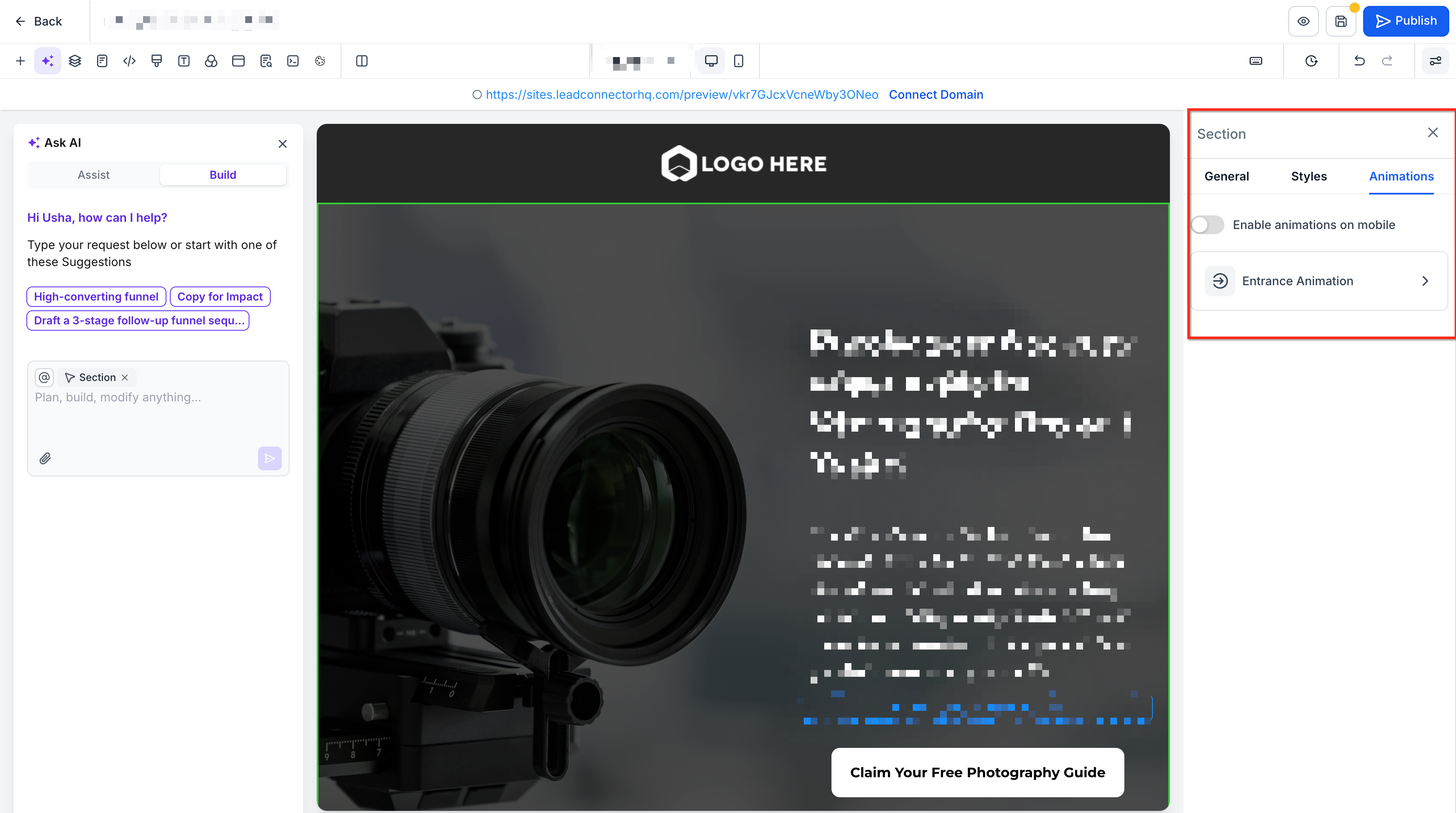
You can enable animations on mobile for individual Sections, Rows, or Columns using the Enable animations on mobile toggle in the Animations tab. When you turn this toggle on, the block animates on mobile devices. When you leave it off, the block appears immediately without animation on mobile.
The builder re-sequences animations on mobile around blocks that have the toggle disabled. If a Section is set to animate on mobile but the Row inside it is not, the Row appears immediately and the next block in the hierarchy waits for the Section to finish before it begins. This ensures the order stays correct across devices.
The mobile toggle is per block. You can enable animations on mobile for high-priority Sections and leave them off for others, giving you fine-grained control over mobile performance and user experience.
Frequently Asked Questions
Was this article helpful?
That’s Great!
Thank you for your feedback
Sorry! We couldn't be helpful
Thank you for your feedback
Feedback sent
We appreciate your effort and will try to fix the article